
Create and post incoming invoice in SAP overview
Problem statement
A lot of companies use ERP systems to manage their financials, logistics, human resources, etc. SAP is one of the most known ERP systems in the world. The larger the company the greater is the need to use some system to manage company resources. Working in SAP takes a lot of time on different work levels. Thus, automation of this job will save time to focus on other tasks.
Existing manual process
Usually, in order to create and post invoices in SAP, an employee needs to open the application and log in, and then enter all the required fields like Invoice Date, Posting Date, Amount and others manually, which takes a lot of time.
Automation solution
The example allows to work with MIRO transactions in the SAP GUI desktop client by just starting it. The bot opens the client, logs in, fills in all required fields, and posts the invoice. As the result, a lot of time will be saved.
Reusable components
In this example, there are 3 reusable components:
- Calculate the current date and convert it to string
- Log in to the SAP GUI desktop client
- Fill in an invoice form and post it in SAP
Example overview video
Preconditions
- Install to your PC:
- WorkFusion Studio (Intelligent Automation Cloud Business)
- SAP GUI v. 7.40-7.50 connected to the environment
- Download the example.
Installation and getting started
- Extract the sample folder and drop it into your default workspace in Studio (C:\Users\username\workfusion-workspace\rpae_project).
- Open the sample in WorkFusion Studio.
- Go to Window > Preferences, expand WorkFusion Studio, and select the Secret Vault tab.
- Press the Add button and enter
SAP_credsas Alias. Enter the SAP username in the Key column, and the SAP password in Value.
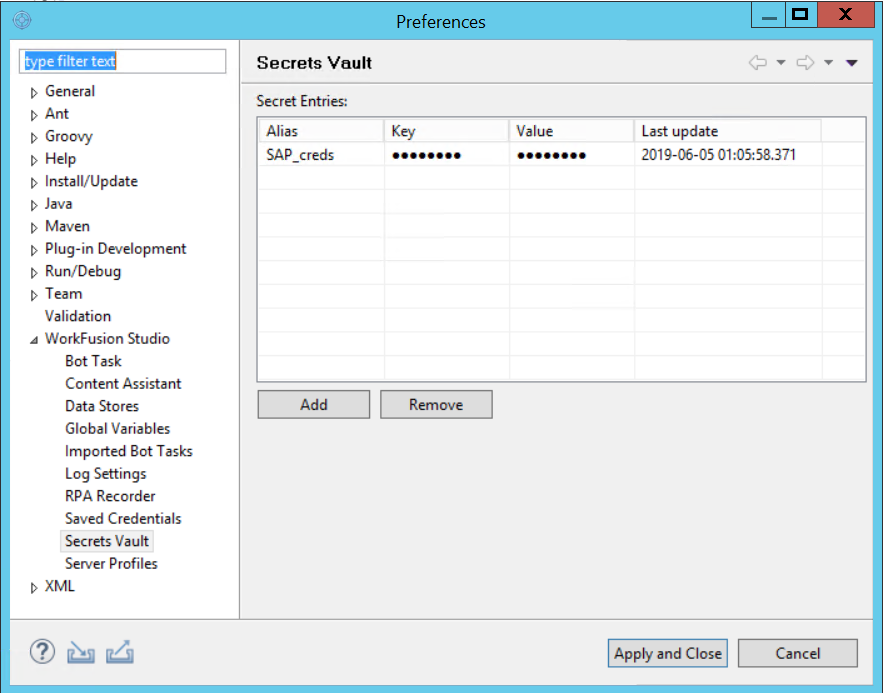
- Press Apply and Close.
- Edit the following variables:\
sap_path- the path to the saplogon.execompany_codeamountpurchase_orderquantity
- Click on the Play recording button.