
Reusable components
General information
The page contains the list of reusable components which will help you to implement your personal use case immediately.
Download examples and samples of scripts that show bot execution in different automation scenarios.
Each bot sample contains REUSABLE components.
- Select an interesting script and download the example.
- Import the example and see automation in action. For more information, refer to How to Copy Reusable Components.
- Use the whole example or reusable components for your own automation.
List of reusable components
Calculate period for press-releases
The group of actions is required to calculate period of dates from the current date to seven days before today. The whole group is reusable in other projects.
Actions description

Constant value action 2 saves current date to the Date variable current_date.
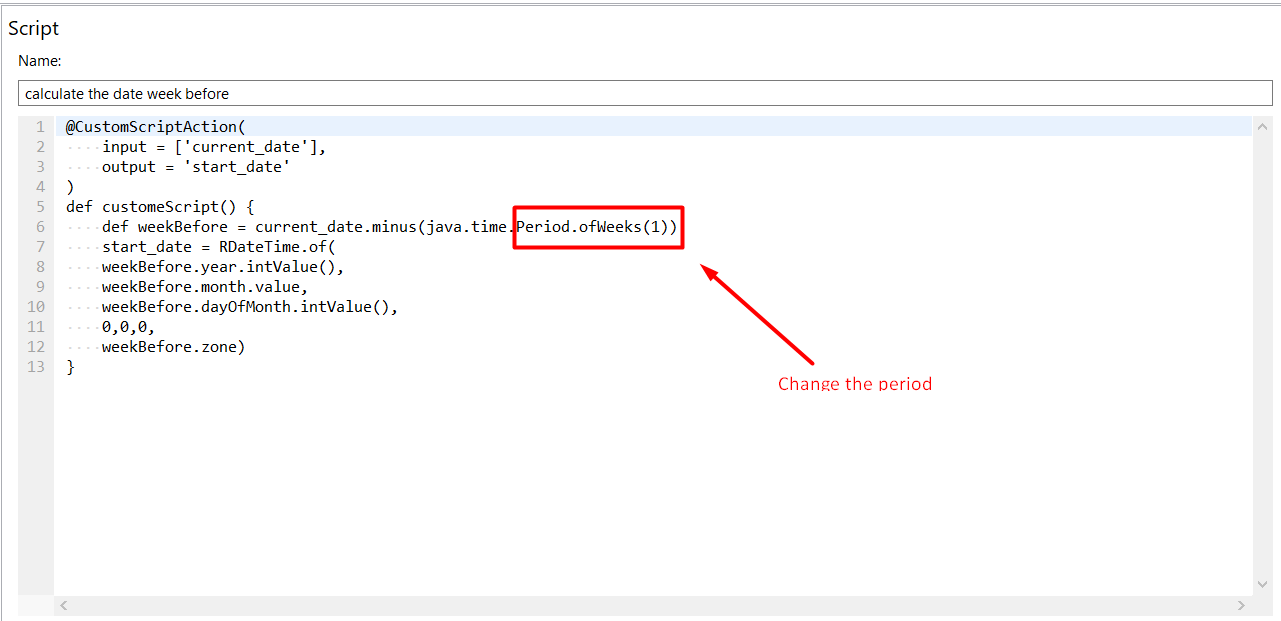
Groovy script in step 3 calculates the period of date in the variable current_date to seven days before and saves to the start_date variable.
How to reuse
Change the text on the 6th row of the script Period.ofWeeks(1) to the period you would like to calculate. For example:
Period.ofWeeks(2)– calculate the date two weeks before todayPeriod.ofDays(3)– calculate the date three days before today
Send email with attachment via Outlook
The group of actions is required to open Outlook and to send the email with the press releases attached. The whole group is reusable in other projects.
Actions description
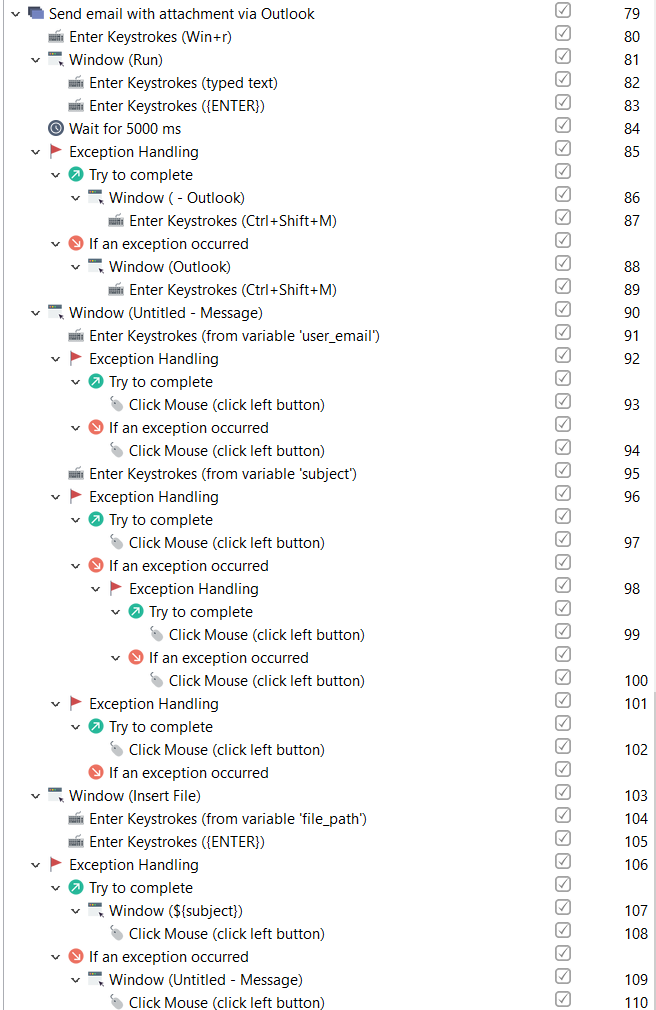
In actions 80-84, we open Outlook. The bot opens the Run window, types Outlook, and then opens Outlook.
With the help of the Window action, the bot switches to the specified window and ignores any random popups.
In actions 85-110, we send an email with the specific subject and the attached file to the email from the user_email variable. We will use the Enter Keystrokes, Click Mouse (via Inspector) and Window actions.
The exception handlings are added as some window titles and elements differ in various versions of Outlook. The script below works for Outlook from 2007 to 365.
The exception handling on step 85 is added due to the window title difference in Outlook versions.
The exception handling on step 92 is needed because of the difference in the Subject selector in Outlook versions.
Another exception handling on step 96 is added because the Attach file selector differs in Outlook versions.
The flow for attaching a file differs depending on the Outlook version, that's why exception on step 101 is added.
The exception handling on step 106 is added because the Send button selector differs depending on the Outlook version.
How to reuse
Change values of variables:
user_email*– *change the user email to send to, for example, test@test.comsubject –choose the subject to set into the variable valuefile_path –set the right path for the file you want to attach
Close Outlook
The group of actions is required to close Outlook when the email is sent.
Actions description
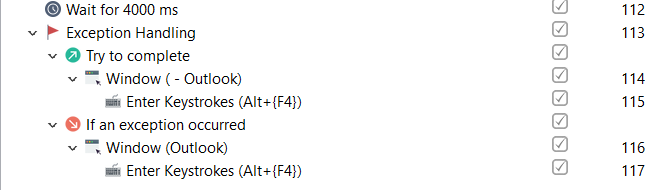
The bot enters Alt+F4 to close Outlook.
We've added the Wait action to give time for email to be sent.
Exception handling is added due to the window title difference in various Outlook versions.
How to reuse
The whole group is reusable in other projects without any adjustments.
Create folder
A folder with a random name is created.
Actions description

Two variables are used:
str_temp_folder_path– the path to the directory where you want to create a temporary folderstr_temp_folder_name– a variable to store a random name
How to reuse
The whole group is reusable in other projects after providing values for 2 variables.
Create folder with name as current date
Create a folder with the name as the current date.
Actions description

Three variables are used:
str_result_path– the path to the results directory where the folder will be createddate_current– a variable of the DateTime typestr_current_date– a variable to store a line with the current date
How to reuse
The whole group is reusable in other projects after providing values for 3 variables.
Convert file from .pdf to .txt
Convert a file from pdf to txt format
Actions description
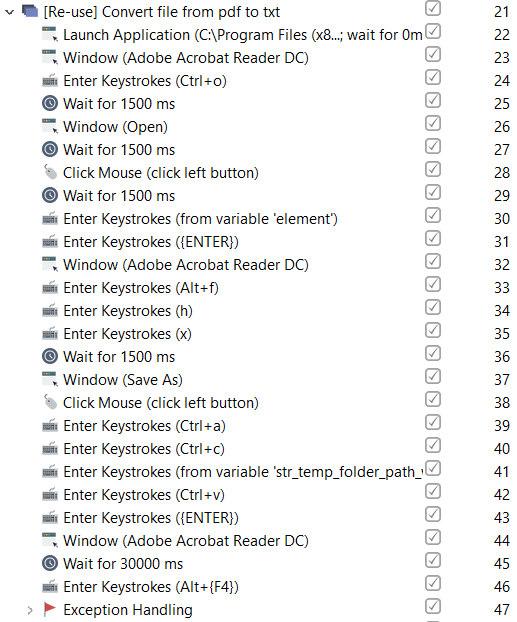
Two variables are used:
element– the path to the input PDF filestr_temp_folder_path_with_slash– the path to the temporary directory to save the result of the conversion to
The whole group is reusable in other projects after providing values for 2 variables.
Download file by direct link to folder
It is a custom action for downloading a file using a direct link to the folder. With this action, you can upload a file from the network and assign a name that is more convenient for you. The action replaces 15-20 standard actions with the browser and desktop and does not depend on the browser.
Actions description
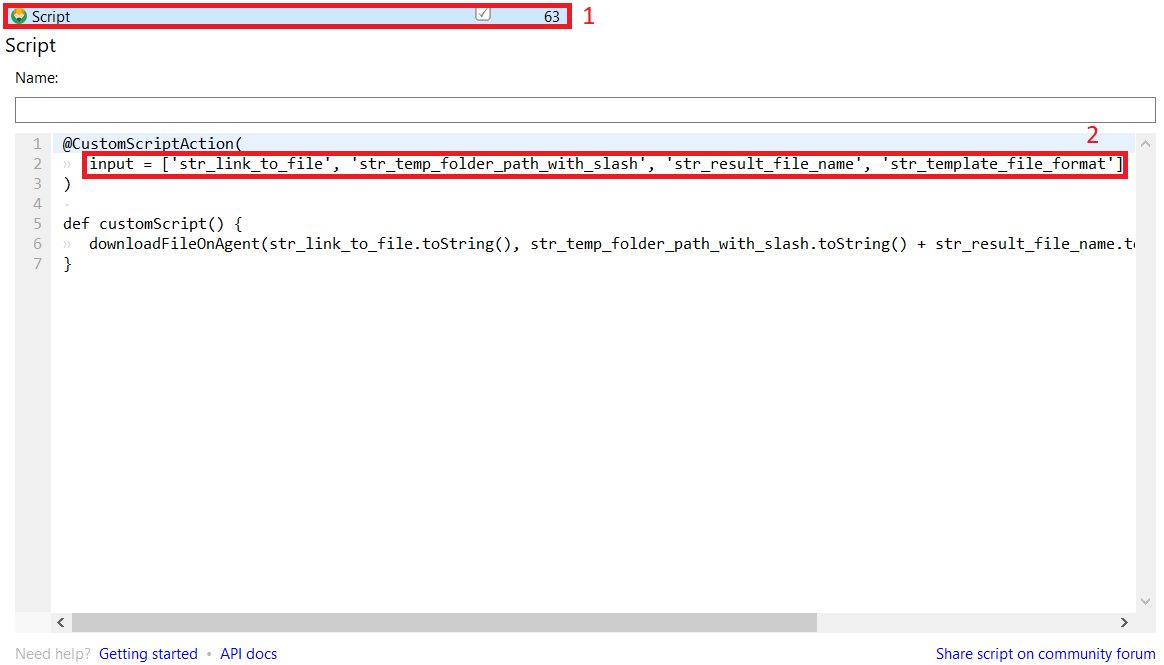
Four variables are used:
str_link_to_file– a direct link to a template or other file on the networkstr_temp_folder_path_with_slash– the path to the folder where you want to download the filestr_result_file_name– the file name it will have after downloadingstr_template_file_format– the variable should contain the file format, for example .xlsx, or you can add the file format to a variable with the file name and leave the variable empty.
How to reuse
The whole group is reusable in other projects after providing values for 4 variables.
Generate results
Gets all the files with the selected format from a temporary folder and saves them to the results folder.
Actions description

Two variables are used:
str_temp_folder_path– the path to the temporary directory from which we will move filesstr_result_path– the path to the resulting directory where we will move the files
How to reuse
The whole group is reusable in other projects after providing values for 2 variables.
Copy files content into clipboard
Copies the files text content into clipboard.
Actions description
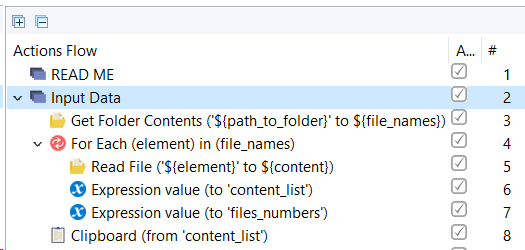
TheGet Folder Contents action reads a content of the defined folder including files, sub-folders, or both, and saves the results (full paths to the items) to a Recorder variable (List).
How to reuse
Change the value of thepath_to_folder variable.
Convert .json to .csv and download file from website
Opens a website, adds data from clipboard to special area in the website, makes conversion from .json to .csv, downloads a file from the website, and opens the downloaded file.
Actions description
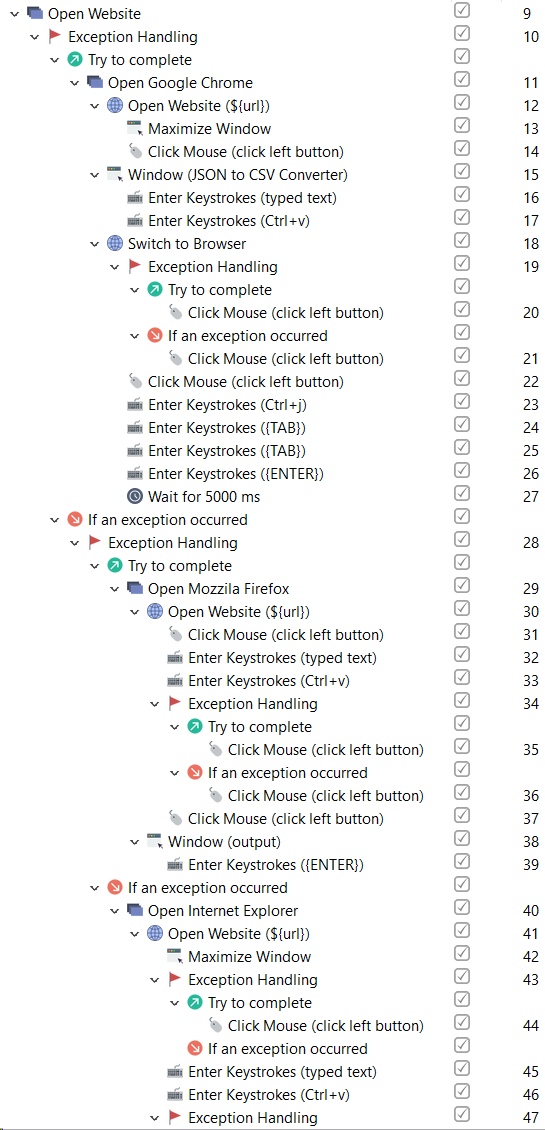
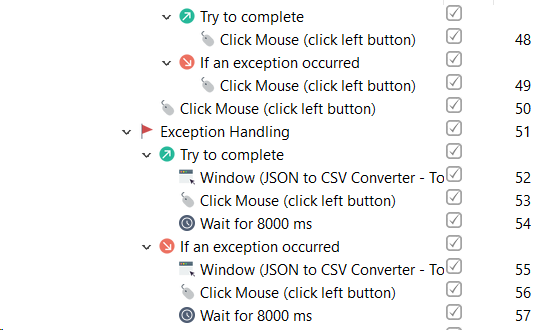
The exception handling is added (10, 28) so the script can be opened in a default browser installed on your machine (Google Chrome, Mozilla Firefox, or Internet Explorer).
Click mouse action 14 specifies the area on the website for pasting data using XPath.
Click mouse action 22 specifies the button on the website for downloading the result .csv file using XPath.
How to reuse
Change:
- value of the
urlvariable – the website url - XPath values in actions 14 and 22
- If your defalt browser is Internet Explorer – Window title in action 52 (open the website on a particular page and select the window title from the list)
Adjust Excel file
Makes adjustments to the Excel file.
Actions description
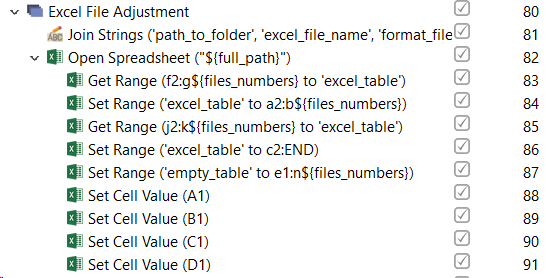
Action 81 creates a full path to the Excel file by joining three variables of the String type.
Action 82 opens the Excel spreadsheet using the full_pathvariable.
Action 83 copies data from f2 to g6 and action 84 pastes it to the range of a2:b6.
Action 85 copies data from j2 to k6 and action 86 pastes it to the range of c2:d6.
Action 87 pastes empty cells from e1 to n6.
Actions 88-91 set the column names.
How to reuse
Perform the following steps.
- Provide the correct path to the Excel file in action 82.
- Specify the needed range in actions 83-87.
- Set the right values for column names in the
col1-col4variables.
Send email to many people with attachment file via Outlook
Open Outlook and send an email with the Excel attachment to unlimited number of persons.
Actions description
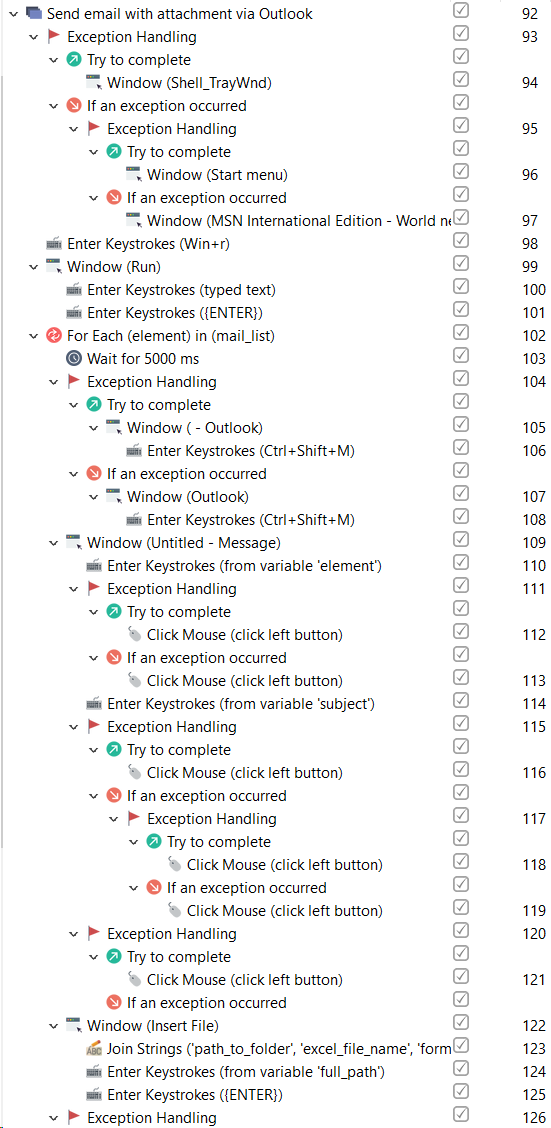
Actions 92-101 open Outlook. The bot opens the Run window, types Outlook, and then opens Outlook.
With the help of the Window action, the bot switches to the specified window and ignores any random popups.
Action 102 specifies that the bot will send as many letters as many elements (email addresses) are there in the mail_listvariable.
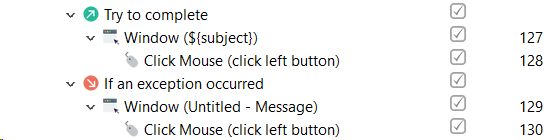
Actions 104-130 send an email with the specific subject and the attached file to the email from the mail_list variable. To do that, you will need the Enter Keystrokes, Click Mouse (via Inspector), and Window actions.
The exception handlings are added as some window titles and elements differ in various versions of Outlook. The script below works for Outlook from 2007 to 365.
Action 104 adds the exception handling due to the window title difference in Outlook versions.
Action 111 adds the exception handling due to the difference in the Subject selector in Outlook versions.
Action 115 adds the exception handling as the Attach file selector differs in Outlook versions.
Action 120 adds the exception handling as the flow for attaching a file differs depending on the Outlook version.
Action 126 adds the exception handling as the Send button selector differs depending on the Outlook version.
Change the variables values.
mail_list– change the users email to send to. Add any quantity you need in the list variable.subject –choose the subject to set into the variable value.full_path– set the right path for the file you want to attach, for example, C:\Samples\report.xlsx and unmark action 123. The alternative way is to provide this path in three variables:path_to_folder(for example, C:\Samples);excel_file_name(for example, \report);format_file(for example, .xlsx).
Scrape table from website and save to Table variable
The reusable element gets the text data from the table on the web page and copies it into a variable of the Table type.
The group must be inside the the Open Website or Switch to Browser action.
Actions description
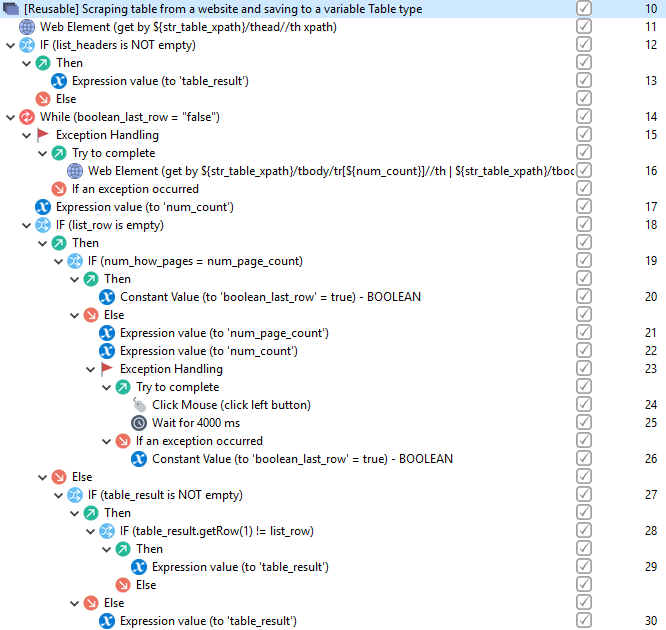
Input data:
str_table_xpath– the XPath to the table element on the pagestr_btn_next_xpath(optional) – the XPath to the next page buttonnum_how_pages– the number of pages you want to scrap; if you want to scrap only one page, set the value "1" for the variable and you cannot set the valuestr_btn_next_xpath
Output data:
table_result– the type of the Table variable with data from a table or tables
How to reuse
Change variables values:
str_table_xpathstr_btn_next_xpathnum_how_pages
Create empty .xlsx file
The action creates an empty .xlsx file. This reusable element will be useful in your own projects, as you cannot create a file with the .xslx format using cmd. Also, it allows you not to create an .xlsx file before each example run.
The example will help solve the problem when in some situations you don’t know whether to create a file.
Before starting projects with this case, Excel should be closed.
Actions description
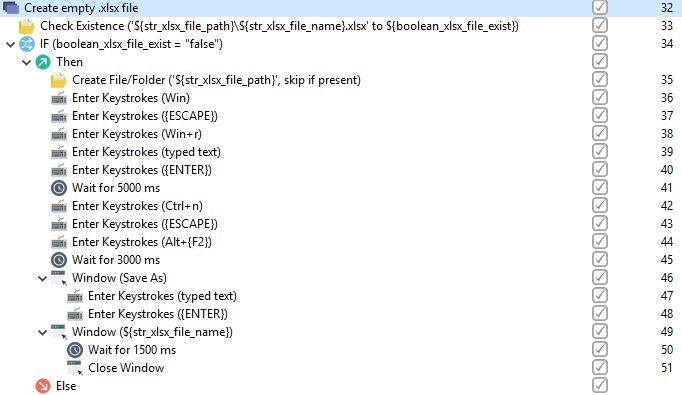
Input data:
str_xlsx_file_path– the path to the directory where you want to create a new .xlsx file or open an existing one, for example: C:\TablesFolder (without a slash at the end)str_xlsx_file_name– the file name; if a file with that name does not exist, it will be created, for example: testFile (without a format at the end)
How to reuse
Change variables values:
str_xlsx_file_pathstr_xlsx_file_name