Web scraping workflow
Script overview
Environment
- Windows OS that meets System Requirements
- Any of these browsers: Google Chrome, FireFox, or Internet Explorer
- MS Excel (version doesn't matter)
- MS Outlook (version doesn't matter) with the email account configured and logged in for the bot to be able to send emails
Data and logic
Input data:
- Period of dates: [7 days before current date] - [current date]
- Excel template that should be copied to any convenient folder. The bot should have access to this folder.
Output data:
- Excel file with the list of press releases
Common logic
The bot opens a website in the default browser and scrapes data in the background mode. It means that you see only an open web page in the browser during this operation. After scraping, the bot filters press releases from the current date to seven days before today. Then it prepares the data to be pasted into an Excel template and saves the file. After updating the file, the bot opens Outlook, creates a new email, attaches the Excel list, and sends to the email that is set in the script's variable.
Script variables
| Variable name | Type | Description | Default value |
|---|---|---|---|
current_date | DateTime | the current date to calculate date period | |
file_path | String | the path to the Excel template where the data will be saved | |
final_table | Table | already filtered data from the site for the latest seven days | |
press_release_date | DateTime | the press release date from the webpage | |
secgov_url | String | website URL | https://www.sec.gov/news/pressreleases |
start_date | DateTime | the start date required to calculate the period | |
subject | String | the subject of an Outlook email with the attachment to be sent to the recipient | |
temporary_table | Table | all the data scraped (Date, Title, Release No, Link) from the last web page of https://www.sec.gov/news/pressreleases | |
user_email | String | the email to send the Excel file to |
Script workflow
Calculate period for press-releases
Description: The group of actions is required to calculate period of dates from the current date to seven days before today. The whole group is reusable in other projects.
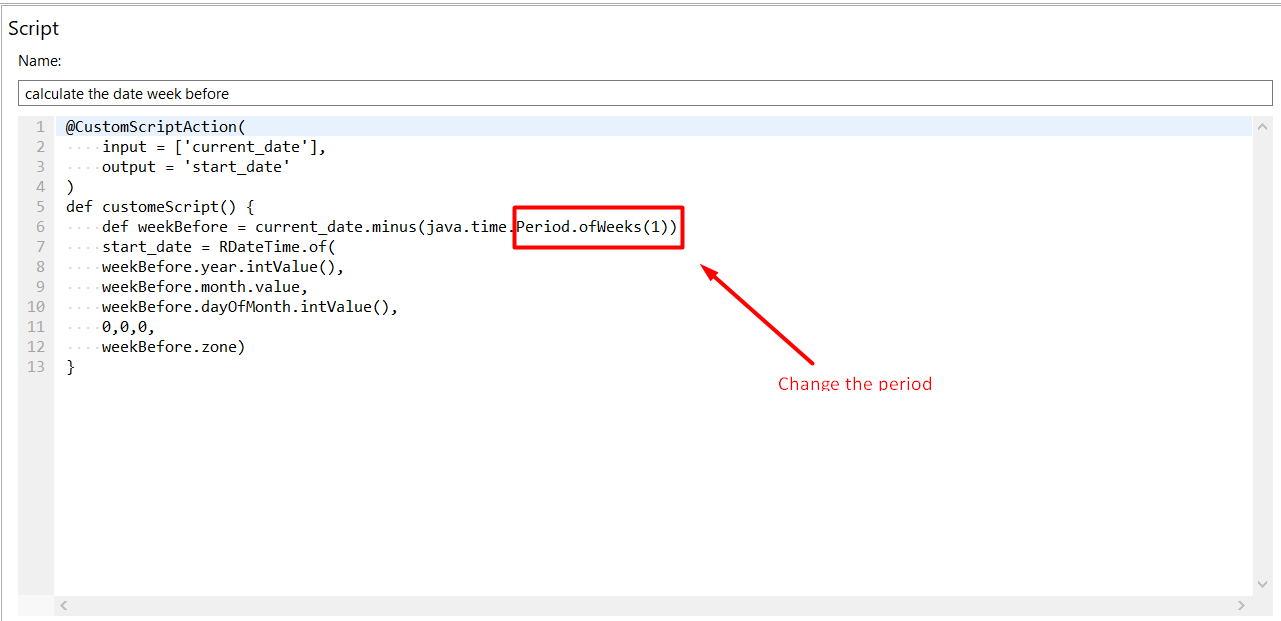
To reuse the script, change the text on the 6th row of the script Period.ofWeeks(1) to the period you would like to calculate. For example:
Period.ofWeeks(2)– calculate the date two weeks before todayPeriod.ofDays(3)– calculate the date three days before today
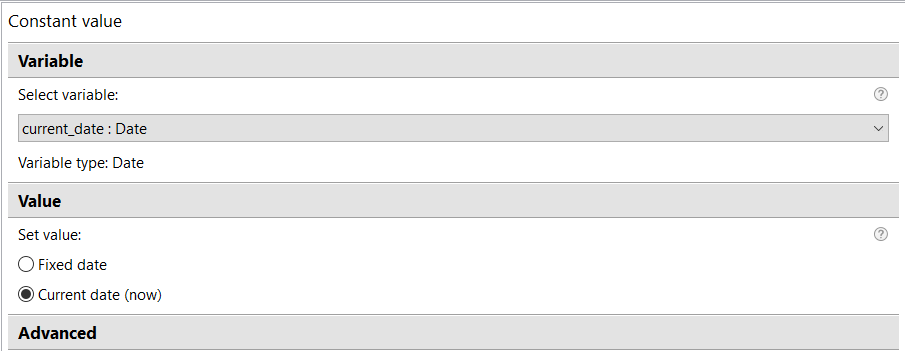
- The Constant Value action saves current date to the
current_datevariable (reusable).

- Groovy script in action 3 (Script) calculates the period of date in the variable
current_dateto seven days before and saves to thestart_datevariable.
Open website, scrape and filter data
Description: The group of actions is required to scrape information from the website https://www.sec.gov/ and then filter it, so only press releases for the latest seven days are saved to the final_table variable.
- The exception handling is added, so the script can be opened in a default browser installed on your machine (Google Chrome, Mozilla Firefox, or Internet Explorer).
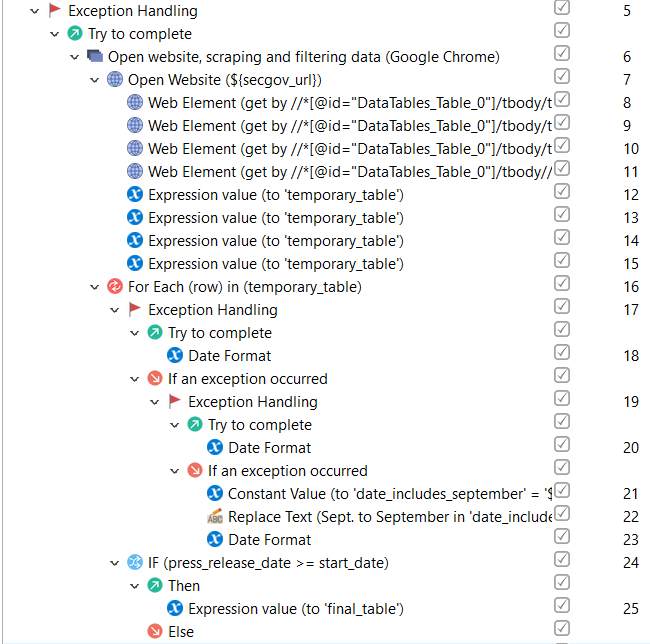
- The Open Website action opens the website from the
secgov_urlvariable.
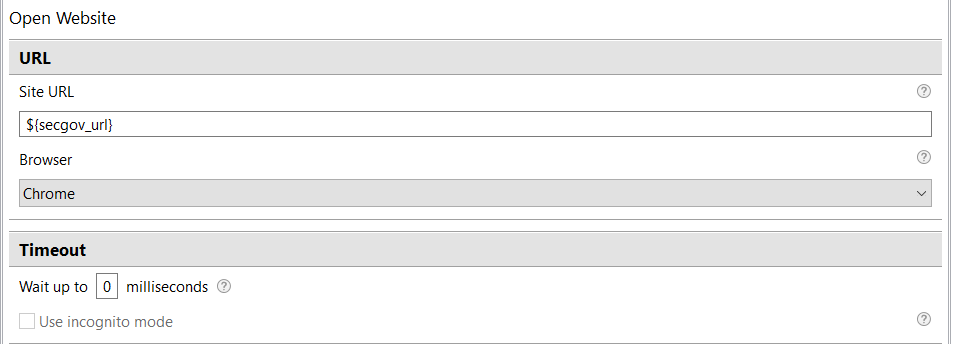
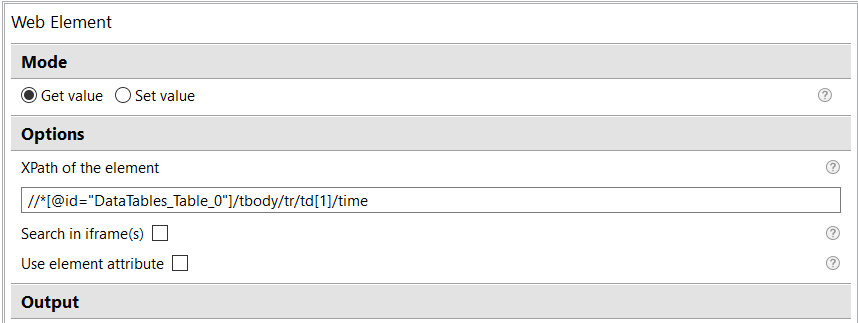
- Actions 8-11 save Date, Title, Release Number, and press release URL from the website to the List variables using XPath:
date_columntitle_columnlink_columnrelease_no_column

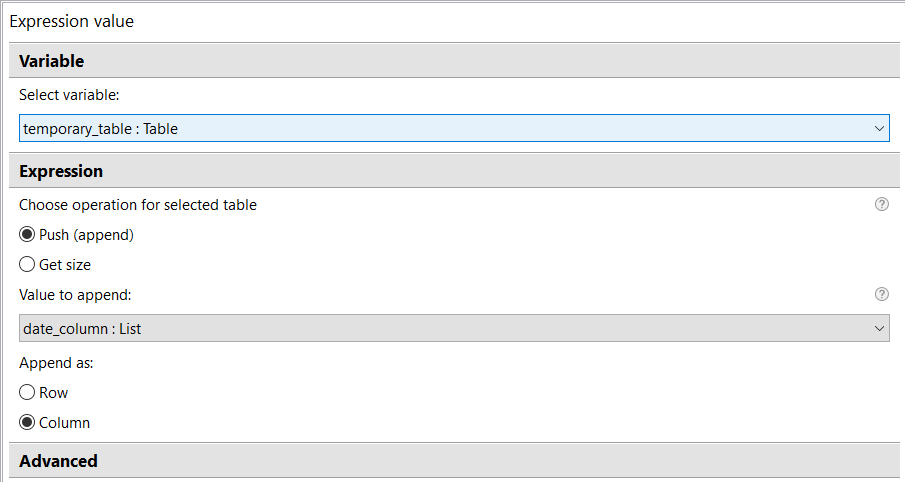
- Actions 12-15 add the previously scraped and saved data from List variables to the Table variable
temporary_table(Expression Value). All the press releases from the last page of the website are stored in this variable.

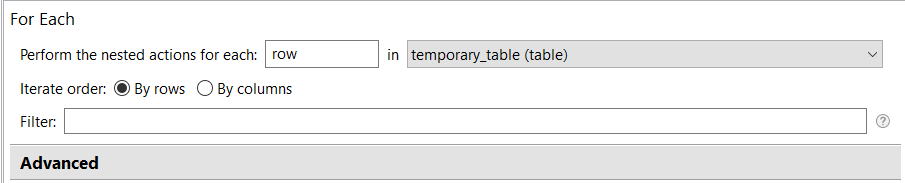
- All the actions nested in the For Each loop are performed for each row in the Table variable
temporary_table.
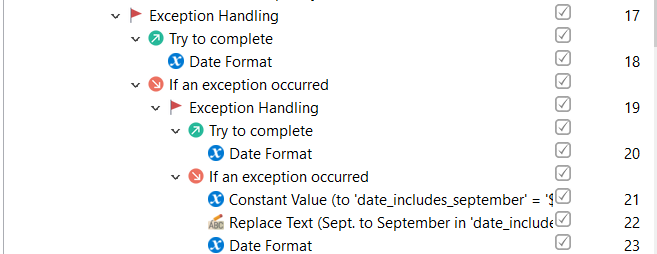
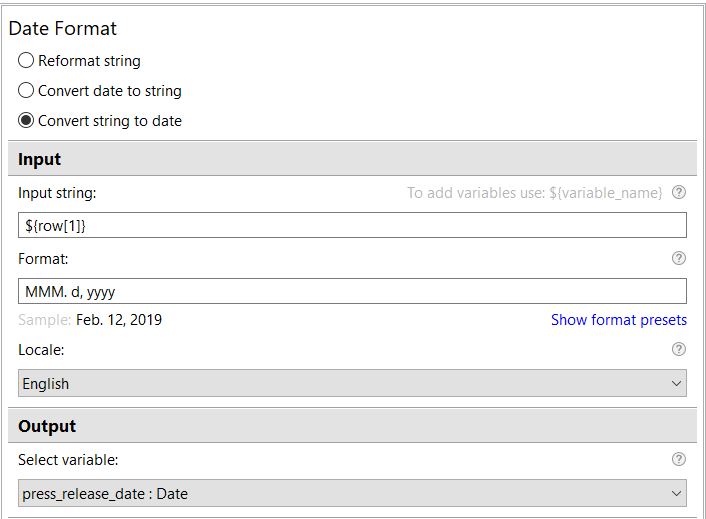
- Exception handling is added as the dates on the website are written in the custom format. In order to compare all these dates with the
start_datevariable (seven days before today), convert them into DateTime variables. But as the dates are written in different format, there can be an exception during conversion, that's why exception handling is added.
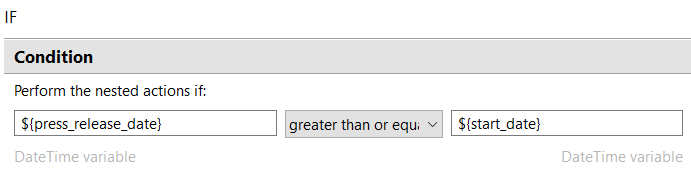
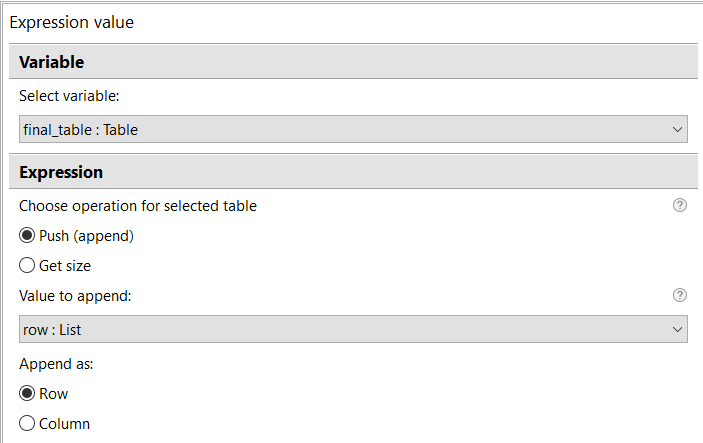
- Action 65 (IF-Else)compares the press release dates with the start date (seven days before today). If the press release date is more or equal to the start date, then it pushes the filtered data to the
final_tablevariable.

Save data in Excel file
Description: The group of actions is required to paste the data from the final table results to an Excel spreadsheet and set appropriate values to necessary cells.
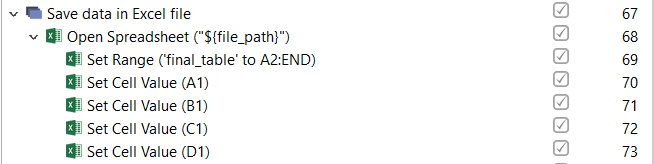
- The bot opens the Excel spreadsheet (Open Spreadsheet) using the
file_pathvariable. - The bot pastes the value of the
final_tablevariable to the Excel spreadsheet (Set Range). The range will start from A2 cell, as cells A1-D1 contain column titles (Date, Title, Link, Release No). - The final actions take values from string variables (Date, Title, Link, Release No) and paste them into specific cells in Excel (Set Cell Value).
Create specific subject for Outlook email
Description: The group of actions is required to create a specific subject for Outlook email to be sent.
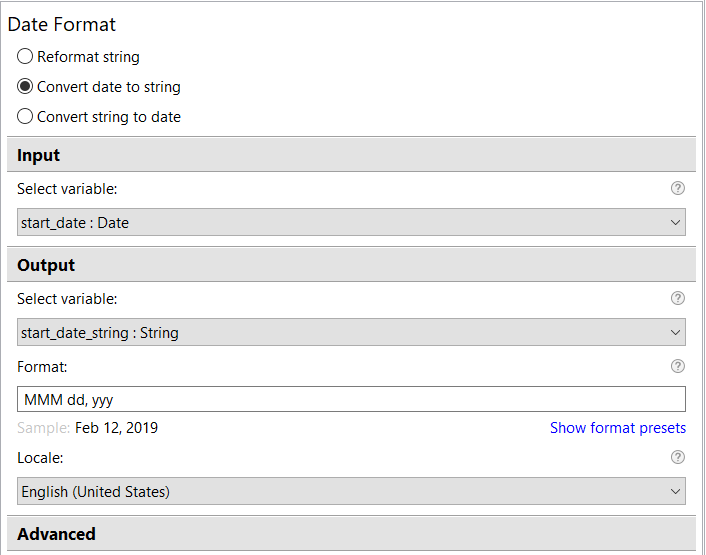
- Actions 75-76 convert DateTime variables
start_dateandcurrent_dateto string variables, so we can use them in the email subject (DateFormat.

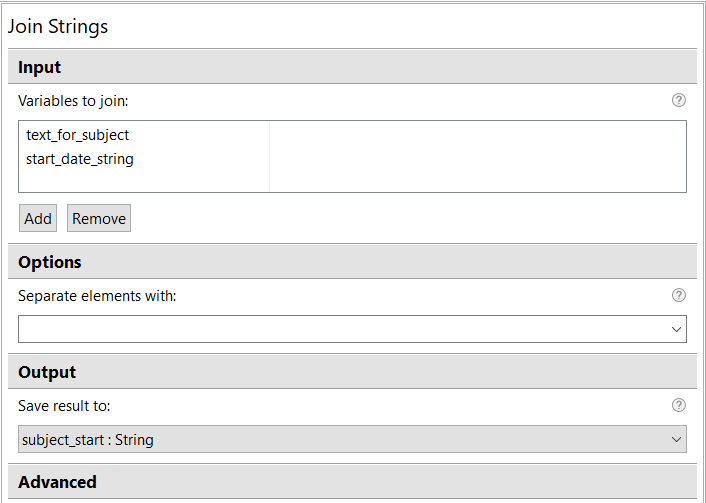
Actions 77-78 join four variables so we get the email subject (Join Strings). Action 34 joins
text_for_subjectandstart_date_stringand saves to thesubject_startvariable, for it to look like 'Press releases for Feb 01, 2019'.Action 35 joins the
subject_startandcurrent_dateString variables, for the final result to look like 'Press releases for Feb 01, 2019 - Feb 08, 2019'.
Send email with attachment via Outlook (reusable)
Description: The group of actions is required to open Outlook and to send the email with the press releases attached. The whole group is reusable in other projects.
To reuse this group, change values of variables:
user_email– change the user email to send to, for example, test@test.comsubject –choose the subject to set into the variable valuefile_path –set the right path for the file you want to attach
- Actions 80-84 open the Run window, type 'Outlook' (Enter Keystrokes), and then open Outlook. With the help of the Window action, the bot switches to the specified window and ignores any random popups.

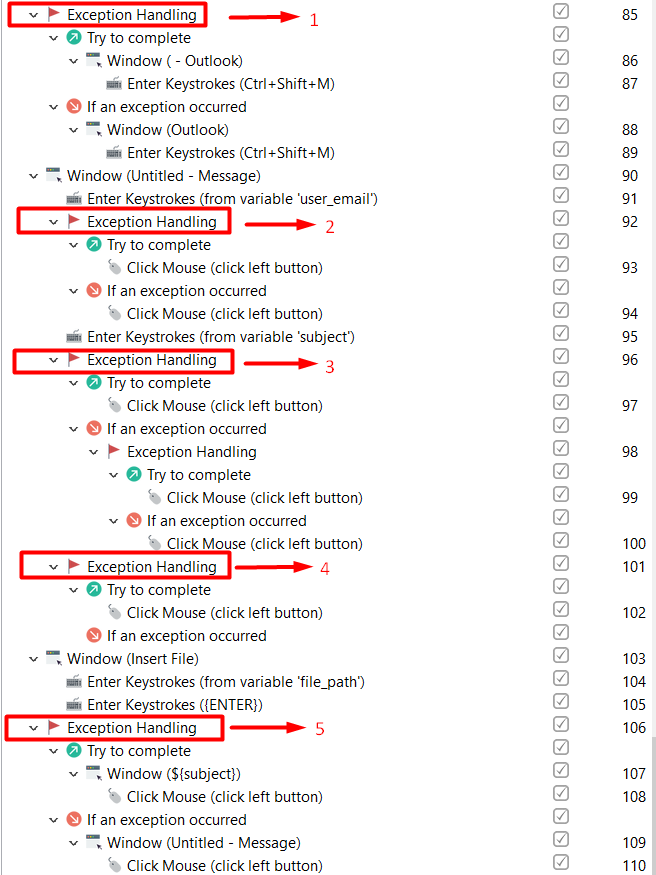
Actions 85-110 send an email with the specific subject and the attached file to the email from the
user_emailvariable. We will use the Enter Keystrokes, Click Mouse (via Inspector) and Window actions.The exception handlings are added as some window titles and elements differ in various versions of Outlook. The script below works for Outlook from 2007 to 365:
- Action 85 adds the exception handling due to the window title difference in Outlook versions.
- Action 92 adds the exception handling due to the difference in the Subject selector in Outlook versions.
- Action 96 adds another exception handling as the Attach file selector differs in Outlook versions.
- Action 101 adds the exception handling as the flow for attaching a file differs depending on the Outlook version.
- Action 106 adds the exception handling as the Send button selector differs depending on the Outlook version.
Close Outlook (reusable)
Description: The group of actions is required to close Outlook when the email is sent. The whole group is reusable in other projects.
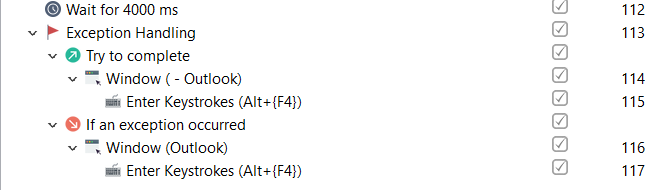
- The bot enters Alt+F4 (Enter Keystrokes) to close Outlook.
- We've added the Wait action to give time for email to be sent.
- Exception handling is added due to the window title difference in various Outlook versions.