
Create and assign Qualifications to workers
Qualifications are a means that Intelligent Automation Cloud provides to ensure high skills of Crowd workers and to narrow a Workforce for optimal performance. There are three ways Qualifications can be assigned to workers:
- manually as described in the Assign qualification section below
- automatically via Qualification Rules
- via worker requests for specific Qualifications
View all Qualifications
To view and manage all Qualifications, go to Workers > Qualifications.
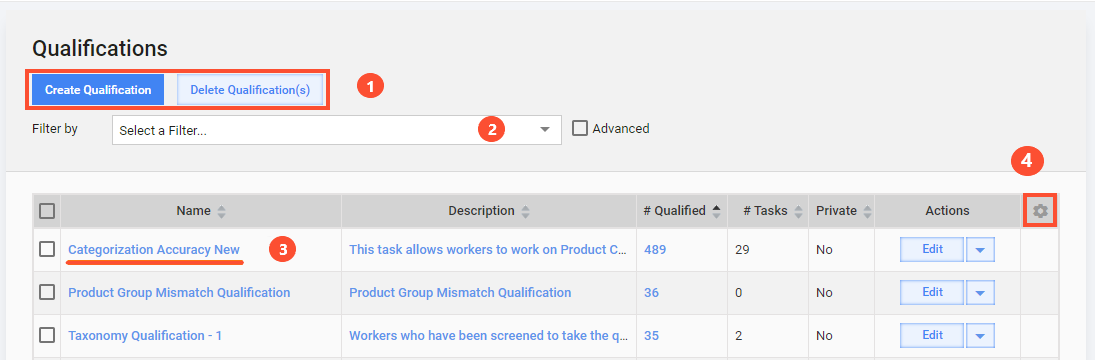
On the Qualifications page, you can:
- create or delete Qualifications
- filter the grid
- edit existing Qualifications
- configure the displayed columns by clicking the cogwheel
Create Qualification
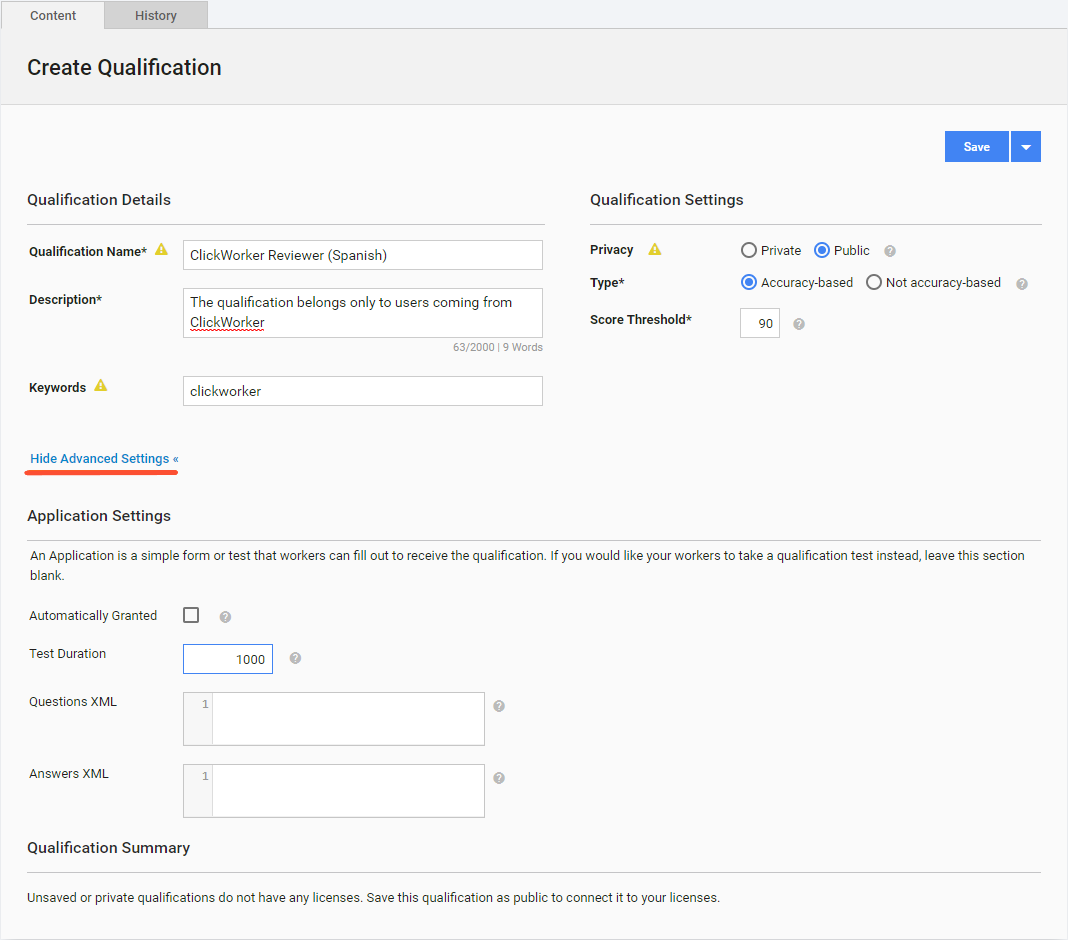
To create a Qualification, click the Create Qualification button and fill in the fields on the displayed screen based on the table below.
| Field | Description |
|---|---|
| Qualification Name | Give the Qualification a unique and meaningful name. |
| Description | Provide details to distinguish the Qualification. |
| Accuracy Based | The parameter defines whether the Qualification has a Score. |
| Private | Private Qualifications are intended to identify specific workers internally within the WorkFusion platform. The qualifications are not visible to workers and are not included in the qualification requirements for Crowds. If you want to start a Qualification Task, add an Accuracy Based Qualification in addition to a Private one. The Private Qualification parameter cannot be changed once the Qualification type is created. For additional information, refer to Create Private Qualification Task. |
| Keywords | A list of terms used by the search mechanism to help Crowd workers find a specific task. |
| UUID | A unique identifier given to a Qualification after it is created. |
| Automatically Granted | The option allows a worker to request the Qualification and get it without submitting any test. If the option is selected, the Grant Score field appears, defining the initial Score to be assigned to workers. |
| Test Duration | Time given to complete a test (in seconds). Available only if Auto Granted is unchecked. A test means that a worker can request a Qualification but must complete an assignment to get it. |
| Questions XML | To create a Custom Qualification, specify the content of the Qualification in the editor. For more information, read the Amazon guide. |
| Answers XML | Editor for creating answer keys for a Custom Qualification. For more information, read the Amazon guide. |
Manage Workers
The Workers tab displays all workers with the current Qualification and their parameters.
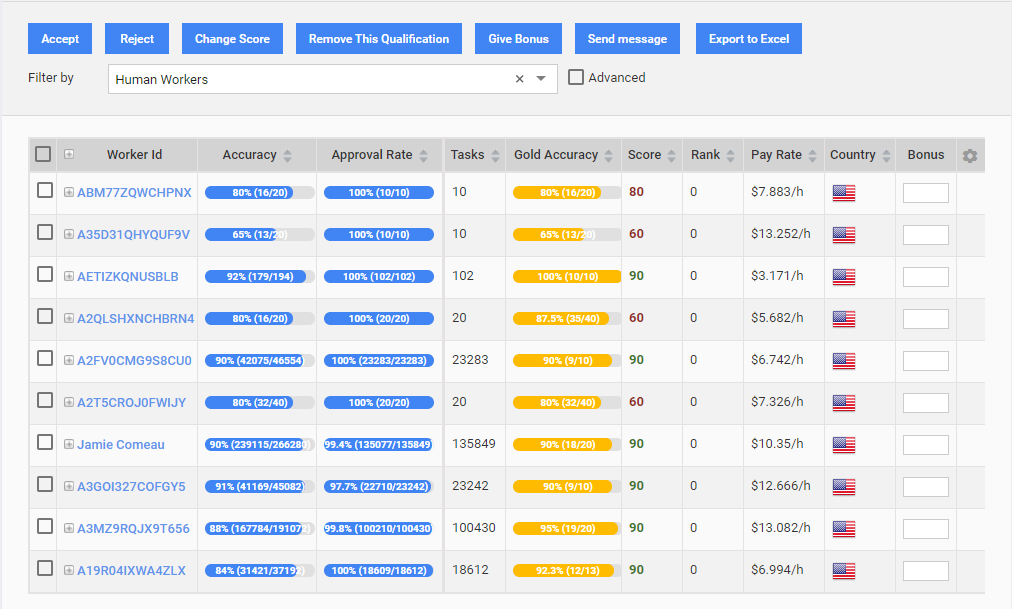
On the Workers tab, you can perform the following actions:
In the Worker ID column:
- view worker Qualifications
- navigate to worker profiles
For details, refer to the Worker Profile topic.
Send a message.
Change the worker's score.
Export the worker and qualification details to Excel.
note
The Give Bonus button is obsolete in IA Cloud v.10.x.
View History
The History tab displays who edited and saved the Qualification and when.
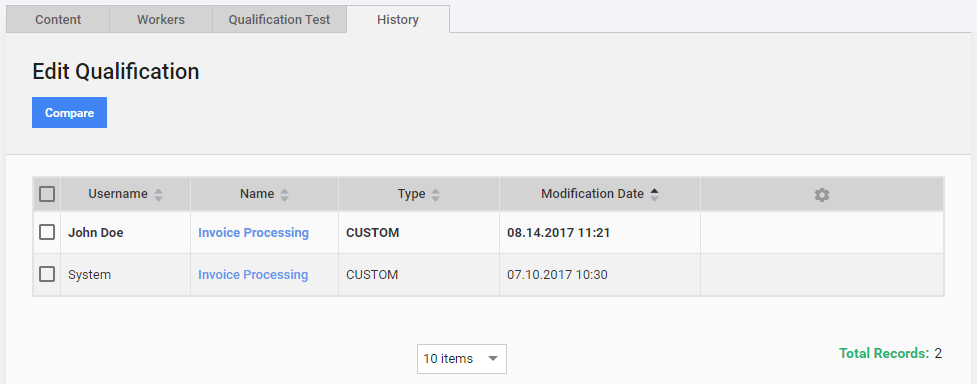
To compare Qualification versions, follow the steps below:
- Select two versions in the grid.
- Click the Compare button. The diff view is displayed under the grid.
To view a version description, click the appropriate Name. The description is displayed under the grid.
Assign Qualification
To assign Qualifications to workers manually, use one of the following methods.
Go to Workers > Assign Qualification and proceed as described below:
- Select a Qualification.
- Set a Default Score.
- Provide Worker Ids separated by a comma.
Go to Workers > View All Workers or Manual Tasks > Results > Workers and follow the steps below:
- Select workers.
- Click the Assign Qualification button.
- Select a Qualification.
- Set a Score.
Go to Workers > Worker Profile and create or edit a Qualification. For details, see the Worker Profile topic.
Manage Qualification Sets
Qualification Sets are used to group different Qualifications and determine values for them.
On the Qualification Sets page, you can:
- create or edit Qualification Sets
- delete the Sets
- export or import the Sets in the XML format
Each Qualification Set has the fields as listed in the table below.
| Field | Description |
|---|---|
| Name | Give a unique, meaningful, and unambiguous name. |
| Description | Provide details on all Qualifications if needed. |
| Qualifications | Add up to five Qualifications to your set. Select the following parameters from the drop-down boxes:
|