
Run Task and view results
To view the results of a Manual Task with key parameters and links, navigate to Results > Summary.
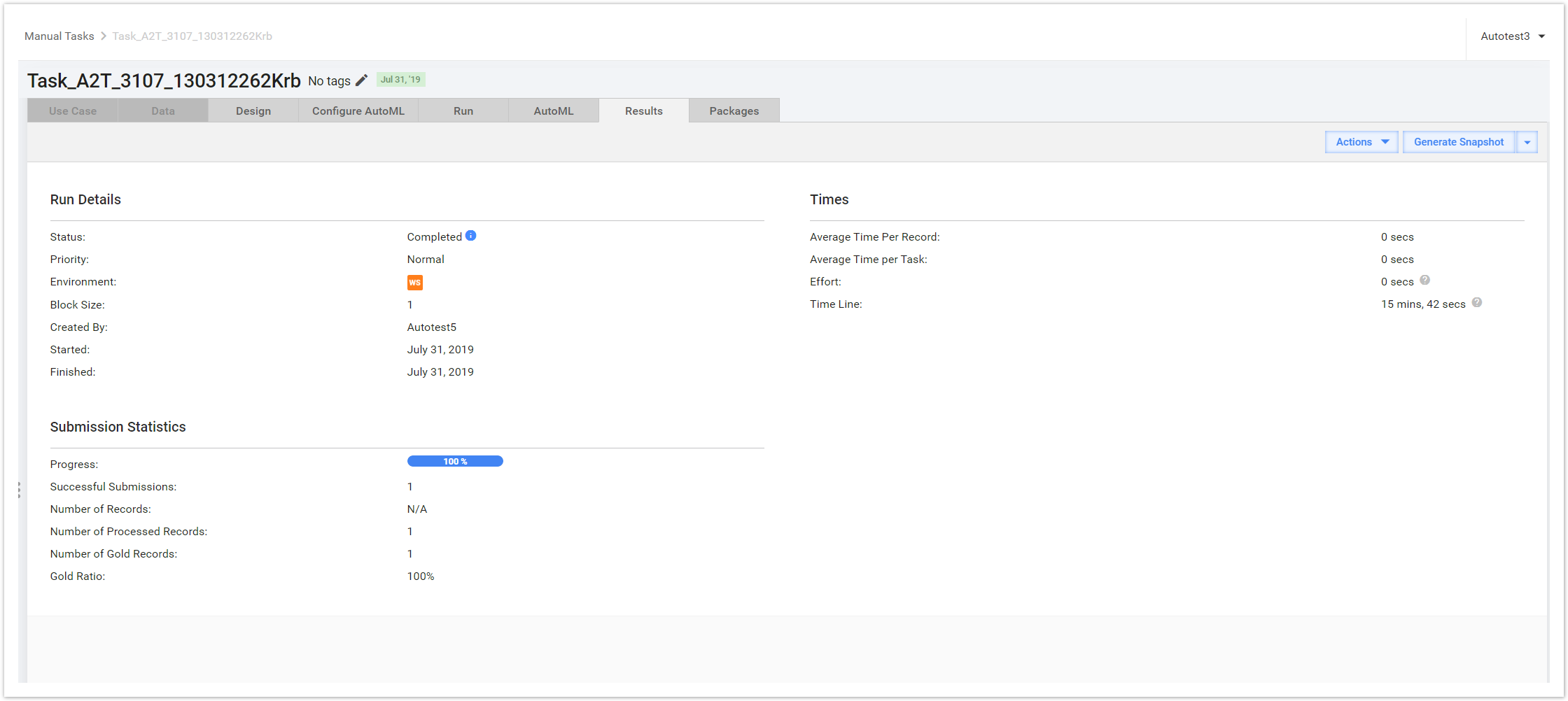
Run Details
| Field | Description |
|---|---|
| Status | The field indicates whether the task is completed, paused, or still processing. To view all the task events, click the blue info icon. |
| Priority | The task can have normal, high, or low priority. |
| Environment | The field displays two pieces of information about the environment. In the screenshot above, you can see a WS icon indicating that the task was posted to WorkSpace (WS). To view the task in WS, click icon. |
| Block Size | This is the number of Records a worker gets in each worker task. In this case, it is set to 1. You can change the Block Size before running the task on the Run tab > Task Settings. |
| Created By | The task author's username. |
| Started | The date when the task was run. |
| Finished | If the task is completed, the date when it was finished. |
Submission Statistics
| Field | Description |
|---|---|
| Progress | A progress bar showing the percent of successfully submitted Records. |
| Successful Submissions | The total number of successful submission. A Record is considered to be successfully submitted once the Adjudication for that Record is complete. |
| Number of Records | The total number of Records in the input data file. |
| Number of Processed Records | The total amount of Records with processed data. |
| Number of Gold Records | If you used any Gold Records, their number is displayed here. |
| Gold Ratio | The Gold Ratio chosen, if any, is shown here. This parameter is set before running a task on the Run Task Tab > Advanced Options > Properties. |
Times
| Field | Description |
|---|---|
| Average Time per Record | The average time workers spend on a Record |
| Average Time per Task | The average time workers spend on a task |
| Effort | The total time workers spend on the task combined |
| Time Line | The total time spent since the task start |