
Use Document Viewer
Notebook name: DA_DB__pipeline
Document Viewer lets you review documents.
Features
Load info to a dataframe
Render documents (HTML, XML, images)
Navigate through documents and pages
Store custom notes
Drop or keep the document button
Rotate pages (visualization only)
UI elements
Load documents from a directory:
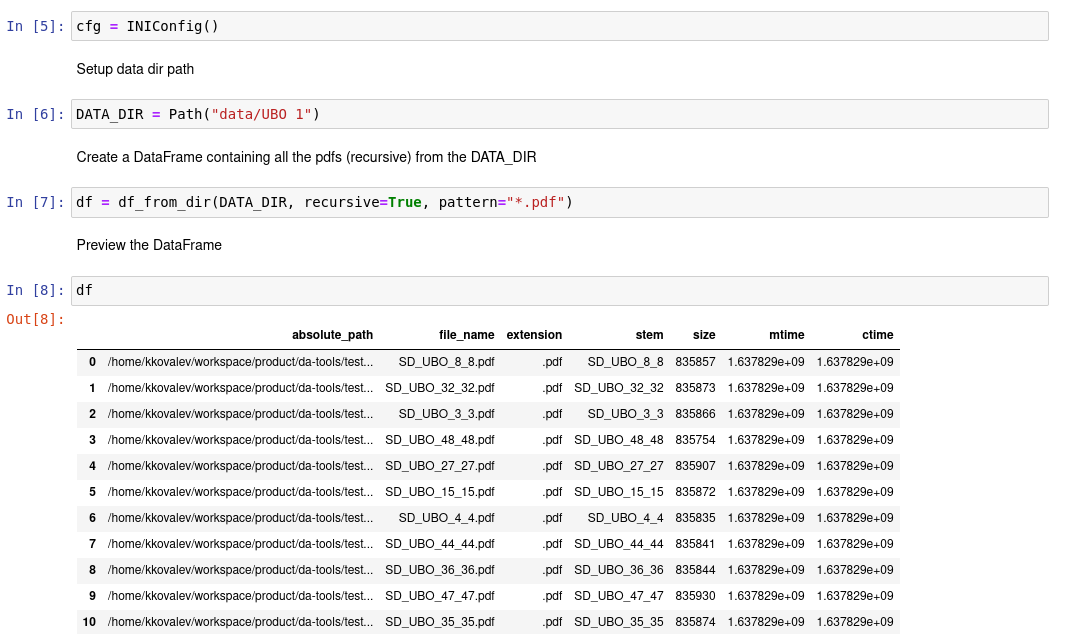
Absolute path
Relative path (base directory is the notebook's working directory)
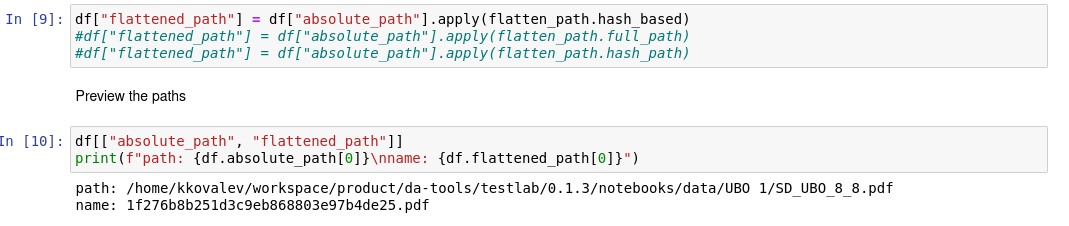
Different strategies to make the complex directory structure more flatted are supported:
hash as name
full_pathas name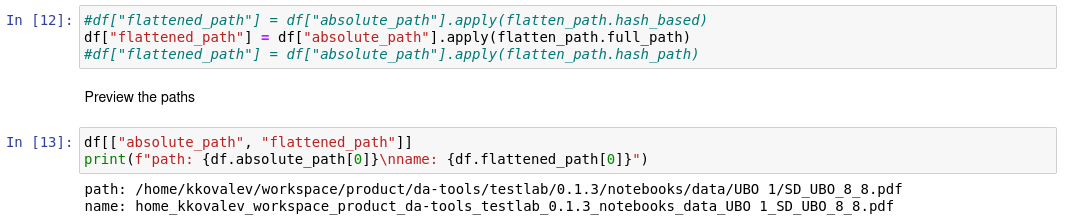
hash and
file_nameas name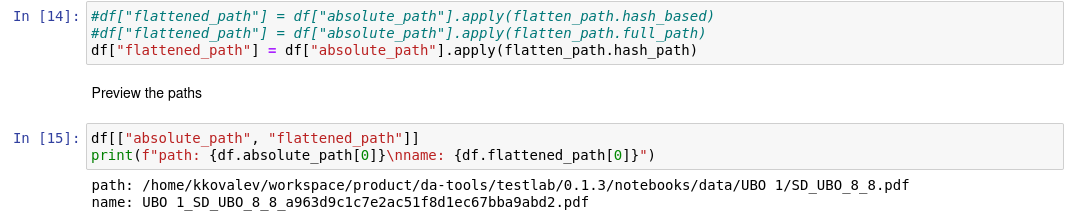
Viewer configuration:
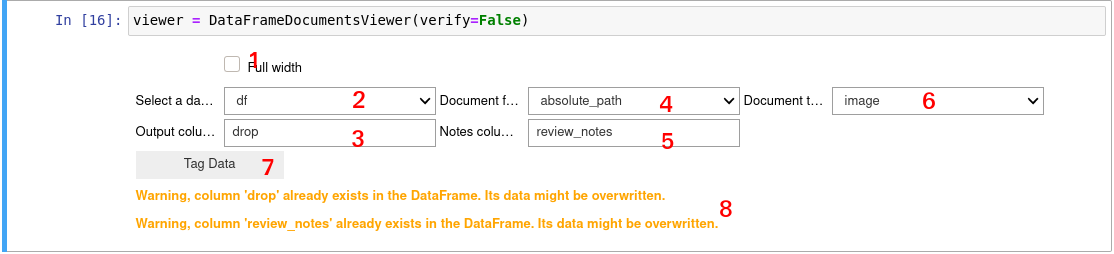
Extend Jupyter width.
Select a data frame with document info. This list will contain all pandas dataframes created in this notebook (for instance, loaded from CSV files). Note that private variables (starting with an underscore, for instance,
_df) are not included in this list.Enter a column name for the drop flag. This column is created if it doesn’t exist. If it exists, its content might be overwritten, in which case you get a warning message.
Select a column that contains paths to files.
Enter the name of the column where custom notes are stored. This column is created if it doesn’t exist. If it exists, its content might be overwritten, in which case you get a warning message.
Select the document type: HTML, ocr_xml, image.
Start review.
Warning messages (ex: target column exists).
Viewer:
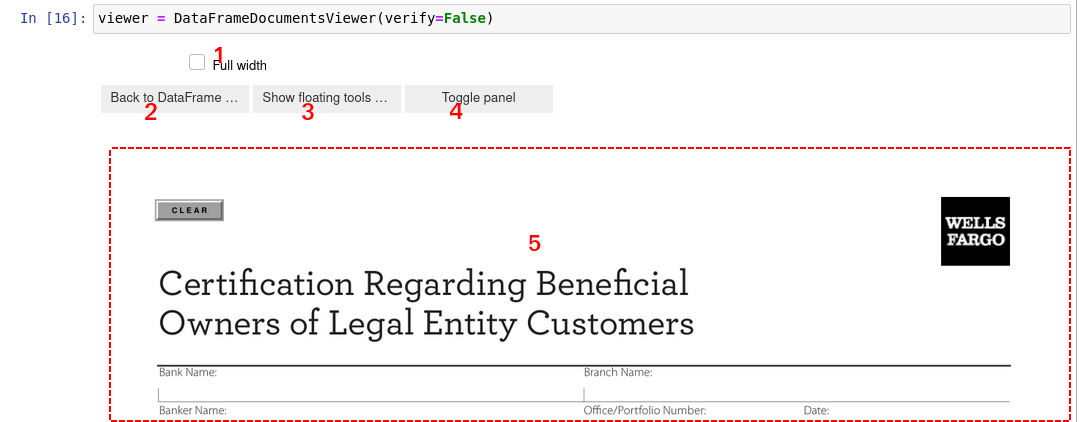
Extend Jupyter width.
Return to the Viewer configuration (selecting dataframes, document source field, and so on).
Show or hide the floating (left-side) control panel (navigation, notes, drop, and keep).
Show or hide the static control panel (navigate, notes, drop, and keep).
Document content.
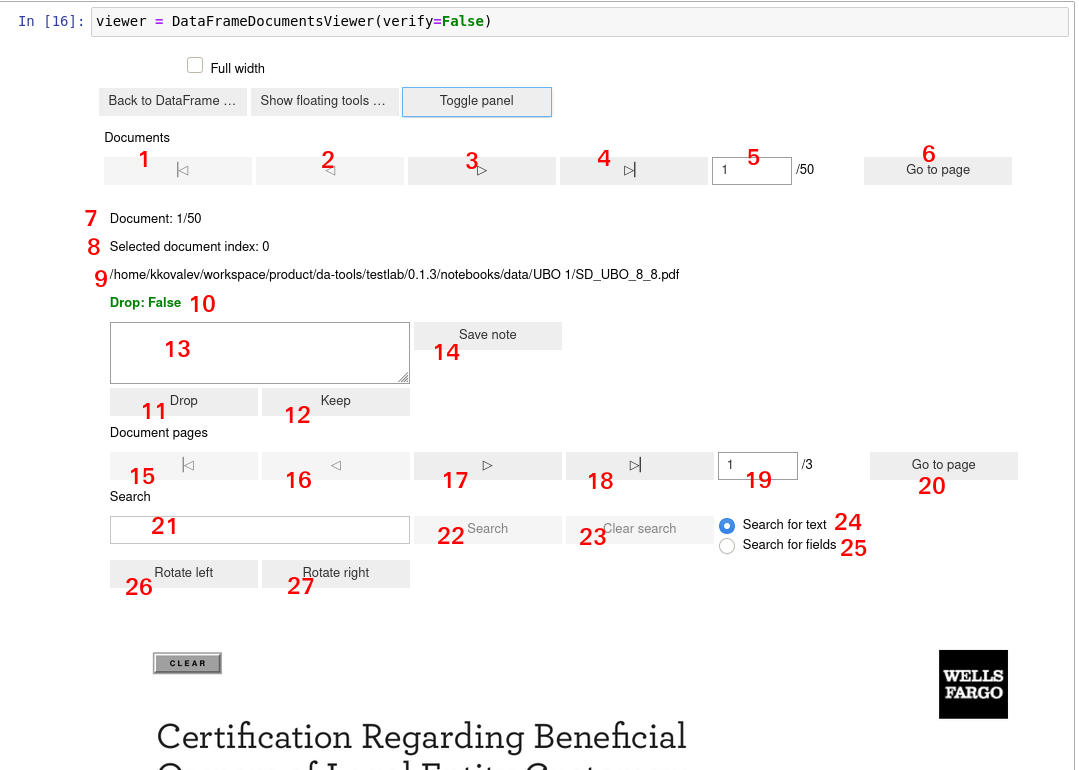
Static control panel:
Floating control panel:
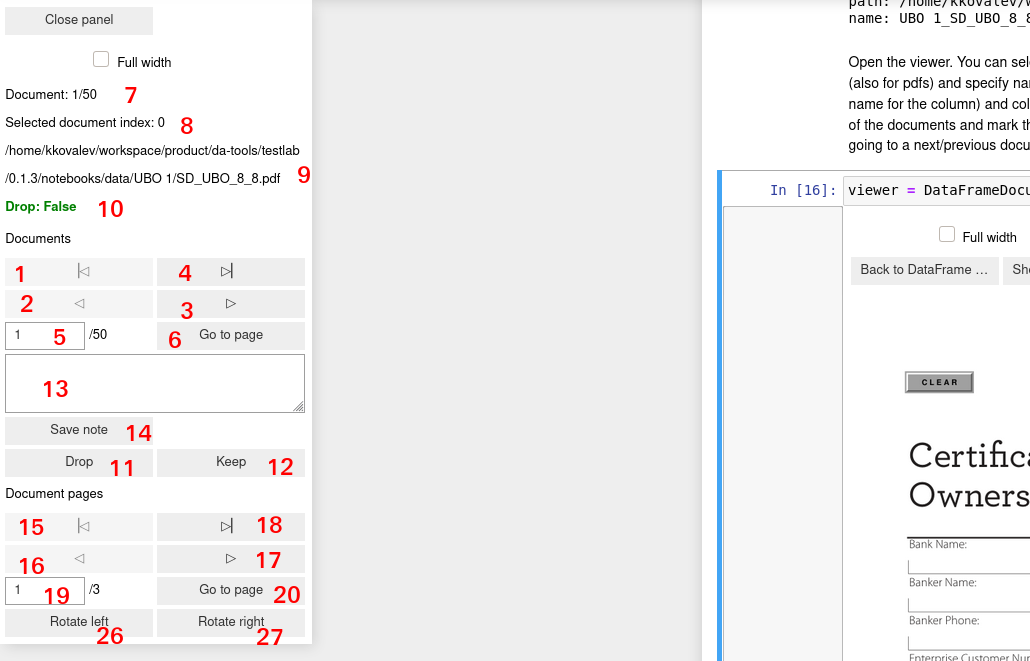
The figures in the screenshots above correspond to the following functionality:
Go to the first document.
Go to a previous document.
Go to the next document.
Go to the last document.
Set a specific document number where to go.
Go to a specific document. The label says that it’s the page-related functionality, but it isn’t. It will be renamed to Go to document in later releases.
Number of the current document and amount of documents.
Index of the current document.
Path to the current document (not required).
Marker whether a document is “dropped”. Dropped documents can be filtered later:
if "drop" in df.columns:
    df = df[~df["drop"]]
)
Mark a document as Dropped (Drop: True).
Mark document as Kept (Drop: False). By default, documents are treated as kept, so you need to only perform an action when you want to drop a document. Or you change your mind if you want to keep a document that you previously marked to be dropped.
Text area to enter any notes.
Save notes for a document. Notes are available during the session duration. Notes do not persist unless explicitly saved.
Go to the first page of a document.
Go to the previous page of a document.
Go to the next page of a document.
Go to the last page of a document.
Set a specific page number.
Go to a specific number of the page.
Text area to enter a text string to search through the pages of a document. It’s available for text(ex: OCRed) documents.
Search for a text in a document.
Clear the search text area and search results for a document (dash rectangles).
Search the entered text as text.
Search the entered text as a field name (tag name).
Rotate the current page to the left (just visualization).
Rotate the current page to the right (just visualization).