Configure Data Purge
The instruction describes how to enable and set up the Data Purge function for information acquired during Business Process (BP) execution.
warning
The Data Purge feature does not work with Data Stores and S3. To get proper instructions, refer to the following topics:
Modify Data Purge settings
warning
Data Purge increases the load on the DB server disk.
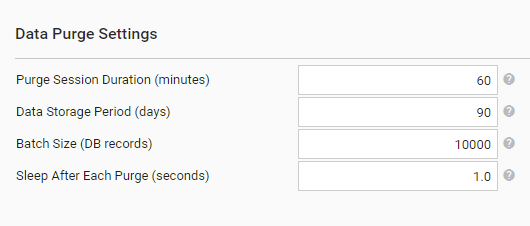
The Data Purge job deletes obsolete operational data from the IA Cloud instance according to the following settings:
| Parameter | Default | Description |
|---|---|---|
| Sleep After Each Purge (seconds) | 1 | Make a pause after each BP purged to minimize any impact on performance. |
| Purge Session Duration (minutes) | 60 | Define how long each purge session lasts after the purge is triggered by the Scheduler. Set to 0 to disable Data Purge. |
| Data Storage Period (days) | 90 | Define the number of days to keep BP data after the BP completes. Only data of the BP exceeded the period is purged. |
| Batch Size (DB records) | 10 000 | Specify the number of DB records to purge at once. |
The Data Purge job clears the data of completed BPs or those marked as deleted, including:
- BP and BP step input data
- BP and BP step output data
- Output data snapshots
- Generated events
The Data Purge job does not delete the following:
- Any data of Active, Draft, Not started, or Failed BPs
- Data Stores
- S3 file storage data
- Activity logs
Example of a BP after the Data Purge operation:
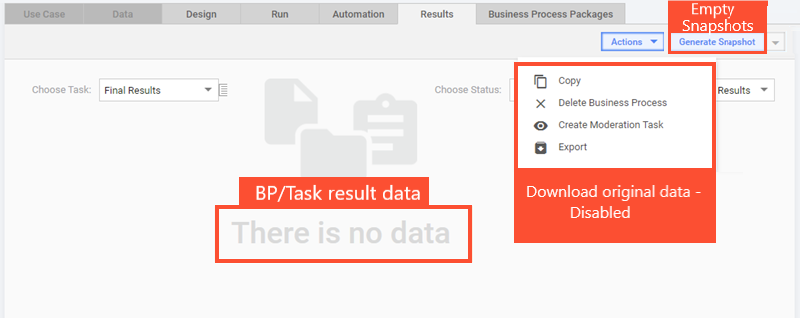
- Results Data: empty
- Snapshots: empty
- Download original data: disabled
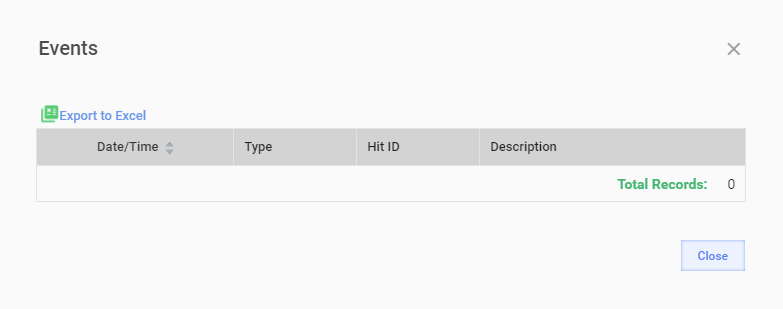
- Events: empty
Manage roles
Perform the following steps to grant a user the Manage Data Purge permission:
- Go to Configuration > Role Management. For more details, refer to Role management.
- Select the role the user belongs to, for example,
ROLE_SUPER_ADMINISTRATOR. - Select the Manage Data Purge permission.
- Save the changes.
- Log in to Control Tower again.
- Go to Configuration > System Preferences > Schedule settings. Data Purge Settings should be available.
Edit Data Purge schedule settings
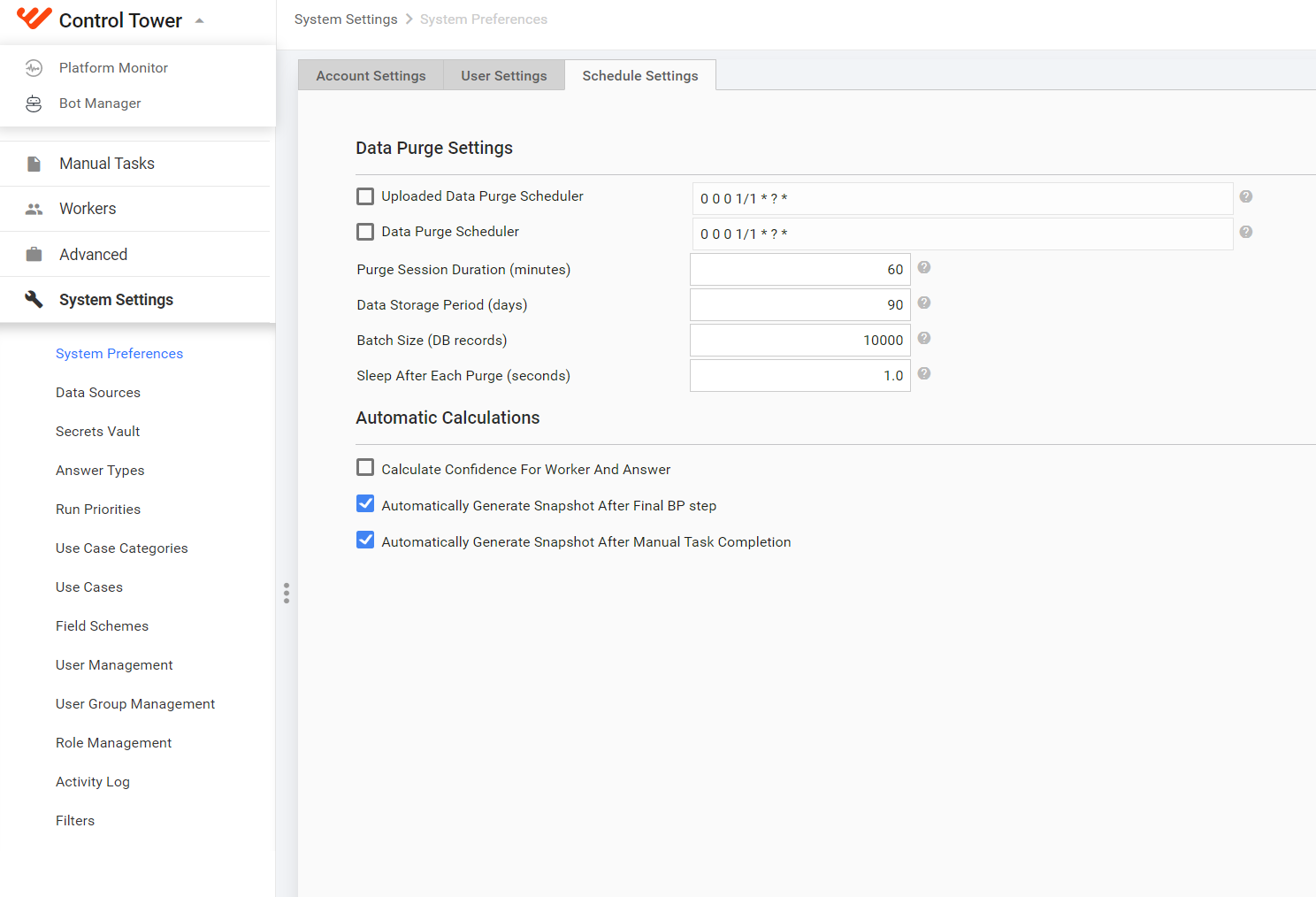
On the Schedule settings page, you can enable and set up Data Purge. The feature is intended to clean up the information acquired during the BP execution.
To change Data Purge settings in Control Tower, go to System Settings > System Preferences > the Schedule Settings tab and configure the parameters.