
Manage account
The user options are available from the top right hand corner of the screen. Click on the user icon to view the options.
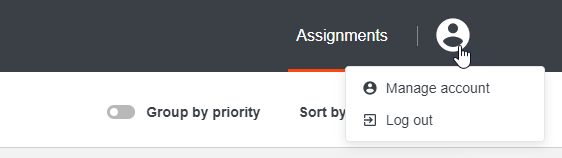
- Manage account - contains options to perform with your account details and sessions
- Log out - is used to log out
Manage account settings
Edit account details
To update your personal data, do as follows.
Click on the user icon and select Manage account.
On the Account tab, enter the needed changes. You can modify:
- username
- first name
- last name
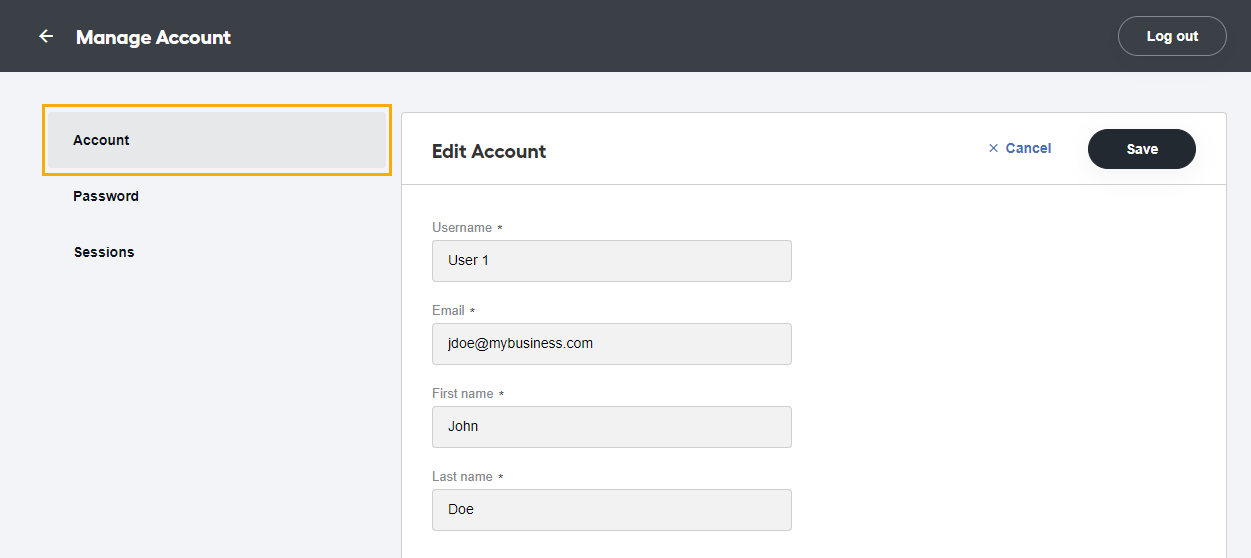
Press Save to save the changes.
caution
On finishing changing your account information, log out and log in again.
tip
The Cancel option cancels any changes that have not been saved.
Update password
To change your password, perform the following steps.
Click on the user icon and select Manage account.
Select the Password tab. By default, all the fields are empty.
Enter the old password into the Password tab.
Type in your new password in the New password field, then confirm it in the Confirmation field.
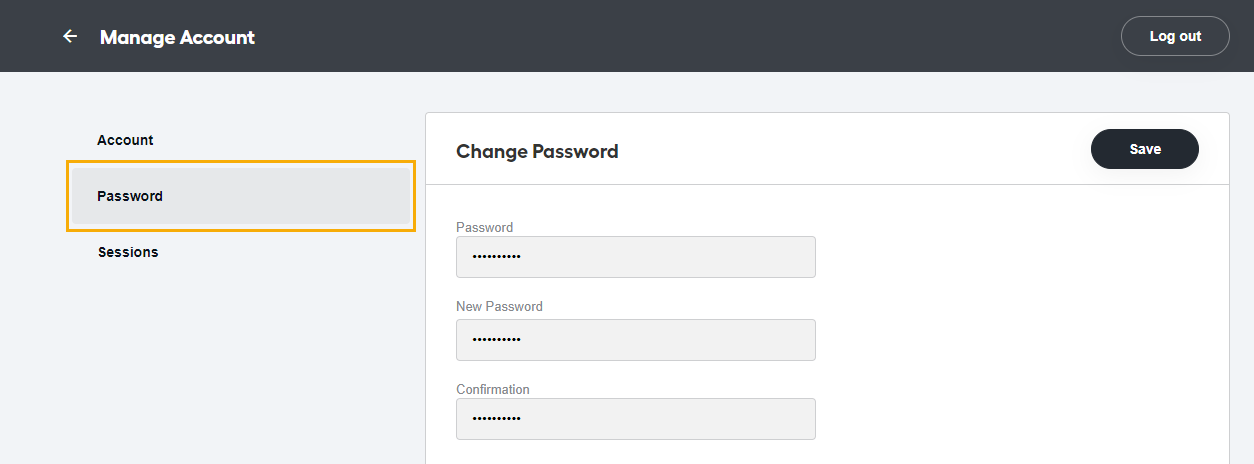
Press Save.
View sessions
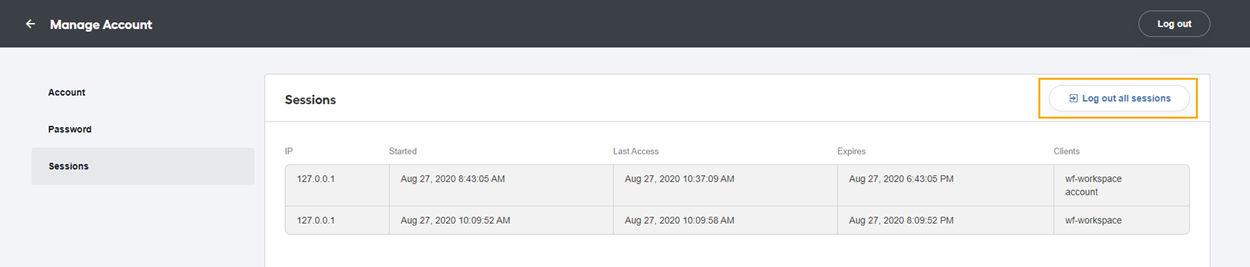
To view your sessions click on the user icon, select Manage account, and click on the Sessions tab.

From this screen, you can also log out all sessions.
Log out
To log out from the current session, click on the user icon and press Log out.
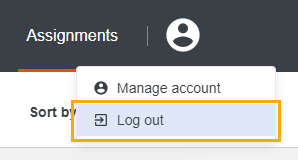
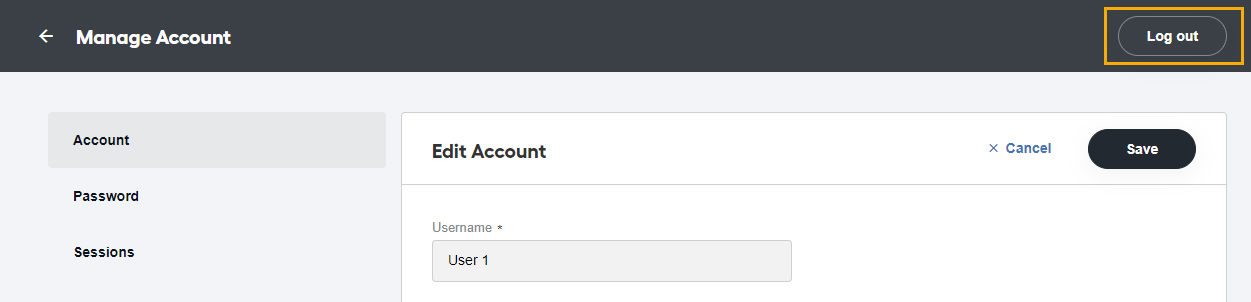
The logout option is also available from the Manage account screen in the right top corner.\
To end all your sessions, select Manage account > Sessions and click on the Log out all sessions button.\
On selecting any of these options, you are logged out, and the login screen appears.