
Issues related to slow task processing due to bot code changes
When no other circumstances change but the bot code, you can suspect that Business Process (BP) issues and slow BP execution are related to the Bot Task development. Potential root causes in the bot code are as follows:
An accidentally modified configuration in a Data Store or a file containing, for instance, timeouts, logging methods, driver capabilities, and so on.
A Data Store data fetch or Data Store queries slowing down the BP execution, for instance, when a Data Store query is changed from an external configuration source.
Interaction with external services and APIs, radically increased timeouts or retry counts, for instance, SAP logging or data entry, data warehousing system fetch, FTP transfer, REST endpoints, and so on.
Regular code change, for instance, implementation of the semaphore to act against the race rule in Data Store queries containing separate Business Processes.
However, the list of root causes is far from being exhaustive. Stick to the keeping eyes wide open principle not to waste your time.
Investigate modifications
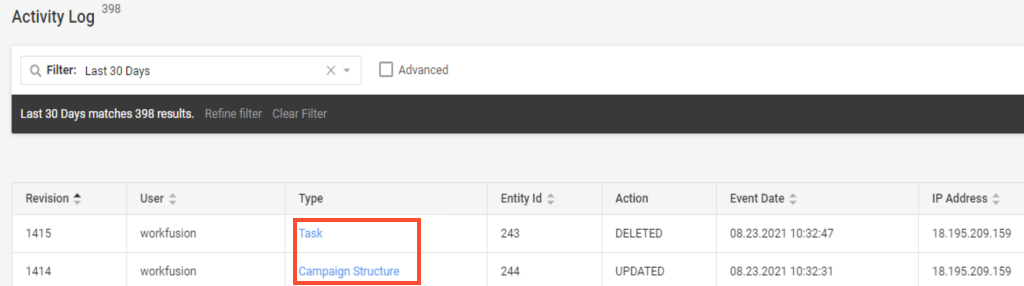
If you suspect your issue results from bot code changes, check the Activity Log for any traces of such modifications:
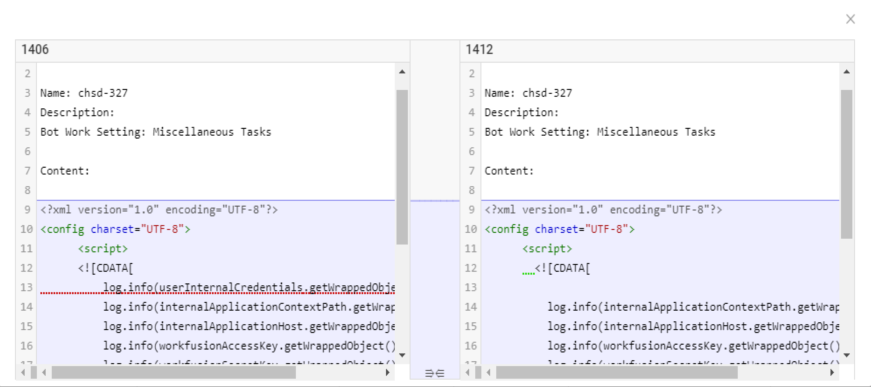
Compare the differences in bot tasks:
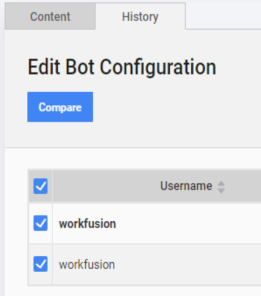
For convenience, you can also go to the bot task directly and open the History tab:
When you deal with BCB or ODF projects, checking the Bot Source code doesn't tell you much about changes. In this case, go to Nexus and verify when the latest Asset Bundles were imported.
When there is a new version, and you have access to the development environment, go to Git/Gitlab/SVN and check the latest commits to quickly identify the changes and take a look at the differences in the files committed to the repository:

Sometimes, especially when handling intermittent responses, for instance, from a web service or an internet page, developers want to increase the chances of successful execution. They can change retries to get the required response eventually. The retry count default optimal value is 10. Increasing the value can cause unnecessary wait time and slow down the flow execution.
In this case, go to a specific Business Process and click the Run tab. Go to Advanced options and look at the retry counter:

If the value is significantly increased, go to Activity Log and check who and when changed the value to approach the person and discuss the change.
Output
If you confirm the issue, escalate it to the Support team. Otherwise, continue the investigation.
View also: