
Manage sessions
As soon as a user logs into a realm, Keycloak maintains their session while keeping track of their activities. Keycloak admins can view the data on all or particular user sessions and log out users of all or a particular session.
Manage sessions for particular realm
To view information about sessions in a particular realm and to manage them, follow the instructions:
In the top left corner of the Keycloak console, select a realm.
On the left menu, click Sessions. On the Realm Sessions tab, you will see a list of the currently active sessions in the realm.
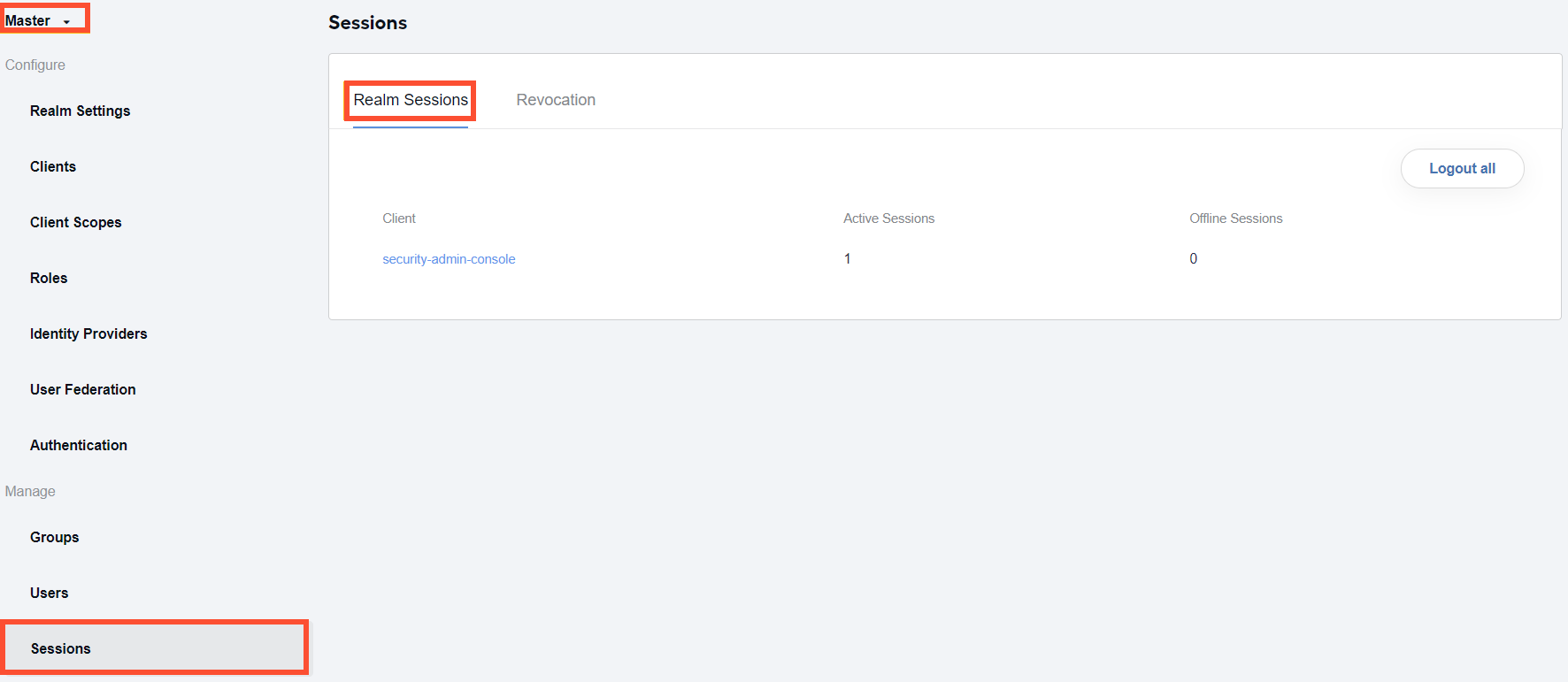
To log out all users of all sessions, click the Logout all button.
Manage sessions for particular client
To view information about the sessions for a particular client and to manage them, complete the following steps:
On the left menu, click Clients and select the required client from the list.
On the client configuration page, go to the Sessions tab. In the Active Sessions field on the tab, you will see the number of active user sessions for the particular client.
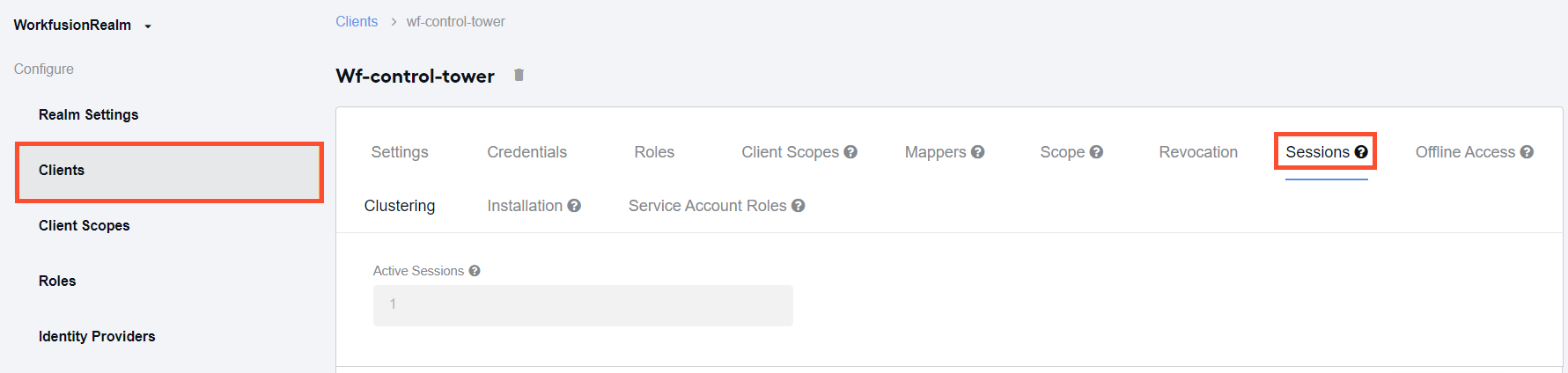
To view the details about active sessions, click the Show Sessions button.
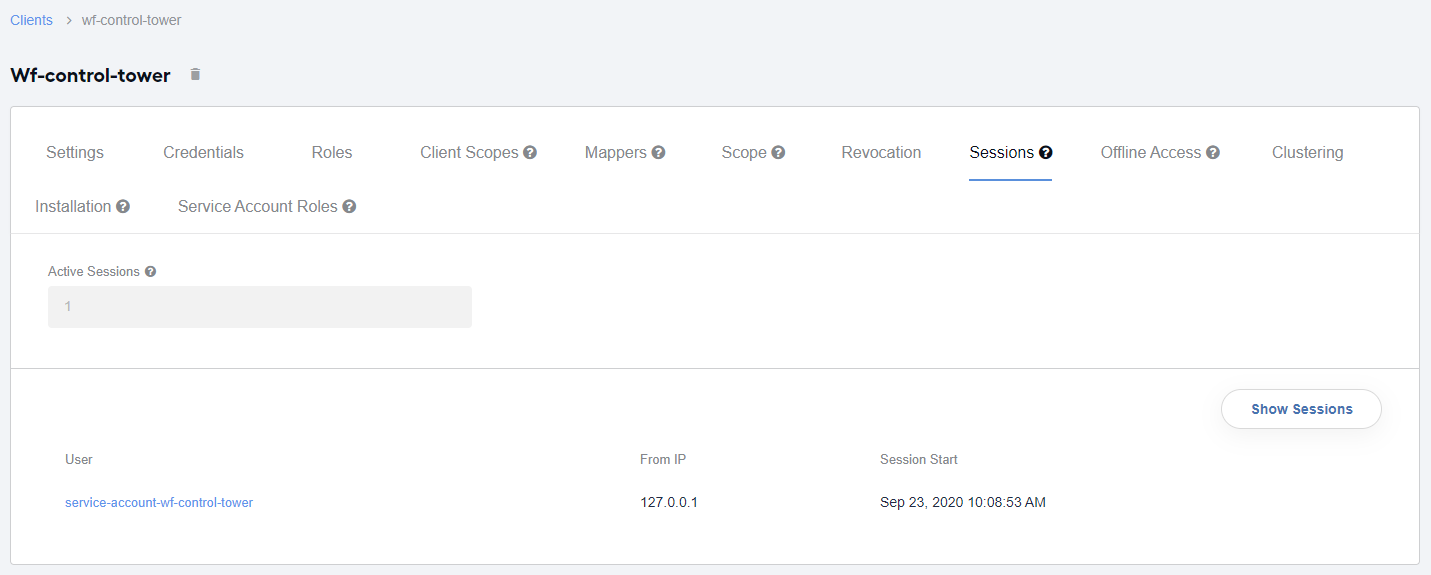
In the table below the button, Keycloak shows a list of all users logged into the particular application.
Manage sessions for particular user
To view information about the sessions of a particular user and manage them, complete the following steps:
On the left menu, click Users and select the required user from the list by clicking its ID or Edit next to the username.
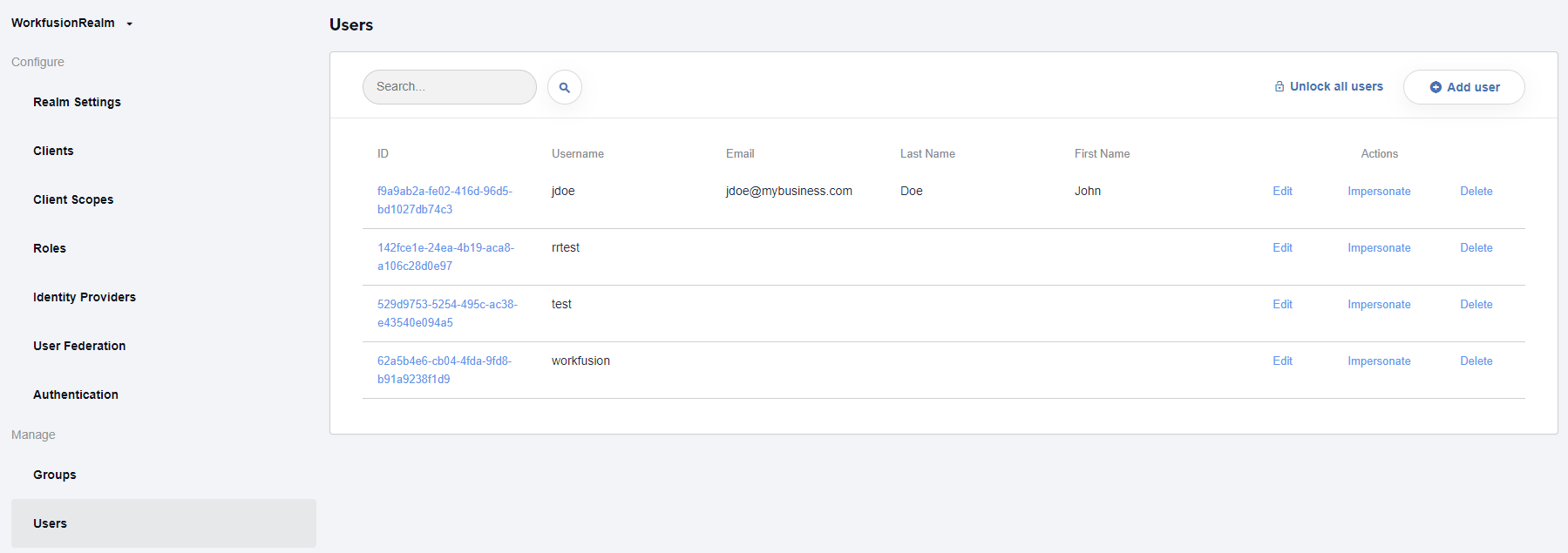
On the user settings page, go to the Sessions tab to see a list of sessions for the user.
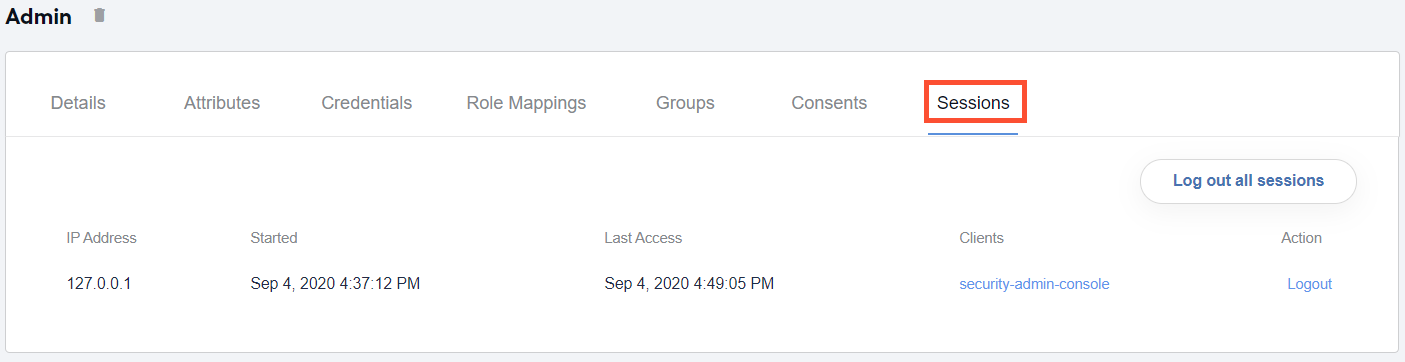
To log out the user of a particular session, click Logout next to the session. To log out the user of all sessions, click the Log out all sessions button.
tip
It is also possible to log out a user of all or particular sessions from the User Account Service page. For details, refer to the Manage user settings section.