
Manage user accounts
Each Keycloak user can manage their personal data and credentials and view information about their login sessions via the User Account Service. Users can access it via Control Tower or WorkSpace.
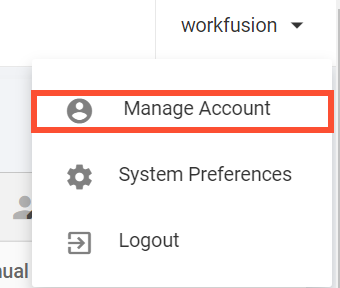
To access the User Account Service via Control Tower, click the dropdown menu in the top right corner of the Control Tower console and select Manage Account.
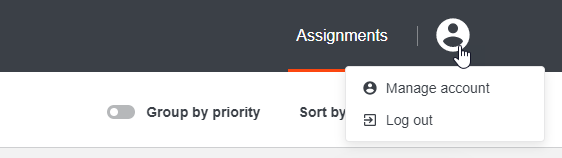
To access the User Account Service via WorkSpace, click the user icon in the top right corner of the WorkSpace console and select Manage Account.
From the User Account Service page, you can edit or add user account data, update the password, and view all sessions of the particular user.
Manage account data
To edit or add user account data, complete the following steps:
- On the left menu, click Account. This brings you to the Edit account tab.
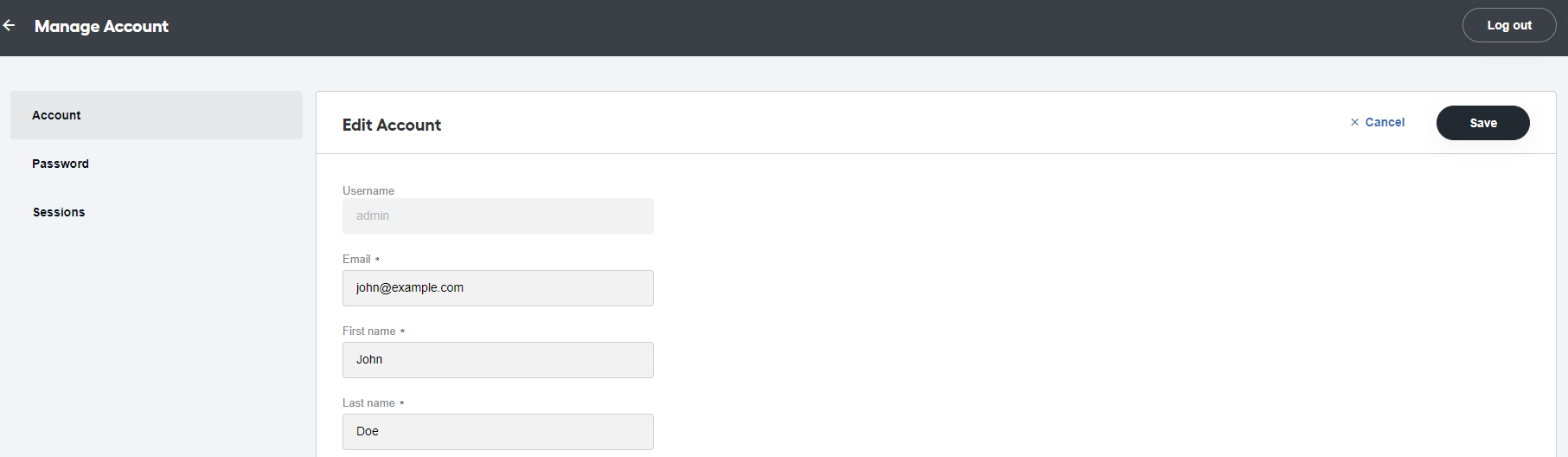
- Fill in the fields on the tab with the required user data or edit the existing data. The username field is pre-filled with the name of the user who is logged in under the account.
- Click Save to save the changes.
note
For the changes to be applied, you have to log out and log back in.
Change password
To update the password to a specific user account, complete the following steps:
- On the left panel, click Password. This brings you to the Change password tab.
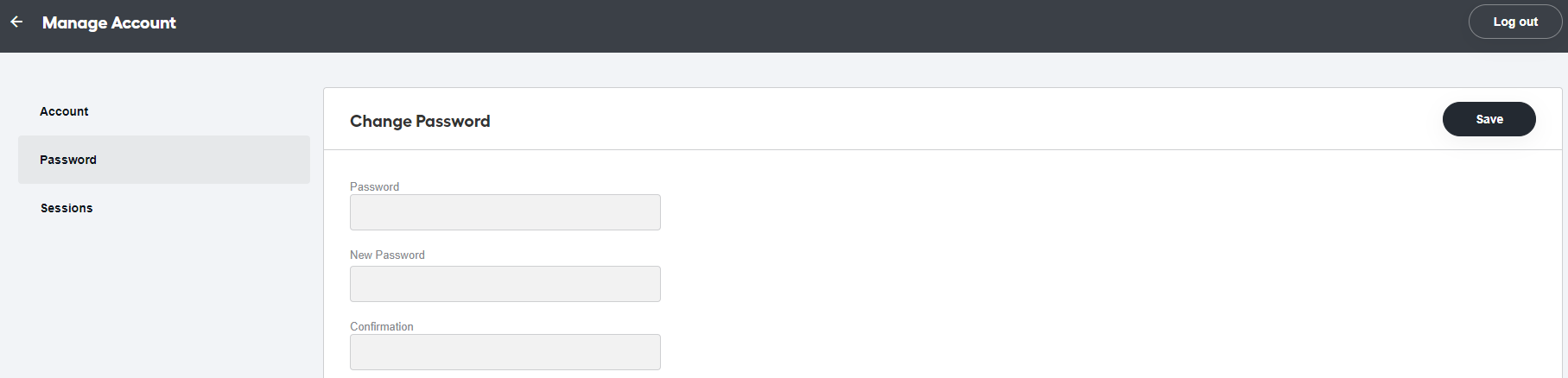
- In the Password field, specify the current password to the user account. Then, specify and confirm a new password in the appropriate fields.
- Click Save to save the changes.
View user sessions
To view the user's sessions, select Sessions on the left panel. On the right, you will see a list of the user sessions and clients that the user is logged into.
From the page, the user can also log out of a particular session by clicking Logout next to it or log out of all sessions by clicking the Log out all sessions button.