
No task available in WorkSpace interface
Issues related to Manual Tasks are very rare. Mostly, they indicate minor problems. The generic symptom is when a task gets lost in action and is unavailable in WorkSpace.
To investigate, act as follows:
When task is supposed to appear in WorkSpace, but it is not there
Before anything else, let's exclude the most trivial reasons:
Check the associated Business Process. When the Business Process is new and has never run before, it creates a Manual Task only after you launch it.
Ask a person with admin privileges to check your roles and permissions in Keycloak and WorkSpace. You might not have appropriate permissions to see the tasks in WorkSpace.
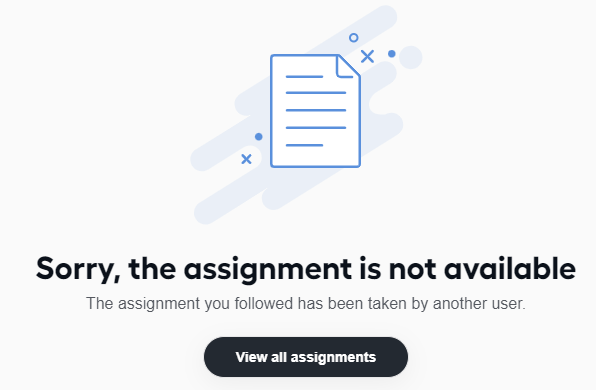
When you expect a specific Manual Task to be available in WorkSpace at a specific moment, check if any other users are working with it simultaneously. When someone works on a task and abandons it or leaves it open in the browser, it becomes available to other users only after a delay. When another user is still working on a task, you will see a screen similar to the one below:
In other cases, work with Database Analysts: go to the database and review the ct.endpointtask table. Look for your task by your Business Process run ID, which requires querying the run table. The query can be similar to the example below:
SELECT * FROM ct.run r JOIN ct.endpointtask e ON e.run_id = r.id WHERE r.uuid = '{YOUR_BP_RUN_UUID}';
Verify if the task is in the correct state. It is best when it has the following attributes:
NOT_REVIEWEDreview statusASSIGNABLEstatus
Raise a ticket at the support portal when you find any anomalies that are holding the task back from getting to WorkSpace.
Assignment page is loading, but no task content is displayed
When you get the 404 response status or Task cannot be rendered message after you navigate to a task from the assignment list, go to the Master server and execute:
wfmanager status marathon-apps
Check the manual-task-renderer condition as this is the component responsible for task rendering. The status should be RUNNING. When the component fails, Manual Tasks are not accessible even though the WorkSpace application might be working flawlessly.
When the issue is not related to the manual-task-renderer component, go to the database and find the Manual Task (endpoint task). For instructions, see When task is supposed to appear in WorkSpace, but it is not there.
In the externalurl column, find the link and try to access the task using it via the browser. If you cannot access the task when the Manual Task renderer is up and running, review the business content of the task. It might be corrupted or restricted for the user.
The next group to check is browser issues. Typically, they are related either to JavaScript or JS customizations. Make sure your browser accepts all the content in the Manual Task you are trying to access, including scripts and restricted links.
Browsers can run out of memory and display the well-known "Aw, Snap!" message. In this case, the best solution is to reduce the data in the Manual Task.
View also: