
Task is not available in Control Tower or WorkSpace
A Manual Task (MT) may not be accessible in the Control Tower (CT) or WorkSpace (WS) user interfaces for various reasons. This article can help you to investigate those issues when a task is not loading or not appearing in WorkSpace after it is accepted.
When MT is supposed to be displayed in CT's Task Designer, but it won't load
In this case, the interface can behave as below: the spinner is spinning, but the task doesn't appear.
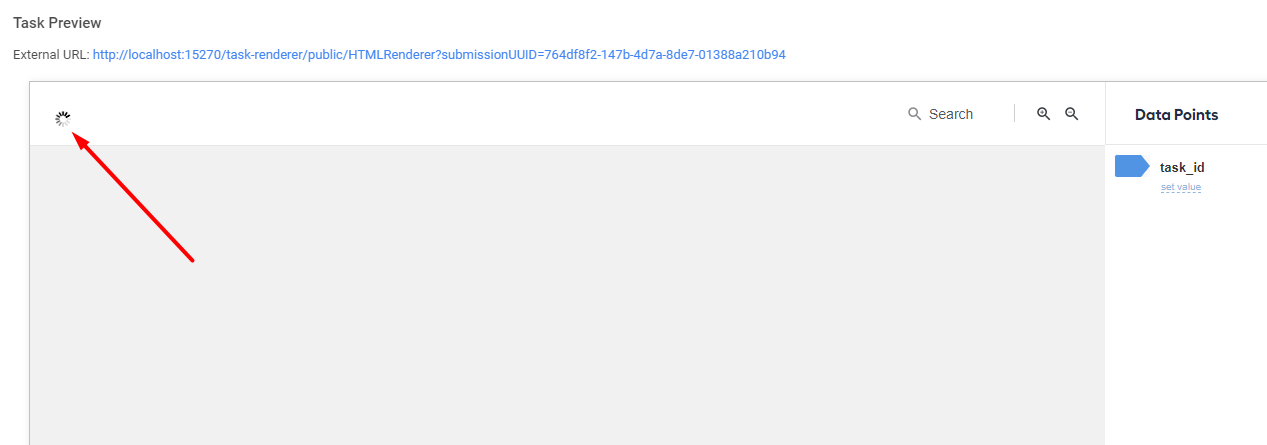
To address the issue, verify other Manual Tasks. When they fail to open too, go to the Master server and execute the following command:
wfmanager status
When you see manual-task-renderer is not RUNNING, execute the following command:
wfmanager start manual-task-renderer
Check if the task appears. When the Manual Task Renderer is down again, investigate possible reasons for the behavior. Start with analyzing logs.
Also, verify that the document is not in the S3 private bucket and the user can access it. The best way to check this is to access your MinIO browser, click Manage for your bucket, and verify the bucket settings and access rules:
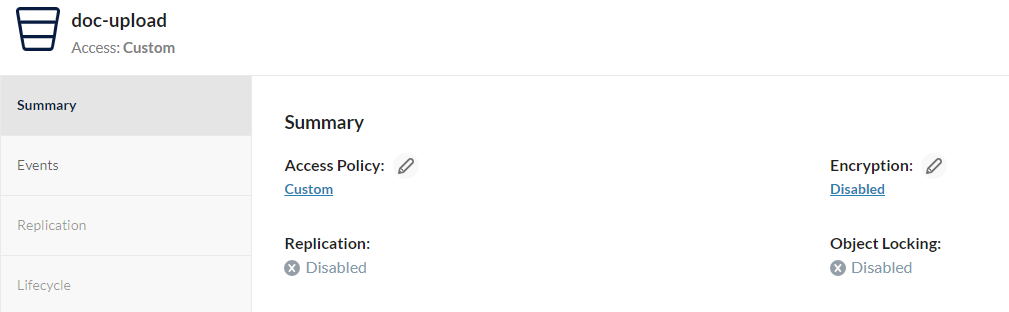
The example above shows the private settings that can cause issues with task display:
Check the task design, how it's built, what elements it consists of, and what kind of customizations were made to the default template (for instance, JS code). Open the console in the Developer tools and look for errors related to the JavaScript code.
Check the browser settings in the JS code section (Settings, Privacy and Secutiry, Site Settings, JavaScript):
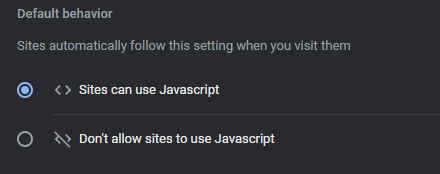
Also, perform the following checks:
Check the task components. Make sure the user has all permissions required to access the third-party resources the Manual Task is displaying and the console contains no 401 response status on the resource you can associate with the task data-fancybox.
Check the Manual Task size: it might be too big for NGINX to accept the task as a request. In the
nginx.conffile property, in itshttpcontext, editclient_max_body_sizeto increase the request body size, which is 1 MB by default.In
/opt/workfusion/manual-task-renderer/logs/, check the Manual Task renderer logs. Make sure that manual-task-renderer is not getting an out-of-memory error.In
server.xmlandweb.xml, double-check themaxPostSizeproperty. In one of the files, the value might have custom limitations that you are unaware of. Normally, it must be unlimited and set to -1.
When MT fails to load in WorkSpace after it is accepted
To investigate the issue, act as follows:
Turn on the developer tools in your browser (F12 or Ctrl+Left Shift+i), switch to the Network tab, and accept the task.
When you get the 404 response in the
/assignmentsendpoint status or the Task cannot be rendered message, act as described in No task available in WorkSpace interface.When applicable, use the instructions in the article mentioned above to check the Aw, Snap! message root cause.
When you get a 403 response status and a blank page without any messages and the screen from the WorkSpace application appears, it is most likely the Manual Task is too big to be accepted as an HTTP request. Consider increasing the request limit in your application:
Go to the
conf/application.ymlfile.In the
server.tomcatsection, add the following properties, taking care to use the correct structure:max-http-form-post-size: <YOUR_VALUE> # default 1024MB max-swallow-size: <YOUR_VALUE> # default 1024MBRun
wfmanager restart workspaceto restart the service.
View also: