
Grant access to Superset dashboards
Superset is WorkFusion's analytics tool that helps you monitor metrics related to Digital Workers. Superset is installed along the product, so you will only need to configure access for users to start working with it. Once you install a new DW skill, its dashboard appears automatically in Control Tower.
To access Superset-based Digital Workers dashboards, in Control Tower, click the title, and in the dropdown box, click Insights.
To verify that a dashboard is ready for use, as an admin user, check the connection to databases and datasets:
On the Superset main screen, click Settings > Database Connections.
The Databases tab contains all your established connections to databases.
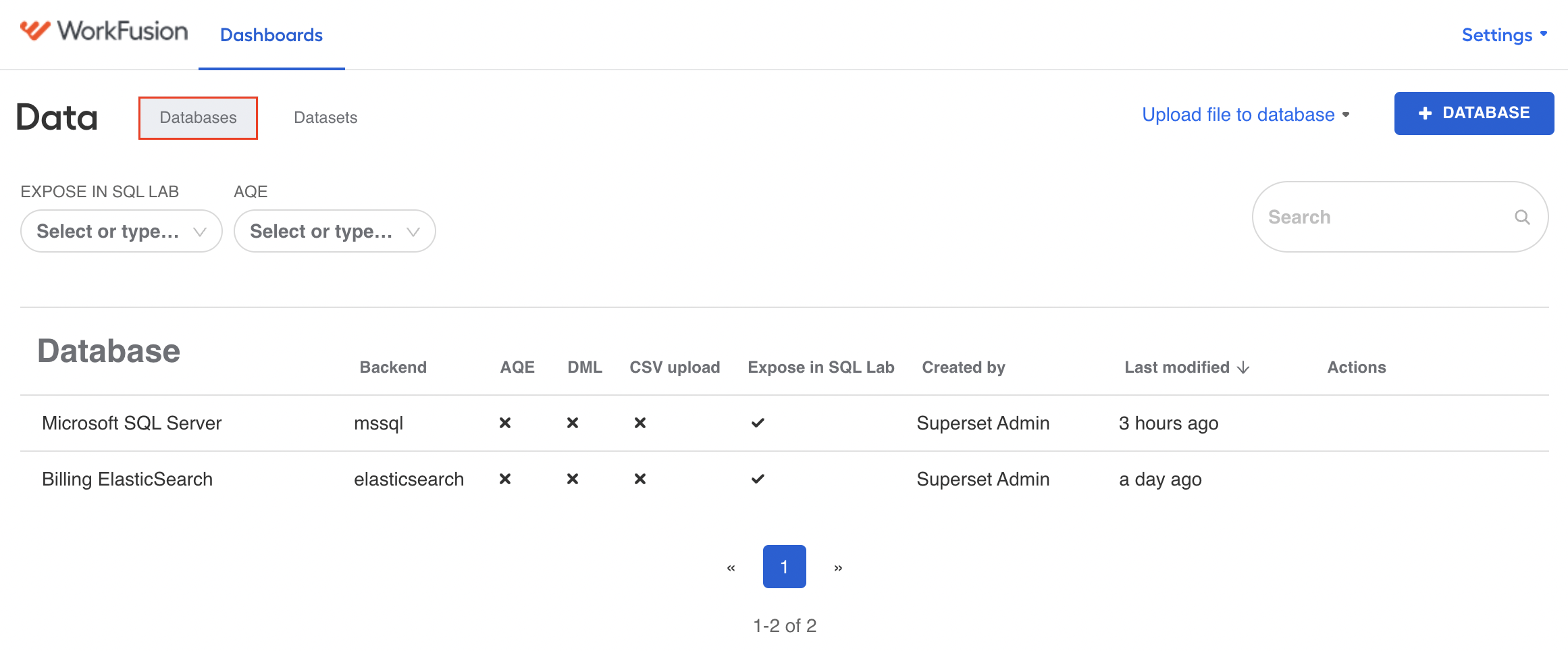
Click the Add Database (+) button to create a new connection.
note
Here, Superset syncs with your deployed Microsoft SQL server and imports data from its tables.
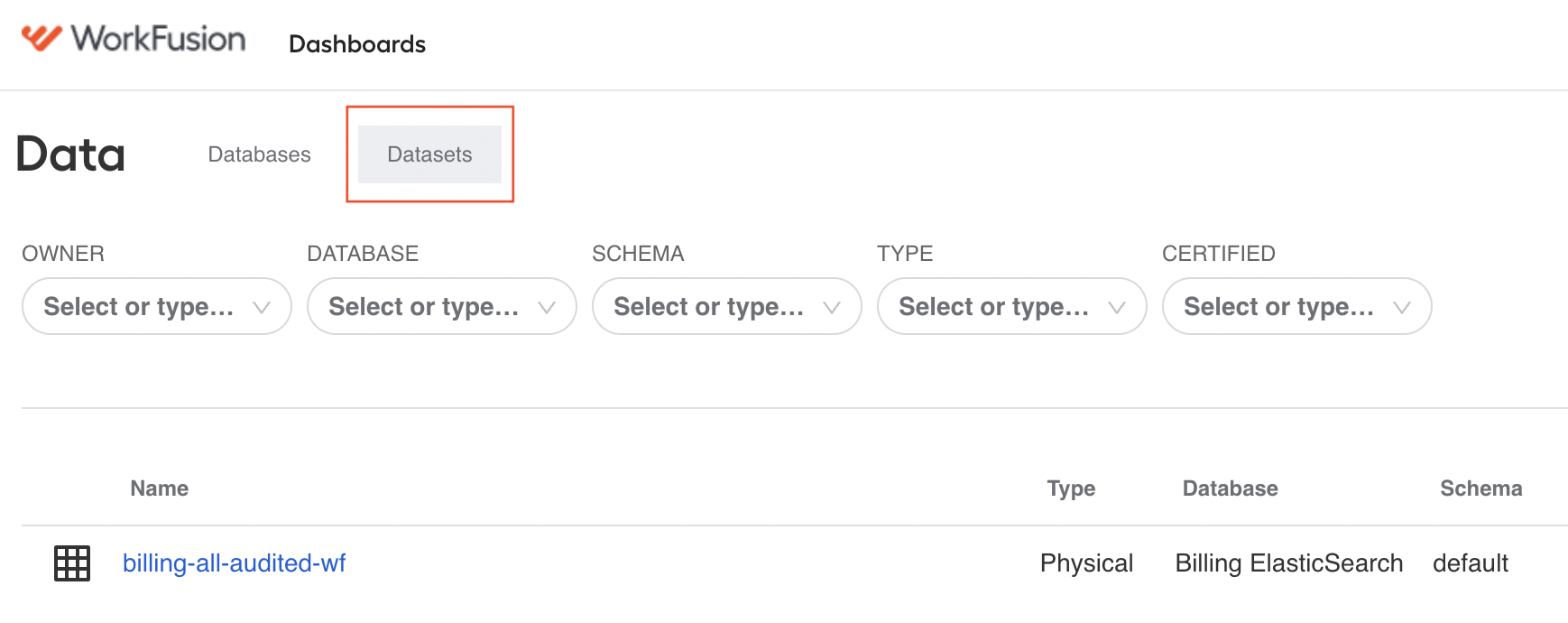
On the Datasets tab, you can find the uploaded datasets.
Provide access to dashboards
Users must have access to both the data in dataset tables and the dashboard to see relevant analytics.
To provide access to data, do the following:
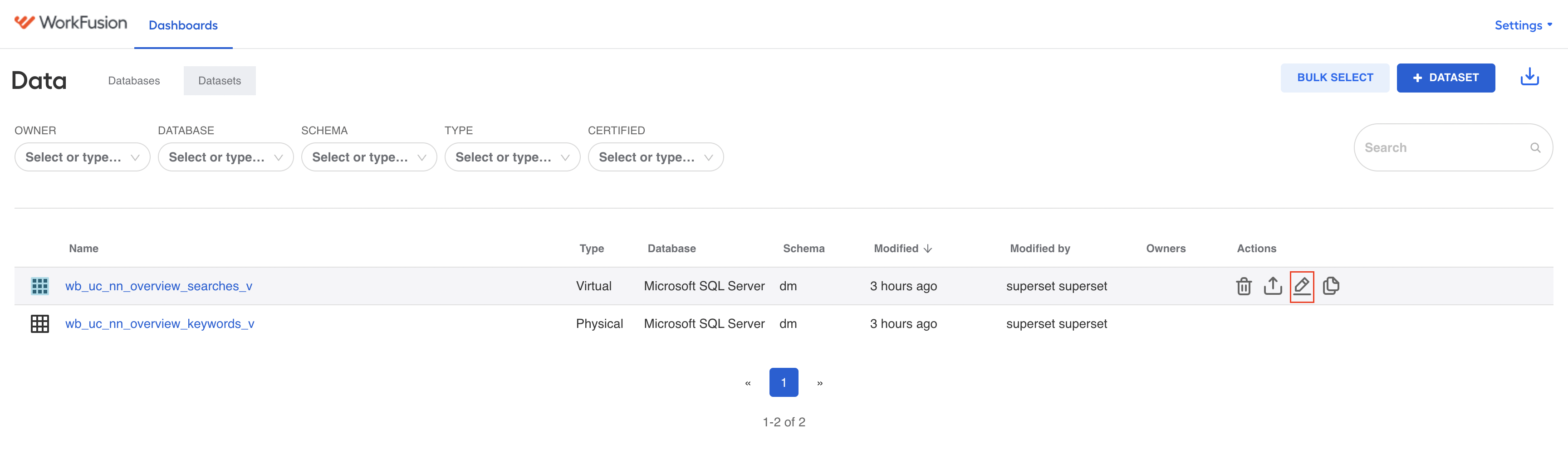
Go to the Superset main screen, click Settings > Database Connections > the Datasets tab.
Hold the pointer over the dataset line, and in the Action column, click the Pencil icon. The Edit dataset window appears.
tip
Alternatively, on the Dashboard screen, click Edit dashboard > Edit properties.
In the dataset window, go to the Settings tab, and in the Owners box, add or remove the access group.
Currently, there are two access groups available:
- Superset admin has full access to the Keycloak and the dashboards. These users can select the dashboards and provide access to them for specific users in the read_only group.
- The read_only users can only view dashboards but can't alter them. These users can see only the dashboards to which they have access.
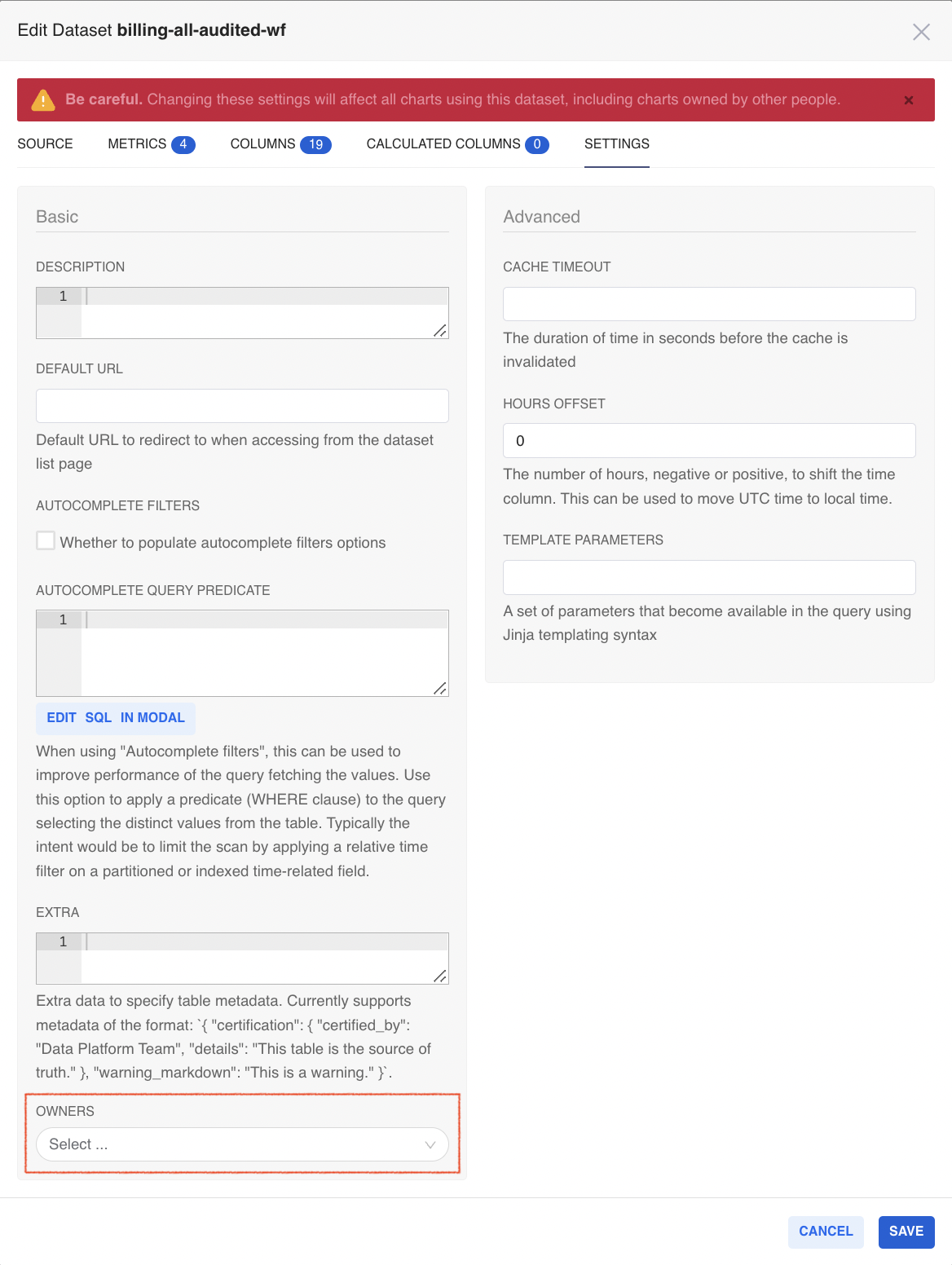
Click Save.
To provide access to a dashboard, do the following:
On the Dashboards screen, find a desired dashboard in the table, hold the pointer over the dashboard line, and in the Action column, click the Pencil icon.
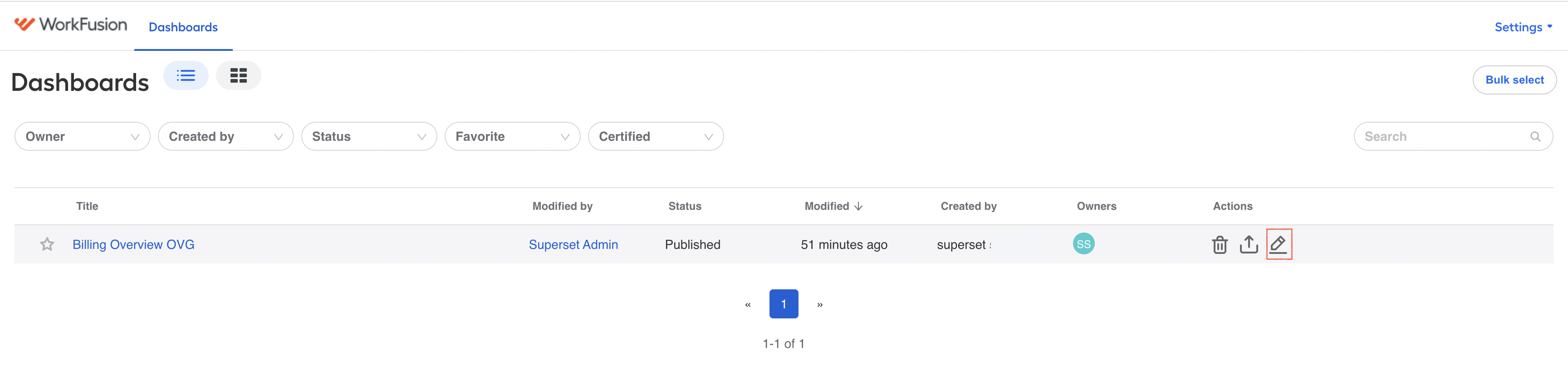
The Edit dashboard window appears.
In the Access group, in the Owners box, add or remove the access group the same way as for the datasets.
Set roles in Keycloak
Only for on-premise installations
Superset is automatically integrated with Keycloak and takes the roles and access permissions from there.
To check the existing roles, do the following:
In Keycloak, on the main menu, in the Configure group, click Clients, and in the list, click the wf-superset client. The client window appears.
Go to the Roles tab.
The existing roles are presented here. To create another one, click Create and follow the guide.
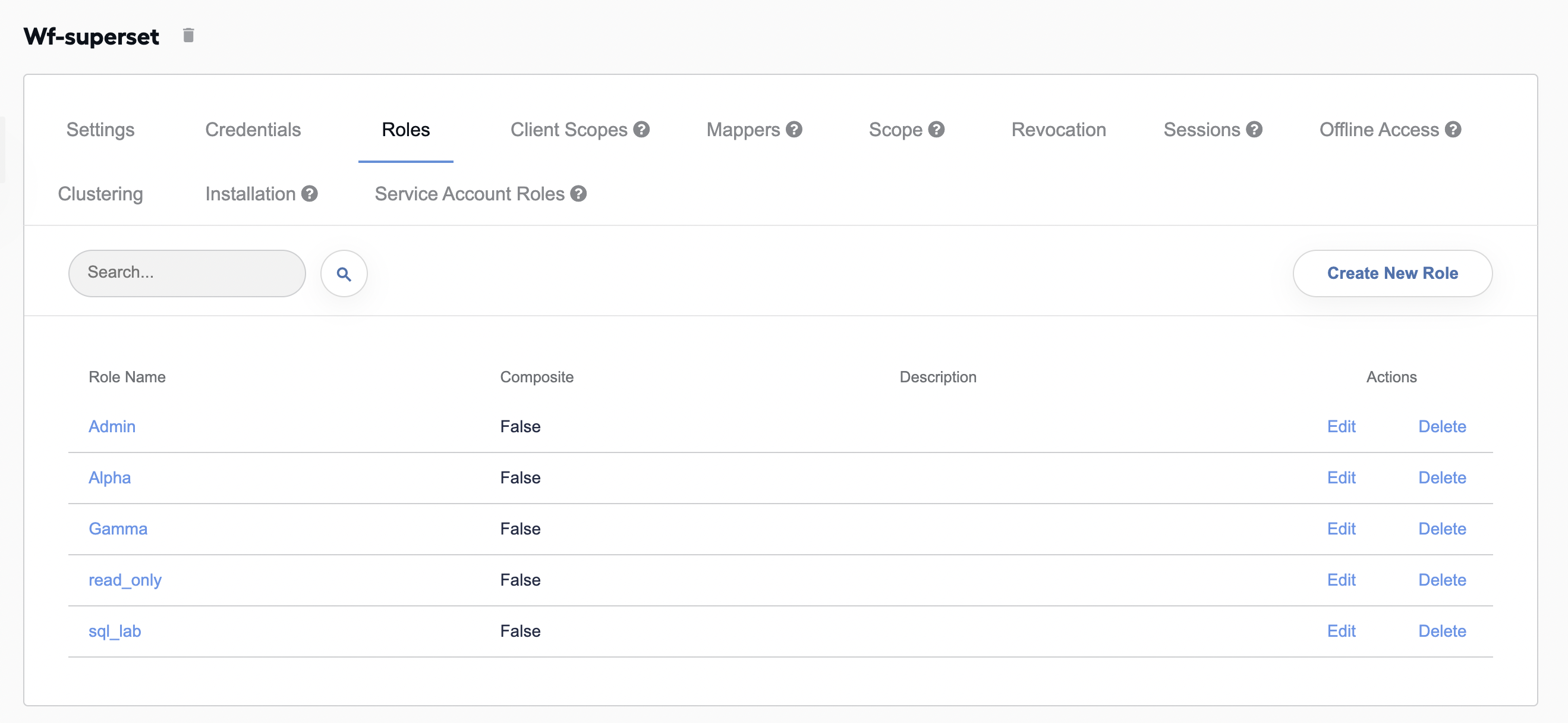
To assign the read-only role to a specific user, do the following:
On the Keycloak main menu, in the Manage group, click Users. The users' list appears.
In the list, click the user you want to assign a new Superset role and go to the Role Mappings tab.
In Role Mappings, in the Client Roles box, select your client, here, wf-superset.
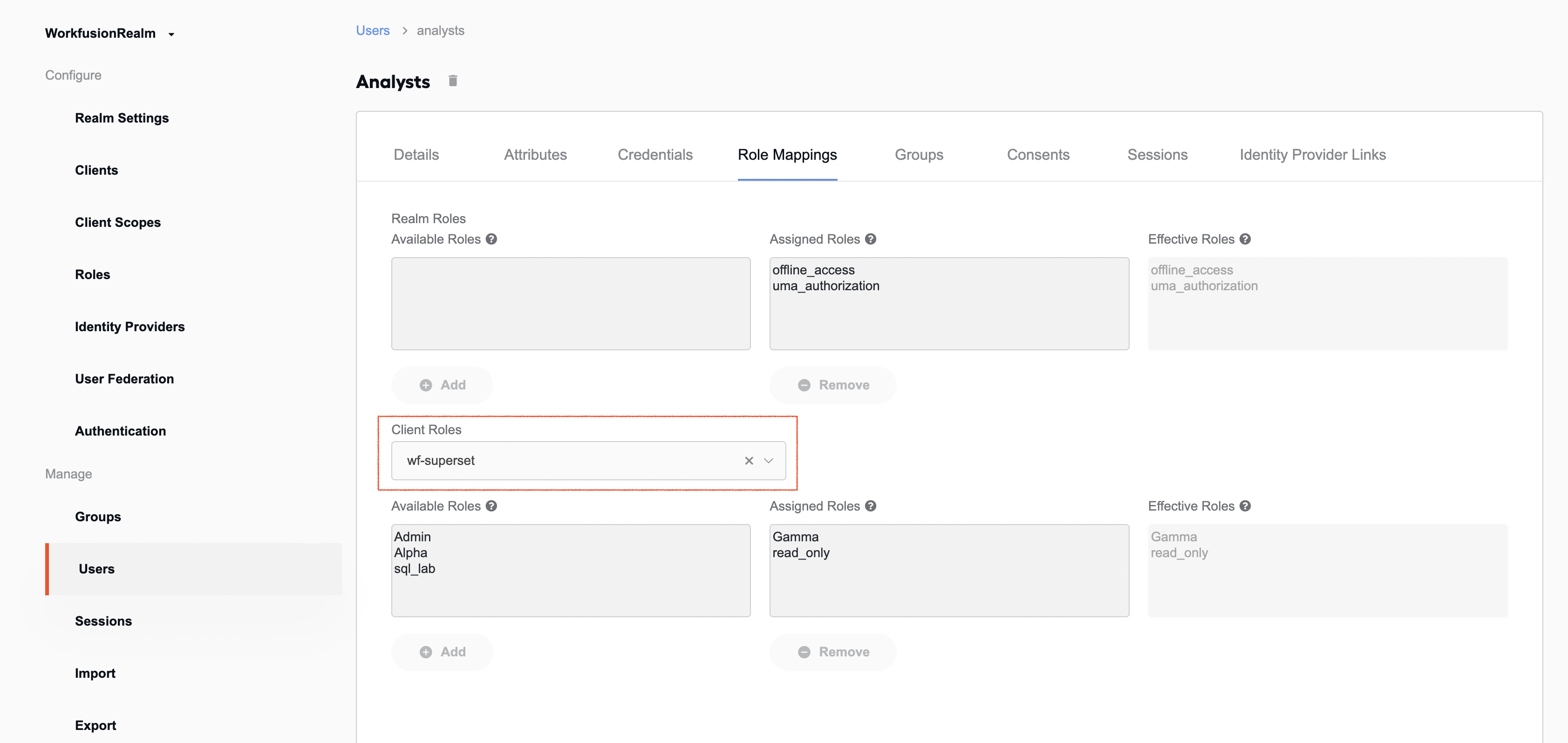
In the Available Roles box, select the read-only role and click Add to move it to the Assigned Roles box.
If the user logs in for the first time, Superset communicates with the Keycloak. If the person is valid, Keycloak displays the assigned roles and provides access to Superset.