
View assignments
note
If you cannot see the assignment list and see the Access denied message instead, check your WorkSpace permissions.
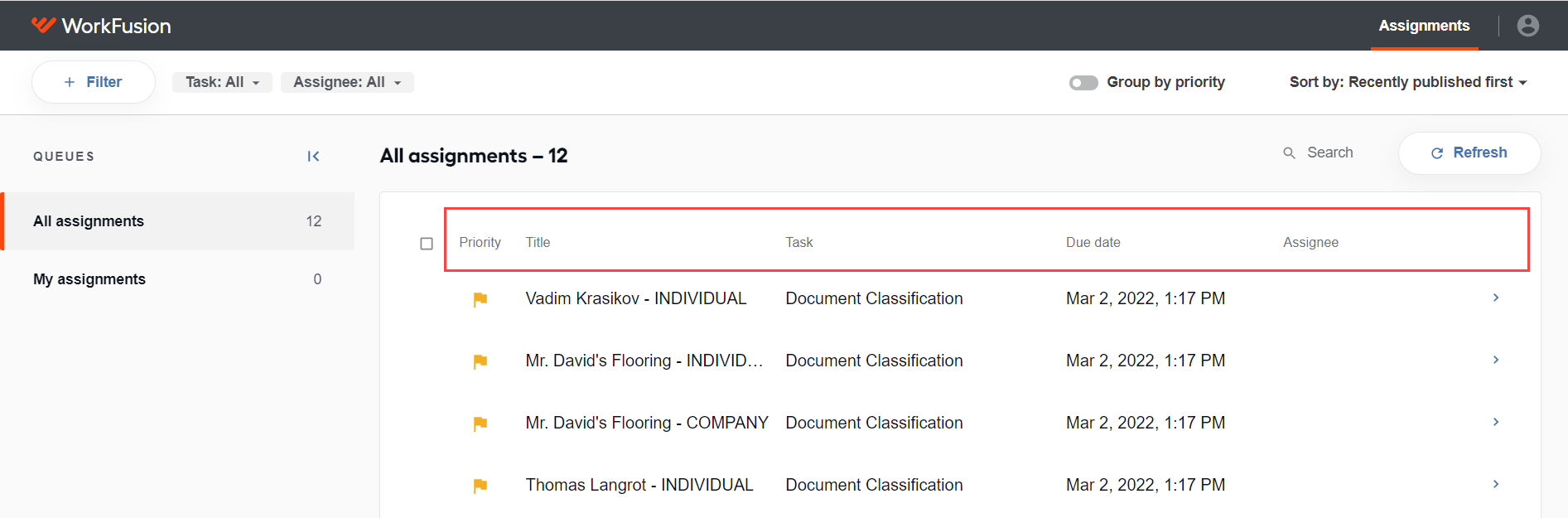
The assignment list allows you to review all available assignments, their priorities, and order. It also contains the following basic information about each assignment:
- Priority: the assignment priority—Critical, Normal, or Low
- Title: the assignment name
- Task: the task type
- Due date: the assignment expiry date
- Assignee: the person assigned to complete the assignment
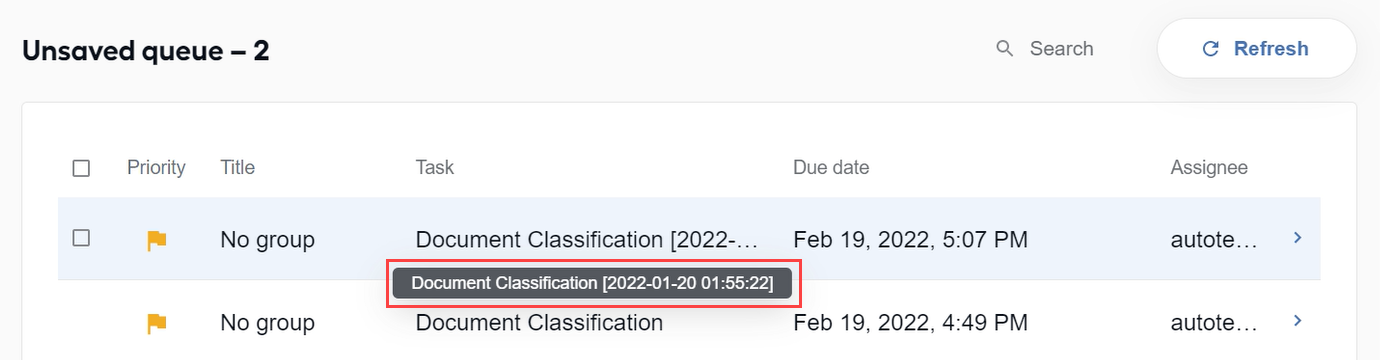
If some information in the list is not visible due to the column size, for example, an assignment title, hover over it to see full details in a tooltip.
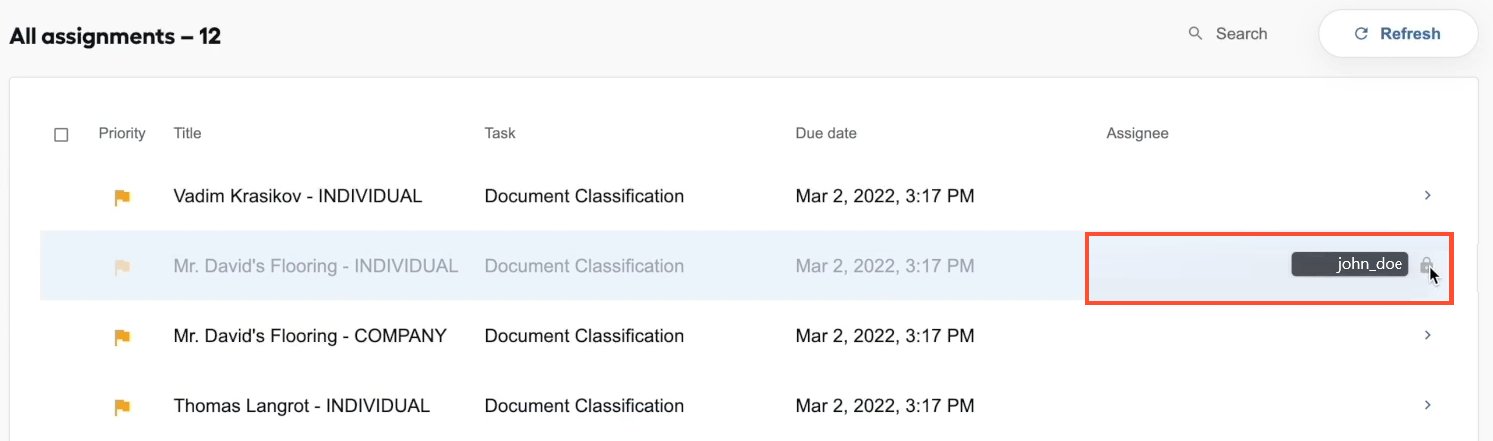
For a blocked assignment, you can see who is working on it if you hover over the Assignee area.
To change the width of the columns in the assignment list, hold the pointer over a column border and drag it to modify the width. If the columns do not fit the visible frame, a horizontal scroll appears at the bottom of the list.
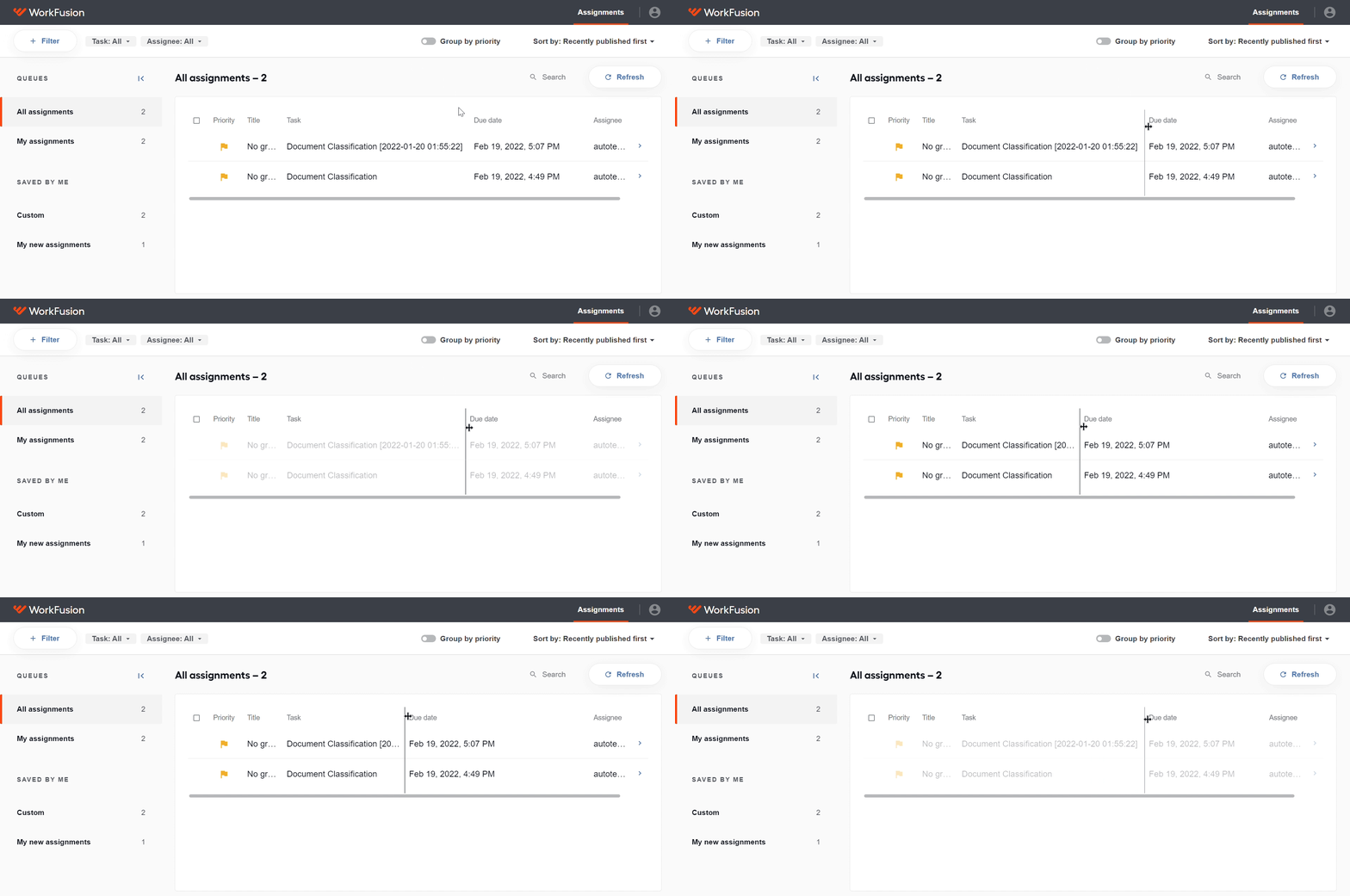
To change the order of the columns, drag and drop the selected columns within the list. Mind that you cannot relocate the Assign to checkbox (sticks to the visible area on the left) and the arrow column (sticks to visible area on the right).
By default, the assignments are arranged by their creation date. For other sorting options, refer to Sort assignments and create custom queues.
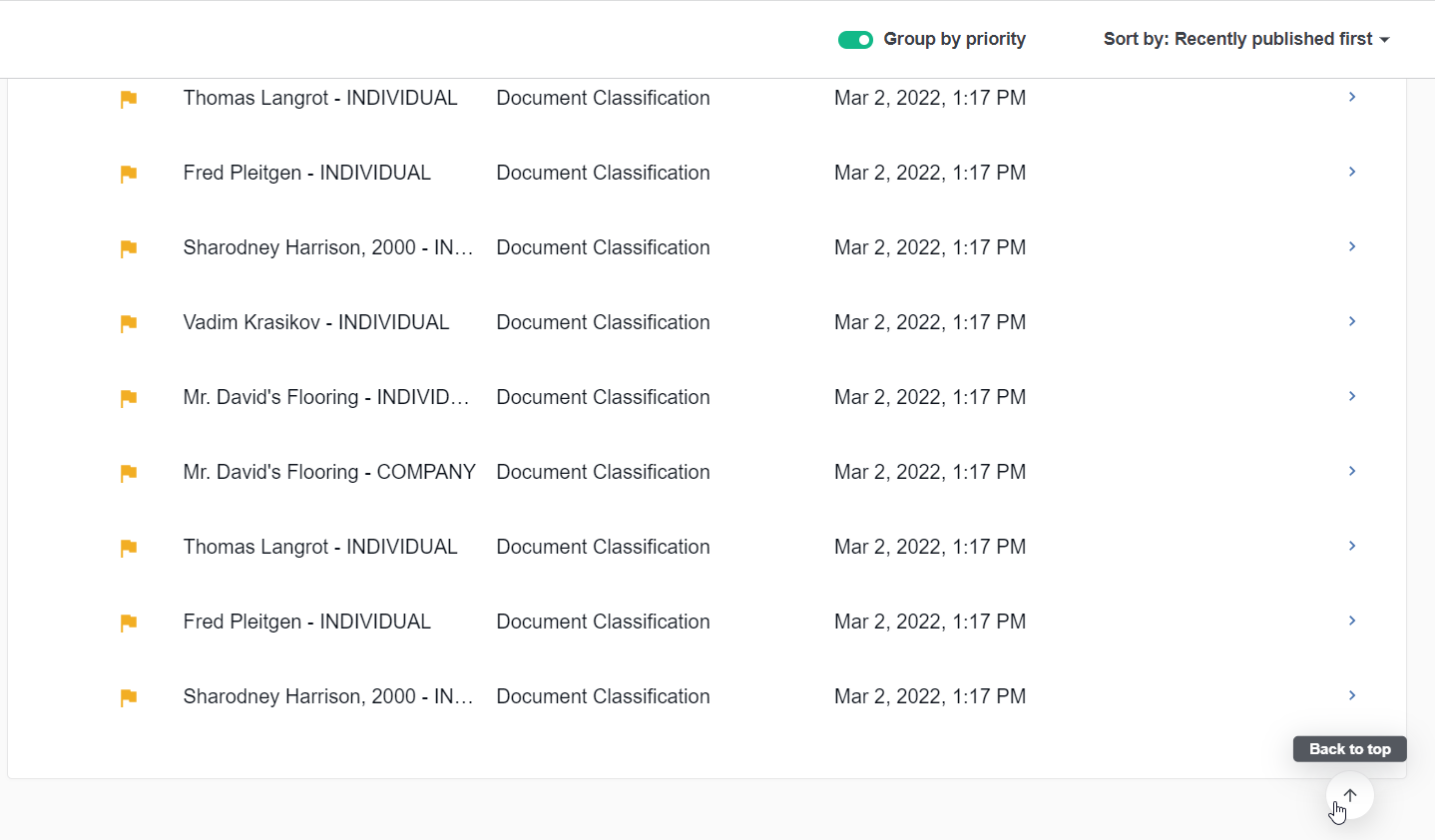
The assignment list supports infinite scroll. To return to the top, click the arrow in the right bottom corner.
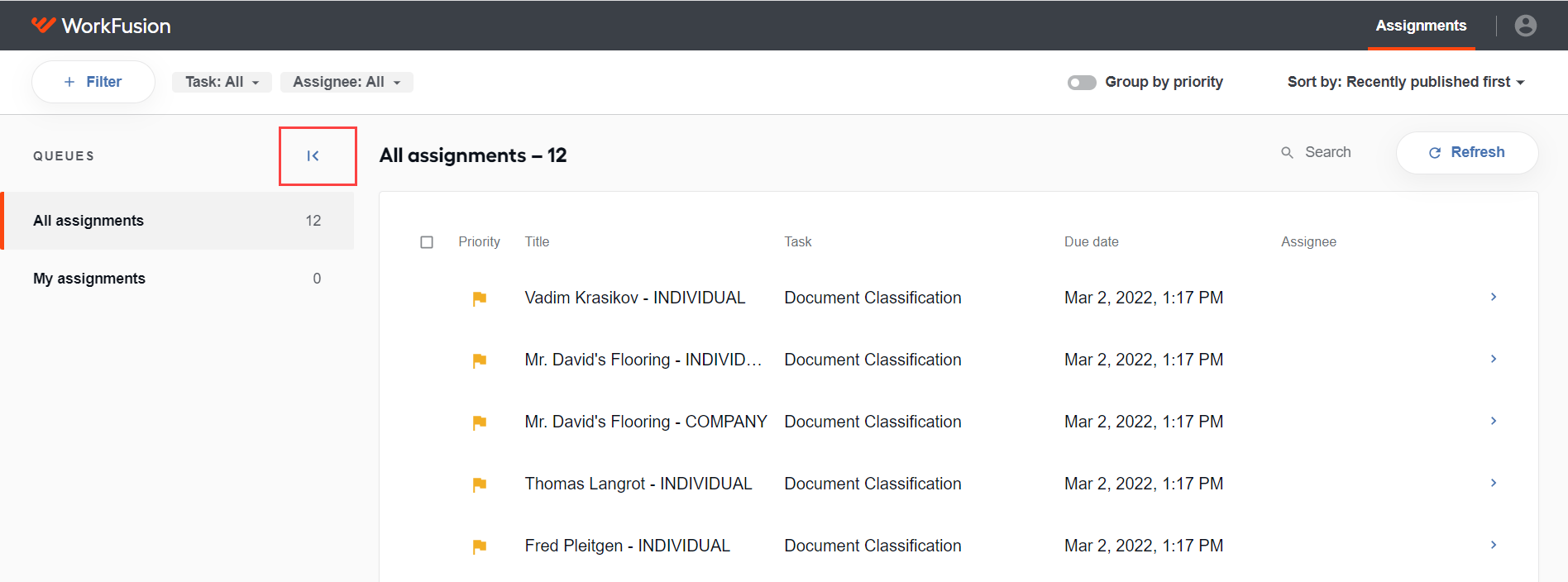
To collapse the side panel, click the arrow button next to QUEUES on the left.
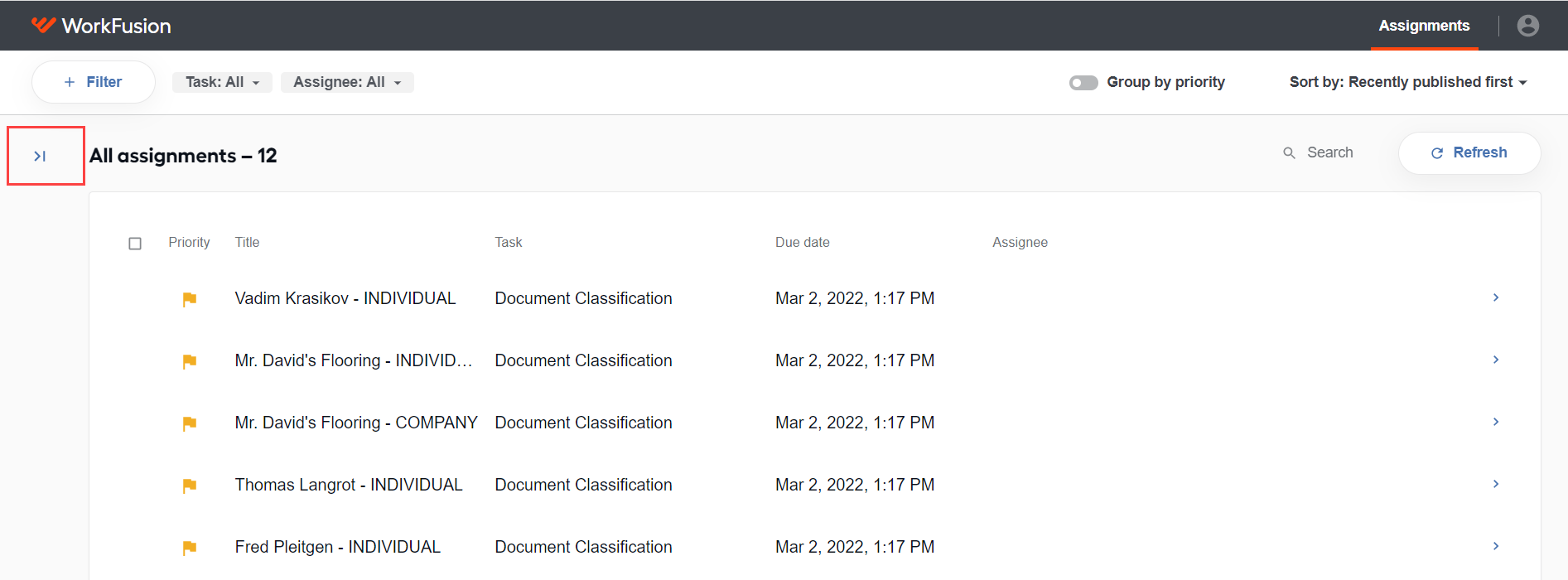
To expand the side panel, click the arrow button again.
Search for assignments
To search for assignments, do as follows:
Click the search bar.
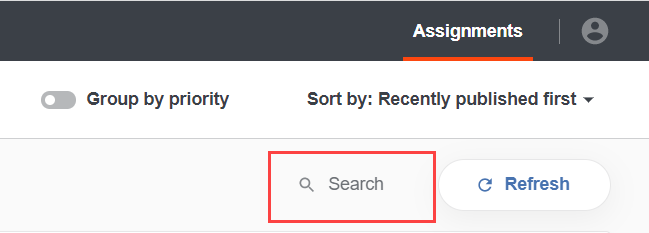
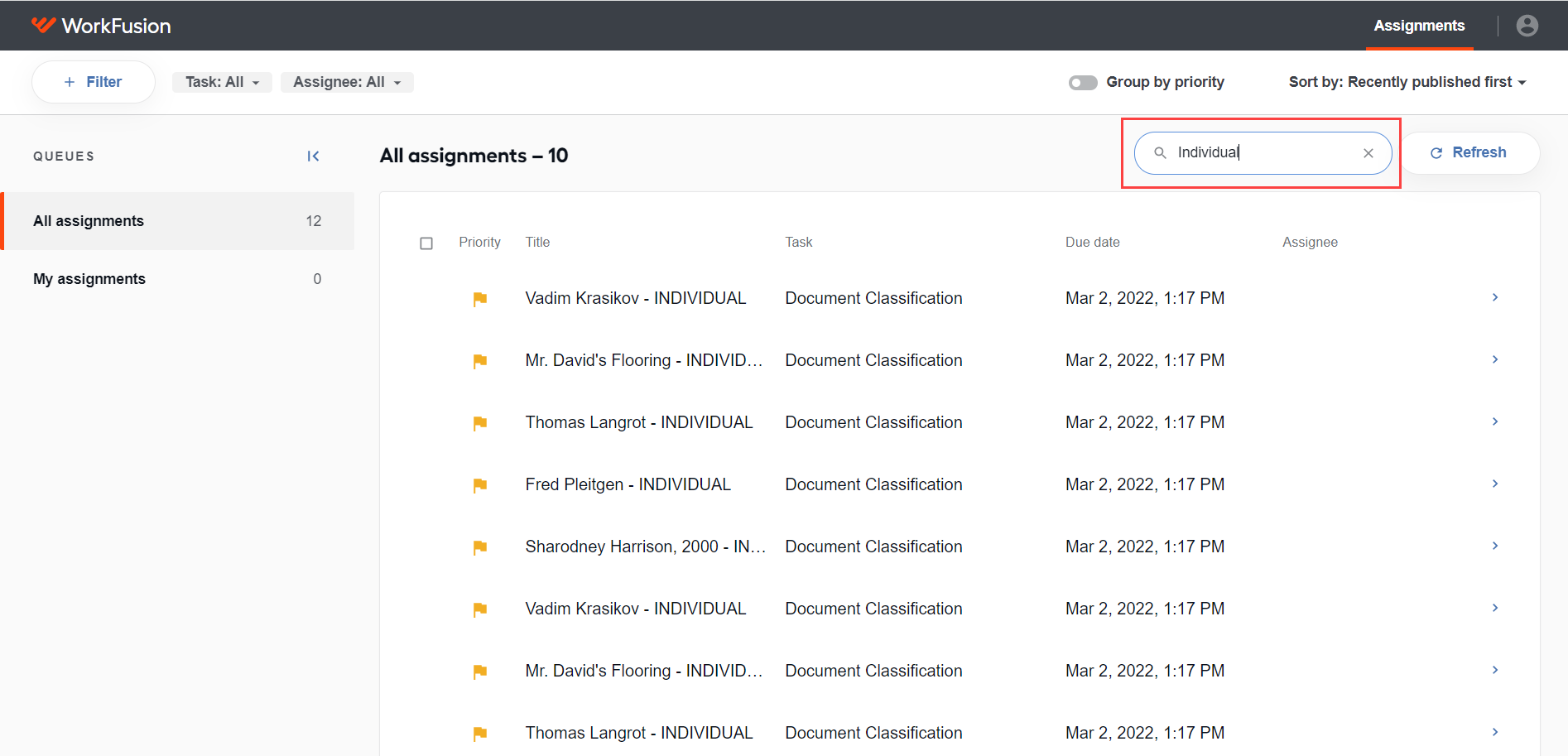
Start entering your request, or paste the full-text one into the field. Mind that the search is initiated on the first symbol entered. The search results form a separate unsaved queue.
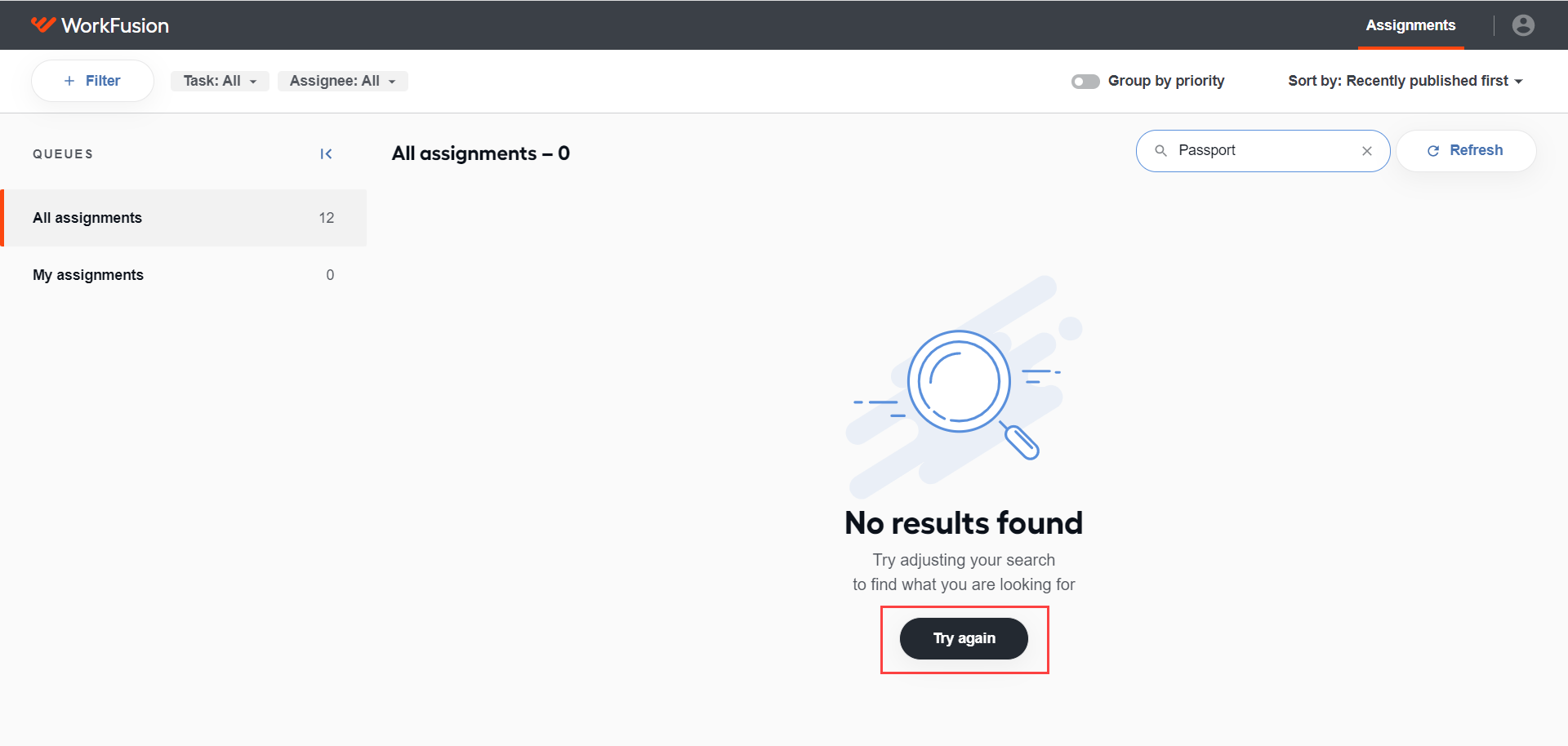
If no results are found, click the Try again button to return to the queue.
To discard the search query and return to all assignments, click Close search. The search string clears when you close the page.
Select assignments
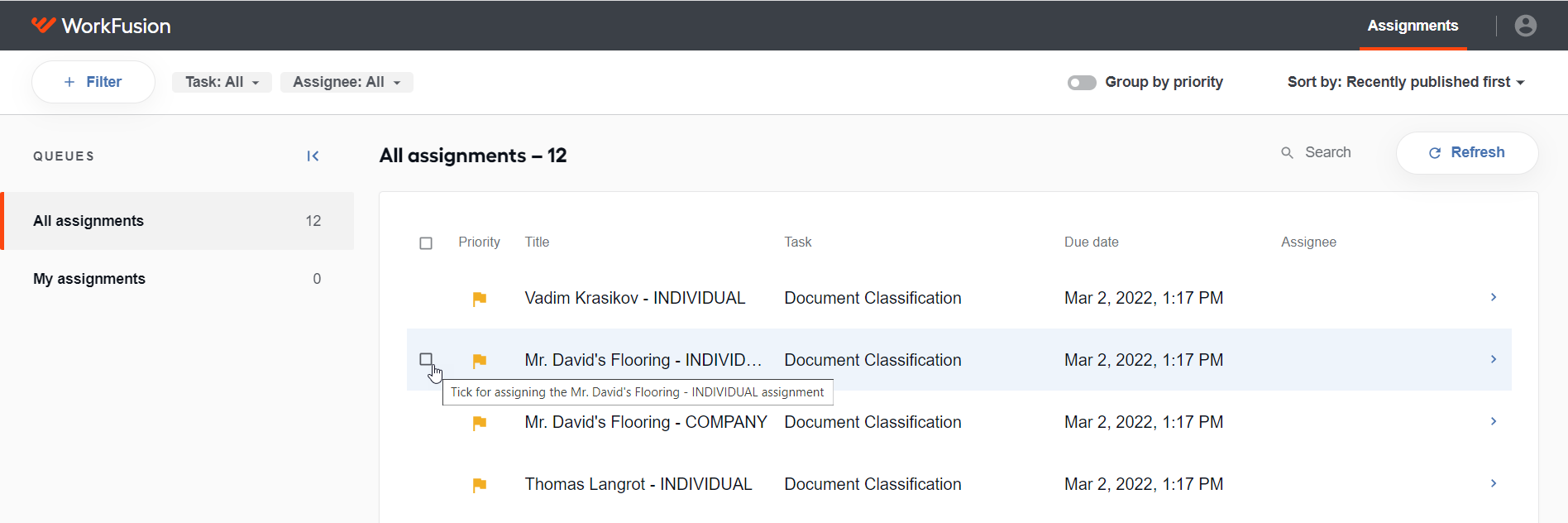
To distribute assignments, select the checkboxes next to them. To see a checkbox, hold the pointer over an assignment.
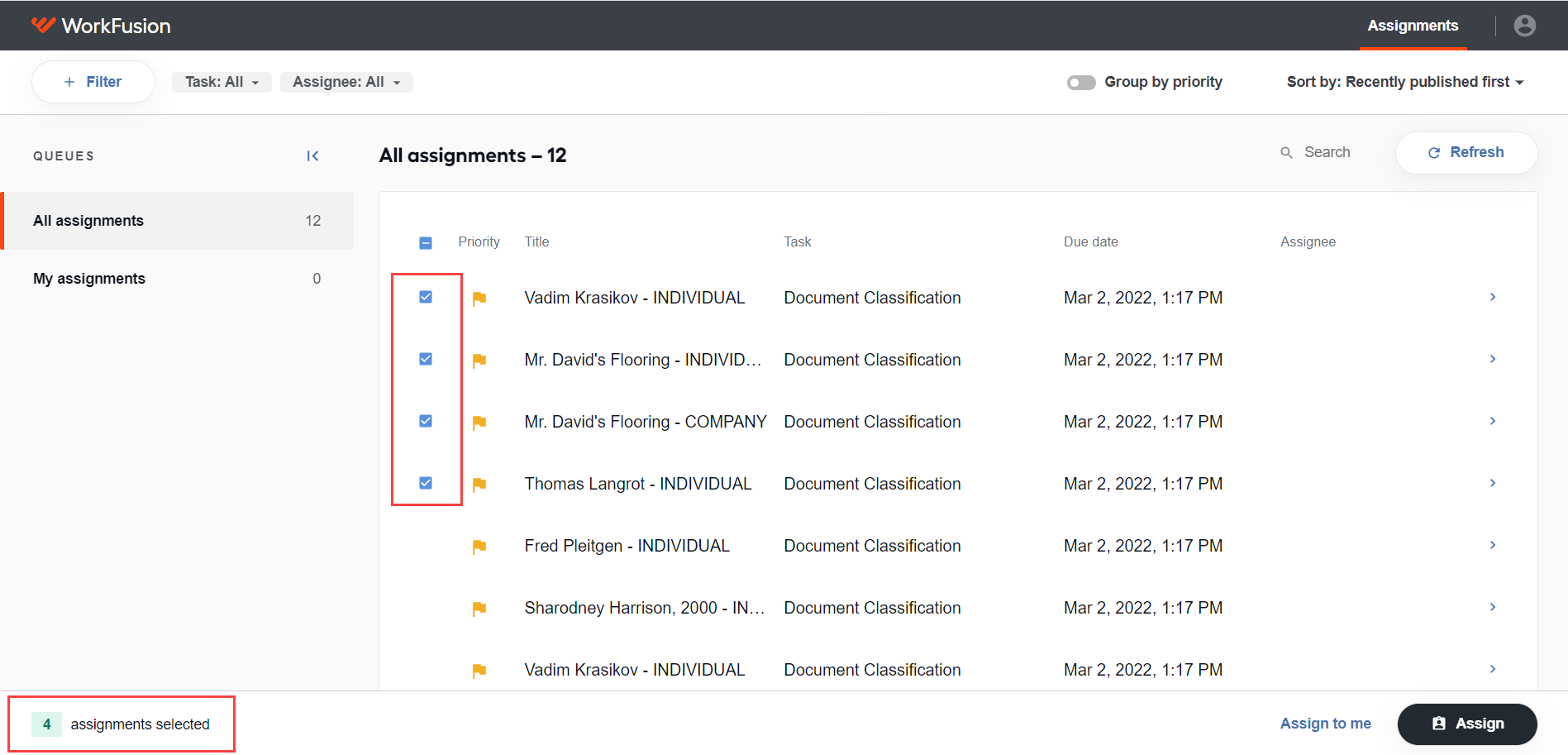
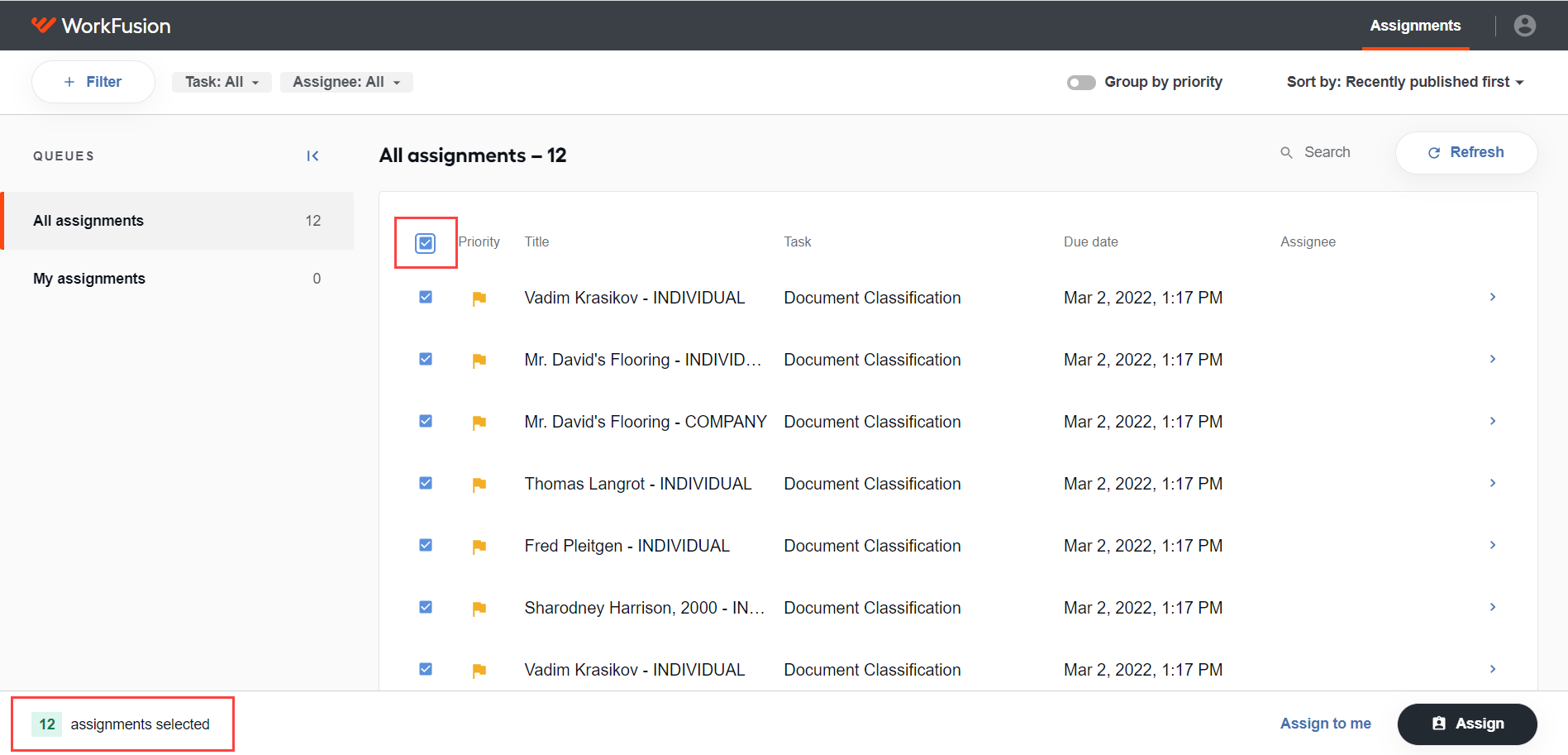
The number of selected assignments is shown in the bottom left corner. To remove the selection, either deselect the checkbox next to the required item or deselect all items by clicking the "-" indication above.
To select all assignments in a queue, check Select all. To remove the selection for all items, uncheck it.
caution
If there are too many assignments in the queue, only the first hundred assignments are assigned.
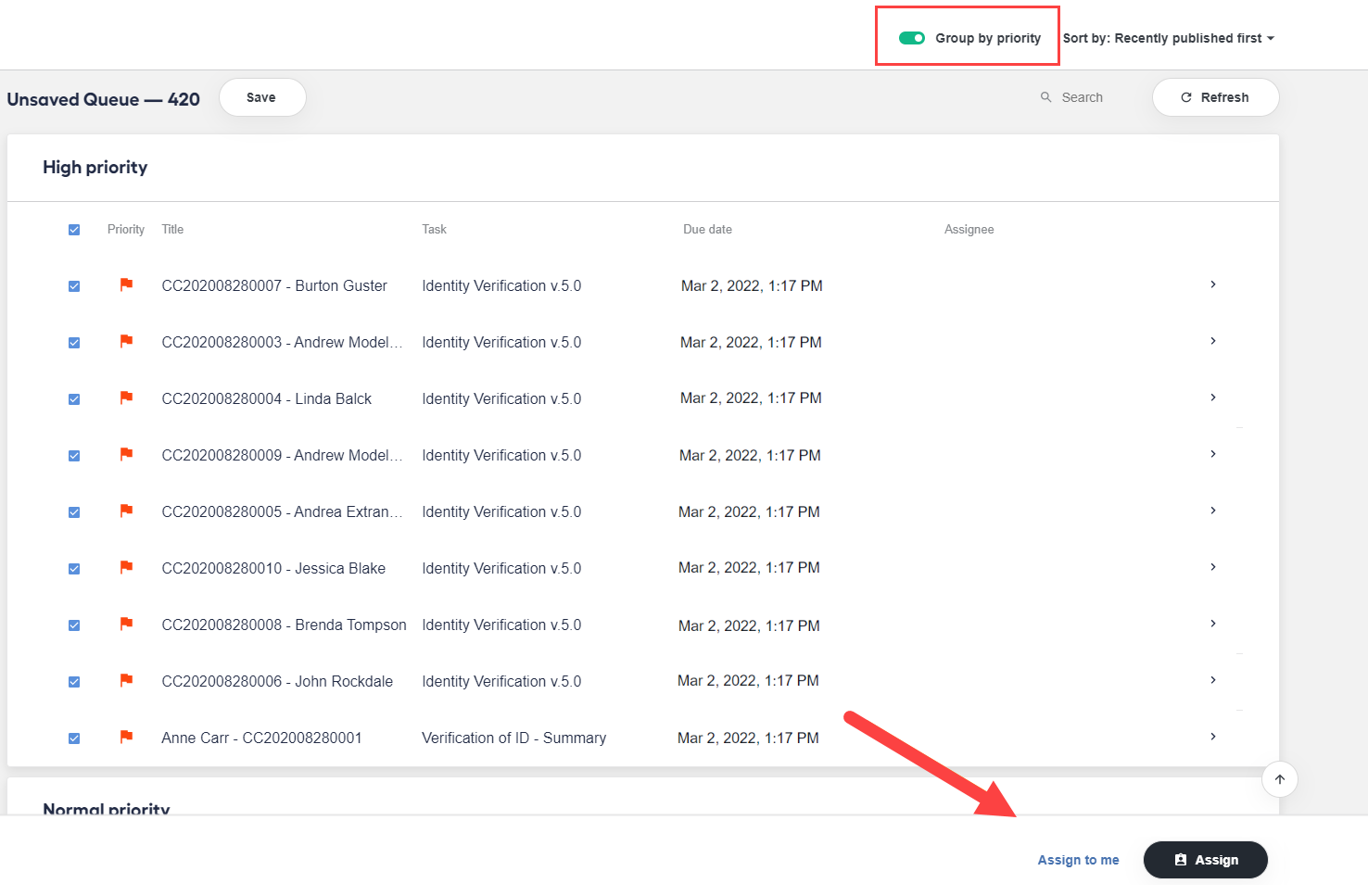
When grouping by priorities, you can set assignees within the following groups:
A group of assignments with the selected priority: check Select all within the priority group.
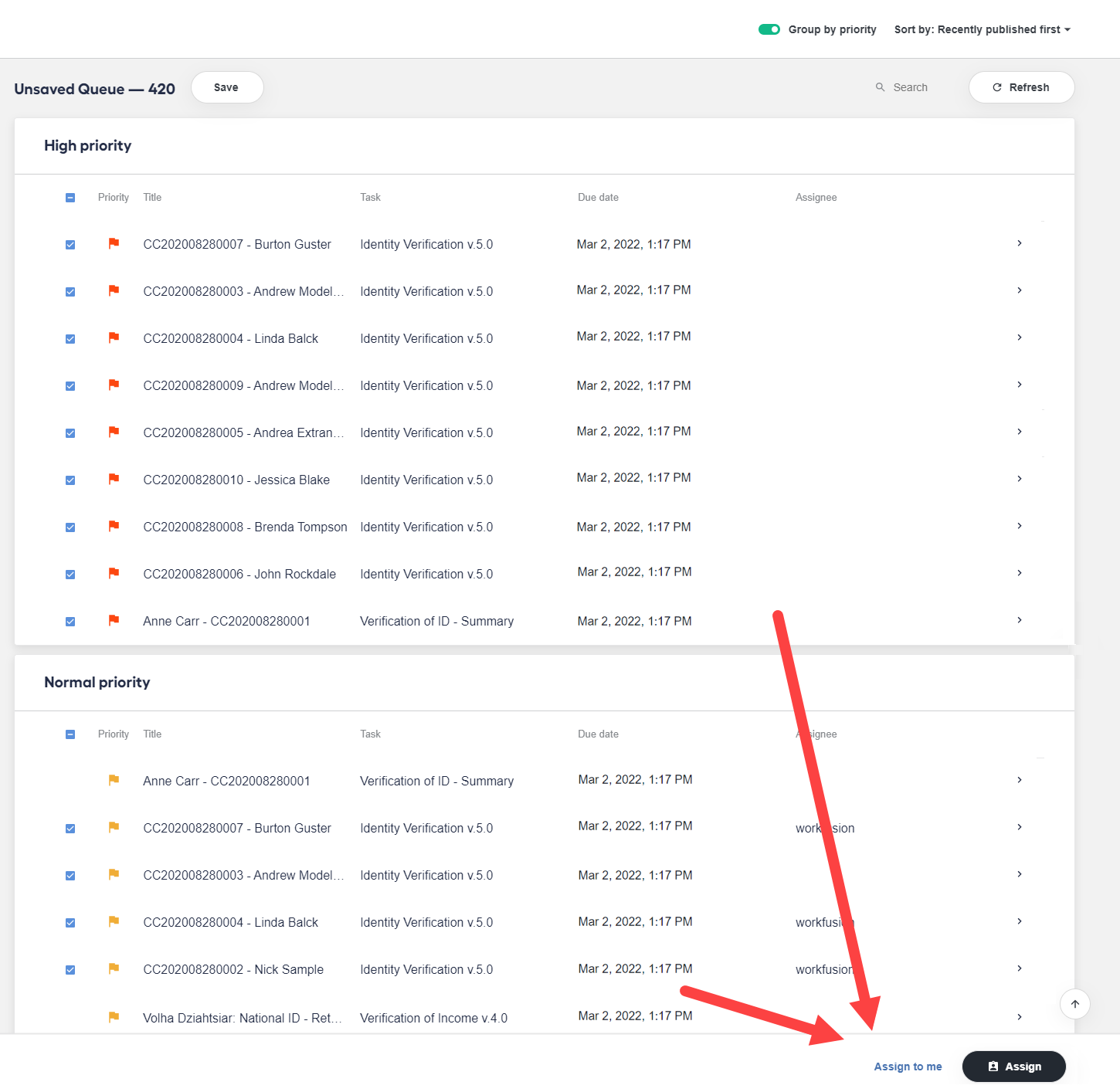
Assignments of various priorities: select only the assignments you need.
Select assignee
Use the Assign function to recommend one or more workers to do a job or indicate to colleagues that you are planning to process assignments yourself.
Mind that assigning to someone does not restrict this person from processing the selected assignment. Even if a task is already assigned, you can still start working on the assignment and complete it.
important
When you assign to a person, you recommend this task for them. It's up to them whether to accept the assignment or not.
To process selected assignments yourself, click Assign to me in the right bottom corner.
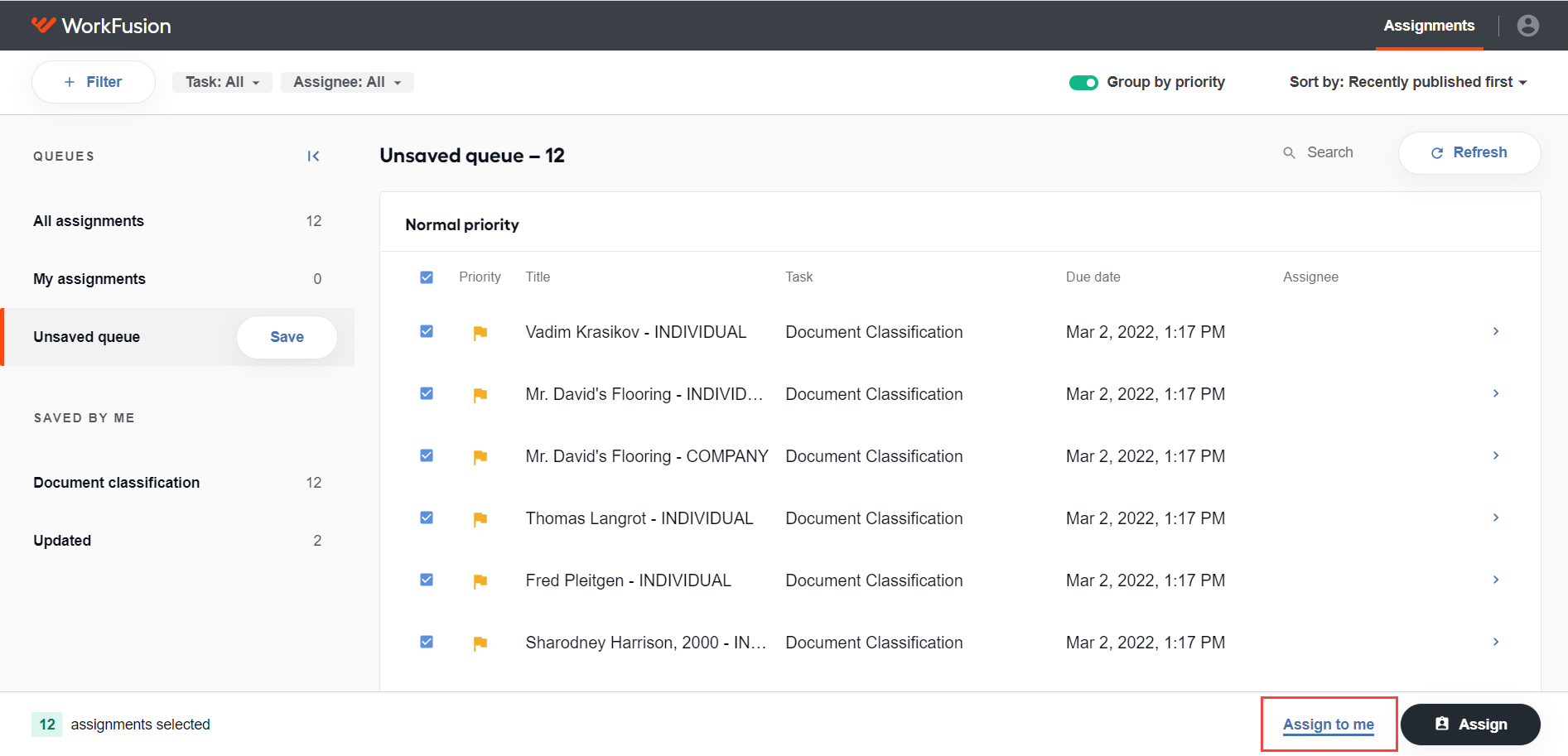
Your name appears next to the corresponding assignments, and the assignments are grouped in the My assignments queue.
To select an assignee, do as follows:
Click Assign.
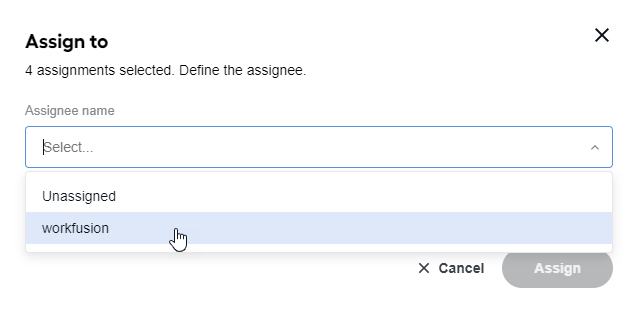
In the window that follows, click the Assignee name list and select a person.
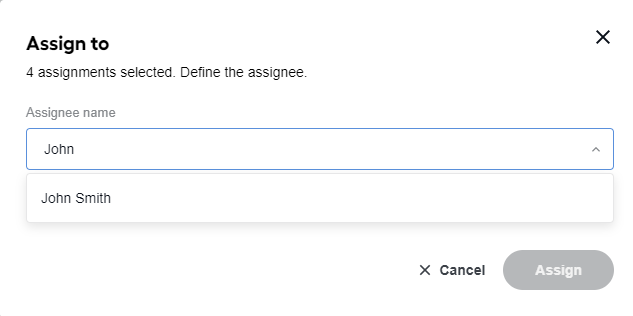
You can search for an assignee directly in the field. For that, start entering the assignee's first or last name or username.
Click Assign. The message that the assignment is successfully assigned appears. The assignee's name is shown next to the corresponding assignment.

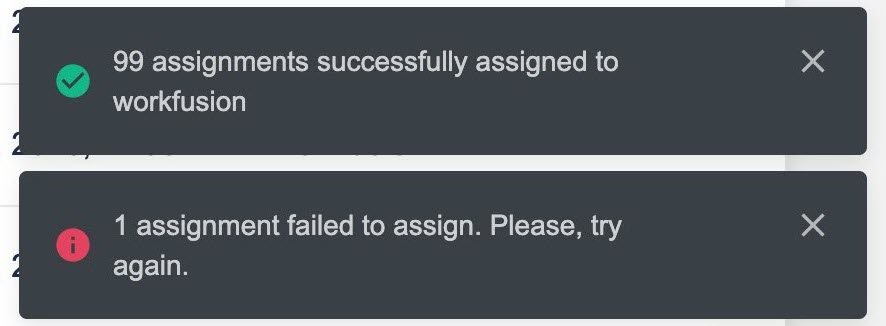
You can only assign to workers who have permissions for the selected assignments. Otherwise, you see the following warning:
To remove an assignee from an assignment, select the Unassigned option in the drop-down list.
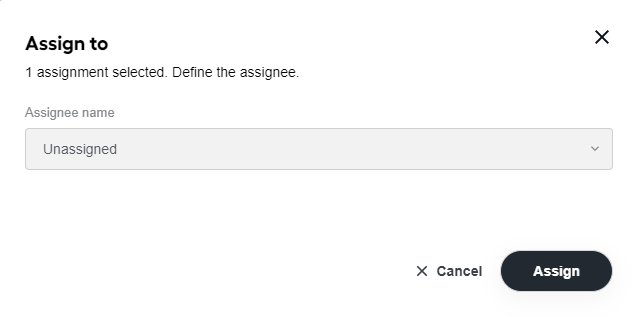
The message that the assignment is unassigned appears.

Refresh assignments
To refresh the assignment list, click the Refresh button.
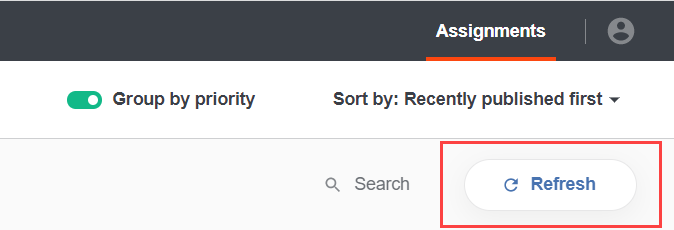
The assignment list is reloaded in the following cases:
- The counters in the queue are refreshed.
- Newly created assignments are added with relevant information.
- Completed, stopped, paused, and deleted assignments are hidden from the assignment list.
- Assignment statuses are refreshed in case the assignments are processed, and so on.