Orchestration workflow
The Orchestration section guides you through the steps to deliver and orchestrate automations, including the involvement of a human worker in the loop. The figure below illustrates the actions available for the purpose via the Control Tower (CT) and Workspace (WS) user interfaces.
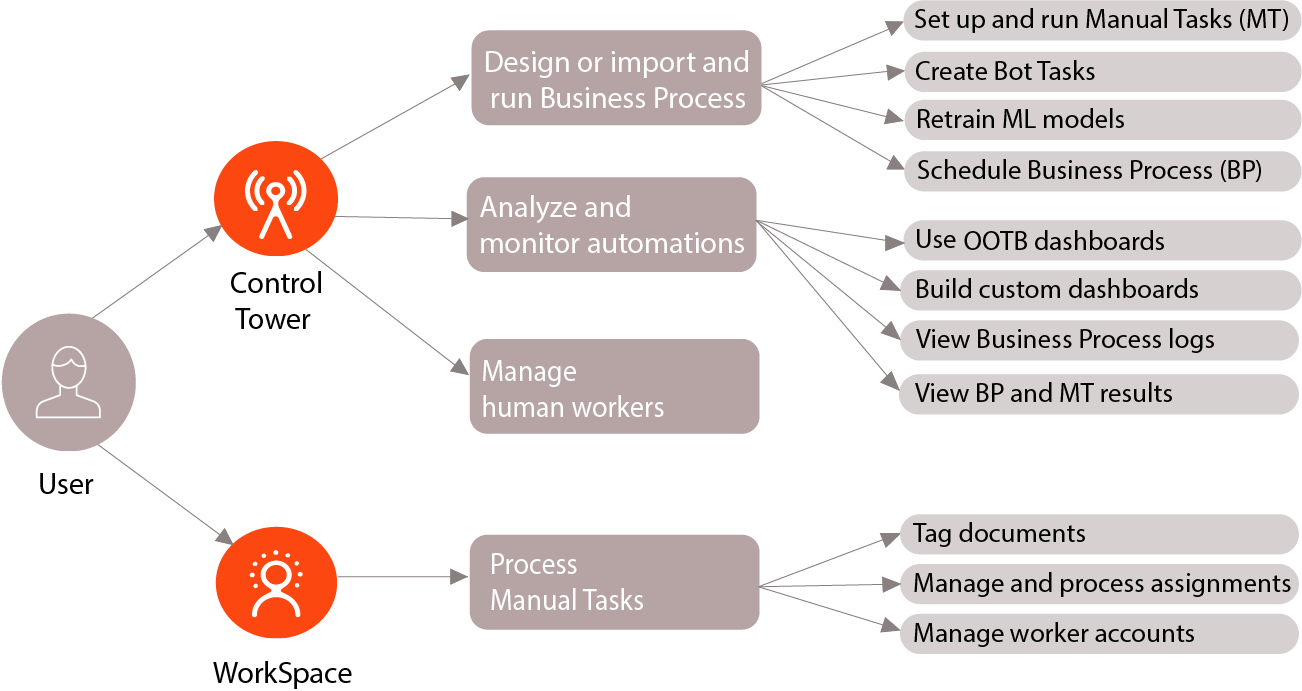
Design and run Business Process
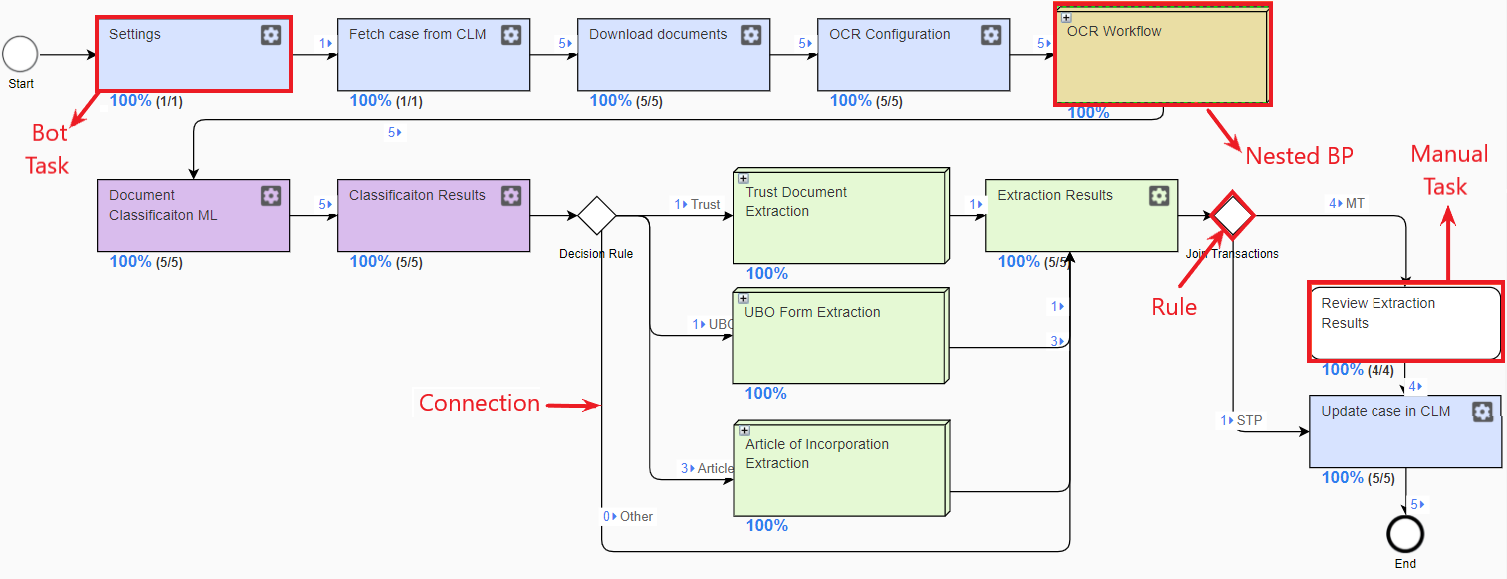
In Intelligent Automation Cloud (IA Cloud), Business Processes (BP) are the means to deliver automations. A Business Process can include Manual Tasks, Bot Tasks, and nested Business Processes.
Design Business Process
To implement a BP in Control Tower, the following actions are essential:
Create a BP. See the Create Business Process guide.
Design the BP flow. Start with the Build Business Process flow in Workflow designer topic and explore how to work with the following:
Bot Tasks to allow for automatic execution of specific steps in the designed workflow. For details, see Add Bot Task.
Manual Tasks to involve human workers into assisting the bots with their tasks, for instance, by reviewing and correcting the output of automated steps. Read the guidelines in the Set up Manual Task section and the Add Manual Task topics.
Connections between the BP components to join them into an end-to-end automation flow. For more information, see Add connections.
AutoML Bridge steps to integrate machine learning models into the BP to do information extraction and classification tasks. For more information, see Add and execute AutoML Bridge step.
OCR steps to provide for optical character recognition on the BP input if needed. For details, see Configure OCR Bridge step and OCR providers.
Below is a sample Business Process for document handling.
Import Business Process
Instead of designing a BP in CT, you can import it. For detailed instructions, read the Migrate tasks and Business Processes user guide.
Run Business Process
Once your BP is set up as appropriate, do the following:
Set options for the BP run.
Run the BP.
Schedule Business Process
To run a BP automatically at regular intervals, set a schedule as described in the Schedule Business Process section.
Analyze and monitor automations
To keep track of your Business Process executions, you can do the following:
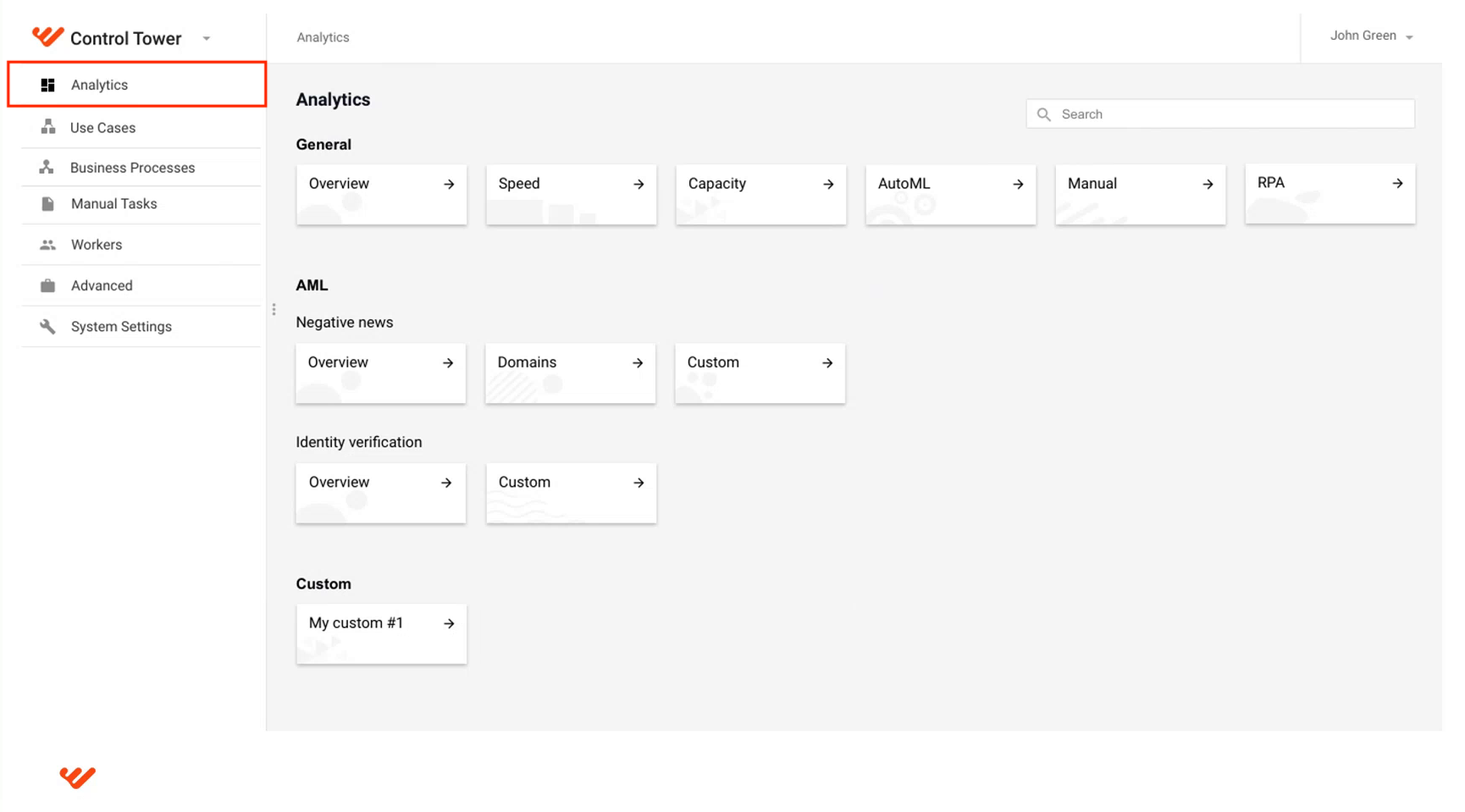
Utilize WorkFusion Analytics. You can either use out-of-the-box dashboards or build custom ones according to your specifications. For details, read the Analytics section.
Investigate BP logs. For details, refer to the View logs and repair Business Processes topic.
View MT and BP results. For instructions on viewing BP results, refer to the article. For the same guidelines on MT, read the topic.
Manage human workers
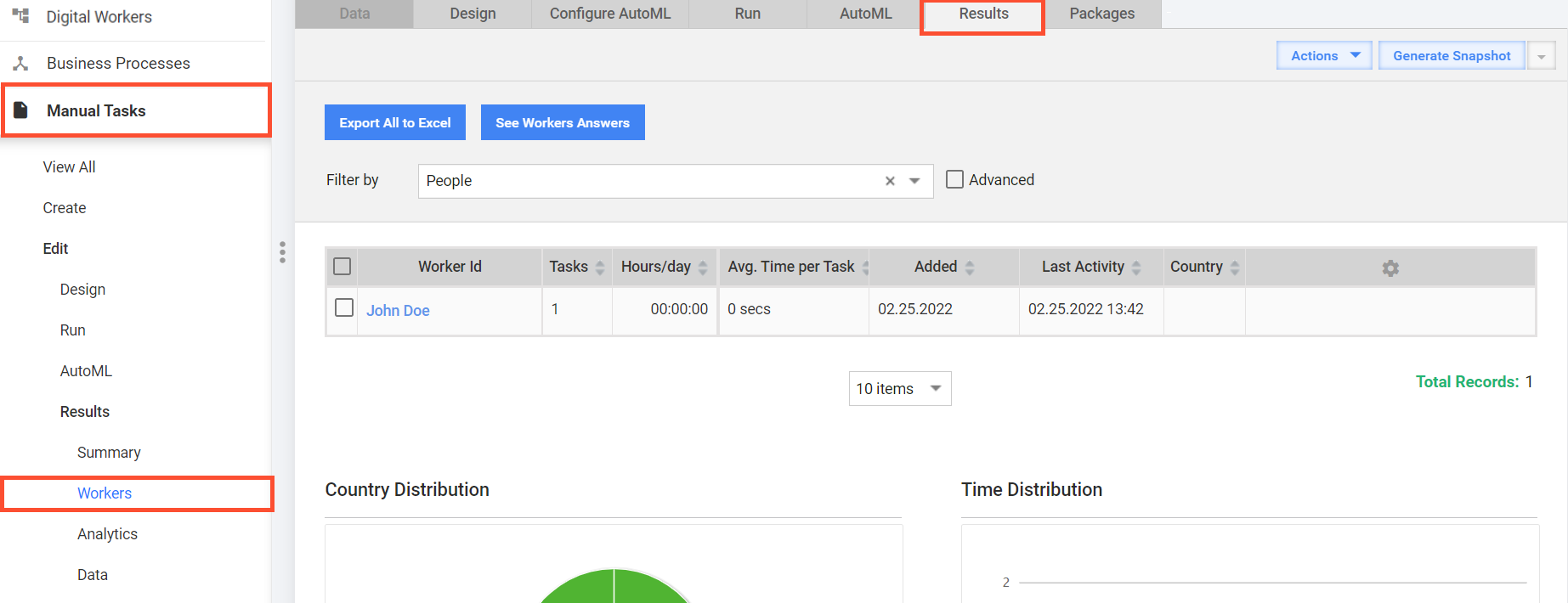
CT provides the functionality to manage workers, monitor their statistics, and handle worker profiles. For details, refer to the Manage workers section.
Process Manual Tasks
Workspace is the point to involve a human worker in your automation and the place where tasks are done when they require human assistance.
Label documents
Labeling (earlier known as Tagging over Document (ToD)) is designed to prepare the documents fed to a Business Process for processing by the Optical Character Recognition (OCR) engine. The primary actors in the process are Subject-Matter Experts and Data Analysts. They review the documents in Workspace, discover business logic, and find out how to label them.
The GIF below illustrates the labeling process.
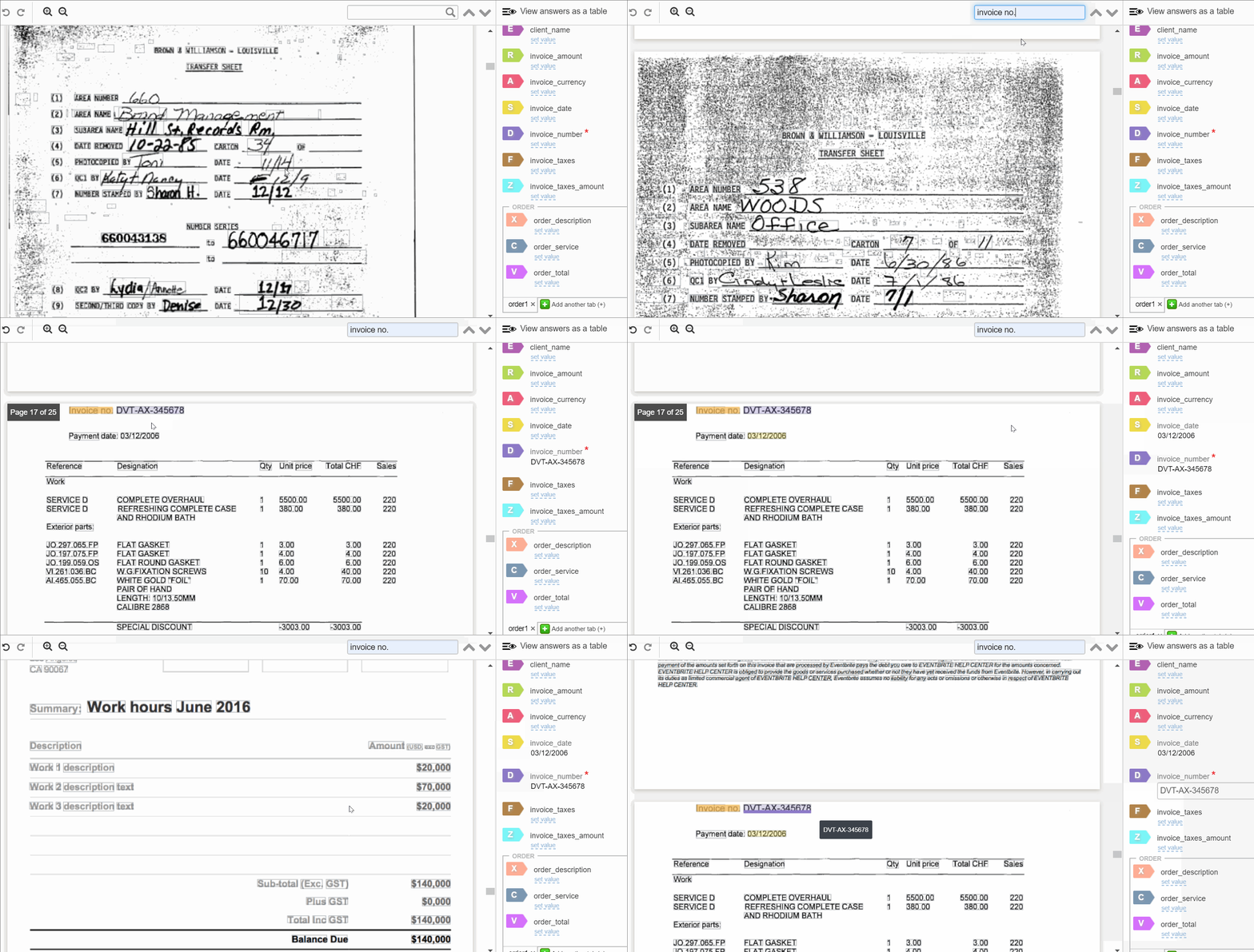
To learn more, read the guides in the Document labeling section.
Manage and process assignments
An assignment is an object representing a Manual Task in Workspace.
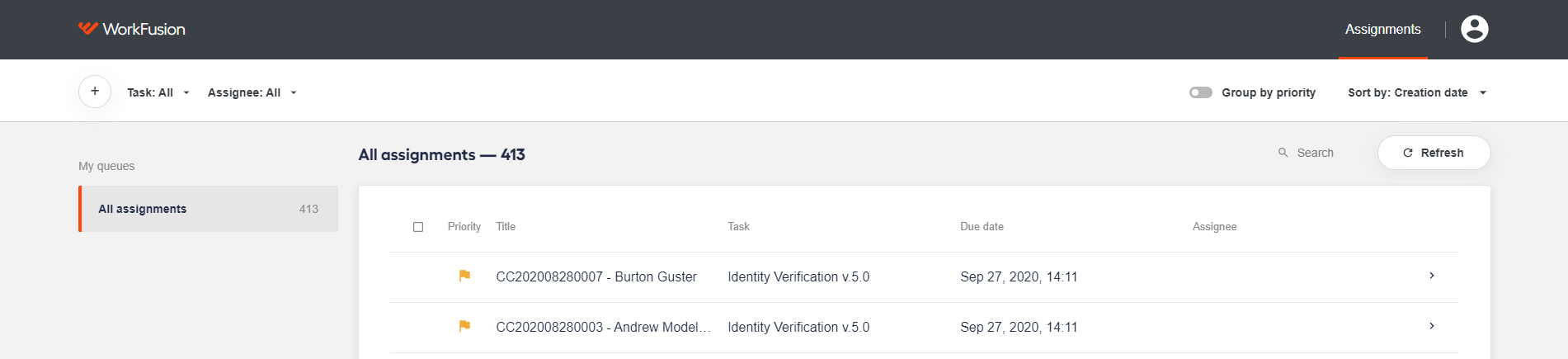
For instructions on working with assignments, refer to the following articles:
Manage worker account
Workspace enables users to manage their accounts, including updating passwords, editing personal details, and tracing sessions. For details, refer to the Manage account topic.
For a general overview of WorkFusion applications, read the following documentation: