Taxonomy
The Taxonomy Answer Type can be used for classification of products, businesses, and articles. In WorkFusion, you can use this answer type along with Data Stores.
Taxonomy Answer description
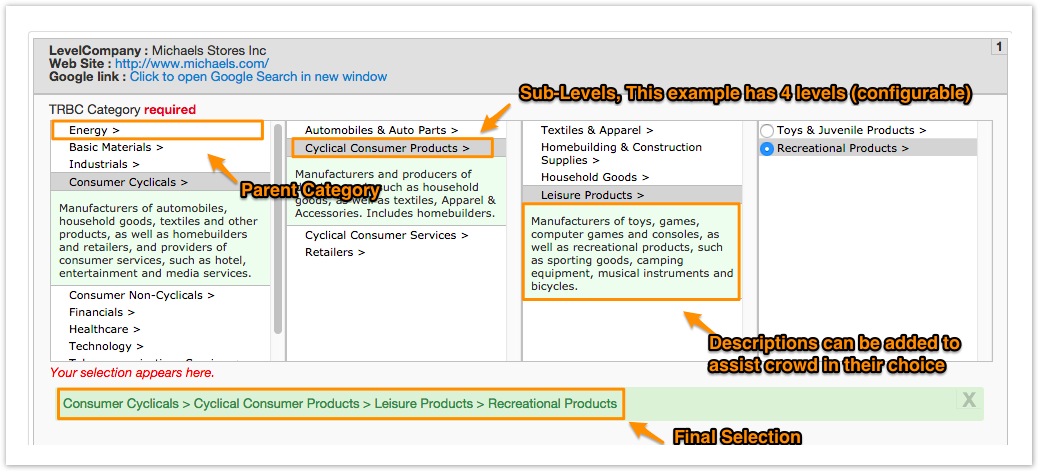
In this example, Worker is classifying a business into an industry category.
There are 4 Levels. Worker is displayed the corresponding sub-levels after choosing the parent category. This helps narrow down choices and increases accuracy and quality of work.
Setting up Data Store
The Data Store containing the taxonomy needs the following columns:
ID (0 through [number of levels] 1): this value will be submitted in the Answer. For the above example, you need id0, id1, id2, id3.
noteID Column does NOT need to be numbers. If your taxonomy does not contain corresponding internal ids, you can just use names of the category instead. For example, category0 and id0 can both be "Energy", and so on.
Category(0 through [number of levels] 1): this value will be displayed for Workers. For the above example, you need category0, category1, category2, category3.
Description(0 through [number of levels] 1): this optional value will be displayed for Workers and is intended for describing the Category. For the above example, you need description0, description1, description2, description3.
Setting up task with Taxonomy
The answer tree in the human task will look like this for the given example:
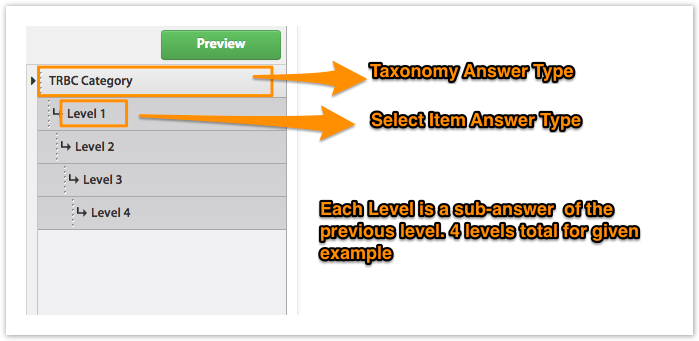
Let's take a look at how both answer types are set up.
Taxonomy Answer
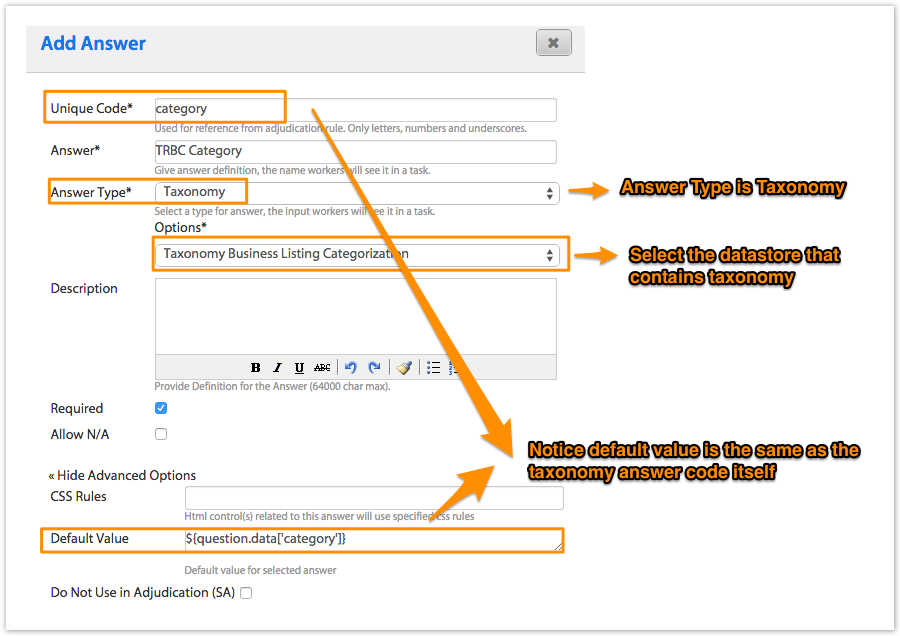
Select answer type Taxonomy.
Select the desired Data Store from the Options field that will pop up. Notice that default answer uses the code of this answer type.
Only Data Stores with "category0" column are shown in the list. Thus, you can quickly scan all valid Data Stores and select the one you need.
Code of the answer type can vary. It does not have to be "category" as shown in the screenshot.
Select Item Answer
For this example, you need 4 Select Item answers, all sub-answers of the previous answer for the 4 levels used in this example.
The point of importance here is the Unique Code. The unique code needs a digit at the end:
- "level1" corresponds to first level of the taxonomy (id0, category0, description0).
- "level2" corresponds to the second level of the taxonomy (id1,category1, description1) and so on.
Output
The output of a taxonomy answer will have two parts. You will have two columns in the output:
- One that provides the ID that corresponds to the category (this will be the value of last id column). If you want to setup default value for this answer then you need to use this ID.
- Another that provides a textual value of the category.
For this example, you will get the following:
"50102034" and "Industrials > Industrial & Commercial Services > Diversified Trading & Distributing > Diversified Trading & Distributing".