Set up data flow in Business Process
The article describes examples and techniques on how to pass data between Business Process (BP) steps, both Manual and Bot ones.
Business Process definition
A Business Process (BP) is a combination of connected Manual Tasks, Bot Tasks, and/or other BPs handled by a user-defined flow. The Workflow Designer allows you to control the flow of Manual and Bot Tasks.
The key concept of a BP management is the data flow between steps in the course of processing large amounts of uniform data. A BP has one input data file that is enriched and/or modified by each task results. Input data for BPs is divided into items with a defined structure. The items are called records. They can be listed in a CSV file or dynamically grabbed from a Data Store, search results, parsed from a list, and so on.
Tasks in a BP are executed successively or in parallel depending on composite rules and their conditions. A BP task can utilize data generated by previously completed tasks or data from the input file.
A sample BP flow is as follows:
- Create tasks and test them separately.
- Create a BP and start designing and configuring it. Prepare an input data file, add the previously created tasks to your BP, and connect them.
- Run the BP in the development environment. You can also log in to Workspace and complete Manual Tasks of the BP.
- Check the results and edit the BP and/or task parameters if needed.
- Copy the BP with data.
- Run the copied BP in the production environment and monitor its execution.
You can optionally pause, resume or stop the BP execution. When the BP is no longer needed, you can delete it.
Data flow
A BP should have one input data file that is enriched and/or modified by each task results.
You can view and export data for each task in your BP. This data contains input columns and columns added or modified by this task. A BP task can utilize data generated by previously completed tasks or data from the input file.
Each completed BP has a file with the final results that combines the input data file and all the task results. To see the intermediate BP results, you can generate a BP snapshot.
Manual Tasks and composite rule
The following BP is intended to detect the document language and extract special fields for all English invoices.
You can download the files, import, and run in your Control Tower instance:
The input file contains six records (documents) with two columns:
document_image: links to the PNG scans of invoices
document_text: links to the HTML code of invoices
The links are used in Manual Tasks as input data. They are made accessible in Manual Tasks using the following syntax:
${question.data['column_name']}.Examples:
${question.data['document_image']}${question.data['document_text']}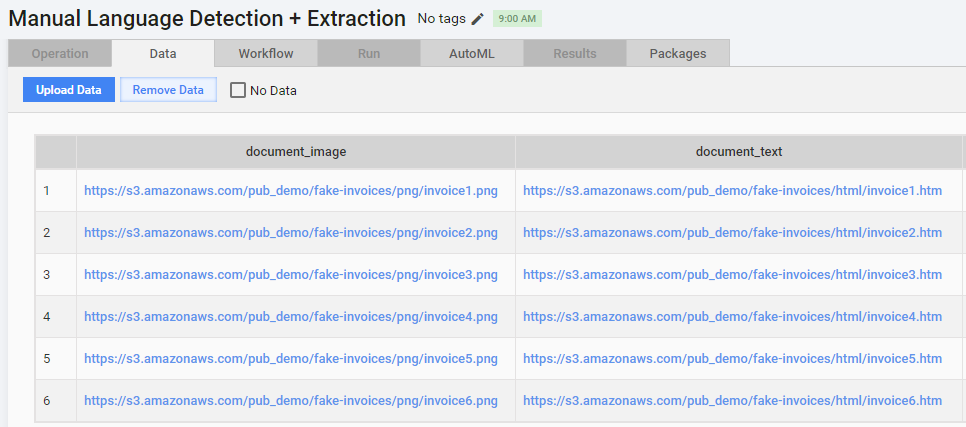
Manual Task 1: detect language
The first step uses the data from the following two columns as input:
- Image address
- Link address
The two Answer unique codes (language, proforma) serve as output data provided by workers as they submit tasks.
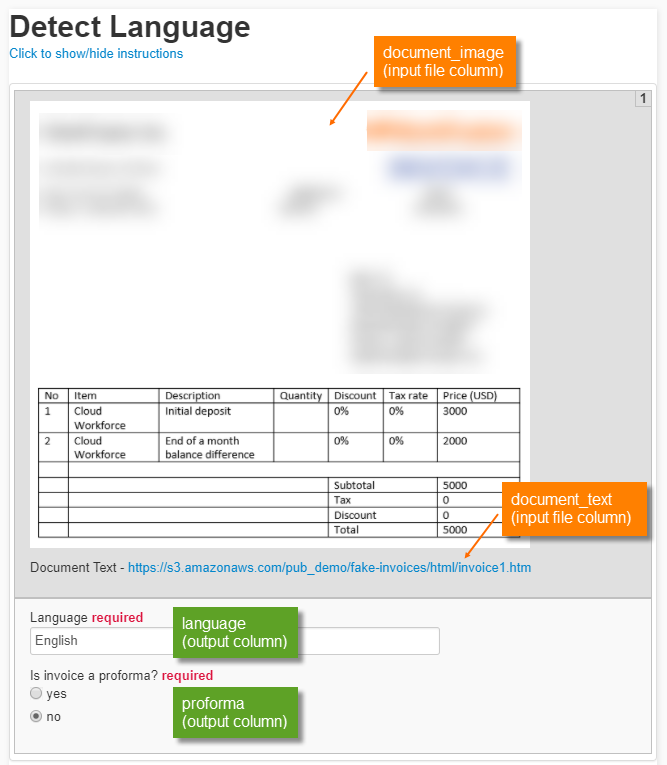
The code sample shows how to use variables in text and HTML attributes for images and links:
<!-- Using variables in image and link attributes -->


<@editable id="__DATA__">
    <img src="${question.data['document_image']}" width="500"><br><br>
    <p>Document Text - <a href="${question.data['document_text']}" >${question.data['document_text']}</a></p>
</@editable>
Composite rule
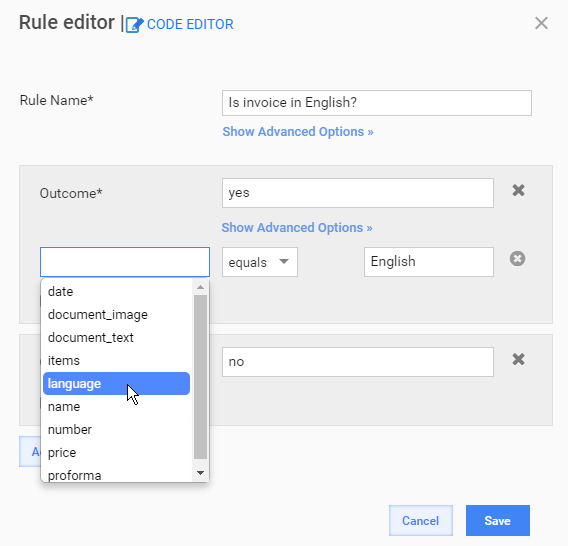
A composite rule routes all English invoices to the second Manual Task by comparing the answer from the first step (language) to the English string.
Alternatively, the rule condition can use the proforma answer.
Manual Task 2: extract data
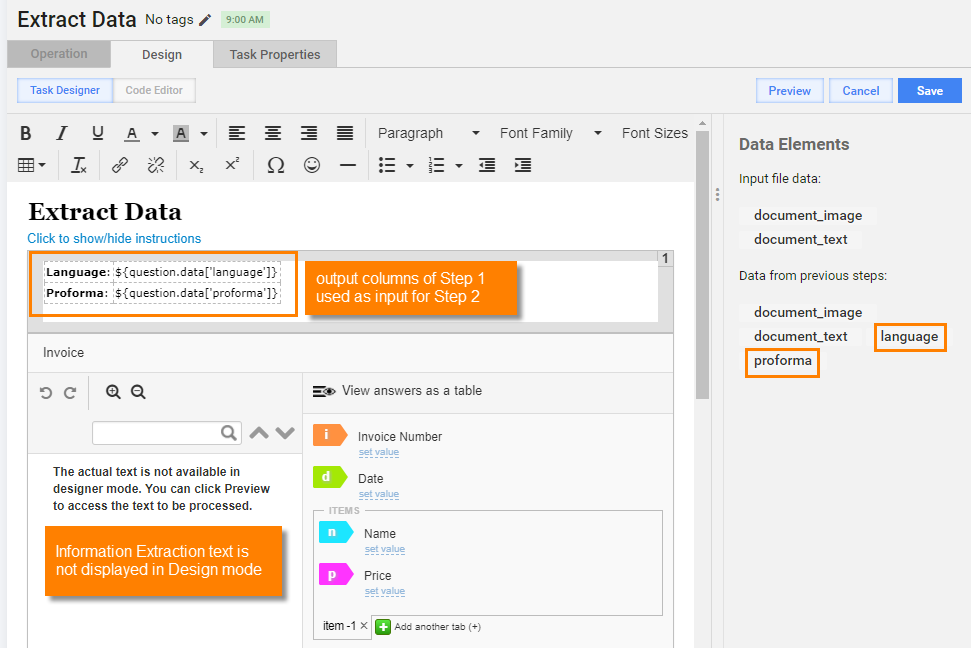
The step uses the following columns as input data:
- language from the first step
- proforma from the first step
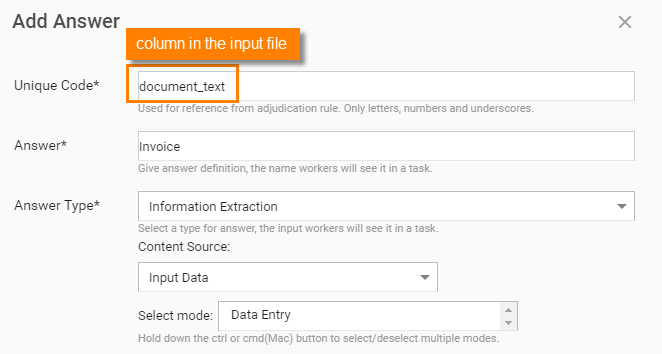
- document_text from the input CSV file as the source text for the Information Extraction answer.
To use a data column as the source text for the Information Extraction answer, enter its name into the Unique Code field:
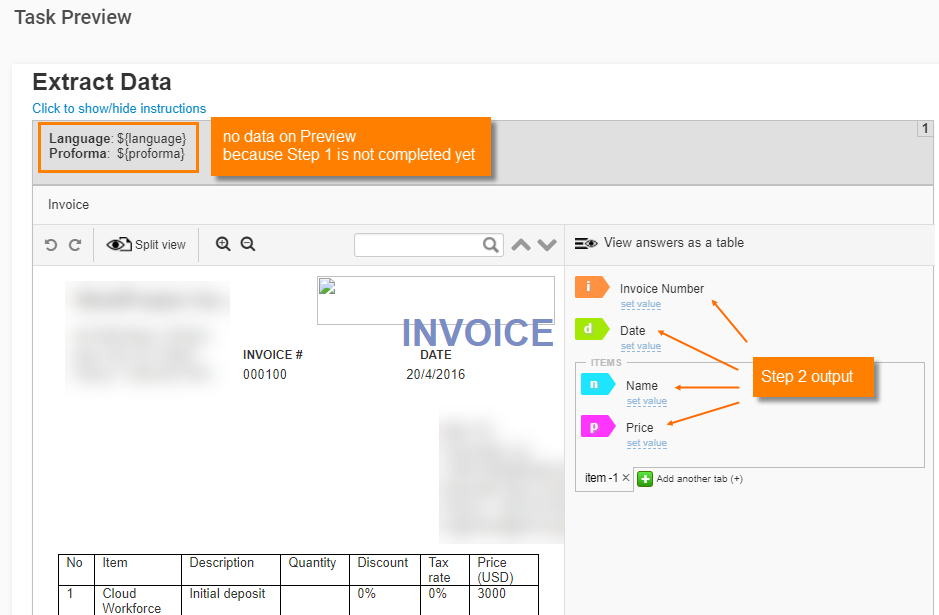
On the Task Preview page, you cannot view the data from Step 1 (language, proforma) until at least one record is submitted on Step 1.
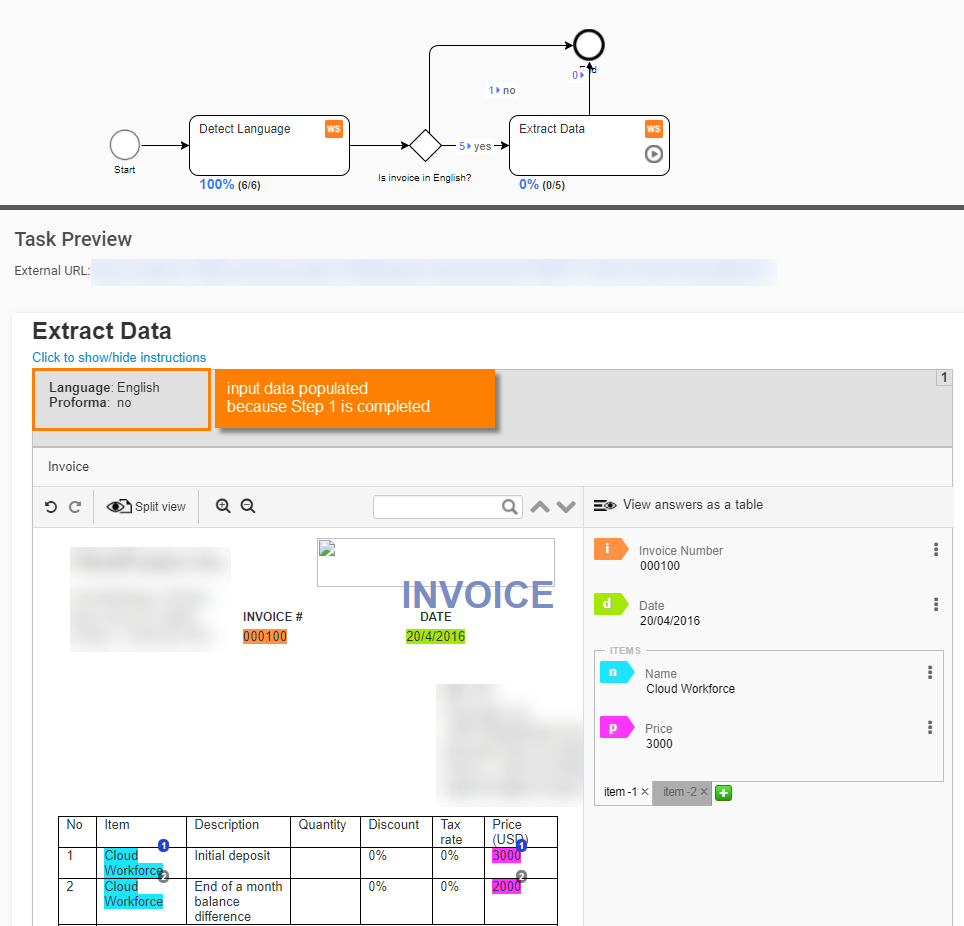
After you run the BP and submit several worker tasks from Step 1, you can see the data on the Task Preview page. The tasks from Step 2 are available for accepting in Workspace:
Results
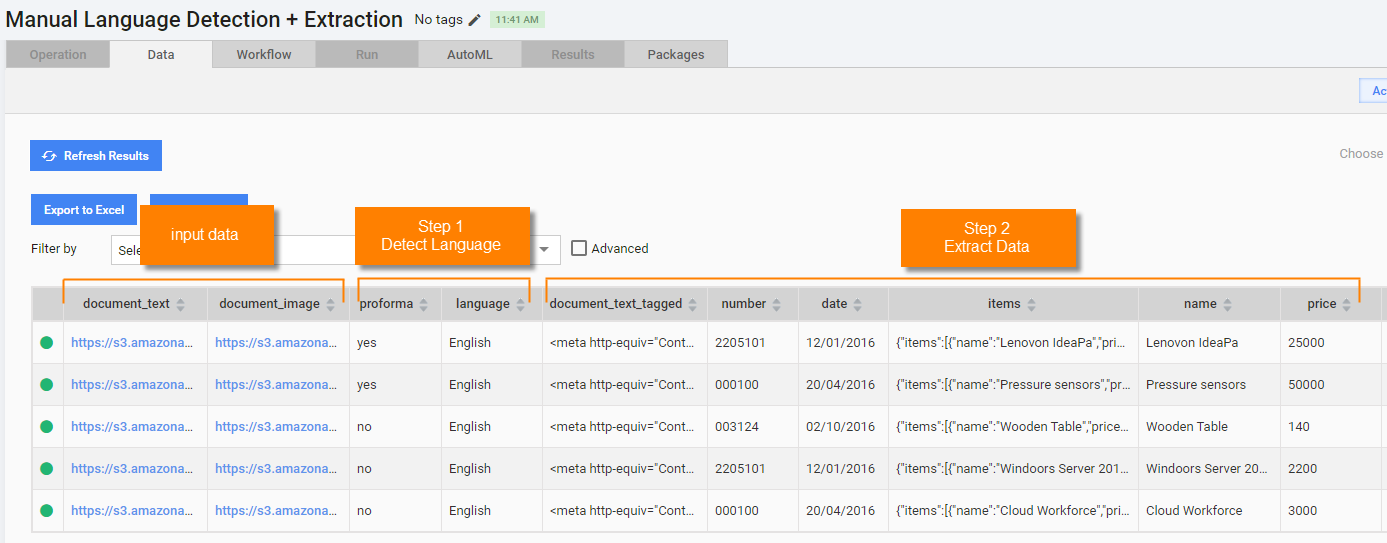
You can view data for each step on the View Results > Data page. The Final Results option contains columns at the process end (after the last step is completed):
- Input Data columns:
- document_text
- document_image
- Step 1 (Detect language) output:
- proforma
- language
- Step 2 (Extract data) output:
- document_tagged_text: contains IE text with tags created by a worker
- number
- date
- Items
- Name
- Price
Bot Tasks and export plugin
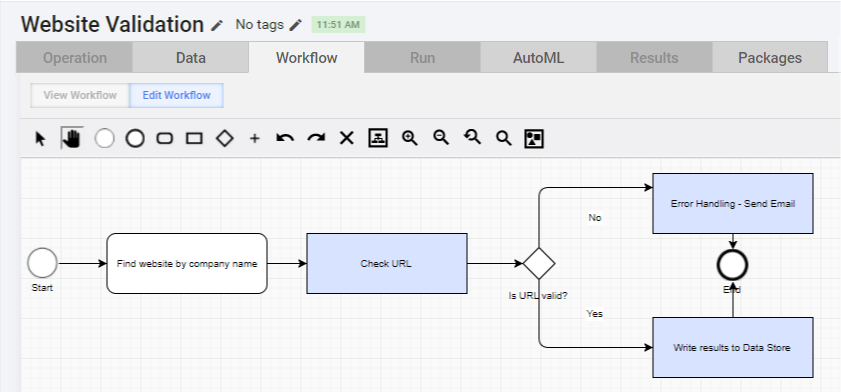
The following BP collects and validates official websites for a given list of companies. Valid websites are saved to a Data Store, and invalid ones are emailed to a defined email address.
You can download these files, import, and run in your Control Tower:
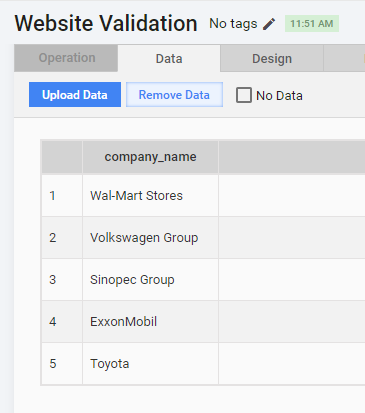
The input file contains five records (company profiles) with a single column:
company_name: names of the companies for which you need to find official websites.
The links are used in Manual Tasks as input data.
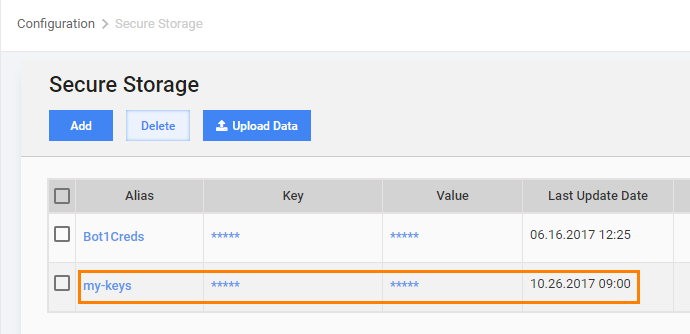
Secrets Vault: create a Secrets Vault entry with your email credentials and my-keys alias.
Manual Task 1: find website by company name
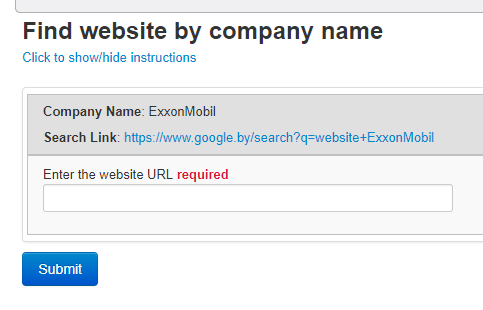
The first Manual Task is designed to show a company name and the link to a default Google search for the company. A worker is expected to analyze the Google search results, pick up the right website URL from it, and submit the link.
Note that the same input data column is used several times here:
As text to display a company name:
${question.data['company_name']}As a part of the link href attribute and link text:
<a href="https://www.google.com/search?q=website+${question.data['company_name']}" target="_blank">https://www.google.com/search?q=website+${question.data['company_name']}</a>
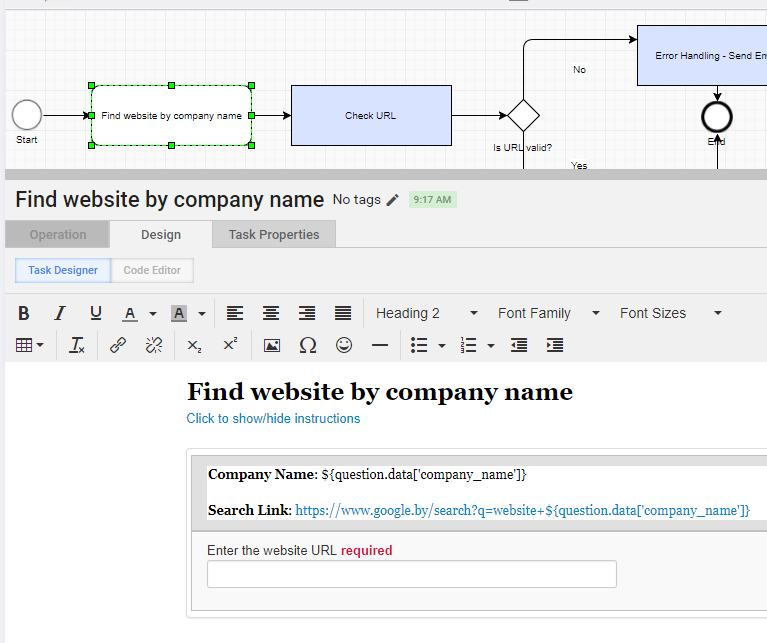
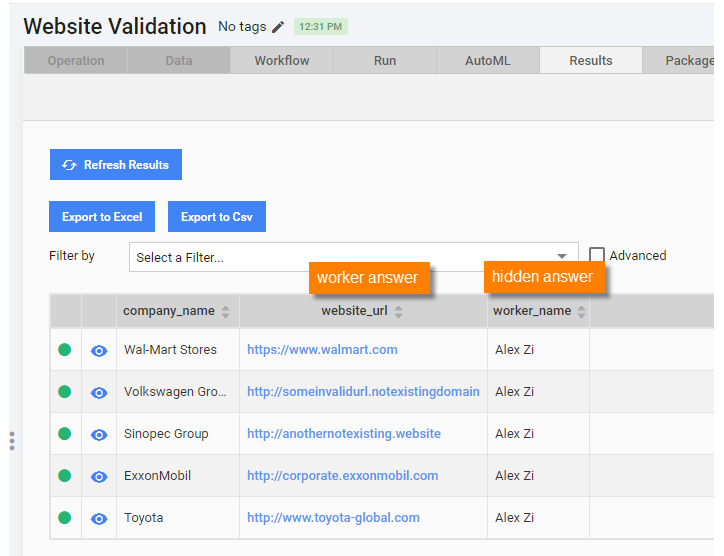
The task output is provided by the answer with the website_url unique code. Task Preview looks as follows:
This Manual Task also has a hidden answer with worker_name unique code that captures the worker's first and last names:
<#if run??>
        <input type="hidden" name="${question.identifier!}_worker_name_skipCheck"/>

        <script type="text/javascript">
            $(document).ready(function() {
              $("input[name=${question.identifier!}_worker_name_skipCheck]").val("${worker.firstName}" + " ${worker.lastName}");
            });
        </script>

</#if>
See more information in Template variables.
Bot Task 2: check URL
The second process step is a Bot Task intended to do the following:
- Make an HTTP GET request to the website_url submitted by the worker on the previous step. The variable value is accessed by using the following syntax:
${website_url}. - Check the response code using the http.statusCode object property.
- If the response code is
200, set thevalidityvariable totrue. Otherwise, set it tofalse. - Export the
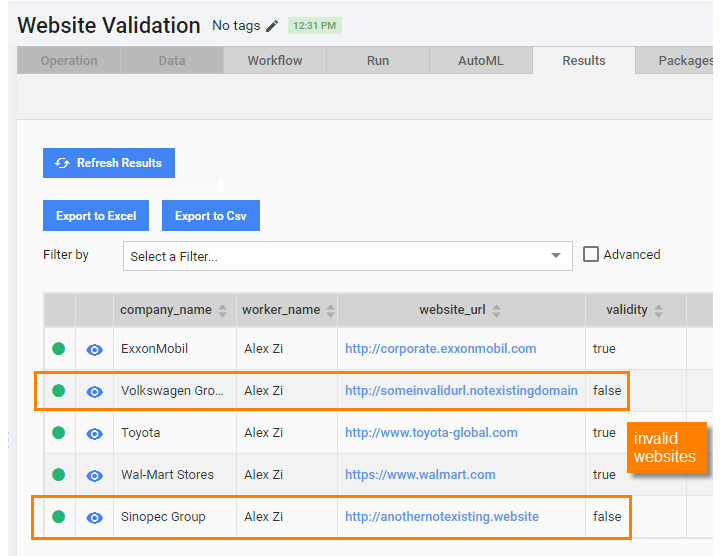
validityvariable value to a new column with the same name. This column value is used in the next composite rule to decide where to route the record—to the Exception Handling step or to the Data Store logging step.
Checking website response using http plugin
<?xml version="1.0" encoding="UTF-8"?>
<config xmlns="http://web-harvest.sourceforge.net/schema/1.0/config" scriptlang="groovy">

    <required name="website_url"/>

    <var-def name="validity"/>
    <try>
        <body>
            <http url="${website_url}"/>
            <var-def name="validity">
                <template>${http.statusCode == 200}</template>
            </var-def>
        </body>
        <catch>
            <var-def name="validity">
                false
            </var-def>
        </catch>
    </try>

    <export include-original-data="true">
        <single-column name="validity" value="${validity}"/>
    </export>

</config>
Composite rule
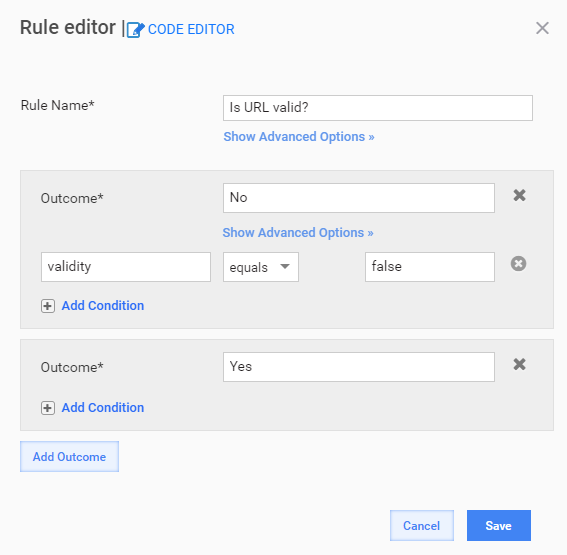
The rule checks the validity column and routes records to an Exception Handling step or to Data Store logging step.
Bot Task 3: write results to Data Store
The step takes all data columns from the input file and previous steps and writes their values into the websites Data Store using Data Store plugins. If the Data Store does not exist, it is created automatically.
Note that you can get the column values in the <script> block by their names: website_url.toString().
Writing results to Data Store
<?xml version="1.0" encoding="UTF-8"?>
<config xmlns="http://web-harvest.sourceforge.net/schema/1.0/config" scriptlang="groovy">

    <script><![CDATA[
        insertedParamMap = new HashMap();
        insertedParamMap.put("company_name", company_name.toString());
        insertedParamMap.put("website_url", website_url.toString());
        insertedParamMap.put("validity", validity.toString());
        jsonValueMap = new com.google.gson.Gson().toJson(insertedParamMap);
    ]]></script>

    <insert-datastore datastore-name="websites" json-value-map="\${jsonValueMap}" create="true"/>

    <export include-original-data="true"></export>
</config>
The step results look as follows:
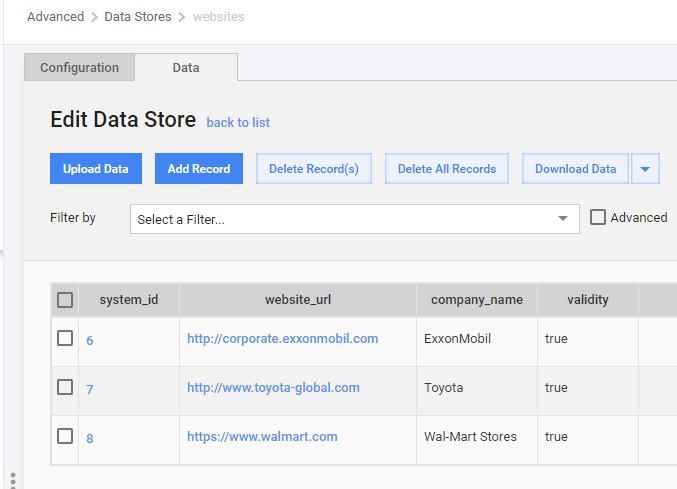
Note that not all records are saved to the Data Store because some had invalid website_url and are routed to the Error Handling step.
Bot Task 4: error handling and sending emails
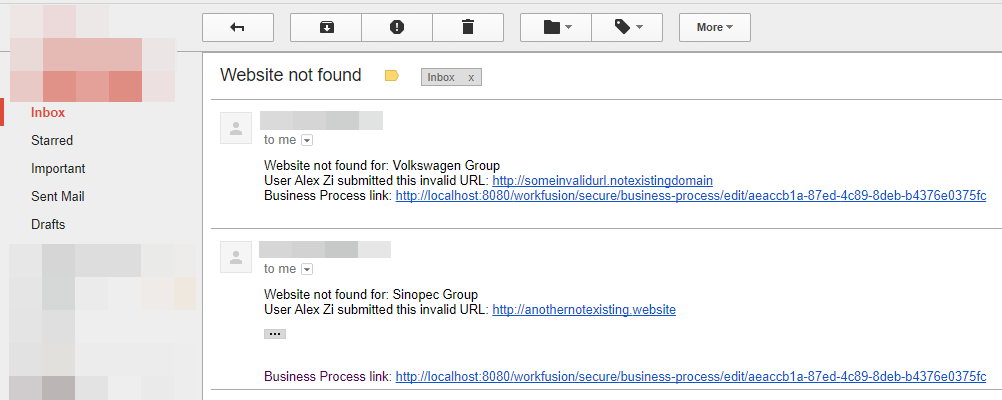
The step is intended to send an email to a specific address (recepient@email.com in the example) containing the following info:
- Company name:
${company_name}. - Name of the worker who submitted an invalid URL:
${worker_name}. - Invalid website URL:
${website_url}. - Link to a particular BP instance for quick navigation:
${bp_link}variable. For details, see Bot Task context.
Sending email in a Bot Task
<?xml version="1.0" encoding="UTF-8"?>
<config xmlns="http://web-harvest.sourceforge.net/schema/1.0/config" scriptlang="groovy">

  <var-def name="bp_link">
   <template>${applicationHost}/workfusion/secure/business-process/edit/${item.getWrappedObject().getRun().getRootRunUuid()}</template>
  </var-def>

  <secure-store-get alias="my-keys"/>

  <script><![CDATA[
        Map entryMap = secureEntryMap.getWrappedObject();
        com.freedomoss.crowdcontrol.webharvest.web.dto.SecureEntryDTO obj = entryMap.get("my-keys");
        username = obj.getKey().toString();
        password = obj.getValue().toString();
   ]]></script>

    <mail smtp-host="smtp.your-smtp-server.com"
        smtp-port="465"
        type="text"
        from="${username}"
        to="recepient@email.com"
        subject="Website not found"
        charset="UTF-8"
        username="${username}"
        password="${password}"
        security="ssl">

        <template>Website not found for: ${company_name}</template>
        <template>User ${worker_name} submitted this invalid URL: ${website_url}</template>
        <template>Business Process link: ${bp_link}</template>

    </mail>

    <export include-original-data="false">
    </export>

</config>
The following example shows real emails sent by Control Tower with variables substituted by real data:
The ${username} and ${password} variable values are taken from the Secrets Vault using the Secrets Vault Plugins. This is a safe way not to expose sensitive data in the Bot Task code.
You need to create an entry in Secrets Vault with the my-keys name.
The current step contains variables with sensitive data. Therefore, it is better not to pass its variables to the export plugin.
Note that the export plugin has the include-original-data="false" attribute. It means that all information from previous steps is deleted (will not be present in the final process results).
Results
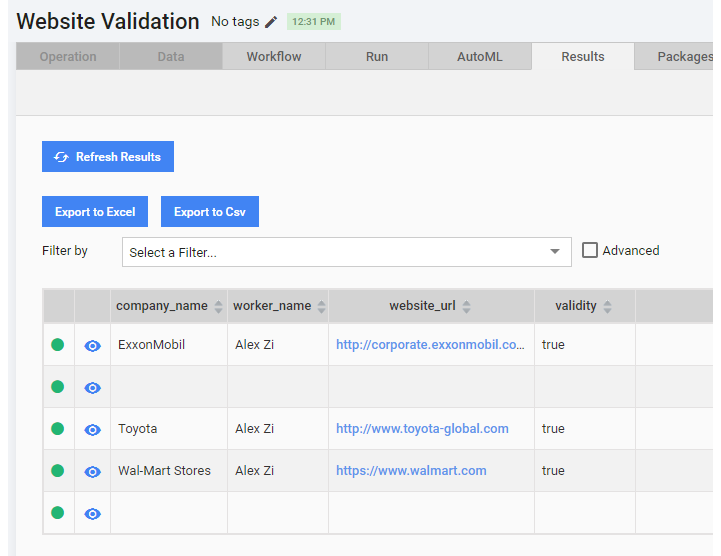
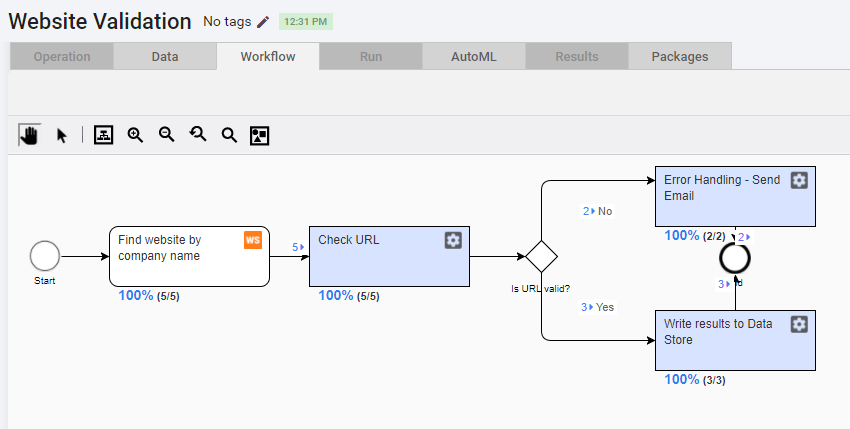
When you run the BP and submit all Manual Tasks, all Bot Steps are executed automatically. As you can see in the screenshot below, two records have invalid URLs and are routed to the Error Handling step. Other three records are logged to the Data Store.
The Manual Task results are as follows:
The Check URL Bot Task validated the URLs and added the check result to the validity column:
As you can see in Final Results, no data is saved for two records that go to the Error Handling step. Their cells are blank because of the include-original-data="false" attribute and the empty export section.