Clipboard
Overview
The Clipboard action provides possibilities to manage Windows clipboard, that is a short-term storage area for all kinds of information that you have copied from one place and plan to use in another place. You can copy just about anything to the clipboard: strings of text, images, video, files, folders, shortcuts, and so on.
When you copy (or cut) something, it is stored in the clipboard. When you copy (or cut) something else, that piece of information overwrites the previous contents. This is because Windows provides support for a single clipboard transaction. When you paste the contents of the clipboard, the contents remains available for further pasting operations. It is overwritten only when you copy or cut something else.
Standard Windows key bindings
- CTRL + C: copy data onto the clipboard.
- CTRL + X: cut data to the clipboard.
- CTRL + V: paste data from the clipboard.
What you can paste from clipboard
Pasting the contents of the clipboard depends on where you want to perform the paste. For example, if you are working with text, you can paste text only in applications and programs that work with text. Following the same rule, you can paste graphics only in applications and programs that work with graphics, and so on.
If the contents of the clipboard cannot be pasted where you want to, it will not be pasted there but the contents of the clipboard will remain intact. See more in Windows clipboard description.
Manage clipboard in Recorder
The Clipboard action is NOT automatically recorded when you copy, paste, or cut some value. Enter Keystrokes (key combinations) or Mouse Click (right-click > click Copy) actions are captured instead.
You can add the Clipboard action manually when editing a recording by dragging it from Actions Library to Actions Flow.
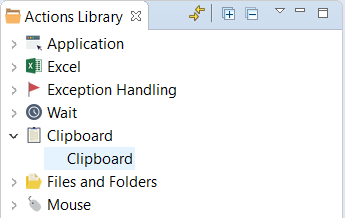
The Clipboard action contains the following options:
- Copy a variable value to the clipboard.
- Set a variable value from the clipboard.
- Clear the сlipboard.
Copy variable value to clipboard
To set clipboard content, you can use one of the following ways.
- Select text with keyboard or mouse and copy it (CTRL+C or mouse right click).
- Define a variable with initial value or populate it from some action (Find Image, Window, and so on) and set its value using the Clipboard action.
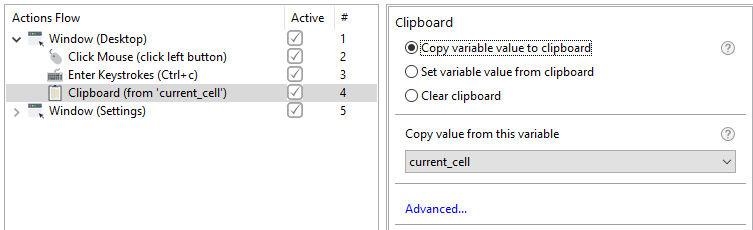
When you copy the entire spreadsheet cell with Ctrl+C, the clipboard will get the cell content and the line brake. This situation must be avoided to prevent from problems with execution of loops or conditions.
You can also use the Trim Whitespace action (learn more about Trim Whitespace).
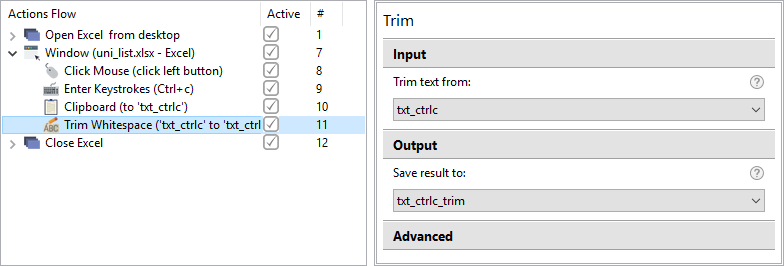
- Copy the cell to the clipboard with Ctrl+C.
- Put the clipboard content to a string variable.
- Add Trim Whitespace to Actions Flow, assign the variable from previous step as Input and another string variable as Output.
The value from the output variable is cleaned up, so you can use it for the next steps.
For the previous versions, you can create the following workaround: instead of copying the entire cell enter in the cell, select the content and copy it.
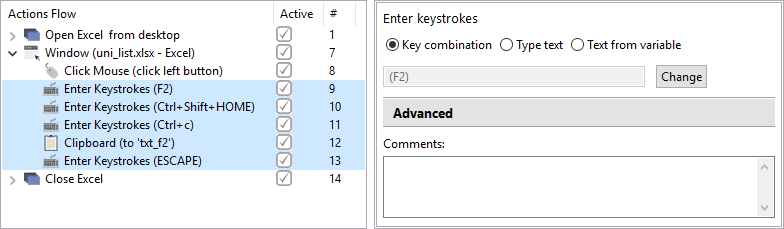
- To go to the cell, add Enter Keystrokes for F2.
- To select the cell content, add Enter Keystrokes for Ctrl+Shift+Home.
- To copy the content, add Enter Keystrokes for Ctrl+C.
- Put the clipboard content into a string variable.
The value from the output variable is cleaned up, so you can use it for the next steps.
If you want the Bot to set clipboard content from a variable, do as follows.
- Select the Copy variable value to clipboard option.
- Select the right variable from the Variables dropdown.
Set variable value from clipboard
After copying some value to the clipboard using Keyboard (CTRL+C), you can set this value to a variable for further usage (for example, entering to another application).
Using variables to save current clipboard value has significant advantages.
- If you need to copy multiple values from Application 1 to Application 2, you do not need to switch between applications each time you copy or paste a value.
- All variables are exported to business process steps in Control Tower when you publish the recording.
- Using variables ensures better readability if you create meaningful variable names.
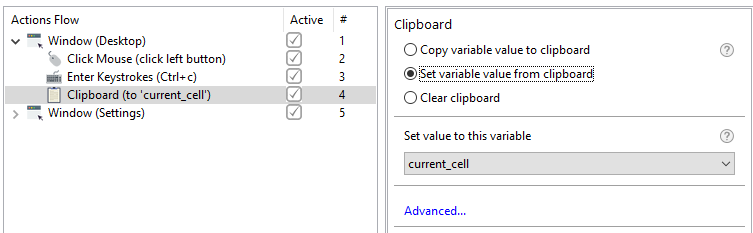
If you want the Bot to copy clipboard contents to variable, do as follows.
- Select the Set variable value from clipboard option.
- Select the right variable from the Variables dropdown.
Clear clipboard
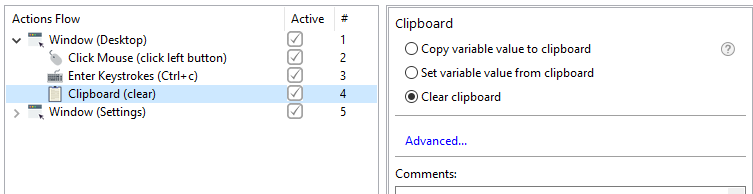
The action is needed to clear the clipboard contents. Possible use case: the clipboard contains a login or a password to the system and you want to clear it due to security policy.
Note that you will not be able to paste any value from the clipboard after this action is applied, until you copy something to the clipboard.
Parse lists and tables
When using variables in actions that require types conversion (for example, Clipboard - from List or Table to String and vice versa), you need to do as described.
Enter Row Separator. Select a predefined separator or enter a custom one. You can use letters or symbols. Special symbols are as follows.
\t: TAB\n: Unix-style new line\r\nL Windows-style new line
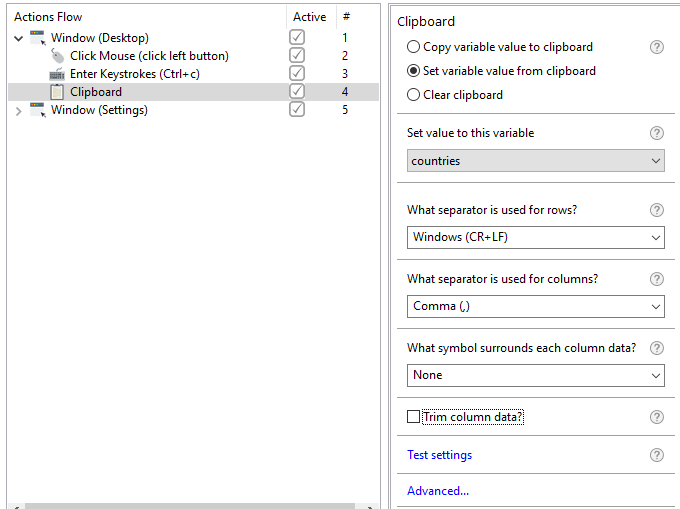
Enter Column Separator. The rules are the same as for Row separator.
Enter Surrounding symbols for data.
Enable or disable Trimming (removing leading and trailing spaces).
To test the conversion, click Test settings and paste your list or table content there.
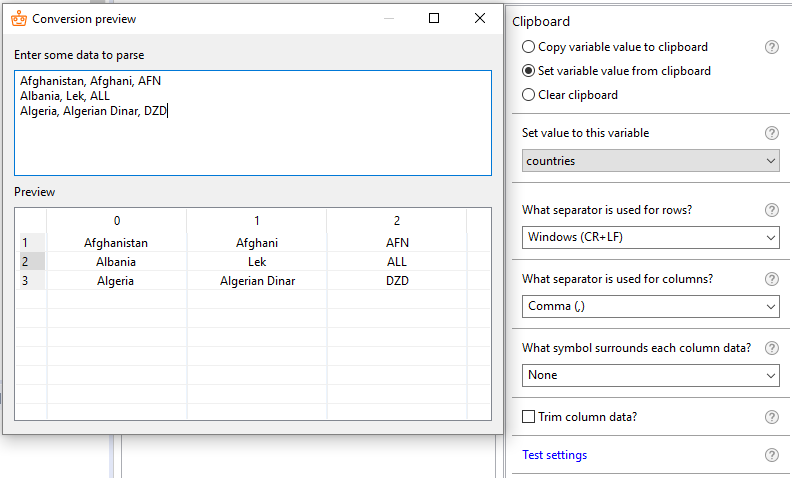
Enter other separators if needed.