Activate ELK license
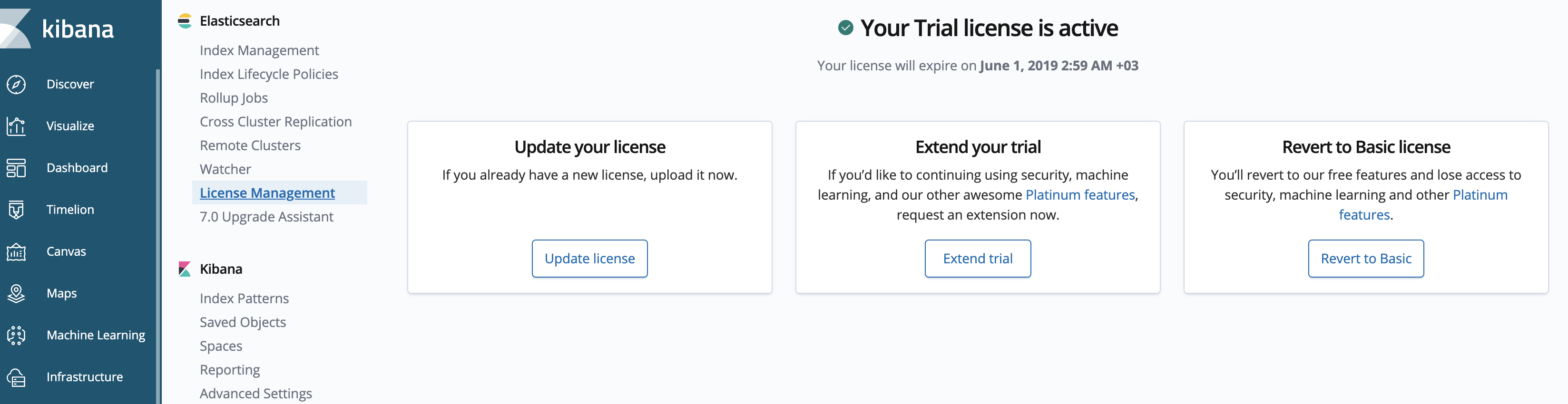
The initial installation of the Work.AI platform enables the 30-day trial license for ELK. For production purposes, it is required to update the license via the installer.
The WorkFusion ELK License file must be provided by the installation team or your Account manager.
Activate license
To update the ELK license:
Create a corresponding Service Desk ticket and attach
license_request.txtto it. The file is located on the Master server in theINSTALL_DIR/elasticsearch/licenseElasticsearch license directory.Dear Support Team,
Please provide the ELK license according to the following requirements:
Company name: ___
Status of the server (Production, POC, UAT, DEV): ____
Installation type (Basic/High availability): ____
Token returned by prepareLicense API: ___ (the content of the file license_request.txt on the installation server)
In the response message, you will receive file
license_elk_response.txt.Place the request and the response files into the
INSTALL_DIR/elasticsearch/license**Elasticsearch license directory on the installation server.$ ll /opt/workfusion/elasticsearch/license
-rw-rw-r--. 1 wfuser wfuser 1721 Sep 20 09:37 license_elk_response.txt
-rw-rw-r--. 1 wfuser wfuser 210 Sep 20 09:36 license_request.txtEnsure that
WFUSERis the owner of all the files.On the installation server, go to the
PACKAGE_DIRdirectory and run the following command as the application user.$ cd PACKAGE_DIR
$ ./install.sh activate_elk master # high-availability mode
# OR
$ ./install.sh activate_elk master -c local #basic mode
The procedure is the same for high-availability environments: you have to run the activation on the primary installation server only.
Verify license
To verify the ELK license:
Go to Kibana, for example, at https://kibana_lb_hostname/kibana/.
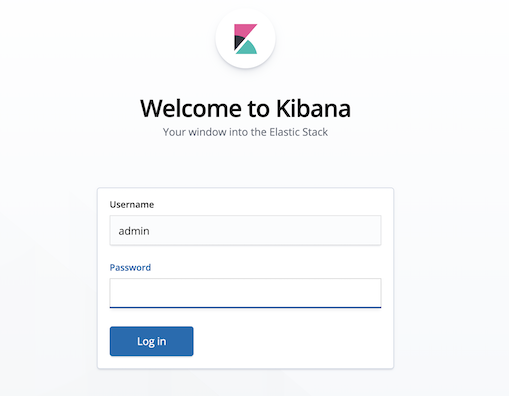
Authenticate to Kibana using the ELK administrator credentials you specify in the
config.ymlfile during the installation.
On the left menu, click Management.
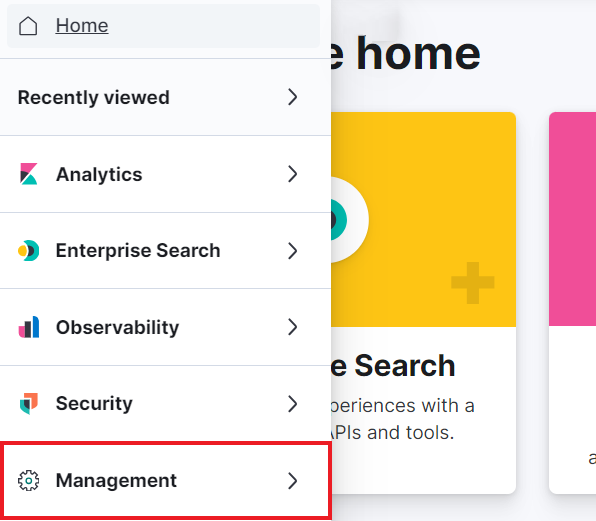
Go to the license management section and check your expiration period.