View Manual Task results
After a Manual Task (MT) is processed in Workspace and submitted, its results start to appear in Control Tower on the Results tab of the corresponding task. The Results tab becomes available once the MT is launched.
Review summary data
To view the MT summary data, including key parameters and Workspace links, find the MT in the Manual Tasks list and navigate to Results > Summary.
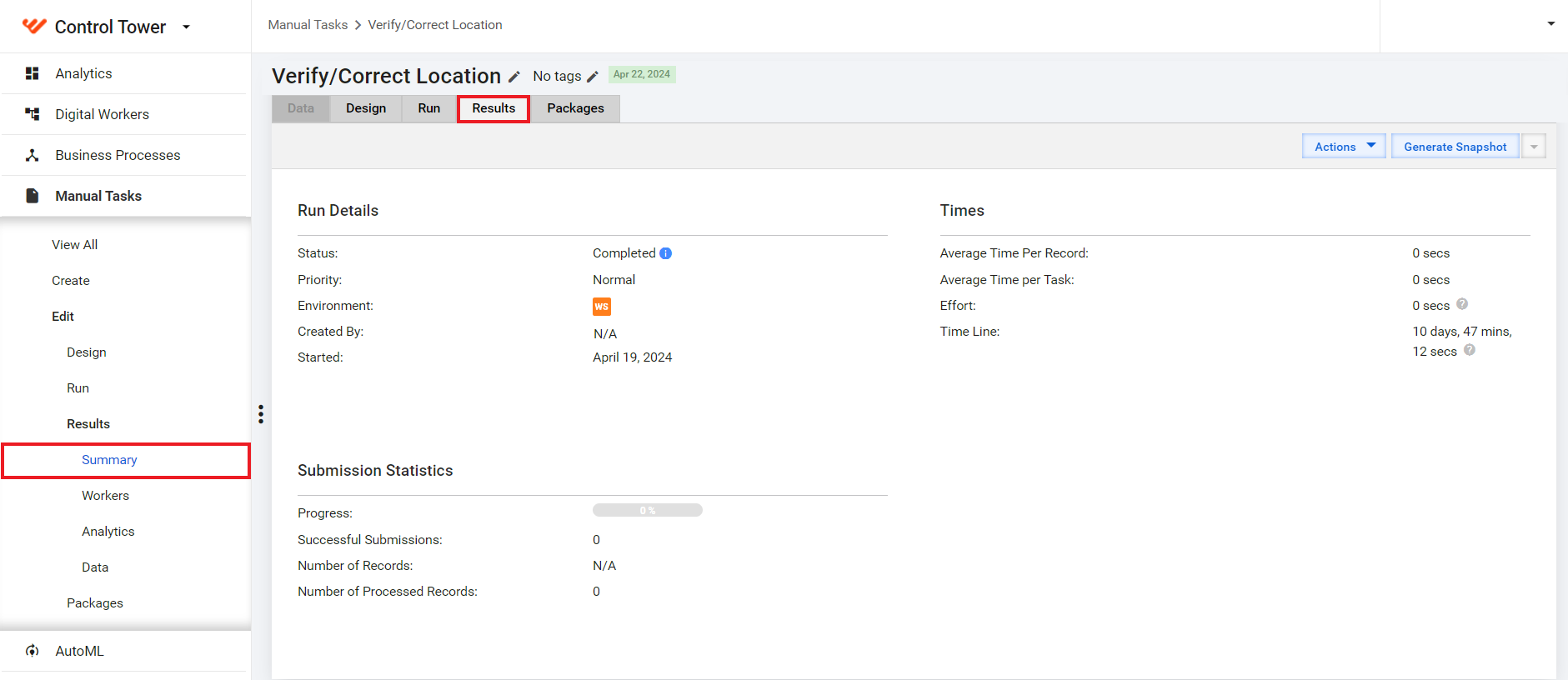
Run Details
The table below lists the data displayed in the Run Details section.
| Field | Description |
|---|---|
| Status | This field indicates whether the task is completed, paused, or still processing. To view all task events, click the blue info icon. |
| Priority | The task can have normal, high, or low priority. |
| Environment | This field displays two pieces of information about the environment. In the screenshot above, you can see a WS icon indicating that the task was posted to Workspace. Clicking the icon brings you to Workspace. |
| Created By | The task author's username. |
| Started | The date when the task was run. |
| Finished | If the task is completed, the date when it was finished. |
Submission Statistics
The table below lists the data displayed in the Submission Statistics section.
| Field | Description |
|---|---|
| Progress | A progress bar showing the percent of successfully submitted Records |
| Successful Submissions | The total number of successful submissions |
| Number of Records | The total number of Records in the input data file |
| Number of Processed Records | The total amount of Records with processed data |
Times
The table below lists the data displayed in the Times section.
| Field | Description |
|---|---|
| Average Time per Record | The average time workers spent on a Record. |
| Average Time per Task | The average time workers spent on a task. |
| Effort | The total combined time workers spent on the task. |
| Time Line | The total time spent since the task start. |
View analytics
The Analytics page for Manual Tasks displays the analytics based on qualitative and quantitative MT data. The data are based on completed worker tasks and are recalculated over time.
To access the Analytics page for a particular MT, select the MT in the list and, in the menu on the right, navigate to Results > Analytics.
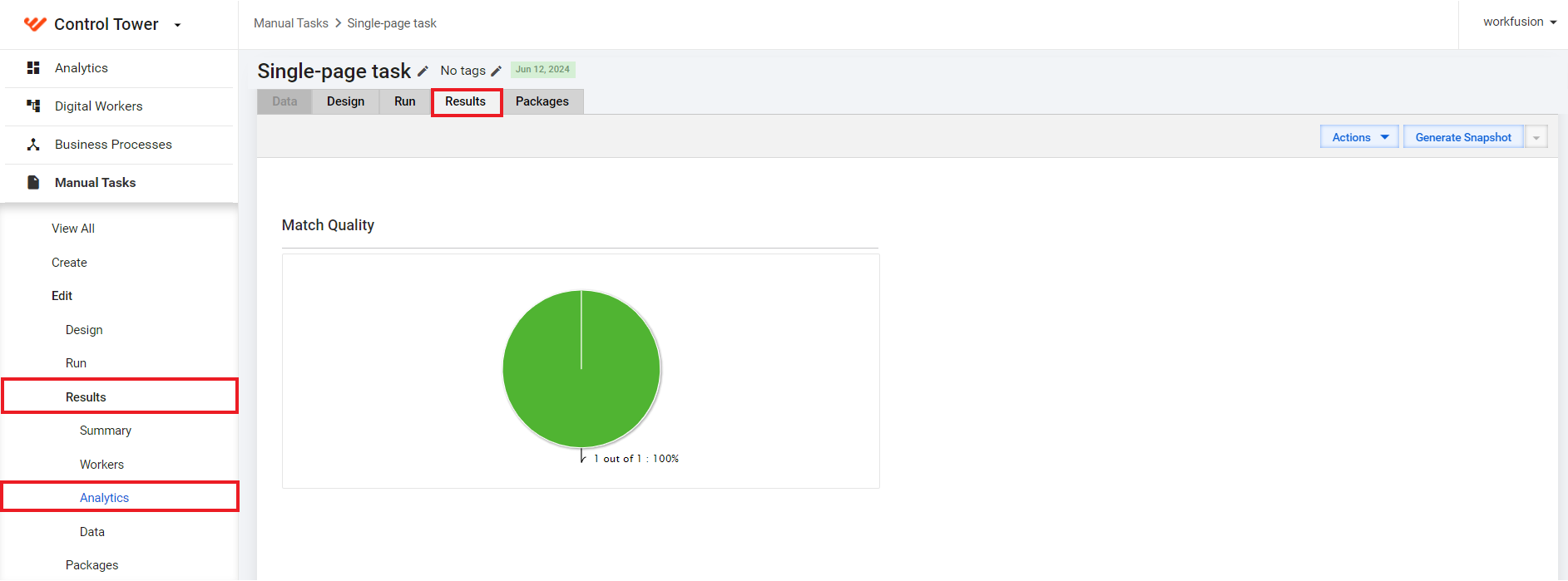
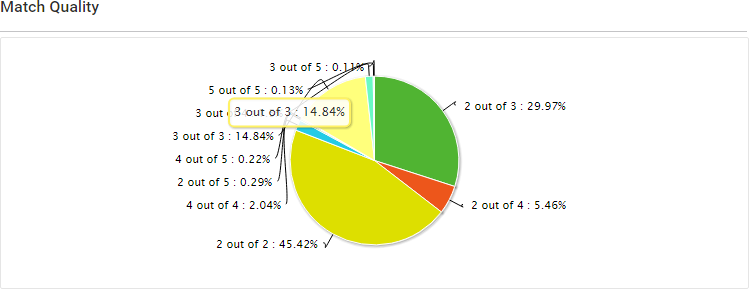
Match Quality
The chart displays the confidence distribution against all answers in records.
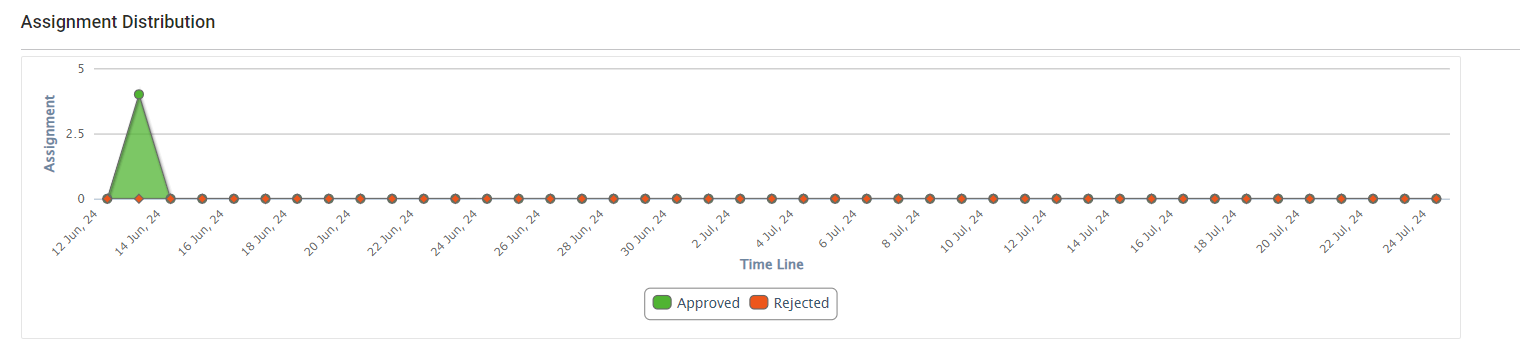
Assignment Distribution
The graph displays how assignments are distributed across time.
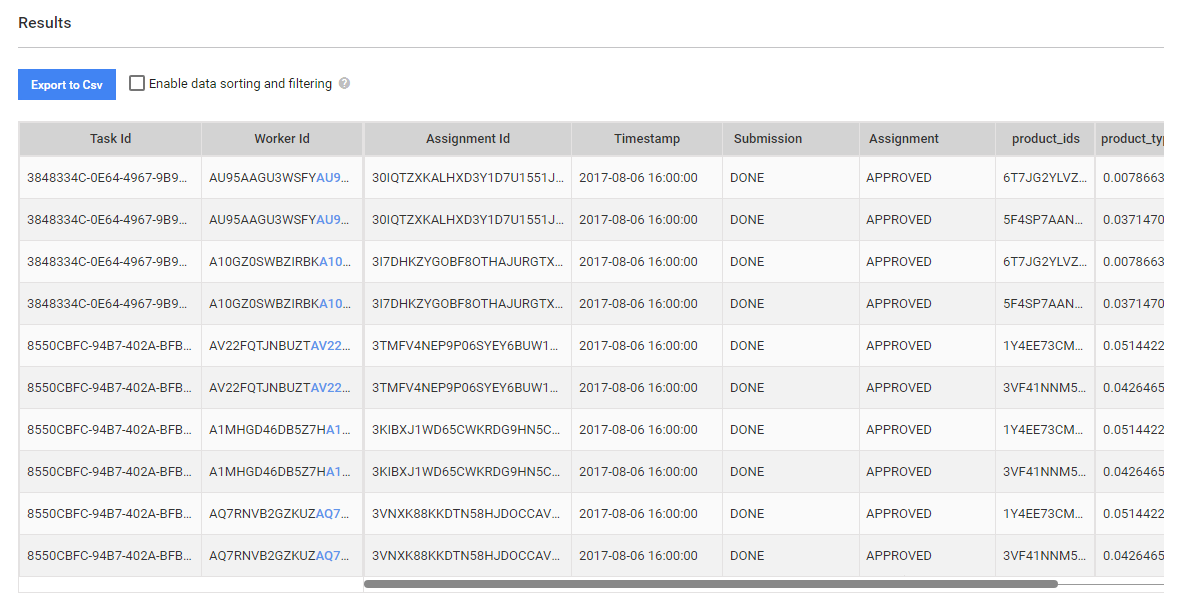
Results
The grid contains all submitted worker tasks with their data. You can click the Task ID or Worker ID and navigate to the respective worker task or worker.
Review results
On the Data page, you can view the task results grid. The grid includes the columns from the original data file.
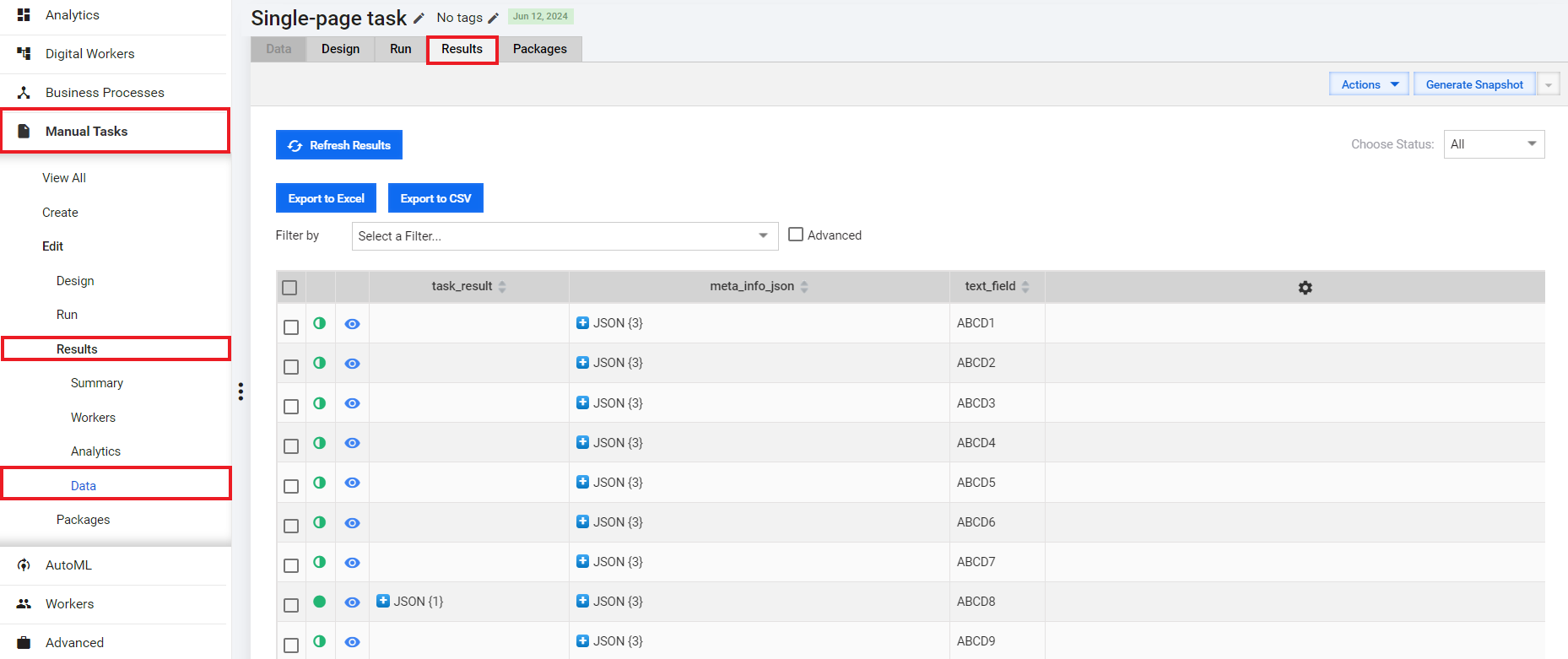
The grid with records has horizontal scrolling, and you can manage the number of displayed columns by clicking the cogwheel in the top right corner.

If you do not see certain records, check the applied filters or the Choose Status drop-down box.

On the Data page, you can export task results:
- Select or create a filter and apply it.
- Depending on the format needed, click the Export to Excel or Export to Csv button.
Generate snapshots
To save the intermediate or final MT results in Excel, click the Generate Snapshot button at the top of the Results page. No filters are applied to snapshots.
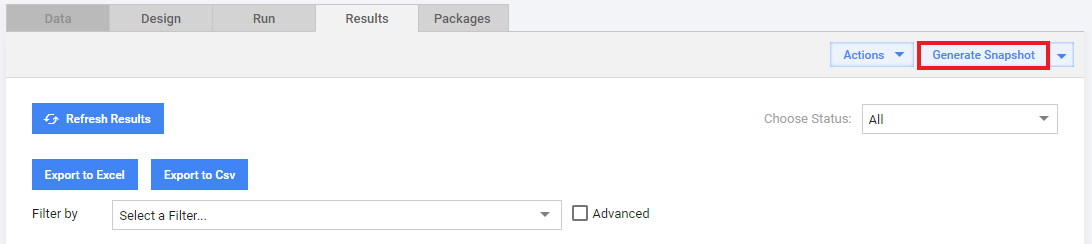
The following rules apply to snapshots:
- MT snapshots are generated automatically after the MTs are completed.
- If an MT is not completed, the snapshot contains only completed records.
- For an expired MT, snapshots contain answers for completed records and input data for records without answers.
Preview Manual Task
To view the details of a record, click the appropriate eye icon.

The following popup screen appears:
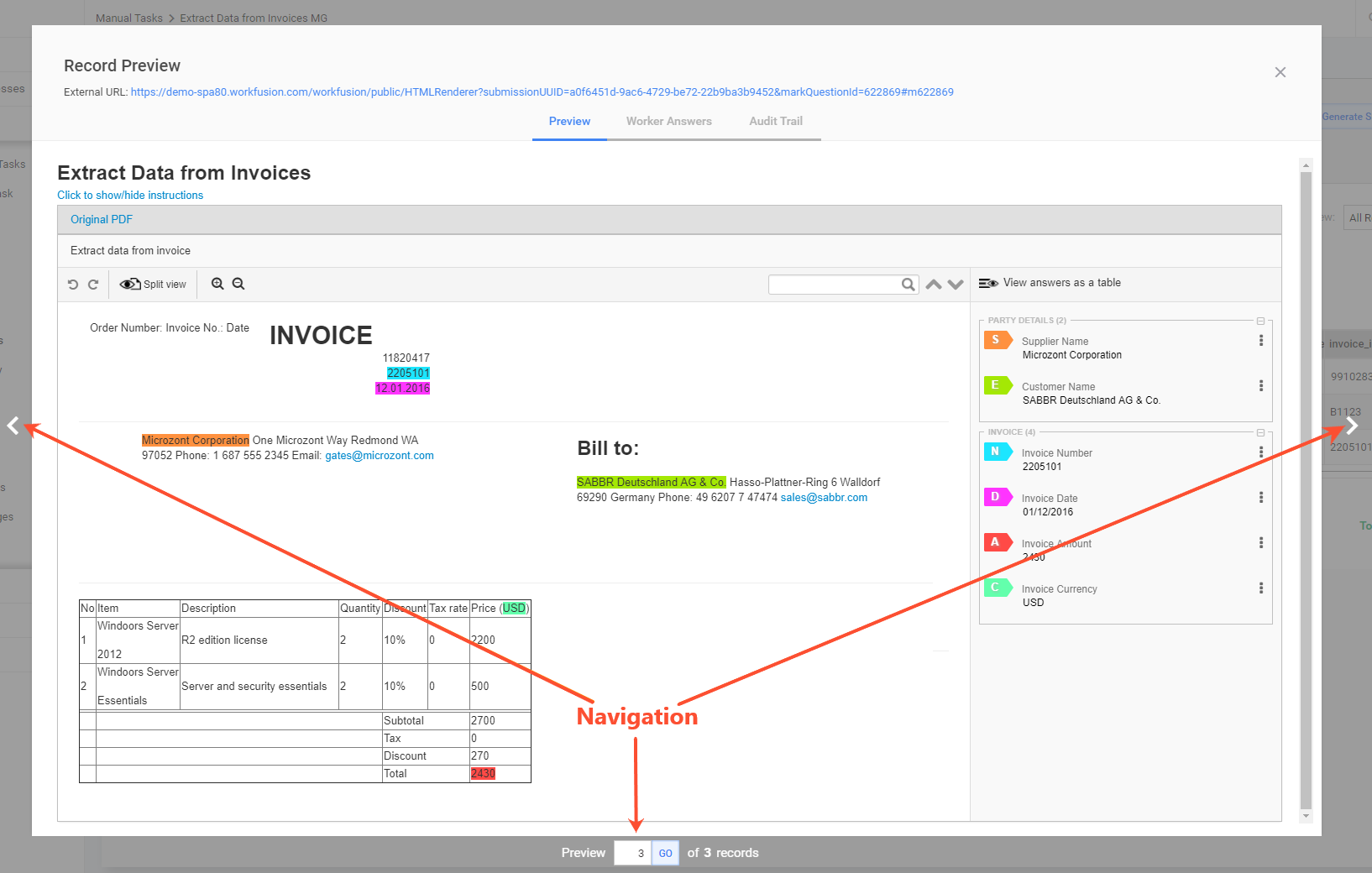
To preview a record in a new window, click the External URL link at the top.
Worker answers
To compare answers from all workers, click the Worker Answers tab.
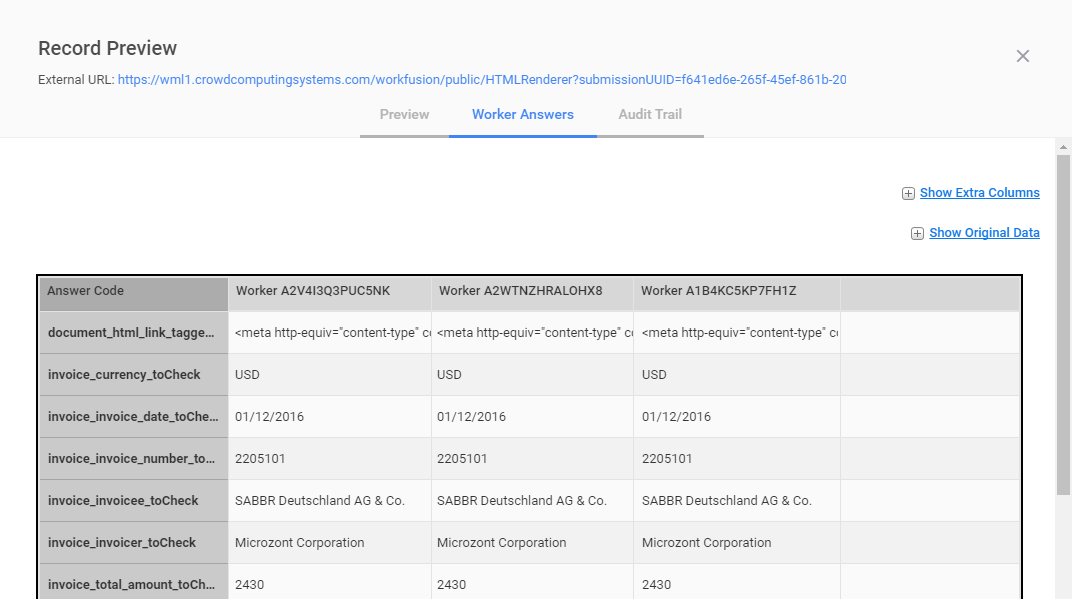
To display additional answer and record parameters, click the Show Extra Columns or Show Original Data link.
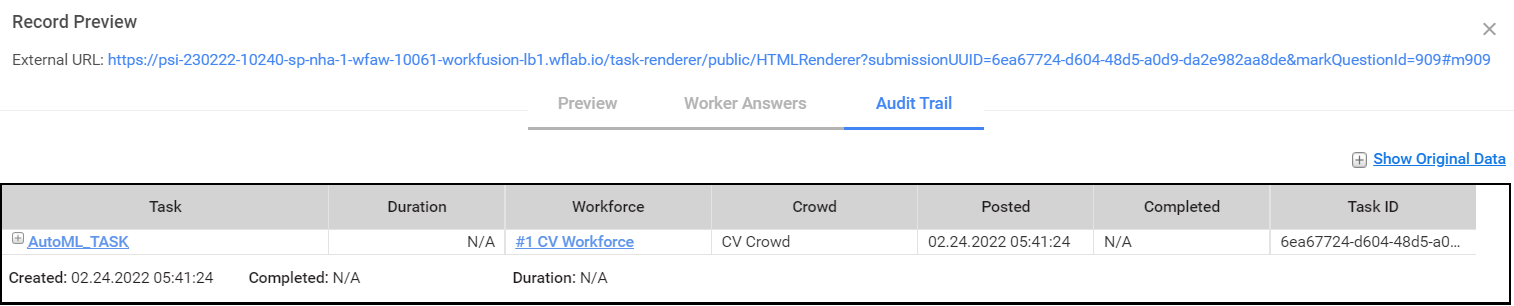
Audit Trail
On the Audit Trail tab, you can see the following information:
- All worker task events
- Event duration and time
- Workers who submitted answers