Calculate statistics (Information Extraction)
Task: review model mistakes (compare tagged and extracted values).
Jupiter Notebook: ModelResultsComparison
Input:
- Tagged data saved to a Data Store
- A CSV file with tagged text
The tool lets you see all model mistakes, their total number per field, and statistics, compare what was tagged and extracted, and download an Excel file with statistics.
To calculate statistics, follow the steps below:
Launch all dependencies and prerequisites.
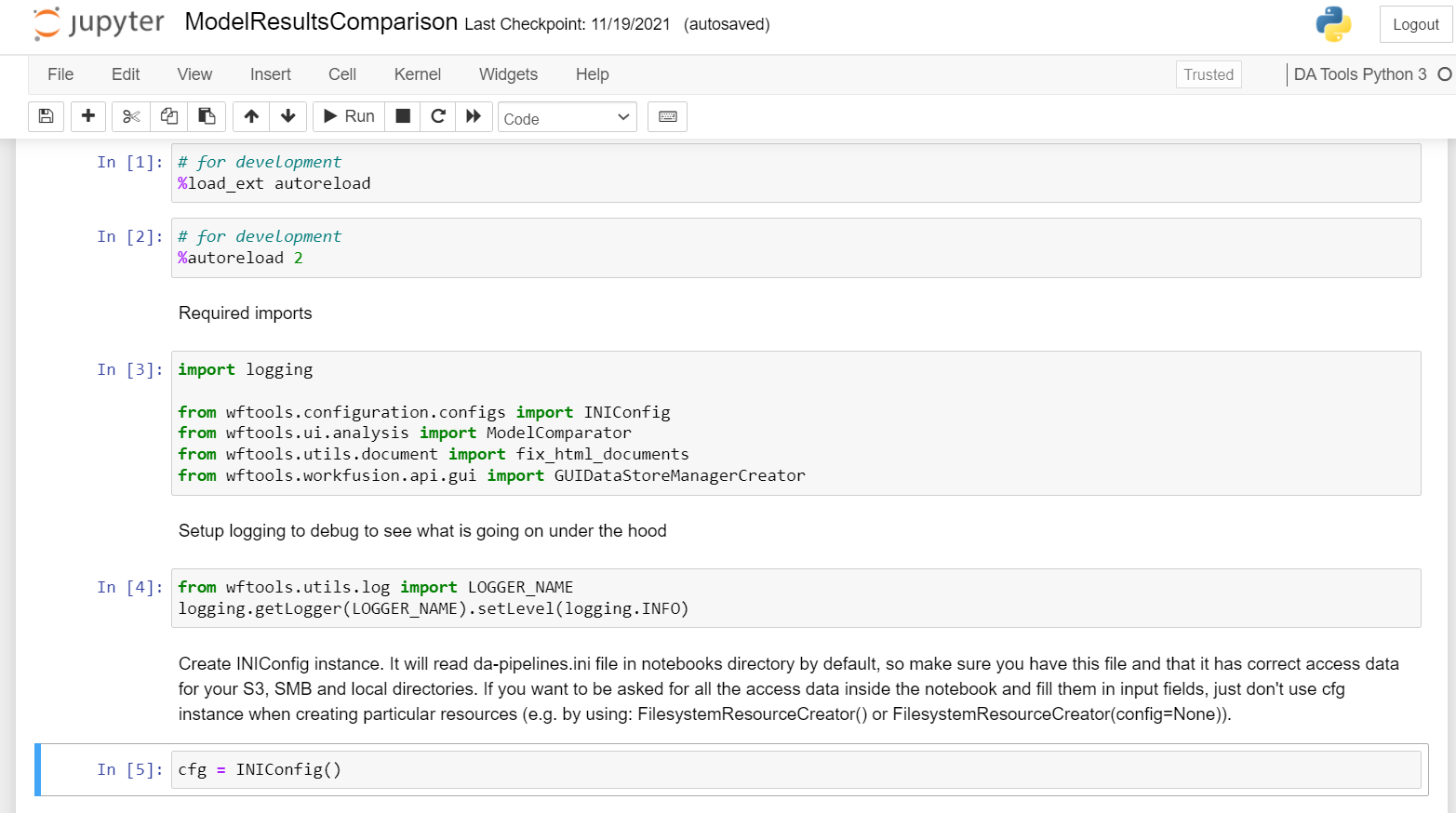
Upload data by any method specified here. Launch ModelComparator. Select all required data in the following menus and click Show per field statistics.
- Select a dataframe: specify the name of the dataframe that contains the dataset.
- Tagged text field: set a column that contains gold data (tagged text).
- Extracted tagged text field: set a column that contains extracted data (tagged text).
- Original document URL: set a column with links to documents.
- Document type: specify a format to open documents.

For your convenience, you can expand the workspace to the entire width of the window.
You can see model statistics for each of the fields. You can adjust the settings and the target metrics per use case. The highlighting changes accordingly: red means the value is below the target, and green—the value meets the target.
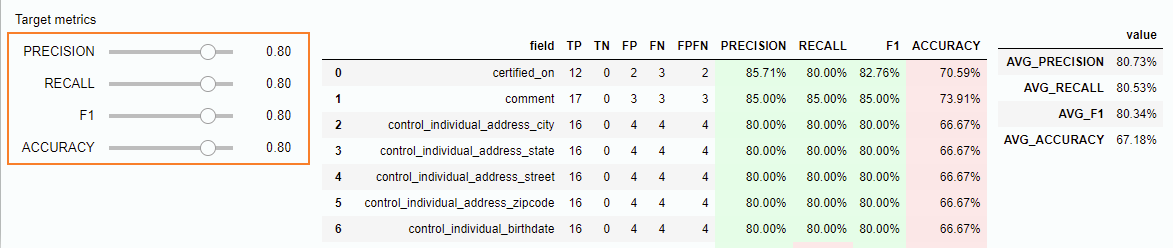
To adjust the list of fields and filter out irrelevant ones, double-click the required field.
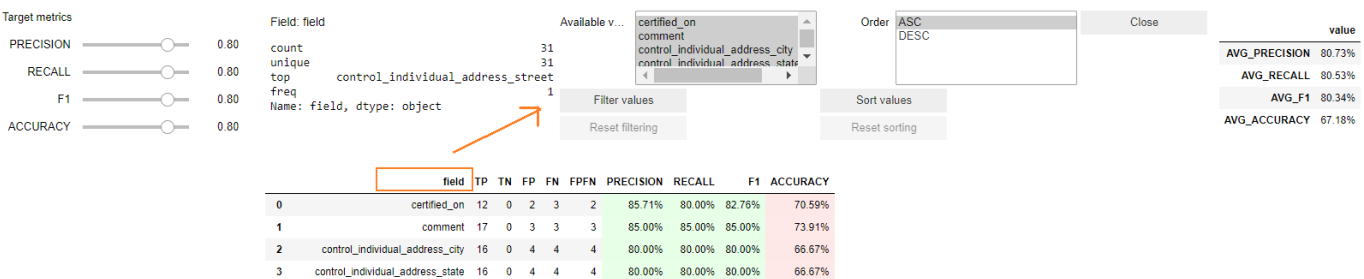
On the newly opened panel, you can select the fields to show and sort. Once you filter the fields, the resulting metrics for the model are also adjusted.

In each field's line, you can see the number of results (TP, TN, FP, FN, and FP FN). Double-click the field to view the details. You will see gold vs. extracted values, results, model score, and accuracy if provided.
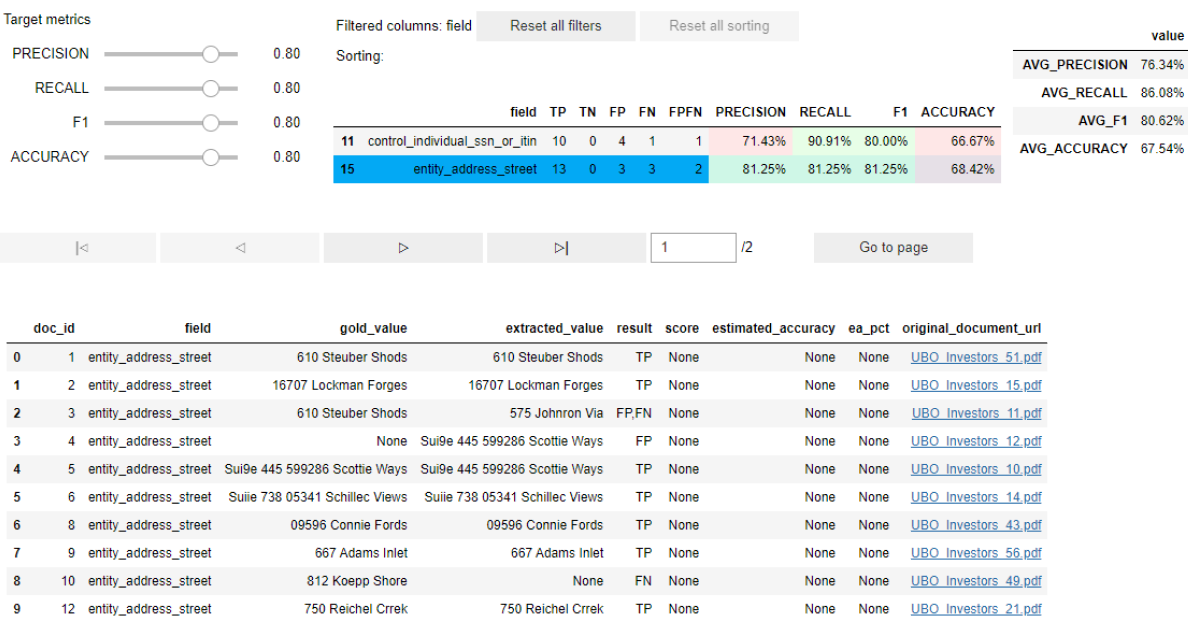
After that, you will see a list of all results for the selected field. Choose any erroneous result. Also, you can filter out only erroneous results.
When you select any result, a viewer appears with two identical document pages displayed: one with the tagged values and the other with the extracted values. For instructions to navigate through the pages and search through the document, read the Compare two models topic.
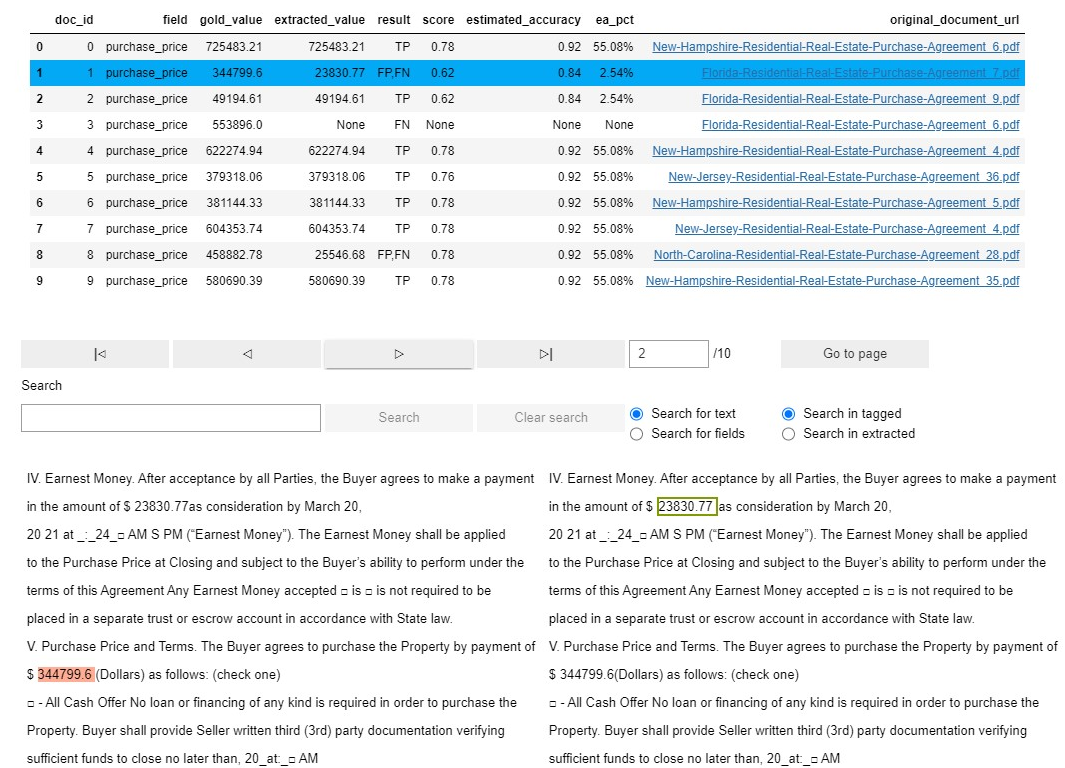
To view the original document, click the link at the end of the result line (in the list of all results for the selected field).
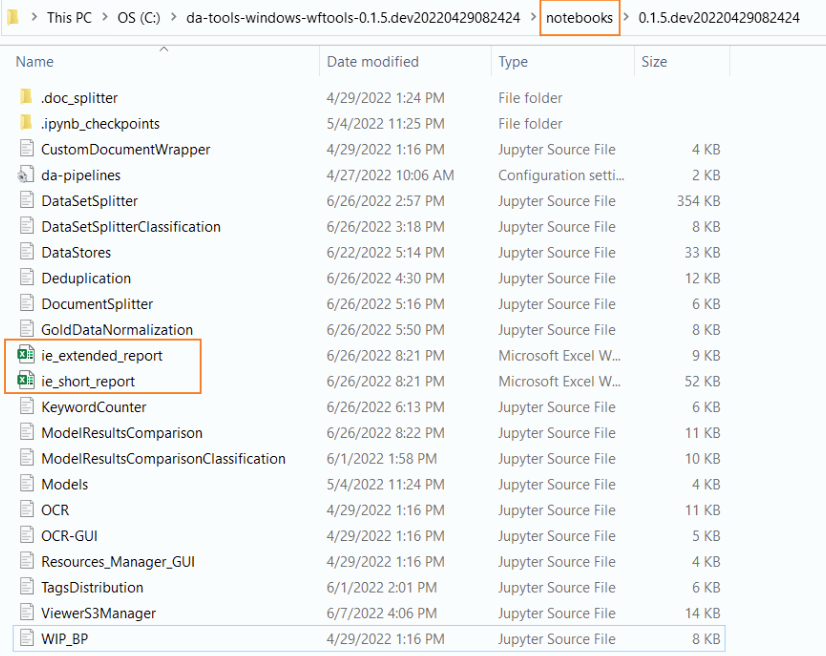
You can save the output result to an Excel file. The first option generates a short report, and the other produces an extended one.

You can find these files in the list of notebooks in your Jupiter Notebook folder.