Review and triage data
Task: study documents, sort out poor quality documents, identify templates, categories, and questionable documents.
Jupiter Notebook: ViewerS3Manager
Input:
- Documents from a local or shared folder
- A CSV file with links to the documents
If you use a CSV with links, make sure that Control Tower is up and running. Otherwise, scripts fail. To enable access to services, turn on VPN, if needed.
The ViewerS3Manager notebook in the DA tools helps to quickly review and analyze input documents. The second function of the notebook is to upload reviewed documents to S3 Manager.
To learn about the Document Viewer feature, refer to the guide.
To analyze documents, follow the steps:
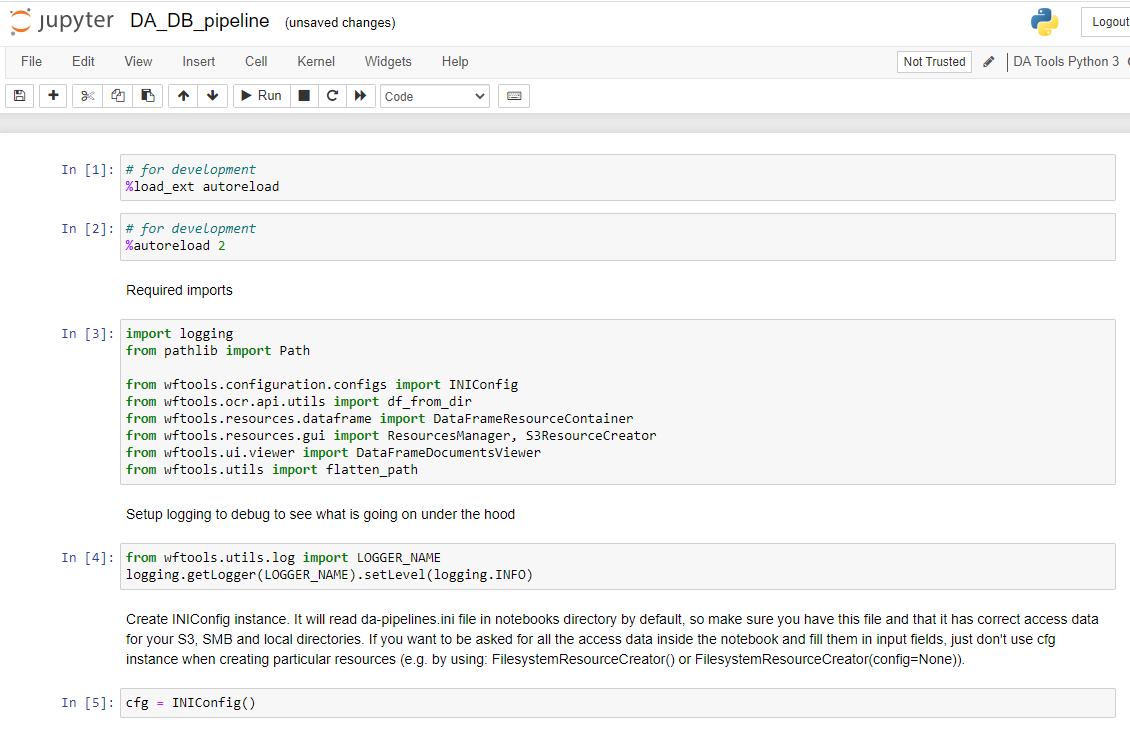
Launch all dependencies and prerequisites:
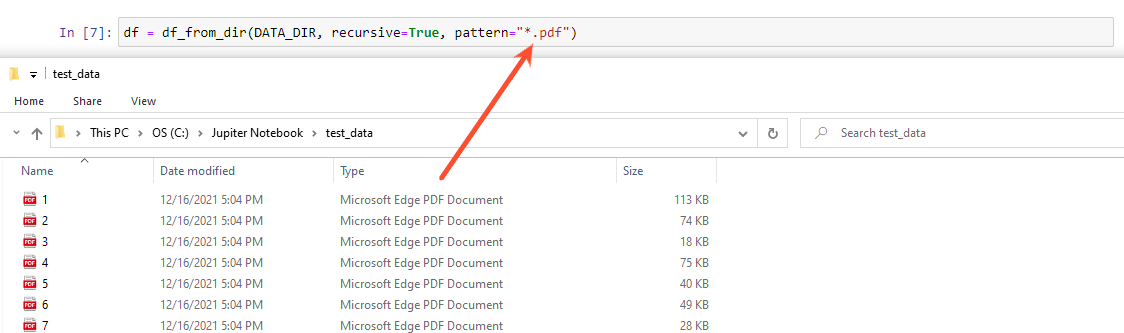
Specify the path to the folder where documents are stored.

If you have a number of sub-folders and need to review all the documents in them, specify the root folder. As a result, all the files inside the root folder falling within the pattern are selected for the DataFrame.
Check that the pattern matches file formats or adjust if necessary.
If you don’t need to upload documents to the File Storage service, skip further steps and go directly to the Viewer.

Review and triage the documents in a single window:
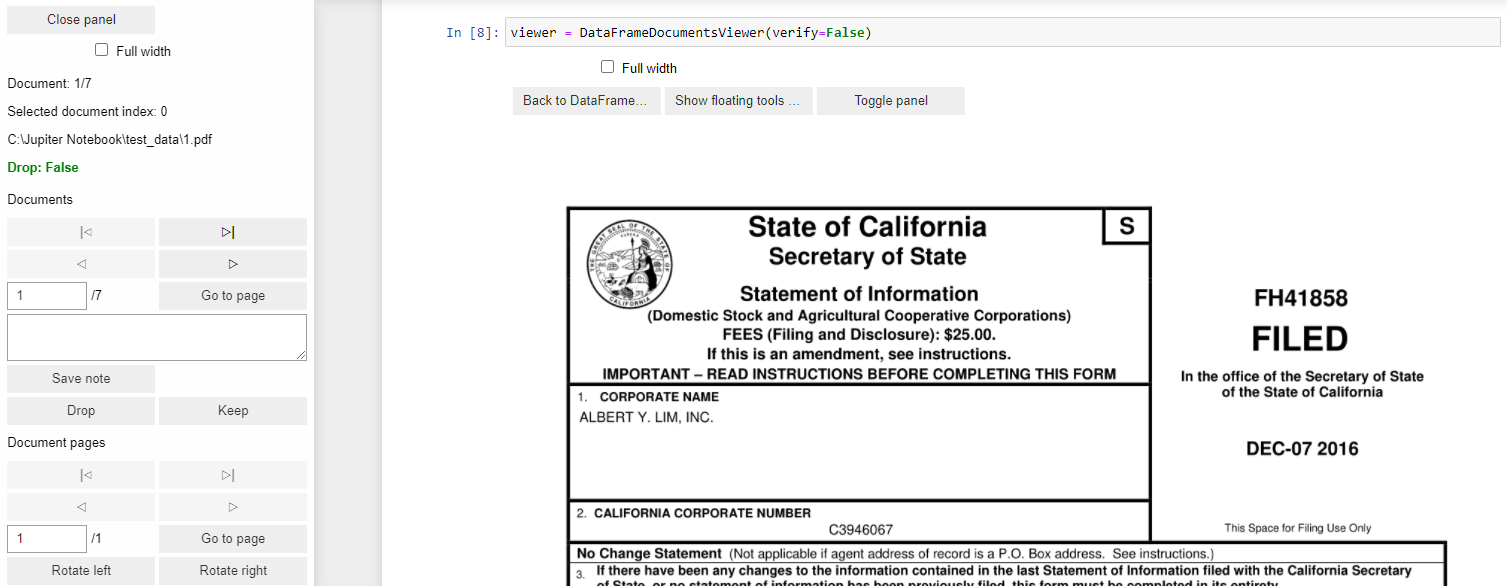
To avoid information loss due to accidental closing of the notebook or kernel overloading, make sure to save the result of the review to the CSV file every now and then:

Exclude the selected documents (all that have
Drop: True) from the batch: note
noteDocuments are excluded from the DataFrame, but remain in the folder.
Save the review results to a file.