Configure local environment
Install Java
Download an appropriate Java Dev Kit (JDK). Make sure you install JDK, not JRE.
Follow the steps in the installation wizard. Do not customize any settings. Use the default ones.
Create the
JAVA_HOMEsystem variable containing the full path to the directory with the installed Java.In the command line, run
java -versionto verify the installation.
Install Maven
AutoML SDK provides project blueprints as Maven Archetypes for model customization.
To install Maven, follow the steps:
Download Maven v3.9+ from the official Maven website.
Extract the archive to
C:\Program Files\apache-maven-3.9.x.Create the
MAVEN_HOMEsystem variable containing the full path to the directory with the unzipped Maven. For details, see Create and Modify Environment Variables on Windows.Add
%MAVEN_HOME%\binto thePATHsystem variable.In the new command line, run
mvn -versionto verify the installation.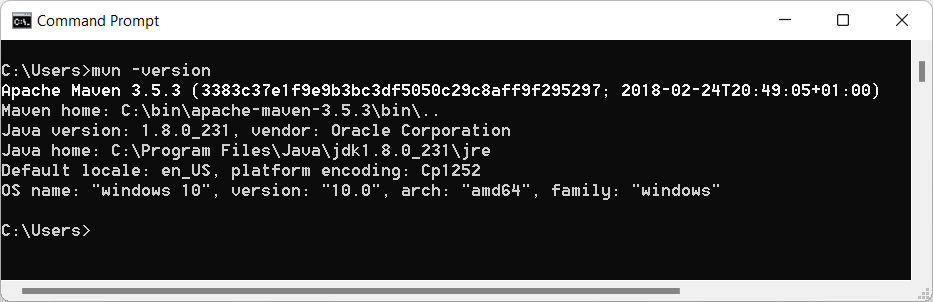
Get access to Nexus repository
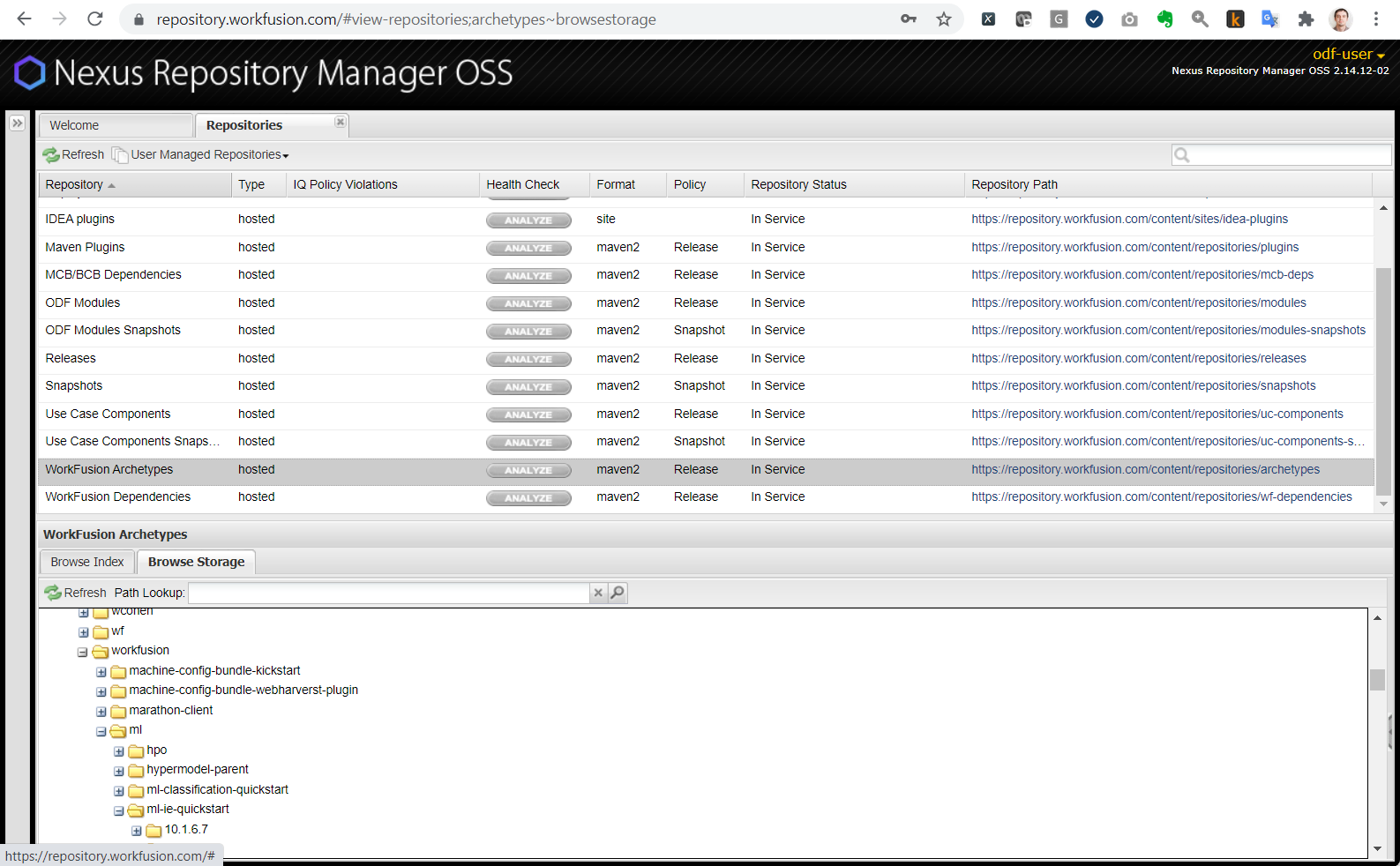
Find out about the Nexus access restrictions applicable to your team. Unless it is prohibited or restricted within a corporate network, use WorkFusion's public Nexus repository for all Maven project artifacts: Archetypes, WorkFusion-specific Java dependencies, ML dependencies, third-party Java dependencies. Start by exploring https://repository.workfusion.com.
During the build, to access all repositories, except for archetypes and idea-plugins, log in using odf-user. Find the password in settings.xml.
Configure local Maven
To configure your local Maven, follow the steps below:
In the
<%user.home%>/.m2/directory, find thesettings.xmlfile. If the directory is empty, createsettings.xml.Modify the
settings.xmlfile as shown below:<settings>
<servers>
<!-- Nexus credentials for Maven to download the WF dependencies to build a project. Read only permissions are needed for this user -->
<server>
<id>wf-ml</id>
<username>odf-user</username>
<password>Workfusion!5</password>
</server>
<!-- Credentials for Asset Bundle API for importing to your remote Control Tower server -->
<server>
<id>remote-control-tower</id>
<username>[TYPE HERE USERNAME]</username>
<password>[TYPE HERE PASSWORD]</password>
</server>
</servers>
<profiles>
<profile>
<id>wf-repo</id>
<repositories>
<repository>
<id>wf-archetypes</id>
<url>https://repository.workfusion.com/content/repositories/archetypes</url>
</repository>
<repository>
<id>wf-ml</id>
<url>https://repository.workfusion.com/content/repositories/ml-sdk</url>
</repository>
</repositories>
</profile>
</profiles>
<activeProfiles>
<activeProfile>wf-repo</activeProfile>
</activeProfiles>
</settings>Replace the
[TYPE HERE USERNAME]and[TYPE HERE PASSWORD]placeholders (lines 13 and 14) with your server Control Tower user credentials. Make sure this user has permissions to import an Asset Bundle. Note that the Control Tower URL is configured in the rootpom.xmlfile of the Maven project you will generate later.If you have access to the WorkFusion Nexus, add it to your Maven's local configuration as described below. If you work with your company's on-prem Nexus repository, change the
https://repository.workfusion.comURL (lines 24 and 28) to the actual on-prem one.
Add mirror repository
For cases with no Internet connection, when you are seting up the environment, add the following code to the settings.xml file:
<mirrors>
    <mirror>
        <id>central</id>
        <name>central</name>
        <url><%nexus_instance_host%>/nexus/content/repositories/ml-sdk/</url>
        <mirrorOf>*</mirrorOf>
    </mirror>
</mirrors>
Set up Maven-to-Nexus SSL
To use a secure connection when setting up the environment, follow these steps:
In the
<%user.home%>directory, create a.mavenrcfile.Add the following code snippet:
MAVEN_OPTS="-Dmaven.wagon.http.ssl.insecure=true -Dmaven.wagon.http.ssl.allowall=true -Dmaven.wagon.http.ssl.ignore.validity.dates=true"
Use IDE of your choice
As a prerequisite to work with an AutoML model, you should have an IDE installed. You can use either of the following IDEs:
- Eclipse included in the Work.AI Developer installation
- Free or commercial IntelliJ IDEA