Add links to S3 buckets
You can use links to secure S3 buckets in the input data files for Manual Tasks and Business Processes.
Suitable use cases
- You have an IE task with private documents.
- Private files are accessible in IE (PDF, XML) through a temporary link.
- If you copy the link, you cannot open it outside the task.
- You need to render a PDF outside of an IE task. For example, insert an iframe with a PDF to the task.
- Private files are accessible in the task through a temporary link.
- If you copy the link, you cannot open it outside the task.
- You acquired a public link to the task, for example,
.../public/HTMLRenderer...- You cannot see private documents inside the task if the HIT is inactive.
- If you preview it in Control Tower, it should render the document.
Prepare S3 secure bucket
Amazon or React S3 client
Upload your files to the S3 bucket.
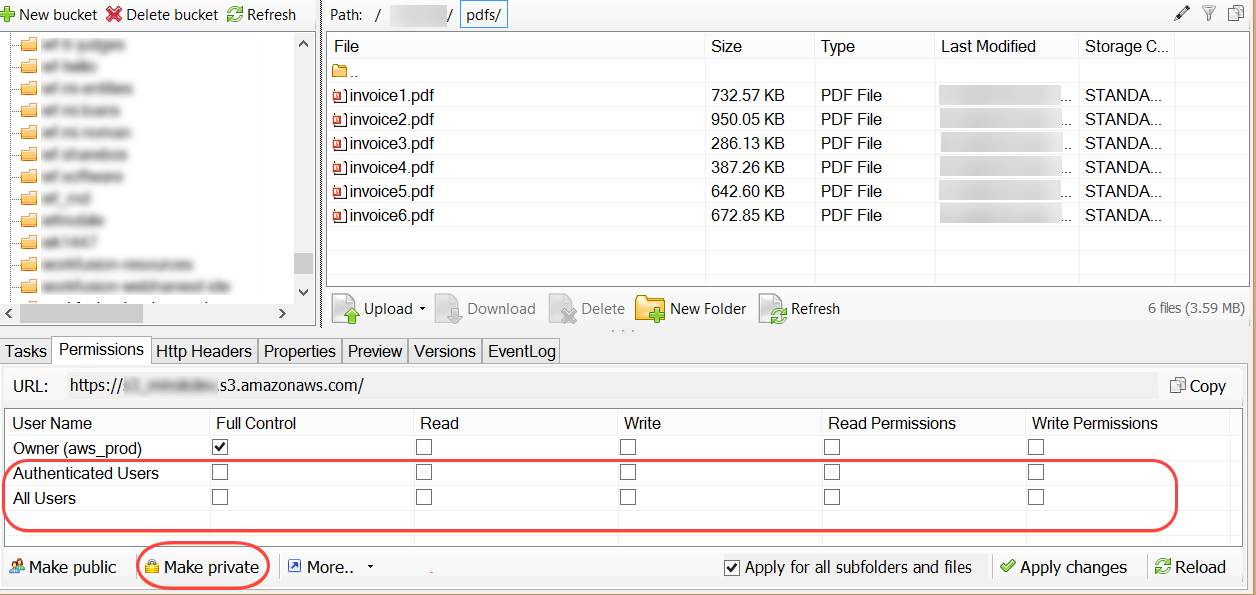
Set bucket permissions:
- Clear all checkboxes for all users to disable all permissions.
- Select Make private to enable Full Control only for one user.
Generate secure document links
To generate a secure link, use the s3-put plugin with the expires-in-seconds option. For more details, see S3-put plugin.
The expires-in-seconds parameter denotes the time after creation when the link stays live. If this parameter is used, the BP won't cache anything.
If expires-in-seconds is empty, secure links are not created.
View the code with the signedUrl property
import com.amazonaws.services.s3.model.CannedAccessControlList;
import com.amazonaws.services.s3.transfer.ObjectCannedAclProvider;
import com.workfusion.automation.rpa.utils.ScreenshotUtils;
import com.workfusion.odf2.compiler.BotTask;
import com.workfusion.odf2.core.cdi.Requires;
import com.workfusion.odf2.core.task.AdHocTask;
import com.workfusion.odf2.core.task.TaskInput;
import com.workfusion.odf2.core.task.output.TaskRunnerOutput;
import com.workfusion.odf2.core.webharvest.rpa.RpaDriver;
import com.workfusion.odf2.core.webharvest.rpa.RpaFactory;
import com.workfusion.odf2.core.webharvest.rpa.RpaRunner;
import com.workfusion.odf2.service.ControlTowerServicesModule;
import com.workfusion.odf2.service.s3.S3Bucket;
import com.workfusion.odf2.service.s3.S3Service;
import com.workfusion.odf2.service.s3.S3UploadResult;
import com.workfusion.odf2.service.vault.SecretsVaultService;
import com.workfusion.rpa.helpers.RPA;
import org.slf4j.Logger;
import javax.inject.Inject;
import java.time.Duration;
import java.util.Optional;
import java.util.UUID;

@BotTask(requireRpa = true)
@Requires({ControlTowerServicesModule.class})
public class GenerateSecureDocumentLinks implements AdHocTask {

    private final RpaRunner rpaRunner;
    private final Logger logger;

    private final SecretsVaultService secretsVault;

    private final S3Service s3Service;

    @Inject
    public GenerateSecureDocumentLinks(RpaFactory rpaFactory, Logger logger, SecretsVaultService secretsVault, S3Service s3Service){
        this.rpaRunner = rpaFactory
                .builder(RpaDriver.UNIVERSAL)
                .closeOnCompletion(true)
                .build();
        this.logger = logger;
        this.secretsVault = secretsVault;
        this.s3Service = s3Service;
    }

    @Override
    public TaskRunnerOutput run(TaskInput taskInput) {

        rpaRunner.execute(driver->{
            RPA.openChrome("https://www.w3schools.com/java/java_ref_keywords.asp");
            RPA.sleep(2000);
            byte[] screenShotFile = new byte[0];
            try {
                ScreenshotUtils screenshotUtils = new ScreenshotUtils();
                screenShotFile = screenshotUtils.getScreenshotAsByteArray();
            }
            catch (Exception ex)
            {
                ex.printStackTrace();
            }
                String path = "training-set/";
                String FileName_ = path +  java.util.UUID.randomUUID() + ".png";
                S3Bucket s3Bucket = s3Service.getBucket("36807");
                S3UploadResult s3upload = s3Bucket.put(screenShotFile,FileName_,Optional.of(CannedAccessControlList.Private),Optional.of("text/html"),Optional.of("inline"),Optional.of(Duration.ofSeconds(3600)));
                logger.debug("Direct-url - " + s3upload.getDirectUrl());
                logger.debug("Signed-url  " + s3upload.getSignedUrl());
                logger.debug("Filename - " + s3upload.getFilename());
        });

        return taskInput.asResult()
                .withColumn("example_bot_task_output", "completed_successfully");
    }
}
For more details, see S3 plugins.
Links with the https://bucket_name.s3.amazonaws.com/path-to-file format are NOT supported in Work.AI for secure buckets.
Configure Work.AI instance
To configure buckets, complete the following steps:
Add the following secure
workfusionproperties to Secrets Vault. For details on managing secure properties, refer to the guide.s3.context.key.map.presign={"bucket_name ":{"secret-key":"some_value","access-key":"some_value"}}On the Master server, restart Control Tower and Manual Task Renderer using the following command:
wfmanager restart workfusion manual-task-renderer
View results
Each link to the S3 secure bucket is pre-signed and available for downloading (in the Control Tower preview or Workspace) only during a defined period:
- In Control Tower, when opening Preview or External Preview, pre-signed links are available for downloading for 3,000 seconds.
- In Workspace, when viewing a task or after accepting the task, pre-signed links are available for downloading for 30 seconds.
If you open External Preview in Control Tower and copy the external URL (.../public/HTMLRenderer...), the URL is unavailable for opening in another browser window, and you cannot share links to the external preview of a task with S3 secure links.
In Information Extraction tasks, for the Original Document field link, a new link is generated, for example, /public/generatePreSignedS3Link?assignmentId=assignmentI_id&dataUUID=generated_data_uuid. A query to this link returns a document link available for 30 seconds.
GeneratePreSignedS3Link is available only for active assignments (accepted by Workers). After submitting or returning an assignment, it becomes unavailable.
Use secure links inside other URLs
To forcefully pre-sign an S3 secure bucket link, for example, when you need to include this link into another URL for PDF preview (src="https://s3.amazonaws.com/crowdcontrol.taglib/pdf.js-1.1.366/web/viewer.html?file=question.data['url']"), you should use a Macro template.
<@preSignAndEncodeS3DocumentLink documentUrl="question.data['url']"/> creates a new resultUrl variable containing the presigned link:
...
<@preSignAndEncodeS3DocumentLink documentUrl = "${question.data.url}"/>
<iframe frameborder="0" style="height: 600px; width: 100%;"
        src='https://s3.amazonaws.com/crowdcontrol.taglib/pdf.js-1.1.366/web/viewer.html?file=${resultUrl}'
        sandbox="allow-same-origin allow-scripts"></iframe>
...
Troubleshooting
The troubleshooting checklist is as follows:
- Review settings specified in the
workfusion.propertiesfile in the/opt/workfusion/workfusion/conffolder. Make sures3.endpoint.urlands3.bucket.URLare correct and have nohttps://prefix. Specify the default port for HTTPS. The correct settings example iss3.server.com:443. - Review the keys in the secure storage settings. Make sure the secure key and access key are not mixed.
- Review links specified in a CSV file. All links should have the following format:
https://s3.server.com:443/bucket/file_path/file_name. The port number is compulsory. - Review security settings for the bucket. There should be no read access by default.
- For the TOD OCR version, review the XML content and make sure there is a signed link to an image.
For more troubleshooting tips, refer to Check S3 bucket.