Apply actions
Each of our clients uses Work.AI Developer for different goals, but the common thing that unites all of them is writing scripts with the help of Recorder. There are several recommendations that can help you to make your script not only functional but also clear for understanding and flexible to support.
In this guide, you will find best practices for writing scripts using Actions Library.
Common recommendations
There are some common things that make your script more flexible and clear.
Use Recorder Variables to store URLs, paths to files or folders, filenames, logical flags (
trueorfalsevalues), and so on. Try not to use hard-coded values. See how to use variables to store action parameters in this YouTube tutorial.Use Secrets Vault to store sensitive information like account credentials.
Choose clear and concise names for your variables, for example,
folder_path,input_files,login, and so on.Name your scripts only with Latin letters and don't use special characters, for example, # % \$.
For other people to understand your script, put comments for your actions in the Comment field.
Use Sequences to divide the script into logical parts. For example, your script processes Excel files, then sends them via Outlook. In this case, you can create at least three big sequence groups and name them accordingly.

Test your scripts by small parts before attaching to the main script or publishing to Control Tower.
Do not use reserved words to name your variables.
Use the Clipboard action and then Ctrl + V key combination to paste text instead of typing it via the Enter Keystrokes action. It helps to speed up the script execution.
Remember to clear clipboard and variables when using loops to avoid storing incorrect values in variables from the previous loop.
To make your script shorter, use the advanced option Wait before performing this action instead of separate Wait actions.

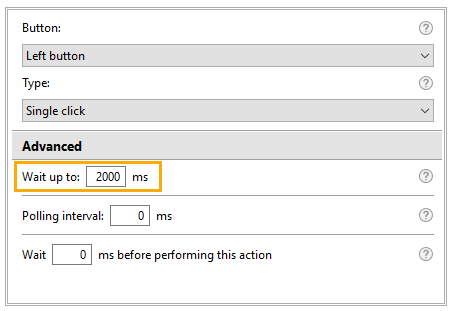
To give a web element some time to load on the page, you can set the timeout in the advanced Wait up to setting.
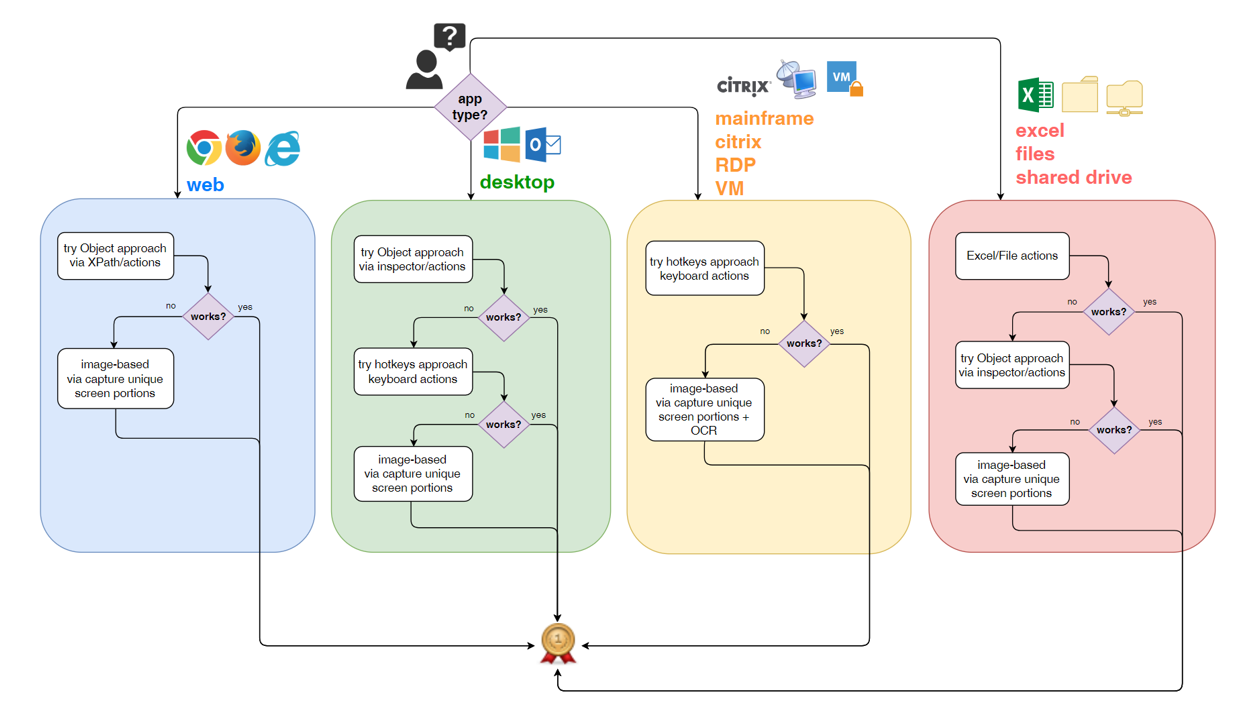
To successfully apply the best practices described here, we recommend following this automation approach while developing your scripts.
Web automation
Use Web actions to open browsers and perform actions in them.
Use Web Element to get and set values on the web page instead of Enter Keystrokes.
While working with web page buttons, use the Web element option instead of Image in the Click Mouse action.
In case you need to click on a web page button, put the Click Mouse action as a child within Open Website.

If possible, use XPath in the Click Mouse actions.
Desktop automation
When using Enter Keystrokes in a specific window, define the active window using the Window action. That will guarantee that all keyboard actions are applied in the needed window.

If possible, use the Window control option instead of Image for Mouse actions in desktop applications.
Add action
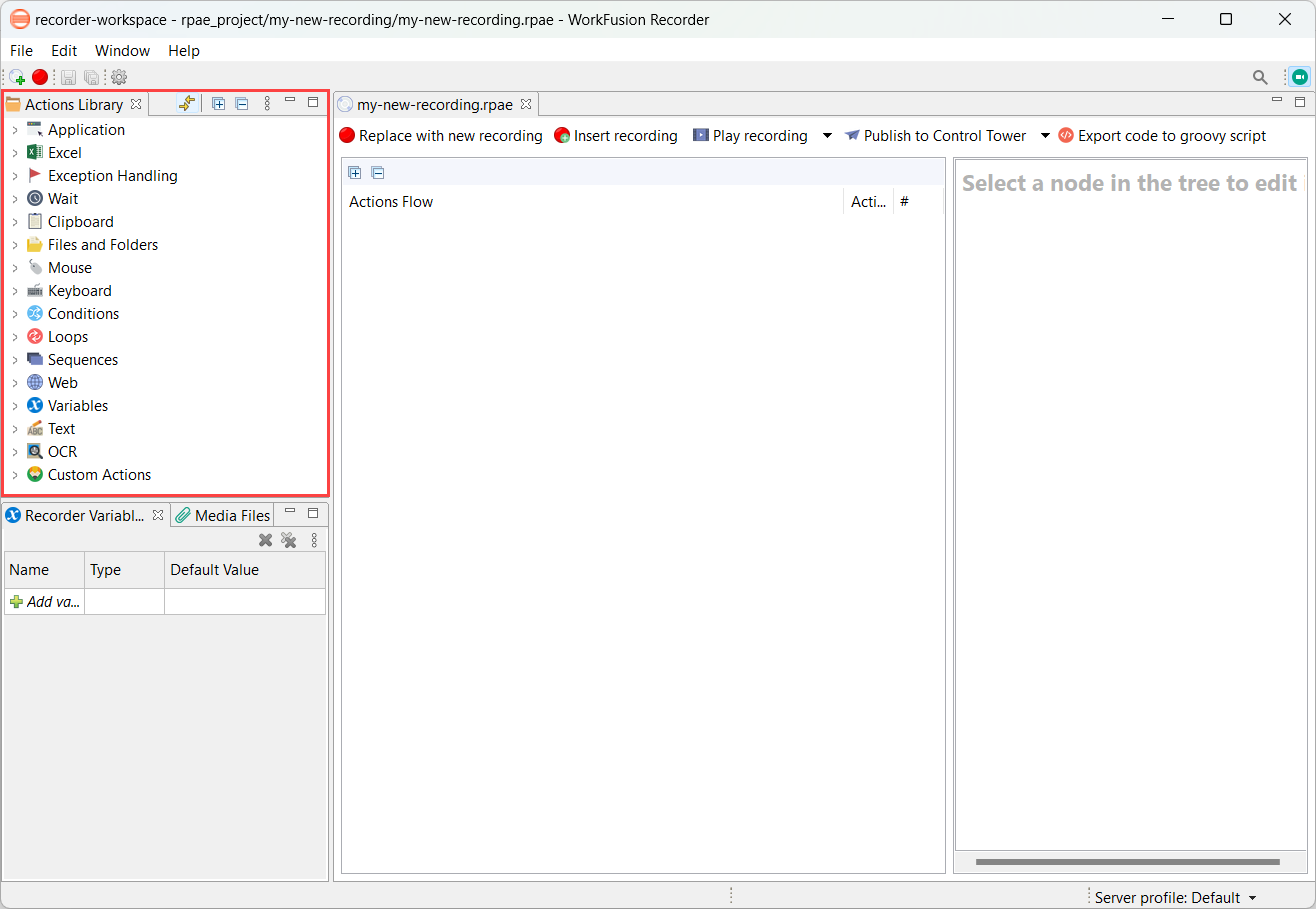
Actions Library is a collection of all actions you can use to create a recording. The actions are grouped according to manipulations they perform. An action from the library can be added to its respective place in Actions Flow.
To find Actions Library, open Recorder.
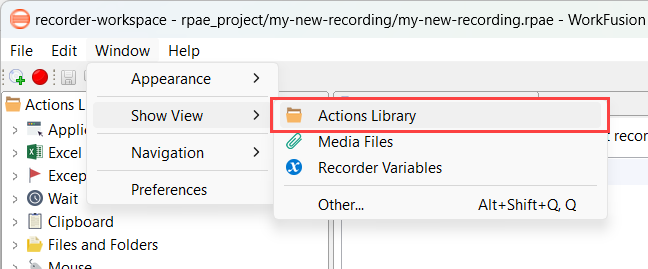
You can also go to Window > Show View > Actions Library.
There are the following actions for you to use in your automations: