Translation
Example overview
Problem statement
In the modern world, you need to work with a large number of people from different countries, but since you cannot know all the languages, you use online translators for this. Though, translating each phrase separately takes a lot of time, and this small bot will help you save your time.
Existing manual process
Sometimes, you have to translate some phrases from one language to another. For this, copy one phrase, translate it, and save the result. The process is repeated for each phrase separately.
Automation solution
The bot gets a list of English words or phrases from a spreadsheet, translates them into Spanish online in Google Translate, and saves the translated words or phrases back to the spreadsheet. To define the input and output language, set ISO 2 Letter Language Codes as headers in the input file.
Preconditions
Before you start working, ensure all the requirements are met:
- Install Work.AI Developer.
- Use the Chrome browser.
- Download the example.
English to Spanish.xlsx: the input file inside theTranslation.zipfolder, the standard path for the input folder:C:/.
Getting started
To get started, perform the following actions:
Extract the
Translationfolder.Transfer the folder contents into your Recorder workspace:
C:/Users/name/workfusion-workspace2/rpae_project.Open the sample in Recorder.
Set default values for the following variables:
file: for example, the path to the XLSX file with a single column for translation:C:/ManualReconciliationInput.
Click Play recording.
- The input file should contain short abbreviations for input and output languages in cells A1 and B1, for example, en, es, de, and so on. For more information, refer to ISO 2 Letter Language Codes.
- Input phrases should be in the A column, beginning with the second row.
Script groups
On a high level, the script consists of the following actions.
- Open the spreadsheet and grab data to be translated and languages to translate.
- Open Google Translate and translate the phrases online.
- Save the translated phrases back to the spreadsheet.
Let's explore these steps in detail.
Script workflow
In this example, phrases from the XLSX file are translated into Google Translate, and the results are saved in the same file.
Input file requirements are as follows:
- The file should contain short abbreviations for input and output languages in cells A1 and B1, for example, en, es, de, and so on.
- Input phrases should be in the A column, beginning with the second row.
The Open Spreadsheet action opens the XLSX file in the background to read phrases and gets the languages to translate.

The Get Column action saves the first column from a file into a List variable.

The Get Cell Value action obtains the language in which the first column will be translated. Get the value from the first cell of the B column and store it in the
str_translate_tovariable.
The Constant Value action gets the value from the first cell in the first column and stores this value in the
str_translate_fromvariable.
The For Each loop performs actions for all values from
list_input_phrases, starting with the second element.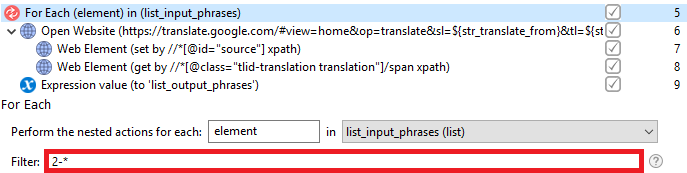
The Open Website action opens http://translate.google.com with certain parameters. In the Site URL field, use variables that contain the languages required for translation.
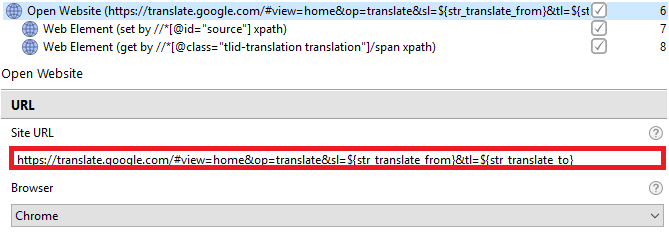
Web Element > Set value sets the current input phrase from the
list_input_phrasesvariable.

Web Element > Get value gets the output phrase and stores it in the
translatedvariable.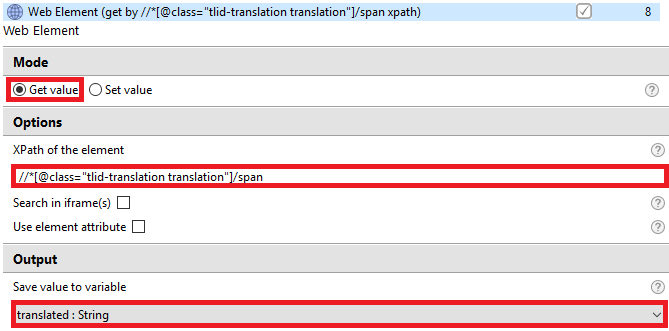
The Expression value adds the output variable to the
list_output_phrasesvariable.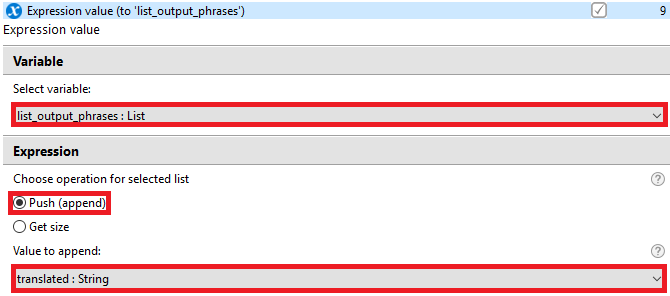
The Open Spreadsheet action opens the XLSX file to add translated phrases.

The Set Active Cell action sets the active cell to add translated phrases to the second column of the table.

The For Each loop performs actions for all values from
list_output_phrases.
The Set Сell Value action sets the
list_output_phrasesvalue in the cell under the active one.