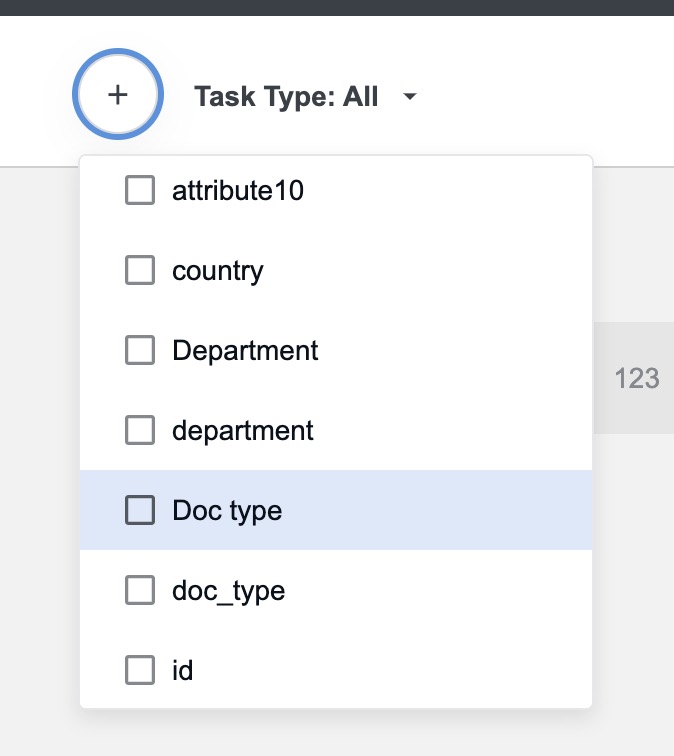
Add filter attributes
Filter attributes are mapped to Control Tower custom attributes with the help of the Workspace preview feature.
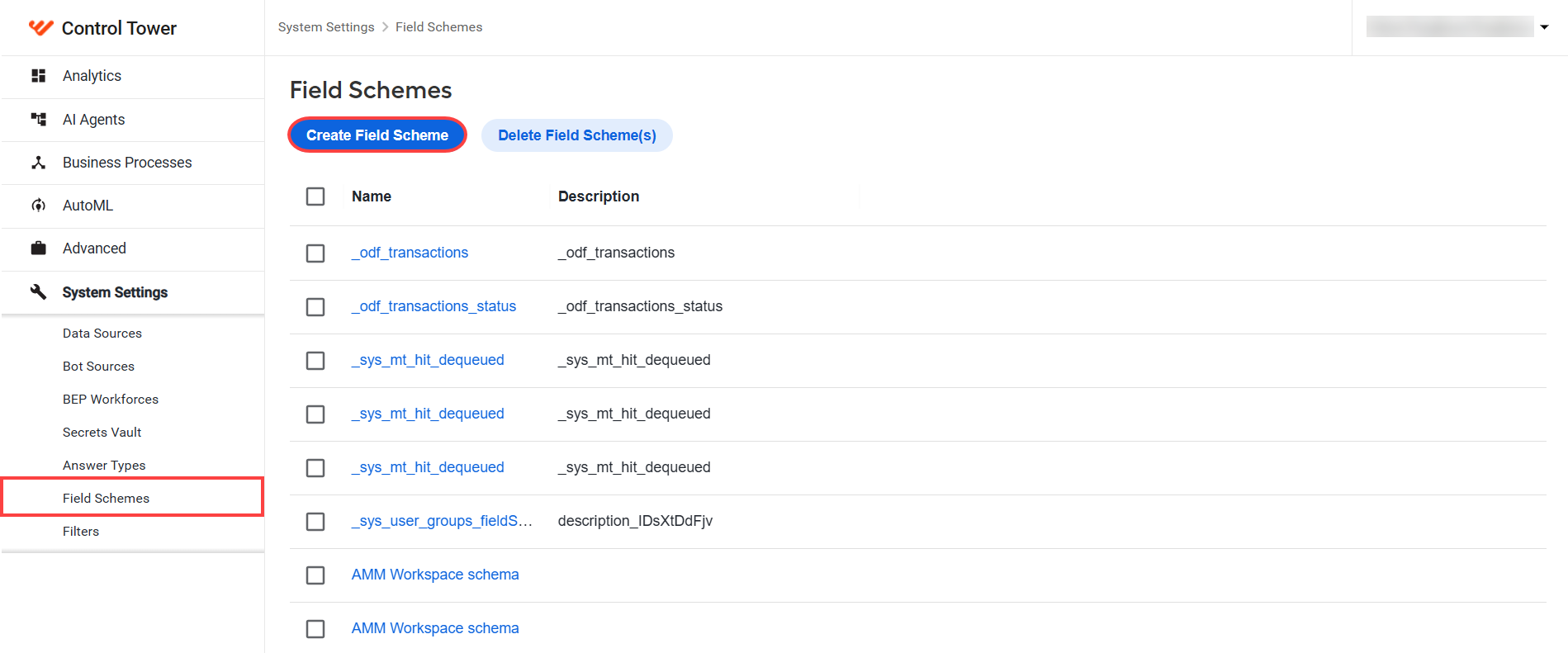
Go to Control Tower > System Settings > Field Schemes.
Click the Create Field Scheme button to create a new field scheme.
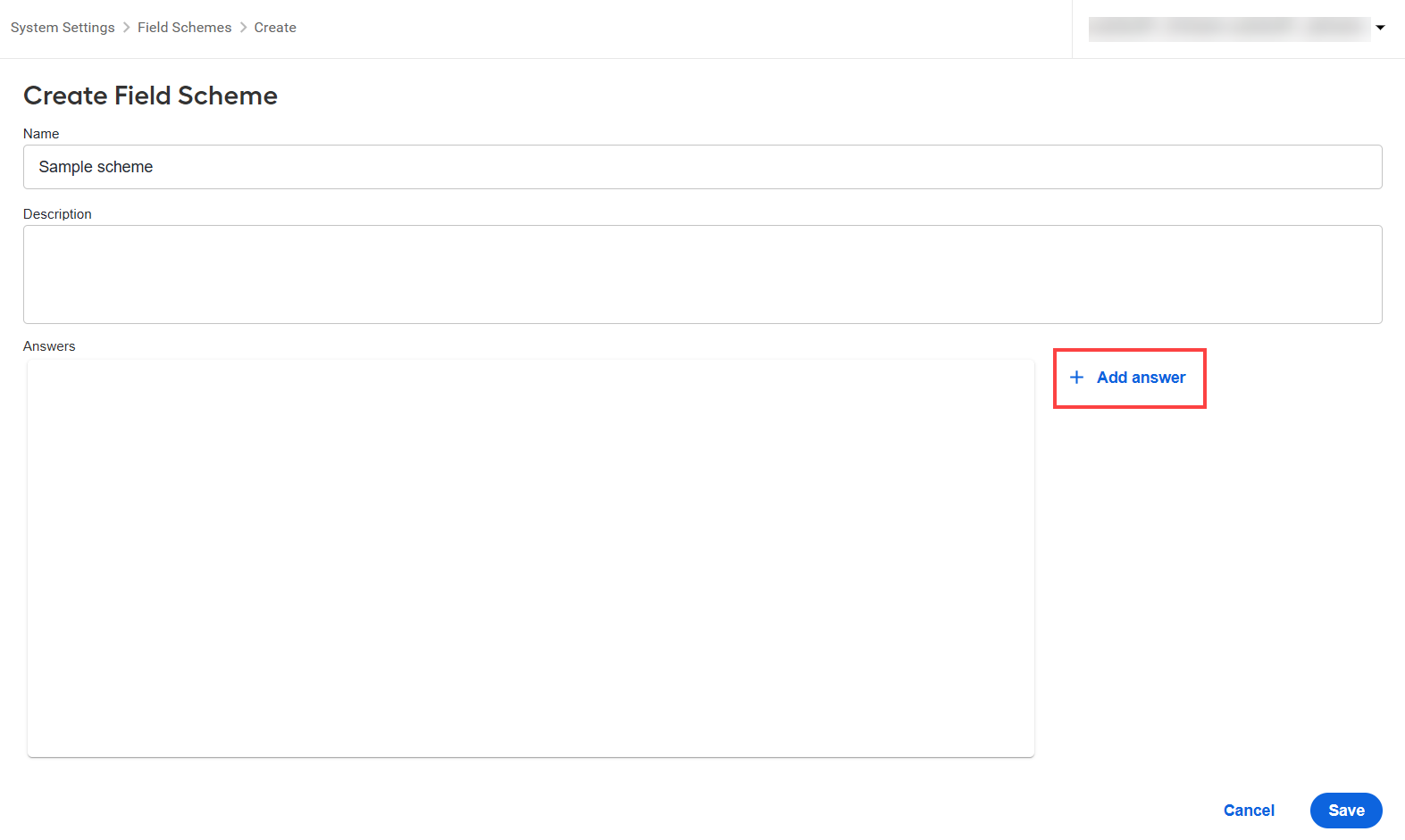
Add answers using the Add Answer option. The answer titles are displayed as filter titles in Workspace.
Set the Answer Type field to Free Text. The answer type validates the task input file column name in the
${question.data['column_name']}format.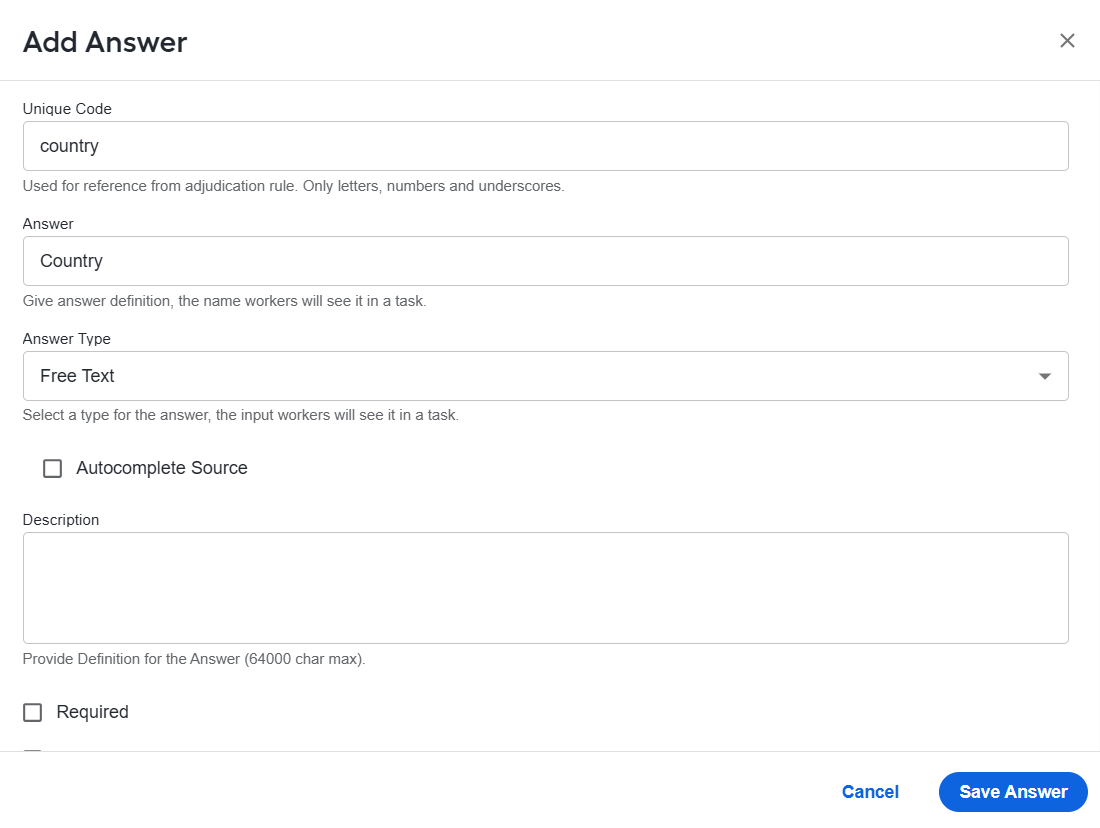
Create a Manual Task.
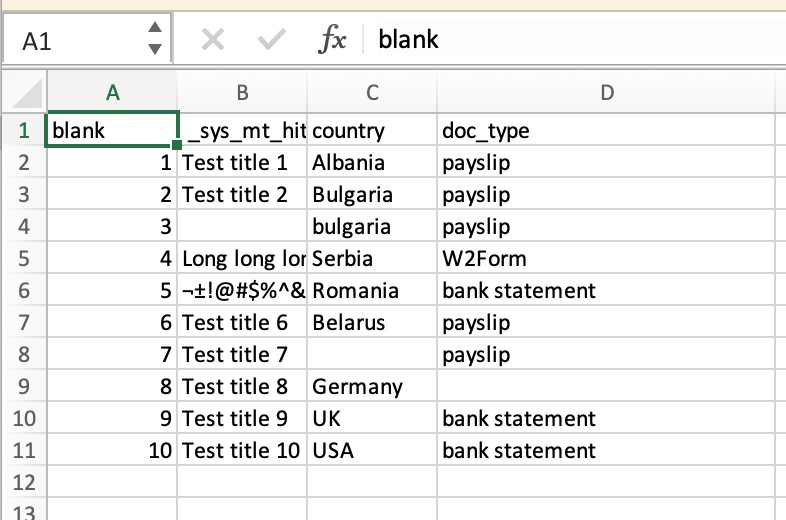
Upload a CSV file with columns that contain options for future filters.
 note
noteIn the input file, column names and their values (filter and attribute names) cannot exceed 255 characters. Otherwise, the Manual Task will not appear in Workspace.
In the Manual Task's settings, go to Workspace preview and select your field scheme.
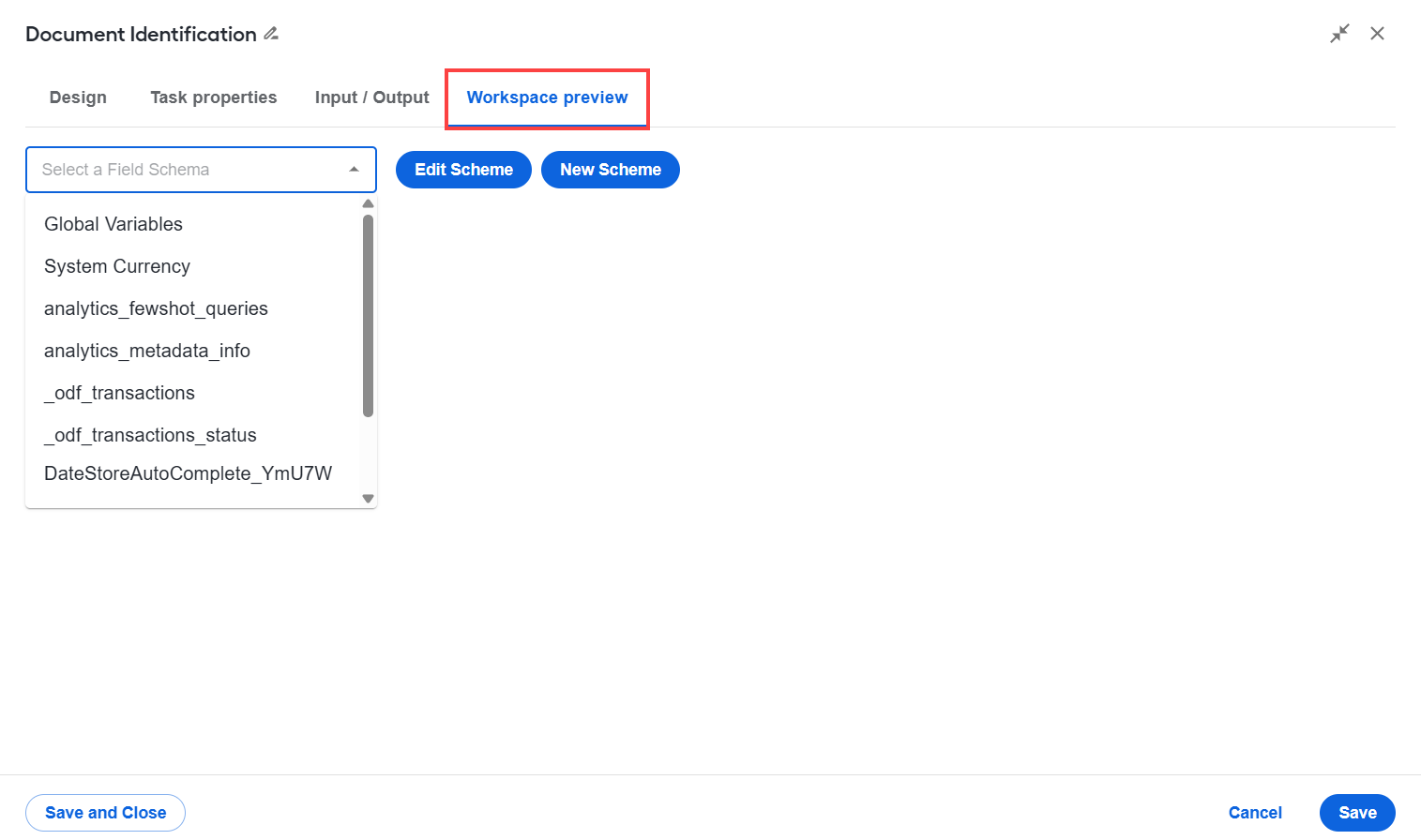
Map fields to the input file column from the right.
Click Save and run the Manual Task.
Go to Workspace > Assignments and click the + button. Your filter appears in the list.