Activate and renew OCR license
The Work.AI Developer installation requires a separate OCR license that is different from the server installation of Work.AI. The out-of-the-box OCR license expires three months after the Work.AI Developer release or reaching the default 1,000 pages.
You can activate the OCR license only once and on one machine only.
To upgrade or renew your OCR license, follow these steps.
Send an email to your WorkFusion account manager or create a Service Desk ticket. You can use the template below:
Dear Support Team,
Please, provide the OCR license according to the following requirements:
Company name: ____
Platform type: Windows (Work.AI Developer)
License type: FRE 12
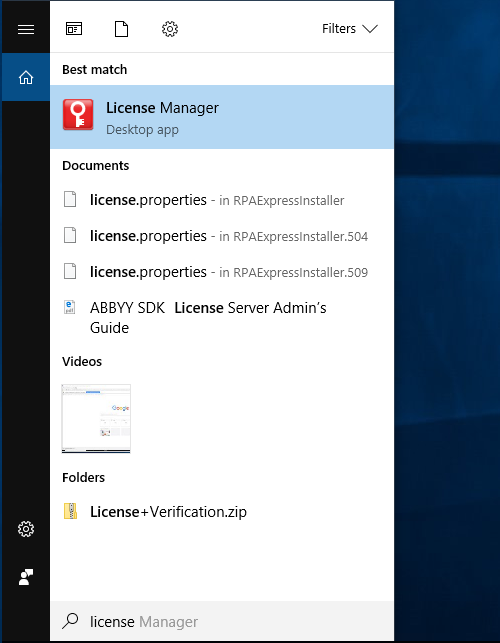
Open License Manager installed on your computer during the Developer setup.
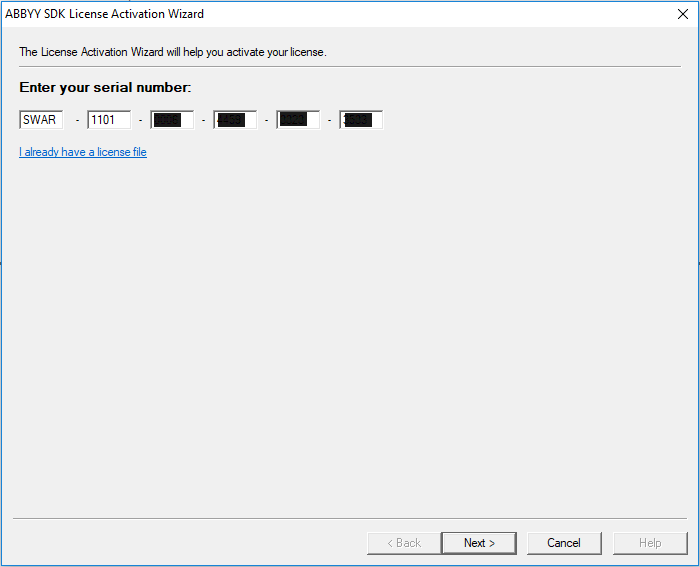
Click Activate License to add a license.

Enter the license key you have received from WorkFusion.
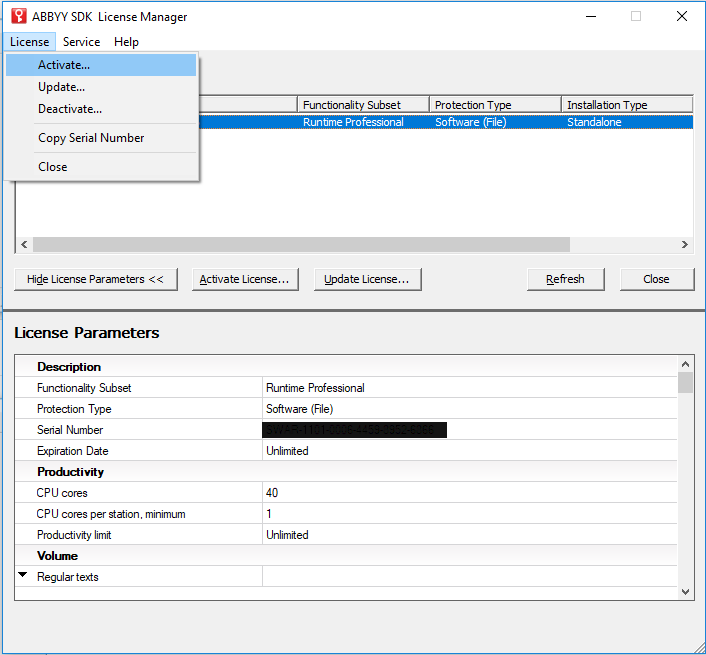
To activate a new license, in the License menu, click Activate.
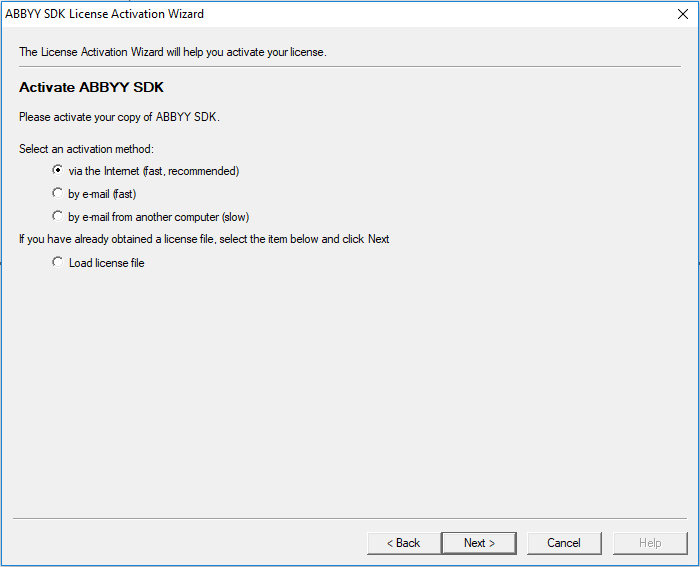
Select the via the Internet activation method.
Licence Manager addresses the License Server to verify the license.
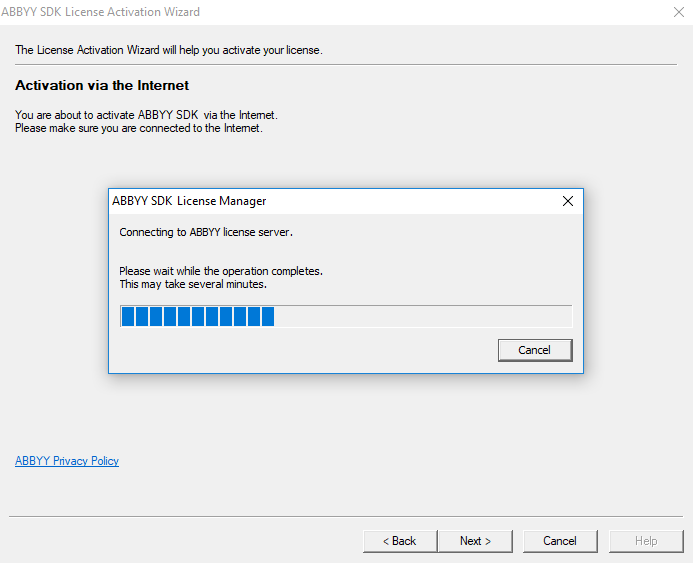
Your new license is now activated.
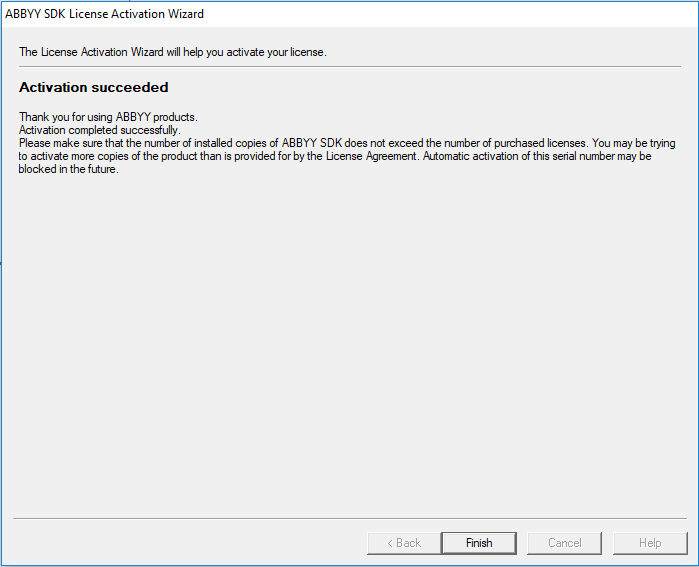 caution
Do not stop at this stage. To complete your activation, you should proceed with further steps.
Go to
C:\IntelligentAutomationCloudDeveloper\OCRand perform the following steps:- Back up the
ocr-rest-application.ymlfile. - Open the
ocr-rest-application.ymlfile and comment theocr.task.engine.license.pathandocr.task.engine.license.passwordproperties by using the#sign at the start of the line.
ocr.task12.engine.license.path: Licenses\SWAO-1221-0007-0182-4961-0012.ABBYY.locallicense
ocr.task12.engine.license.password: ${sms.ocr.task12.engine.license.password}- Back up the
In Launcher, restart the OCR group.
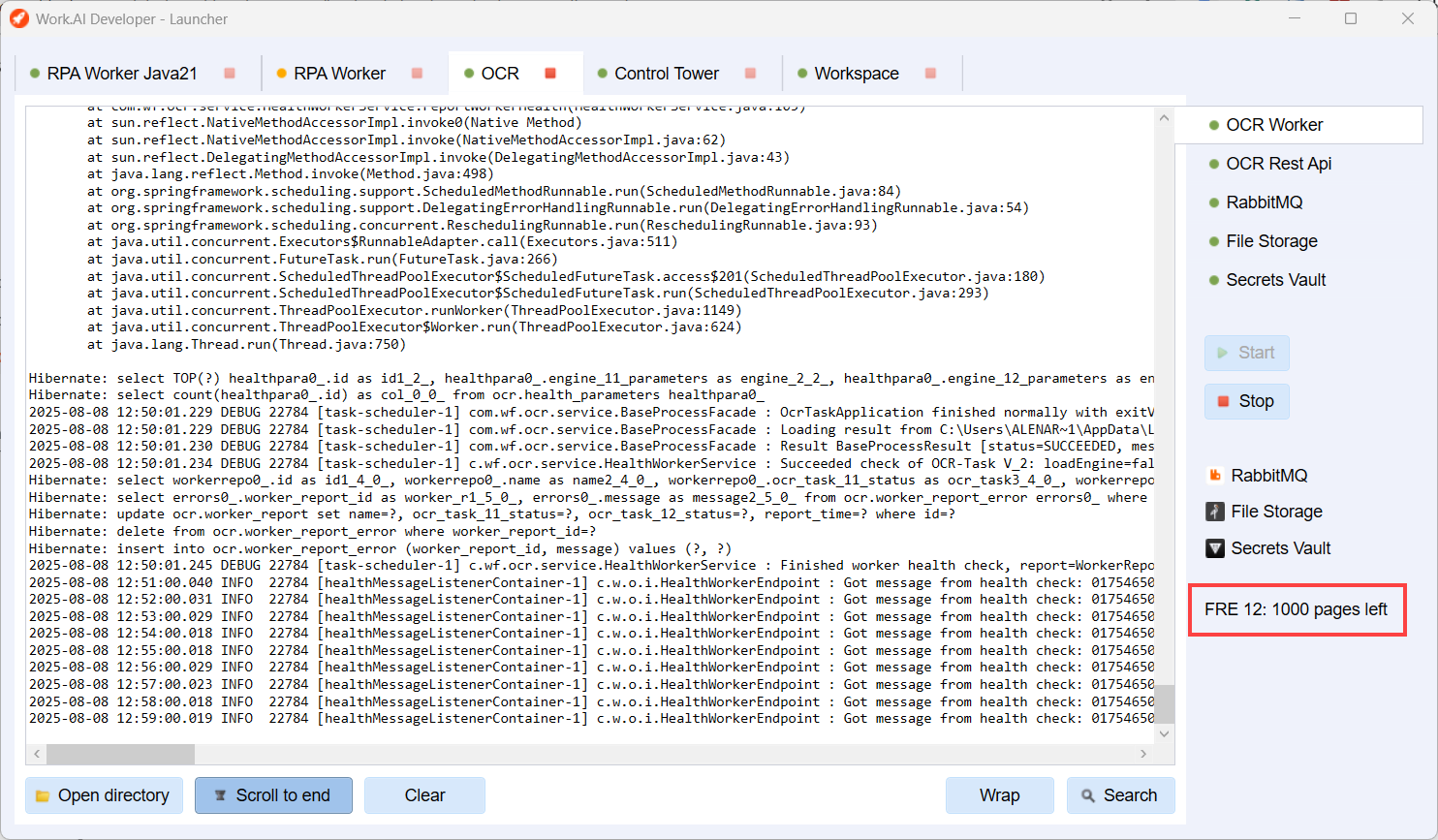
Run a Business Process to validate OCR.