Migrate Business Processes
You can create a package with a Business Process (BP) and import it from one WorkFusion environment to another, for example, from DEV to UAT or PROD.
A package is a ZIP archive that contains the following:
- An XML file with BP export information, such as design, settings
- All Data Stores (if any) used in BP steps
- Meta information
To view, import, and export packages, you must have the Advanced Package Import and Export/import permissions. For details, refer to Manage Control Tower roles and permissions.
Meet prerequisites
Work.AI executes multiple Business Processes created by third parties. When upgrading from one Work.AI version to another, it is important to make sure all BPs are still working.
Parts of BPs are migrated automatically by the WorkFusion's embedded tooling. However, in the instances where it's not possible to do it automatically, refer to the applicable migration guide for your Work.AI version.
Make sure to review and apply the notes for all Work.AI versions between the source and target versions. Deprecation notes (if any) should also be taken into account. For more details, see the Release notes section.
Configure Bot Config Bundle
Skip the step if no Bot Config Bundle (BCB) is used for the BP. A BCB is a bundled Java library containing a Bot Config and a Java code reference that can be used in this Bot Config. For deployment, follow the steps below:
Use the Maven command to deploy the latest code to the DEV environment:
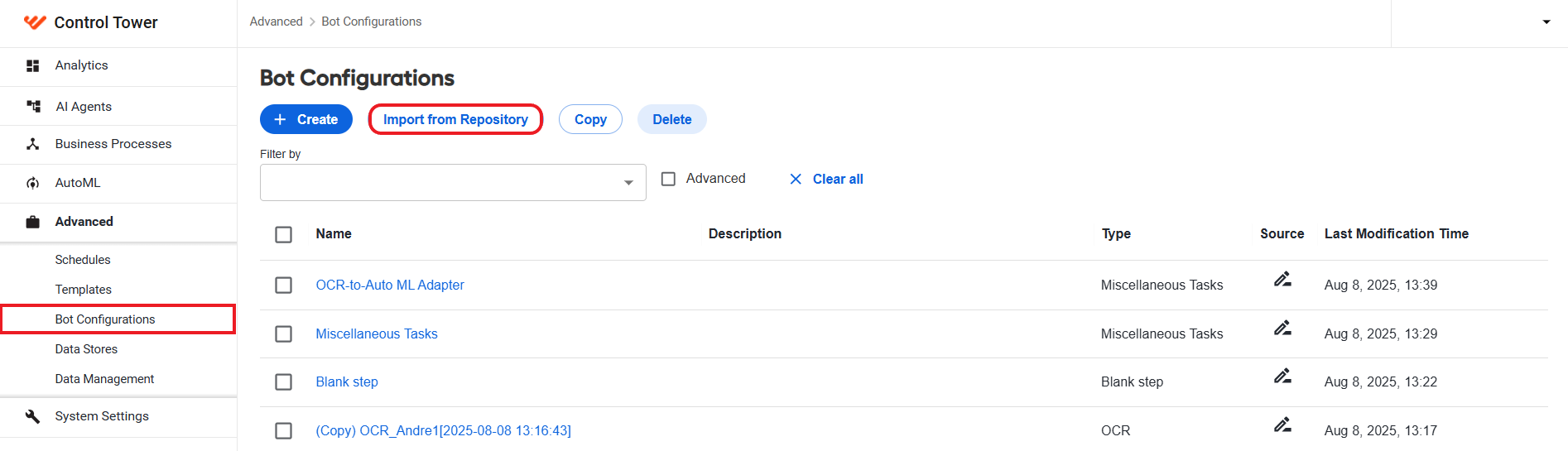
mvn clean package deployUpdate the BCB from Control Tower: Advanced > Bot Configurations > Import from Repository.
Export BP package
To create a package for exporting a BP, follow the steps below:
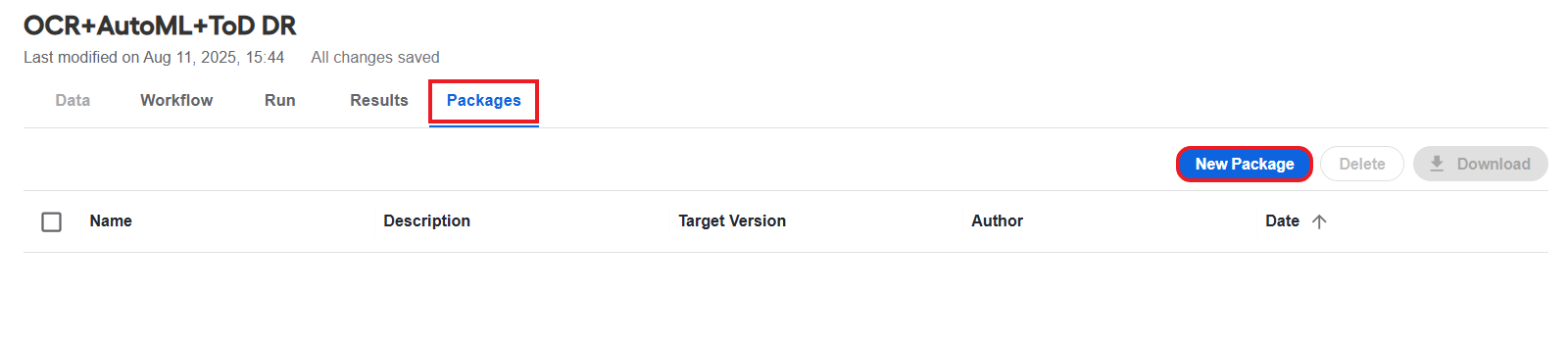
Open the BP instance you want to export, go to the Packages tab, and click the New Package button.
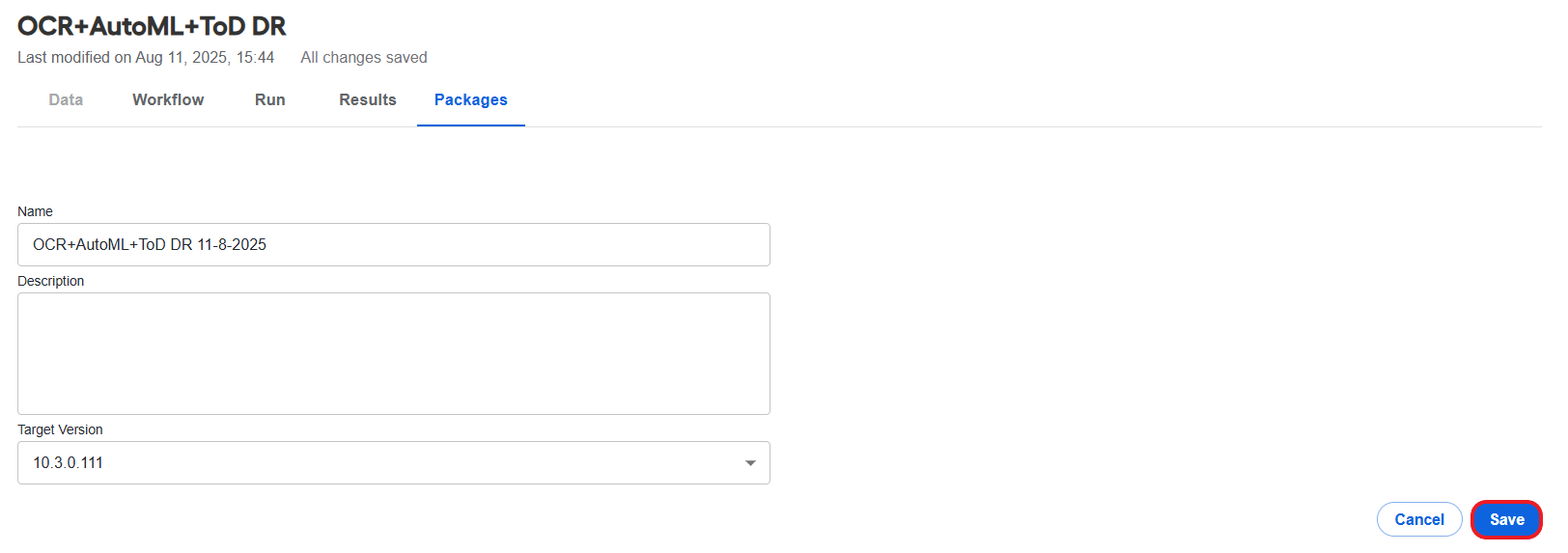
On the displayed page, add a title and description (if required), then click Save.
You get a message about the BP package created successfully, and an appropriate record appears in the table on the Package tab.
To save the package to your machine, select it in the list and click Download.
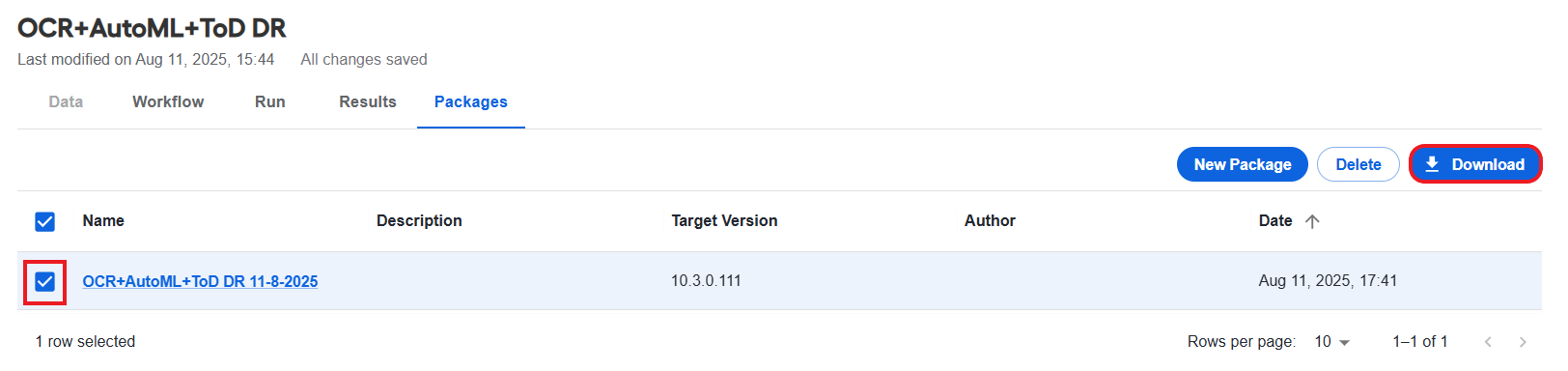
To delete a BP package and remove it from the packages table, select a package in the list and click Delete.
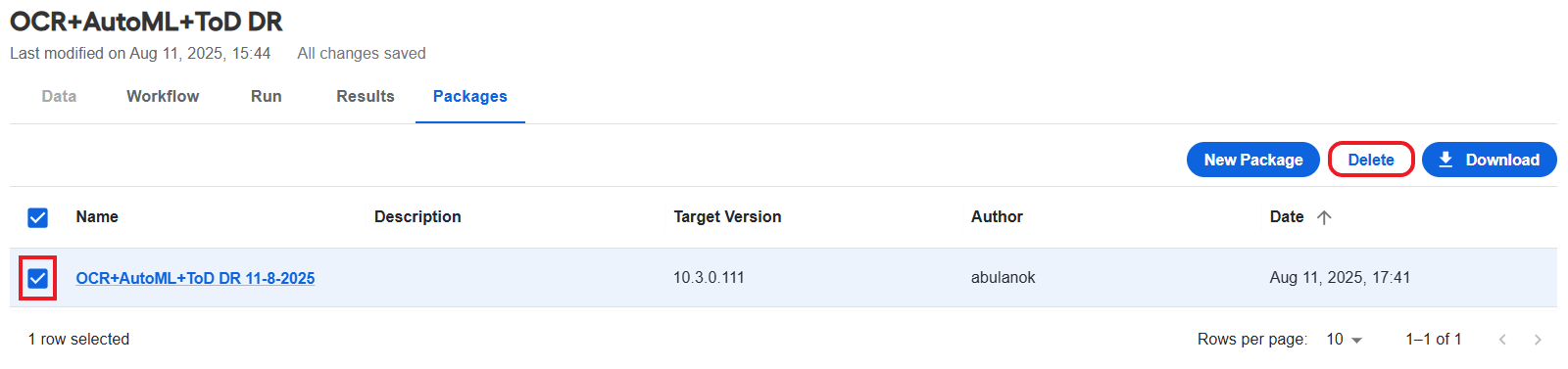
Import BP package
It is strongly recommended not to update or import the same Business Process during the execution of its instances as it can cause undesired effects or warnings.
To import a package, follow the steps below:
Log in to the target WorkFusion environment, for example, PROD or UAT.
Go to the Business Processes list, click the ellipsis button, and select Import package.

Upload the package ZIP archive downloaded from the source environment and click the Preview Package button.
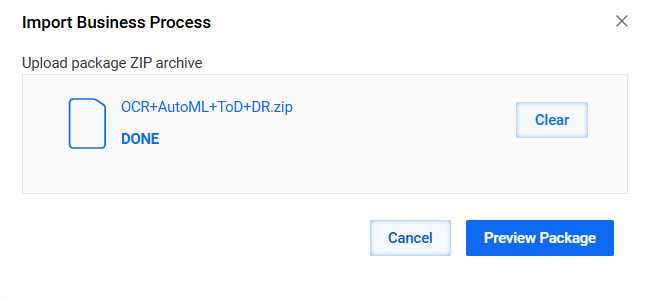
In the Package Import window, resolve all possible conflicts if needed.
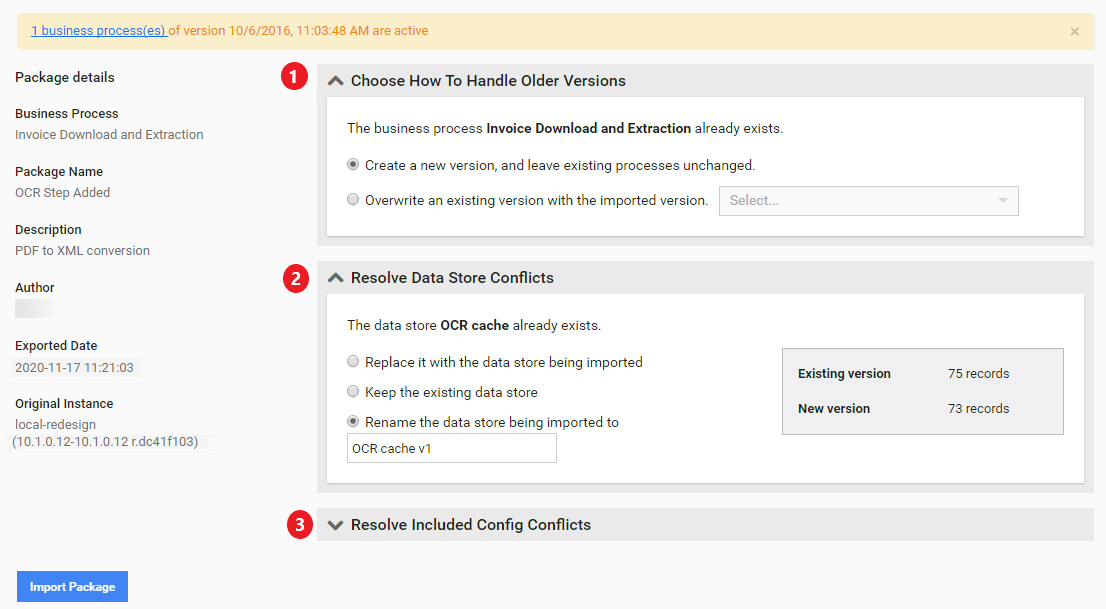
You can see the following warnings:
"(N) business processes of version (date) are active": decide whether you want to overwrite active processes or not. You can also pause or stop active processes.
"The package was exported from WF version (XXX). This environment has WF version (YYY)": the import can potentially cause issues. You should check its results in the generated log file.
Resolve import conflicts
If you import the same package more than once, create another version or overwrite a particular BP version. When overwriting an existing BP version, you can have a diff view for the process structure and each process step. This function can help make a decision on whether to rewrite the BP or not.
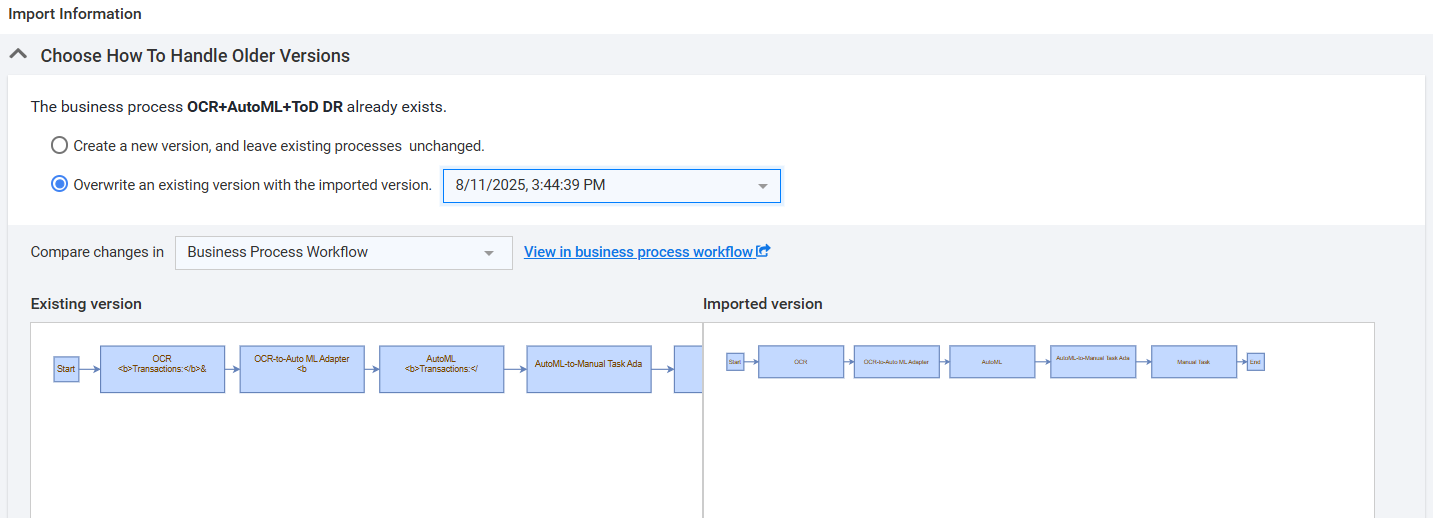
After you apply the overwrite feature during import, the following changes are made:
- Completed tasks and BPs will have an old version.
- Draft tasks and BPs will have a new version.
- Processing tasks and BPs without significant changes (steps added, deleted, or substituted with other steps) will have a new version.
- Schedules are switched to a new version.
If the imported and existing process versions have significant differences (steps added, deleted, or substituted with other steps), you need a special Advanced Package Import permission to perform such potentially dangerous overwrite operations. See the Manage Control Tower roles and permissions topic.
Expand to learn more
This import type can be required when you need to update active process runs, avoid schedule re-creation, or re-use already configured <start-task> plugins (by UUID).
When importing a package with a modified process structure, the following notifications are shown:
- Amount of added or removed process steps and rules
- Amount of active process runs
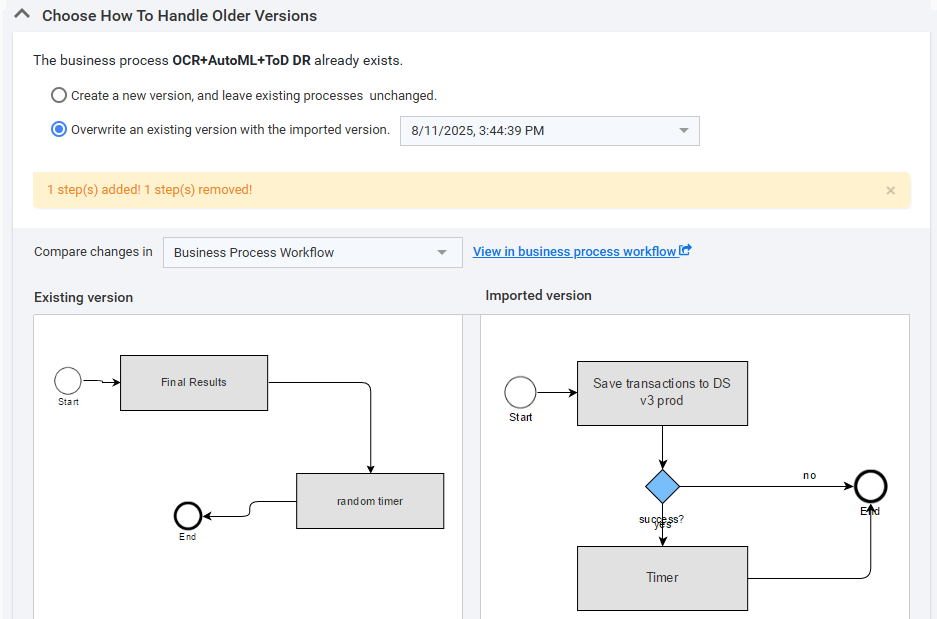
When you overwrite an active process run, its result data can be inconsistent because of added, removed, or changed steps and rules.
If your package contains Data Stores or included Bot Configs, you can get one or more conflict resolution sections.
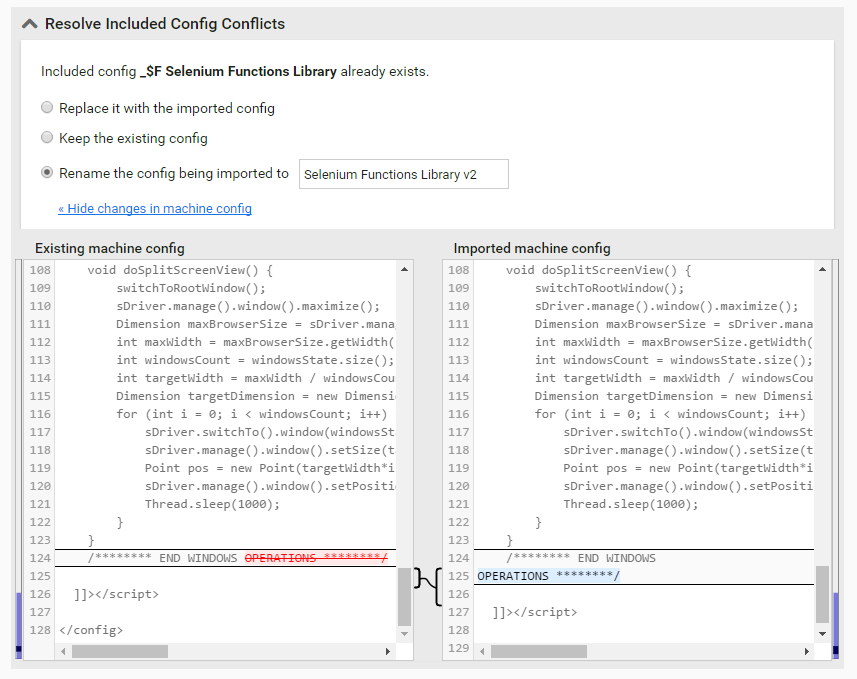
In this case, proceed as described below:
Choose to replace, keep, or rename for each conflict.
- Data Stores are compared by the structure and number of records.
- For included Bot Configs, you can toggle a diff view.
When all import conflicts are resolved, click the Import Package button in the bottom left corner.
If the package is successfully imported, you see the import result message.
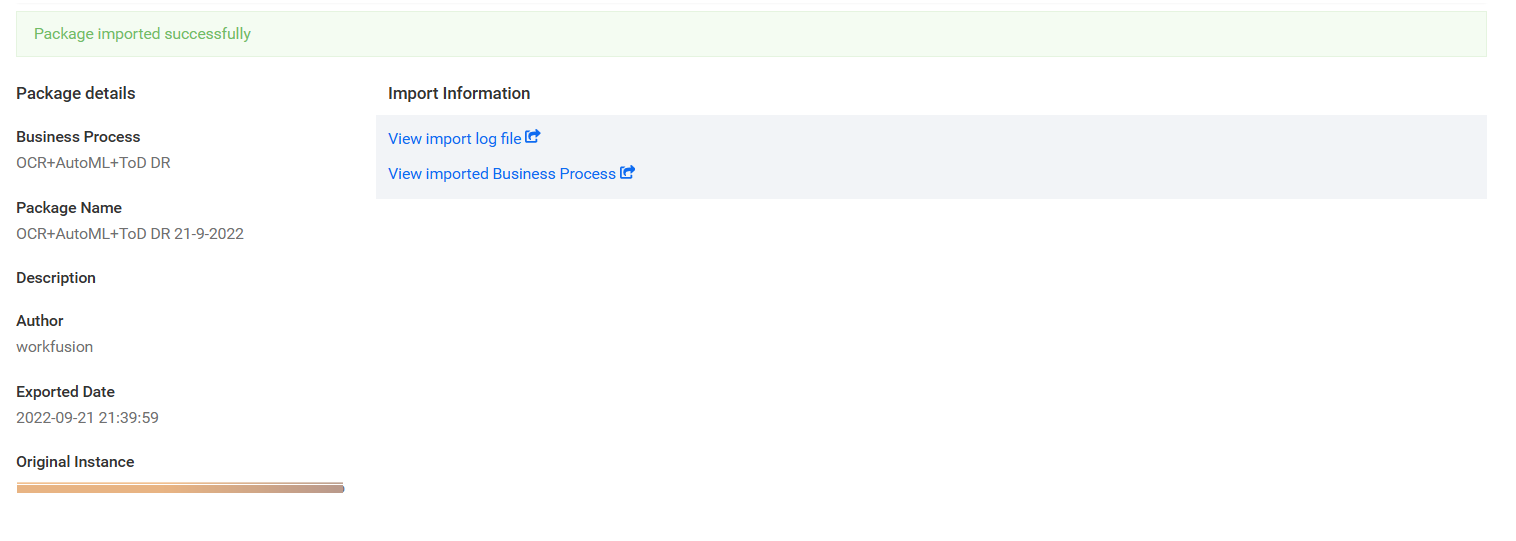
- You can download a detailed import report by clicking the View import log file link. This log can be useful in case some issues are found after import.
- When a package is imported, the platform checks its structure and displays useful notes and action items to be completed before running the imported BP (for example, Define global variables).
View the imported BP or navigate elsewhere using the main menu.
The imported BP creates a run in the Draft state.
Import BCB project
If a source BP was developed using a BCB project, deploy and import it as described in the Configure Bot Config Bundle section. To update all BCB Configs if a BCB is used for the BP, create a new BP copy with the same name.
The Bot Configs from the BCB used as steps in a BP are not replaced by import. Instead, they are skipped, and the warning is added in the audit log for the BP import: "WARNING: Machine config from BCB with inclusion code '%s' and name '%s' already exist, it will not be rewritten".
For the Bot Configs from the BCB used as included configs, the import shows three options to resolve:
- Replace: the content of the included config is to be replaced with that from the imported package.
- Skip: the content of the included config is to be skipped.
- Rename: not recommended; a new Bot Config is created with the specified name and autogenerated inclusion code, but it is not used in any BP after import.
Manually created Bot Configs are replaced as before.
Check results
Let's assume that you have a BP and did the following:
- Created the first package for the BP and imported the package to the PROD environment
- Edited the BP and saved it
- Created a second package for the BP and imported the package to the PROD environment
As a result, each newly imported package creates a BP run that is automatically labeled by a timestamp.
The following BP settings are not included in a package:
- Global variable values: during import, respective columns are created in the Global Variables Data Store, but with empty values.
- Custom attributes.
- Priority.
- Permanent open tasks.