Convert Bot Configs into ETL forms (legacy)
The article describes the legacy bot step configuration flow. For the recommended approach, refer to Configure bot steps in UI.
ETL Form allows you to flexibly reuse Bot Configurations without direct coding, which can come in handy for non-technical personas. Once a Bot Configuration gets converted into an ETL Form, you get an editable form with HTML-like fields instead of Groovy or XML code. This is an easy and error-proof way to configure bot steps in a Business Process (BP).
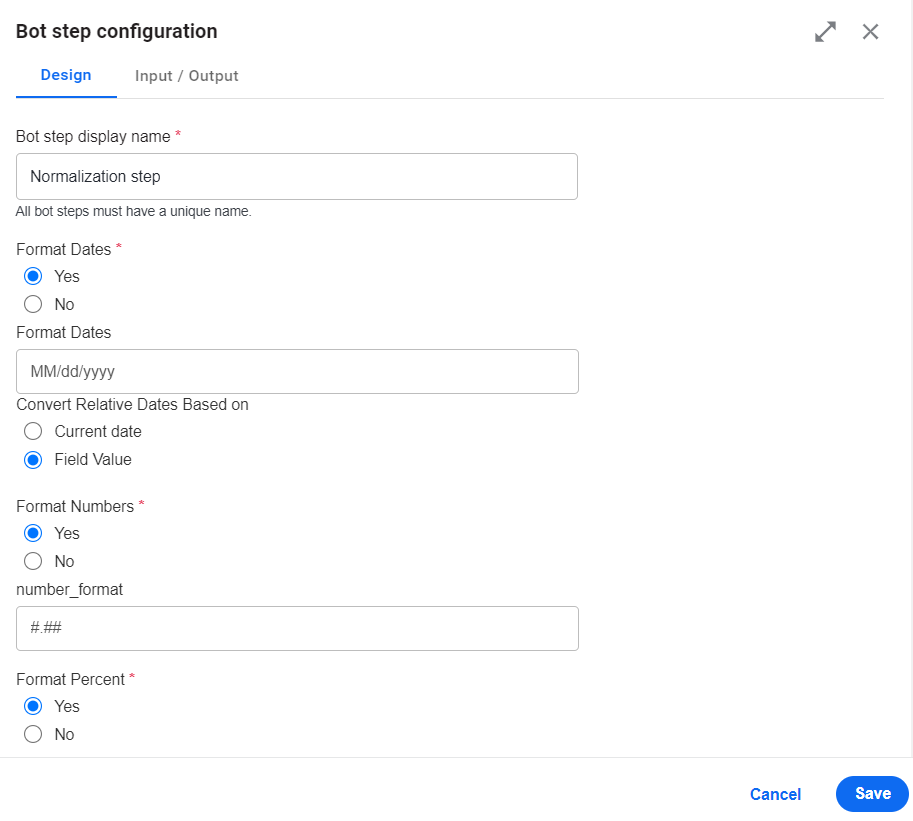
Below is a sample ETL Form for a normalization task:
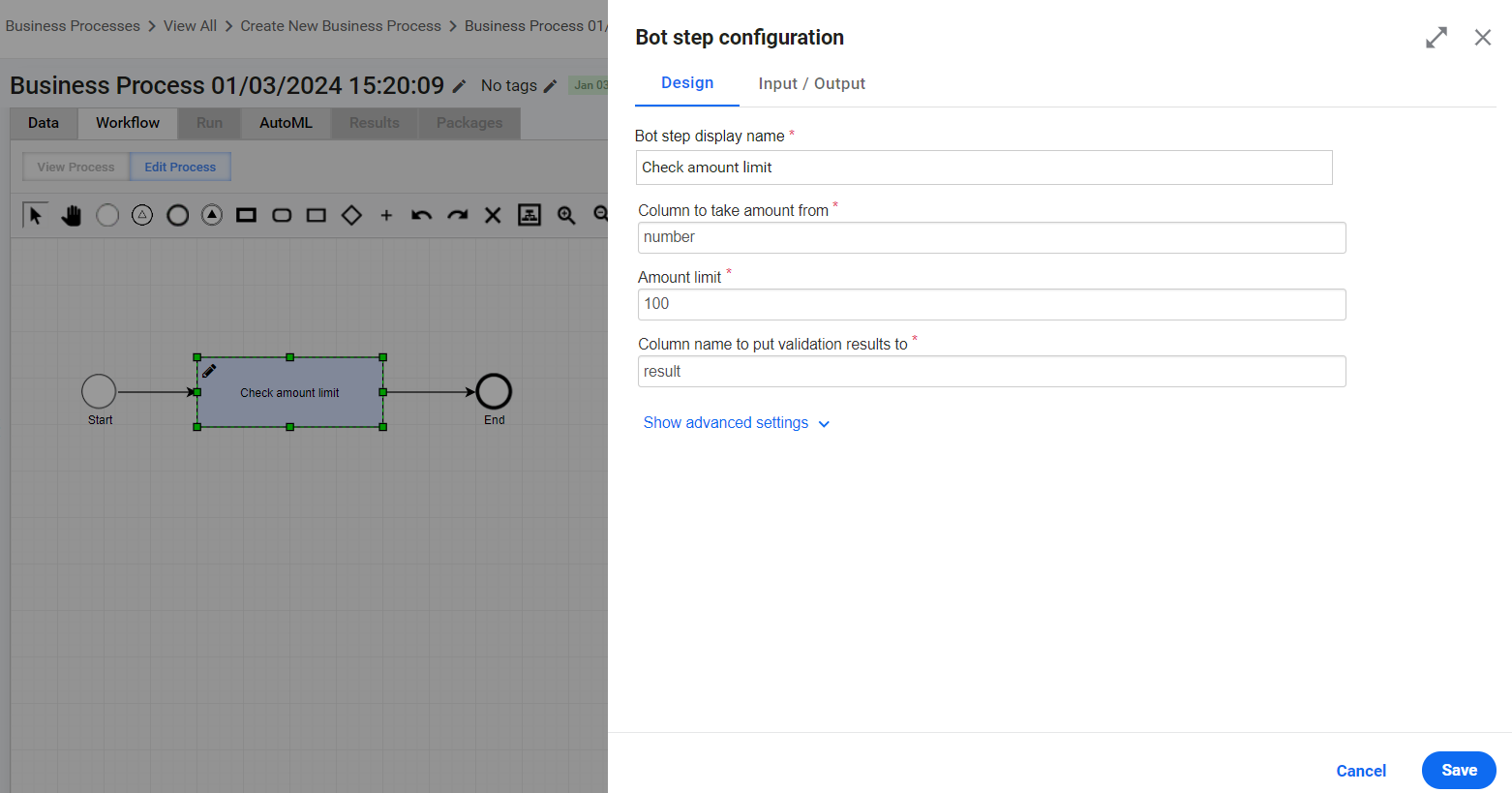
The Bot Config below is another ETL form example. It includes an Input column, If statement, and an Output column:
- Input column name (
{{input_column_name}}) - Limit for the If condition (
{{amount_limit}}) - Output column name (
{{result_column_name}})
In this form, you specify the input column that contains number and set the limit to 100 and the output column name to result.
See bot code
<?xml version="1.0" encoding="UTF-8"?>
<config>
   <var-def name ="amount">
       <#noparse>
         <template>${{{input_column_name}}}</template>
       </#noparse>
   </var-def>

   <var-def name ="output">
       <template>Pass</template>
   </var-def>
   <case>
     <#noparse>
       <if condition="${Integer.valueOf(amount.toString()) >= {{amount_limit}}}">
       <var-def name ="output">
           <template>Fail</template>
       </var-def>
       </if>
     </#noparse>
   </case>
   <export include-original-data="true">
     <single-column name="{{result_column_name}}" value="${output}"/>
   </export>
</config>
Convert Bot Configuration to ETL form
To create an ETL Bot Configuration, follow the steps below:
Create a template:
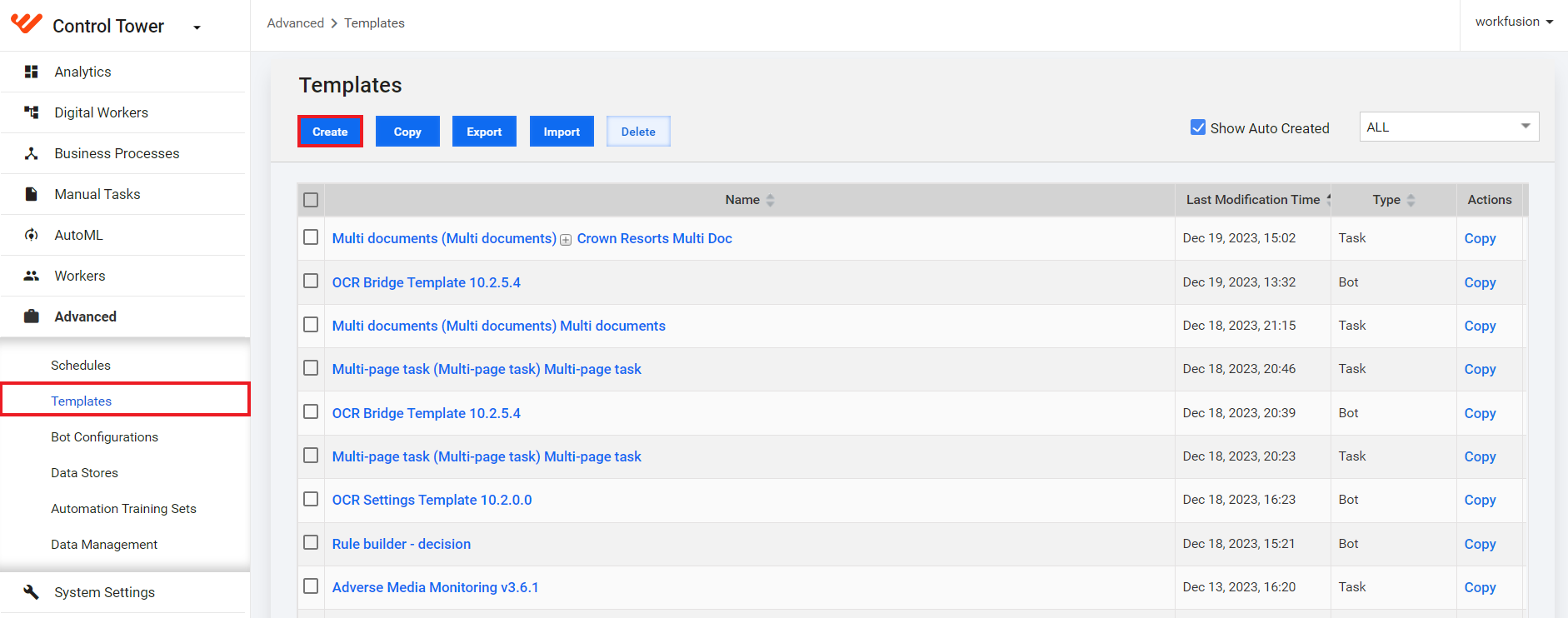
Go to Advanced > Templates and click Create.
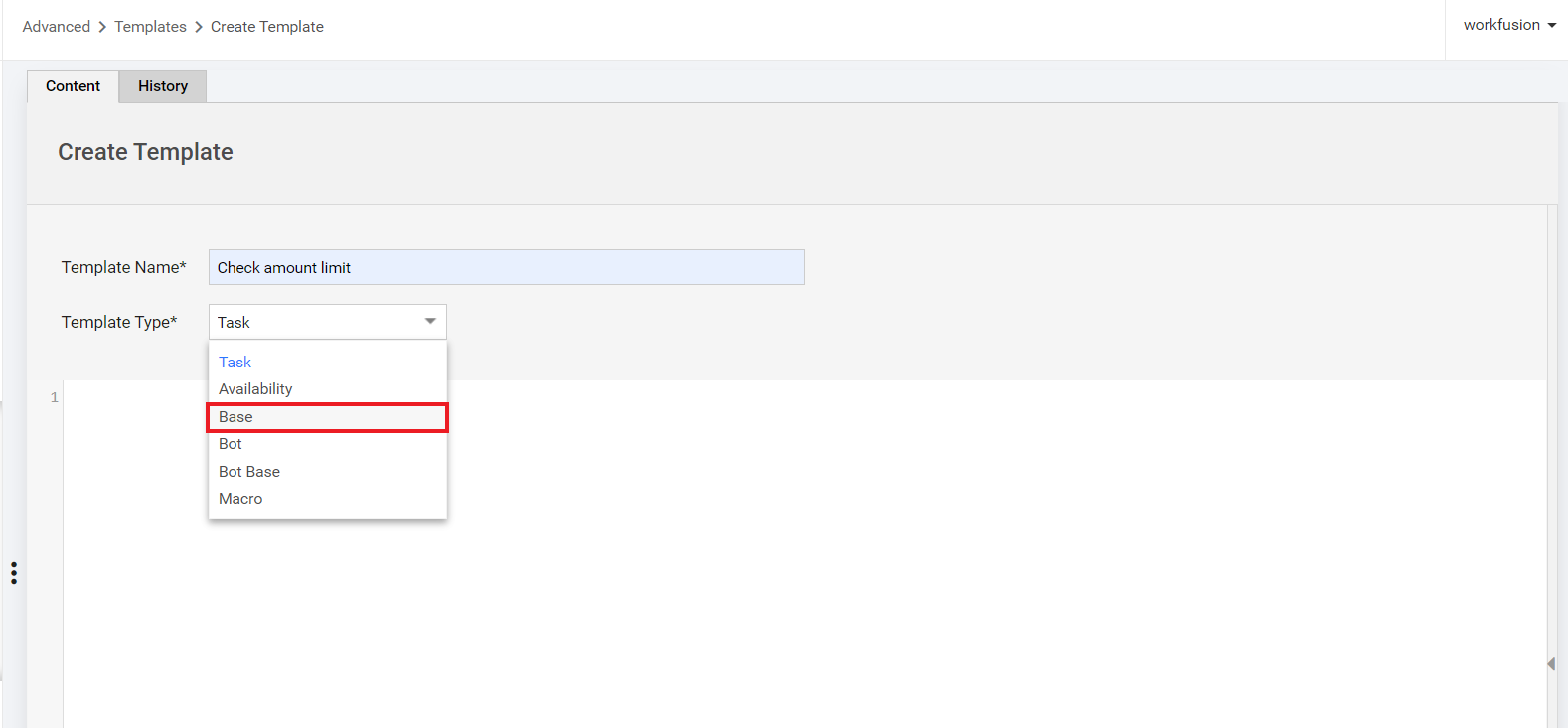
Specify the template's name and add your existing Bot Configuration code to the created template.
In the Template Type fields, select Base and click Save & Close or Save.
Create an Operation:
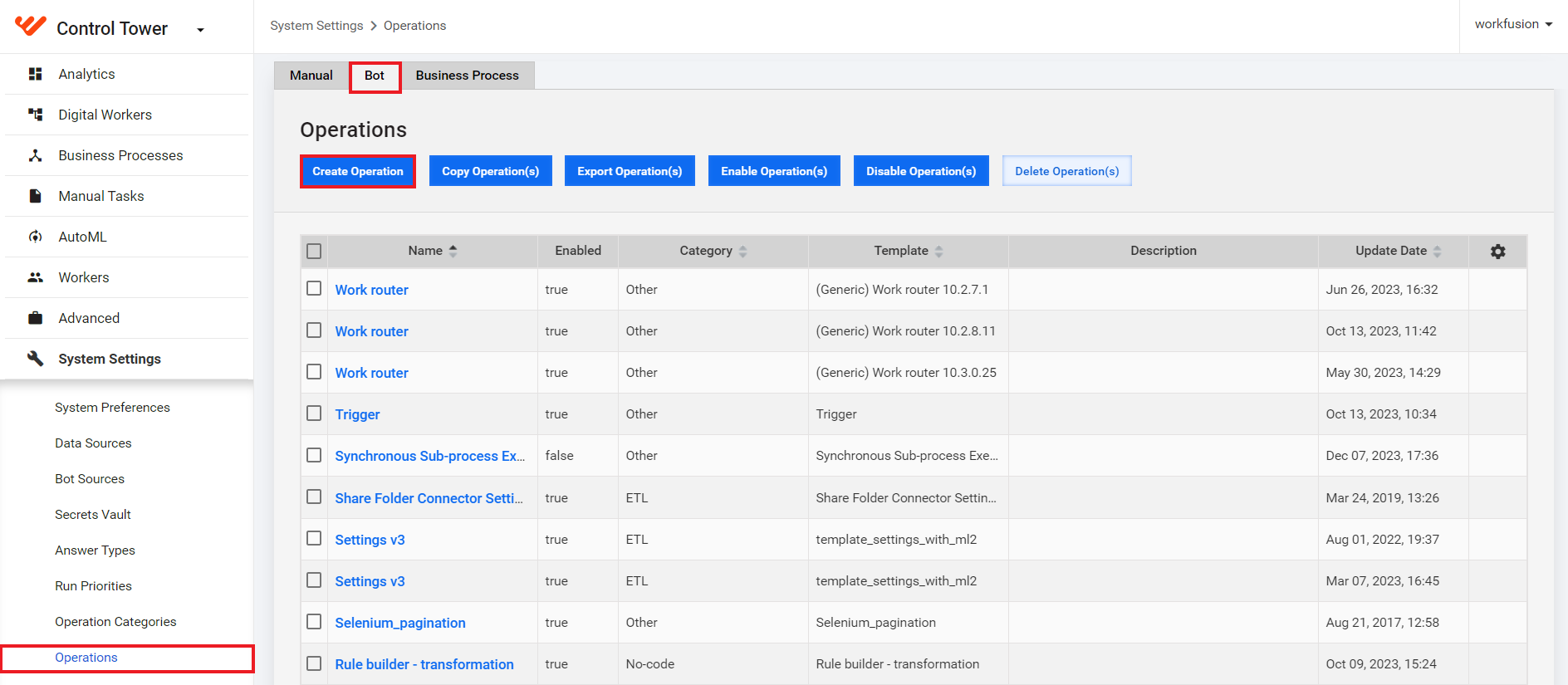
Go to System Settings > Operations. Navigate to the Bot tab and click Create Operation.
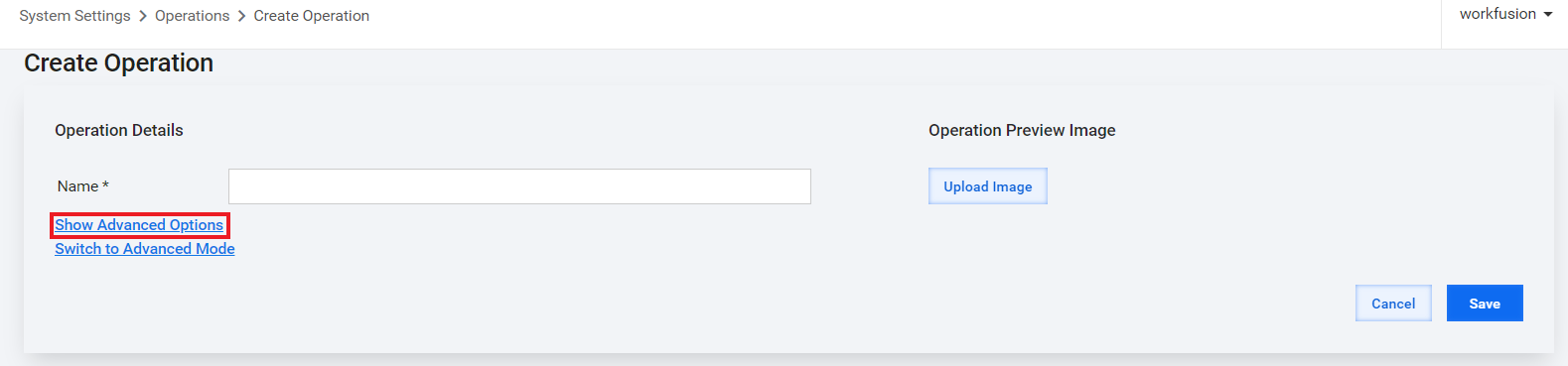
On the Create Operation page, specify the operation's name and click Show Advanced Options.
In the Basic template drop-down box, choose the template you created and set the Operation type to ETL.
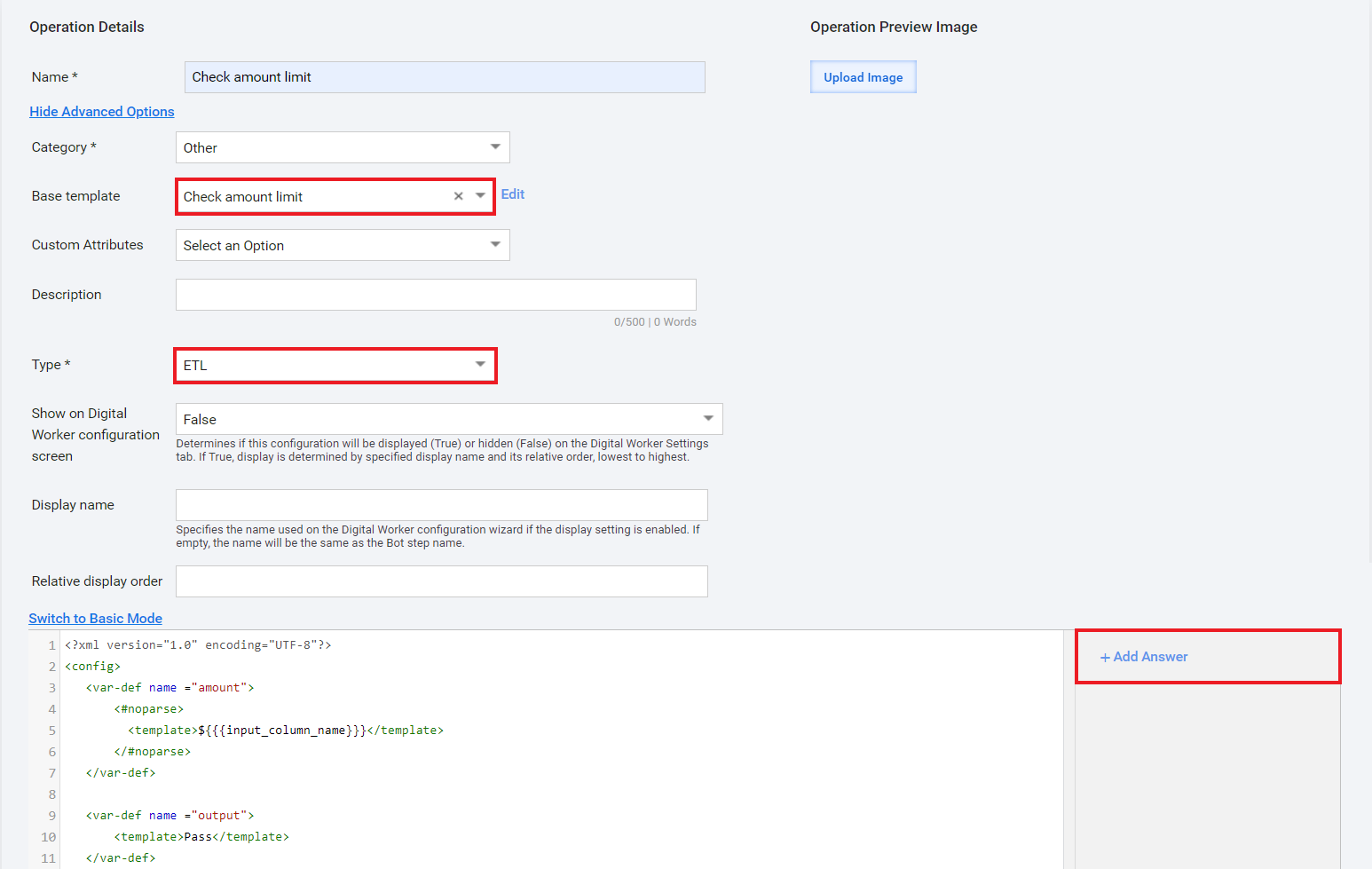
Click Add Answer and set up the following answers:
- Input column name (
input_column_name) - Condition (
amount_limit) - Output column name (
result_column_name)
- Input column name (
Edit the code for all the three settings. For example, from
${input_column_name}to the following values:{{input_column_name}}to get the column name${{{input_column_name}}}to get the value of this column, not its name
Save the Operation.
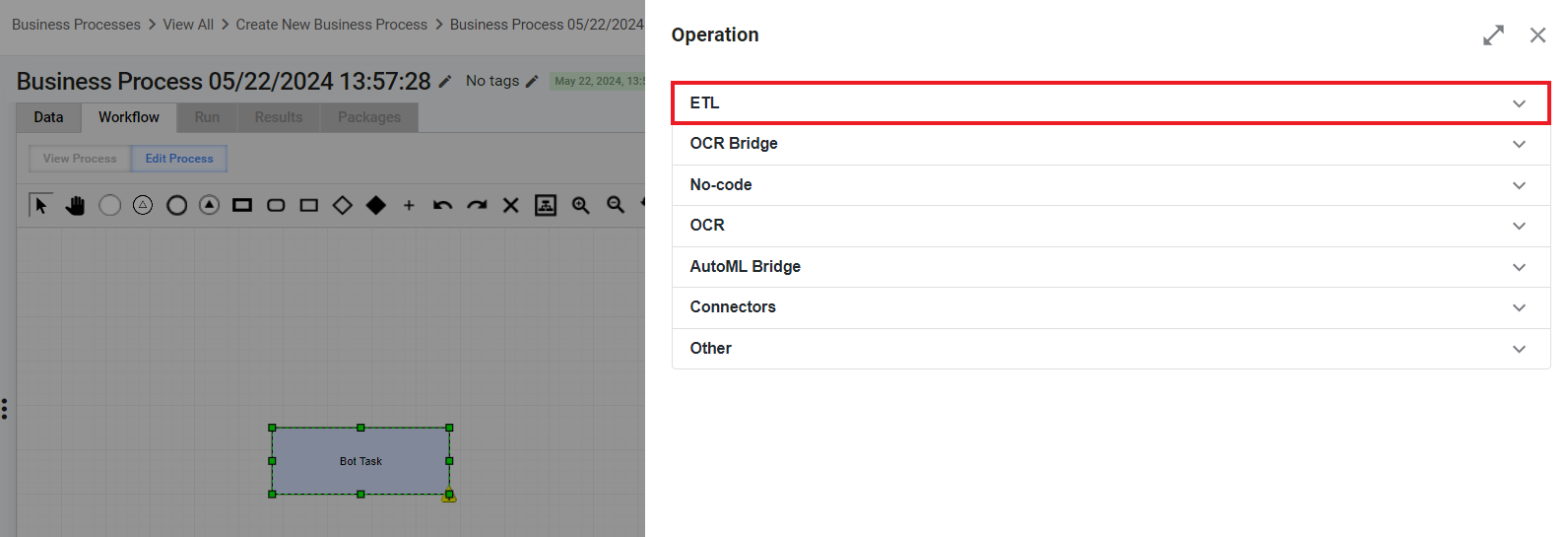
The resulting ETL Bot Configuration becomes available in the Operation panel when you create a Bot Task from scratch.
Add ETL bot to Business Process
For instructions on adding an ETL bot to a BP, refer to Add Bot Task.
See ETL form examples
Retrieve RSS feed
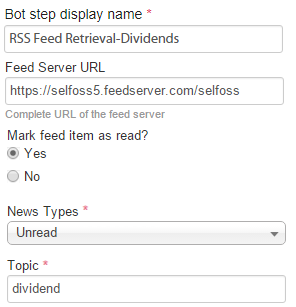
See bot code
<?xml version="1.0" encoding="UTF-8"?>
<config>
<var-def name="selfossUrl">
<template>{{selfossurl}}</template>
</var-def>
<var-def name="mark_as_read_var">
<template>{{mark_as_read}}</template>
</var-def>
<script><![CDATA[
Map uniqueMap = new HashMap();
List feedIds = new ArrayList();
]]>
</script>
<while condition="true" index="idx" maxloops="40">
<var-def name="offset">
<script return="offset_result">
<![CDATA[
offset_result = (Integer.parseInt(idx.getWrappedObject()) - 1) * 200;
]]>
</script>
</var-def>
<var-def name="itemsUrl">
<template>${selfossUrl}/items?items=200&offset=${offset}&
type={{type}}&topic={{topic}}&tag={{topic}}</template>
</var-def>
<var-def name="itemsJson">
<http url="${itemsUrl}" cookie-policy="browser" method="GET"/>
</var-def>
<script><![CDATA[
org.json.JSONArray jsonArr = new org.json.JSONArray(itemsJson.toString());
int jsonArrLength = jsonArr.length();
for (int i=0; i<jsonArrLength; i++) {
org.json.JSONObject jsonItem = jsonArr.getJSONObject(i);
String jsonItemContent = jsonItem.get("content");
String jsonItemSourceTitle = jsonItem.get("sourcetitle");
String jsonItemLink = jsonItem.get("link");
String jsonItemDateTime = jsonItem.get("datetime");
String jsonItemUid = jsonItem.get("uid");
String jsonTitle = jsonItem.get("title");
String itemId = jsonItem.get("id") != null ? jsonItem.get("id").toString(): "unknown" ;
Map exportItem = new HashMap();
exportItem.put("newsLink", jsonItemLink);
exportItem.put("sourceTitle", jsonItemSourceTitle);
exportItem.put("dateTime", jsonItemDateTime);
exportItem.put("feedUid", jsonItemUid);
exportItem.put("title", jsonTitle);
exportItem.put("feed_id", itemId);
uniqueMap.put(jsonItemContent, exportItem);
feedIds.add(itemId);
}
]]></script>
</while>
<var-def name="itemIds">
<script return="result">
<![CDATA[
result = feedIds;
]]>
</script>
</var-def>
<case>
<if condition="${'${' + 'mark_as_read_var.toBoolean()' + '}'}">
<loop item="itemId">
<list>
<var name="itemIds"/>
</list>
<body>
<empty>
<var-def name="markResult">
<http url="${selfossUrl}/mark/${itemId}" cookie-policy="browser" method="POST"/>
</var-def>
</empty>
</body>
</loop>
</if>
</case>
<script><![CDATA[
List exportItems = new ArrayList(uniqueMap.values());
]]></script>
<export include-original-data="false">
<multi-column list="${exportItems}">
<put-to-column-getter name="source" property="sourceTitle"/>
<put-to-column-getter name="feed_uid" property="feedUid"/>
<put-to-column-getter name="feed_link" property="newsLink"/>
<put-to-column-getter name="date_time" property="dateTime"/>
<put-to-column-getter name="feed_title" property="title"/>
<put-to-column-getter name="feed_id" property="feed_id"/>
</multi-column>
</export>
</config>
Look up SSI database
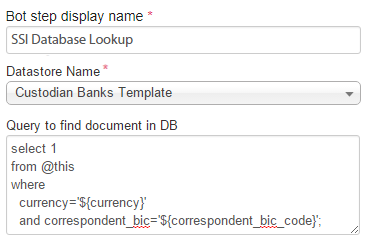
See bot code
<?xml version="1.0" encoding="UTF-8"?>
<config charset="UTF-8">
  <var-def name="db_name">{{db_name}}</var-def>

  <var-def name="custodian_bank_swift"><template>${custodian_bank_swift}</template></var-def>
  <var-def name="custodian_bank_name"><template>${custodian_bank_name}</template></var-def>
  <var-def name="currency"><template>${currency}</template></var-def>
  <var-def name="correspondent_bic"><template>${correspondent_bic}</template></var-def>
  <var-def name="ssi_exists"><template>false</template></var-def>

  <var-def name="ssi_document">
    <datastore name="Custodian Banks Template">
      {{check_query}}
    </datastore>
  </var-def>
  <var-def name="ssi_exists">
    <script return="result">
             <![CDATA[
               if(ssi_document.toList().isEmpty())
                 result = false;
               else
                 result = true;
             ]]>
    </script>
  </var-def>
  <var-def name="jobUUID">
    <script return="uuid">
      <![CDATA[java.util.UUID uuid = java.util.UUID.randomUUID();]]>
    </script>
  </var-def>

  <export include-original-data="true">
    <single-column name="ssi_exists" value="${ssi_exists}"/>
    <single-column name="job_uuid" value="${jobUUID}"/>
  </export>

</config>
Cut chapter from PDF
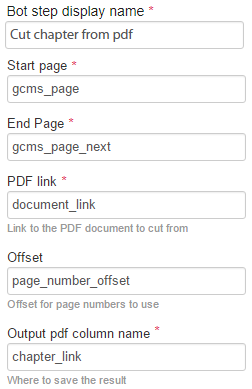
See bot code
<?xml version="1.0" encoding="UTF-8"?>
<config>

  <var-def name='toc_start'><template>${{{start_page}}}</template></var-def>
    <var-def name='toc_end'><template>${{{end_page}}}</template></var-def>
    <var-def name='document_link'><template>${{{pdf_document_link}}}</template></var-def>
  <var-def name='offset'><template>${{{offset}}}</template></var-def>

    <script><![CDATA[
            import org.apache.pdfbox.pdmodel.*;
            import org.apache.pdfbox.util.PageExtractor;

            java.net.URL url = new java.net.URL(document_link.toString());
            org.apache.pdfbox.pdmodel.PDDocument document = org.apache.pdfbox.pdmodel.PDDocument.load(url);
            ByteArrayOutputStream output = new ByteArrayOutputStream();
            PDDocument newDocument = new PDDocument();

            int currentPage = 1;

  int offsetInt = offset.toString().isEmpty() ? 0 : offset.toInt();

            for (PDPage page : document.getDocumentCatalog().getAllPages()) {
                if ((toc_start.toString().isEmpty() || currentPage >= toc_start.toInt() - offsetInt) && (toc_end.toString().isEmpty() || currentPage <= toc_end.toInt() - offsetInt)) {
                    newDocument.addPage(page);
                }
                currentPage++;
            }
            newDocument.save(output);
            newDocument.close();
            Object docUuid = java.util.UUID.randomUUID();
        ]]>
  </script>

        <var-def name="cuttedDoc">
            <s3 bucket='temp_bucket'>
                <s3-put path='TR/OCR/split/${docUuid}.pdf' content-type="application/pdf" content-disposition="inline">
                    <script return="output.toByteArray()"/>
                </s3-put>
            </s3>
        </var-def>

        <export include-original-data='true'>
          <single-column name="{{output_column_name}}" value="${cuttedDoc}" />
        </export>

</config>
Skip escaping

See bot code
<?xml version="1.0" encoding="UTF-8"?>
<config charset="UTF-8">
    <var-def name="message">
        <script return="result">
            String result = org.apache.commons.lang3.StringEscapeUtils.unescapeJava("{{text}}");
        </script>
    </var-def>
    <export include-original-data="true">
        <single-column name="message" value="${message}" />
    </export>
</config>