Manage account
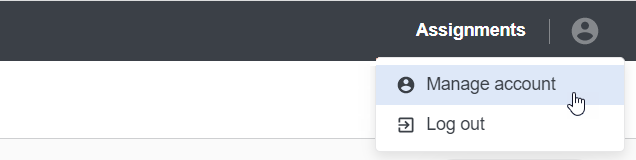
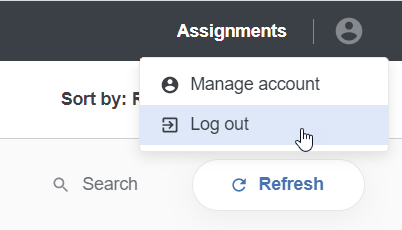
To access the Workspace user settings menu, click the user icon in the top right-hand corner of the screen.
Manage account settings
To modify your account settings, click the user icon and select Manage account.
Change language settings
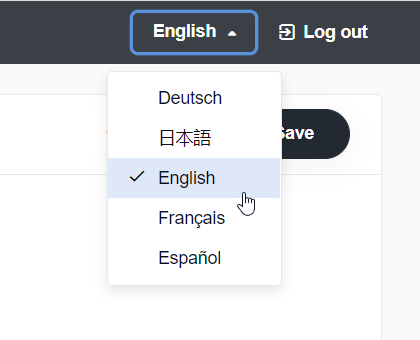
To change the user interface language settings, click the drop-down box next to the Log out button and specify your language preference.
The available languages are as follows:
- English (default)
- German
- Japanese
- French
- Spanish
Edit account details
To update your personal data, do as follows:
Select the Account tab.
Enter required changes. You can modify the following:
- Username
- First name
- Last name
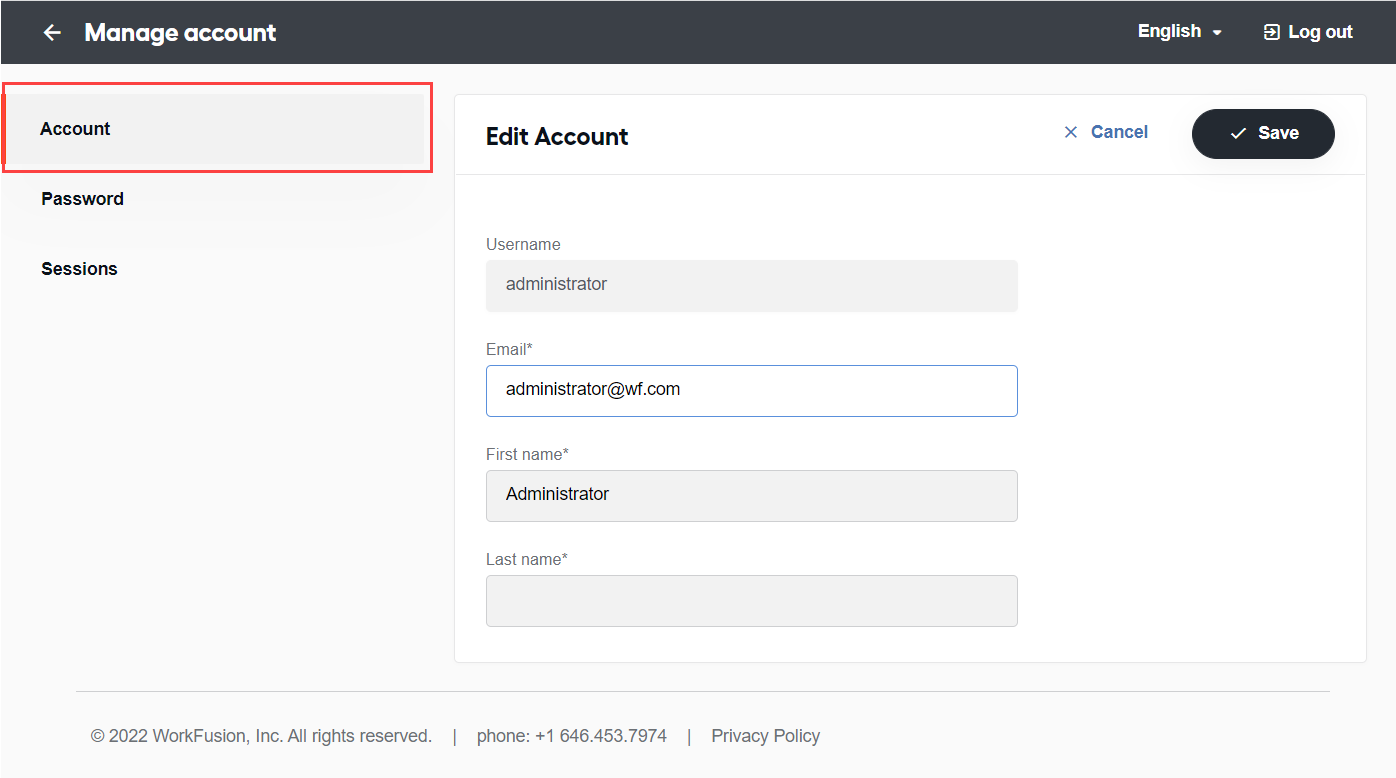
Click Save. After you change your account information, log out and log in again.
The Cancel option cancels any changes that have not been saved.
Update password
To change your password, follow the steps below:
Select the Password tab. By default, all fields are empty.
Enter the old password into the Password tab.
Type your new password in the New password field, then confirm it in the Confirmation field. Mind that the password should:
- Be longer than eight characters.
- Contain at least one character in the lower case.
- Contain at least one character in the upper case.
- Contain at least one numeric character.
- Have at least one symbol.
- Not contain the username.
- Not contain six adjacent repetitive characters.
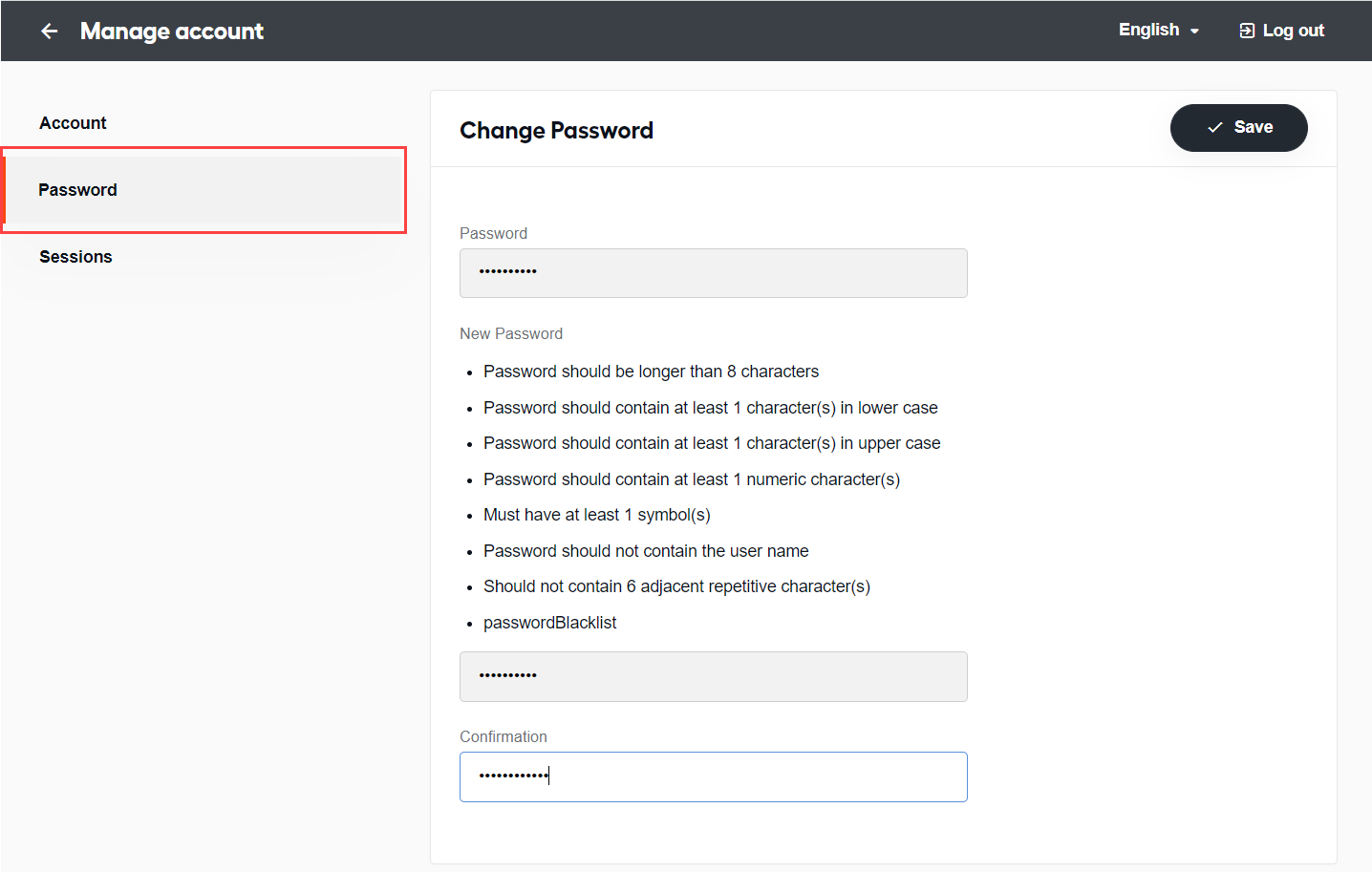
Click Save.
View sessions
To view your sessions, select the Sessions tab.
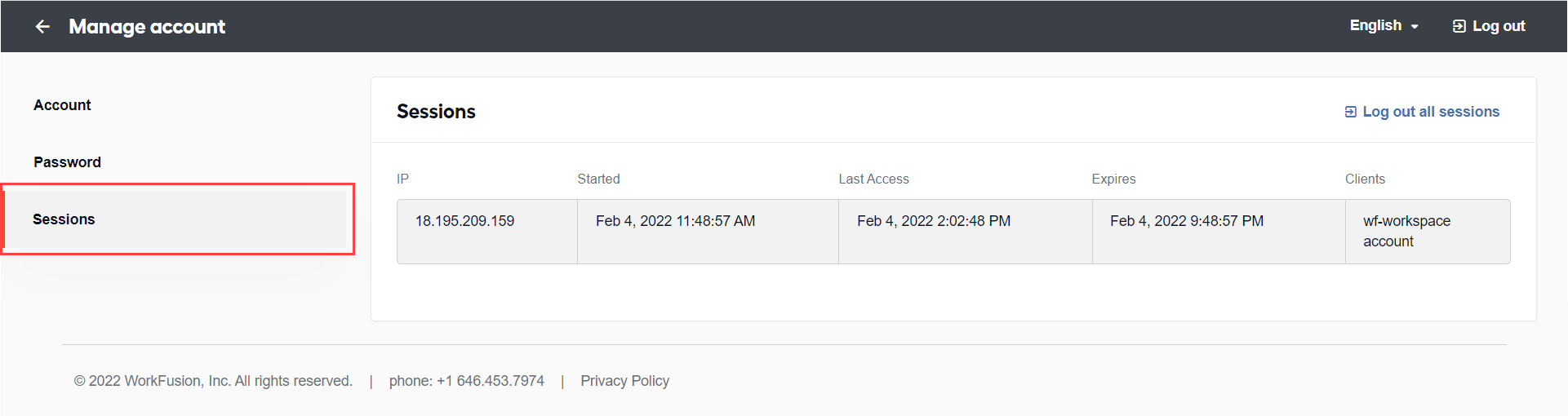
To log out of all sessions, click the Log out all sessions buttons
Log out
There are several ways to log out:
To end the current session:
Click the user icon and select Log out.
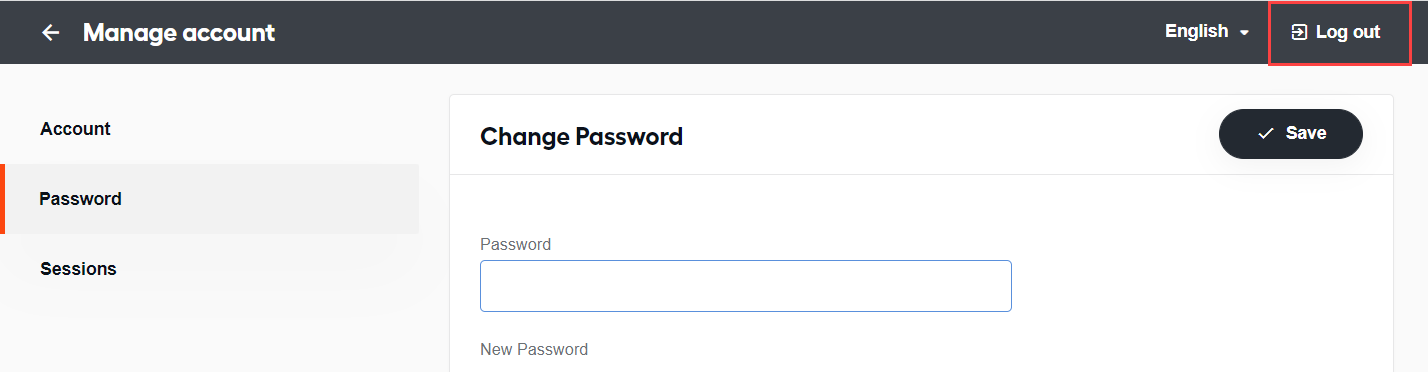
Select the Manage account option and click Log out.
To end all your sessions, select Manage account > Sessions and click Log out all sessions.
