Set run options
To configure the settings for a specific Business Process (BP) run, select it in the BP list and navigate to the Run page.
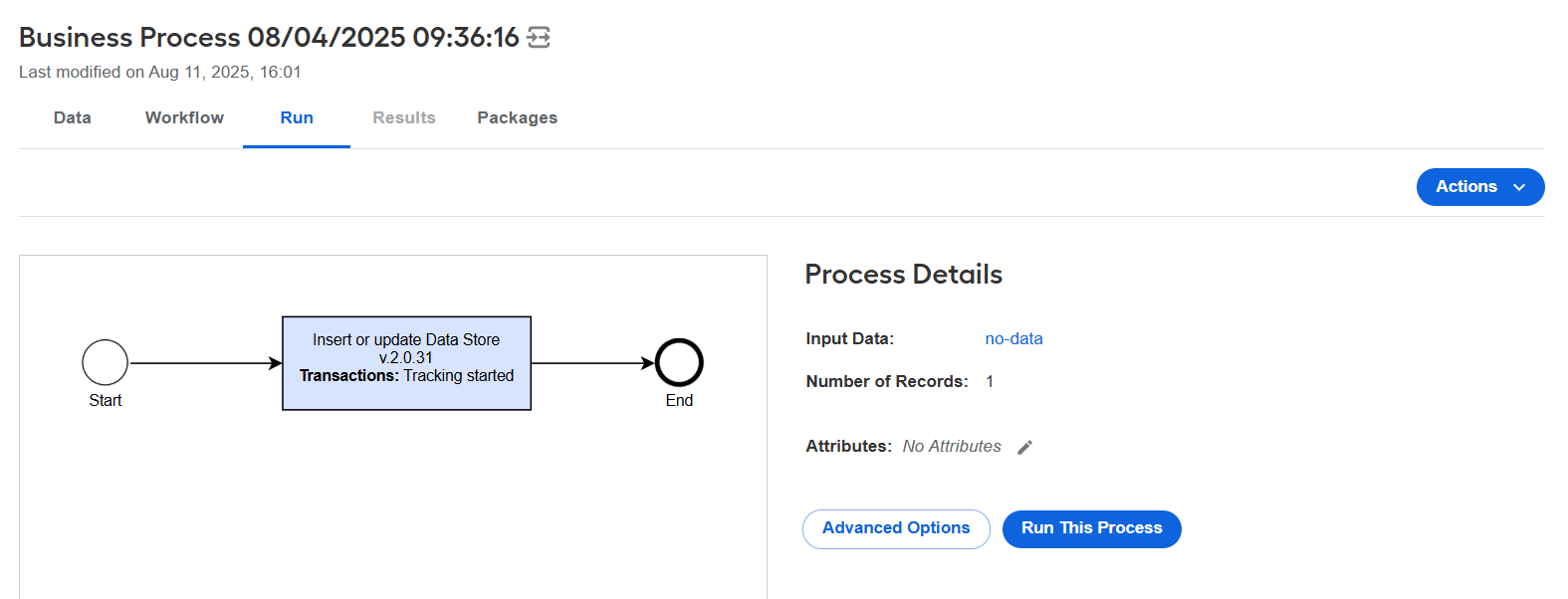
Run page options
On the Run page, the following capabilities are available:
The Actions menu from where you can perform various actions with the BP run, such as copy, delete, or export it.
The Business Process flow scheme that you can view in full size by double-clicking it.
The Process Details section from where you can download the input data file for the BP run or see the number of process records.
The Advanced Options button to configure the settings for the BP run.
The Run This Process button to run the BP in the development or production environment.
Advanced Business Process settings
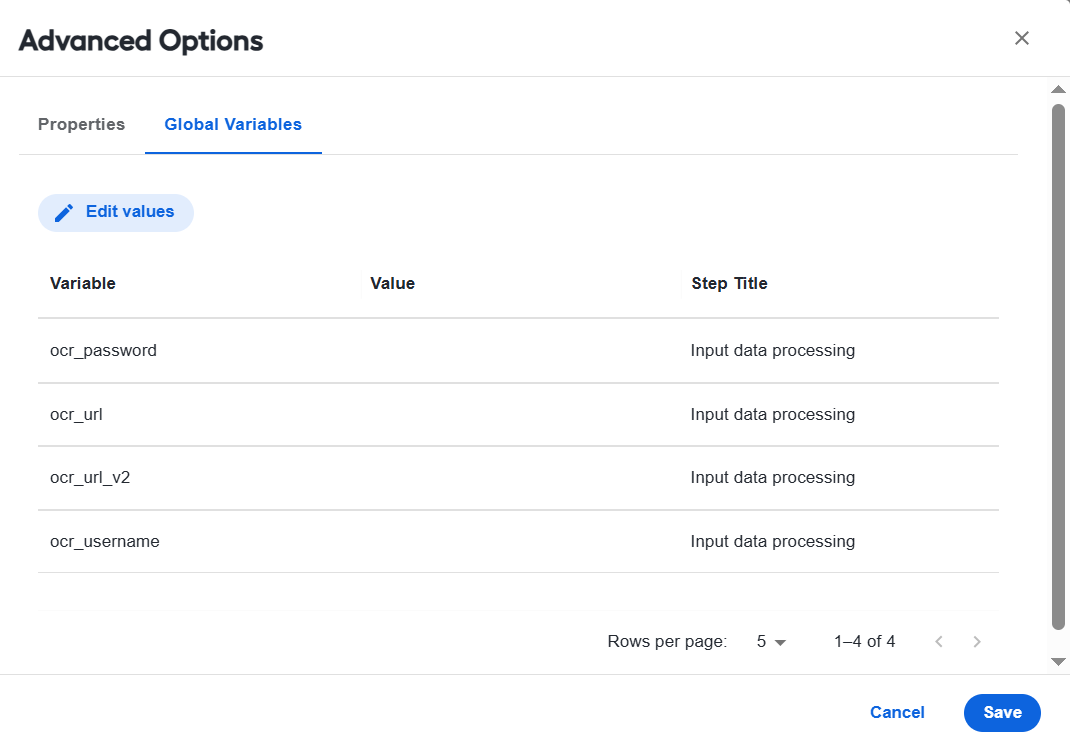
To open the page for setting BP run options, click Advanced Options. On the page, available BP run settings are arranged on the two tabs:
Global Variables: for details, read the Manage global variables topic.
Properties where you can configure the following settings:
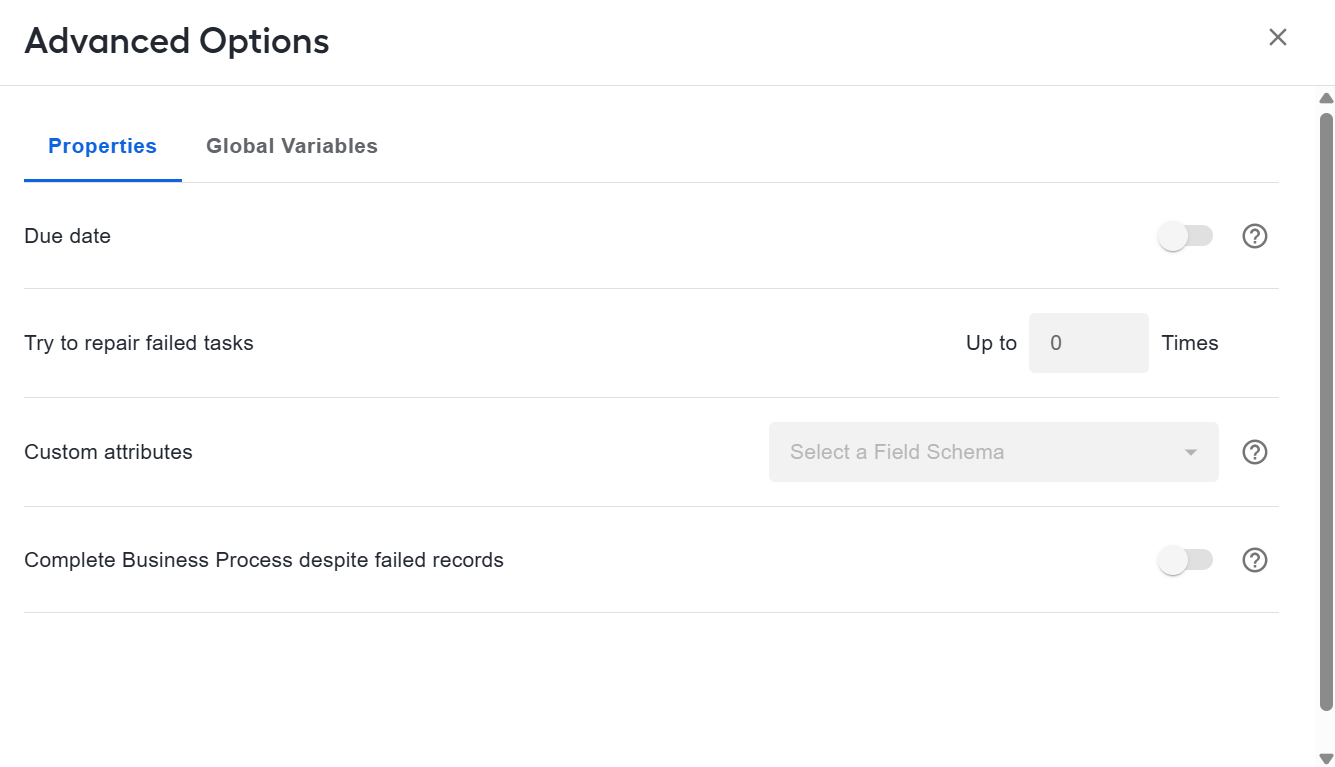
Due date: set the date and time or period until the tasks in the BP are to be completed. The BP tasks become unavailable after the specified due date and time or period.
Try to repair failed tasks up to: specify the number of bot step execution retries for each Record in the BP.
If a bot step fails during execution (external server not available, RPA node disconnected, and so on), the step is automatically restarted until it is executed successfully or the retry limit is reached.
Afterwards, you can repair failed steps manually. See View logs and repair Business Processes.
Custom attributes: select an underlying Field Scheme to set up custom attributes you want to add to the BP. For details, see Manage custom attributes.
Complete Business Process despite failed records: switch the toggle on if you want the BP to be automatically completed despite any failed records. The corresponding step is not marked as failed, but the BP event log contains an error.
To set the BP run options, configure any or all of the above settings and click the Save button. Once you are done with the configuration, you can proceed to run the BP.