Get started with Control Tower
Control Tower (CT) is the central orchestration application of the Work.AI platform. It enables users to perform the following actions:
- Design, run, and schedule automations, othwerwise known as Business Processes
- Design Manual Tasks
- Analyze and monitor automations
- Manage automation- and platform-related settings, such as process data cleanup and storage, secrets, access permissions, and so on
Before you start working with Control Tower, make sure no Windows updates are pending as some of them can interfere with Control Tower.
Log in to Control Tower
The initial start of Control Tower is typically the responsibility of the infrastructure administrator. To launch Control Tower, proceed with these steps:
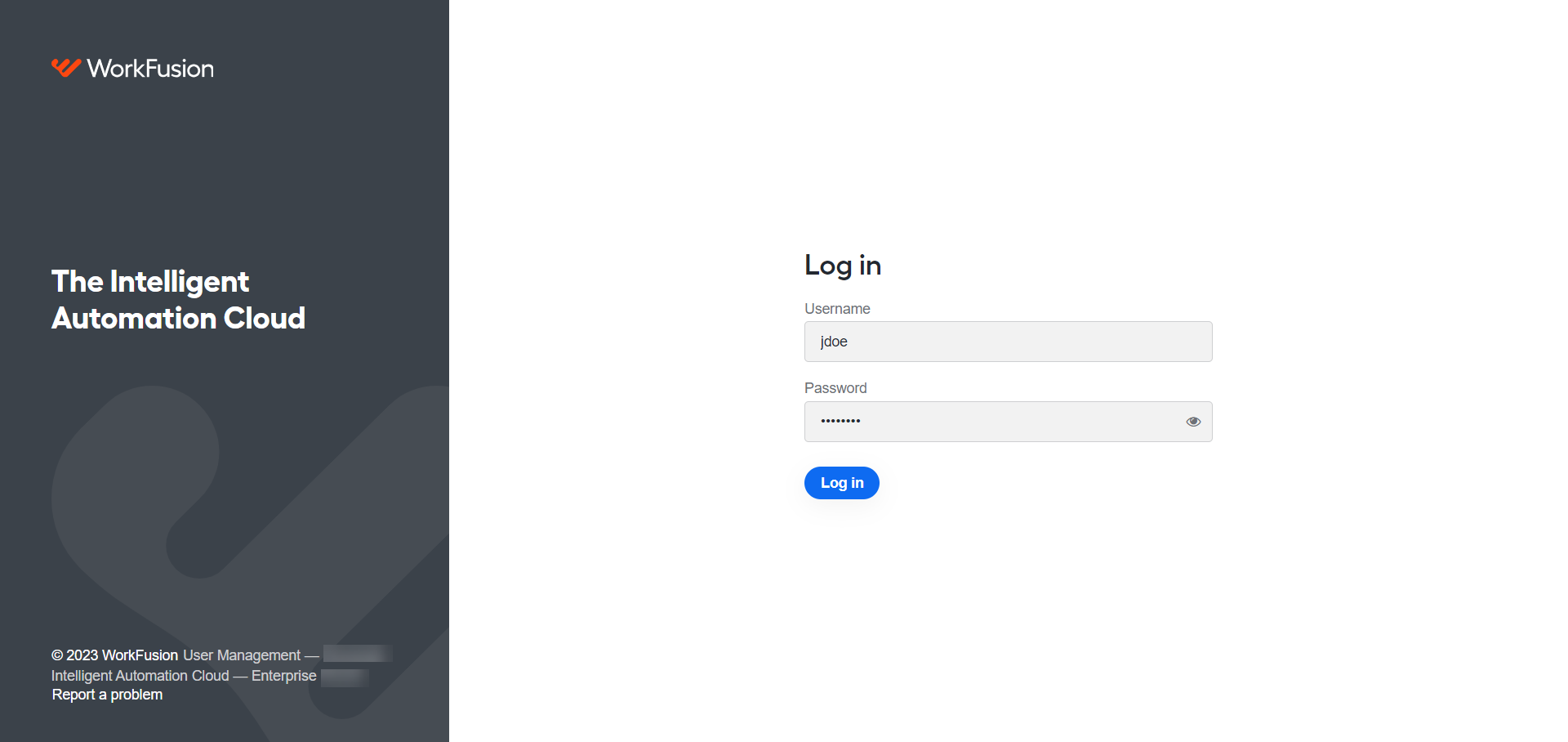
Open the link provided by your administrator in a browser.
Log in using your username and password provided by the administrator.
Access main functions
Once you enter Control Tower, you see the application's main menu on the left:
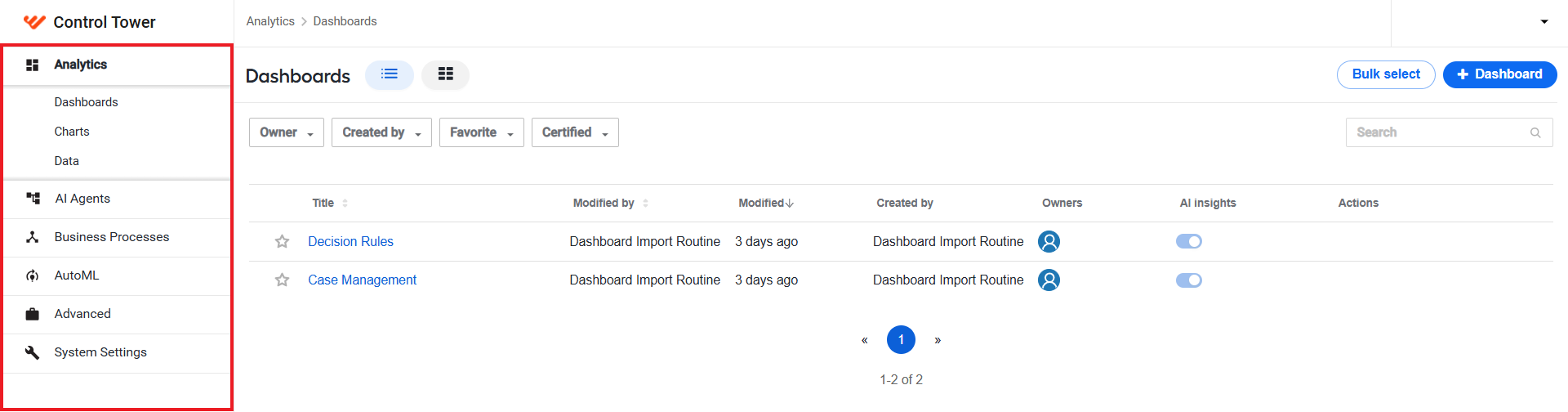
The menu comprises the following items:
- Analytics to access Work.AI metrics on manual review performance, rules, and rule-based decisions
- AI Agents to install, configure, and otherwise manage AI Agents
- Business Processes to create new automations and manage existing ones
- AutoML to perform various model-related operations, such as training, testing, dataset creation and labeling
- Advanced to manage advanced automation-related settings, such as templates, Data Stores, data purging, and so on.
- System Settings to modify system-wide preferences, including those related to Data Sources, Bot Sources, access permissions, and Secrets Vault entries.
From the Control Tower interface, you can also access other platform components. Open the drop-down menu next to the Control Tower logo in the upper left corner and select an application.
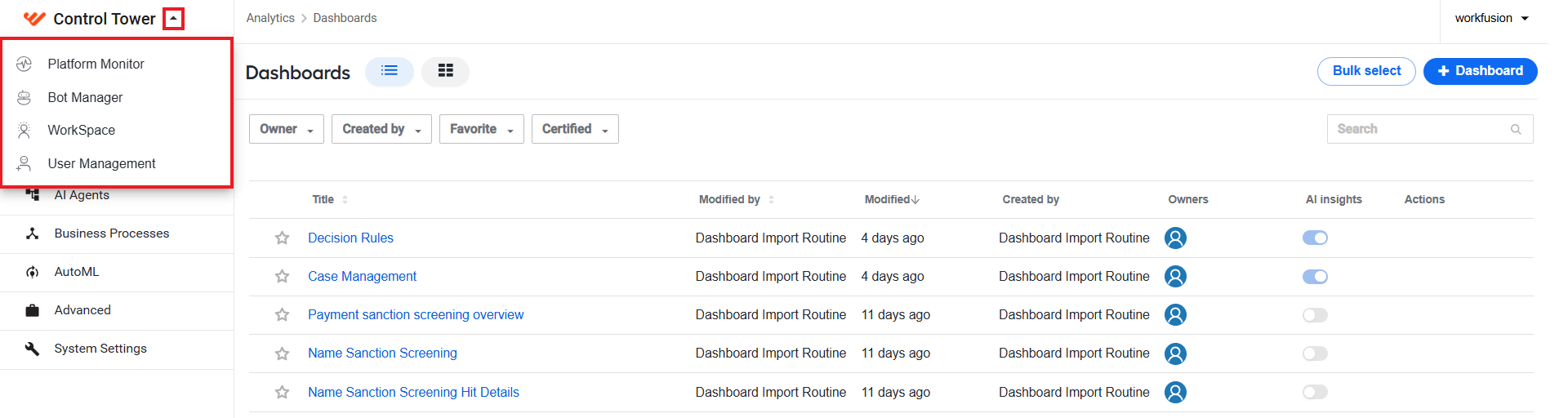
By default, the menu is only available for users with the Administrator role.
The available options are as follows:
- Platform Monitor is an ELK-based monitoring application that aggregates platform metrics and provides access to system performance dashboards.
- Bot Manager is used to manage RPA Units, maintain RDP sessions, and record videos of actions.
- Workspace features an interface for the human-in-the-loop capability, allowing humans to cooperate with AI Agents.
- User Management is a Keyclock-based application that provides services like managing user roles and permissions, single sign-on to all Work.AI components, and two-factor authentication.
Edit account information
To view the account menu, click your username in the top right corner.
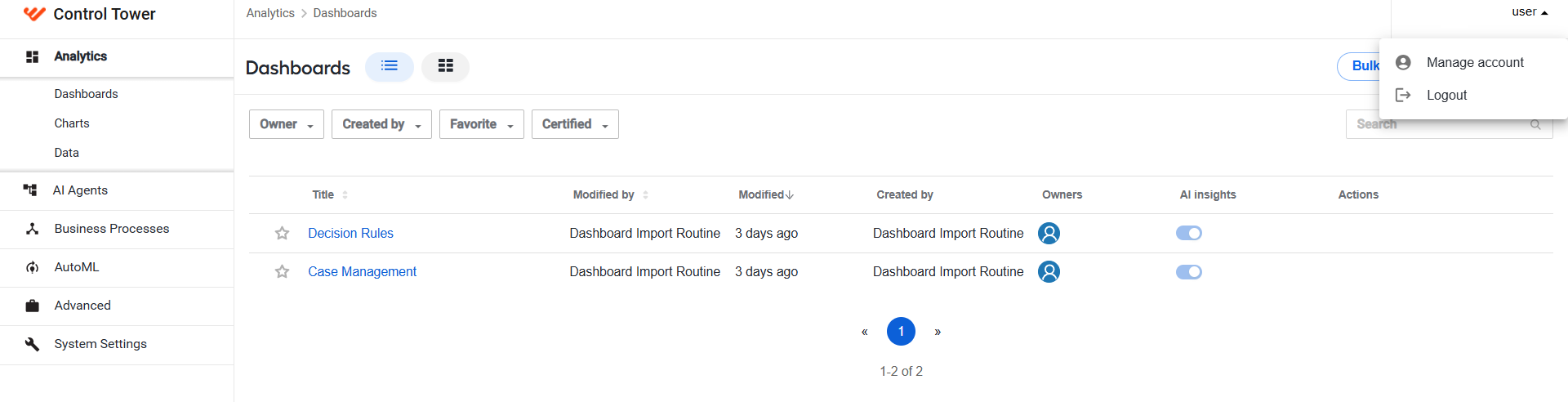
Here, you can perform the following actions:
Manage Account: update your account settings, such as password, email, and so on. For detailed instructions, refer to Manage user account.
Log out: sign off.
In case of issues in Control Tower, look for troubleshooting tips in the following support guides: