Running AI Agents via REST API
- Make sure the users who are supposed to work with the Input Connector API have the Operator role permissions in Control Tower. For details, refer to Manage Control Tower roles and permissions.
- To learn more about Input Connector API, read the Process transactions with REST connector topic.
REST API does not support the historical data provider when data is ingested from CSV files.
Configure AI Agent
Before you can trigger an AI Agent using a REST API, complete the steps in the instruction below, depending on the Work.AI version you are using.
- v10.2.9
- v10.3
In the Control Tower main menu, click the Digital Workers tab.
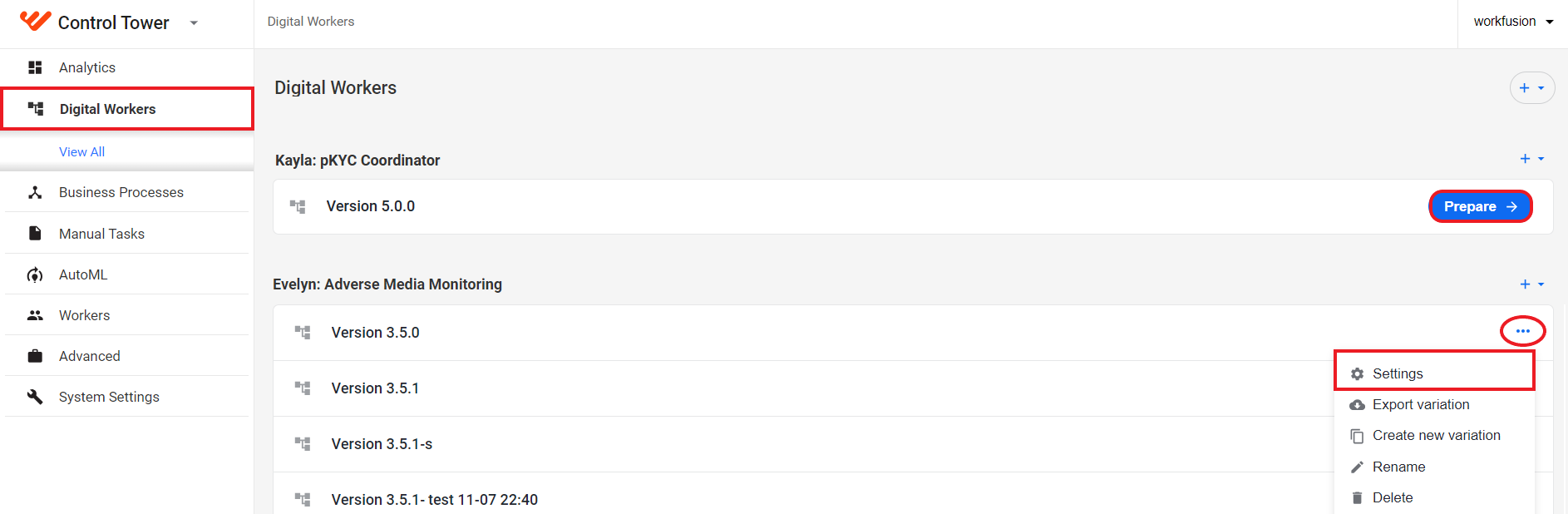
Locate the AI Agent you want to use and click Prepare if it is the first time you are setting it up. Otherwise, click the Actions menu next to a variation and then select Settings.
Follow the instructions in the configuration wizard to set up the AI Agent and click Finish.
In the Control Tower main menu, click the AI Agents tab.
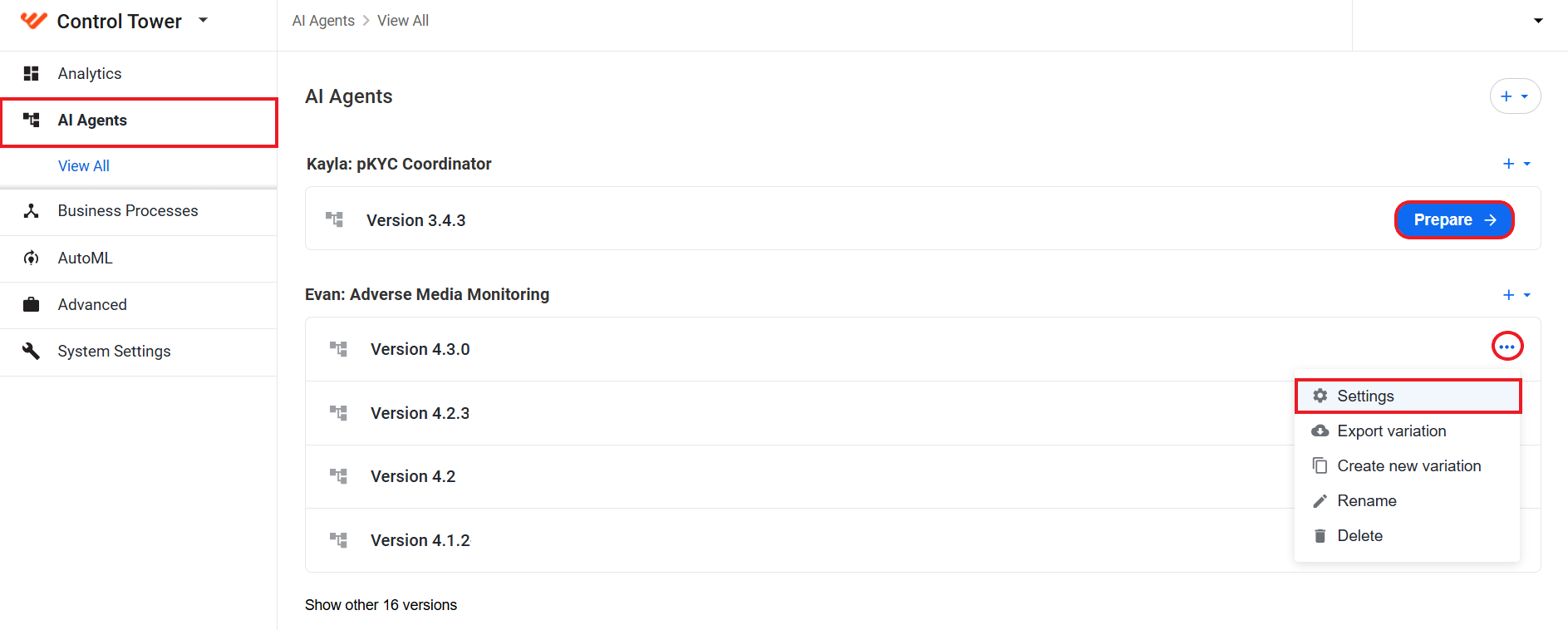
Locate the AI Agent you want to use and click Prepare if it is the first time you are setting it up. Otherwise, click the Actions menu next to a variation and then select Settings.
Follow the instructions in the configuration wizard to set up the AI Agent and click Finish.
Configure Business Process
To start using API, configure the endpoints from the Business Process (BP) you want to use as described in the instructions below, depending on the Work.AI version you are using.
- v10.2.9
- v10.3
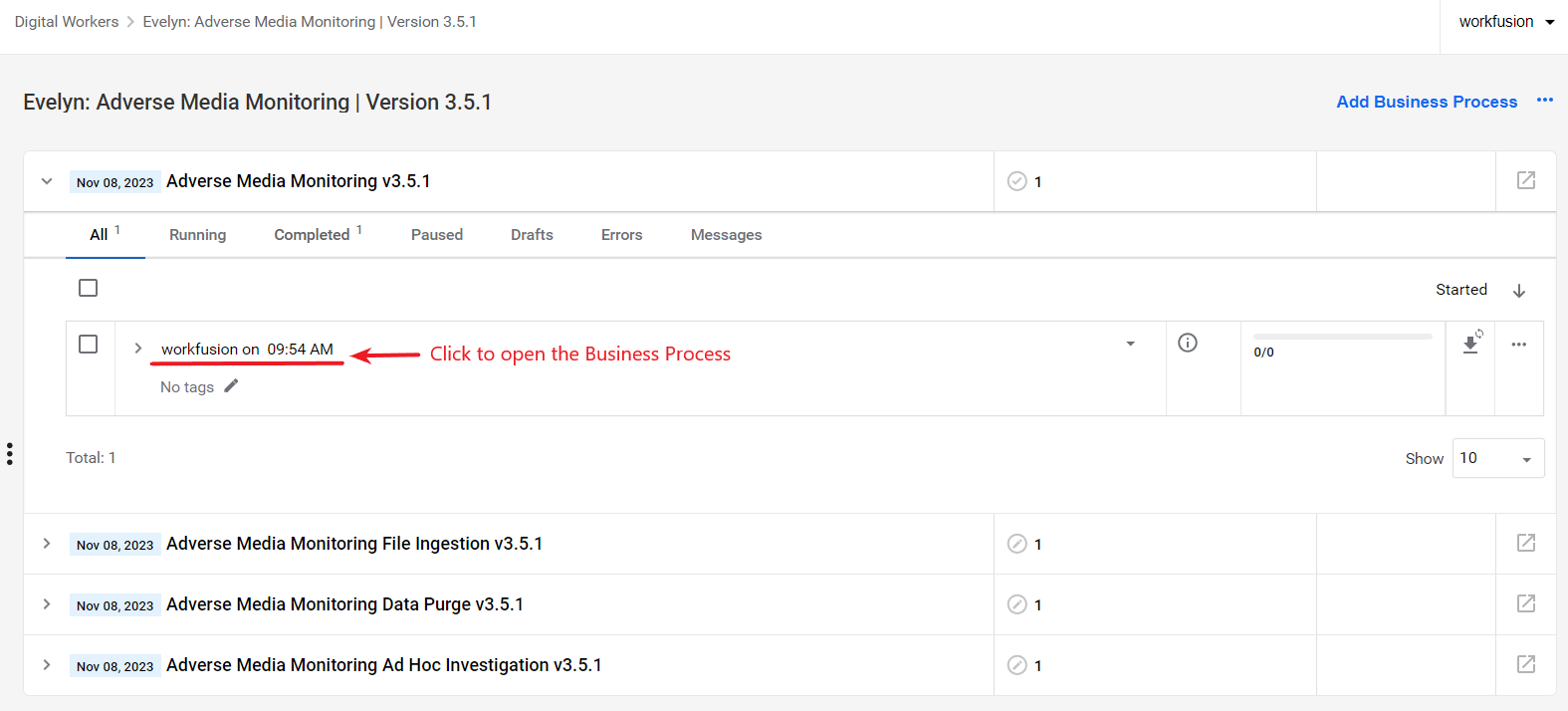
Go to Control Tower > Digital Workers, select a variation and click it to open the details page. On the variation's details page, open a BP instance that you want to run using API.
Navigate to the Data tab and select the Streaming Records from External Sources checkbox.

Add a custom name for the REST API endpoint used to reach the BP.
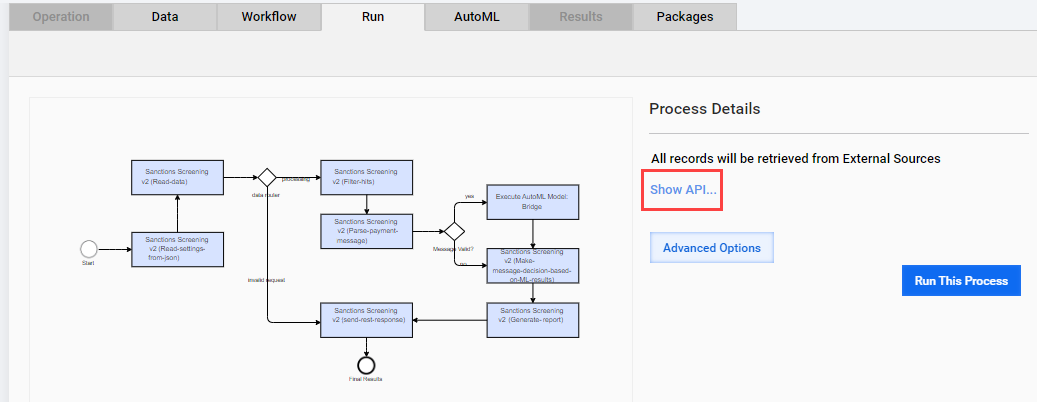
Go to the Run tab and click Show API.
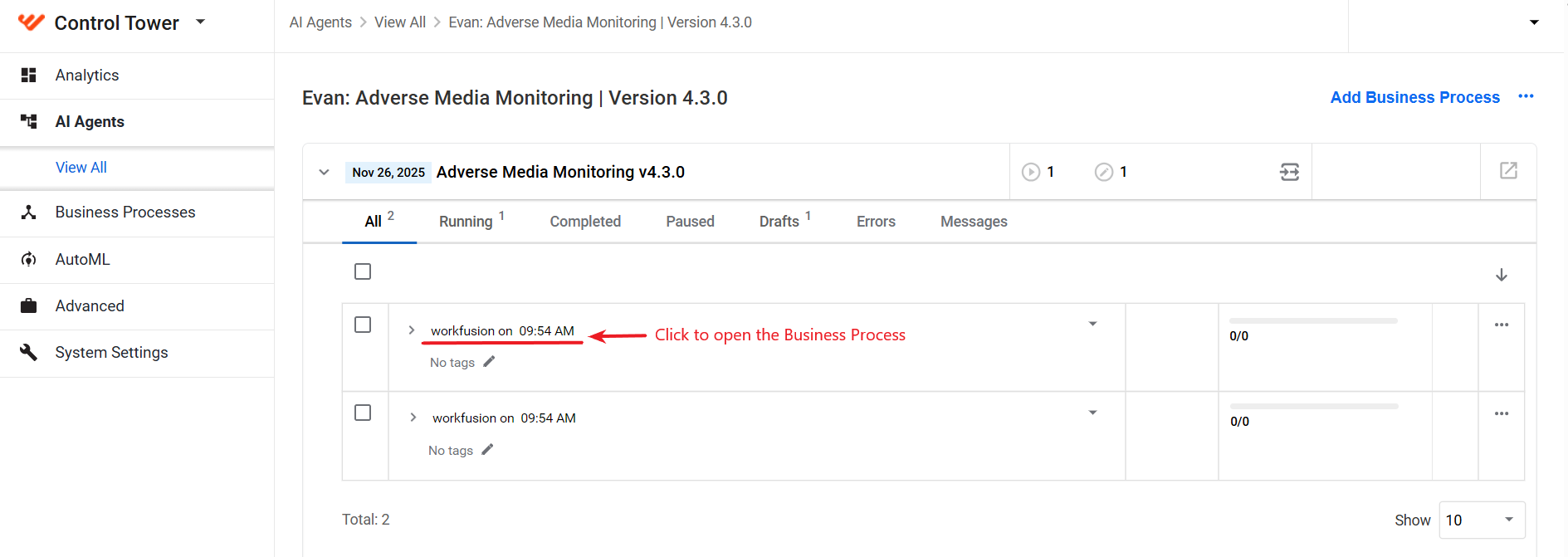
Go to Control Tower > AI Agents, select a variation and click it to open the details page. On the variation's details page, open a BP instance that you want to run using API.
Navigate to the Data tab and select the Streaming Records from External Sources checkbox.

Add a custom name for the REST API endpoint used to reach the BP.
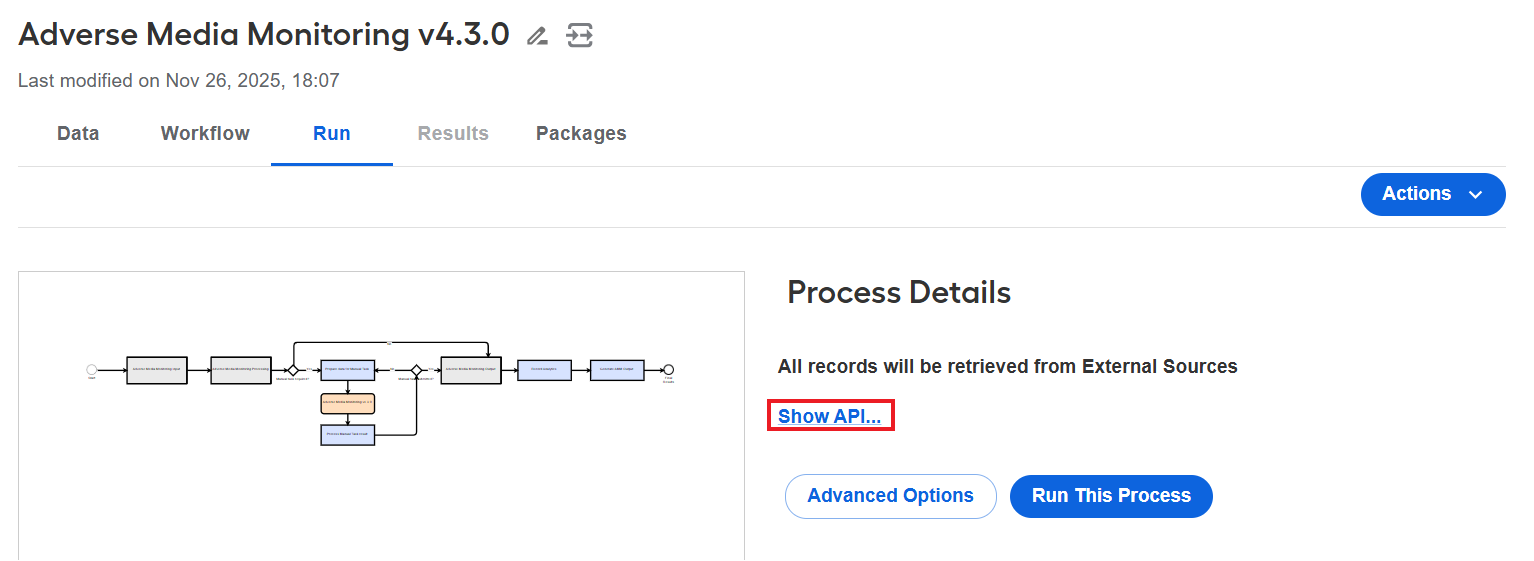
Go to the Run tab and click Show API.
The available API endpoints are as follows:
- Evelyn: NSS
- Evelyn: AMM
- Tara: PSS
- Kayla: pKYC
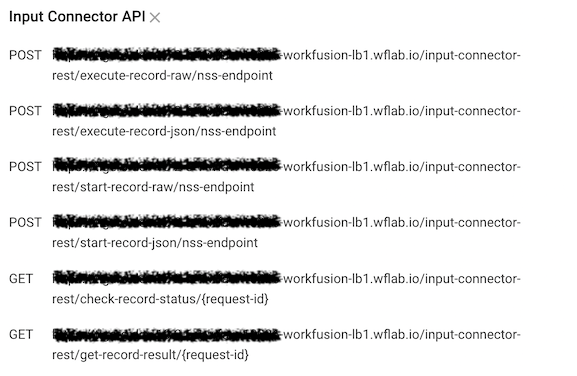
Name Sanction Screening supports only asynchronous invocation represented by the following endpoints:
/start-record-raw/to start a BP/check-record-status/to check the status of the running transaction/get-record-result/to get the result data of the finished transaction
For a detailed description of requests and responses, see the Evelyn NSS API.
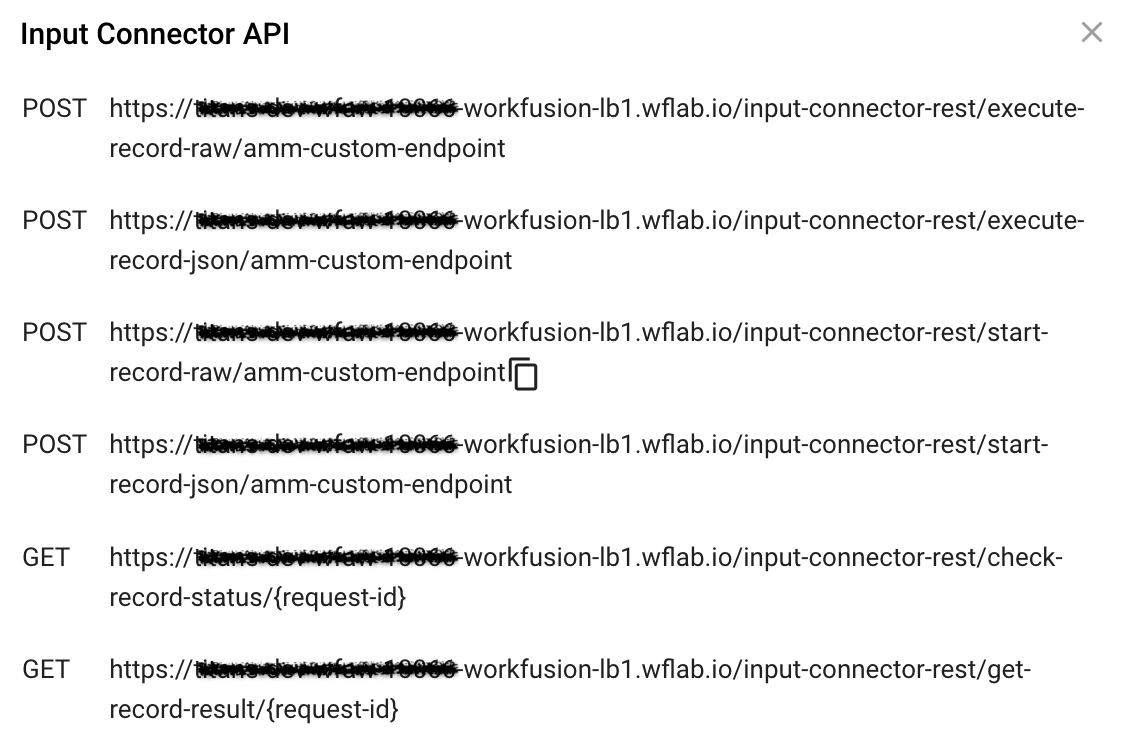
For a detailed description of requests and responses, see the Evelyn AMM API.
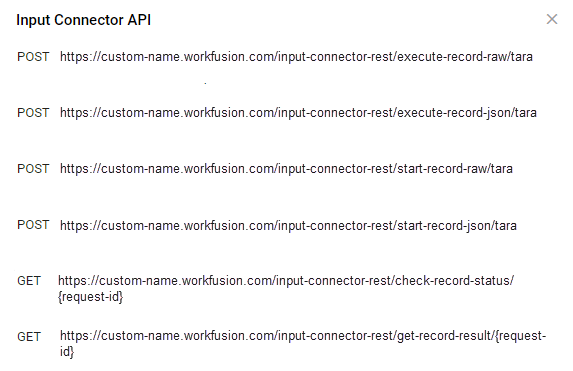
For a detailed description of requests and responses, see the Tara PSS API.
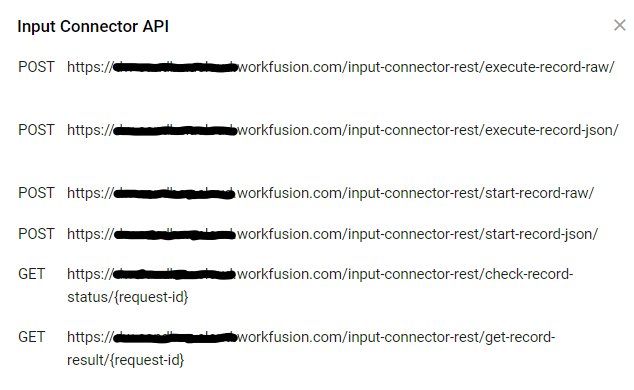
For a detailed description of requests and responses, see the Kayla API.
For more information on invoking transactions and getting access to tokens, see Process transactions with REST connector.
Authenticate
To authenticate, get an authorization Bearer token needed to send requests and get responses, for example, https://custom-name.workfusion.com/auth/realms/WorkfusionRealm/protocol/openid-connect/token.
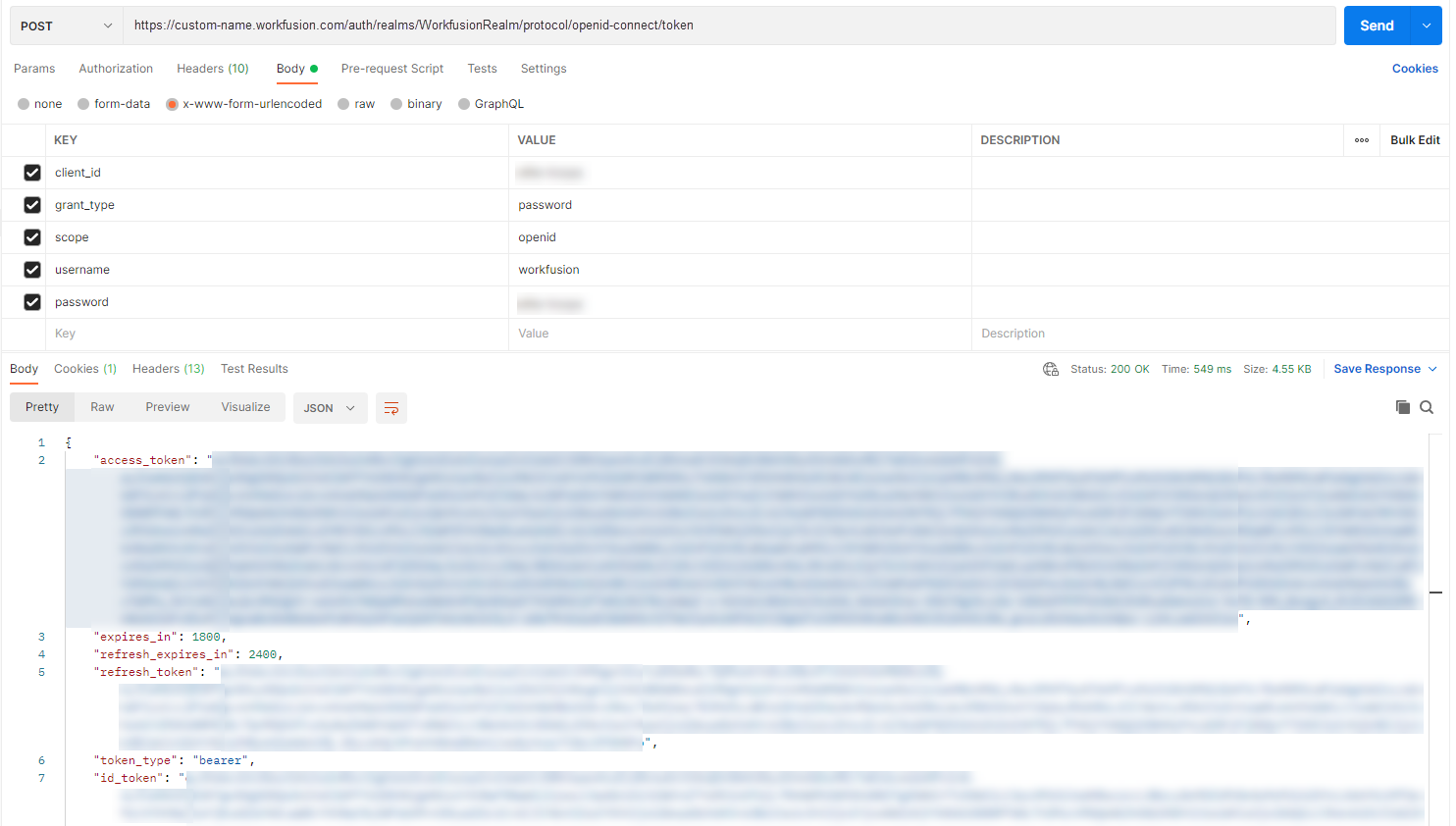
To obtain the token, log in to Control Tower and go to User Management to find or create clientId and the user that can be applied for authentication.

For more details, refer to Process transactions with REST connector | Security.
See usage examples
The Postman application runs the API endpoints for the following execution examples.
There are two approaches to sending data over REST API:
- In the asynchronous mode, there are two or three steps. You send a request message and receive a request ID, which is used to check the status and get a response back.
- In the synchronous mode, there is one step. You send a request and wait for a response.
Besides that, you can send data in the RAW or JSON formats.
| Skill | REST API mode | Data format |
|---|---|---|
| Payment Sanction Screening |
| RAW |
| Name Sanction Screening | asynchronous | JSON |
- Tara: PSS
- Evelyn: NSS
- Evelyn: AMM
In some cases, requests may first go to Control Tower from where they are forwarded to Tara's Business Process. So you may receive responses not only from Tara but directly from Control Tower. In this case, you can come across unexpected fields not documented in the PSS API specification.
Execution
- Asynchronous mode, Raw format
- Synchronous mode, Raw format
- Synchronous mode, JSON format
- Asynchronous mode, JSON format
To send a request asynchronously, do as follows:
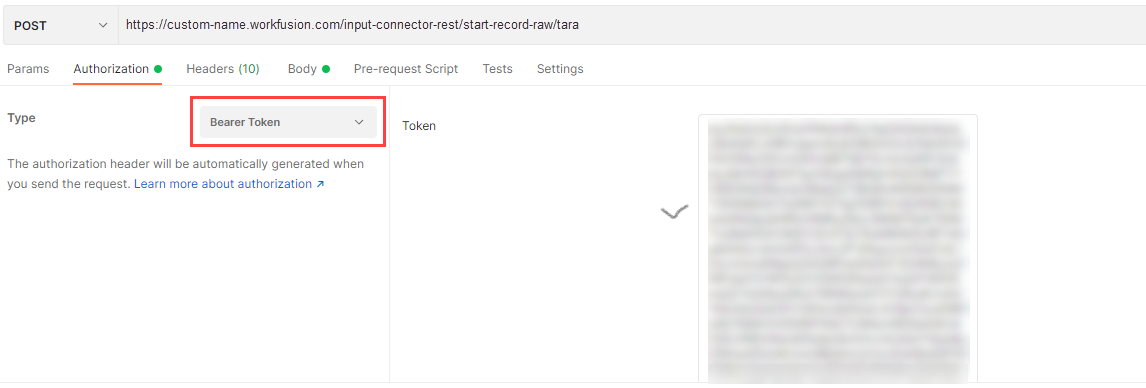
On the Body tab, enter a request message JSON and click Send. You get
request_idwith a processing status.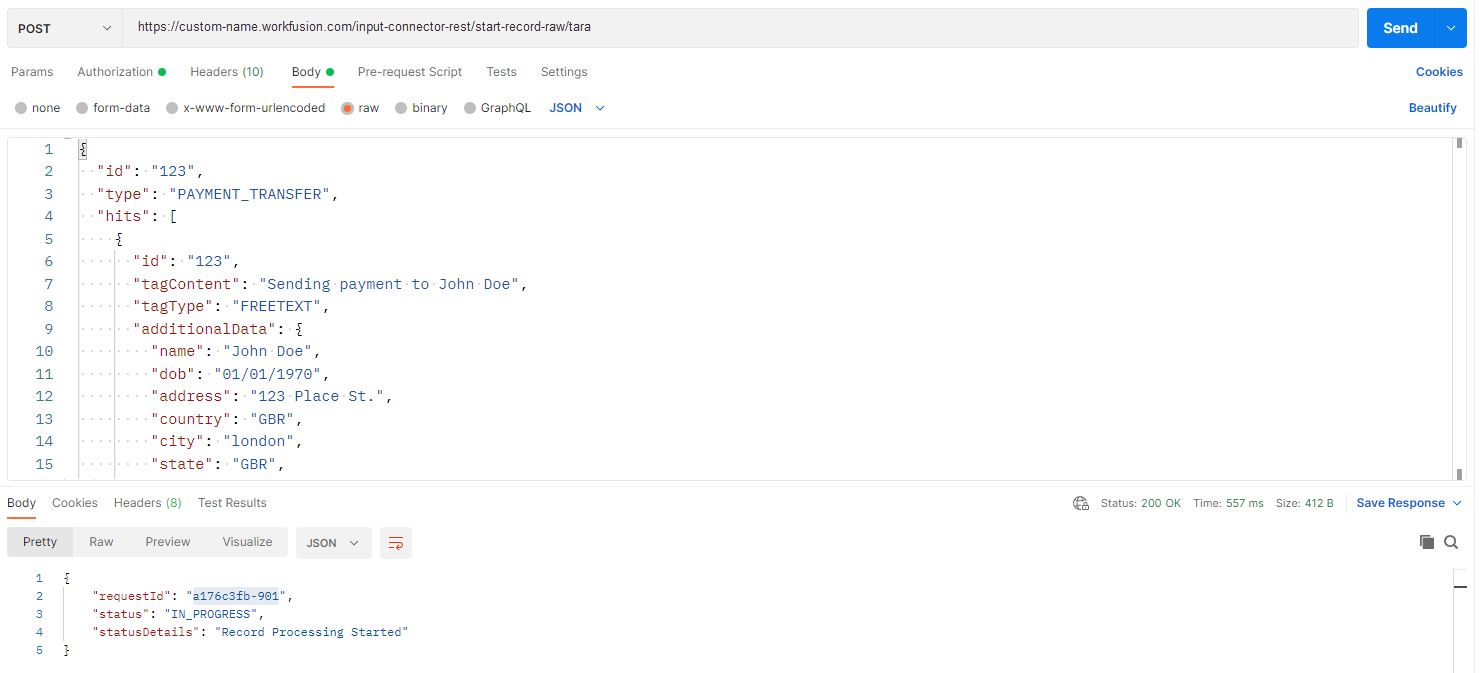
Request example in RAW format
{
    "id": "123",
    "type": "PAYMENT_TRANSFER",
    "hits": [
        {
        "id": "123",
        "tagContent": "Sending payment to John Doe",
        "tagType": "FREETEXT",
        "additionalData": {
            "name": "John Doe",
            "dob": "01/01/1970",
            "address": "123 Place St.",
            "country": "GBR",
            "city": "london",
            "state": "GBR",
            "postal": "123"
        },
        "sanctionData": {
            "name": "John",
            "primaryName": "Doe, John",
            "type": "INDIVIDUAL",
            "country": "united kingdom",
            "sourceEntryId": "123",
            "source": "OFAC",
            "listType": "WORLD_COMPLIANCE",
            "alsoKnownAs": [
            {
                "name": "Johnathan",
                "type": "STRONG"
            }
            ]
        }
        }
    ]
}
Check the status using the retrieved
requestID. Use the same authentication token and the needed endpoint.noteYou receive a JSON response object that contains the request status. No actual response is displayed. When the request is processed, you see
"status": "COMPLETED".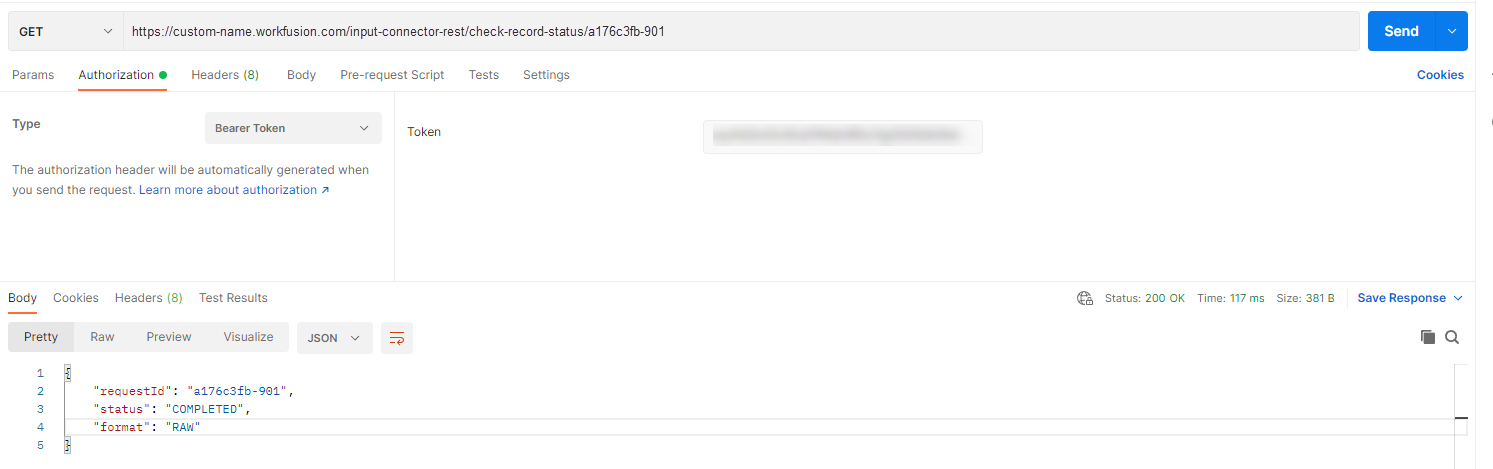
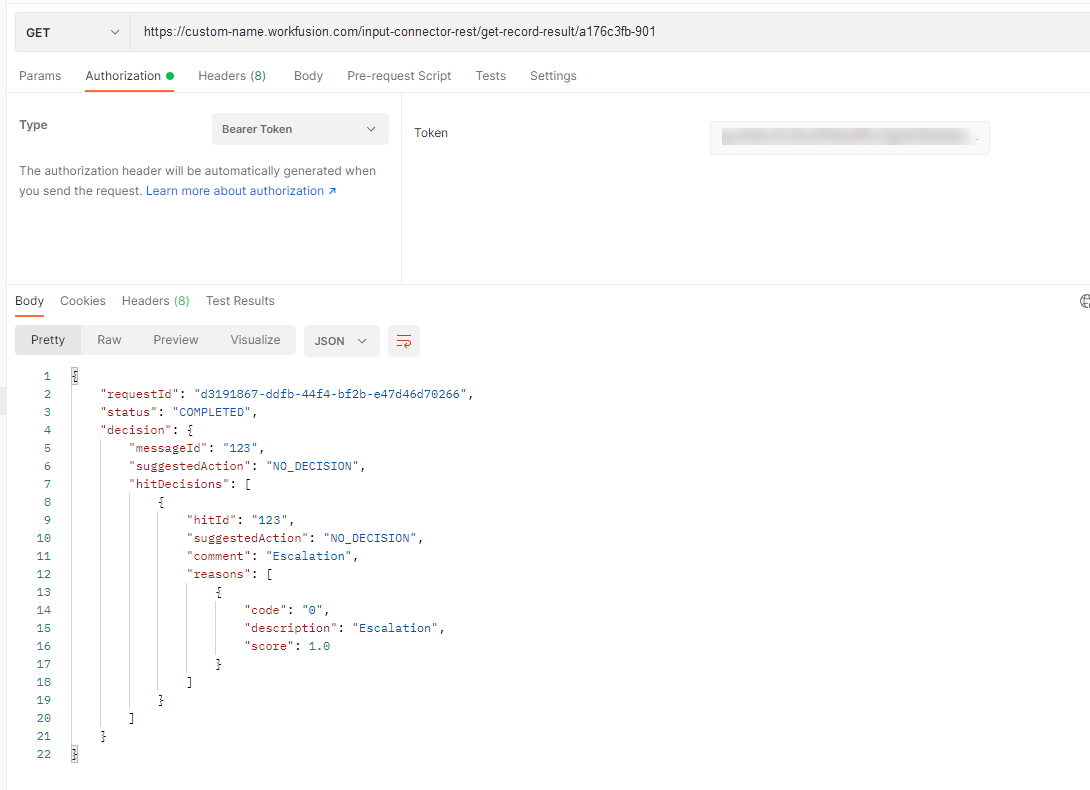
Get a response with the help of the
requestIDretrieved in the previous step. Use the same authentication token and the needed endpoint.noteYou receive a JSON response object that contains a PSS decision in the RAW format.
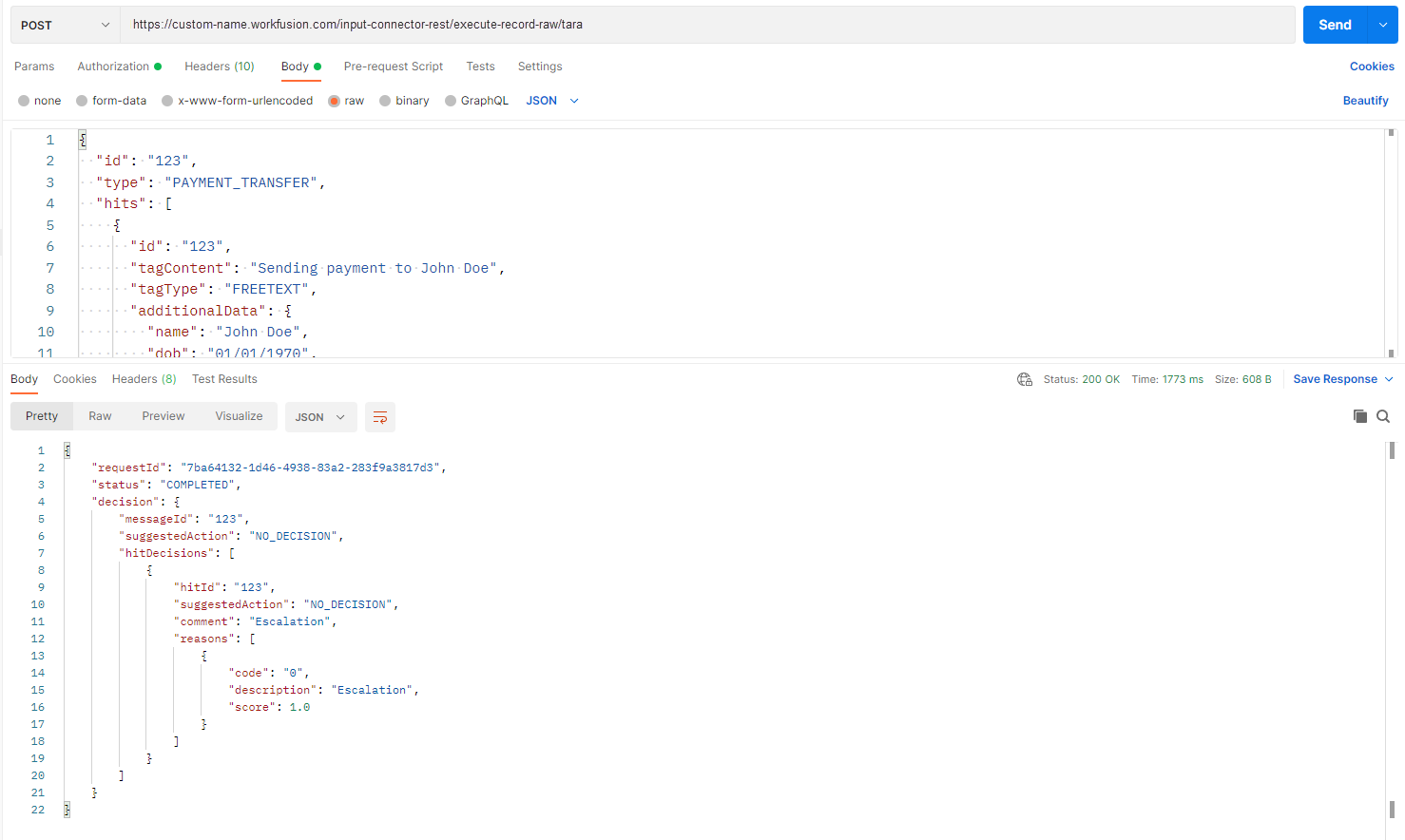
Currently, only Tara supports the synchronous mode.
You can also use the synchronous mode to send a request and get a response without any intermediate polling step. Make a synchronous call using POST input-connector-rest/execute-record-raw. In this case, you get the raw decision JSON from the model output as a response.
This is an alternative way to send a PSS request. Send Request Message JSON using Input Connector API #2 link above. Remember to use the authentication token generated previously in the Authorization header.
{
  "send_request": "{\"id\":\"123\",\"type\":\"PAYMENT_TRANSFER\",\"hits\":[{\"id\":\"123\",\"tagContent\":\"Sending payment to John Doe\",\"tagType\":\"FREETEXT\",\"additionalData\":{\"name\":\"John Doe\",\"dob\":\"01/01/1970\",\"address\":\"123 Place St.\",\"country\":\"GBR\",\"city\":\"london\",\"state\":\"GBR\",\"postal\":\"123\"},\"sanctionData\":{\"name\":\"John\",\"primaryName\":\"Doe, John\",\"type\":\"INDIVIDUAL\",\"country\":\"united kingdom\",\"sourceEntryId\":\"123\",\"source\":\"OFAC\",\"listType\":\"WORLD_COMPLIANCE\",\"alsoKnownAs\":[{\"name\":\"Johnathan\",\"type\":\"STRONG\"}]}}]}"
}
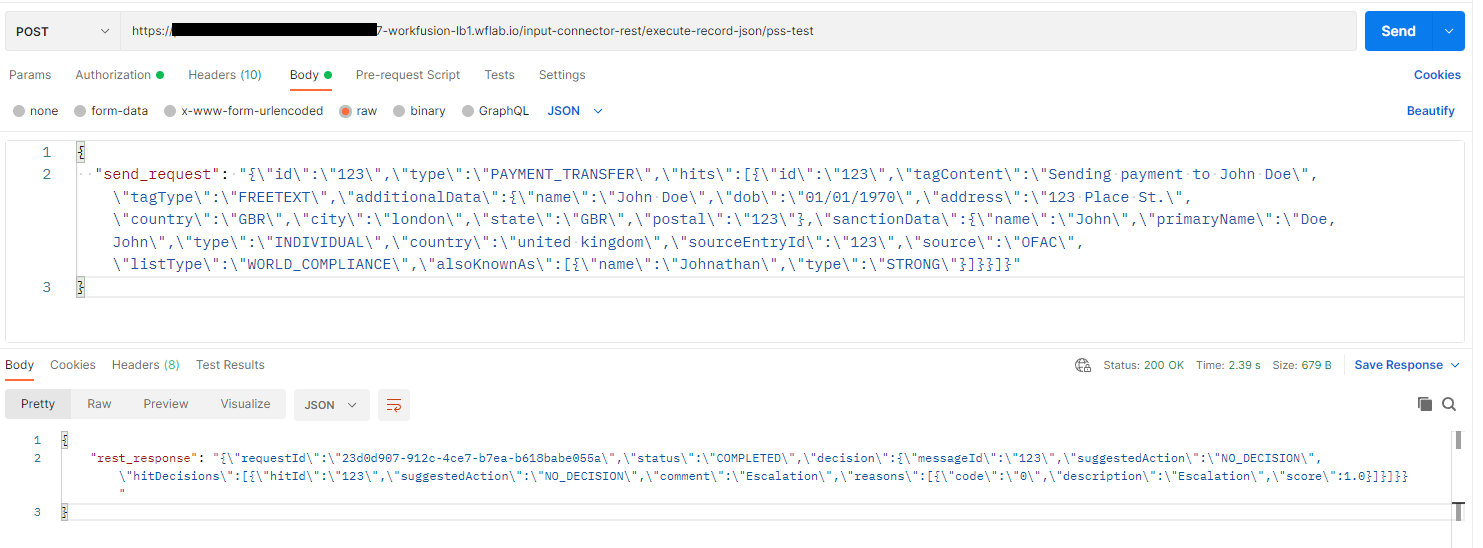
This is an alternative way to send PSS requests:
Send the Request Message JSON using the Input Connector API #4 link above.
Remember to use the authentication token generated previously in the Authorization header. The JSON-formatted request is wrapped into a string. The PSS Business Process expects the parameter
send_request. Otherwise, it will be ignored.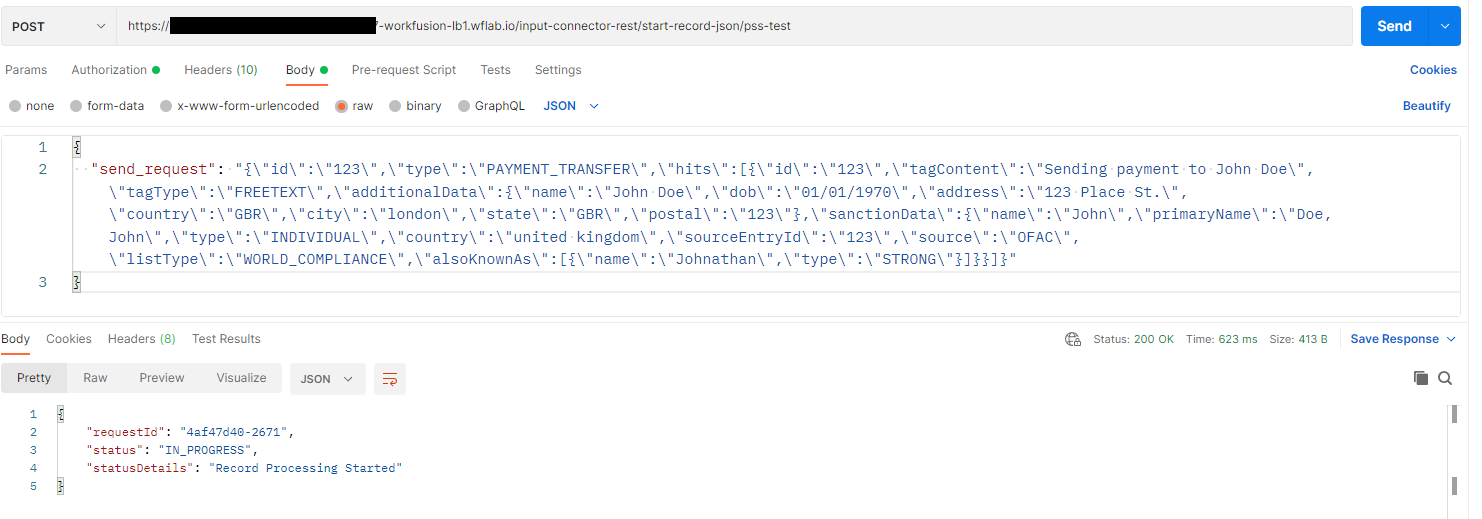
Check the status using the retrieved
requestID. Note that you need to use the same Authentication token here as well. Also, note that you receive a JSON response object which contains PSS decision in json format wrapped in string. You should expect the output parameterrest_response.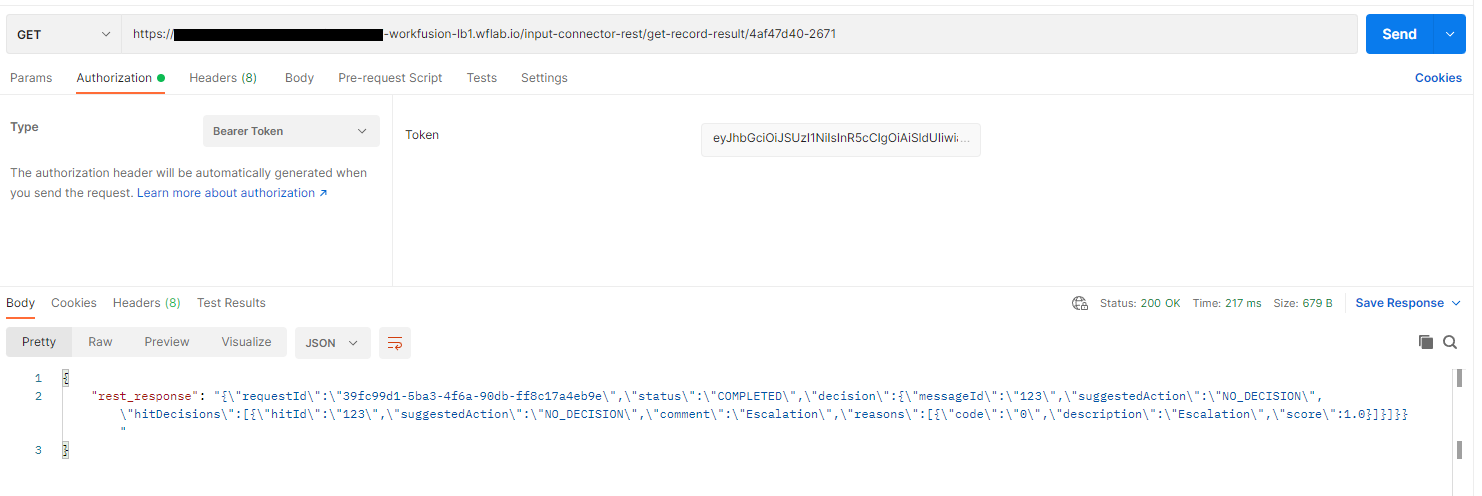
Successful response
{
    "requestId": "7010015",
    "status": "COMPLETED",
    "statusDetails":"  ",
    "decision": {
        "messageId": "1232",
        "suggestedAction": "NO_DECISION",
        "hitDecisions": [
            {
                "hitId": "1232",
                "suggestedAction": "NO_DECISION",
                "comment": "Name match. Screened entity name 'Romana' matches closely with Watch List Entity name 'Romana Fitzerald'",
                "reasons": [
                    {
                        "code": "name match",
                        "description": "Name match. Screened entity name 'Romana' matches closely with Watch List Entity name 'Romana Fitzerald'"
                    }
                ]
            }
        ]
    }
}
The
decisionis the request's status returned from Control Tower API. On this step, Tara has not provided any decision.Also,
"status": "COMPLETED"comes from the CT API design, which is unrelated to Tara.When you execute
check-record-status calls, you receive only status without Tara's response.When you execute
get-record-result, you receive Tara's response without the status information. Tara provides the status as part of the decision response.See Response from CT API.
Error or invalid response
Such a response is expected to be in the same JSON format as a normal decision response. The status indicates a problem with the error details. The FAILED and INVALID_REQUEST statuses come from Tara. Note that NOT_FOUND and NOT_AUTHORIZED may come from API clients with different formats.
Invalid request response
{
    "status": "INVALID_REQUEST",
    "statusDetails": "Malformed request : Missing required fields",
    "decision": {
        "suggestedAction": "NO_DECISION"
    }
}

{
    "status": "INVALID_REQUEST",
    "statusDetails": "Malformed request : Missing required fields",
    "decision": {
        "messageId": "1232",
        "suggestedAction": "NO_DECISION"
    }
}

{
    "status": "INVALID_REQUEST",
    "statusDetails": "Malformed request:\nCannot deserialize value of type `com.workfusion.sanctions.api.types.TagType` from String \ "FREET\": not one of the values accepted for Enum class: [NAMEADDRESS, NAME, ADDRESS, FREETEXT]\n at [Source: (String)\" {\n  \" id\": \ "1232\",\n  \ "type\": \ "PAYMENT_TRANSFER\",\n  \ "content\": null,\n  \ "contentFormat\": null,\n  \ "accountHolderDetails\": {\n\\t  \ "name\": \ "Romana Baum\",\n\\t  \ "type\": \ "INDIVIDUAL\" \n  },\n  \ "hits\": [\n    {\n      \" id\": \ "1232\",\n      \ "tagContent\": \ "Romana\",\n      \ "tagName\": null,\n      \ "tagType\": \ "FREET\",\n      \ "hitStartIndex\": null,\n      \ "hitEndIndex\": null,\n      \ "hitText\": null,\n      \ "screenedData\": null,\n      \ "sanctionData\": {\n        \ "name\": \ "Romana Fitzerald\",\n        \ "type\": \ "INDIVIDUAL\" \n\\t  }\n    }\n \" [truncated 4 chars]; line: 15, column: 18] (through reference chain: com.workfusion.sanctions.api.dto.Message[\ "hits\"]->java.util.ArrayList[0]->com.workfusion.sanctions.api.dto.Hit[\ "tagType\"])",
    "decision": {
        "messageId":"  ",
        "suggestedAction": "NO_DECISION"
    }
}
messageId inside the INVALID_REQUEST response depends on the data conversion between JSON and Java objects. In the third example, messageId was probably empty in the request object.
Failure processing request
{
    "requestId": "7010015",
    "status": "FAILED",
    "statusDetails": "Error description goes there",
    "decision": {
        "messageId": "1232",
        "suggestedAction": "NO_DECISION",
    }
}
Response from CT API
# invalid token
{
    "error": "Authorization token verification failed. org.keycloak.common.VerificationException: Failed to parse JWT"
}

# token expired
{
    "error": "Authorization token verification failed. org.keycloak.exceptions.TokenNotActiveException: Token is not active."
}

# checking request status - success
{
    "requestId": "35365",
    "status": "COMPLETED",
    "format": "RAW"
}

# checking request status - success
{
    "requestId": "35365",
    "status": "IN_PROGRESS",
    "format": "RAW"
}

# checking request status - error
{
    "requestId": "31337",
    "status": "NOT_FOUND",
    "statusDetails": "Record for request ID bc6ea25f-3 was not found"
}
Here, the format field (for example, "format": "RAW") is only available on the Control Tower API. If you want to build the same response, include it in your structure but make it optional.
Execution
The NSS skill supports the following JSON structure for triggering screening. Depending on the selected screening system, a JSON request can or cannot have the hits element.
See JSON templates below:
Full Alert Screening
{
"input_id": String (required),
"input_full_name": String (required),
"input_record_type": String,
"input_gender": String,
"input_address": [
    {
        "type": String,
        "country": String,
        "state": String,
        "city": String
    },
    ...
],
"input_date": [
    {
        "type": String,
        "year": String,
        "month": String,
        "day": String
    },
    ...
],
"hits": [
    {
        "hit_id": String (required),
        "hit_matched_name": String (required),
        "hit_record_type": String,
        "hit_gender": String,
        "hit_address": [
            {
                "type": String,
                "country": String,
                "state": String,
                "city": String
            },
            ...
        ],
        "hit_date": [
            {
                "type": String,
                "year": String,
                "month": String,
                "day": String
            },
            ...
        ]
    }
]
}
Dow Jones Risk & Compliance, World-Check One
The request JSON structure should contain only input elements. If a hits element is present, it is ignored.
{
"input_id": String (required),
"input_full_name": String (required),
"input_record_type": String,
"input_gender": String,
"input_address": [
    {
        "type": String,
        "country": String,
        "state": String,
        "city": String
    },
    ...
],
"input_date": [
    {
        "type": String,
        "year": String,
        "month": String,
        "day": String
    },
    ...
]
}
Firco Trust Case Manager API
{
firco_trust_b_unit: String
}
Not implemented yet: will take the b_unit value from the UI configuration.
Responses
After successful processing, the Business Process sends the response. The response JSON structure can differ, depending on the selected screening system.
See JSON templates below:
Full Alert Screening
{
    "input_id": String,
    "alert_resolution": String,
    "alert_explanation": String
    "hits": [
        {
            "hit_id": String,
            "hit_resolution": String,
            "hit_explanation": String
        }
    ]
}
Dow Jones Risk & Compliance, World-Check One
{
    "input_id": String,
    "alert_resolution": String,
    "alert_explanation": String
    "hits": [
        {
            "hit_id": String,
            "hit_resolution": String,
            "hit_explanation": String
        }
    ]
}
Firco Trust Case Manager API
{
    "report_link": Link to the generated report
}
Execution
{
    "search_request": String (required),
    "entity_type": String (COMPANY/INDIVIDUAL),
    "year_of_birth": Integer,
    "country": String (Used only by Google provider),
    "search_period": Integer (search period in days)
}
Response
{
    "transactionUUID" : String,
    "runUUID" : String,
    "variationUUID" : String,
    "startTime" : UTC-date,
    "endTime" : UTC-date,
    "searchRequest" : String,
    "investigationStatus" : String (FALSE_POSITIVE/TRUE_POSITIVE/NEEDS_INVESTIGATION/NO_RESULTS_FOUND),
    "newsProvider" : String,
    "manualTaskExecuted" : boolean,
    "reviewerUUID" : String,
    "reviewerName" : String,
    "reviewComment" : String,
    "reportLink" : String,
    "articles" : [
        {
            "articleUUID" : String,
            "tile" : String,
            "summary" : String,
            "investigationStatus" : String (FALSE_POSITIVE/TRUE_POSITIVE/NEEDS_INVESTIGATION),
            "adjudicationReason" : String,
            "publishingDate" : UTC-date,
            "author" : String,
            "language" : String,
            "wordCount" : int,
            "source" : String,
            "articleLink" : String,
            "originalArticleLink" : String,
            "score" : Decimal,
            "isReviewed" : boolean,
            "reviewerUUID" : String,
            "reviewerName" : String,
            "reviewComment" : String,
            "errorCode" : String
        },
        ...
    ]
}