Install AI Agents
To start working with AI Agents, sign in to Control Tower and follow the instructions below, depending on the Work.AI version you are using.
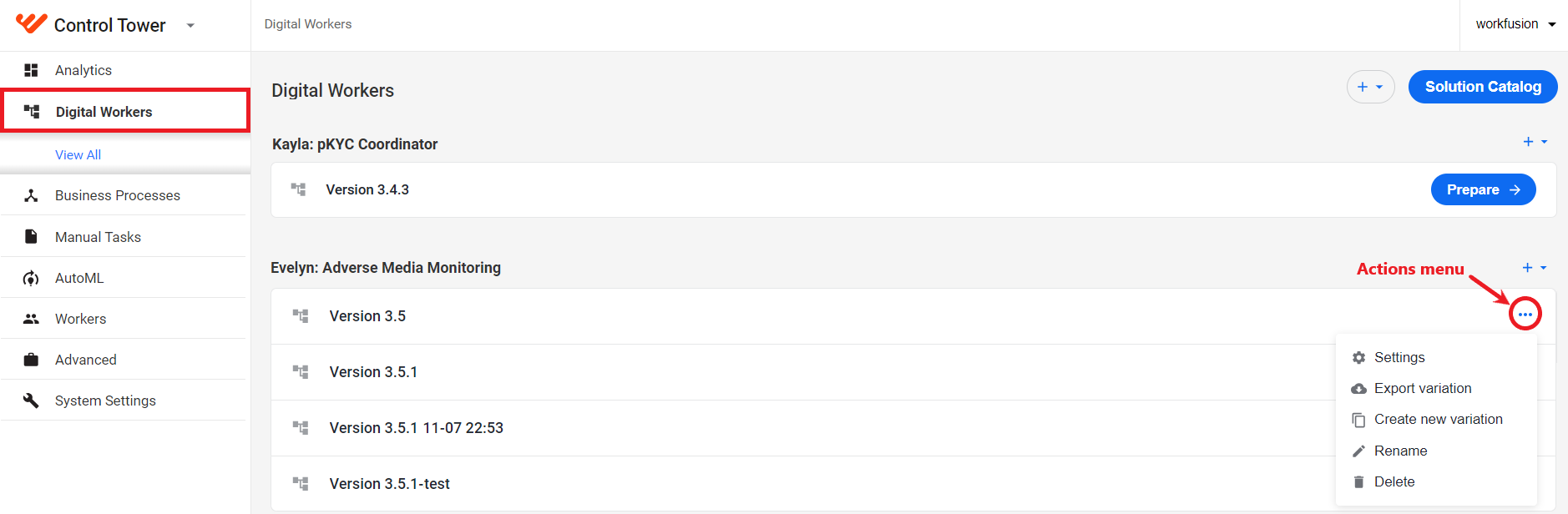
For Work.AI versions up to 10.2.9, navigate to the Digital Workers page.
For Work.AI versions from 10.3, navigate to the AI Agents page.
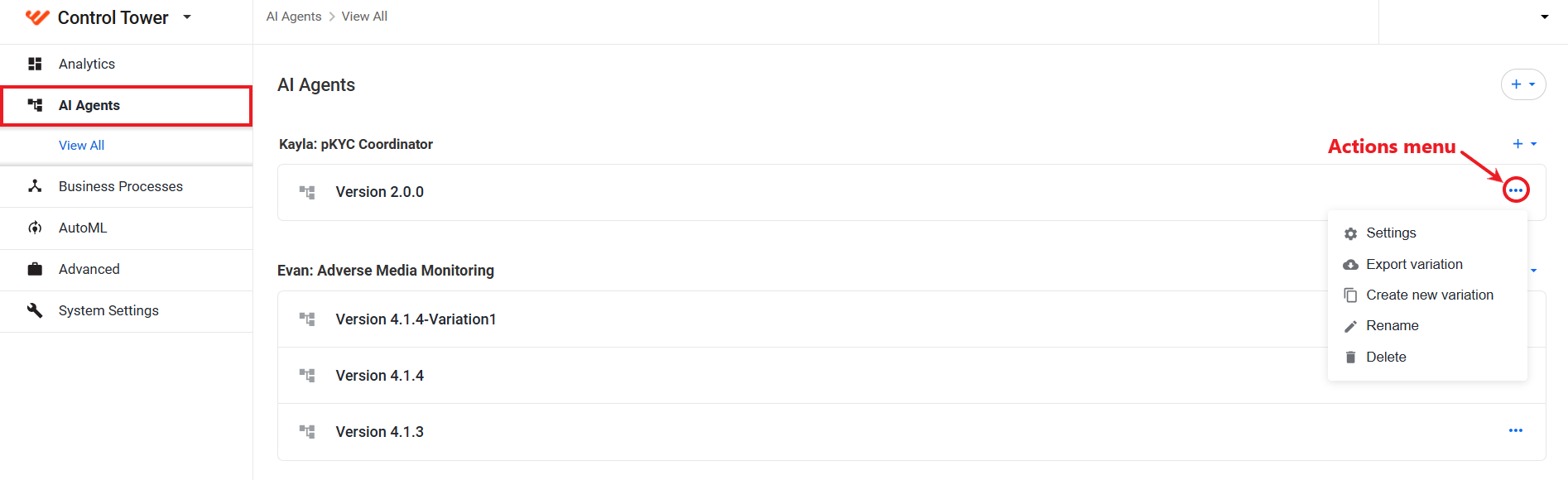
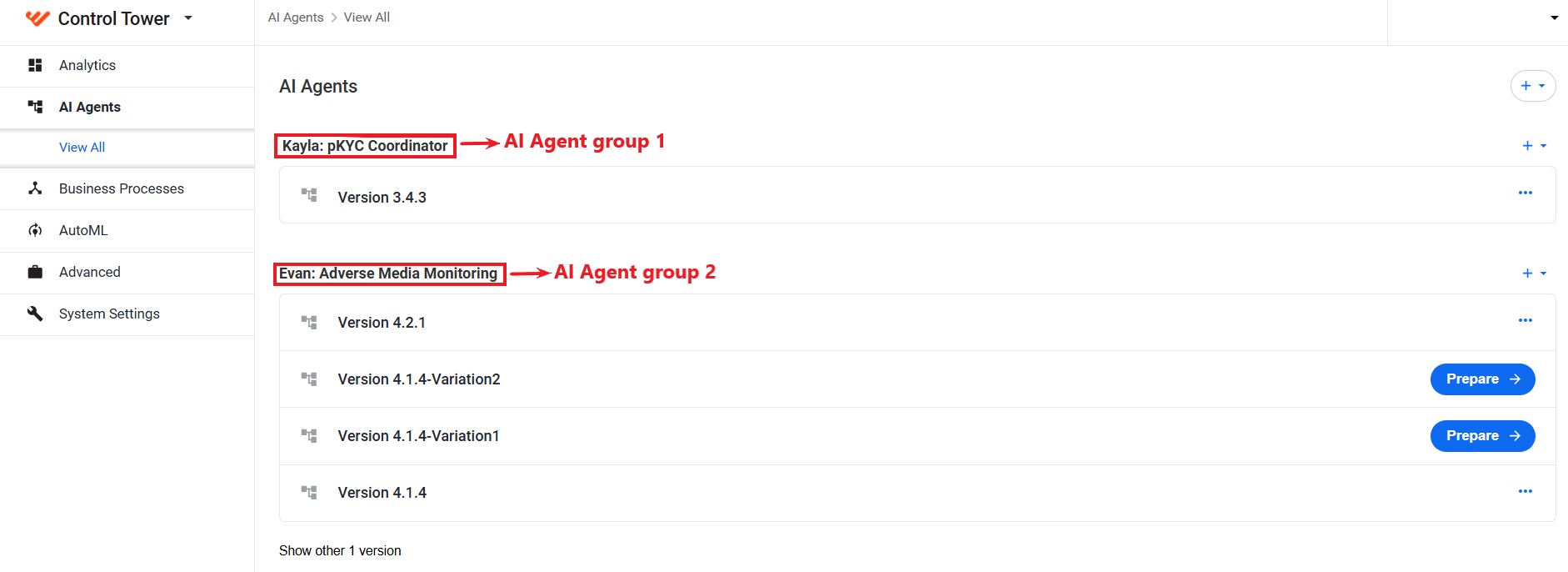
On the AI Agents (Digital Workers) page, you can see the list of installed AI Agents and their variations (if any).
You can install an AI Agent only once and then create multiple variations based on it to cater to separate groups of end users. To manage a variation, open its Actions menu and select an option. For details on how to create and manage AI Agent variations, refer to the guide.
Check compatibility and prerequisites
For information on compatibility and pre-installation environments, refer to the following pages for specific AI Agents:
View architecture deployment
If you install an AI Agent on Work.AI v10.2.8+, your architecture deployment is as follows:
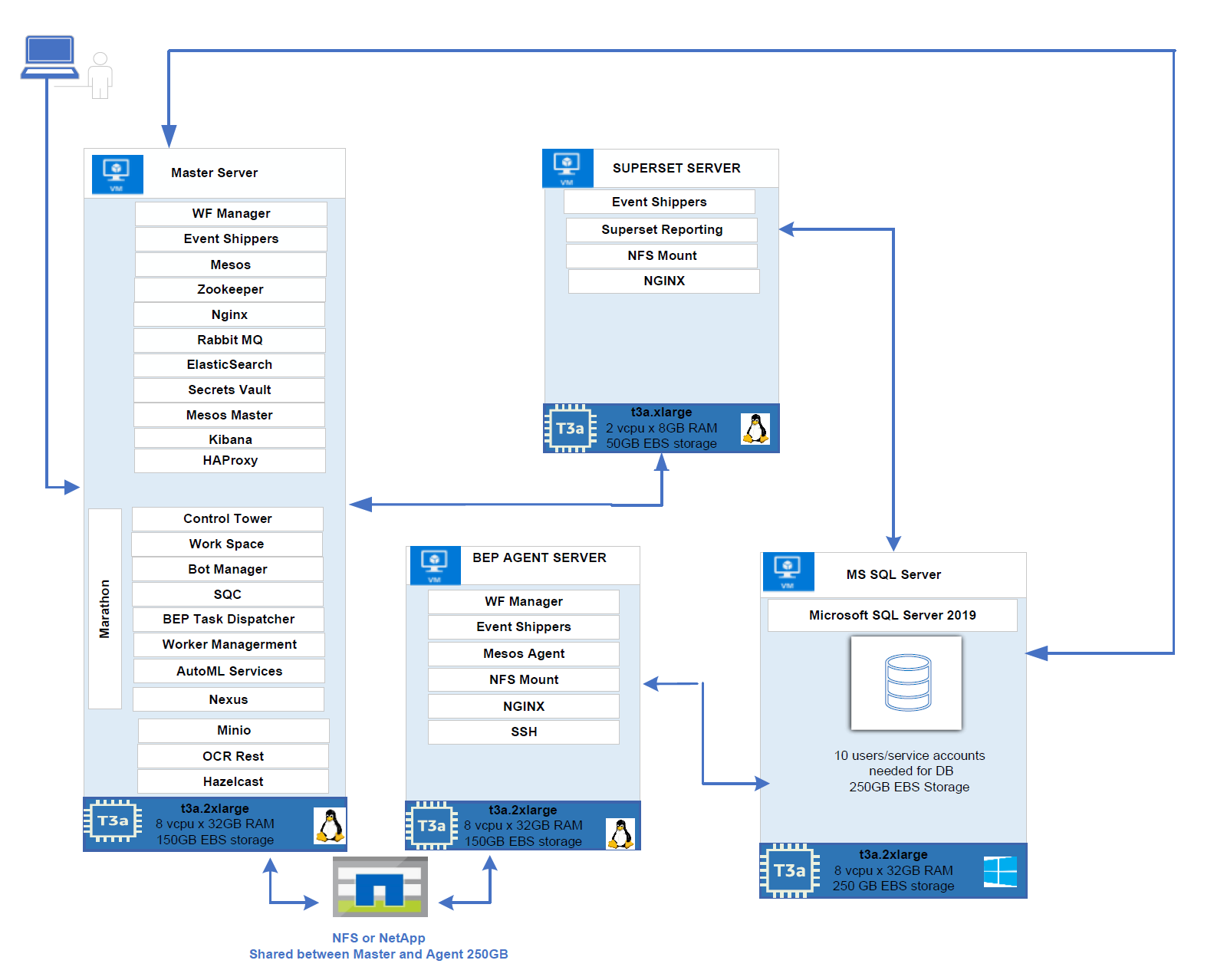
For more details on Work.AI components, refer to the documentation.
Install AI Agents
You can install a new AI Agent in one of the two ways:
- Using the bundle import feature if you have one AI Agent to install.
- From Solution Catalog if you have multiple AI Agents to install at once.
From Asset Bundle
An AI Agent bundle is a ZIP file. You can request an Asset Bundle with the required AI Agent version from your account manager or the Support team.
Once you acquire a bundle, follow the instructions below, depending on the Work.AI version you are using.
- Up to v10.2.9
- v10.3
To install an AI Agent on a Work.AI instance of up to v10.2.9, follow the steps below:
In Control Tower, go to Digital Workers > View all.
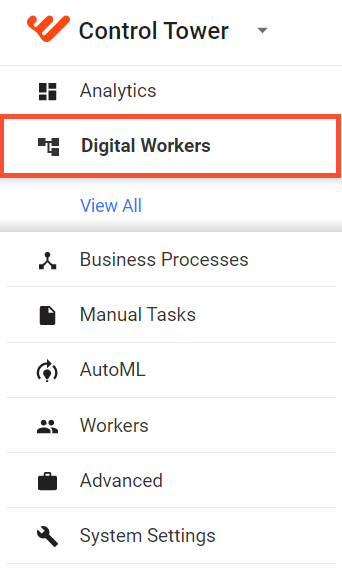
On the right, click the plus (+) button > Upload new.

In the upload dialog, click Add and select the received AI Agent bundle.

After the upload finishes, the AI Agent setup page opens and the installation starts automatically. You can see the installation status bar and the bundle details on the right. The Asset Bundle details contain AI Agent name, code, and version.
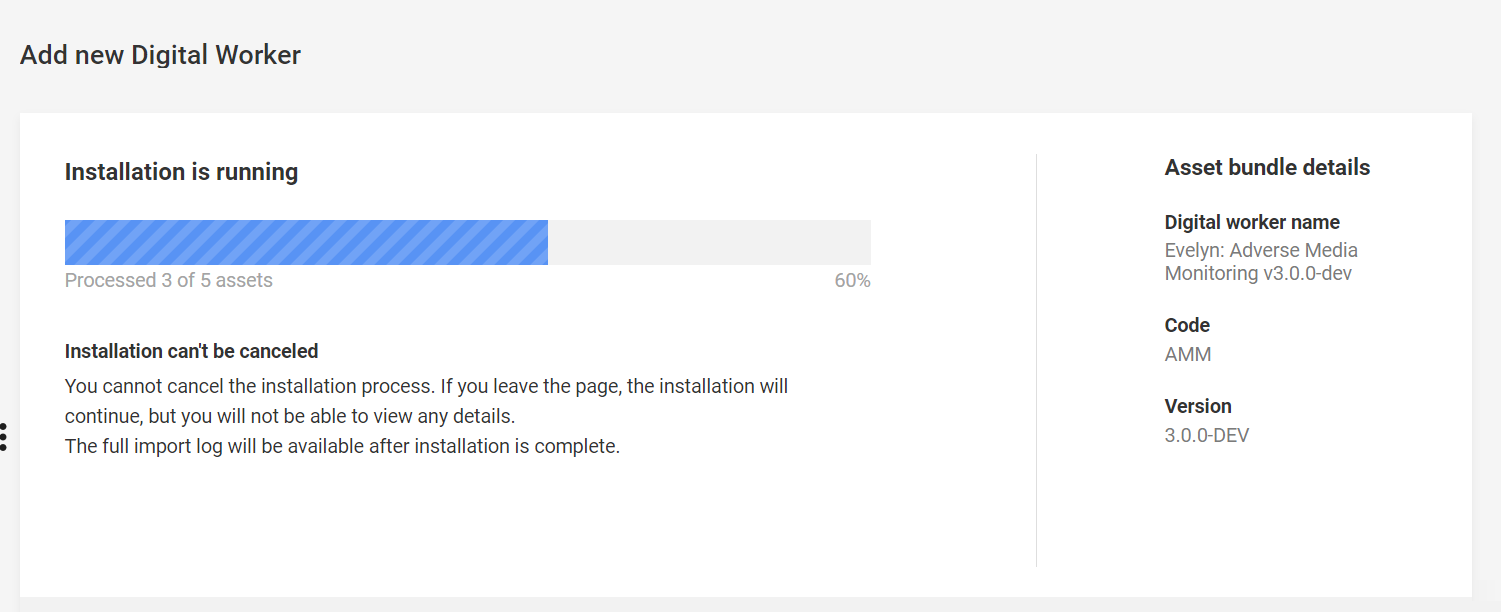
After the installation finishes, there are two possible options:
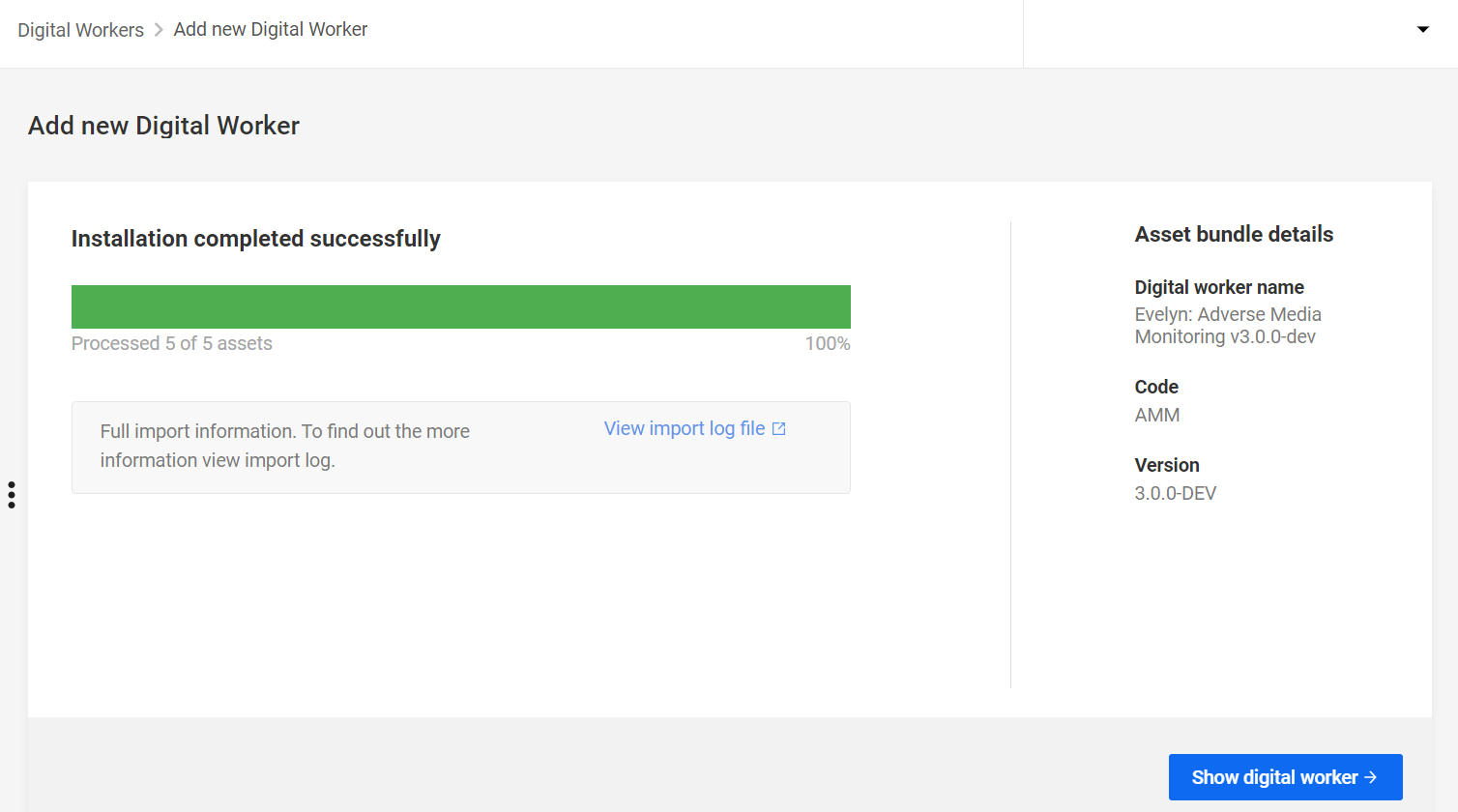
Installation finished successfully:
Installation failed:
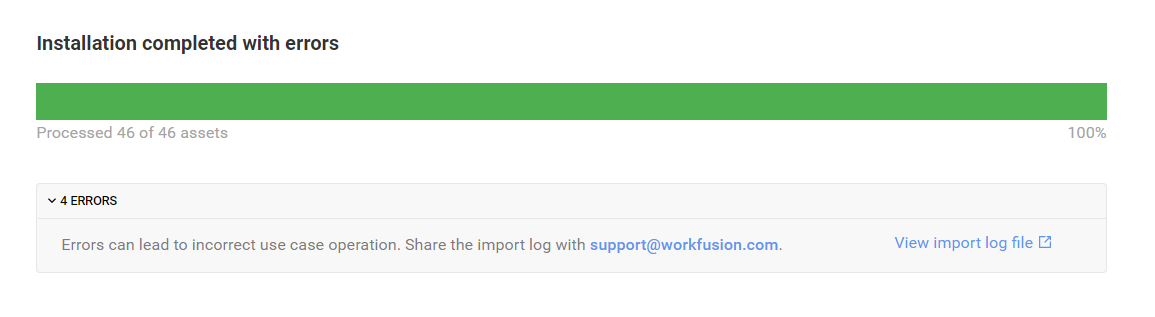
To download an import log file, click the View import log file link. The file contains a complete log with a list of failed assets with error messages.
Click Show digital worker. The AI Agent version details page opens.
If your AI Agent contains the configuration.json file, the Show digital worker button redirects you to the home Digital Workers page.
After the successful installation, the AI Agent appears in the corresponding group on the Digital Workers page.
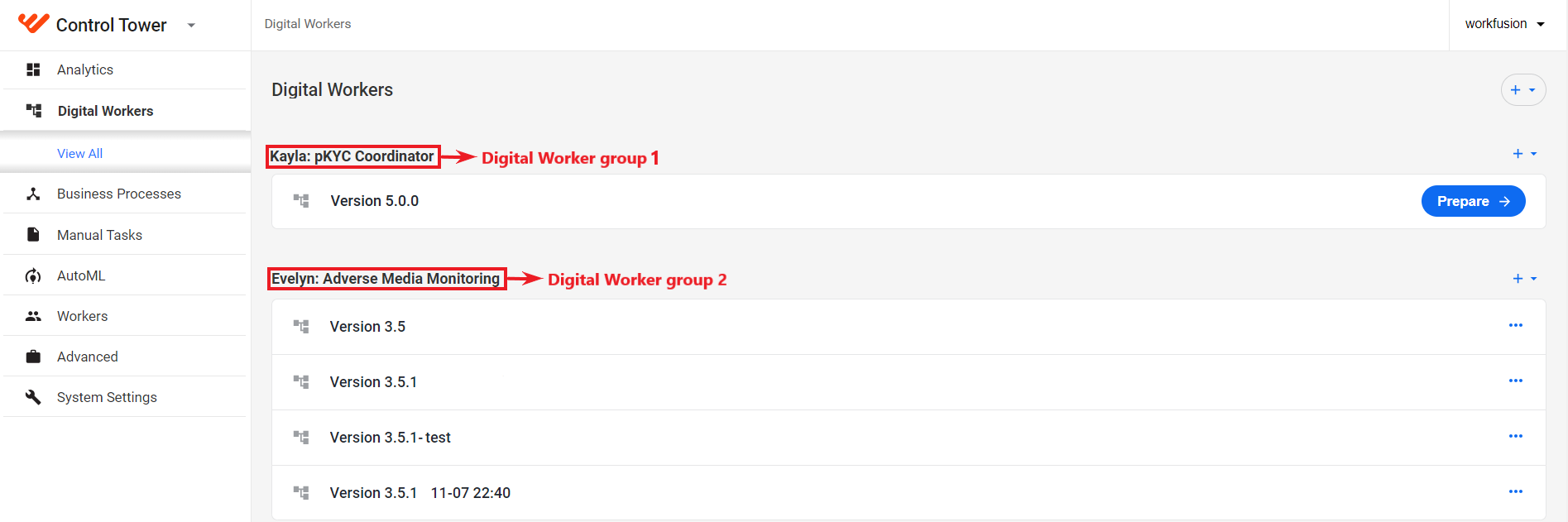
To install an AI Agent on a Work.AI instance of up to v10.3+, follow the steps below:
In Control Tower, go to AI Agents > View all.
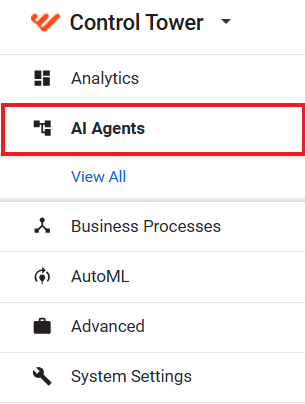
On the right, click the plus (+) button > Upload new.

In the upload dialog, click Add and select the received AI Agent bundle.

After the upload finishes, the AI Agent setup page opens and the installation starts automatically. You can see the installation status bar and the bundle details on the right. The Asset Bundle details contain AI Agent name, code, and version.
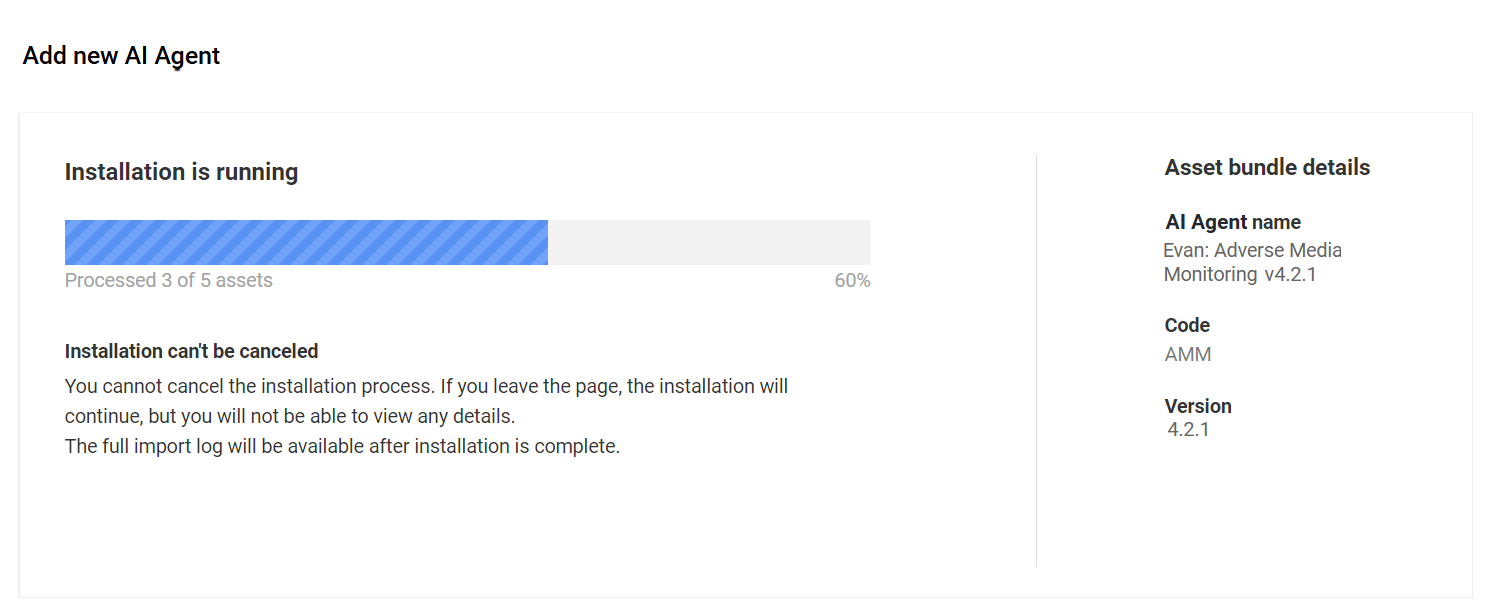
After the installation finishes, there are two possible options:
Installation finished successfully:
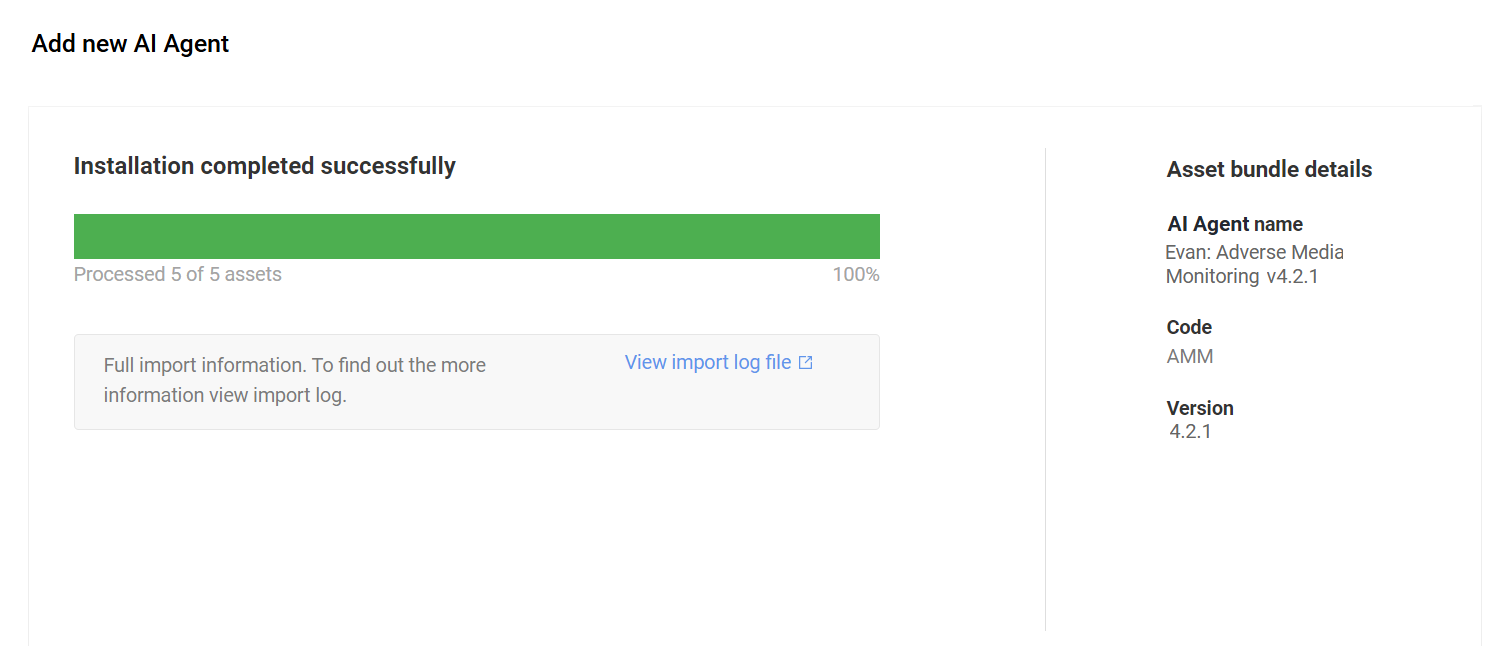
Installation failed:
To download an import log file, click the View import log file link. The file contains a complete log with a list of failed assets with error messages.
Click the Show AI Agent button to open the AI Agent's details page.
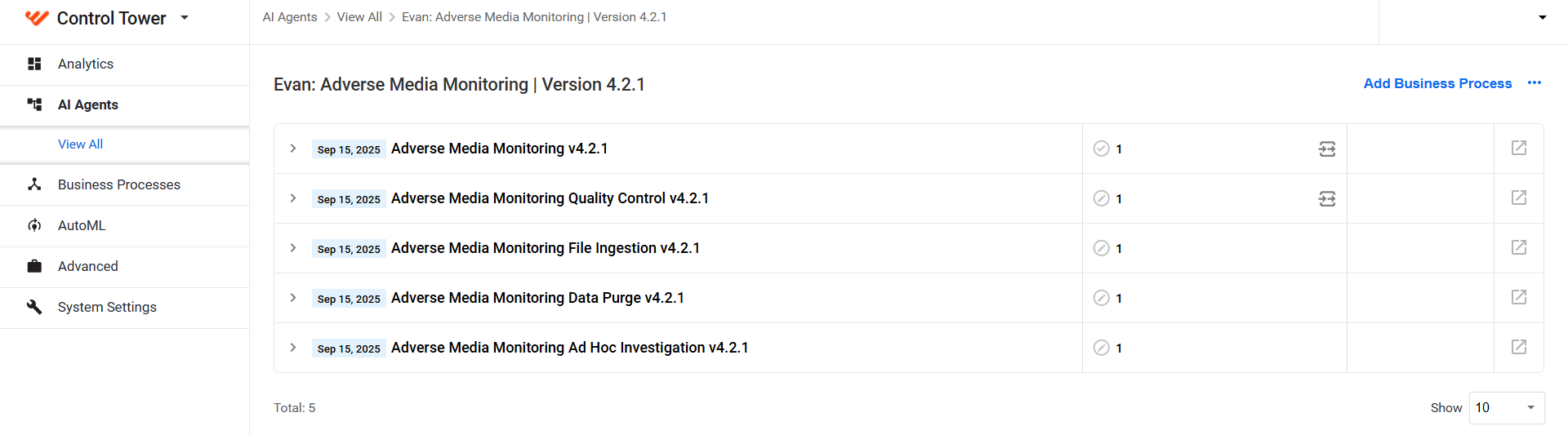
If your AI Agent contains the configuration.json file, the Show AI Agent button redirects you to the home AI Agents page.
After the successful installation, the AI Agent appears in the corresponding group on the AI Agents page.
From Solution Catalog
The Solution Catalog gives access to a collection of WorkFusion's AI Agents. To install an AI Agent from Solution Catalog, follow the instructions below, depending on the Work.AI version you are using.
- Up to v10.2.9
- v10.3
In the Control Tower main menu, go to Digital Workers and, on the right, click the Solution Catalog button.
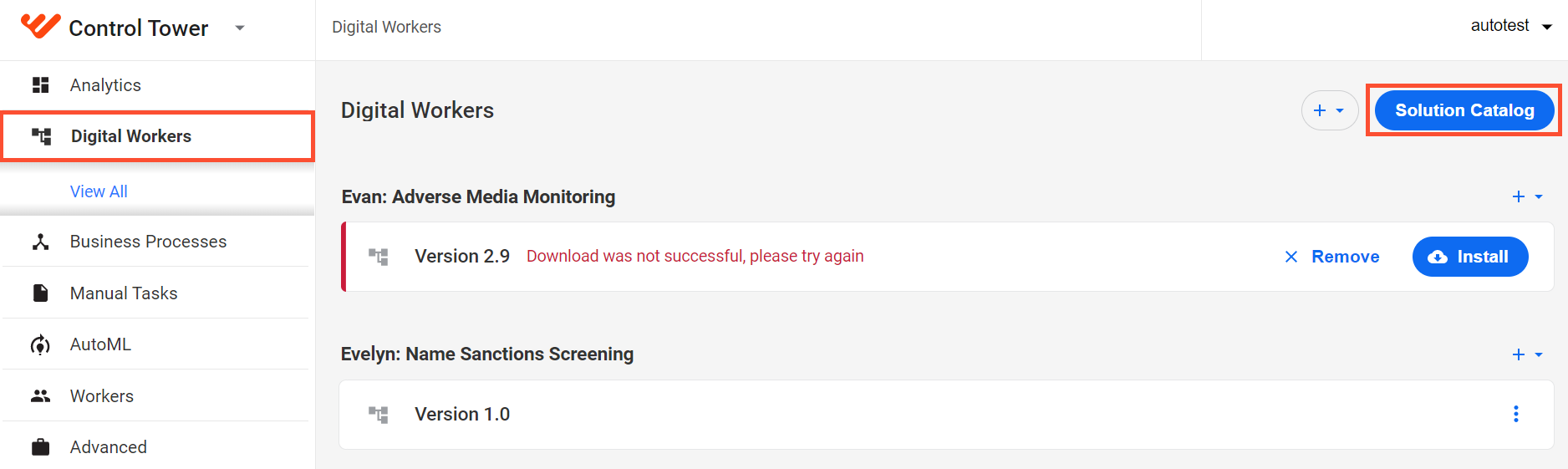
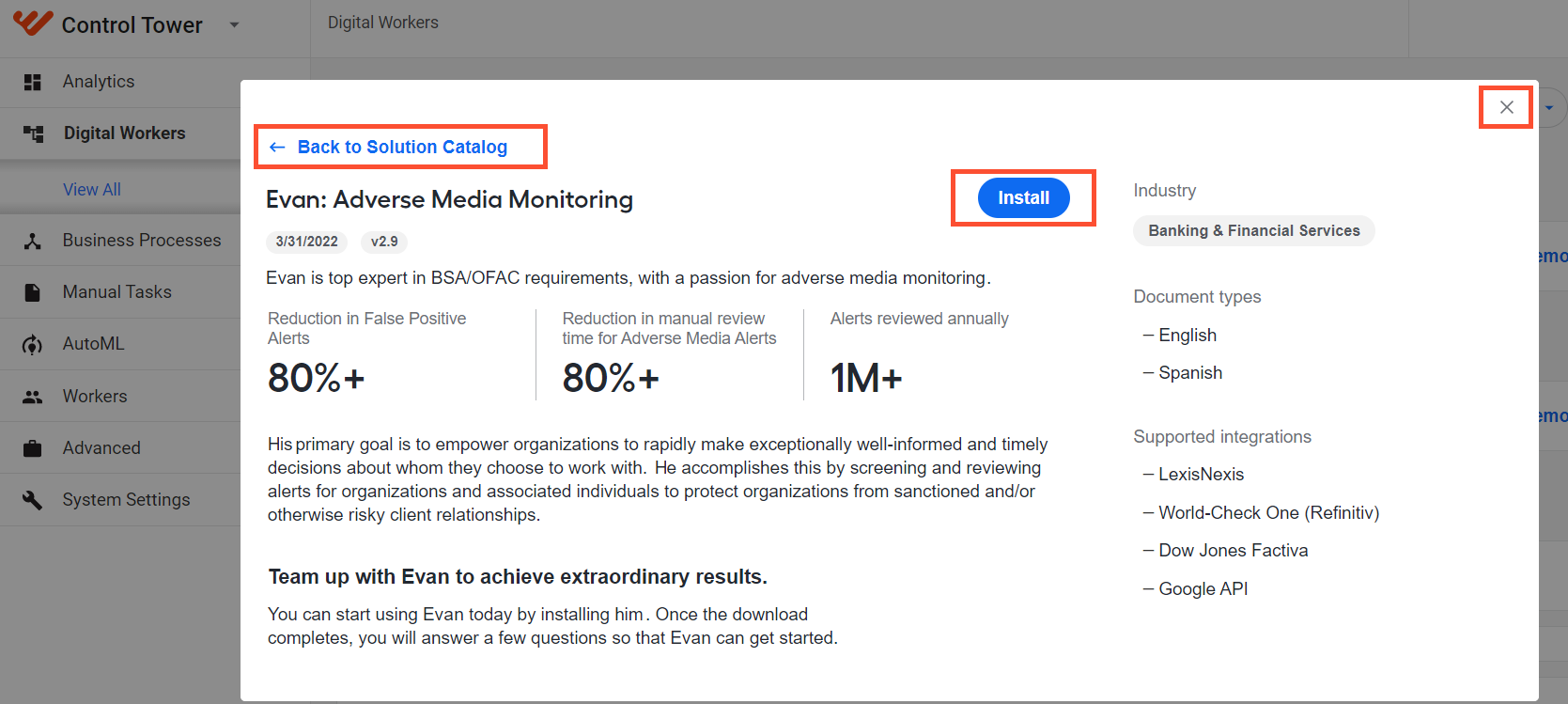
On the Digital Workers tab, find the AI Agent you want to install and click Details in it.
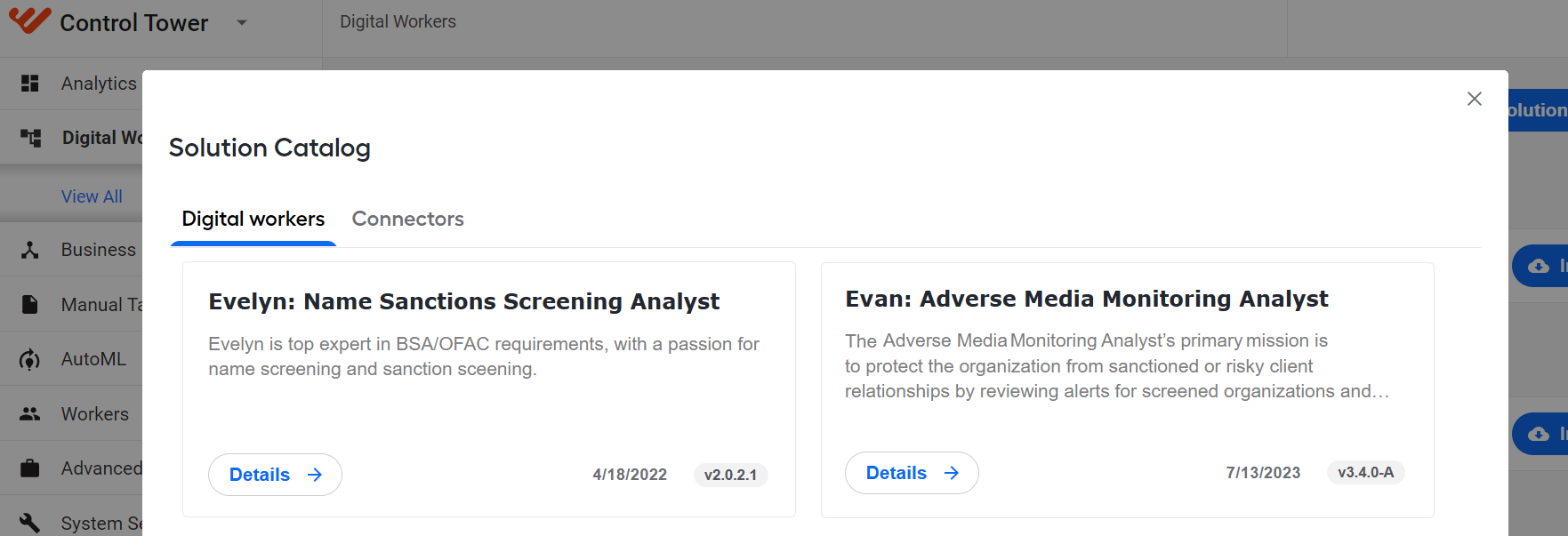
In the Digital Worker details window, click Install. You are redirected to the AI Agents list where you can see the installation progress.
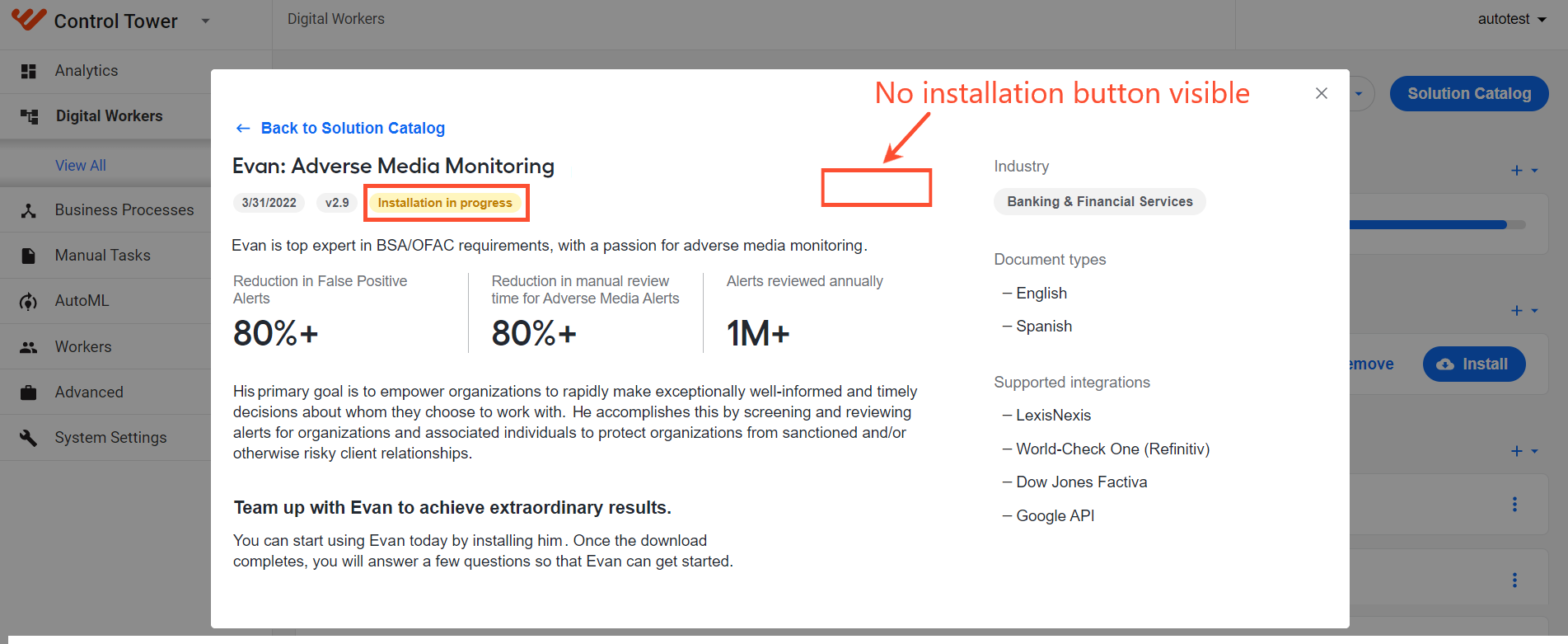
If you open the same Details dialog box, the Install button for the AI Agent becomes invisible and you see the Installation in progress status.
Once the installation process is completed successfully, the AI Agent becomes available in the appropriate group on the Digital Workers page.
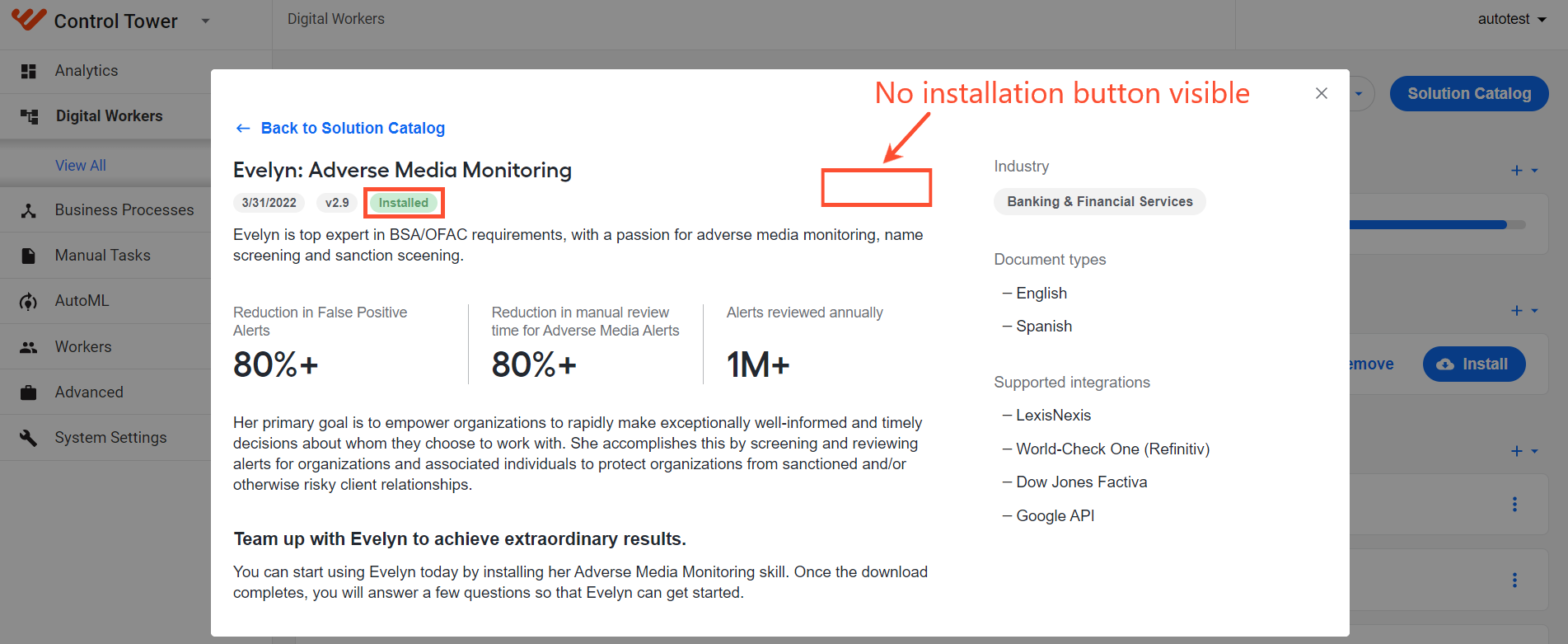
In the Details dialog box, its status changes to Installed, and the Install button is hidden.
If the installation was not successful, the AI Agent appears in the list but with a failure message:

To delete the AI Agent from the list, click the Remove button. To start another installation attempt, click the Install button.
When an AI Agent installation fails, try installing it once again. If the second try fails, contact the DevOps team to investigate the issue.
In the Control Tower main menu, go to AI Agents and, on the right, click the Solution Catalog button.
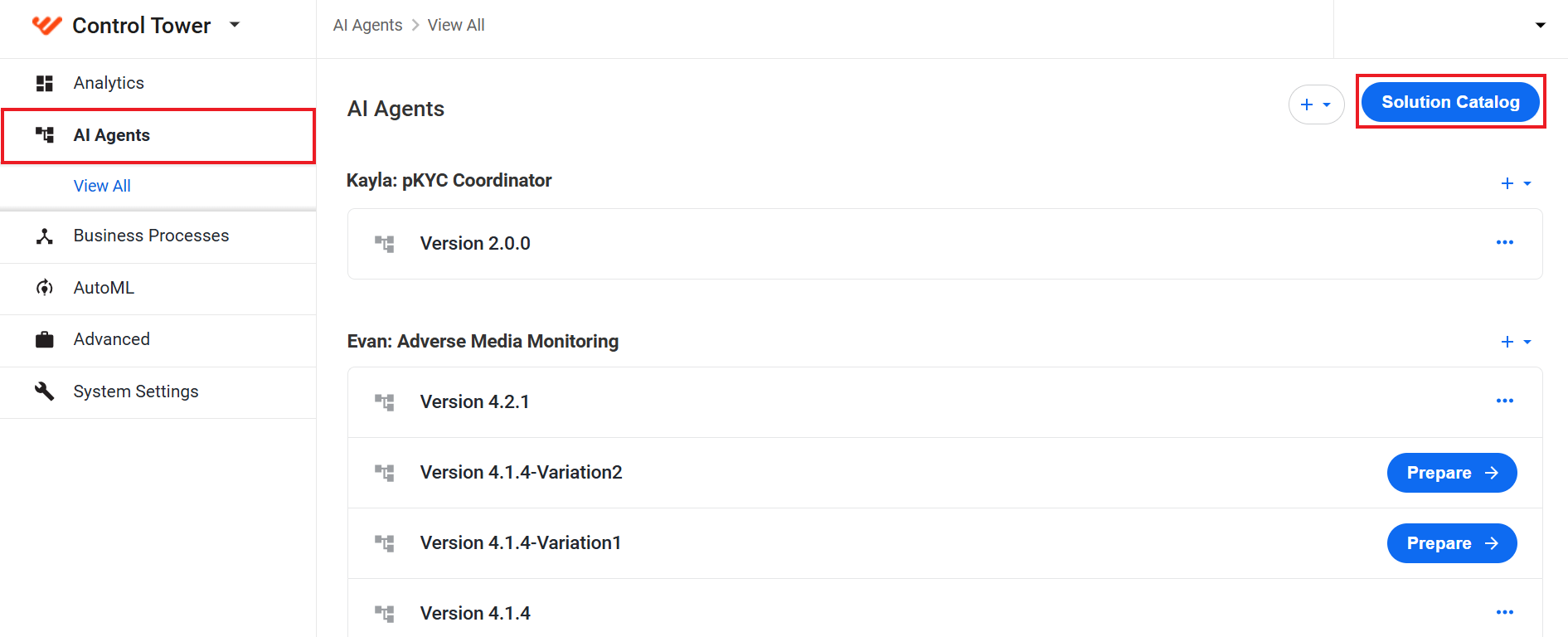
On the AI Agents tab, find the AI Agent you want to install and click Details.
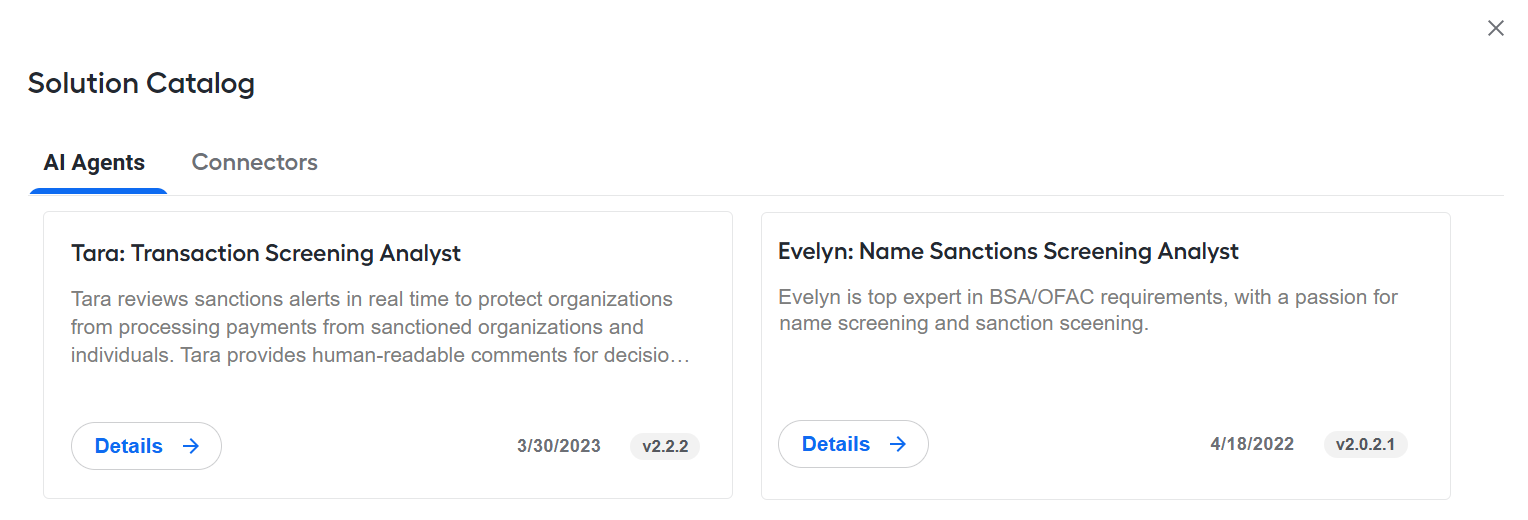
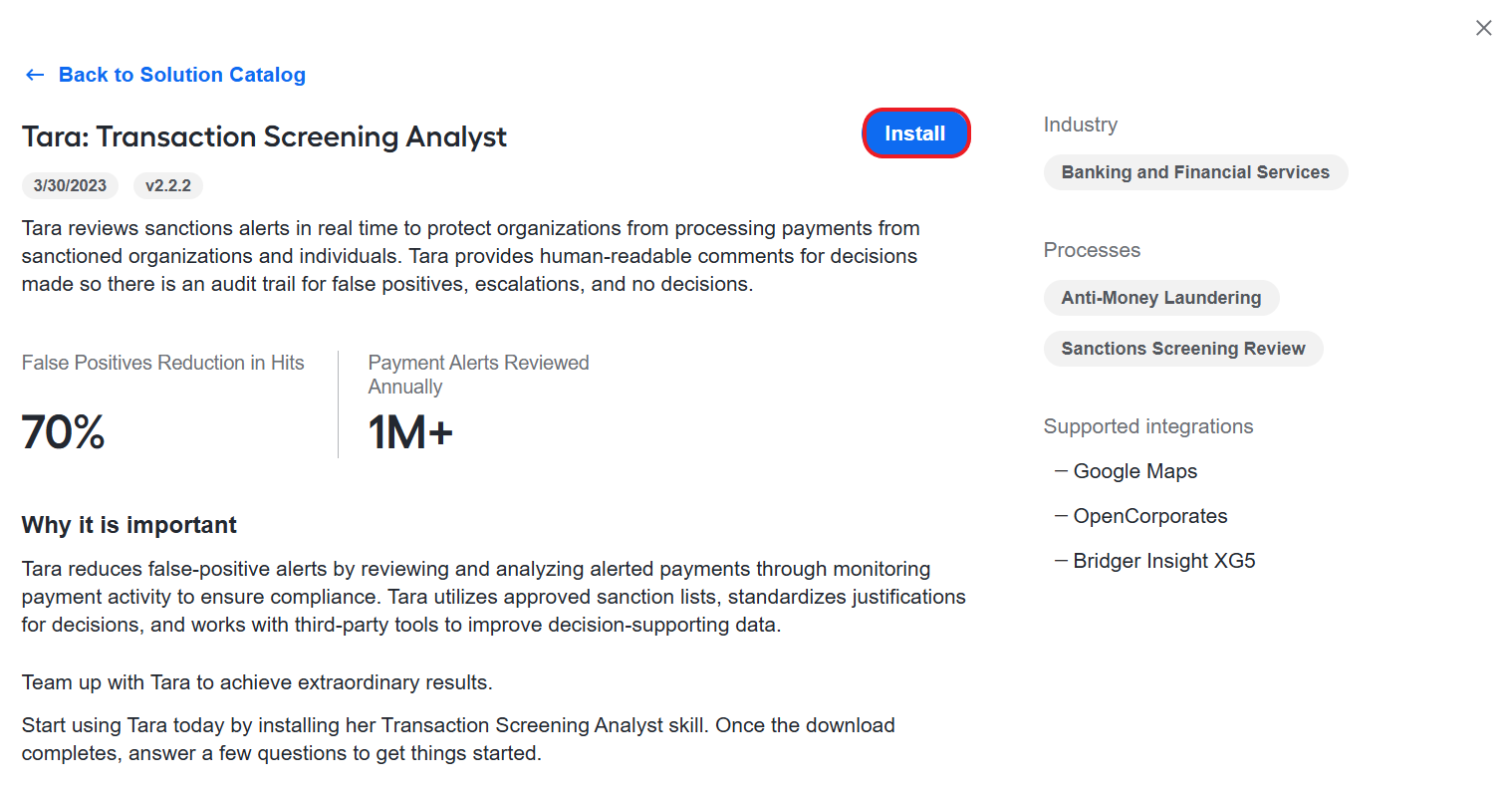
In the AI Agent details window, click Install. You are redirected to the AI Agents list where you can see the installation progress.
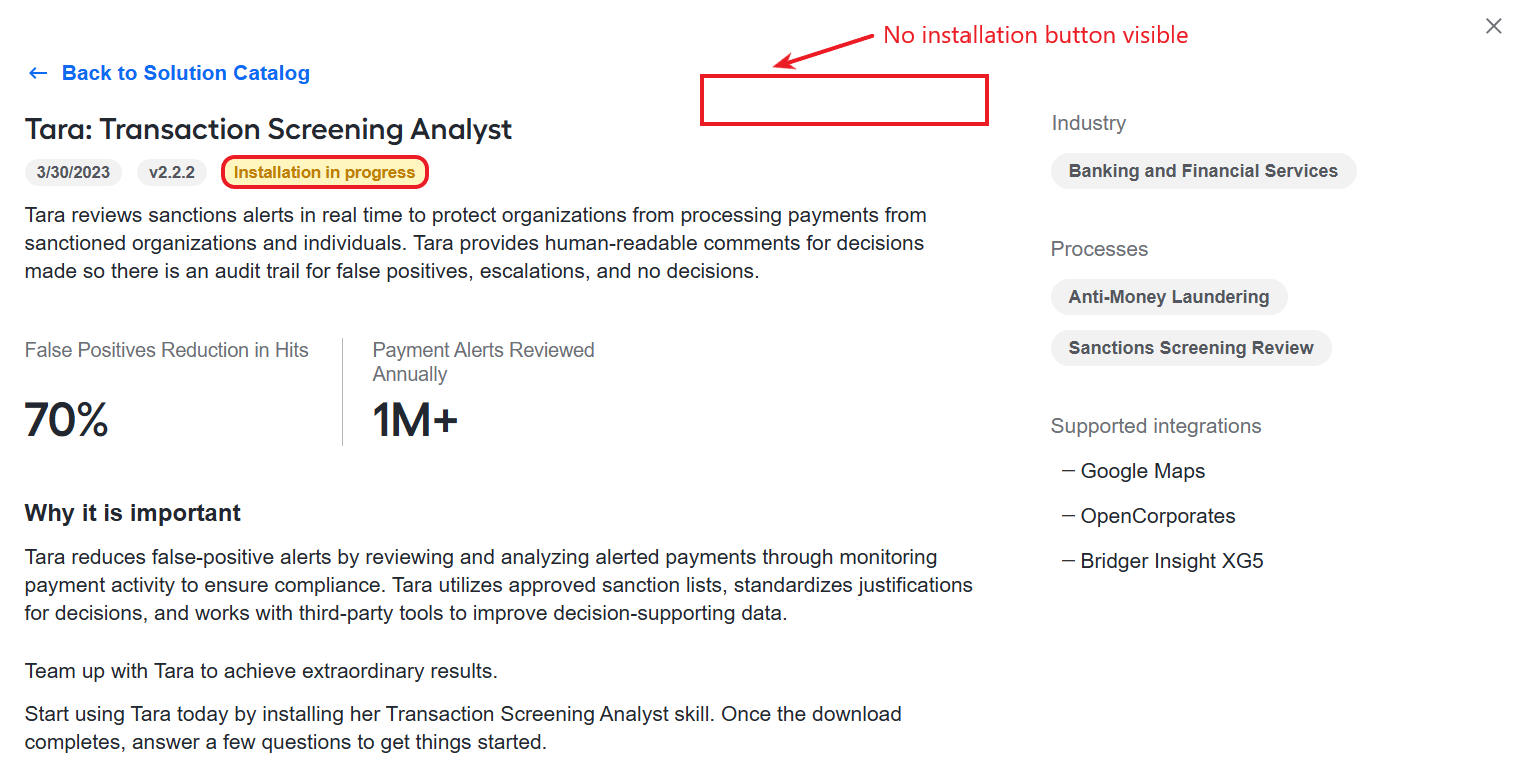
If you open the same Details dialog box, the Install button for the AI Agent becomes invisible and you see the Installation in progress status.
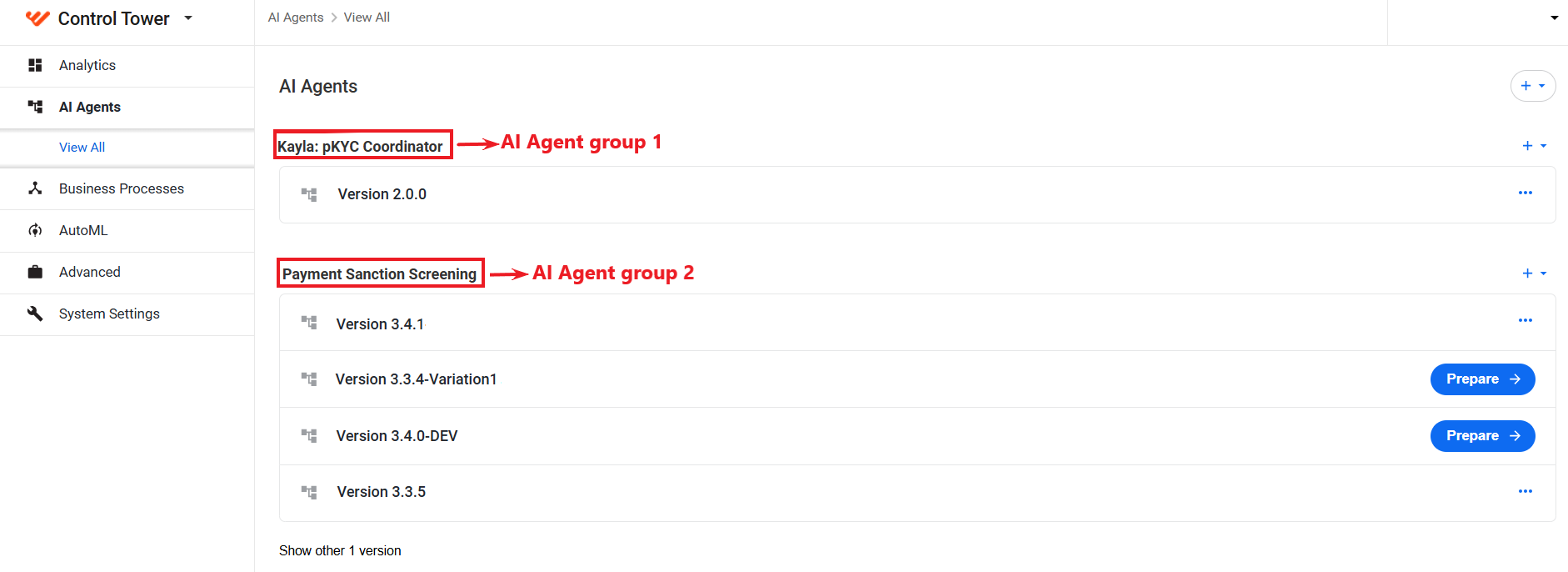
Once the installation process is completed successfully, the AI Agent becomes available in the appropriate group on the AI Agents page.
In the Details dialog box, its status changes to Installed, and the Install button is hidden.
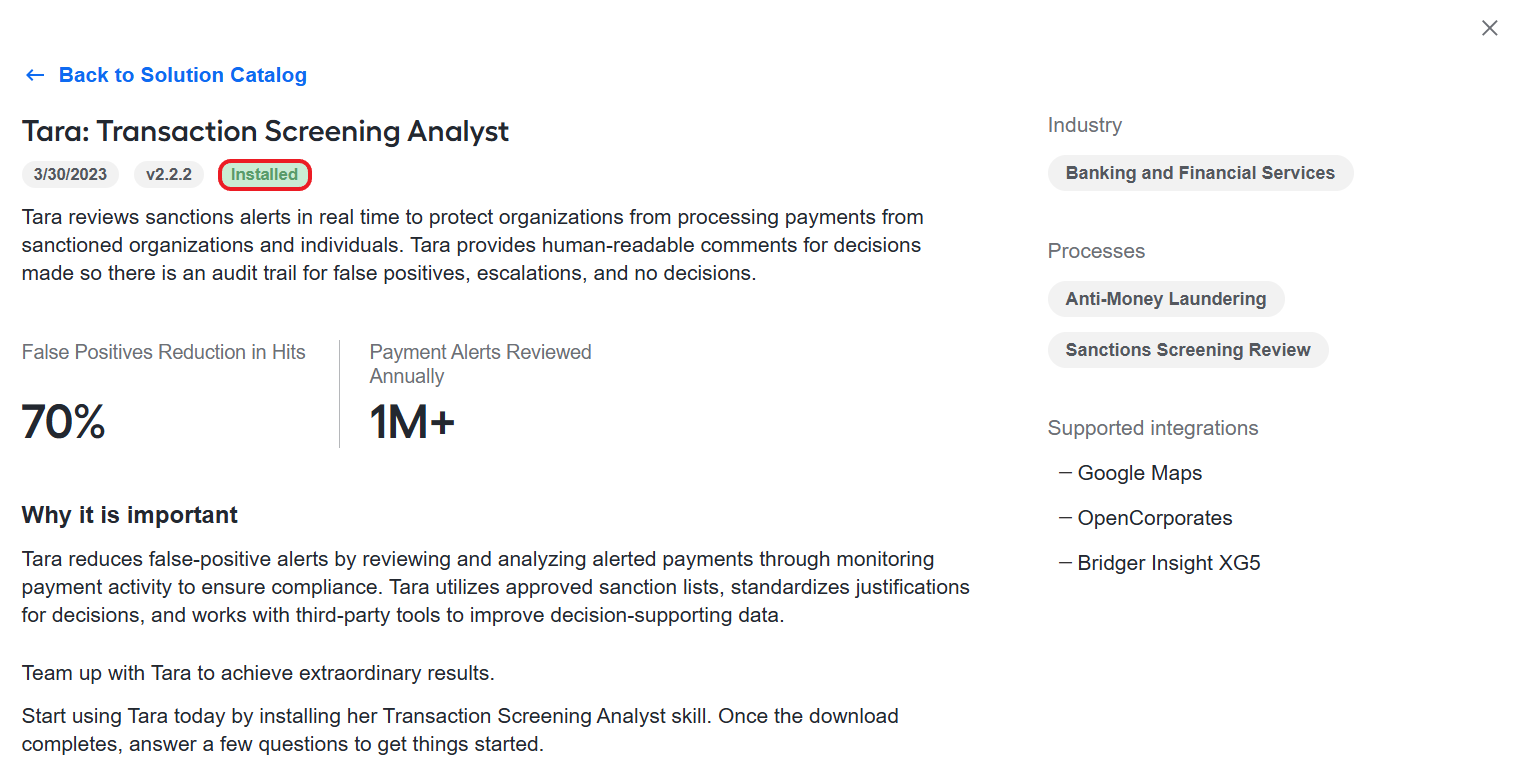
If the installation was not successful, the AI Agent appears in the list but with a failure message:
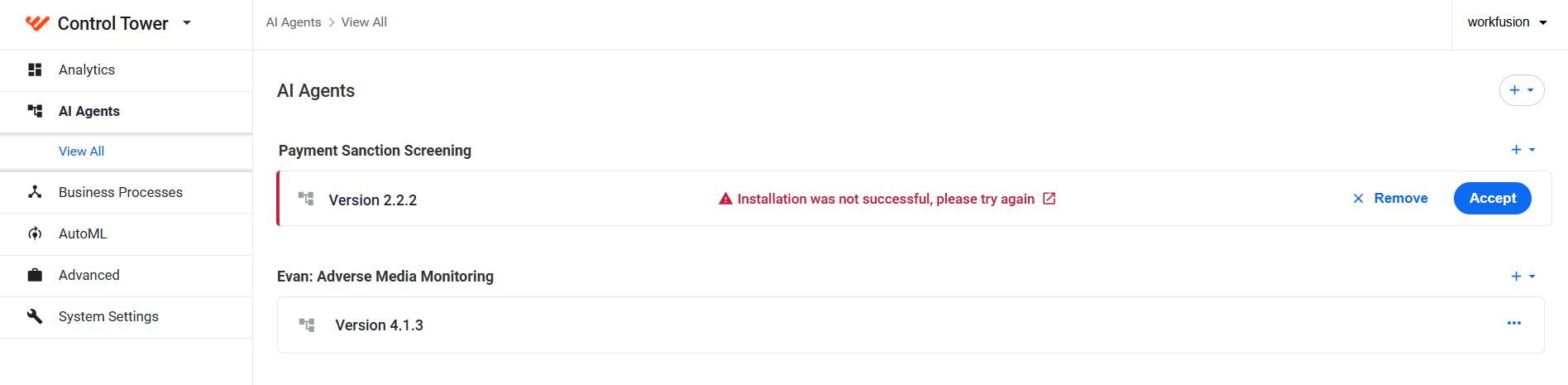
To delete the AI Agent from the list, click the Remove button. To start another installation attempt, click the Accept button.
When an AI Agent installation fails, try installing it once again. If the second try fails, contact the DevOps team to investigate the issue.
View Business Processes
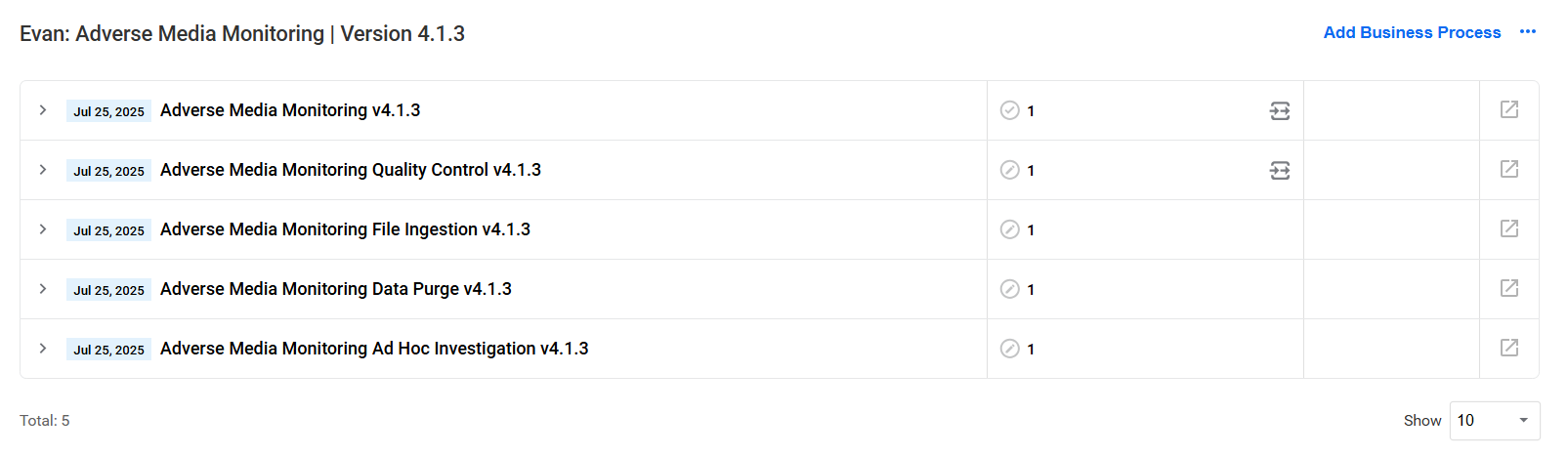
As you click an AI Agent version tab in the Digital Workers (AI Agents list), a page opens with a list of Business Processes related to the particular AI Agent version, where you can do the following:
- View the list of Business Process instances
- Delete a Business Process instance
- Open a Business Process definition
- Stop, start, and pause a Business Process
Configure AI Agents
Once the installation is completed, you can proceed to configure AI Agents. The configuration process is specific for each AI Agent. For instructions, refer to proper topics: