
RPA server
The RPA component is installed on one or several Windows-based servers, where multiple Bots are running. Each Bot requires a separate RDP session. The number of the required BotUnits per the RPA server depends on the disk size and daily load they must handle.
For example, if you decide to run five Bots per RPA machine, yon need the RDS license for six users: one for BotMaster and five for BotUnits.
RPA server requirements
RPA machines must have the installed business applications that are required to complete the operational task(s). The RPA component simulates standard business operations by interacting with the Graphical User Interface of these applications.
Microsoft RDS license must be purchased in advance from Microsoft to run more than one bot (for example, one Bot Master and one Bot Unit) on one server. For more details, see Activate RDS licensing for multiple bots.
In case of the Enterprise RPA Server installation (several bots on one server):
- Each RPA server must have at least two service accounts: a Bot Master and a Bot Unit Windows users. Create the users manually before the installation by using Powershell, cmd, or GUI.
- A Bot Master user must be a member of the Administrators, Remote Desktop Users, and Performance Monitor Users groups on all RPA servers.
- A Bot Unit user must be a member of the Remote Desktop Users and Performance Monitor Users groups on all RPA servers.
- A Bot Unit user(s) must have the write permissions for the installation directory so that services can create a log directory and start properly.
In case of the VDI RPA Server installation (one bot per one server):
- Each RPA server must have one account: a Bot Master Windows user. Create the user manually before the installation by using Powershell, cmd, or GUI.
- A Bot Master user must be a member of the Administrators, Remote Desktop Users, and Performance Monitor Users groups on all RPA servers.
If a Bot Unit or Bot Master user for any RPA server is taken from Active Directory, log in as this AD user to the RPA server before the installation, and check the folowing:
- A Bot Master user must be a member of the Administrators, Remote Desktop Users, and Performance Monitor Users groups on all RPA servers.
- A Bot Unit user must be a member of the Remote Desktop Users and Performance Monitor Users groups on all RPA servers.
- Check that your local PC policy or Active Directory policies allow you to use saved credentials to log Bot Unit user(s) on the RPA server. See below.
note
During the installation, the Secret Vault records for all Bot Unit and Bot Master users are created based on the rpa.yml file.
How to check policies
Check the Allow delegating saved credentials with NTLM-only server authentication setting on each RPA server, if it is not distributed via the Active Directory policy:
On the RPA server, run the Local Group Policy Editor.
Press Win + R, type gpedit.msc, and click OK. The Local Group Policy Editor appears.
In the Local Group Policy Editor console, go to the Local Computer Policy section > Computer Configuration > Administrative Templates > System > Credentials Delegation.
Find the policy named Allow delegating saved credentials with NTLM-only server authentication.
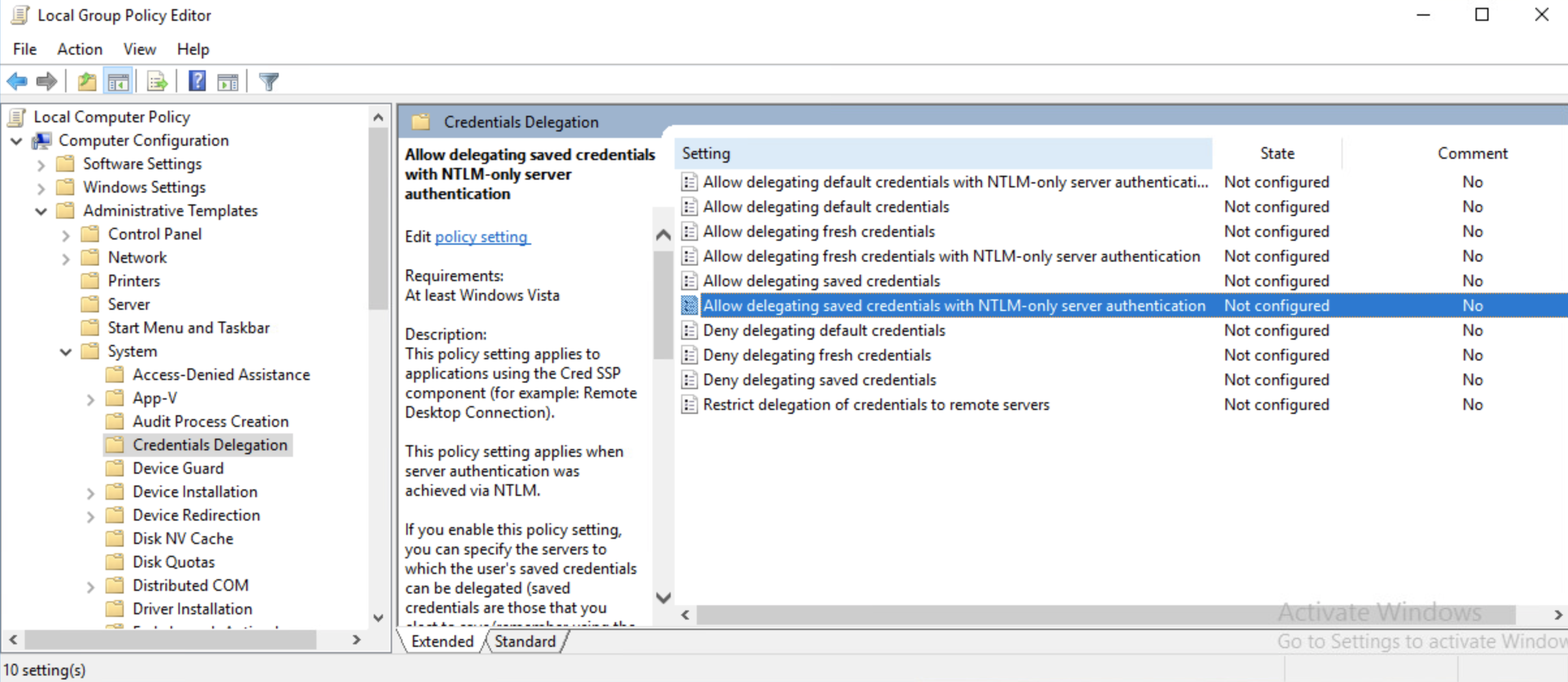
Make sure that this setting is enabled.
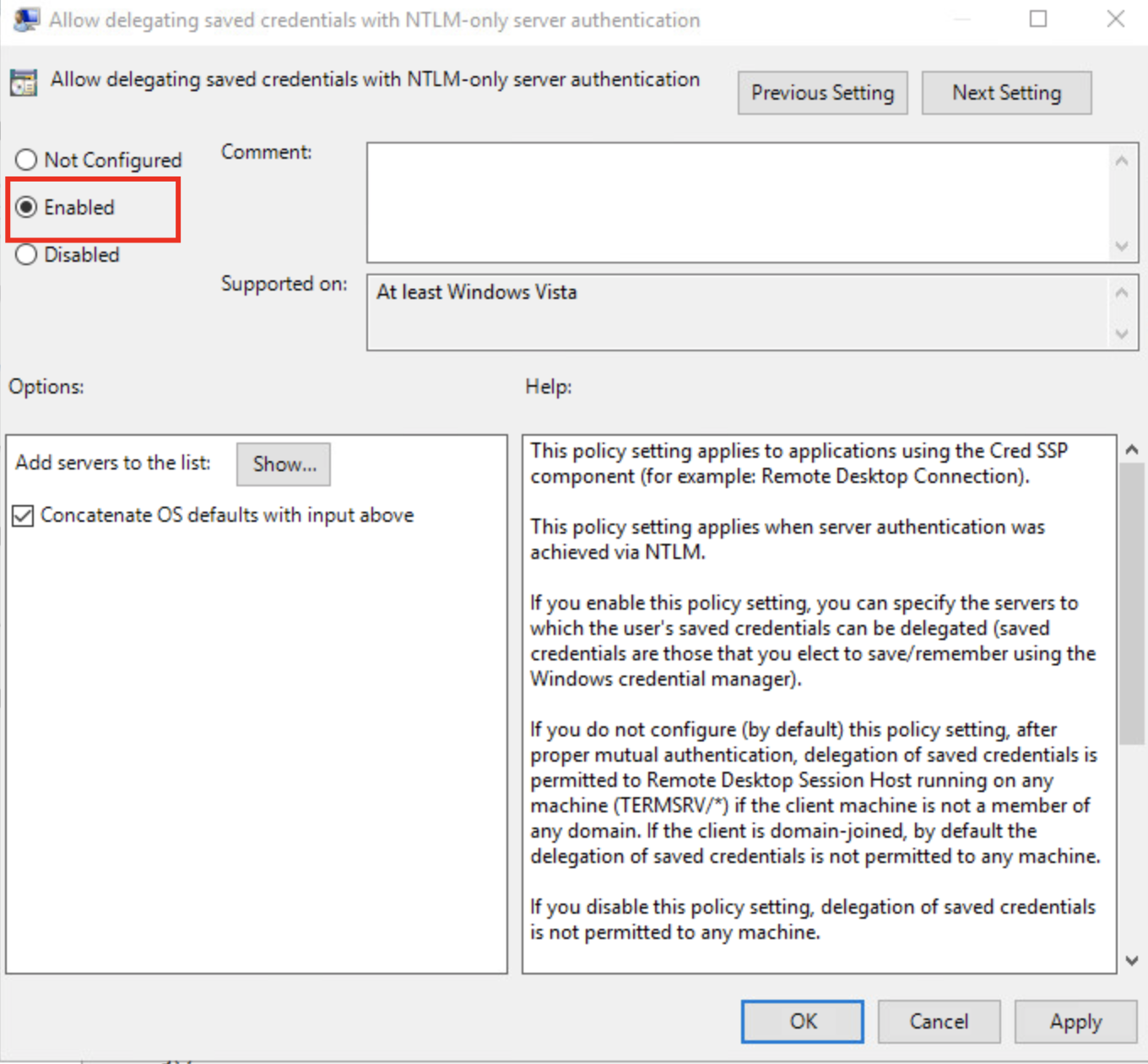
Make sure that the entry
TERMSRV/*is added to the list of allowed servers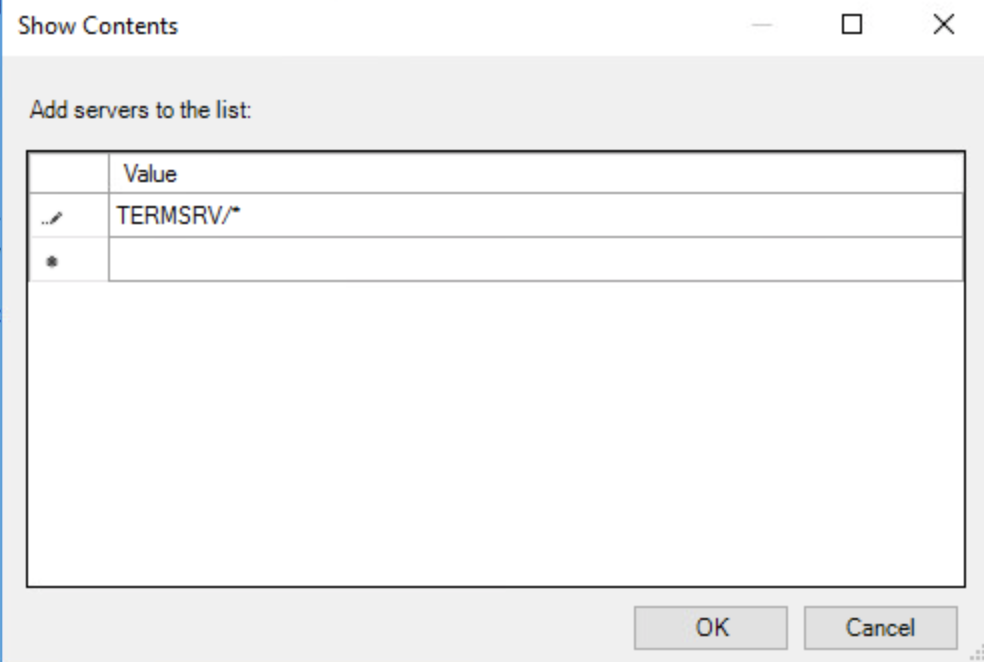
Check the settings on the Active Directory side, if they are distributed via this service.
How to create RPA users manually
Before installation, the Bot Master and Bot Unit users must be created on each RPA server that you plan to deploy and specify later in rpa.yml, (see the Specify RPA users).
To create an RPA user on the Windows server:
Connect to the remote Windows server via Remote Desktop, or any other software, as a user with the Administrator's privileges.
Run PowerShell as Administrator.
In PowerShell, run the following commands to create a Bot Master user and add it to the groups:
net user BotMaster <bot-master-pass> /add
net localgroup "Administrators" BotMaster /add
net localgroup "Remote Desktop Users" BotMaster /add
net localgroup "Performance Monitor Users" BotMaster /add
Here,
<bot-master-pass>is the password for the Bot Master user.In PowerShell, run the following commands to create Bot Unit users and add them to the Remote Desktop Users and Performance Monitor Users groups:
net user BotUnit1 <bot-unit-pass> /add
net localgroup "Remote Desktop Users" BotUnit1 /add
net localgroup "Performance Monitor Users" BotUnit1 /add
Here,
<bot-unit-pass>is the password for the Windows Bot Unit user.Log in under each user to activate the accounts.
Checklist
To facilitate preparation for the IA Cloud setup, after you prepare the RPA servers and add the required users to it, complete the checklist, and provide it to the WorkFusion deployment engineers.
Click the link to download the archive with all checklists.