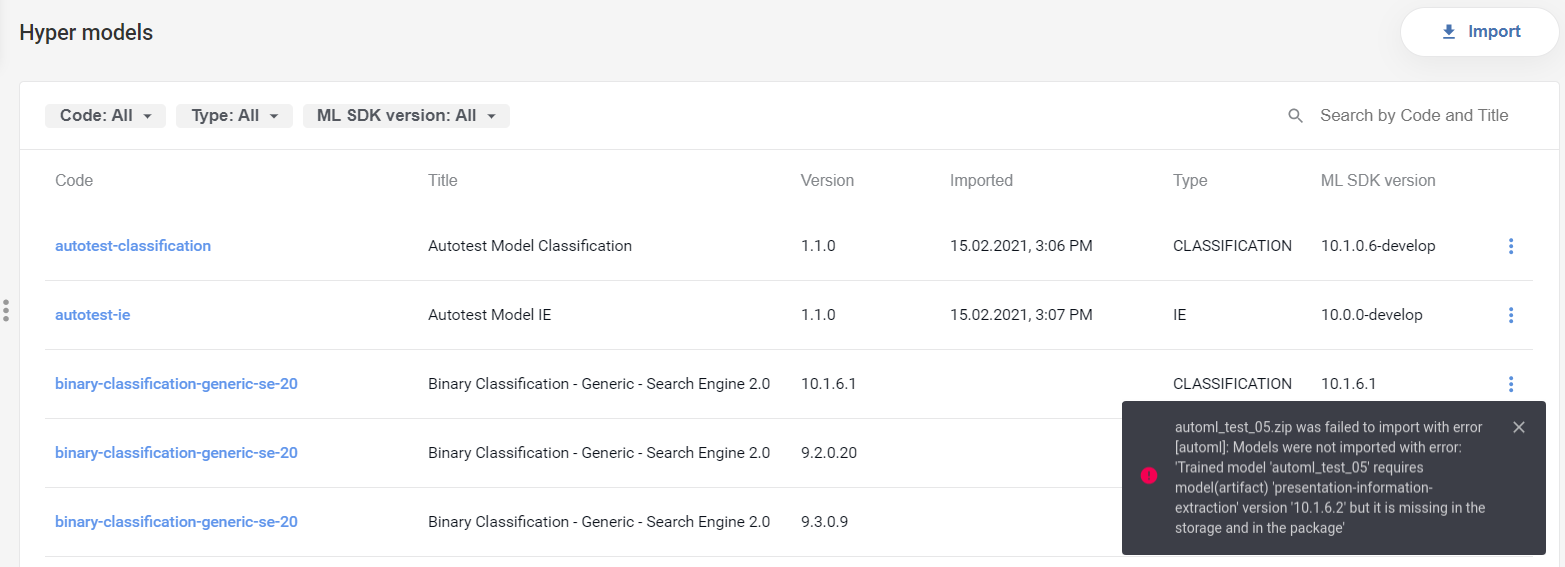
Manage hyper models
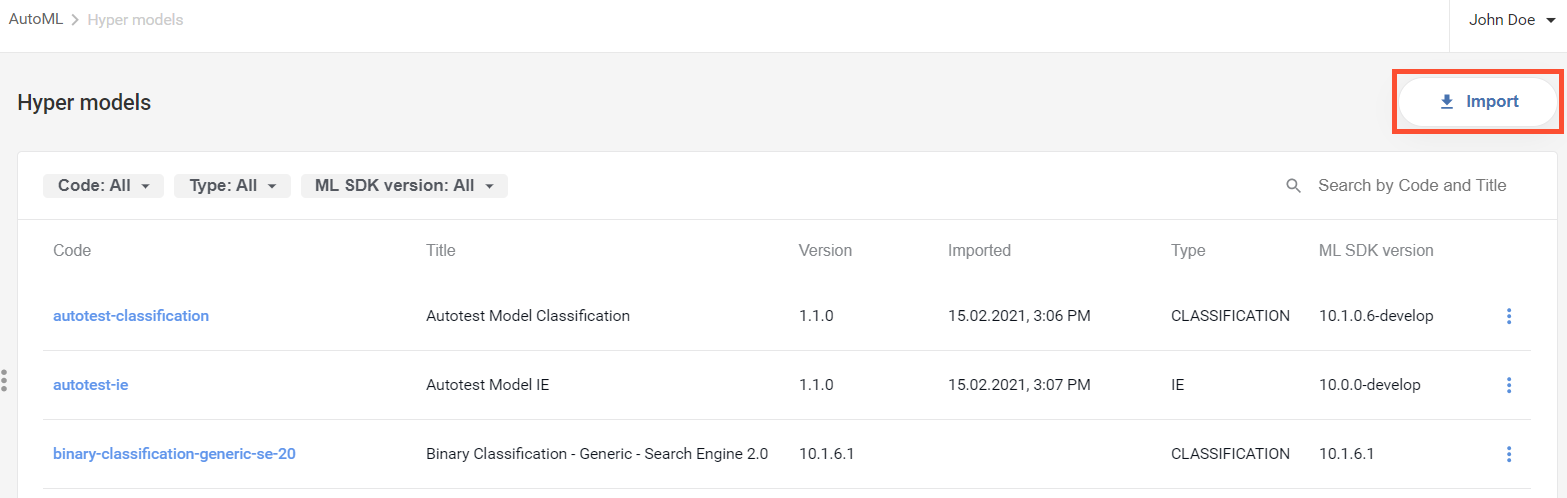
To access a list of available hyper models (artifacts), select AutoML > Hyper models. Control Tower updates the list every time a new hyper model is deployed to your environment.
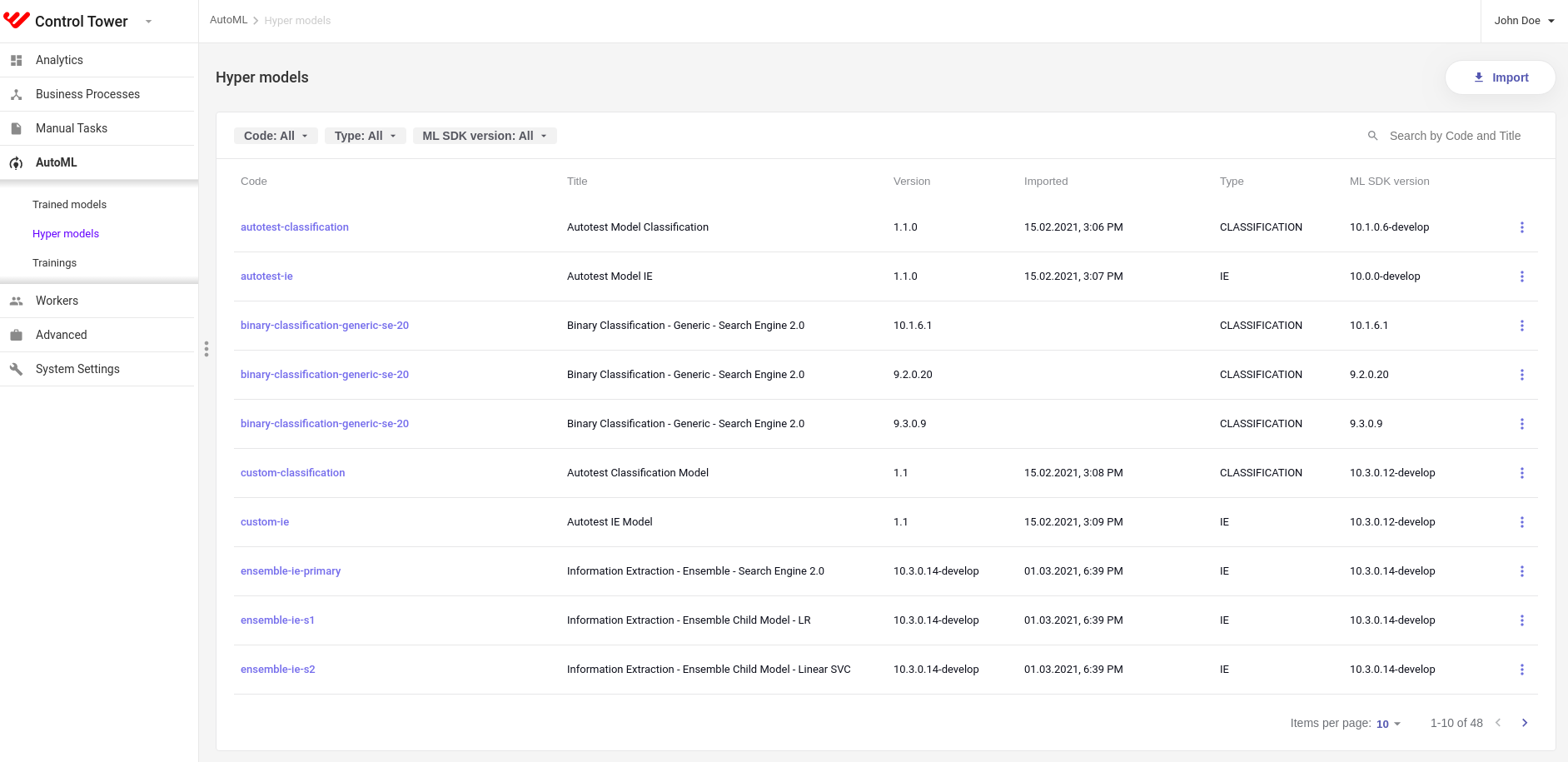
On the page, users can view the following information about existing hyper models:
| Column | Description |
|---|---|
| Code | The hyper model identifier specified in its source code description. |
| Title | The hyper model title specified in its source code description. |
| Version | The hyper model version specified in its source code description. |
| Imported | Data and time (dd.mm.yyyy, hh:mm) when the hyper model was added to your environment. New models can appear in an environment in two ways: via explicit import operations or after training. |
| Type | The problem type the hyper model can solve (for instance, information extraction). |
| ML SDK version | The ML SDK version used to build the model. |
View parameters
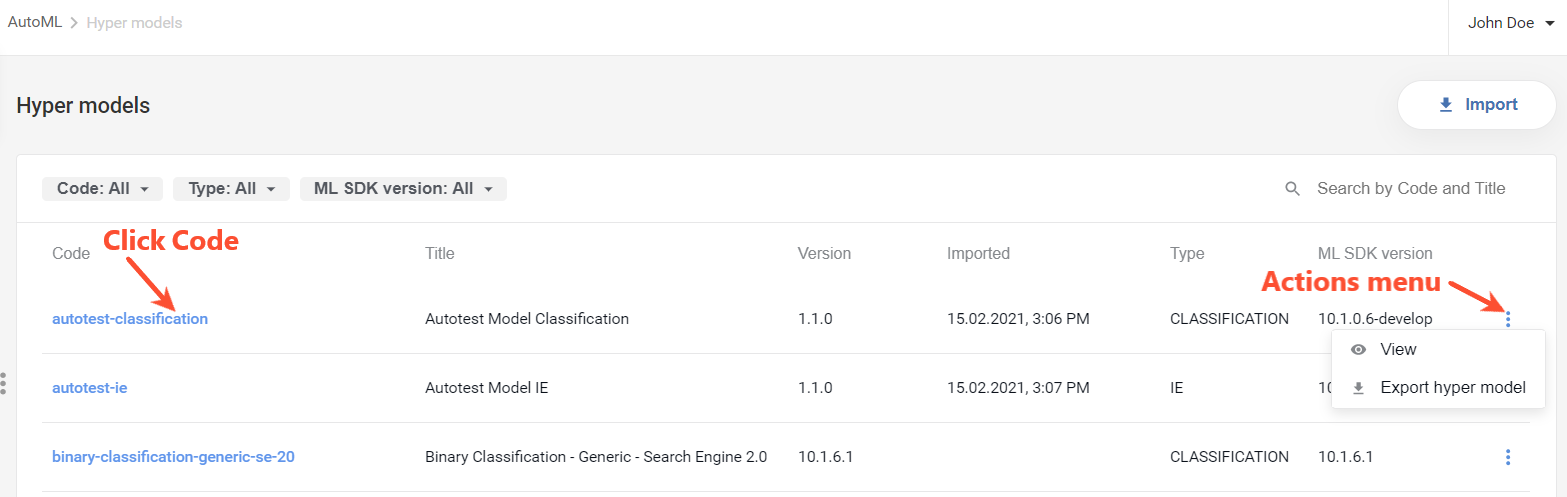
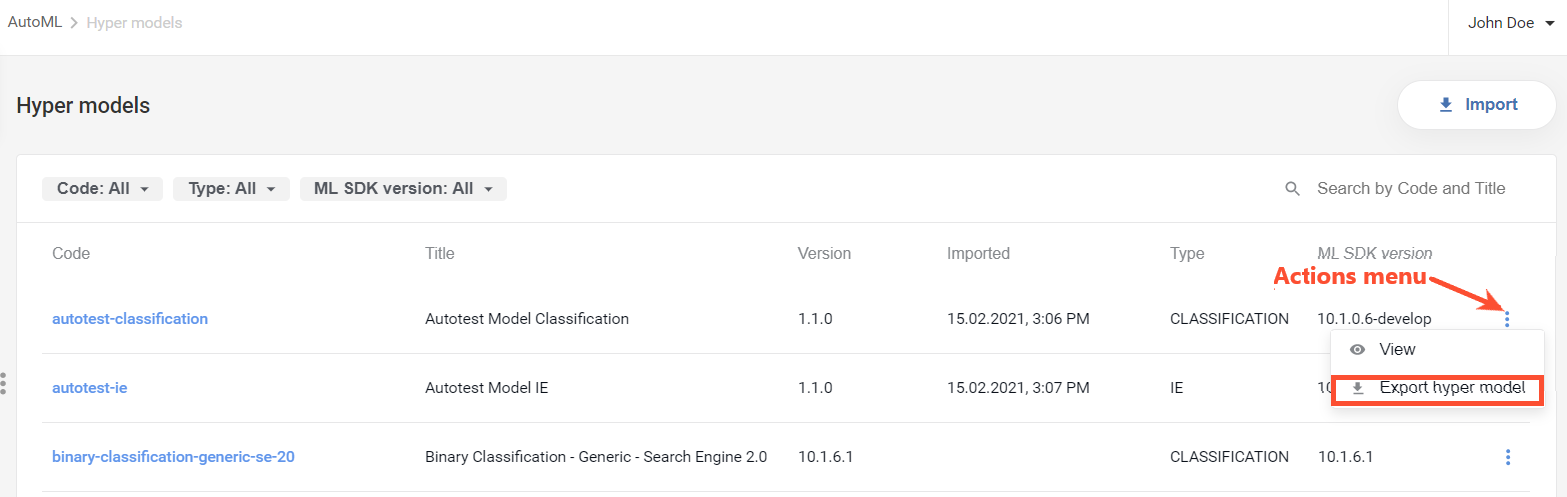
To view the parameters of a particular hyper model, either click its Code in the list or open Actions menu and select View.
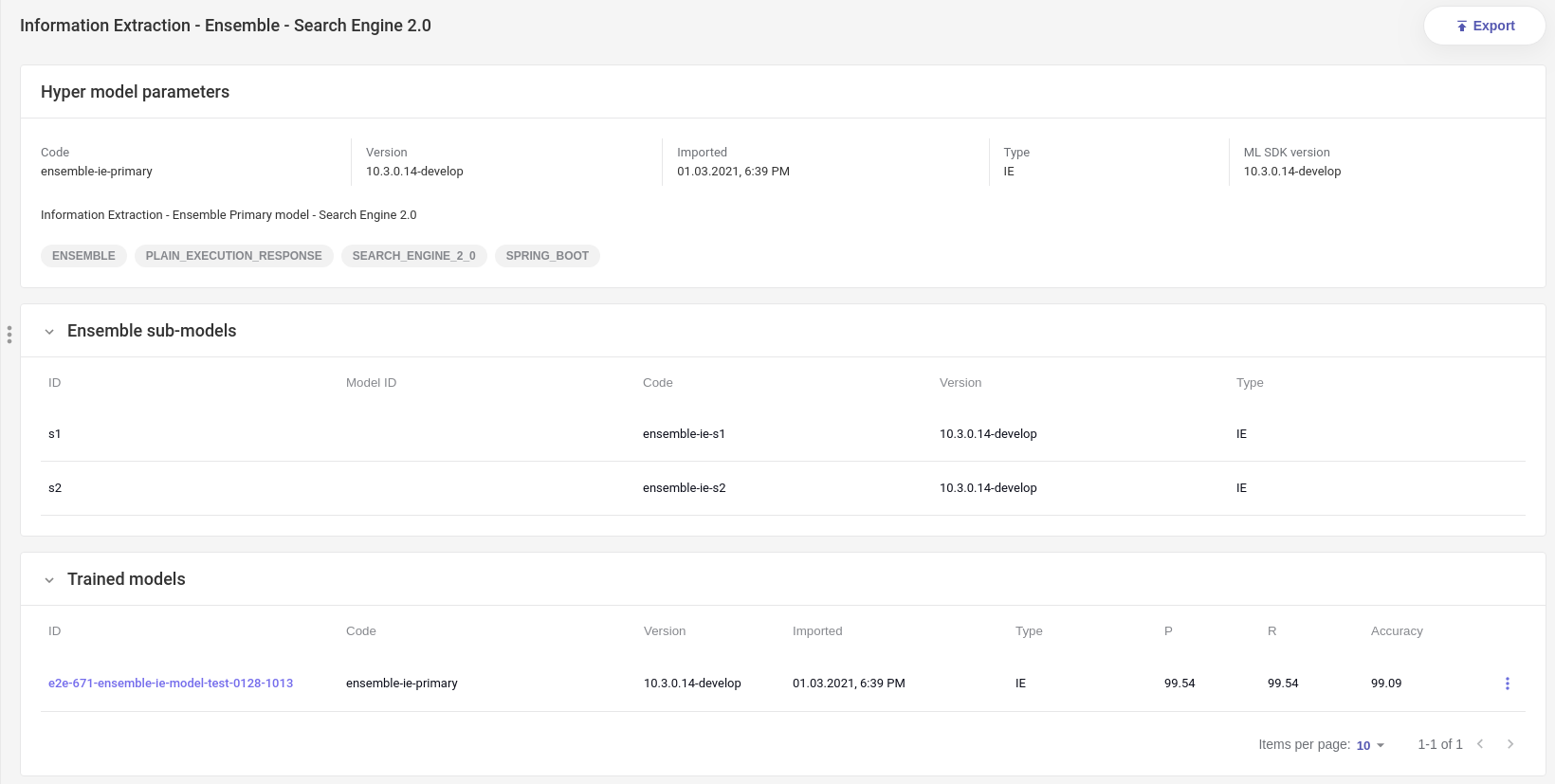
The parameter page contains information about a particular hyper model, as well as associated sub-models and trained models.
Filter and search
You can filter the list of displayed hyper models based on any or all the three criteria:
- Hyper model code from the source code description
- Hyper model type (for instance, information extraction)
- ML SDK version used to build the hyper model
To apply the criteria, click one or more filter buttons at the top of the hyper model list and select required items or find them using the search box. Filters turn blue as they become active, and the items in the hyper model list change accordingly.
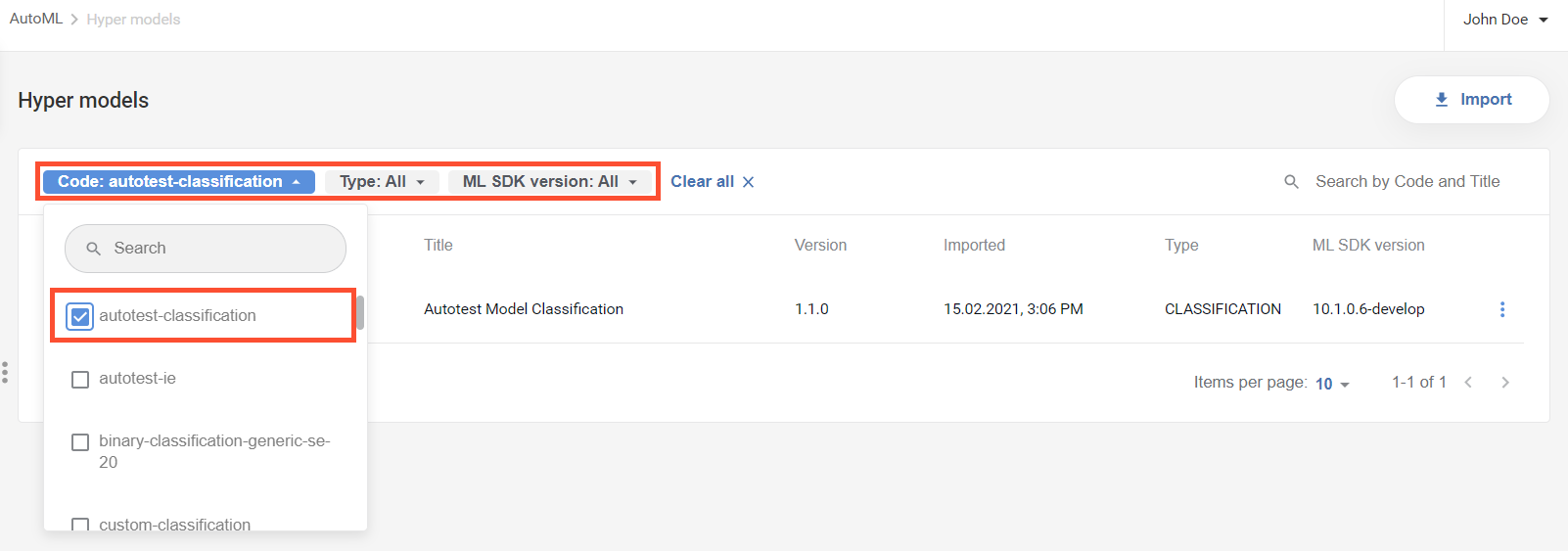
To turn off an active filter, click it again. To reset them all, click Clear all.
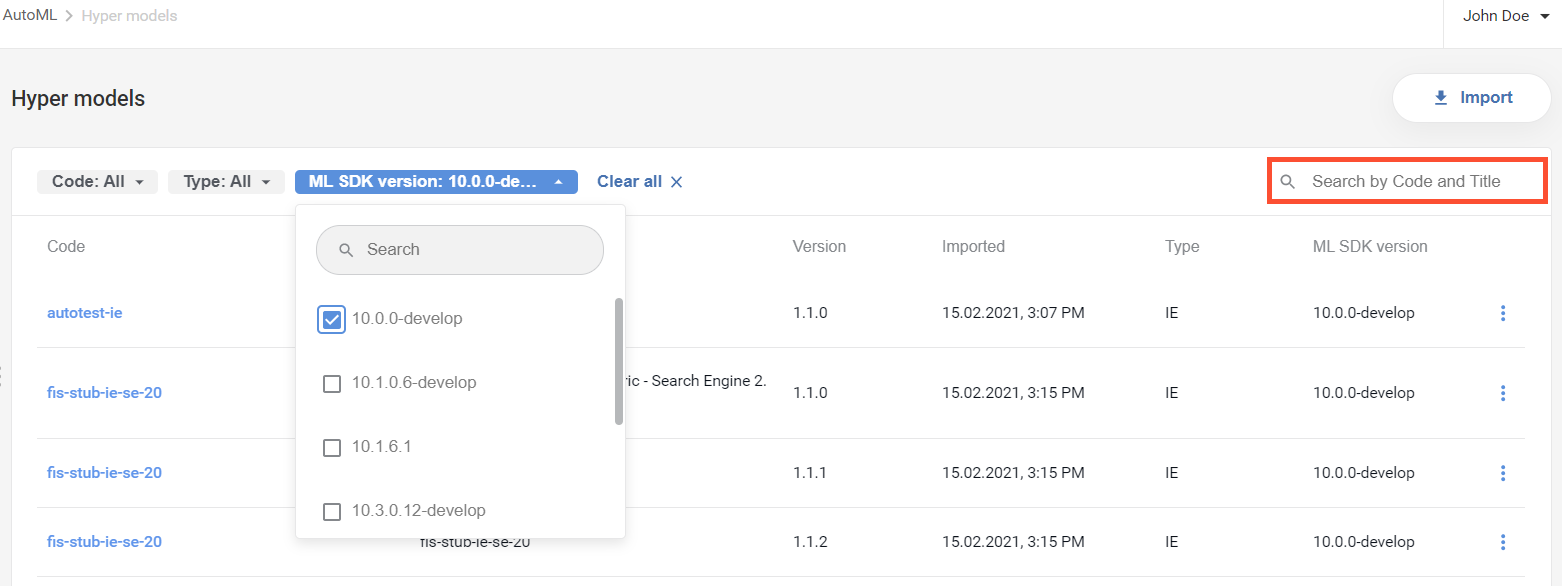
You can also search the list for particular hyper models using the Search by Code and Title box in the top right corner.
Export
You can export a hyper model as a bundle (zip archive) in one of the two ways:
Choose a hyper model to export. Open its Actions menu and select Export hyper model.
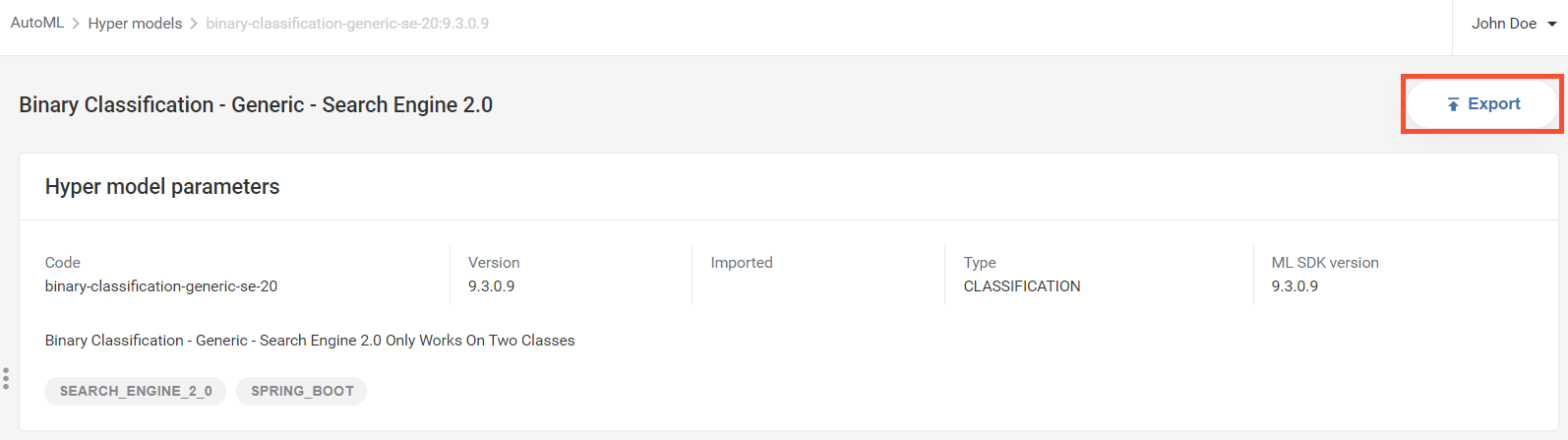
Click the hyper model's Code. On the parameter page, click Export.
The resulting zip archive contains the selected hyper model (artifact).
Import
To import a hyper model as a bundle (zip archive) to your environment, click the Import button in the top right corner of the Hyper models page.
important
The imported Asset Bundle can include only hyper models (artifacts) and trained models. When the bundle contains any other assets, the import fails.
The import status is visible above the hyper model and trained model lists. The following statuses are possible:
Uploading: the bundle is being uploaded to Control Tower. At the stage, users can stop the procedure by clicking the Stop (cross-shaped) button.

Importing: artifacts are being uploaded to your environment. At the stage, users can no longer stop the procedure.

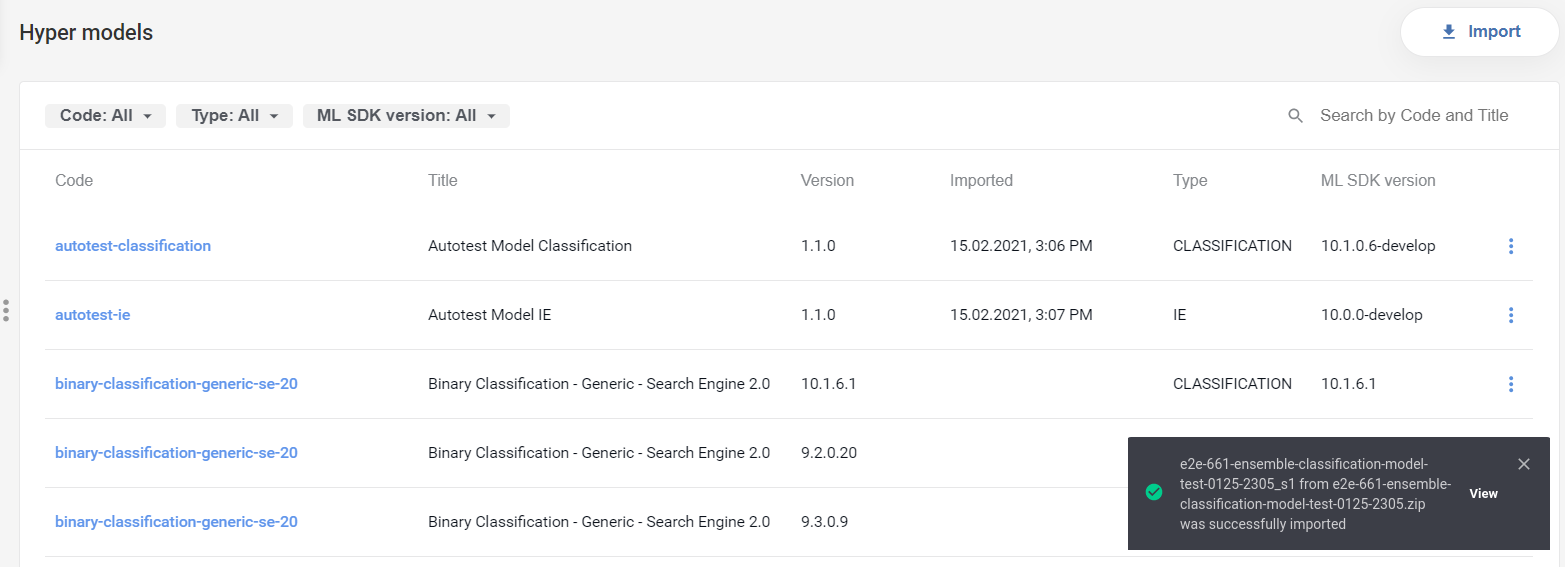
Success: the status appears after the assets from the bundle are moved to the target environment. It disappears automatically after about 15 seconds, or you can click the close button.
Failed: the status appears for each error. Users need to close the messages manually. Those assets that were imported before the error (if any) appear in the trained model and hyper model lists accordingly.