
Package module structure
What is Assembly?
ODF Archetypes use the standard Maven Assembly plugin for packaging all required resources into the WorkFusion Bundle.
The Assembly Plugin for Maven enables developers to combine project output into a single distributable archive containing dependencies, modules, site documentation, and other files.
Your project can easily build distribution "assemblies" using one of the prefabricated assembly descriptors. The descriptors handle many common operations, such as packaging a project's artifact along with generated documentation into a single zip archive. Alternatively, your project can provide its own descriptor and assume a much higher level of control over how dependencies, modules, file-sets, and individual files are packaged in the assembly.
An "assembly" is a group of files, directories, and dependencies assembled into an archive format and distributed. For example, assume that a Maven project defines a single zip artifact that contains both a console application and a Swing application. A project like this can define two "assemblies" that bundle the application with different supporting scripts and dependency sets. One assembly is the assembly for the console application, while the other one can be a Swing application bundled with a slightly different set of dependencies.
The Assembly Plugin provides a descriptor format that defines an arbitrary assembly of files and directories from a project. For example, if your Maven project contains the src/main/bin directory, you can instruct the Assembly Plugin to copy this directory contents to the assembly bin directory and to change the permissions of the files in the bin directory to the UNIX mode 755. The parameters to configure this behavior are supplied to the Assembly Plugin using the assembly descriptor.
Project structure
Full Archetype generates a Maven project that contains six Maven modules:
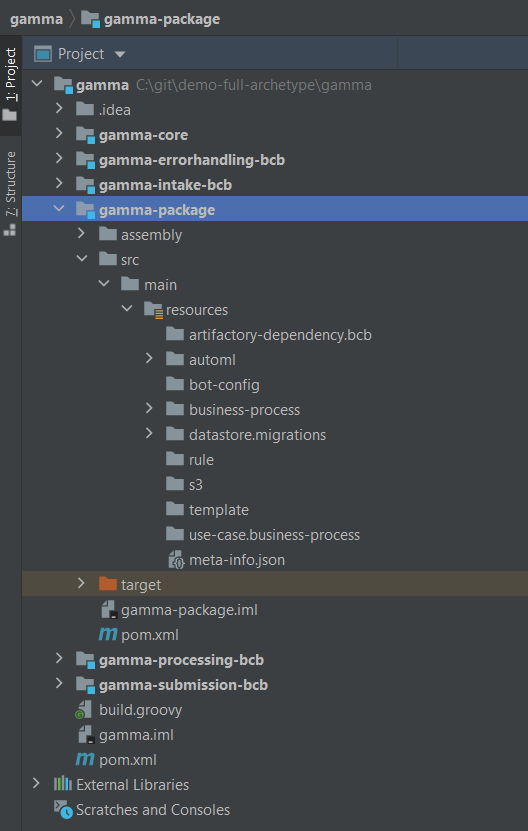
[UC_CODE]-corecontains ODF 2 Use Case data model and basic settings.[UC_CODE]-errorhandling-bcb,[UC_CODE]-intake-bcb,[UC_CODE]-processing-bcb,[UC_CODE]-submission-bcbare of the BCB type and contain source code of four standard Business Processes according to the ODF 2 advanced Use Case architecture.[UC_CODE]-packagedefines the Bundle structure and uses the Maven Assembly plugin to actually build it.
Package module
Inside the Package module, there are initially two folders: assembly and src. After each project build, the target folder is generated and contains a resulting Bundle artifact, compiled classes, settings, and resources.
In assembly, there is a package.xml file, which is a descriptor for dynamic resource copying. This file has the following structure:
<?xml version="1.0" encoding="UTF-8"?>
<assembly xmlns:xsi="http://www.w3.org/2001/XMLSchema-instance" xmlns="http://maven.apache.org/ASSEMBLY/2.0.0"
          xsi:schemaLocation="http://maven.apache.org/ASSEMBLY/2.0.0 http://maven.apache.org/xsd/assembly-2.0.0.xsd">
    <id>wfar</id>

    <includeBaseDirectory>false</includeBaseDirectory>

    <formats>
        <format>zip</format>
    </formats>

    <fileSets>
        <fileSet>
            <directory>src/main/resources</directory>
            <outputDirectory/>
        </fileSet>
    </fileSets>

    <dependencySets>
        <!-- Intake BCB -->
        <dependencySet>
            <outputDirectory>artifactory-dependency/bcb/com/mybank/gamma-intake-bcb/${project.version}</outputDirectory>
            <includes>
                <include>com.mybank:gamma-intake-bcb:jar:${project.version}</include>
            </includes>
            <useTransitiveDependencies>false</useTransitiveDependencies>
            <useStrictFiltering>true</useStrictFiltering>
            <useProjectArtifact>false</useProjectArtifact>
        </dependencySet>

        <!-- Processing BCB -->
        <dependencySet>
            <outputDirectory>artifactory-dependency/bcb/com/mybank/gamma-processing-bcb/${project.version}</outputDirectory>
            <includes>
                <include>com.mybank:gamma-processing-bcb:jar:${project.version}</include>
            </includes>
            <useTransitiveDependencies>false</useTransitiveDependencies>
            <useStrictFiltering>true</useStrictFiltering>
            <useProjectArtifact>false</useProjectArtifact>
        </dependencySet>

        <!-- Submission BCB -->
        <dependencySet>
            <outputDirectory>artifactory-dependency/bcb/com/mybank/gamma-submission-bcb/${project.version}</outputDirectory>
            <includes>
                <include>com.mybank:gamma-submission-bcb:jar:${project.version}</include>
            </includes>
            <useTransitiveDependencies>false</useTransitiveDependencies>
            <useStrictFiltering>true</useStrictFiltering>
            <useProjectArtifact>false</useProjectArtifact>
        </dependencySet>

        <!-- Error handling BCB -->
        <dependencySet>
            <outputDirectory>artifactory-dependency/bcb/com/mybank/gamma-errorhandling-bcb/${project.version}</outputDirectory>
            <includes>
                <include>com.mybank:gamma-errorhandling-bcb:jar:${project.version}</include>
            </includes>
            <useTransitiveDependencies>false</useTransitiveDependencies>
            <useStrictFiltering>true</useStrictFiltering>
            <useProjectArtifact>false</useProjectArtifact>
        </dependencySet>
    </dependencySets>
</assembly>
note
Mind the ${project.version} variable used in the package descriptor. The project version is defined during the project initiation stage and stored in [UC_CODE]-core/pom.xml. Though it can be changed—generally incremented—at any time, it is not recommended to manually change this version in pom.xml. Instead, use the ODF 2 versioning plugin: it automates versioning of all artifacts for your project, so it's safe to execute 2+ versions of the same Use Case simultaneously in a single Control Tower.
In the case of Full Archetype, four packaged BCB JAR files are dynamically copied into the Bundle zip file. Thus, you can't find compiled module JAR files within the src folder. During the Bundle generation, those JARs are copied there dynamically and are available from the resulting zip artifact. These files also appear in the auto-created target folder in each of the four BCB modules.
The src folder contains all static resources that you can manually place and check in to version control at any time before a build. If you add a Business Process package or a custom Manual Task to a Bundle for deployment to Control Tower, put the resources into proper folders within src.
For example, if you need to create Data Stores, put CSV files into [UC_CODE]-package/src/main/resources/datastore. You can do the same can with rules, required files, templates for Manual Tasks, Operations, or Use-Case templates. Inside the business-process folder, put the zip packages of the Business Process downloaded manually from Control Tower.
Compile and build project
To clean previously compiled files, re-compile all modules, run tests, build the latest Bundle, and install all JARs into your machine's local Maven repository using the following command:
mvn clean install
Sometimes, you can get an error, but Maven lacks trace information in the console. Build in the debug mode:
mvn clean install -X
In some cases, when you build locally and want to save time by skipping tests, use this command:
mvn clean install -Dmaven.test.skip=true
caution
It is strongly recommended to run tests as frequently as possible, even on your local machine.