
Run post-installation steps
After the setup of the components, do not delete the installation directory for future on-demand password changes and common upgrade procedures.
Check the installation
Once the installation is completed, check WorkFusion Platform with Business Process (BP) and Manual Task:
- To check WorkFusion S3, OCR, RPA, AutoML and WorkSpace run Environment Health Check.
- All the checks must produce the "OK" status.
Activate the OCR license
Activate the license on the OCR Server as described in the OCR License topic.
Activate the WF ELK license
Activate the WF ELK license as described in the WorkFusion ELK License topic.
Activate the Tableau license
After WorkFusion Analytics Server or WorkFusion Analytics Desktop are installed, you must activate the Tableau component. To complete the activation process, receive the WorkFusion Analytics Server and Desktop product keys from the WorkFusion team.
There are two ways to activate or deactivate product keys depending whether the computer has internet access or not. Follow the official Tableau guide that best suits your scenario.
To access Analytics, create the RDP connection to the Tableau server, and in this session, open the address localhost:8850.
Activate:
For more information on licenses, see Manage the WorkFusion Analytics license.
Import SSL certificates
The SSL certificates are required for correct rendering of web pages over HTTPS. If you have installed IA Cloud Enterprise using the self-signed certificates, remember to add the ca.crt to your browser.
To acquire the certificate:
- In your browser, type the address of Control Tower url, and add "/ca.crt" to it: http://\ct-lb-hostname.workfusion.com/ca.crt.
- Press Enter. The certificate is downloaded to your computer.
Check high-availability feature
important
Only for the High-availability installation mode.
Once Intelligent Automation Cloud is installed in the HA mode, you can check whether the configuration is correct in Kibana. Kibana's HA Overview dashboard displays the status of all servers for a selected time range.
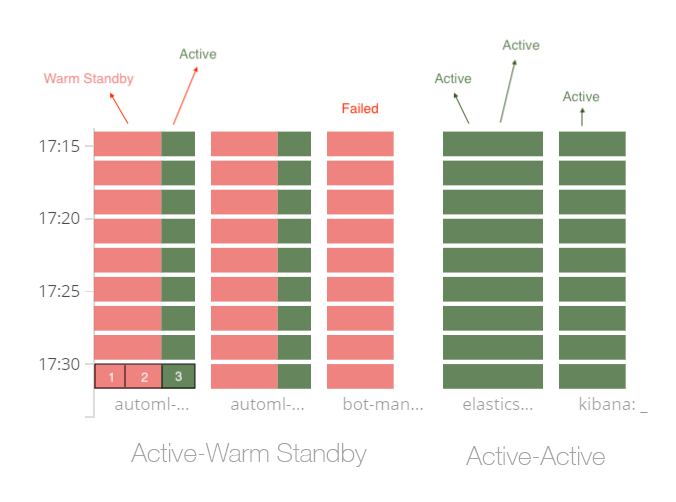
Here,
- Active-Active services must be fully green.
- Active-Warm Standby services must be red and green. The green sector (3) means that the Active server is up and running normally. Two red sectors (1, 2) mean that the emergency servers are working, while the component is installed on them but not running
For more information on health checks, see HA environment monitoring.