
Upgrade Analytics Server to version 2020.4
The guide describes the upgrade of the Analytics Server to the 2020.4 version.
Backup site configuration
Before upgrading the Analytics components, connect to the Analytics (BI) server via RDP as a Windows Administrator user and save all your custom workbooks and data sources to a predefined location on a local disk.
note
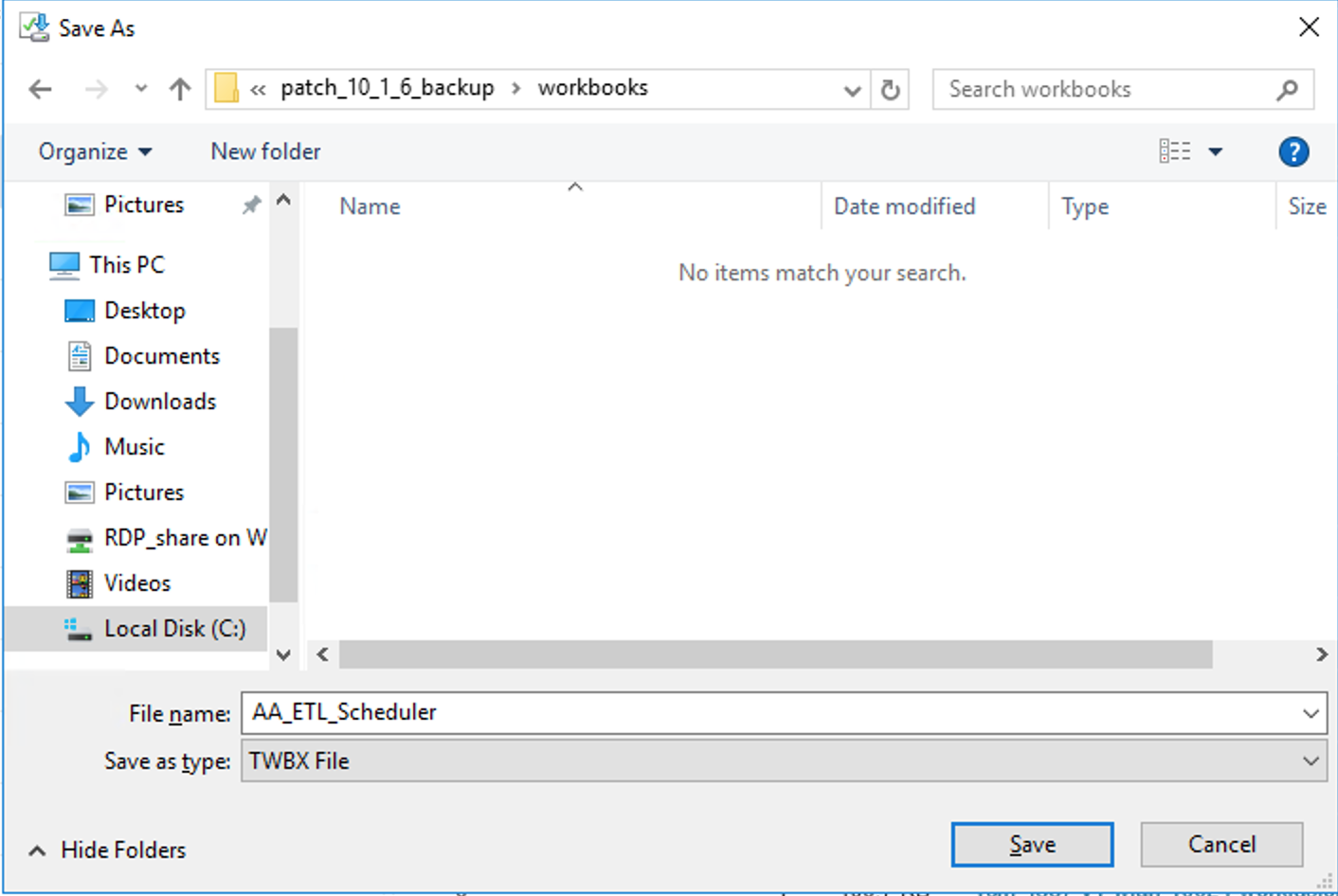
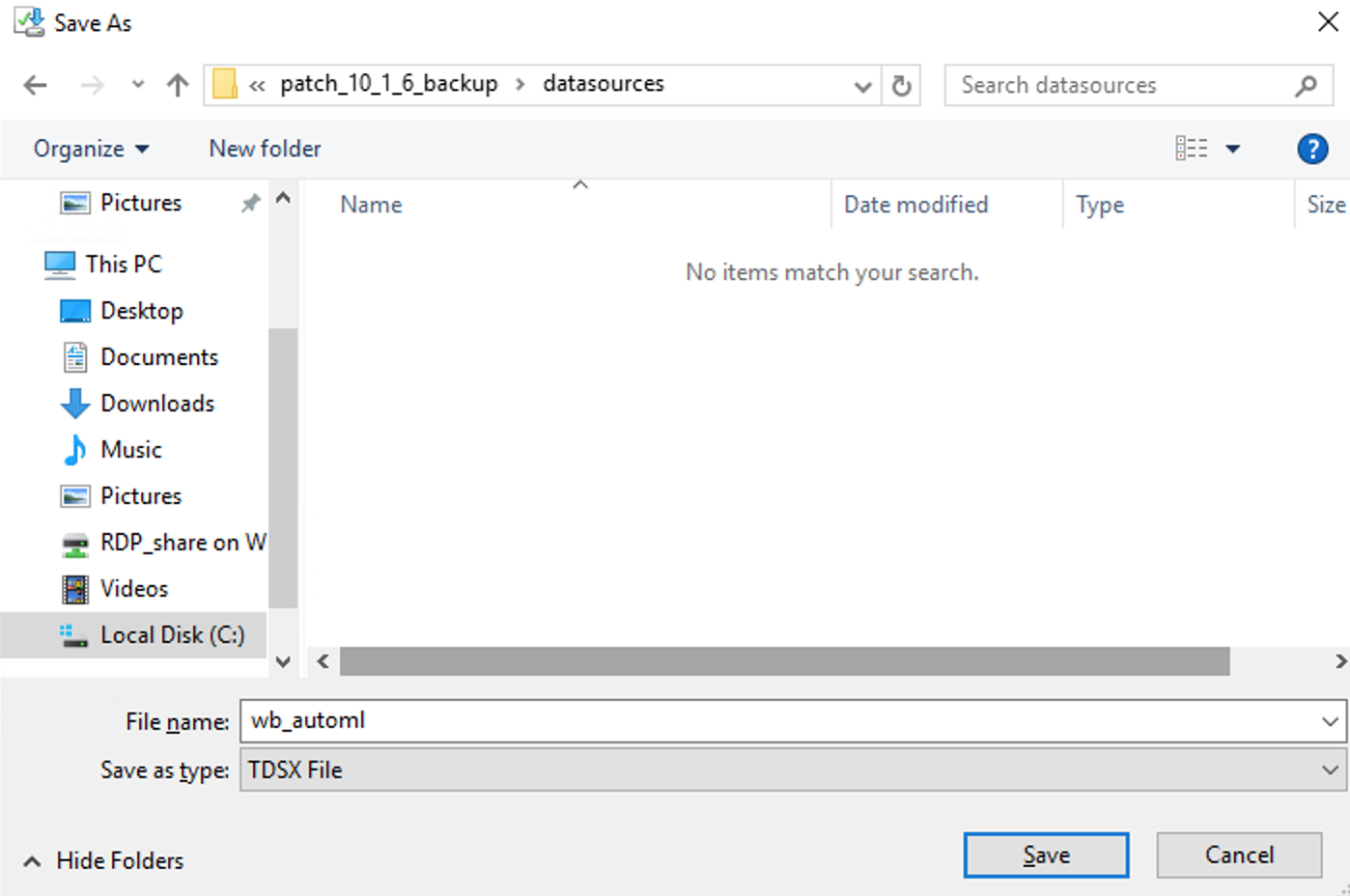
Download custom workbooks and datasources to separate directories. For example, c:\bi_backup\workbooks\\ and c:\bi_backup\datasources\\.
Don't save backup files in Analytics (BI) server installation directory, for example, c:\workfusion\\ as it is deleted during the upgrade.
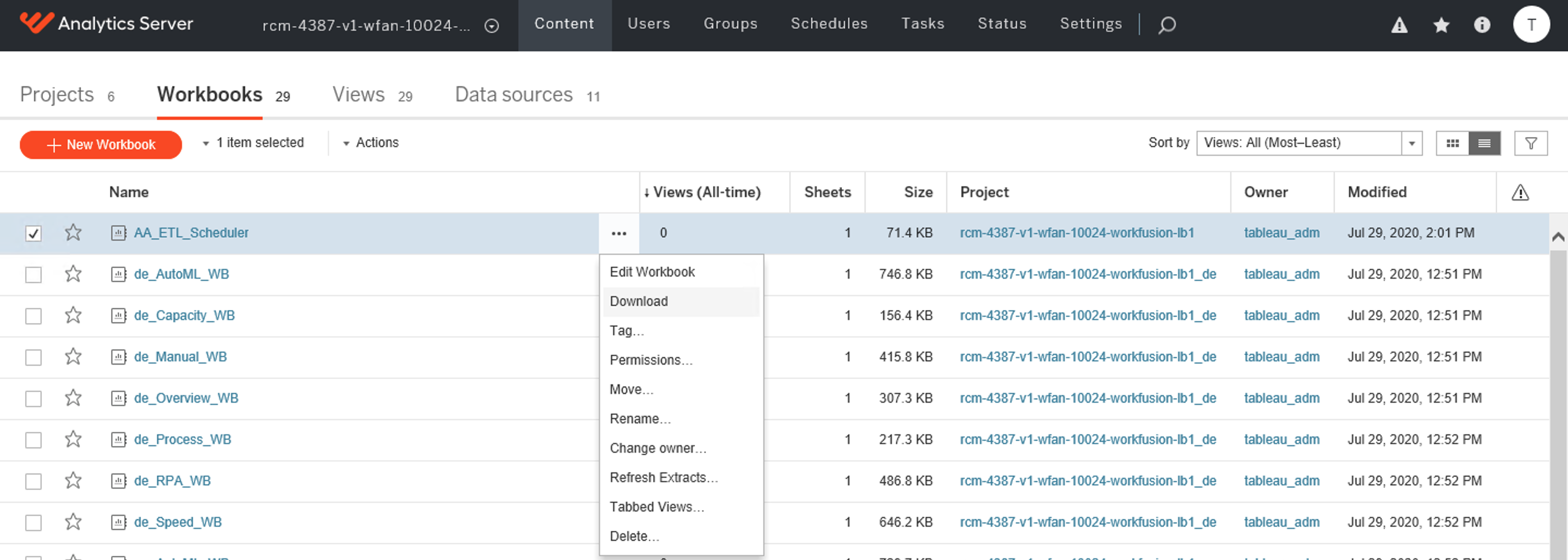
To download the custom workbooks from the Analytics server UI:
Go to a particular site, and, on the Content tab, click Workbooks. To identify custom workbooks, look for the _custom postfix in their names.
In the right corner of the Name column, click More (...), click Download, and save the file as a Tableau workbook.
To download the custom data sources from the Analytics server UI:
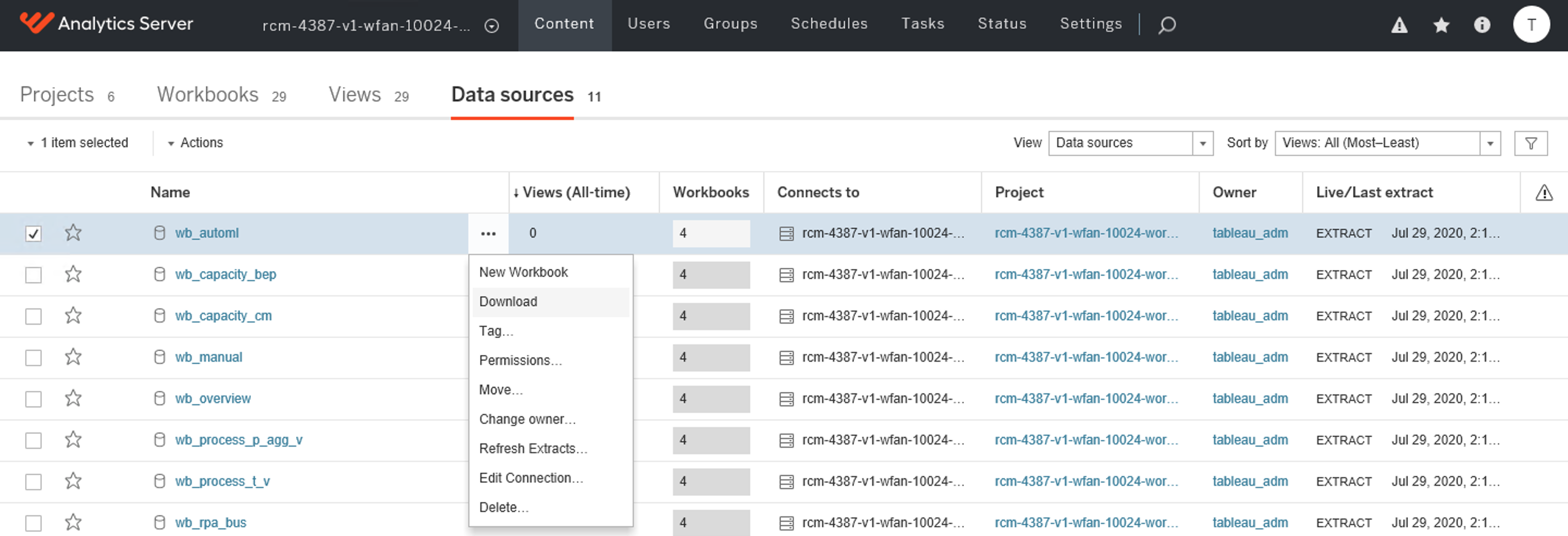
Go to a particular site, and, on the Content tab, click Datasources.
In the right corner of the Name column, click More (...), click Download, and save the file as a Tableau datasource.
Remember to rename the custom dashboards by replacing all occurrences of the underscore character ("_") with a plus symbol ("+") in the titles, except for the first and last two underscores.
To restore custom dashboards, follow the instructions in the section Backup and restore custom Analytics dashboards.
Check hardware requirements
The minimal hardware requirements for the new version of Analytics Server are the following:
- CPU: 8-core, 2.0 GHz or higher
- RAM: 32 GB
- Disk: 150 GB of free space
Prepare Analytics installation package
Download the new Analytics server installation package and place it to the INSTALL_DIR/sources directory on the MASTER server under any memorable name (for example, /opt/workfusion/wf_installer/sources/WorkFusionAnalyticsInstaller-10.1.6-2020.4.zip)
Upgrade Analytics server
To upgrade the Analytics Server:
On the MASTER server, run the following commands:
$ cd /opt/workfusion/wf_installer
$ ./install.sh uninstall bi
Restart the Analytics Server to apply changes.
On the MASTER server, edit the
INSTALL_DIR/manifest.ymlfile and change the values of the following variables:versions.analytics_installer:versions:
...
analytics_installer: 10.1.6-2020.4
...sources.analytics_installer:sources:
...
analytics_installer: WorkFusionAnalyticsInstaller-10.1.6-2020.4.zip
...
On the MASTER server, run the following commands:
$ ./install.sh preinstall bi
$ ./install.sh install bi
$ ./install.sh check bi
On the Analytics (BI) server, launch the New PowerShell ISE.
Launch PowerShell ISE as Administrator. Copy the following script and execute it in PowerShell on all Analytics servers (if there are several of them).
# UNINSTALL TABLEAU SERVER
# FILL IN THE PARAMETERS BELOW
$install_dir   = "c:\workfusion" # The value of "install_dir" which you've set in config.yml during Linux servers installation.

$env:win_user="username" # The value of "bi_user" which you've set in config.yml during Linux servers installation.
$env:win_pass='"password"' # Leave single and double quotes in place. Replace only word password. The value of "bi_pass" which you've set in config.yml during Linux servers installation.
# =========================================
$package_dir   = "${install_dir}\WorkFusionAnalyticsServer"

Write-Host "Uninstalling filebeat"
$service = Get-WmiObject -Class Win32_Service -Filter "name='filebeat'"
    if ($service) {
    $service.StopService()
    Start-Sleep -s 1
    $service.delete()
    }

Write-Host "Uninstalling metricbeat"
$service = Get-WmiObject -Class Win32_Service -Filter "name='metricbeat'"
    if ($service) {
    $service.StopService()
    Start-Sleep -s 1
    $service.delete()
    }

Write-Host "Stop PostgreSQL process"
$proceses = "postgress"
        Get-Process | Where-Object {$proceses.Contains($_.Name)} | Stop-Process -Force

Write-Host "Uninstall WorkFusion Analytics Server"
$path = Get-ChildItem -Path $install_dir\WorkFusionAnalyticsServer\packages -Recurse tableau-server-obliterate.cmd
        if ($path) {
        &$path.FullName -y -y -y
        }

Write-Host "Uninstall PostgreSQL Server"
$app = Get-WmiObject -Class Win32_Product | Where-Object {$_.Name -match "psql"}
        if ($app) {$app.Uninstall()}

Write-Host "Remove installation directory"
If (Test-Path $install_dir){
Get-ChildItem -Path $install_dir -Recurse | Remove-Item -force -recurse
Remove-Item $install_dir -Force
}
Restart the Analytics server to apply changes.
Install Analytics (BI) server by following the instructions in the section Install Analytics Server.
Verify license
Using tsm, use any of the following ways to verify that the license is present on the server:
Using the command line, run:
tsm licenses listOn the TSM web UI:
Open the server RDP or console session and go to https://localhost:8850/#/configuration/licensing.
Resolve known issues
After the upgrade to Tableau version 2020.4, you can face some issues with dashboards. See further to know how to solve them.
Custom dashboards not loading after upgrade
In some cases, after the Tableau upgrade, custom dashboards fail to load. It can be related to the old Postgres ODBC driver turned off by default in the Tableau configuration.
To resolve the issue:
On the Analytics (BI) server, stop Tableau Services by running the following commands:
tsm stopIn Windows, click Start > Settings > Apps > Apps & Features, uninstall the current psqlODBC driver, and reboot Tableau Server as required by the uninstaller.
Download the latest version of Postgres ODBC driver from the official website.
Extract and install the downloaded driver.
On the Analytics (BI) server, start Tableau Services by running the following command:
tsm startAfter startup, connect to Tableau Server UI and check the Site Status dashboards.
Dashboards not opening fullscreen
In some cases, when opening a dashboard in the full-screen mode, no content is displayed, and only a white screen is visible.
To fix the issue:
Download the fullscreen.zip archive and extract the files.
Move the extracted files to the
C:\workfusion\WorkFusionAnalyticsServer\packages\vizqlserver.20204.20.1116.1810\public\v_202042011161810\css\folder and replace the existing ones.On the Analytics (BI) server, restart the Tableau Services by running the following command:
tsm restart