
Preparation step
Access root folder on S3 storage
Make sure the root folder on S3 storage with public rights exists and you have access to it.
This folder will be used for storing XML documents after OCR.
The folder is a root folder located directly on the S3 storage. It is usually named doc-upload (or similarly) or public.
If you have corresponding rights, you can create your personal root folder.
If you are completing the assignment on the training instance, the folder is called doc-academy-upload:
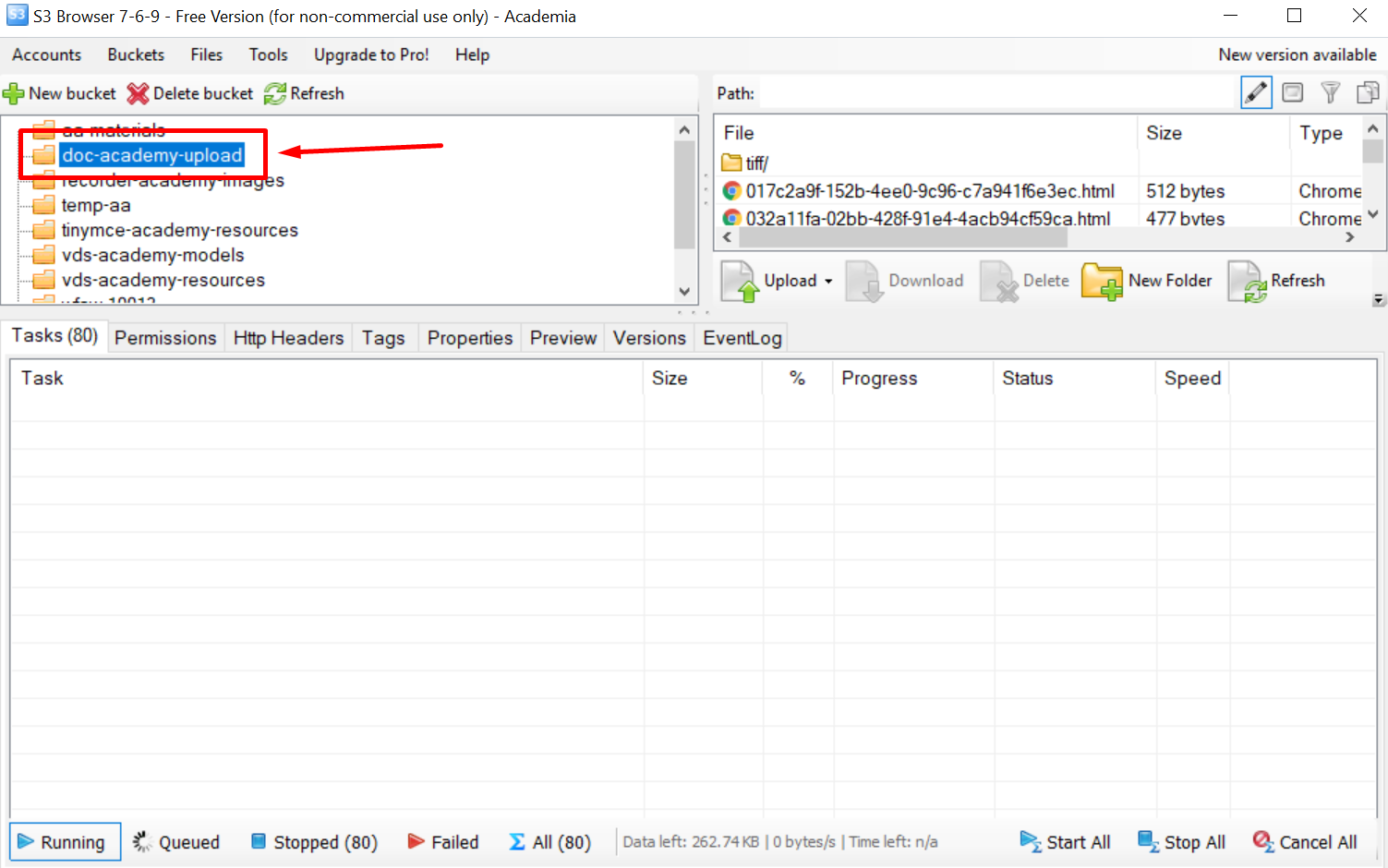
note
Make sure this folder has **public rights ("Full Control" or
"Read" and "Write" permissions for all users).**
Create Settings Data Store
Create a Data Store with a unique name where you specify the parameters for all Business Processes.
The Data Store must have the following parameters:
| Name of the parameter | Example of input values | Description |
|---|---|---|
| model_name | information-extraction-generic-se-20 | name of Generic model located in S3 bucket (Check vds-models folder and select appropriate for your use case model). |
| model_version | 9.2.0.10 | version of Generic model located in S3 bucket (can be found in the folder with model). |
| da_automation_training_set | da_ats_your_name | name of the Data Store that will be used for storing tagged documents. This automation training set should be created manually. Find below the template to upload. |
| documents_count | 200 | overall number of documents in input file. |
| documents_for_training_per_layout | 5 | number of documents (N) of each layout_type, which will be sent to Manual Task for Tagging each iteration. We recommend to use the number of documents from 5 to 10, depending on complexity of the documents. This number of documents of each layout type will be used for the initial training. |
| documents_info | documents_info_your_name (Make sure the name of this Data Store is different from the name of your automation training set) |
name of the Data Store with the following information:
This Data Store will be created automatically. |
| documents_distribution | da_docs_distribution_your_name | Data Store with documents distribution per field. In this Data Store, you can track distribution per field This data store will be created automatically.с |
| documents_statistics | da_statistics_your_name | Raw data with model and human results. Decision per each field can be also found in this Data Store. This Data Store will be created automatically. |
| documents_fields_statistics | da_fields_statistics_your_name | This Data Store will be created automatically. |
| s3_bucket_name | public | Bucket name on S3 where OCR documents will be stored. Put value from the previous step here. |
| automation_accuracy | 0.99 | or Precision. It reflects how precise the extraction should be. For calculation details, see here. This parameter accepts values from 0 to 1. |
| automation_rate | 0.99 | or Recall. It reflects how many correct results the Machine should find from ALL the correct results (mean Gold). For calculation details, click here. This parameter accepts values from 0 to 1. |
| run_uuid_process1 | uuid of the process1. Value will be created automatically after the first iteration of run. | |
| run_uuid_process2 | uuid of the process2. Value will be created automatically after the first iteration of run. | |
| run_uuid_process3 | uuid of the process3. Value will be created automatically after the first iteration of run. |
The best way to create a Data Store is to upload a completed file:
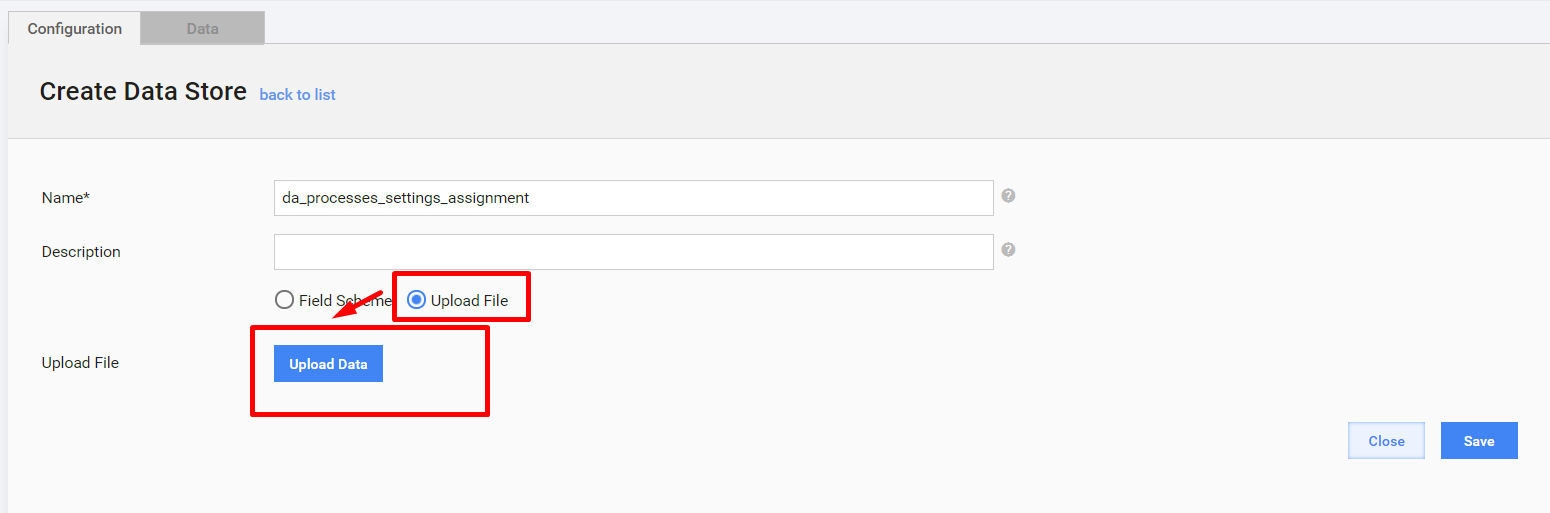
Create Automation Training Set
Create a new automation training set with the same name as your da_automation_training_set parameter has.
You can use the BLANK for Automation Training Set but don't delete the row that contains 1 until you upload this file to Control Tower.
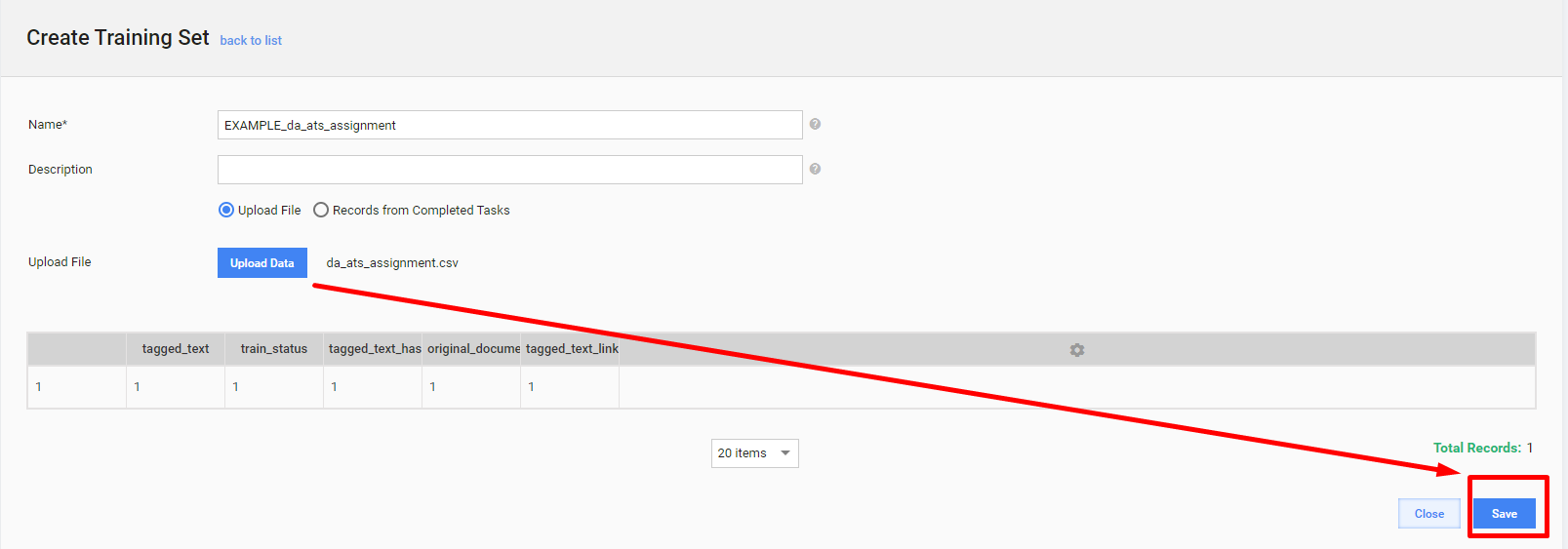
After uploading the CSV file, delete the raw with 1.
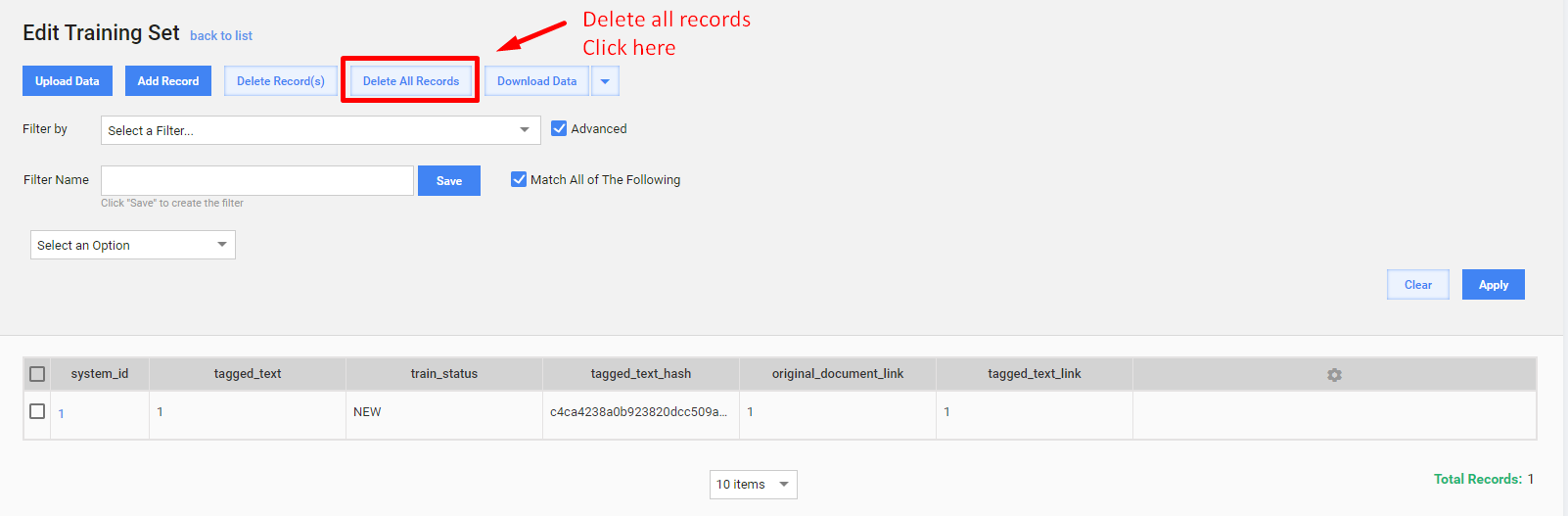
Your automation training set should contain the following columns, and they should be empty:
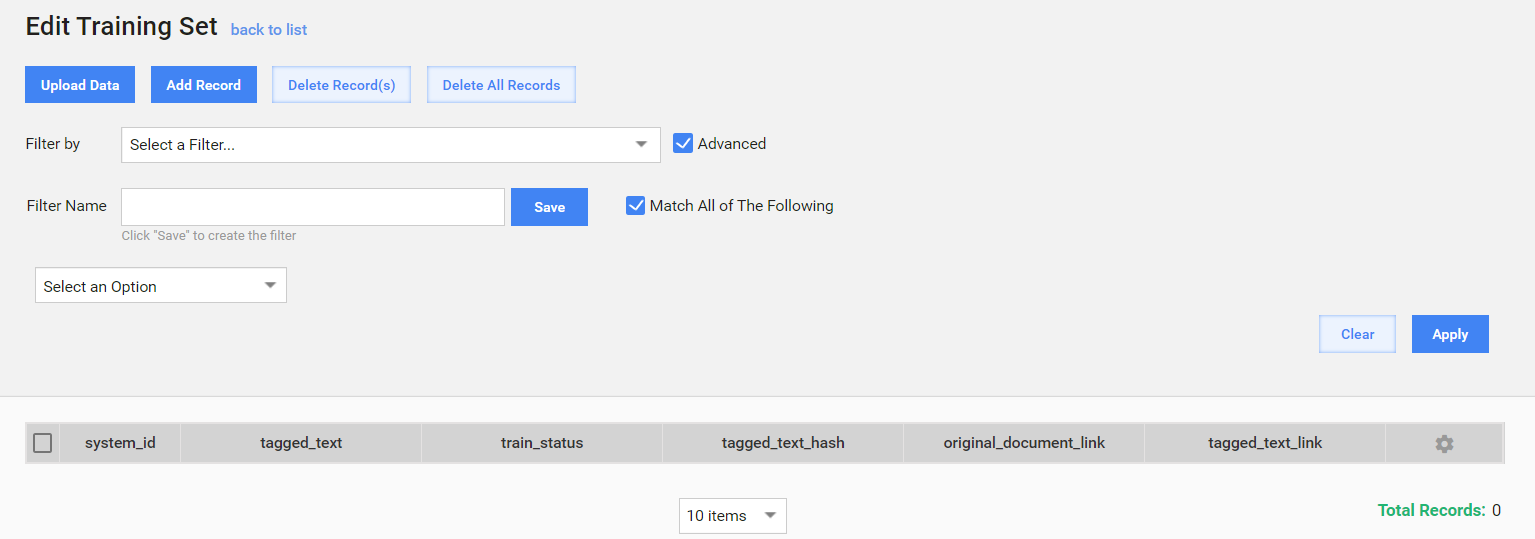
Import plugin to Control Tower
If it's not a training instance, import a special plugin to Control Tower.
If you are using C&D on the training instance, for example, https://watt.workfusion.com, ignore this step as the plugin is already uploaded.
If you work on another instance, you must have the Admin role.
To import the plugin to Control Tower, go to Advanced > Templates > Import.
This template is used during Business Process 3 to hide fields that meet success criteria.
Mind to clear Data Stores when starting a new training set collection. If you have already used the processes for other training set collections on the current Control Tower (for other Use Case or unsuccessful try of the current one) and you want to start from scratch, make sure the Data Stores you are going to use meet the following criteria:
- documents_info Data Store is empty (in case of using the OCR step) or filled with your documents providing that for each of them the train_test column is empty and run_uuid is the same as run_uuid1 in the Settings Data Store.
- In the Settings Data Store, run_uuid1, run_uuid2, run_uuid3 are empty or run_uuid1 is the same as in the documents_info Data Store.
- da_automation_training_set is empty or documents it contains have the
trainmark in the train_test column of the documents_info Data Store and run_uuid for them is the same as run_uuid1 in the Settings Data Store. - statistics and documents_distribution Data Stores are empty.
Otherwise, some things can go wrong, and you won't be able to create a training set correctly.