
Task Copy with Cognitive Bot
To save time you may need to copy an existing Manual Task with a ready-to-use Cognitive Bot generated after a successful training.
Control Tower allows copying a task with a few options:
- Simple copy
- Independent copy
Simple copy
To create a simple copy of a Manual Task, proceed with the following steps:
On the Manual Tasks page, click Actions > Copy next to your task instance details.
In the Copy Task dialog, do either of the following:
- Click Copy to create a copy without data.
- Select Include the input data, and then click Copy to create a copy with the same data as the original task.
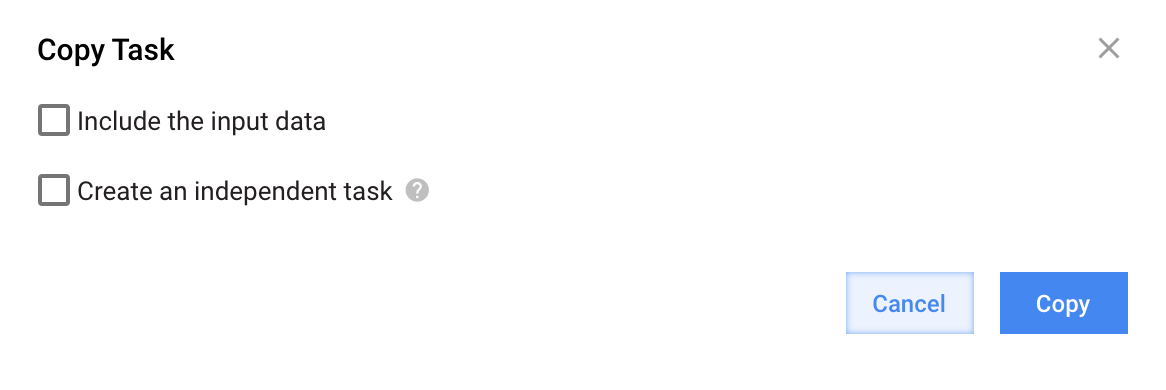
As a result, a new Manual Task instance with the same name as the original task is created.
caution
Manual Tasks with the same name created as a simple copy share a common template called Definition. This means, all changes made to this new task will affect all other tasks with the same name.
To unlink a new task from the original, change its name on the Task Design tab and save it. Alternatively, use tags to distinguish between tasks with the same name and definition.
Independent copy
Sometimes, you may need to create a copy of a Manual Task that is completely separate from the original task, for example, to train it with a different model.
To create an independent task copy, follow these steps:
On the Manual Tasks page, click Actions > Copy next to your task instance details.
In the Copy Task dialog, select Create an independent task and enter a new Task name in the Definition name field.
- Select Include the input data if you want your new task to have the same data as the original task.
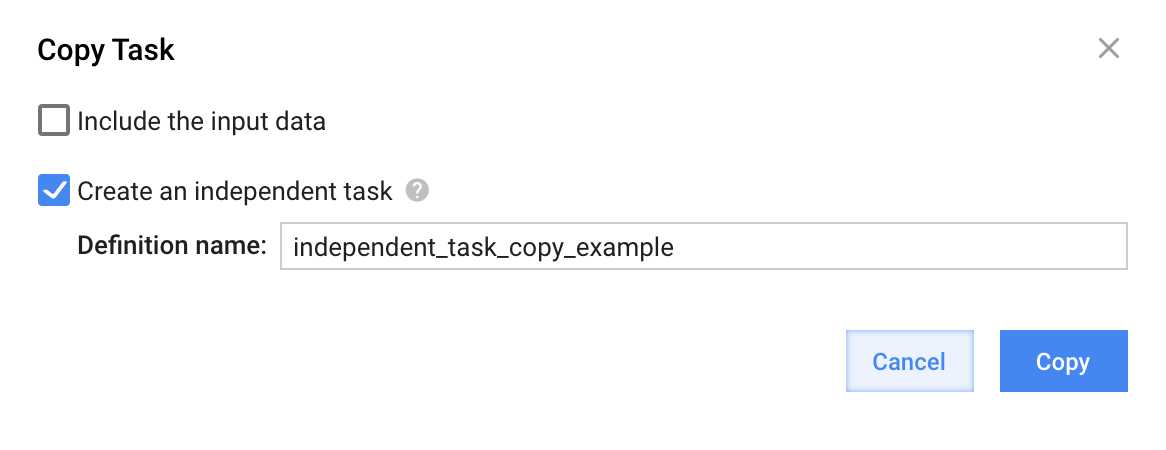
This will create an independent copy of a task with the same settings including Machine Learning Pipelines and Training Set (if selected).
known issue
- Create an independent task copy with a new task name.
- Click Activate Cognitive Bot without making any changes in the Machine Learning Pipelines section.
The newly created AutoML Business Process will still have the original Manual Task name both in the header and the Workflow tab.