WorkFusion REST API
The WorkFusion API lets you launch, post data to, and receive results from the WorkFusion platform automatically. Using it, you can manage simple tasks and more complex Business Processes (BPs) representing a workflow of various manual and automated tasks.
The complete collection of WorkFusion REST API endpoints is available in WorkFusion's Swagger specification. For instructions on accessing the specification, see the Swagger configuration guide.
API security
All API postings are made over a Secure Sockets Layer (SSL) connection encrypting communications between the user and web server to ensure data privacy.
All requests must be preceded by https://.
Form-based authentication
WorkFusion REST API uses form-based (login and password) authentication to ensure that APIs are only accessible to users with proper credentials.
Note that to make a REST call, you need to add a CSRF token to the request header for protection.
Before executing REST API requests, log in using the form URL and the
POSTmethod as shown below:POST /workfusion/api/dologin
Content-Type: application/x-www-form-urlencoded
j_username=usernamej_password=passwordwhere:
j_usernameis your username in Control Tower.j_passwordis your password in Control Tower.
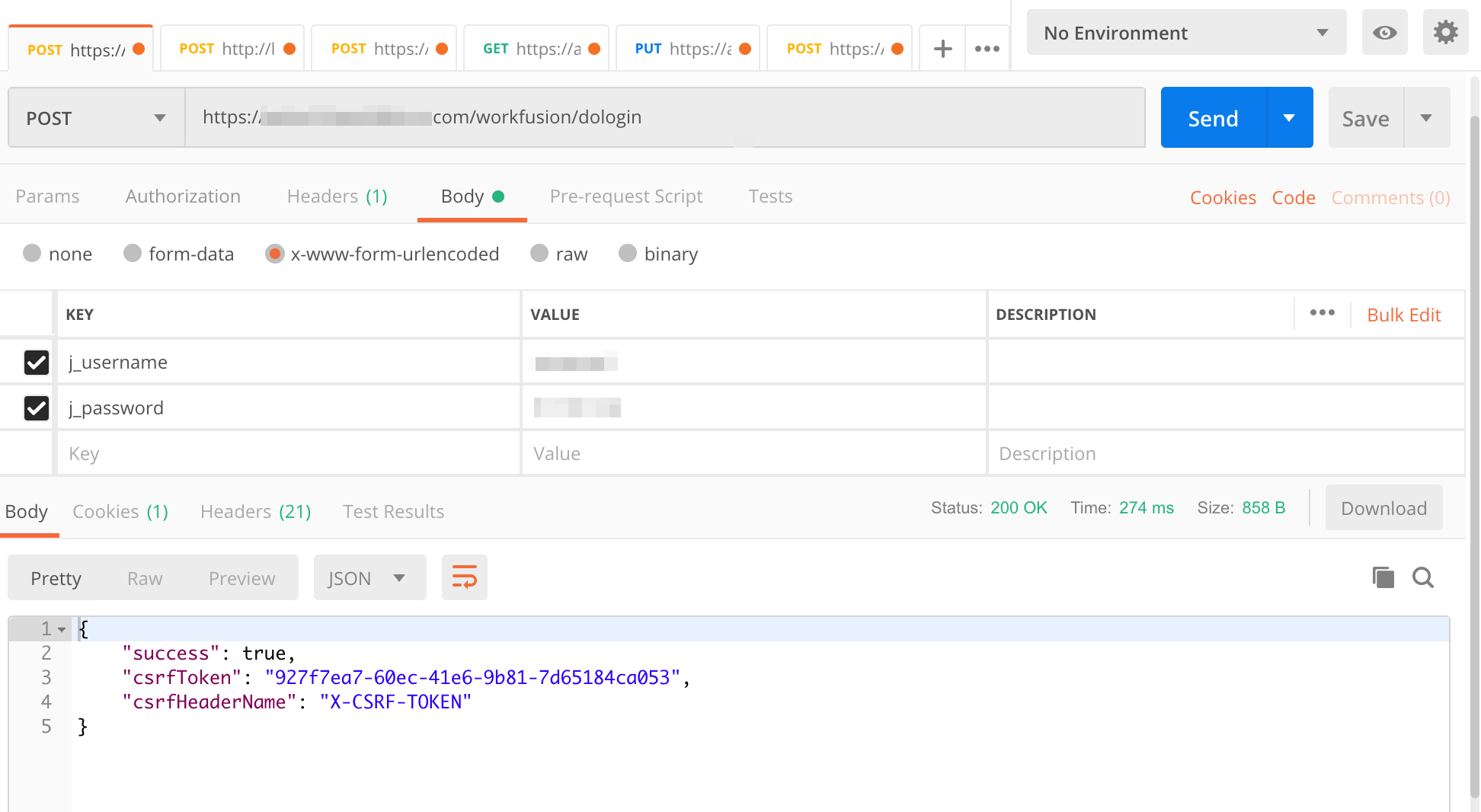
A successful response from the server looks like this:
{
    "success": true,
    "csrfToken": <csrftoken>,
    "csrfHeaderName": <csrftokenname>
}
Get
JSESSIONIDfrom the Set-Cookie response header.Create a REST API request:
- Set the acquired
JSESSIONIDto the Cookie header. - Set
application/x-www-form-urlencodedas the Content-Type header. - Set the received
<csrftoken>as the<csrftokenname>header.
- Set the acquired
Below is a sample login request in Postman:
Sample login with HttpClient
package org.example;

import com.google.gson.Gson;
import org.apache.commons.lang.StringUtils;
import org.apache.http.HttpResponse;
import org.apache.http.NameValuePair;
import org.apache.http.client.HttpClient;
import org.apache.http.client.entity.UrlEncodedFormEntity;
import org.apache.http.client.methods.HttpPost;
import org.apache.http.entity.AbstractHttpEntity;
import org.apache.http.impl.client.HttpClients;
import org.apache.http.message.BasicNameValuePair;

import java.io.IOException;
import java.io.InputStream;
import java.util.ArrayList;
import java.util.List;
import java.util.Map;

//Not a production-grade implementation use as an example only
public class ApiLogin {

    public static final String USERNAME = "ct_user_name";
    public static final String PASSWORD = "ct_user_password";
    public static final String LOGIN_URL = "https://instance.workfusion.com/workfusion/api/dologin";

    public static void main(String... args) throws IOException {
        String token = new ApiLogin().login();
        System.out.println("Auth token: " + token);
    }

    public String post(String addressURL, AbstractHttpEntity body, String csrfToken) throws IOException {

        HttpPost httpPost = new HttpPost(addressURL);
        System.out.println("POST -> " + addressURL);
        httpPost.setEntity(body);
        // add token if necessary
        if (!StringUtils.isEmpty(csrfToken)) {
            httpPost.addHeader("X-CSRF-TOKEN",csrfToken);
            httpPost.getParams().setParameter("_csrf",csrfToken);
        }
        HttpClient httpClient = HttpClients.createDefault();
        HttpResponse response = httpClient.execute(httpPost);

        //Read the Set-Cookie header from the response
        String cookies = response.getHeaders("Set-Cookie")[0].getValue();
        System.out.println("Set-Cookie header: " + cookies);

        String stringResponse = convertStreamToString(response.getEntity().getContent());
        System.out.println(stringResponse);

        return stringResponse;
    }


    public String login() throws IOException {

        List<NameValuePair> nvp = new ArrayList<>();
        nvp.add(new BasicNameValuePair("j_username", USERNAME));
        nvp.add(new BasicNameValuePair("j_password", PASSWORD));

        //post the username and password to the server to log in
        //re-use the httpClient instance to make sure the same JSESSIONID cookie is used

        //UrlEncodedFormEntity sets Content-Type=application/x-www-form-urlencoded
        // no token is required for login
        String loginResponse = post(LOGIN_URL, new UrlEncodedFormEntity(nvp),"");

        Map jsonResponse = new Gson().fromJson(loginResponse, Map.class);

        String csrfToken = (String) jsonResponse.get("csrfToken");

        String csrfHeader = (String) jsonResponse.get("csrfHeaderName");
        return csrfToken;
        // then use csrfHeader and csrfToken for REST API calls, return it.

    }

    private String convertStreamToString(InputStream is) {
        java.util.Scanner s = new java.util.Scanner(is).useDelimiter("\\A");
        return s.hasNext() ? s.next() : "";
    }
}
Use REST API with SSO
You can authenticate REST requests with Keycloak credentials without making Control Tower changes. For more information on Single Sign-On (SSO), read the following topics:
To authenticate REST requests with API credentials, you must have a password assigned for your user. This condition is mandatory because, when using SSO, a user appears in Keycloak only after their first login via the interface, while Keycloak won't have the user's password.
Use REST API with LDAP
LDAP access is configured via Keycloak. So, you can authenticate REST requests with your Keycloak credentials. For more information, read the Configure LDAP topic.
URLs
All URLs begin with the following pattern:
https://%HOSTNAME%/workfusion/api/
Obtain end-user IP address
To obtain a real end-user IP address, do as follows:
Add the following snippet to
nginx/sites/workfusion.comon each Master server:location /echo {
default_type text/plain;
return 200 '{"X-Forwarded-For": "$http_x_forwarded_for"}';
}Restart Nginx:
wfmanager restart nginxEnable the Proxy Protocol on HAProxy by changing
group_vars/all/vars.yml. Set theuse_proxy_protocolvariable totrue:# use proxy protocol for forwarding user ip
use_proxy_protocol: trueTo reconfigure HAProxy, run the following command on the Master server:
./install.sh configure haproxy
The Proxy Protocol should be enabled on Load Balancer and used to carry connection information from the source requesting a connection. For more details, refer to Enable Proxy Protocol on F5.
Sample output is as follows:
[wfuser@ip-10-100-9-111 ~]$ curl https://<hostname>/echo
{"X-Forwarded-For": "10.100.9.111"}
UUID
Each operation, such as a task or a Business Process, has a unique identifier (UUID). It is used as a unique reference to invoke the WorkFusion API and identify those entities. Sample UUID: db1cf0a8-1be4-4842-aec9-4ab0196bc9f1.
Once you receive the required UUID, you can use it to manage BPs via API, for example:
- To get JSON with detailed information on a specific BP, such as status, executor, and so on, send a
POSTrequest to the following endpoint:https://HOSTNAME/workfusion/api/v2/bp-instances/BP_UUID?scope=STRUCTURE&scope=BP_DETAILS&scope=CHILDREN_DETAILS. - To receive snapshots for a specific BP, send a
POSTrequest to the following endpoint:https://HOSTNAME/workfusion/api/v2/bp-instances/BP_UUID/snapshots/final?lastSnapshotCount=50. - To receive a CSV file with BP results, send a
POSTrequest to the following endpoint:https://HOSTNAME/workfusion/api/v2/snapshots/BP_UUID.
Obtain Business Process UUID
To obtain a Business Process UUID, follow the steps below:
In Control Tower, go to the Business Process list.
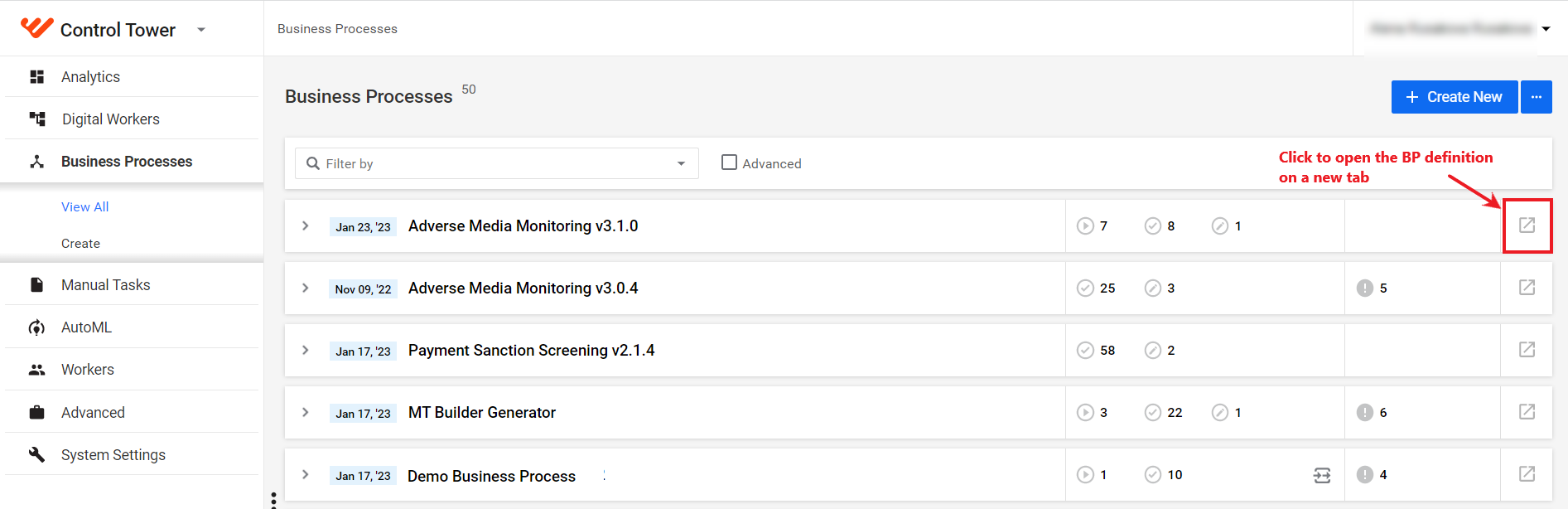
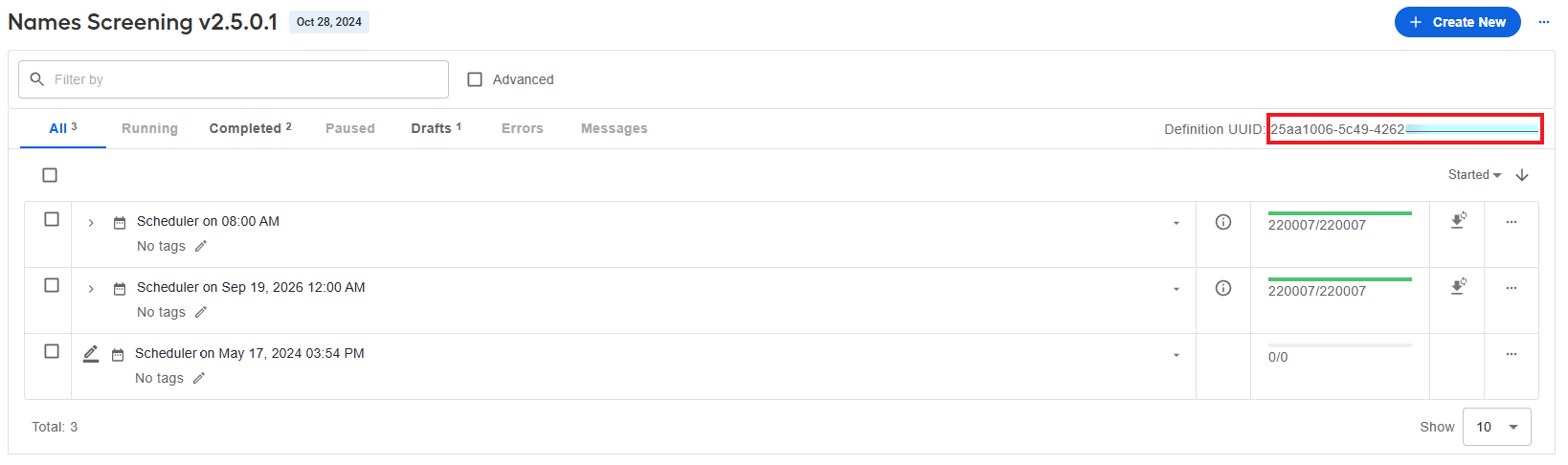
Click the button to open the BP definition in a new tab and locate the UUID as shown in the image below.
Document processing use case
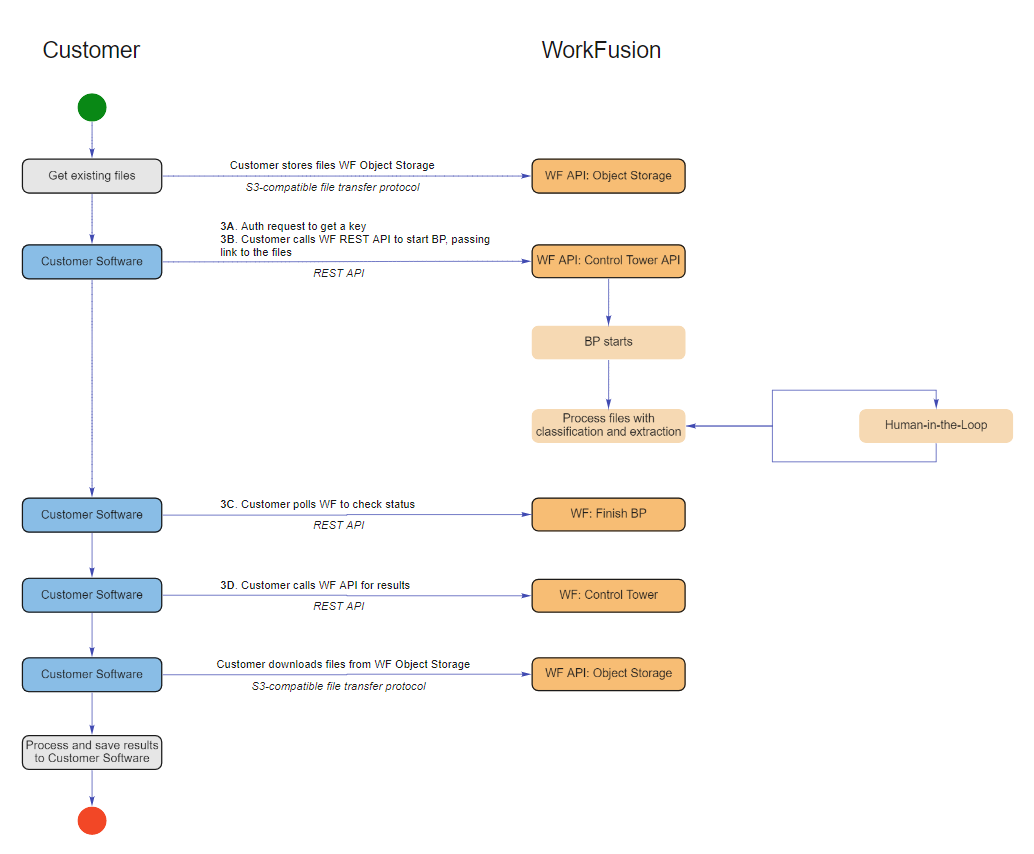
The section below describes how you can leverage WorkFusion API REST endpoints to implement a document processing automation covering the following operations:
The diagram below is a graphical representation of a document processing flow implemented with REST API endpoints:
Get data files for screening
Input data is a file with the customer data used in your automation. You can deliver input data from a file storage, such as:
S3 Manager within Work.AI
Any file storage outside Work.AI
File storage outside of Work.AI
A customer's server can host data files. However, WorkFusion Work.AI needs to access the files via traditionally accepted methods—S3 Object Storage, HTTP, FTP.
S3 Object Storage
When using S3 Object Storage, WorkFusion Work.AI can access stored files with the credentials provided by the user in the following format:
Access key: HHVDVFJFT3GHHJKJ43FG
Secret Key: KNJkljJHGJHgjhJGHKjgy666RryfrftFk6589890
HTTP
In case of HTTP links, WorkFusion Work.AI can access stored files with the credentials provided by the user in the following format:
Username and password authentication:
headers: {
        username: USERNAME,
        password: PASSWORD
        }
Secret key in the HTTP headers:
headers: {
        secret-key: secretKey
        }
Secret key specified as
get-parameterin the link to the file:https://client_domain.com/media_check_input_data/file1.xlsx?key=JKJH778sdfusdf678f678dfs78s^yjhhjwdkl754HMAC-based one-time password:
API_KEY = c3b290df-d560-493c-86ca-0ab552f24490a
SECRET = 06d9BLvnPwpj/DFKJ6iGb5oiFO7wZK+dl+C9aflIu/9DIXMXqEyR0Qi1y5BjFi8NcSJl4b62vpK9v3JB1223339g==

headers: {
        authorisation: Signature keyId="${API_KEY}",algorithm="hmac-sha256",headers="(request-target) host date",signature="${HMAC_GENERATED_SIGNATURE_VIA_SECRET}"
        }
FTP
When you use an FTP server for storing input files, WorkFusion Work.AI downloads these files with the following credentials provided by the user:
Protocol: FTP / SFTP
Port: 21
host: ftp://client_domain.com
remote root: /www/media_check_input_data/
username: USERNAME
password: PASSWORD
Start Business Process
Once logged in, call the WorkFusion REST API to start the Business Process by passing a link to the input file with associated entities for screening.
Method:
POSTURL:
https://HOSTNAME/workfusion/api/v2/workfusion/task/fileRequired headers:
JSESSIONID: from the Auth API response, see Form-based authentication.X-CSRF-TOKEN: from the Auth API reponse, see Form-based authentication.Content-Type: application/json; charset=utf-8
Body
{
    "campaignUuid" : "UUID of the Combined UC Campaign",
    "mainData" : ".csv file in the text representation."
}

// An example of building mainData string
var main_data_example = "wf_screening_input\n" + // name of the column
    "file_s3_path_1\n" +
    "file_s3_path_2";

 var mainData = JSON.stringify(main_data_example ));
Response
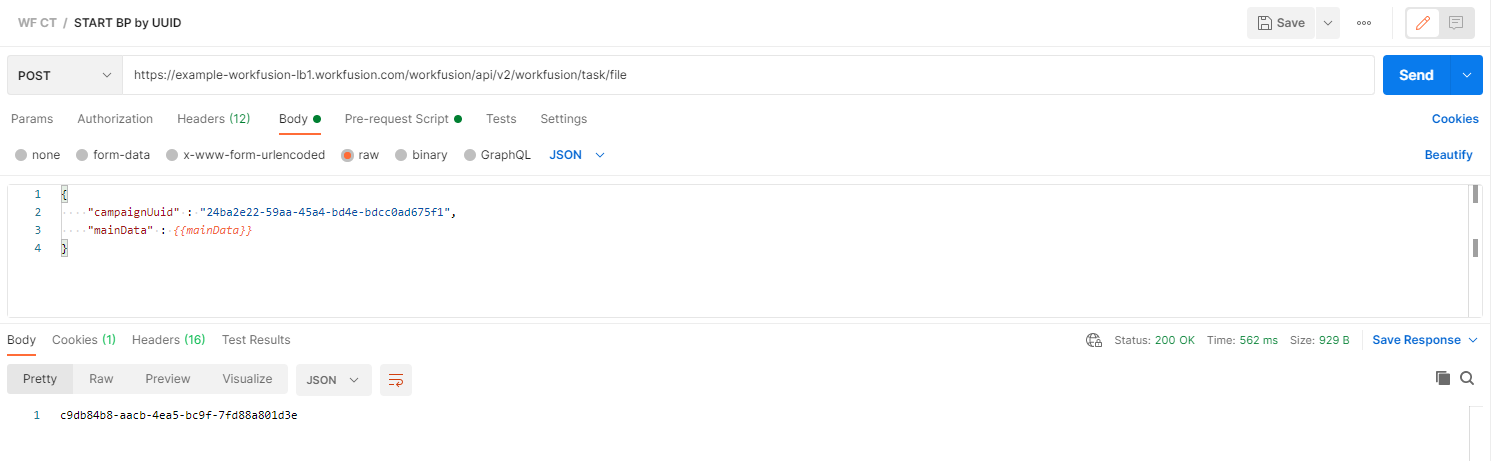
When the API call returns a UUID, it indicates a successful start of the Business Process with the provided input file.
Below is a Postman configuration example for the API endpoint to start a BP:
Check BP status
Once the Business Process is started, it is necessary to continually check its status. It is recommended to ping the endpoint using the following structure every 3-5 minutes based on the expected execution duration:
Method:
GETURL:
https://HOSTNAME/workfusion/api/v2/workfusion/task/{uuid}/stepsRequiered headers:
JSESSIONID: from the Auth API response, see Form-based authenticationX-CSRF-TOKEN: from the Auth API response, see Form-based authentication.Content-Type: application/json; charset=utf-8.
Response: an array of JSON objects that represents each step of the started BP
[
    {
        "title": "Step 1",
        "stepIndex": 1,
        "runUuid": "uuid",
        "runStatus": "COMPLETED",
        "campaignUuid": "uuid",
        "type": "MACHINE",
        "finalStep": false,
        "stepPosition": "START",
        "componentUuid": "uuid",
        "versionUuid": "uuid"
    },
    ...,
    {
        "title": "Step 5",
        "stepIndex": 5,
        "runUuid": "uuid",
        "runStatus": "COMPLETED",
        "campaignUuid": "uuid",
        "type": "MACHINE",
        "finalStep": true,
        "stepPosition": "END",
        "componentUuid": "uuid",
        "versionUuid": "uuid"
    }
]
The Business Process indicates the completion when the final step has been reached with the completed status.
"finalStep": true
"runStatus": "COMPLETED"
If you receive runStatus: null in a response, this means the Business Process failed with an error, and additional investigation is needed. To investigate, log in to Control Tower and check the logs.
For investigation tips, see the support guides:
Check BP results
At the end of execution, the BP saves the updated files to the S3 Manager application at https://HOSTNAME-s3-ui.cloud.workfusion.com and generates a final report with temporary links to these files. You can retrieve the report via API as described below.
Method:
GETURL:
https://HOSTNAME/workfusion/api/v2/workfusion/task/{uuid}/snapshot/CSVHeaders required:
JSESSIONID: from the Auth API reponse, see Form-based authentication.X-CSRF-TOKEN: from the Auth API response, see Form-based authentication.Content-Type: application/json; charset=utf-8.
Response: a binary object that can be converted into an Excel table or a CSV file
{
    "content": "...",
    "contentType": "text/csv"
}

// An example how you can do it in JS
function retrieveSnapshot(processUuid) {
   retriveSnapshotUrl= instanceBaseUrl + "/api/v2/workfusion/task/{uuid}/snapshot/CSV";
   var startProcessPromise = $.ajax({
     type: "GET",
     url: retriveSnapshotUrl.replace("{uuid}", processUuid),
     contentType: 'text',
     headers: {...},
     dataType: 'text',
     cache:false,
     async: true
   });
 startProcessPromise.then(snapshotRetrieveSuccess, snapshotRetrieveError);
};

function snapshotRetrieveSuccess (response){
   var decodedResponseString = atob(JSON.parse(response).content);
};
The resulting file contains links to the initial files updated with the resolutions and justifications for acceptance or rejection.
Sample implementation
Refer to the API sample below to see how you can implement the login, launching, and getting a BP status with Apache HttpClient.
API sample
import com.google.gson.Gson;
import com.google.gson.annotations.SerializedName;
import org.apache.http.Header;
import org.apache.http.HttpResponse;
import org.apache.http.NameValuePair;
import org.apache.http.client.HttpClient;
import org.apache.http.client.entity.UrlEncodedFormEntity;
import org.apache.http.client.methods.HttpGet;
import org.apache.http.client.methods.HttpPost;
import org.apache.http.entity.AbstractHttpEntity;
import org.apache.http.entity.StringEntity;
import org.apache.http.impl.client.*;
import org.apache.http.message.BasicHeader;
import org.apache.http.message.BasicNameValuePair;

import java.io.IOException;
import java.io.Serializable;
import java.util.ArrayList;
import java.util.HashMap;
import java.util.List;
import java.util.Map;

//Not a production-grade implementation, use as an example only
public class APISample {

    public static String BASE_URL = "https://instance.workfusion.com/workfusion";
    public static String START_BP_URL = BASE_URL + "/api/v2/workfusion/task/file";
    public static String STATUS_BP_URL = BASE_URL + "/api/v2/workfusion/task/";
    public static String LOGIN_URL = BASE_URL + "/api/dologin";


    public static String UUID = "4632e14b-86af-4fa8-8bc3-21ed709a0cb1";
    public static String USERNAME = "ct_user_name";
    public static String PASSWORD = "ct_user_password";

    private HttpClient httpClient;
    private List<Header> defaultHeaders;

    public APISample() {
        this.httpClient = HttpClients.createDefault();
        this.defaultHeaders = new ArrayList<>(2);
    }

    public static void main(String... args) throws IOException {
        APISample apiSample = new APISample();
        apiSample.login();

        //get version details and alike
        //apiSample.get(BASE_URL + "/api/v2/workfusion/service/info");

        //launch new Business Process
        String uuid = apiSample.startBusinessProcess(UUID);

        System.out.println(apiSample.getBusinessProcessStatus(uuid));
    }

    public void login() throws IOException {

        List<NameValuePair> nvp = new ArrayList<>();
        nvp.add(new BasicNameValuePair("j_username", USERNAME));
        nvp.add(new BasicNameValuePair("j_password", PASSWORD));

        //UrlEncodedFormEntity sets Content-Type=application/x-www-form-urlencoded
        loginPost(LOGIN_URL, new UrlEncodedFormEntity(nvp));
    }


    public String get(String addressURL) throws IOException {

        HttpGet httpGet = new HttpGet(addressURL);
        System.out.println("GET -> " + addressURL);

        HttpResponse response = httpClient.execute(httpGet);
        return convertStreamToString(response.getEntity().getContent());
    }

    public List<Header> loginPost(String addressURL, AbstractHttpEntity body) throws IOException {

        HttpPost httpPost = new HttpPost(addressURL);
        System.out.println("POST -> " + addressURL);
        httpPost.setEntity(body);

        HttpResponse response = httpClient.execute(httpPost);
        //
        String cookieHeader = response.getHeaders("Set-Cookie")[0].getValue();
        this.defaultHeaders.add(new BasicHeader("Cookie", cookieHeader));
        //
        String stringResponse = convertStreamToString(response.getEntity().getContent());
        //
        Map jsonResponse = new Gson().fromJson(stringResponse, Map.class);
        String csrfToken = (String) jsonResponse.get("csrfToken");
        String csrfHeader = (String) jsonResponse.get("csrfHeaderName");
        this.defaultHeaders.add(new BasicHeader(csrfHeader, csrfToken));
        return this.defaultHeaders;
    }

    public String post(String addressURL, AbstractHttpEntity body) throws IOException {

        HttpPost httpPost = new HttpPost(addressURL);
        System.out.println("POST -> " + addressURL);
        httpPost.setEntity(body);
        this.defaultHeaders.stream().forEach(httpPost::addHeader);

        HttpResponse response = httpClient.execute(httpPost);
        String stringResponse = convertStreamToString(response.getEntity().getContent());
        System.out.println(stringResponse);

        return stringResponse;
    }


    public String startBusinessProcess(String uuid) throws IOException {
        TaskStart taskStart = new TaskStart();
        taskStart.setCampaignUuid(uuid);

        //pass the CSV file content here to provide input for the Business Process
        taskStart.setMainData("loan_amt\n100000");

        StringEntity body = new StringEntity(new Gson().toJson(taskStart));

        //the server can return an error if it is not Content-Type=application/json
        body.setContentType("application/json");

        return post(START_BP_URL, body);
    }

    public String getBusinessProcessStatus(String uuid) throws IOException {
        return get(STATUS_BP_URL + uuid);
    }

    static String convertStreamToString(java.io.InputStream is) {
        java.util.Scanner s = new java.util.Scanner(is).useDelimiter("\\A");
        return s.hasNext() ? s.next() : "";
    }

    private static class TaskStart implements Serializable {

        @SerializedName("campaignUuid")
        private String campaignUuid;

        @SerializedName("mainData")
        private String mainData;

        @SerializedName("sandbox")
        private Boolean isSandbox;

        @SerializedName("tags")
        private String tags;

        public TaskStart() {

        }

        public String getCampaignUuid() {
            return campaignUuid;
        }

        public void setCampaignUuid(String campaignUuid) {
            this.campaignUuid = campaignUuid;
        }

        public String getMainData() {
            return mainData;
        }

        public void setMainData(String mainData) {
            this.mainData = mainData;
        }

        public Boolean isSandbox() {
            return isSandbox;
        }

        public void setSandbox(Boolean sandbox) {
            isSandbox = sandbox;
        }

        public String getTags() {
            return tags;
        }

        public Boolean getSandbox() {
            return isSandbox;
        }

        public void setTags(String tags) {
            this.tags = tags;
        }

    }

}