Work with fleets
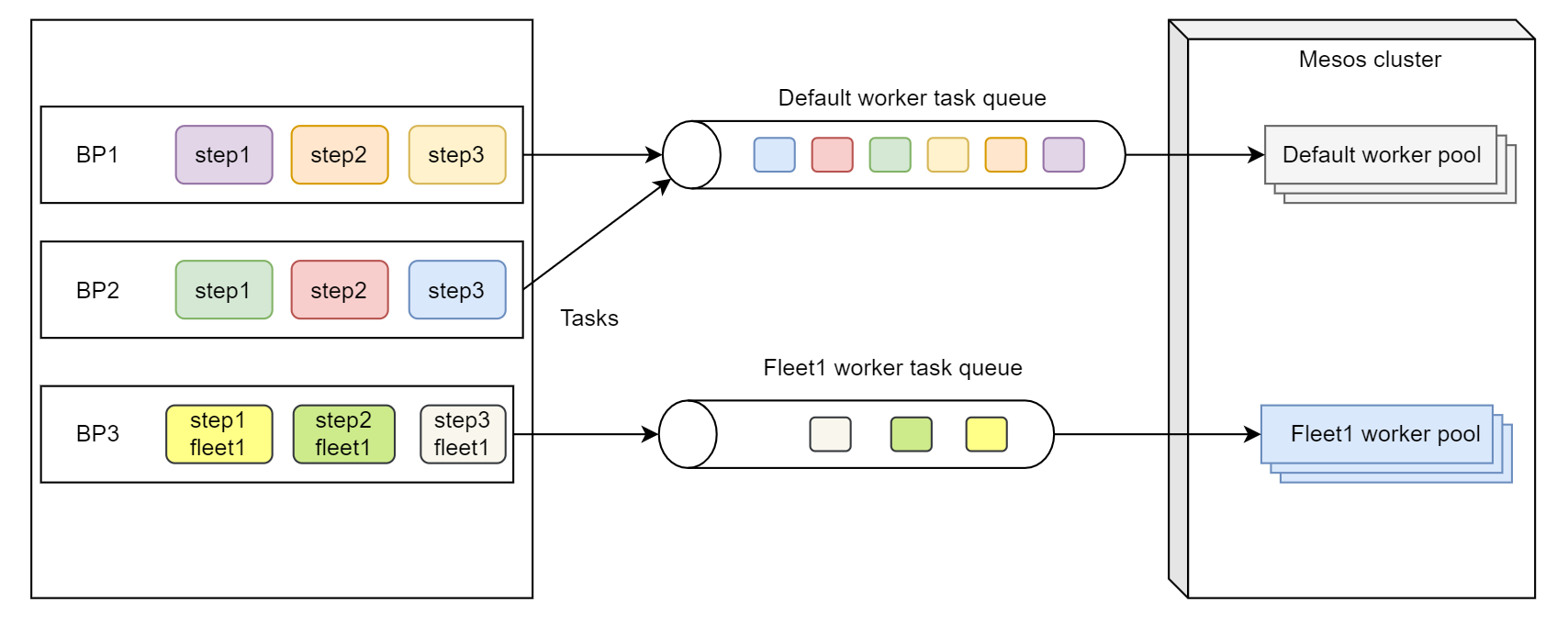
The fleet mechanism is designed to send tasks for processing by a dedicated Worker pool, or fleet. If used with non-RPA bot steps, the main purpose of creating fleets is to maintain a dedicated Worker pool that is separate from the generic one and not directly affected by other bot step tasks within the same Business Process (BP). For more details, see Prioritize Business Process processing.
Now, you can apply fleets to both RPA and non-RPA bot steps. To use the fleet functionality for non-RPA bot steps, you must create fleets, not select them from the list of RPA-only available fleets.
You can set up and update fleets in a Bot Source. In Control Tower, go to System Settings > Bot Sources.
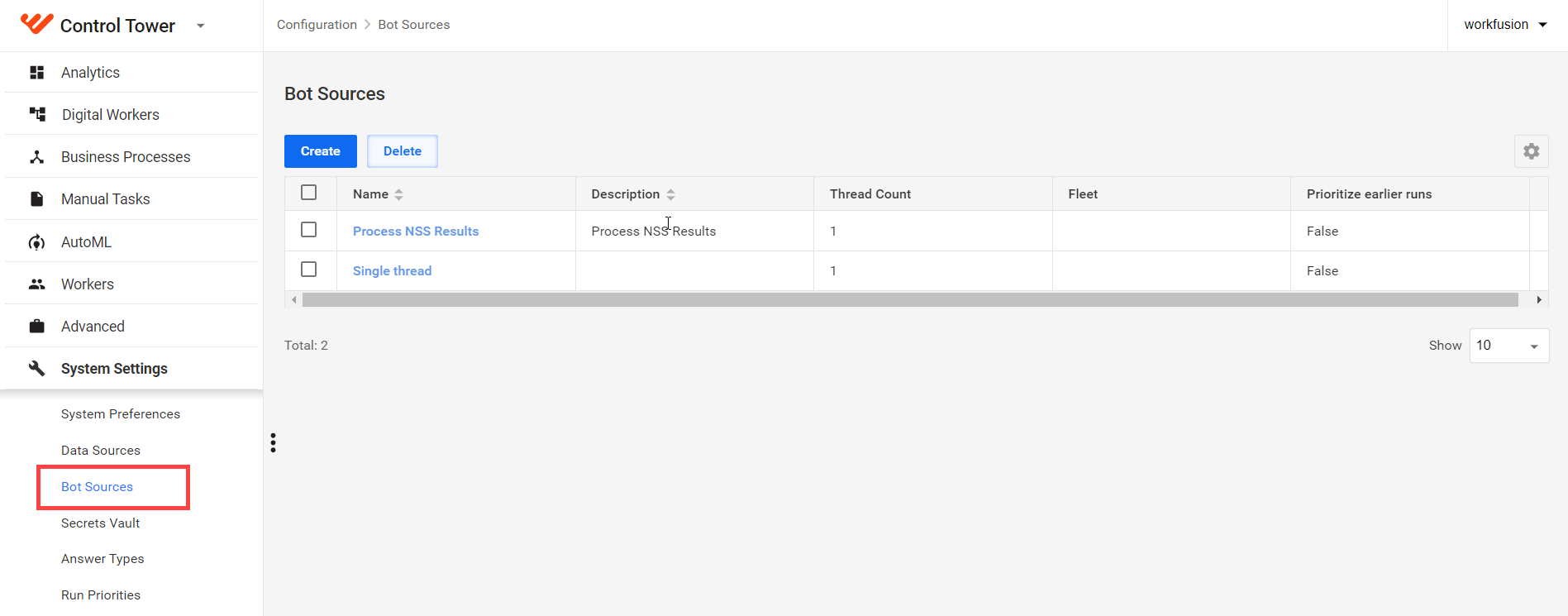
Set fleet
To set a fleet for a Bot Source, do as follows:
Click the Create button to add a new Bot Source or select an existing Bot Source from the list.
In the Fleet field, set up a fleet:
- To create a non-RPA fleet, enter its name and click the create option.
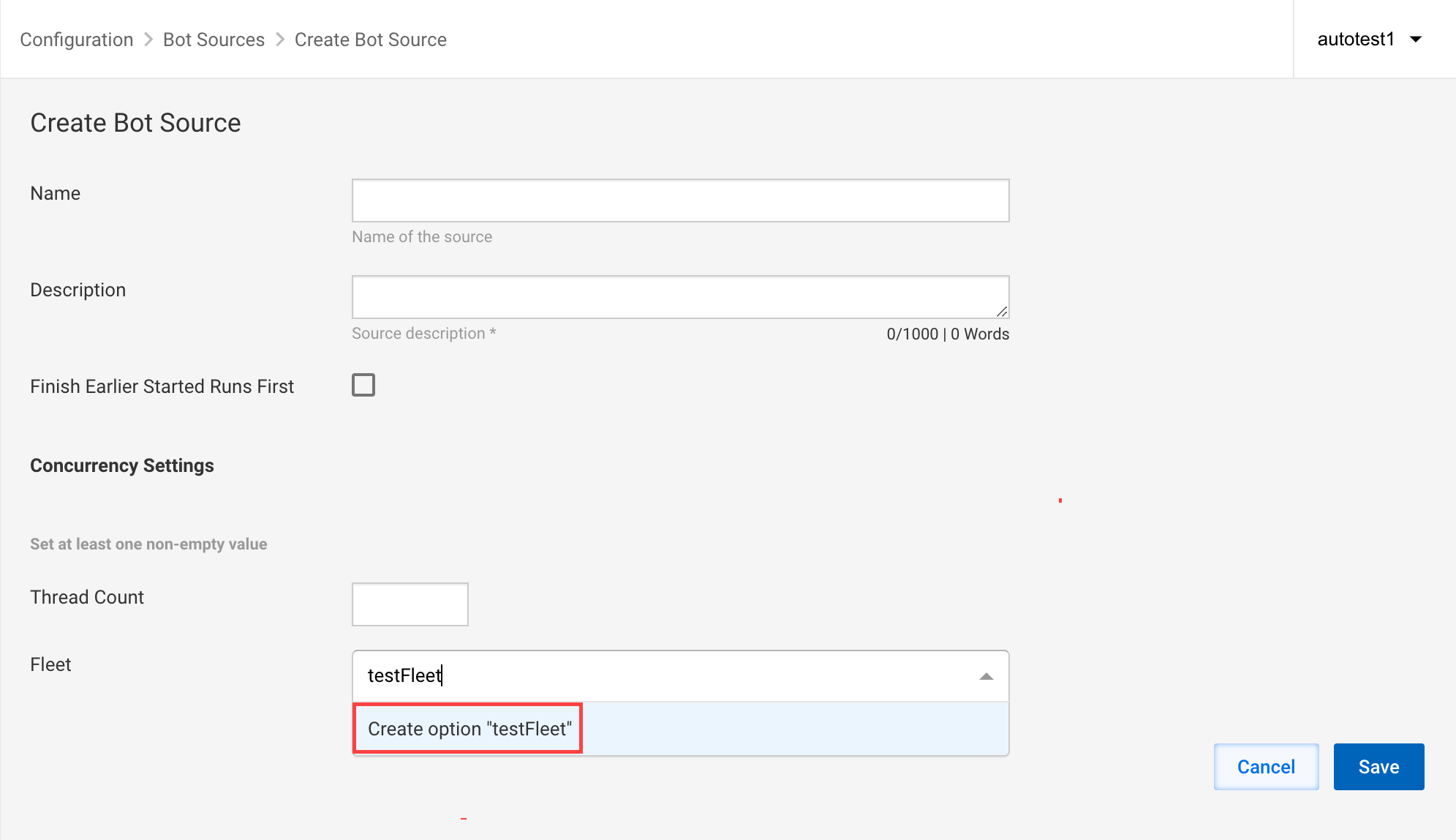
- To add an RPA fleet, select from the available configured RPA fleets.
cautionUse the Thread count functionality only if you need to limit the concurrent task execution. Otherwise, leave the field empty. Mind that limiting the thread count decreases performance for bot steps working with a Bot Source and leads to significant system overhead.
Click Save.
Update fleet and thread count
If you change a fleet or thread count for an existing Bot Source used in an active BP, the changes are applied to new BP runs only. In this case, you see the following warning message:
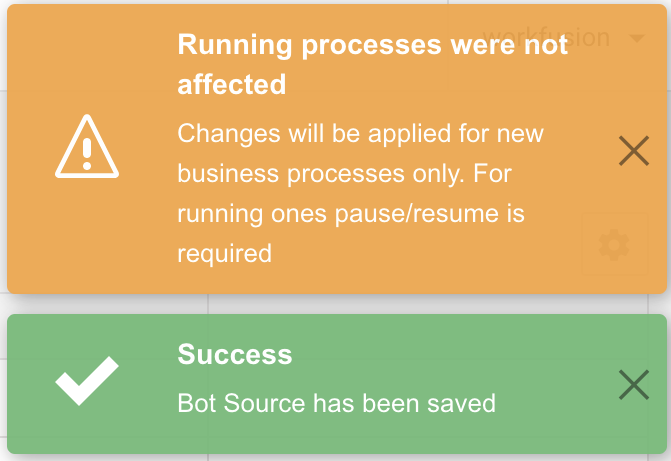
To apply a new fleet or thread count to currently running tasks, pause and resume the related BP.
Validate fleet
If you try to run a BP that contains RPA bot tasks with non-existing fleets, the tasks will fail after the waiting timeout is expired (by default, one hour). In this case, you get the following error message in the event log:
com.workfusion.spa.core.execution.api.task.GenericTaskFailedException: There is no workers listening 'exec...com.worker.com.workfusion.spa.ct.worker-app.10.3.0.14.rpa.' queue for a long time. Task was exceeded wait limit and rejected.
Apply Bot Source to bot step
To apply a fleet to a bot step, assign the appropriate Bot Source to the step during its configuration.
Each bot step can have its link to a Bot Source. As you see in the diagram below, Bot Step 2 and Bot Step 2 Duplicate are created from Bot Config 2, but Bot Step 2 Duplicate has its own Bot Source.
Thus, you can independently set Bot Sources on the bot step level. For example, if you have several bot steps created from a single Bot Configuration, each bot step can have its own Bot Source. When you add a bot step to the BP workflow using the drag-and-drop action, the Bot Source is inherited from the Bot Configuration.
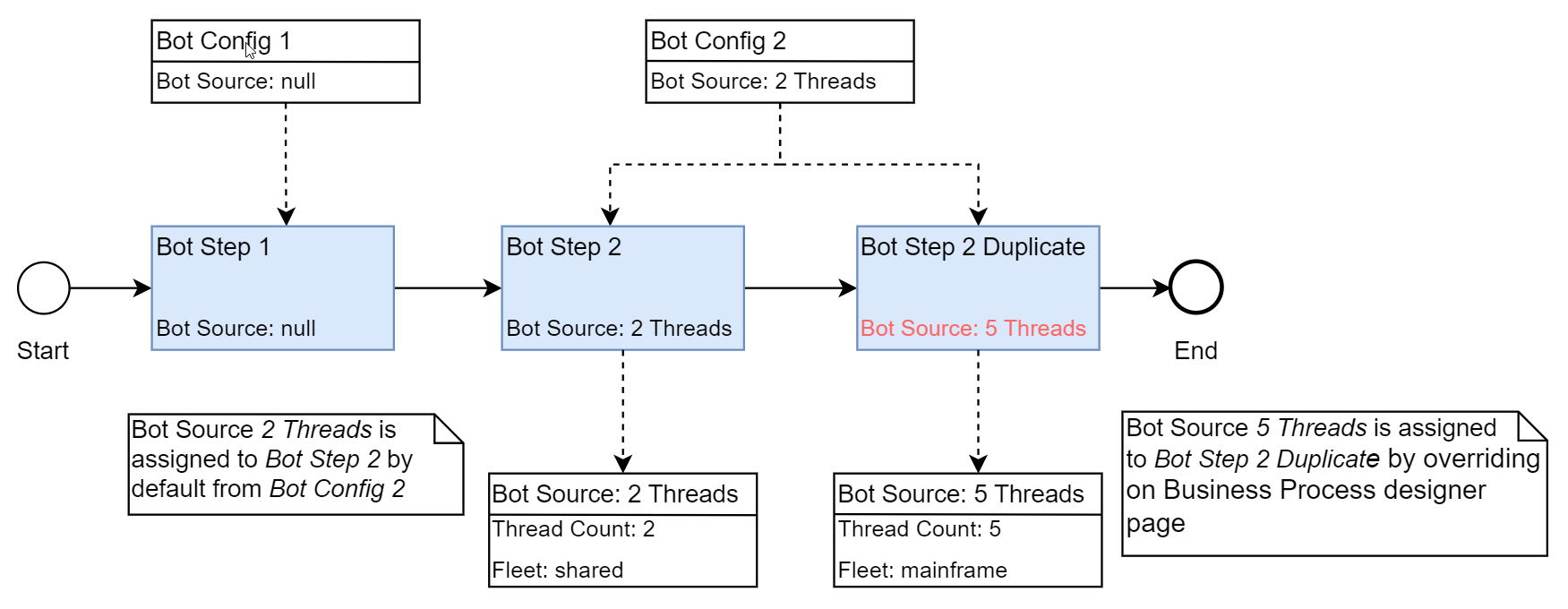
See several scenarios explaining how to apply a Bot Source to a bot step.
Case 1: Add new bot configuration to BP
To apply a Bot Source to a bot step, do as follows:
In the BP, on the Workflow tab, add a bot step in one of the following ways:
- Drag and drop a bot step from the Bot tab on the side panel to the canvas.
- Copy an existing bot step. Right-click the step and select Copy.
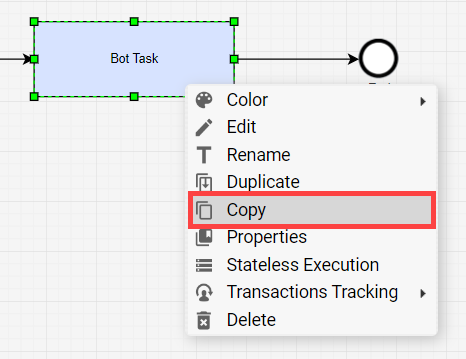
- Create a new bot step and Bot Configuration by dragging the Bot Task element from the toolbar.

Connect the bot step with other steps as needed.
Click Save to save the BP.
Double-click the bot step to which you want to assign a Bot Source.
In the Bot step configuration menu, on the Design tab, click Show advanced settings to expand the options.
In the Bot Source drop-down list, select a Bot Source.
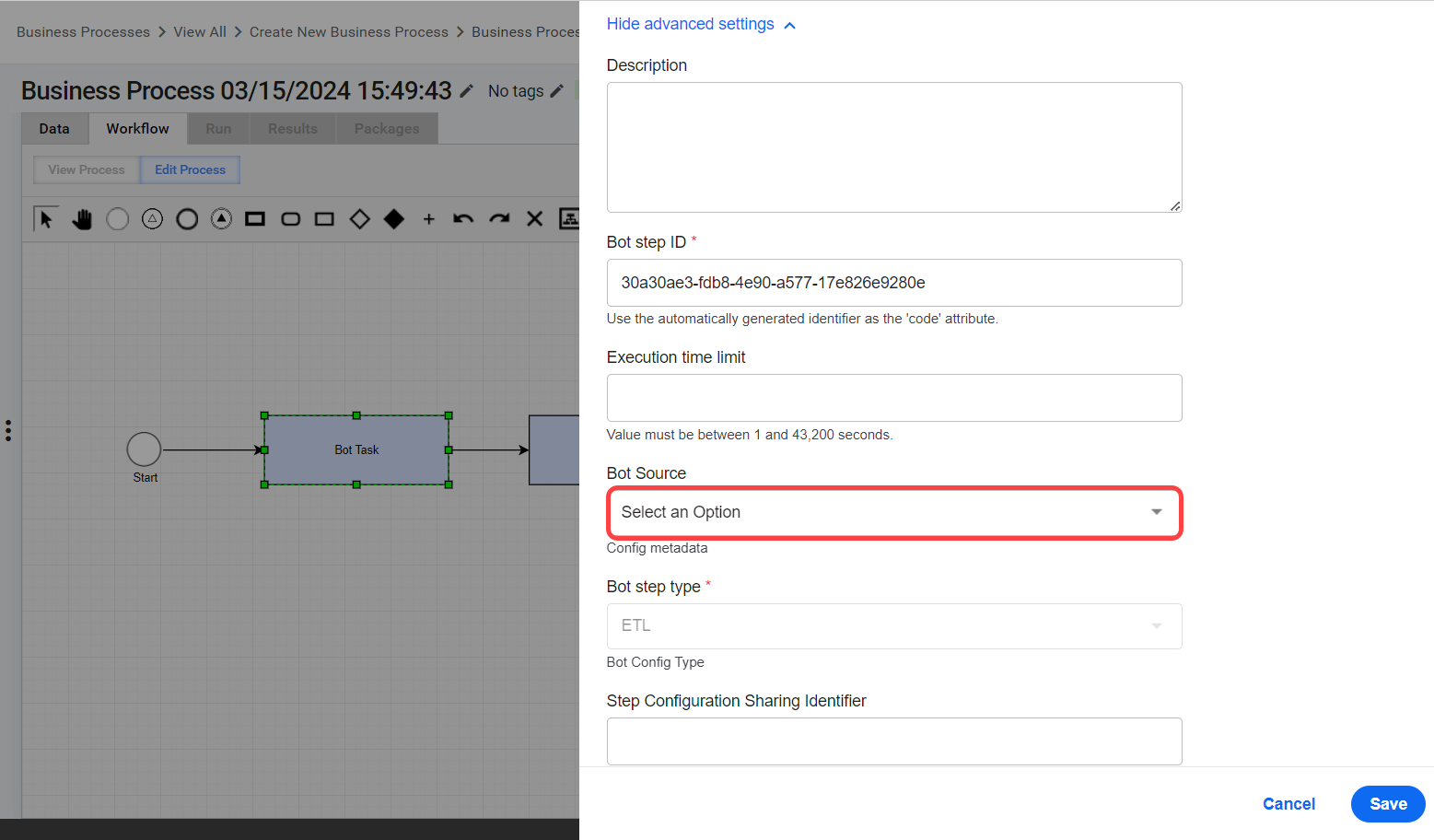
Click Save to save the Bot Configuration.
Save the BP.
Case 2: Edit existing Bot Configuration
To apply a Bot Source to a bot step when editing an existing bot configuration, perform the following steps:
- In the BP, on the Workflow tab, double-click the bot step to which you want to assign a Bot Source.
- In the Bot step configuration menu, on the Design tab, click Show advanced settings to expand the options.
- In the Bot Source drop-down list, select a Bot Source.
- Click Save to save the Bot Configuration.
- Save the BP.
Prioritize Business Process processing
Some or all steps of a particular BP might need a dedicated Worker processing pool in case of strict execution time SLA requirements. To avoid contention for the processing capacity of a single shared Worker pool between multiple BPs, create a separate Worker fleet for the priority BP:
- Create a Bot Source with a custom fleet for the BP.
- Assign the Bot Source to the BP steps.
See a simplified example of task distribution below: