Orchestration workflow
The Orchestration section guides you through the steps to deliver and orchestrate automations, including the involvement of a human worker in the loop. The figure below illustrates the actions available for the purpose in the Control Tower (CT) and Workspace (WS) user interfaces.
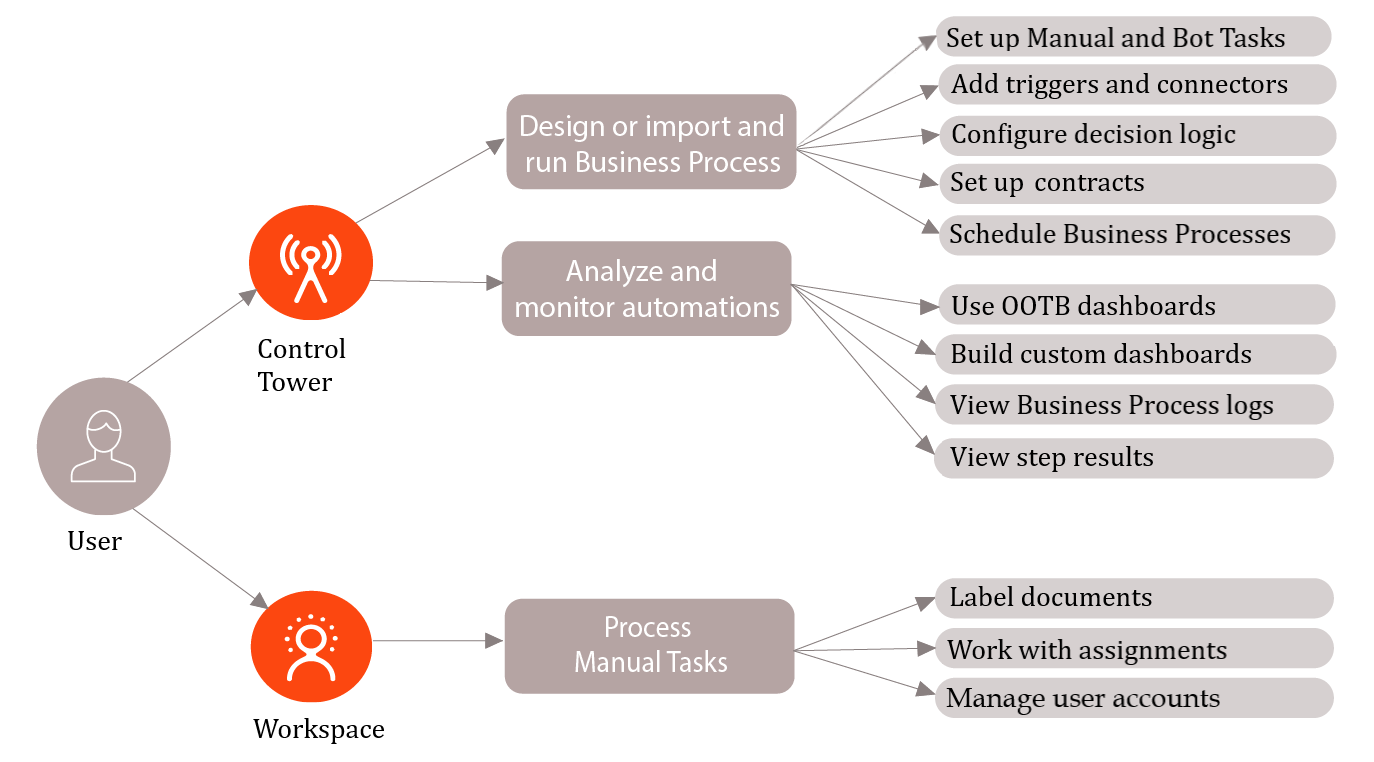
Create, design, and run Business Process
In the Work.AI platform, Business Processes (BP) are the means of delivering automations. Currently, BPs are available in two implementations:
Schema-based, where each step or a process as a whole can have contracts defining variables expected as its input and those produced as the output.
Schemaless, the legacy type, designed without any contracts.
A BP can include the following components:
- Manual Tasks (MT)
- Bot Tasks
- Decision rules
- Transformations
- Connectors
- Triggers
- Asynchronous and synchronous sub-process execution elements
- Connections
- Data Store steps
- Model, Dataset, or LLM steps
- OCR steps
Implement Business Process
To implement a BP in Control Tower, the following actions are essential:
Create a BP. See the Create Business Process guide.
Design the BP flow. Start with the Build Business Process flow in Workflow designer topic and explore how to work with the following:
Bot Tasks to allow for automatic execution of specific steps in the designed workflow. For details, see Add Bot Task.
Manual Tasks to involve human workers in assisting the bots with their tasks, for instance, by reviewing and correcting the output of automated steps. Read the guidelines in the Add Manual Task topics.
Trigger steps to start a BP by an external system event. For instructions, see Start Business Process with no-code Trigger element.
Decision logic by adding the Transformation and Decision steps to the flow. See the Configure no-code Decision rules step and Configure no-code Transformation step.
Connectors to integrate the automation with external services. For details, read Configure no-code Generic Connector.
Triggering sub-processes by internal events to implement a more complex automation logic. For details, see the Start Business Process by internal event guide.
Connections between the BP components to join them into an end-to-end automation flow. For more information, see Add connections.
Step or Business Process contracts required if you build a schema-based BP to implement the data flow across the process steps. For detailed instructions, read Configure input and output contracts in Business Process.
Data Store steps to retrieve or modify Data Store table data straight from the BP using an SQL query. For details, read Add no-code Data Store steps.
Model steps to integrate AutoML, ML Ops, or Large Language (LLM) models into the BP to do information extraction and classification tasks. For more information, see Add and configure Model, Dataset, and LLM steps.
OCR steps to provide for optical character recognition on the BP input if needed. For details, see Configure OCR step and OCR providers.
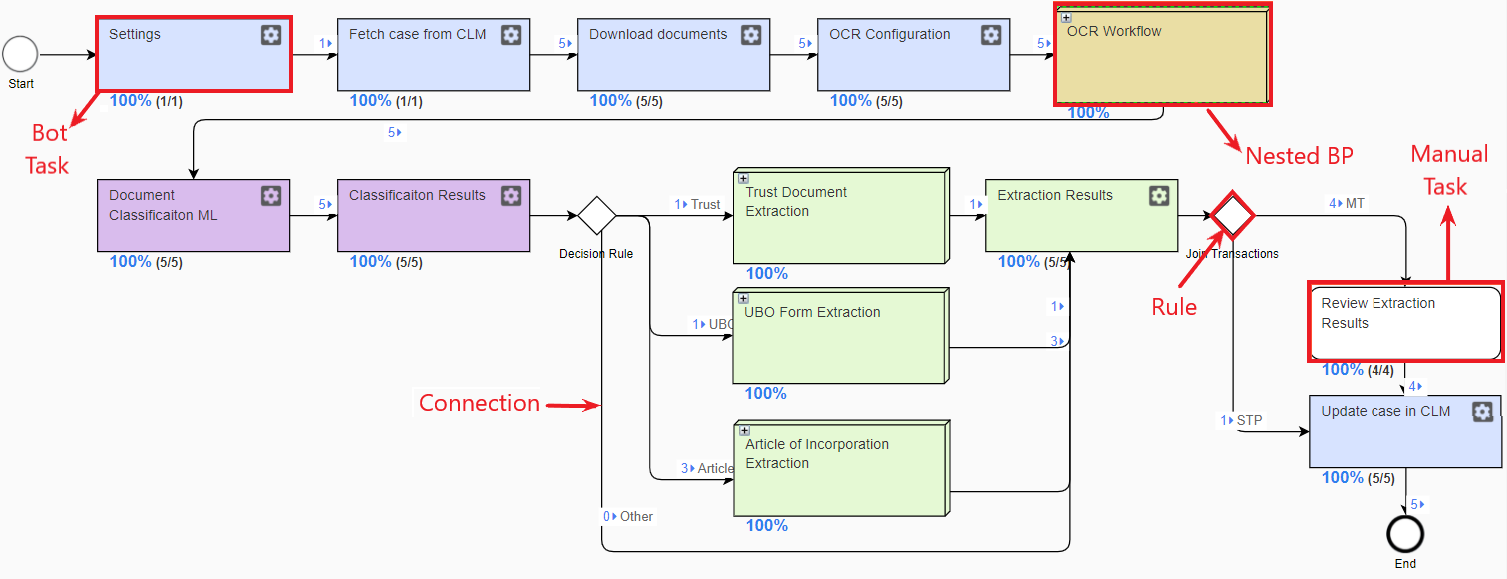
Below is a sample Business Process diagram for document handling.
Run Business Process
Once your BP is designed and its steps are configured, do the following:
Set options for the BP run.
Run the BP.
Schedule Business Process
To run a BP automatically at regular intervals, set a schedule as described in the Schedule Business Process section.
Analyze and monitor automations
To keep track of your Business Process executions, you can do the following:
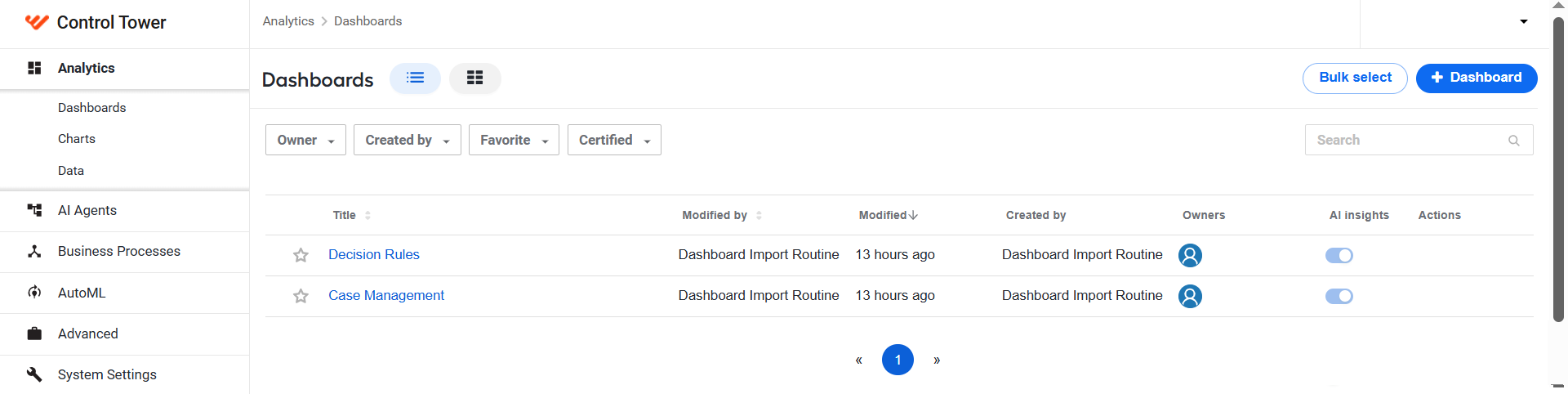
Utilize WorkFusion Analytics. Work.AI offers a set of out-of-the-box dashboards, or you can build custom ones according to your specifications. From the Analytics menu, it is also possible to set up analytical alerts and reports. For details, read the Analyze and monitor section.
Investigate BP logs. For details, refer to the View logs and repair Business Processes topic.
View BP results. For instructions on viewing BP results, refer to the topic.
Process Manual Tasks
Workspace is the point where you involve a human worker in your automation and process the tasks requiring human assistance.
Label documents
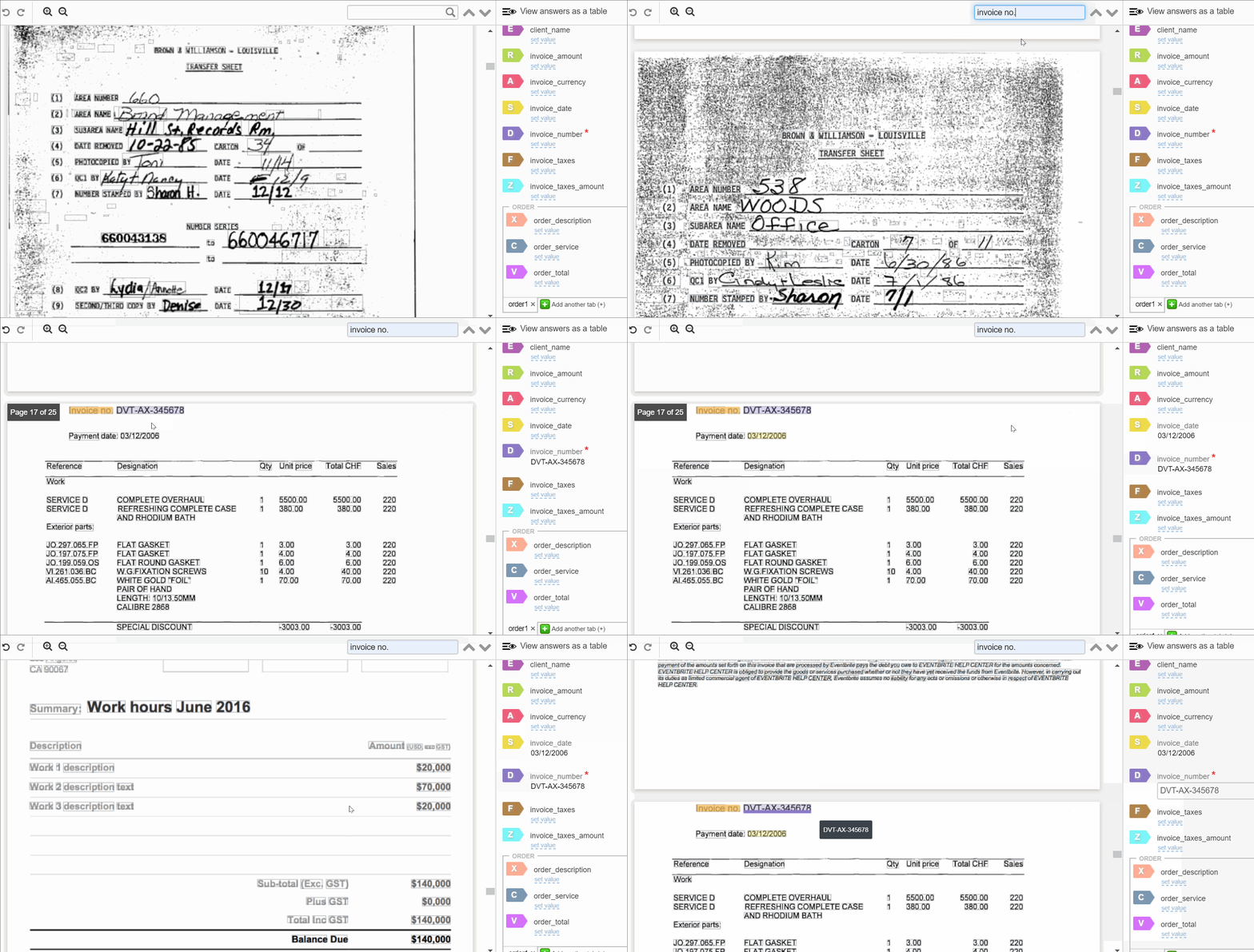
Labeling (earlier known as Tagging over Document (ToD)) is designed to prepare the documents fed to a Business Process for processing by the Optical Character Recognition (OCR) engine. The primary actors in the process are subject matter experts (SME) and data analysts (DA). They review the documents in Workspace, discover business logic, and find out how to label them.
The GIF below illustrates the labeling process.
To learn more, read the guides in the Document labeling section.
Manage and process assignments
An assignment is an object representing a Manual Task in WS.
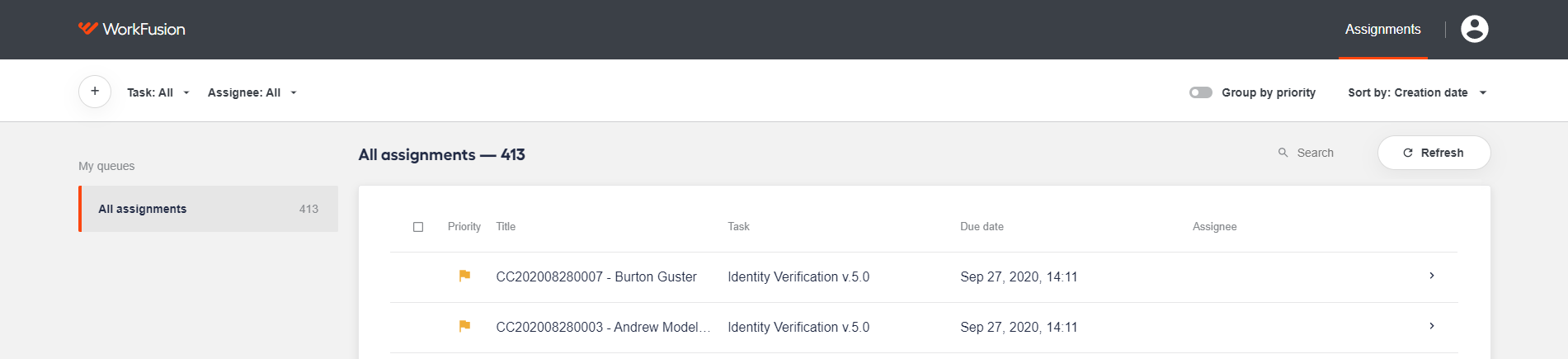
For instructions on working with assignments, refer to the following articles:
Manage user accounts
Workspace enables users to manage their accounts, including updating passwords, editing personal details, and tracing sessions. For details, refer to the Manage account topic.
For a general overview of major Work.AI applications, read the following documentation: