Configure input and output contracts in Business Process
A contract defines the input and output variables in a schema-based Business Process (BP). Contracts allow designing a BP data schema in a no-code manner.
Work.AI supports setting contracts at the following levels:
For the entire BP
For each individual step, such as a bot step, connector, Manual Task, or Model step
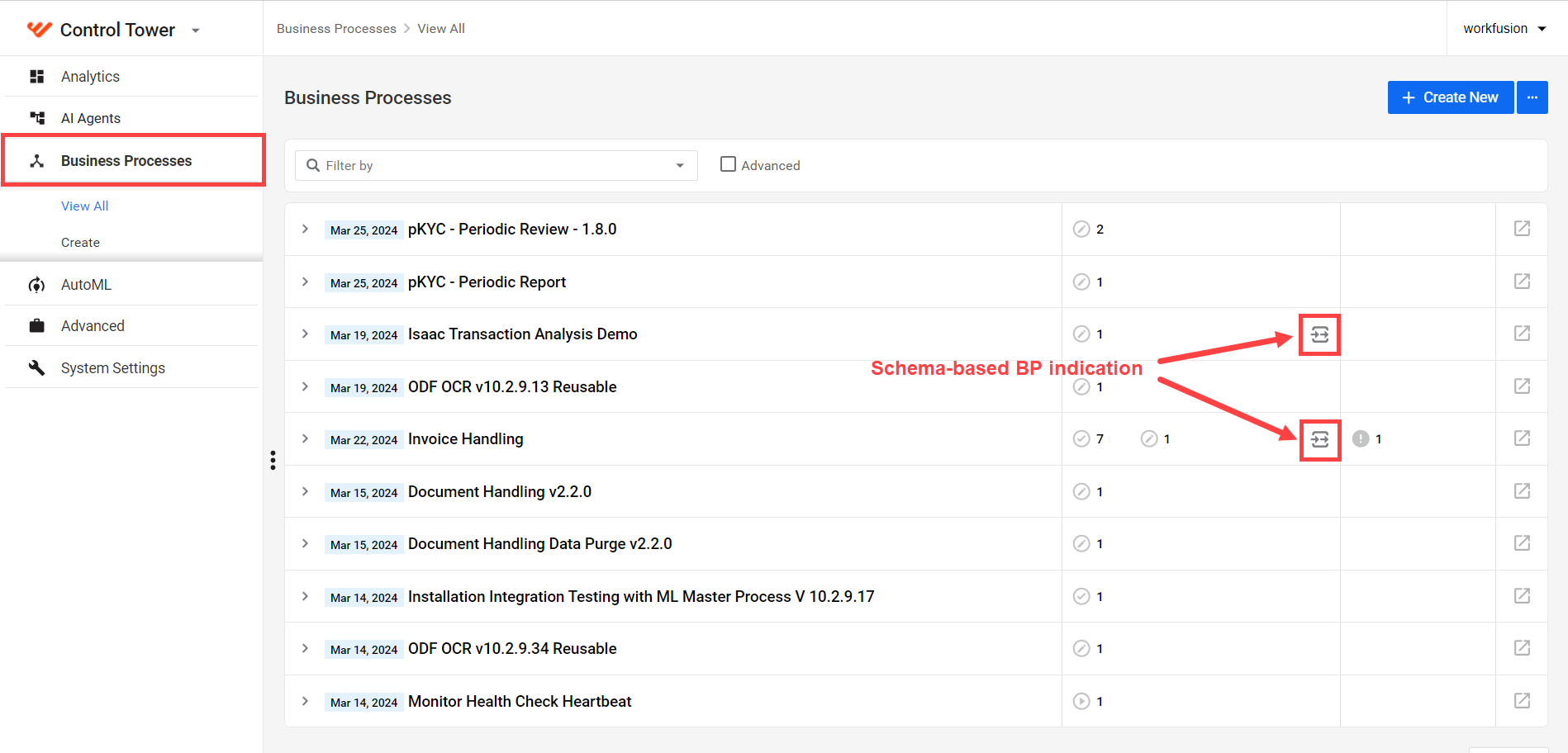
Only BPs of the schema-based design require setting up contracts. Schema-based Business Processes are listed on the same Control Tower page as other BPs: go to Business Processes > View All.
If a BP is schema-based, you can see an appropriate icon next to it:
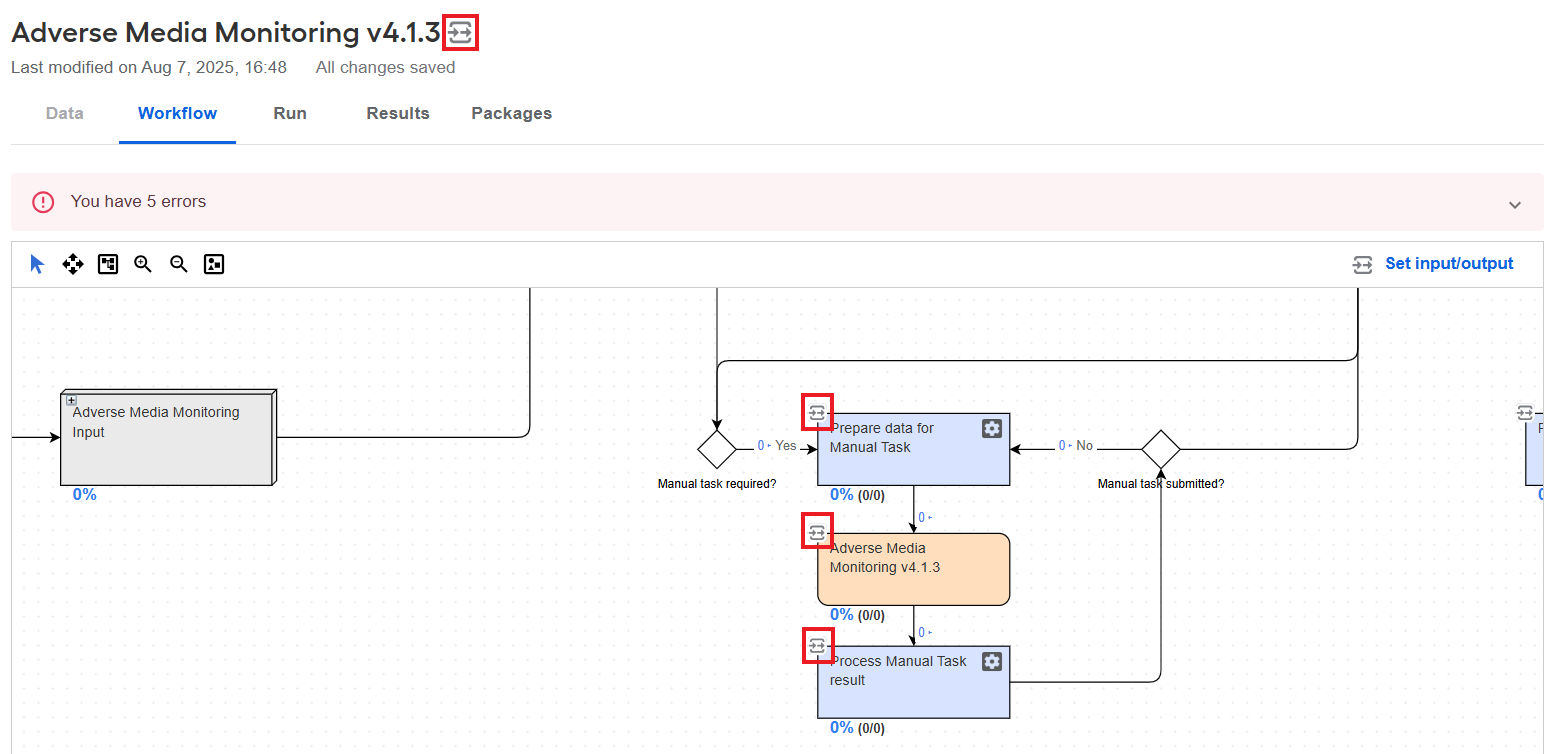
The same icon is displayed next to the BP name and schema-based steps on the BP Workflow tab.
Two types of contracts are available in a schema-based BP:
- An input contract defines a set of fields required as input and their types. Only the fields listed in the input contract appear in the step's input data.
- An output contract defines a set of fields produced by the step and their types.
Manage step contracts
If you drag a bot step configuration from the right panel to add to your workflow, the following logic is executed:
If a source bot configuration or a Manual Task has a component contract associated with it, a new step contract is created based on the component contract and linked to the new step.
If a source bot configuration or a Manual Task doesn’t have a component contract but is used in some BP with the step contract, a new step contract is created based on that step contract and linked to the new step. A step contract is taken from the most recent bot step.
You can also define empty contracts both for input and output:
- An empty input contract is used for a step that does not require any input business data and is applicable, for example, when a BP is triggered by a timer and the first step does not need any data but instead makes a request and provides data for the downstream steps.
- An empty output contract refers to a step that does not produce any business data and is used, for example, for clean-up steps or when a step contains some logic but does not produce any data for the BP.
View step contracts
To view the contracts with mapping for a step, follow the steps below:
Open a schema-based BP instance by clicking it in the Business Processes list.
Navigate to the Workflow tab, find the required bot step in the flow, and double-click it to open the configuration panel.
Go to the Input / Output tab.
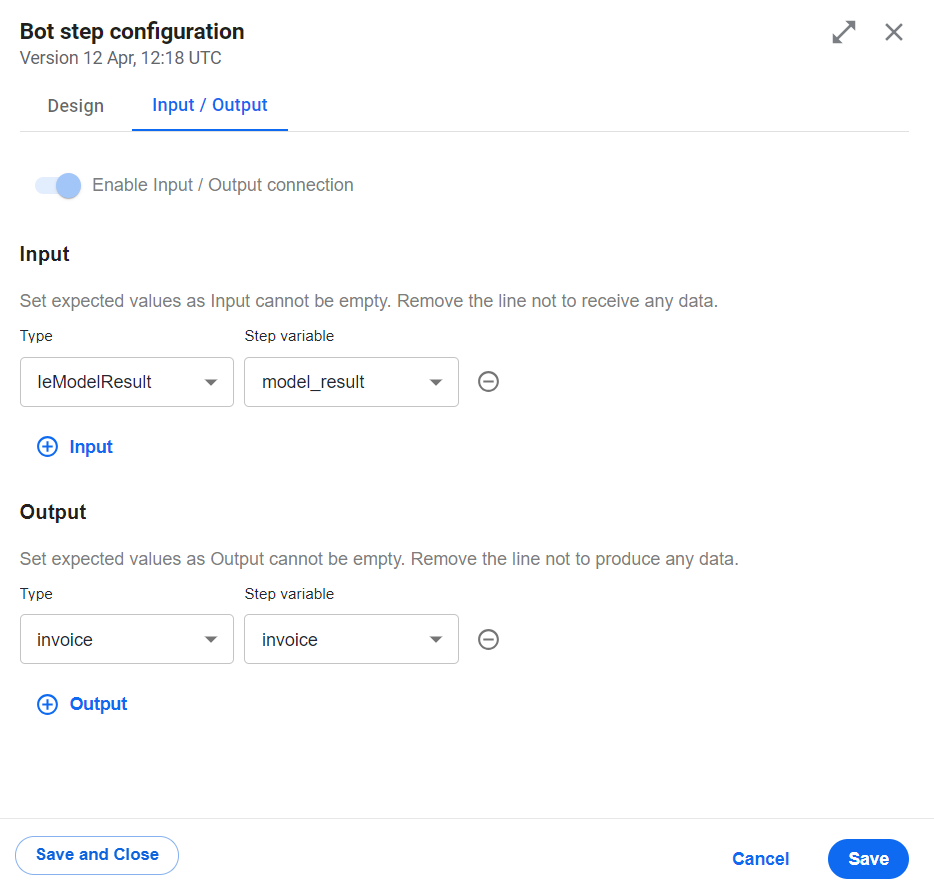
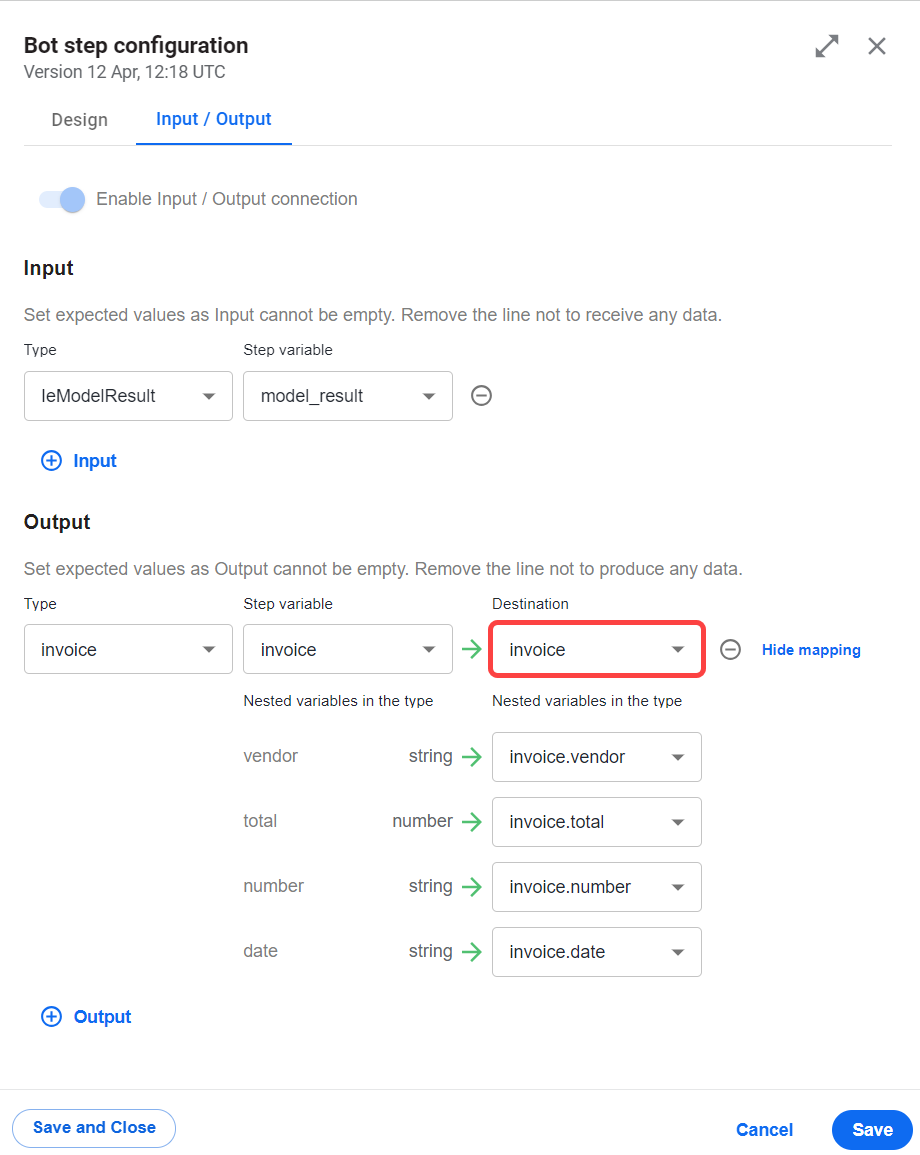
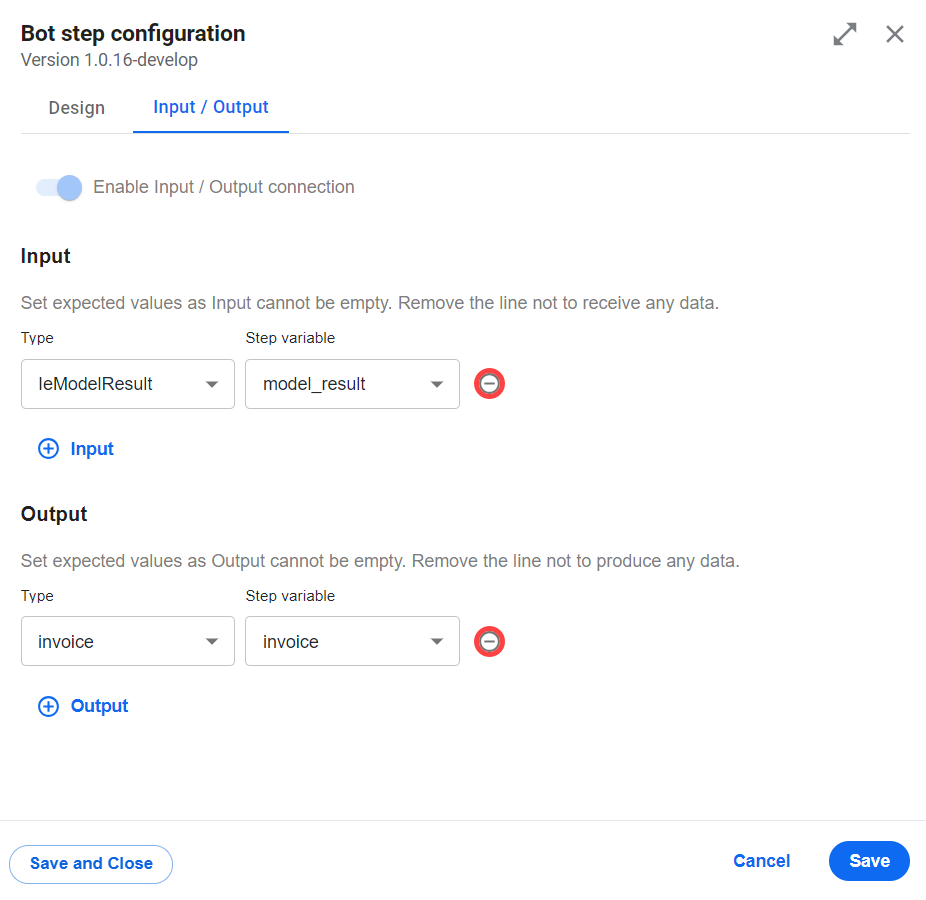
In the example above, the bot input contracts refer to the model_result step variable, and the bot output contract points to the invoice step variable.
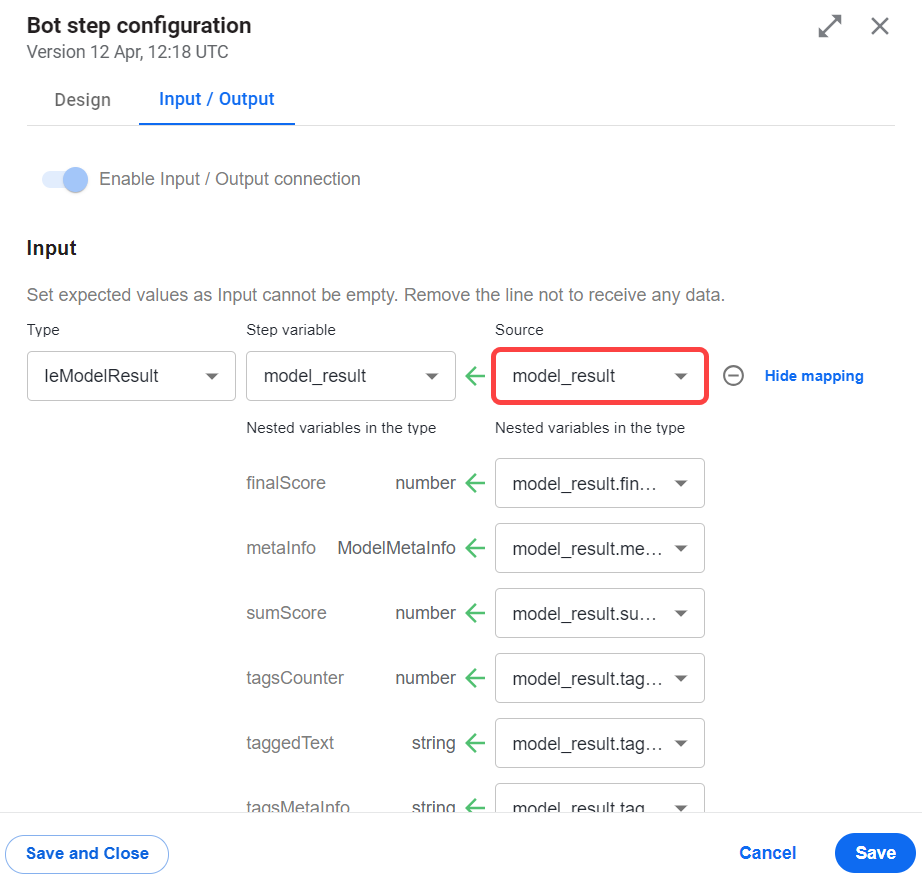
To see the contract mapping, move the pointer to the right of the Step variable drop-down list and click Show mapping.
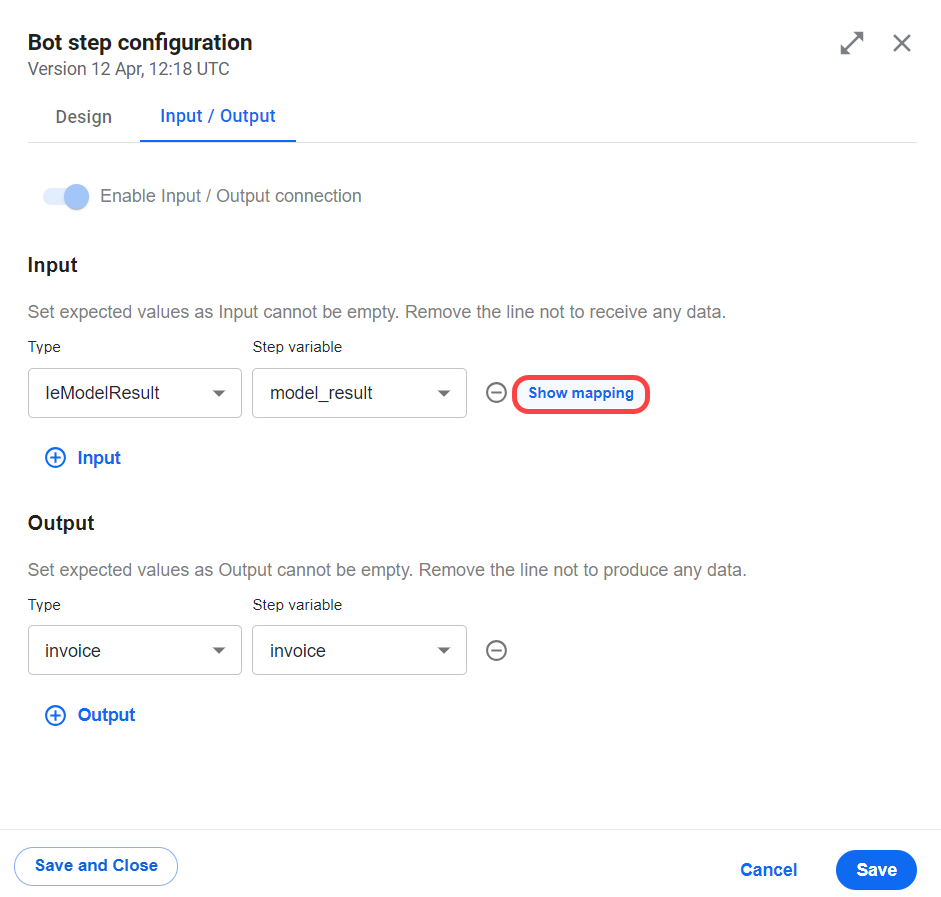
For an input contract, Source variables appear next to the related step variables.
For an output contract, Destination variables appear next to the related step variables.
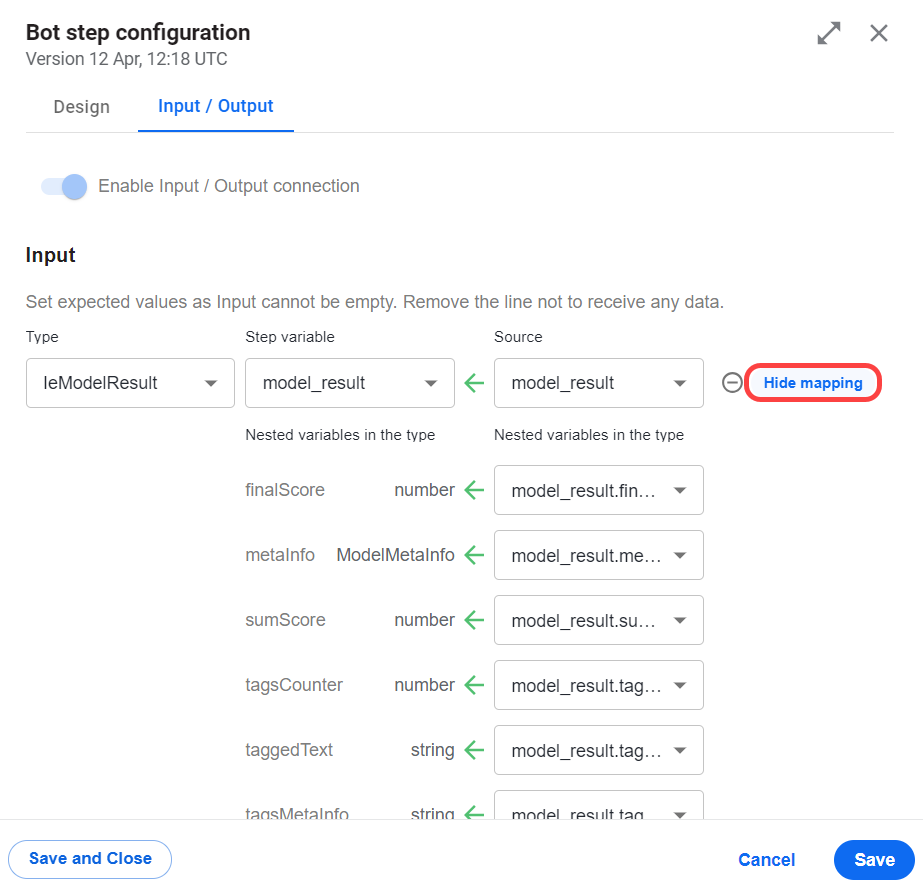
To hide the selected mappings, move the pointer to the right of the variables and click Hide mapping.
For nested variables, also see Apply data mapping.
Add step contract
Users with advanced engineering skills can also add contracts to Bot Configs and Java Native Workers and import them with an Asset Bundle. For details, refer to Develop and import steps for schema-based Business Process.
To add a contract, follow the steps below:
Open the Input / Output tab for the step where you want to add a contract as described in the View step contracts section.
For a schemaless step, switch on the Enable Input / Output connection toggle.
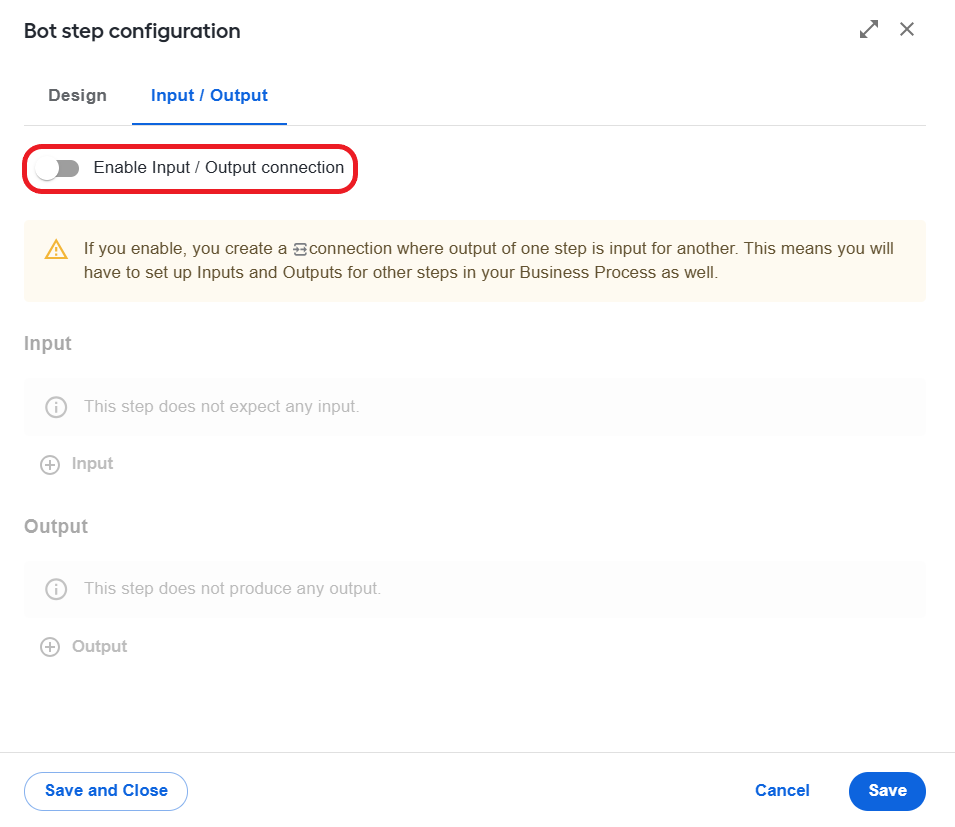
To add inputs or outputs, click + Input or + Output respectively.
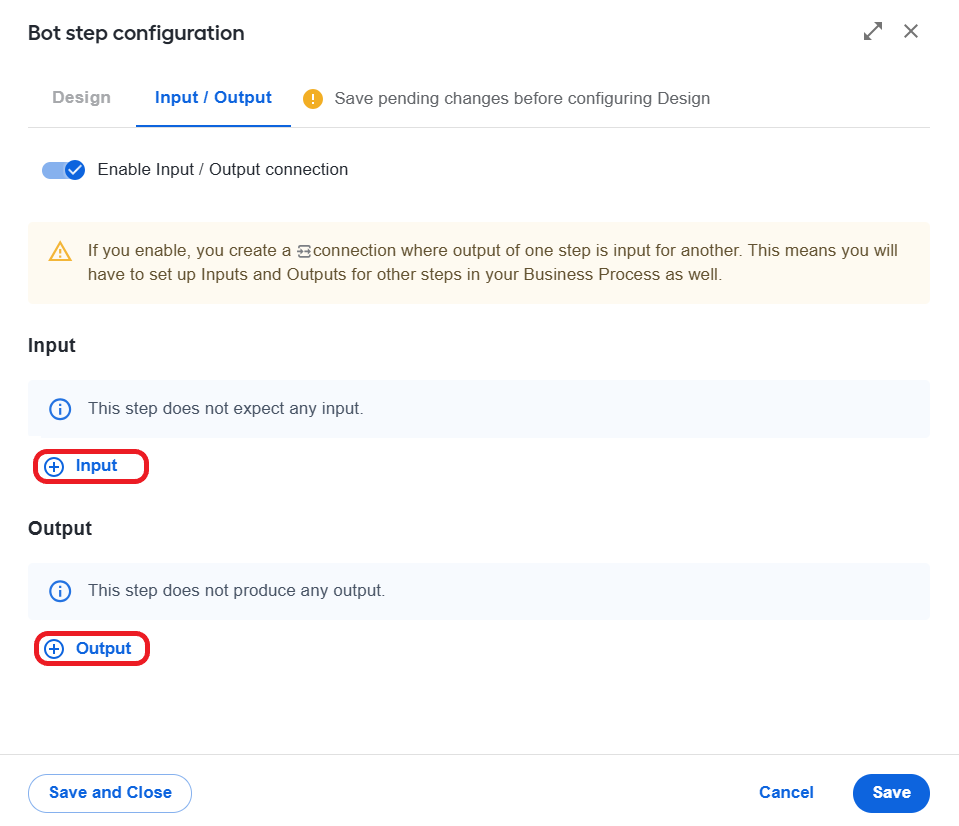
Configure the contract values:
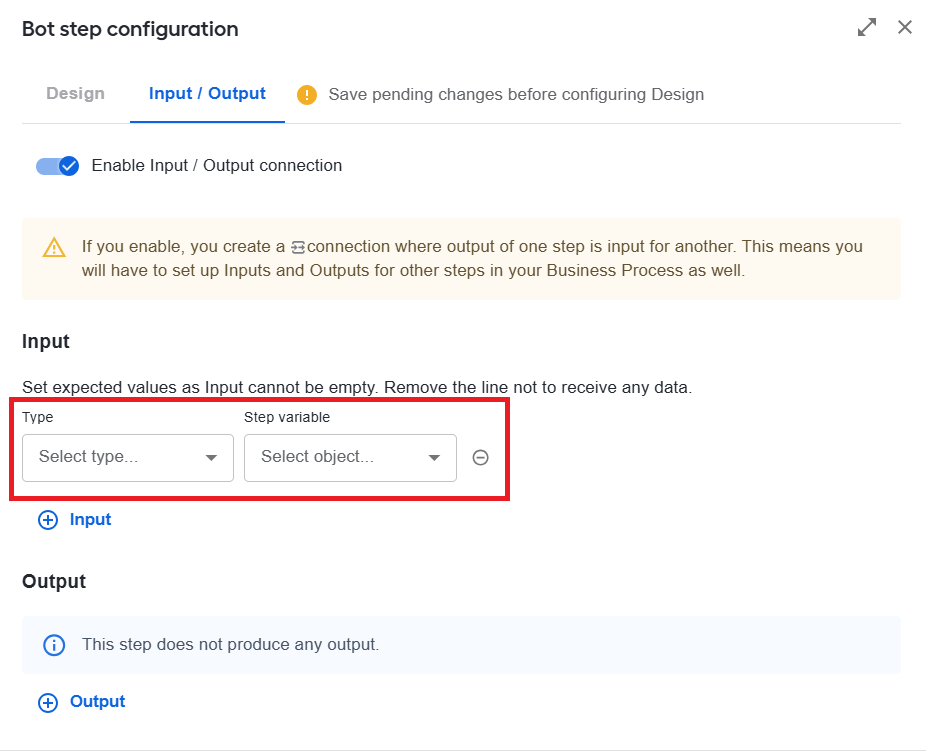
In the Type drop-down list, select a variable type. The options are as follows:
- Basic: boolean, string, number, integer
- Custom objects
- List
- Variable types used in the BP
To find a specific type, use the Search field.
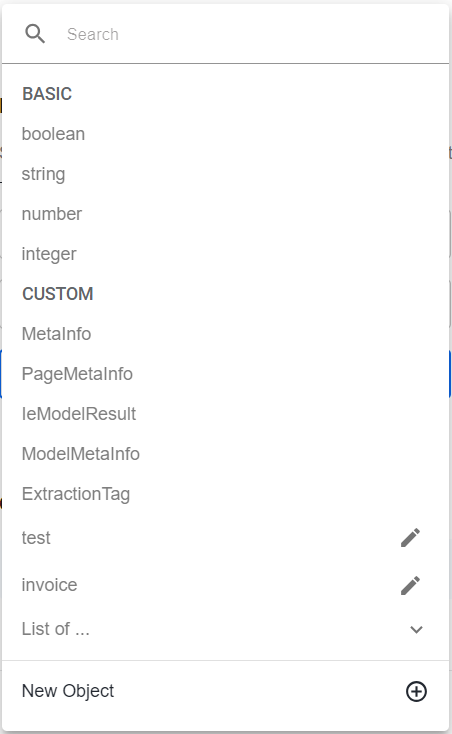
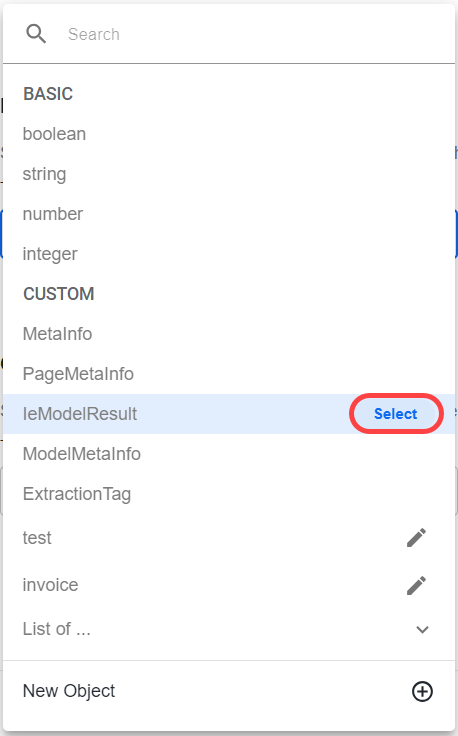
To select a type, click it in the list. For custom types, move the pointer to the needed type and click Select.
Select a Step variable value. For an input contract, the list contains upstream variables; for an output contract, it includes downstream ones.
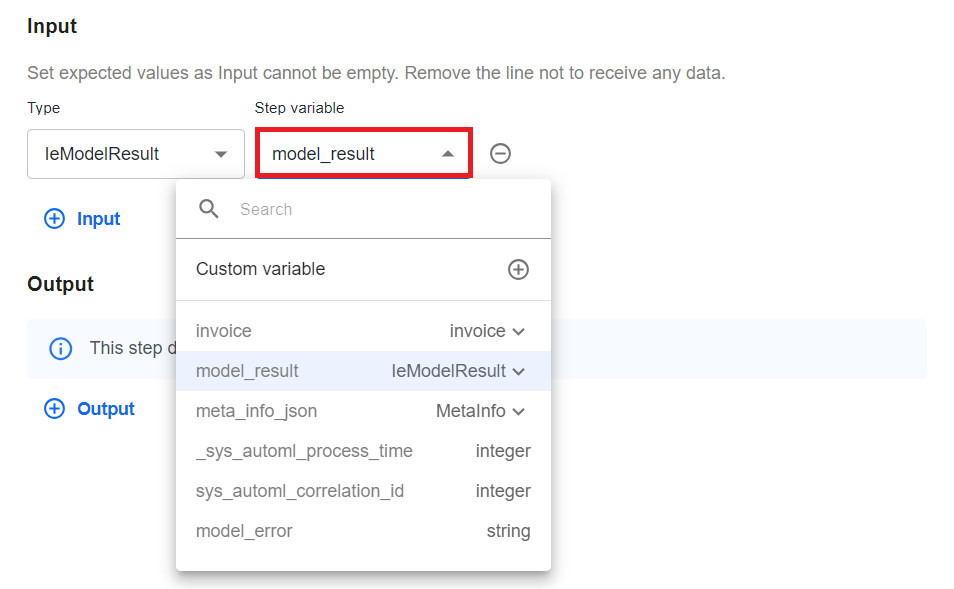
To map, set up Source values for inputs and Destination values for outputs as described in the Apply data mapping section.
Click Save.
To remove one or more variables from the contract, move the pointer to the variable and click the Remove icon.
Set up custom schema objects
In your contract, you can create custom schema objects and reuse them in other BPs if needed. To add a new custom object, complete the following steps:
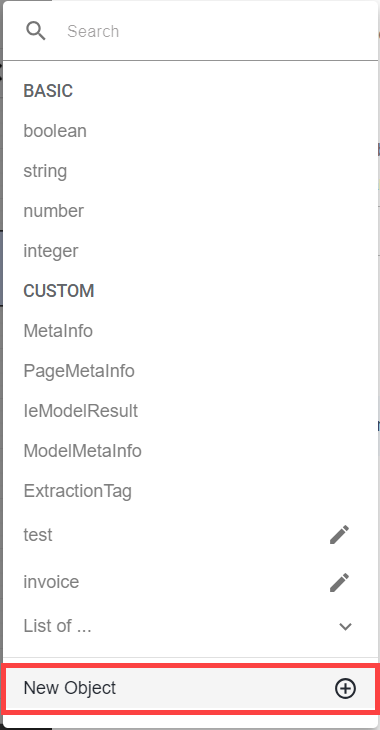
In the Type drop-down list, click New Object.
In the Object name field, enter a name for the new object.
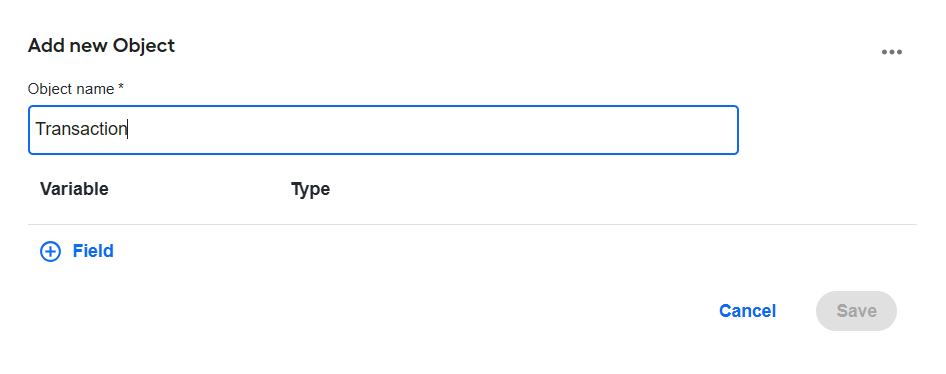
To add a variable for the custom object, click Field.
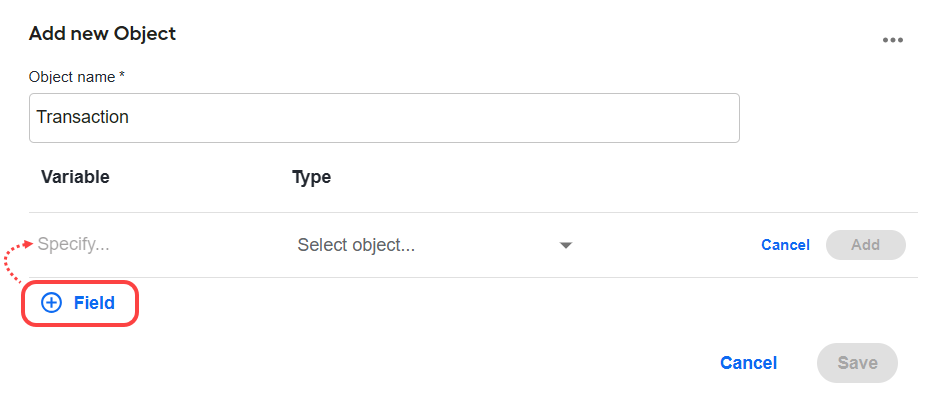
In the Variable field, enter the variable name.
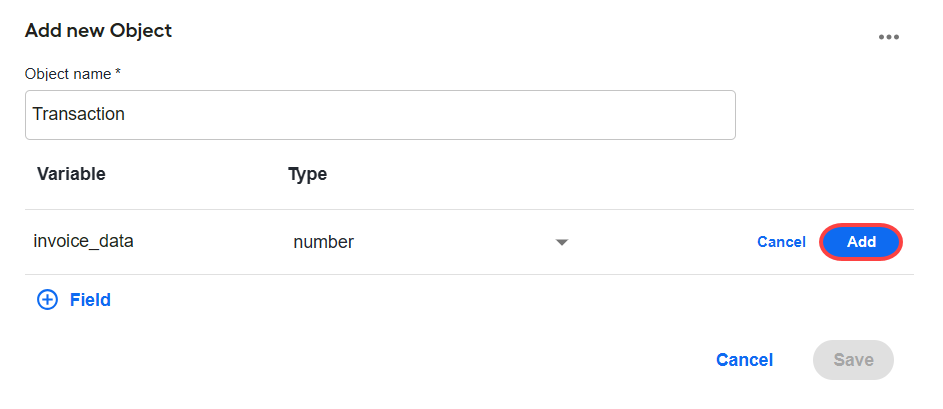
In the Type drop-down list, select the variable type.
Click Add.
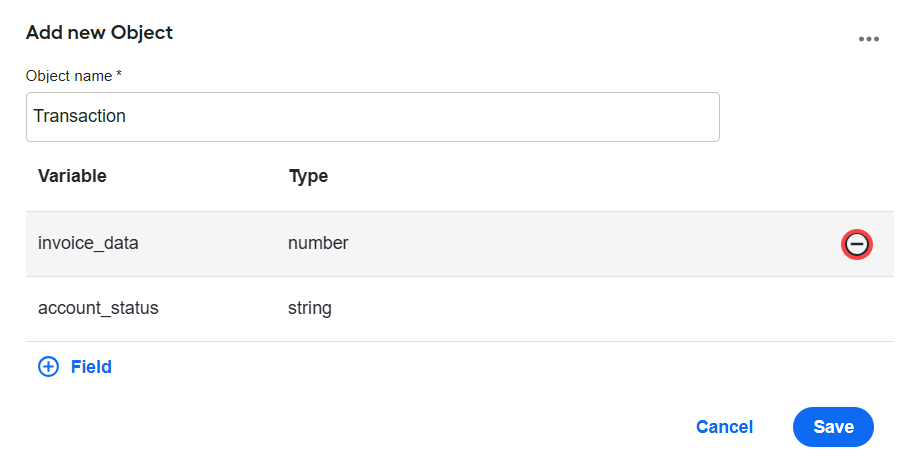
To delete a field, move the pointer to the line to be deleted and click the Remove icon.
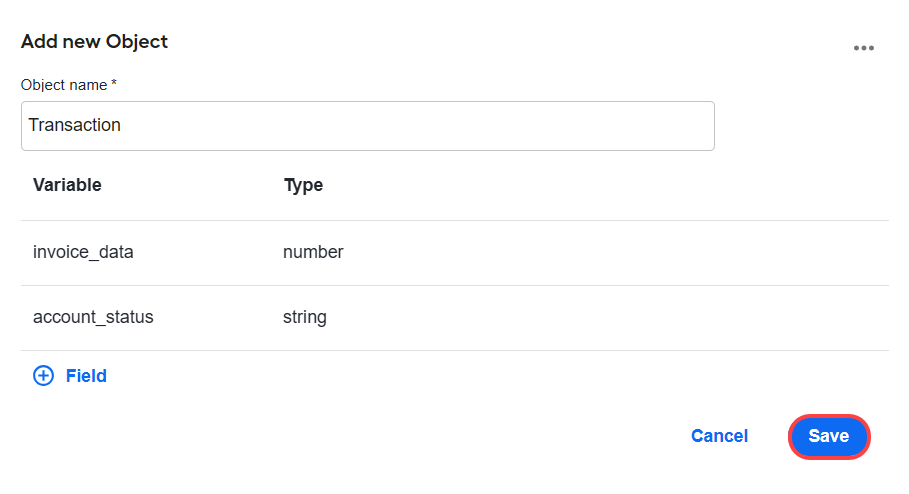
After adding all required variables, click Save.
On the Input / Output tab, click Save and then save the BP. The new schema object will appear in the list of custom types.
You can perform various actions with custom type definitions created manually. First, select a custom object from the Type drop-down list and click the Edit icon.
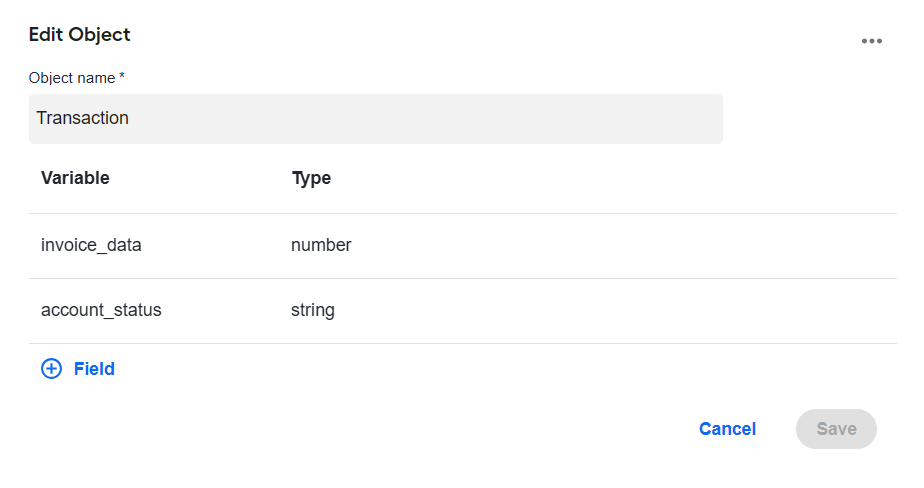
In the edit mode, you can:
Edit a custom object. Add or remove variables as described above and then click Save.
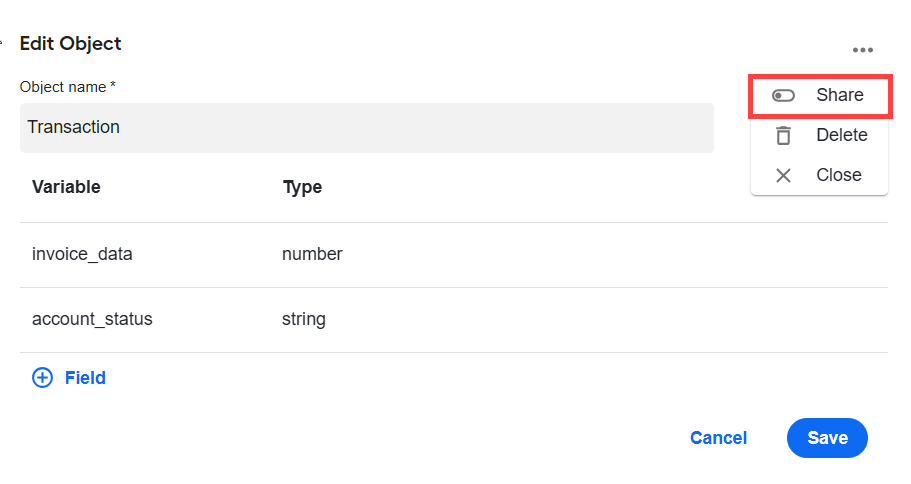
Share a custom object. Sharing a custom data schema object allows reusing it as often as you need across automations.
infoThe feature is available since Work.AI v10.2.9.2.
To enable sharing, open the Actions menu in the upper-right corner and switch on the Share toggle.
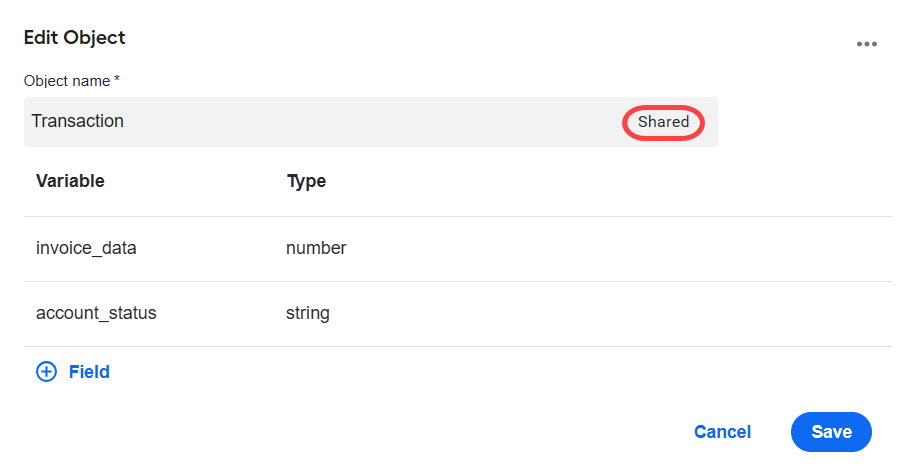
Once shared, the object is marked as Shared. Click Save.
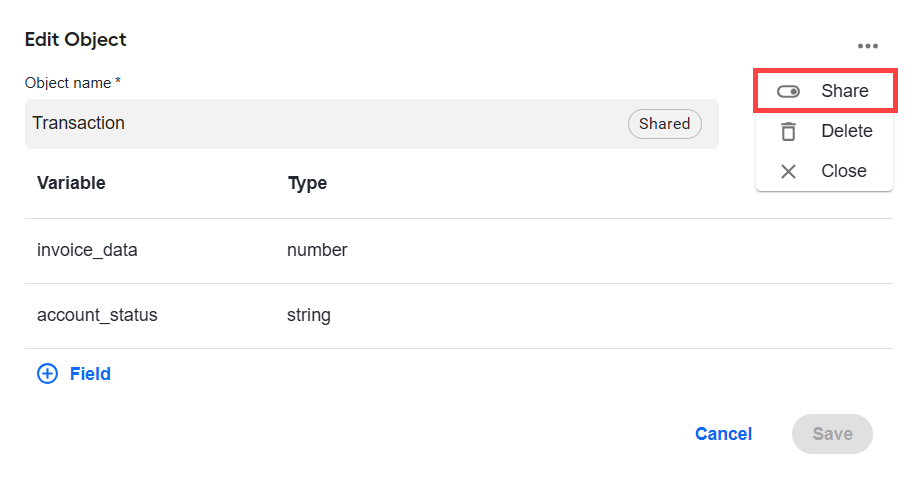
To stop sharing, open the Actions menu, switch off the Share toggle, and click Save.
 note
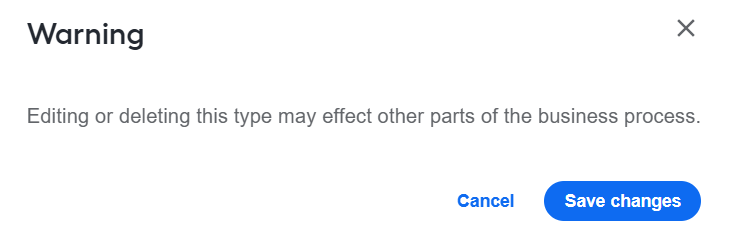
noteWhen you make changes to a custom object (edit or share), once you click Save, confirm the changes by clicking Save changes in the warning dialog. To discard changes, click Cancel.
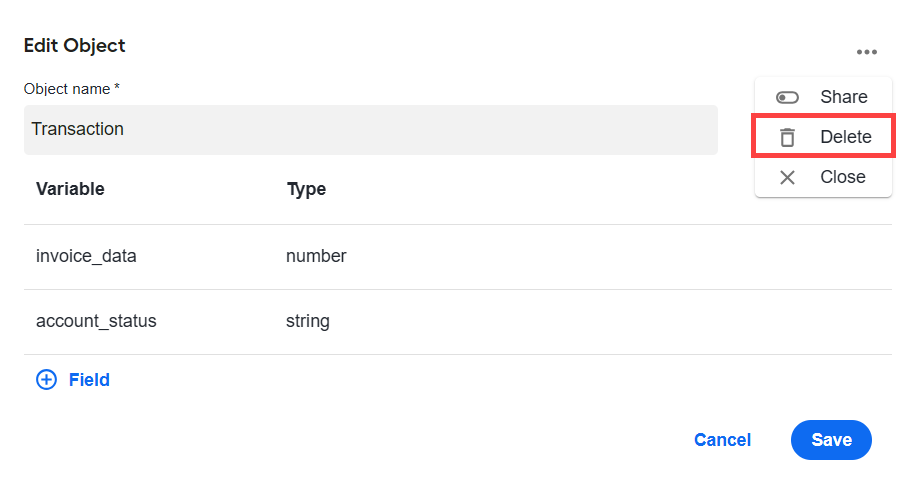
Delete a custom object. Open the Actions menu and select Delete.
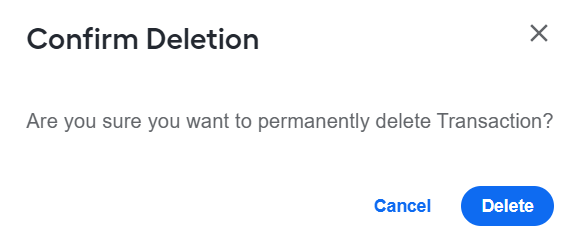
Confirm the deletion by clicking Delete in the Confirm deletion dialog.
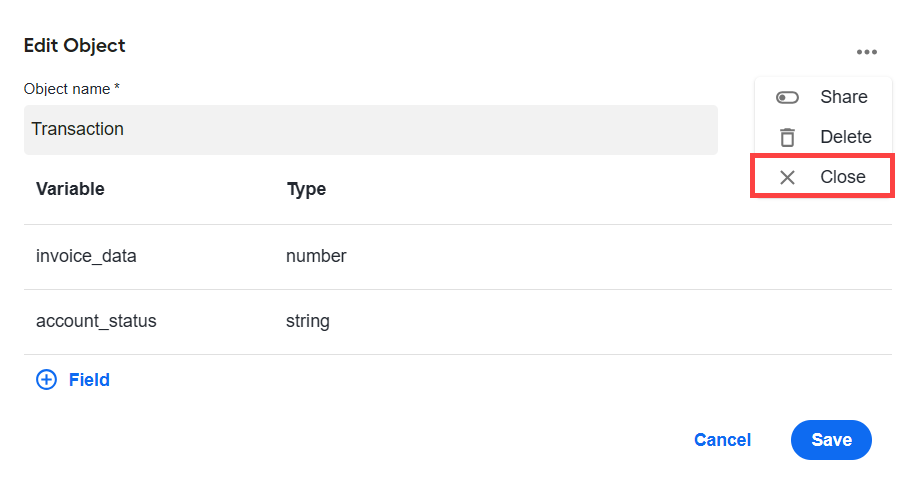
To close the custom object menu, click the Actions menu and select Close. You are transferred to the Input / Output tab.
You can transfer custom types between environments by exporting them in an Asset Bundle during a variation export and then importing them into the target environment.
Apply data mapping
You can apply data mapping to transform variable names before and after a bot step processes them. It serves as a wrapper for the bot step logic and renames variables before and after processing.
With the feature, you can reuse a step logic for another step that expects the same data but under different names. For example, an OCR step may require a document URL under the document_link field. If you already have the original_document_url field, you can map original_document_url to document_link and add an OCR step to your BP.
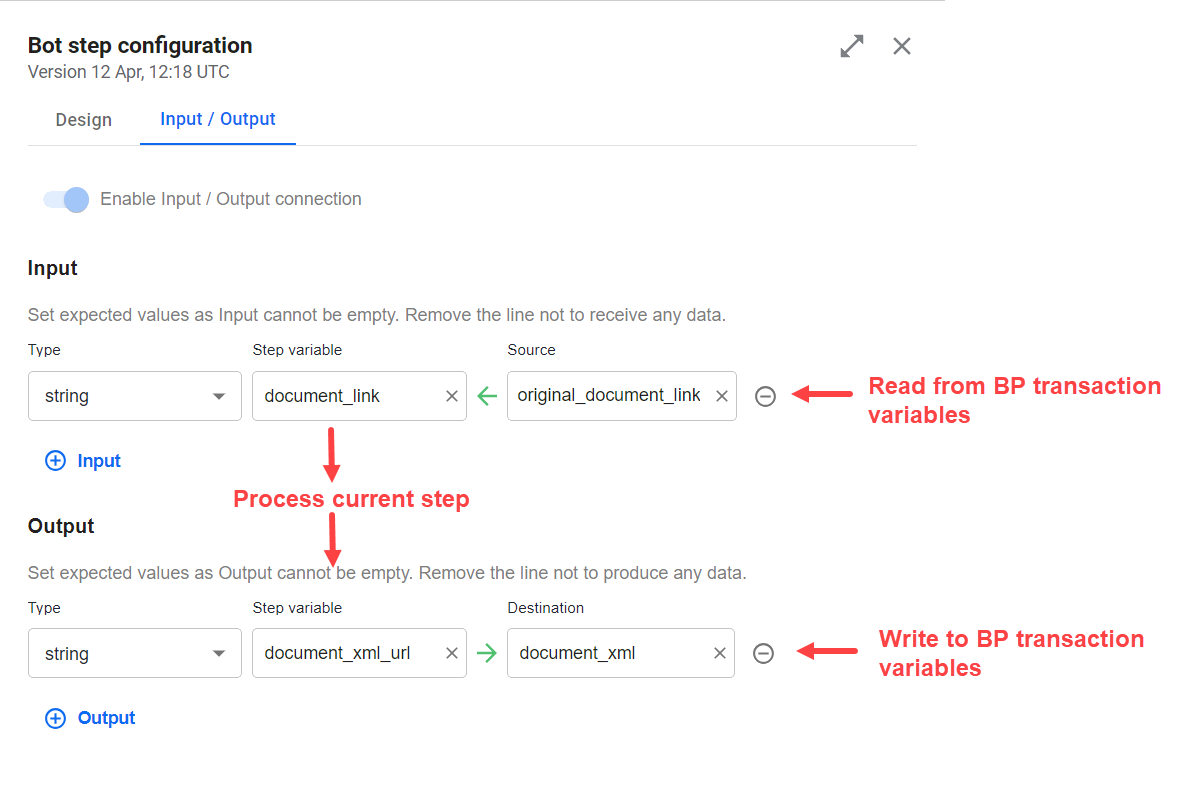
When you add inputs or outputs, Source and Destination variables match step variables and are hidden by default. To modify mapping options, go to the Input / Output tab for a bot step and configure the following:
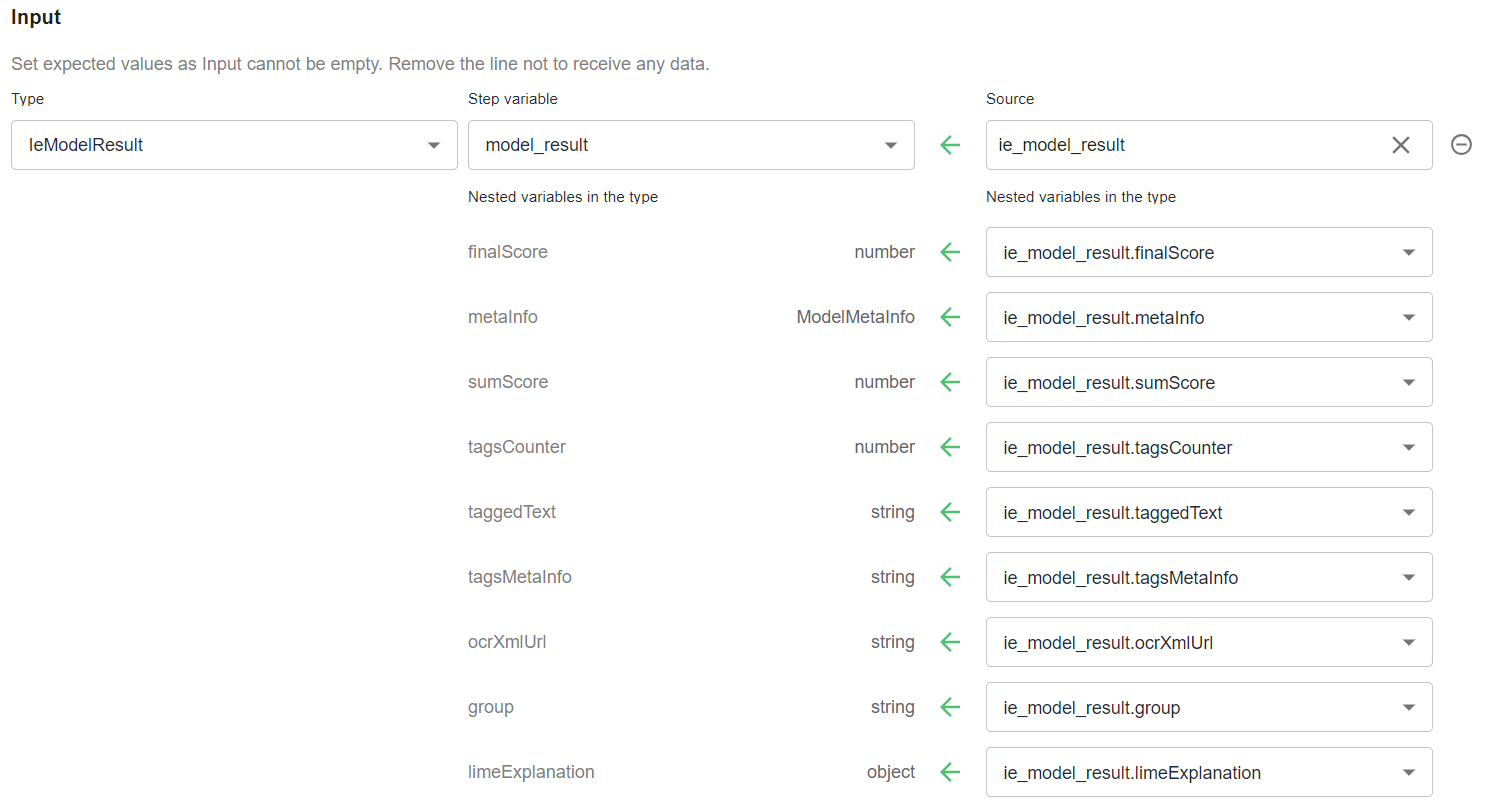
For inputs, specify the Step variable and Source values: the first one refers to the variable name expected by the step, and the second one is the variable name in the BP context. Nested variables (if there are any) are named accordingly.
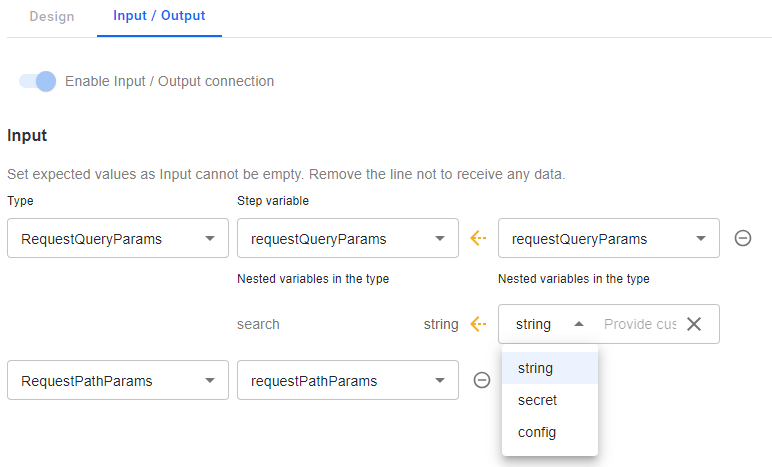
In an input object, you can specify values for headers and authorization, query, and path parameters you configure in the connector. Thus, you can set up a constant value, a reference to a secret entry in Secrets Vault, or a reference to an AI Agent configuration. For more details, see Configure no-code Generic Connector.
For outputs, specify the Step variable and Destination values: the first one refers to the variable name in the bot step output, and the second one is how it should be named in the BP context. Nested variables (if there are any) are named accordingly.
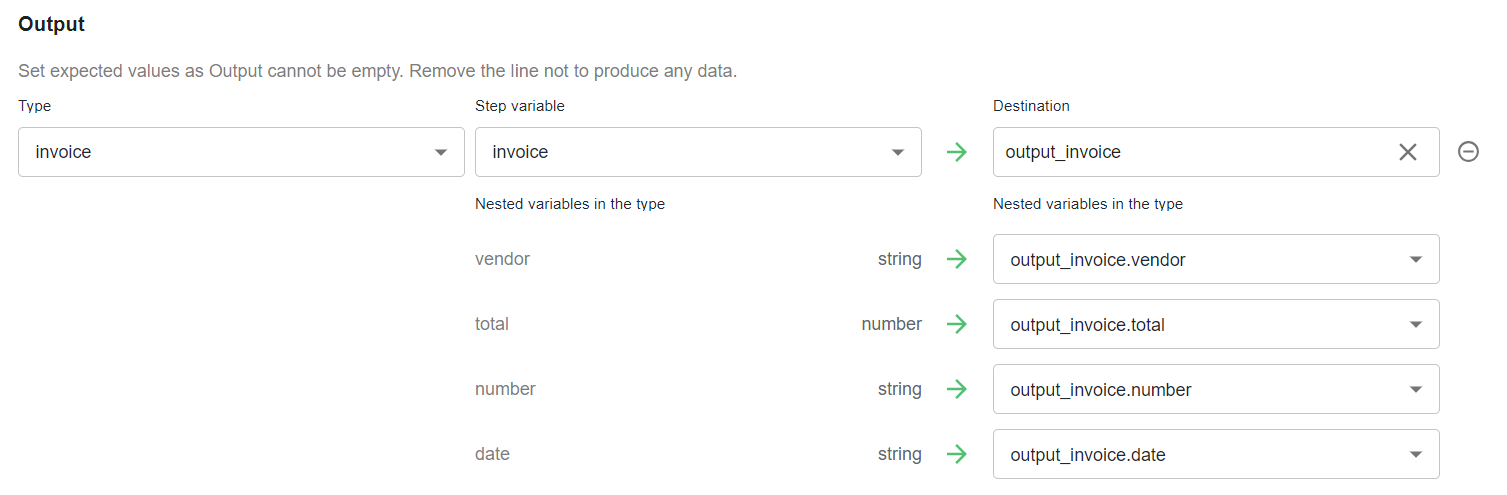
If you do not need mapping, leave values in Step variable and Source for Input or Destination for Output identical.
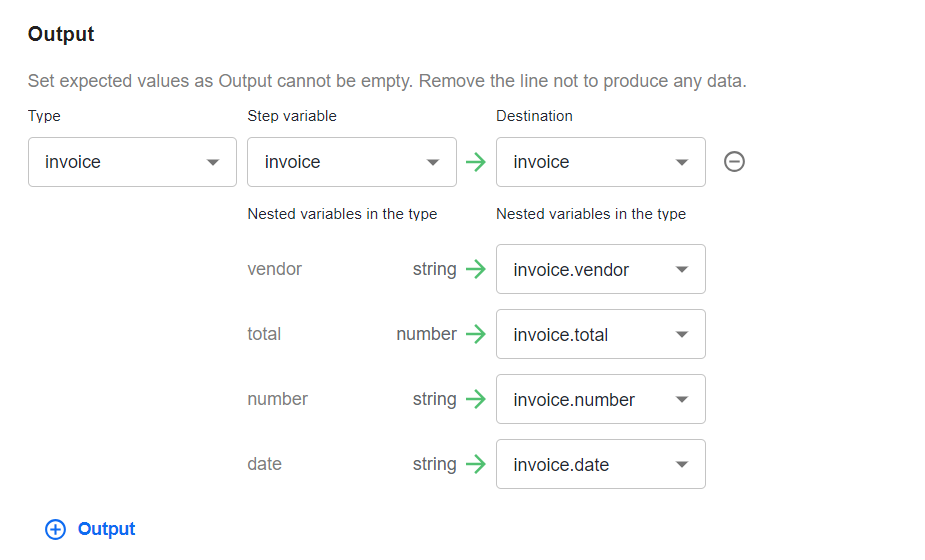
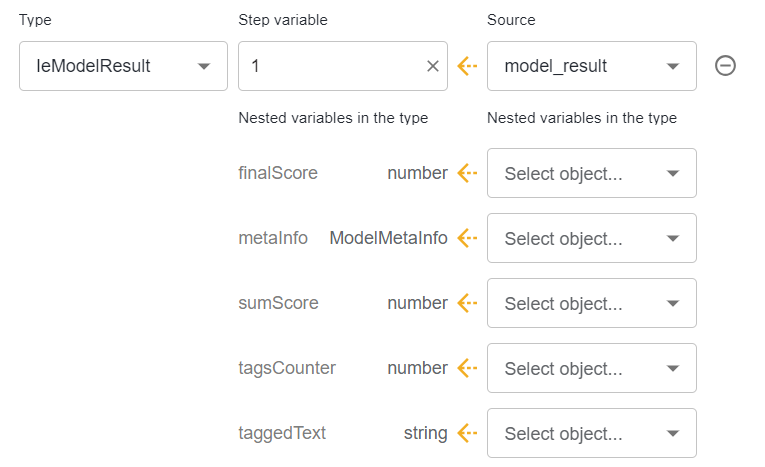
Define variables carefully to match the step logic. The WorkFusion platform cannot verify if a step contract is correct from the perspective of the correspondent step logic. However, if you remove a value or specify a wrong variable, the mapping is broken, and a broken link between the variables is shown. Make sure to fill in the correct values and do not leave empty fields.

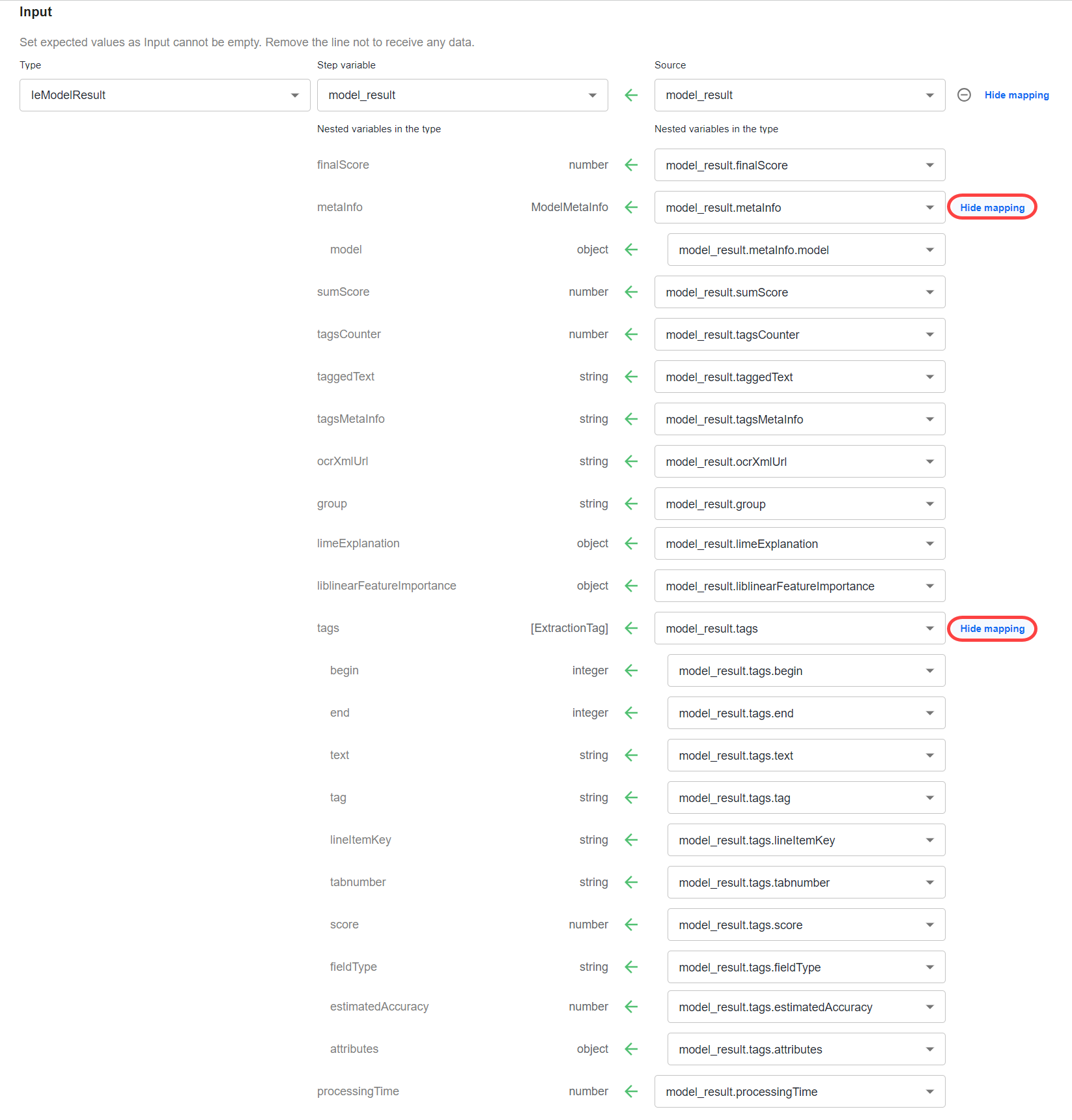
To map complex objects, you can apply nested mapping. To view nested mappings, move the pointer to the nested group and click Show mapping. In the example below, there are two groups of nested variables:
A group of the
model_resultvariablesA subgroup of the
model_result.tagsvariables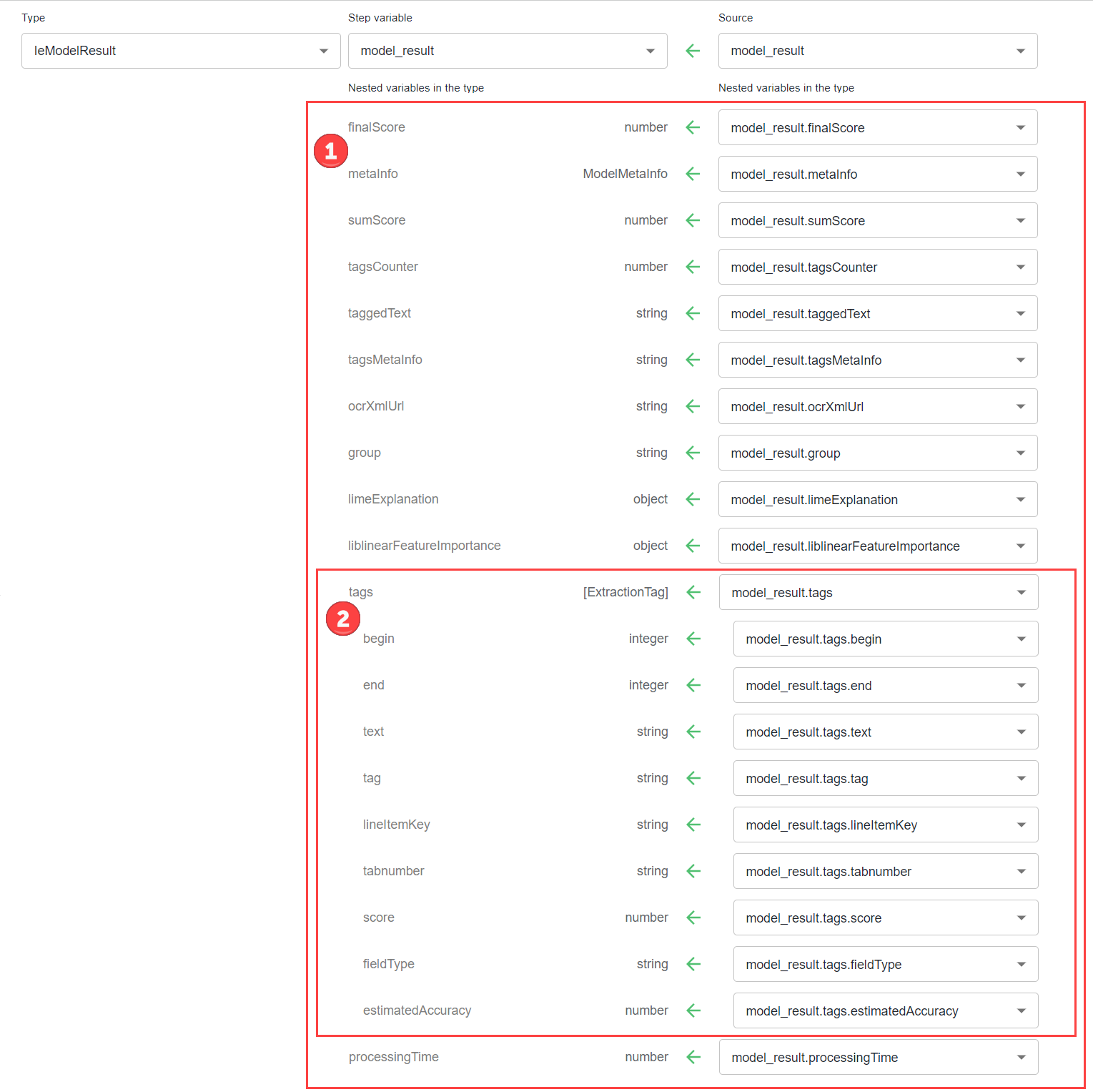
To hide selected nested mappings, move the pointer to the right of the group of nested variables and click Hide mapping.
Mapping cannot cast types. For the same variable, identical types are used for input and output.
When you copy or duplicate an existing schema-based step in a BP diagram, mapping is not copied.
Update step contract
To update a contract, select a step where you want to make edits. On the Input / Output tab, change the needed values, or add more variables to the step as required.
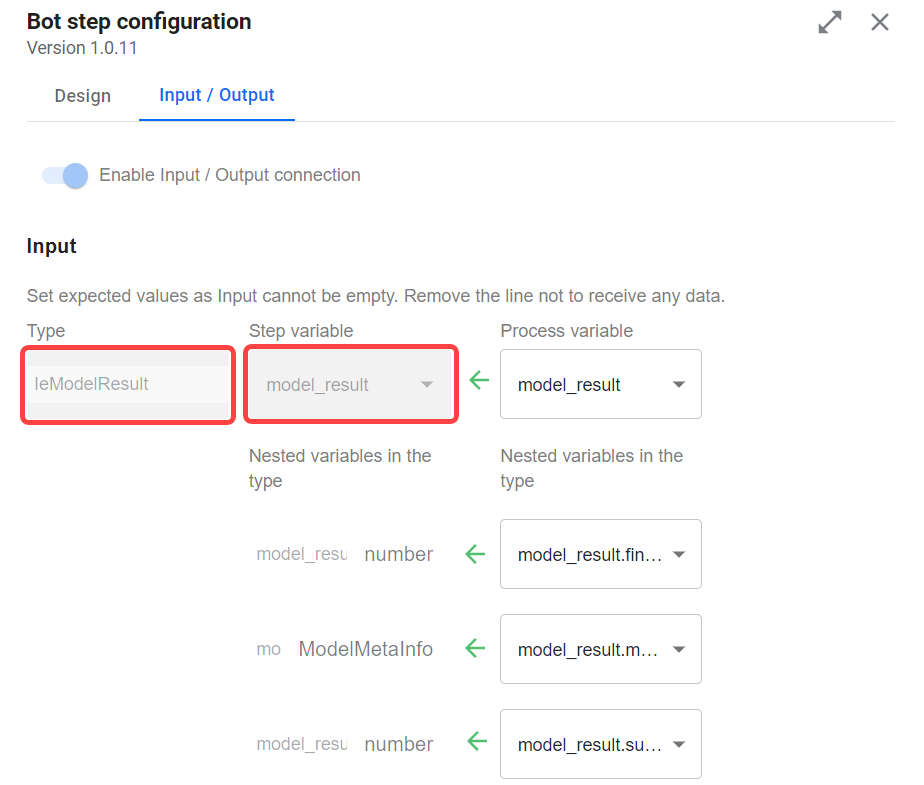
If a bot step with a contract is imported as part of an Asset Bundle, you cannot change the Type and Step variable values. Updating is only possible for the Source and Destination values in inputs and outputs, respectively.
Remove step contract
To remove a contract, complete the following steps:
Open the Input / Output tab for the step where you want to remove a contract.
Remove all the variables in the contract. To remove a variable, click the Remove icon next to it.
Once you remove all the variables in the contract, switch off the Enable Input / Output connection toggle.
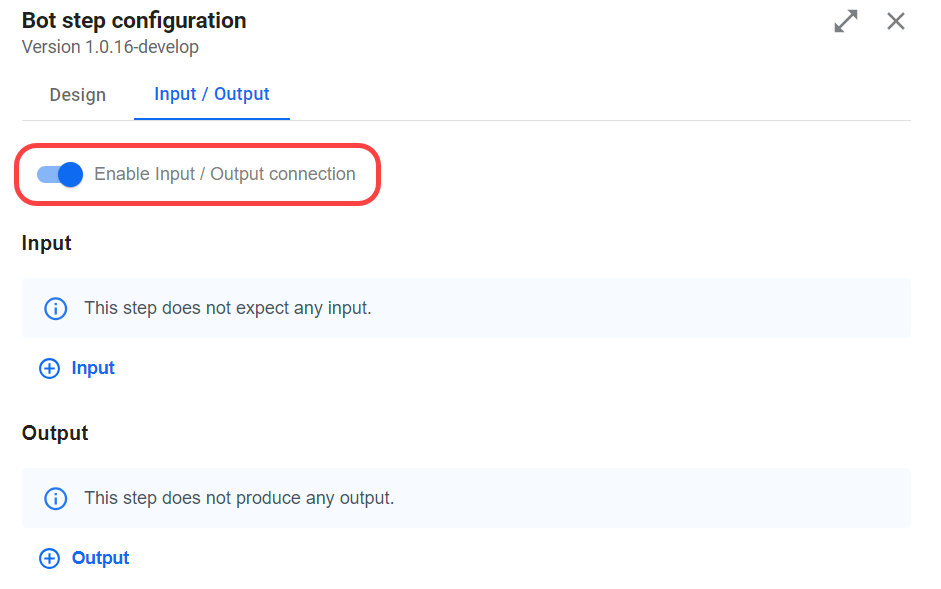
The step has no contract and is no longer marked with the schema-based icon. As soon as your BP has no schema-based steps, it becomes schemaless and is no longer marked with the schema-based icon on the BP level.
If your BP contains an imported bot step and its contract has immutable variables shown as greyed out, you cannot remove the variables. Thus, you cannot remove the contract from the bot step.
Manage BP-level contracts
Business Process-level (BP-level) contracts define the inputs and outputs of an entire Business Process (BP). These contracts specify input variables required for the BP to function and output variables that the BP can produce and return to a calling system.
For BPs using files (CSV or Data Source) as input, BP-level contracts enable the platform to cast each variable from a file source to the specific type defined in the BP-level input contract and validate it before accepting the record for processing. Without a defined BP-level contract, variables from file inputs are treated as strings only.
For BPs using signal ID-based inputs (Streaming Records from External Sources), contracts are automatically assigned when sub-process execution steps call other BPs based on the provided signal ID, allowing seamless access to variables defined in the called BP's contract through the step element.
When a BP-level contract is defined, it affects processing in several key ways:
Input variables not listed in the BP-level input contract are not accepted for processing. If an unrecognized variable appears in the BP input, it is ignored and becomes inaccessible to the BP steps. Therefore, all required variables must be explicitly listed in the BP-level input contract.
Input variables listed in the BP-level input contract are validated against the types required by the BP-level contract. If a variable's value cannot be cast to the required type, the input record validation fails, preventing processing of the record.
Create BP-level contract
You can create BP-level contracts manually, generate them automatically, or use a combination of both methods depending on your needs.
Generate BP-level contract
To automatically generate a BP-level contract, do as follows:
Go to the Workflow tab of the BP where you want to set BP-level contracts and click the Set input/output button.
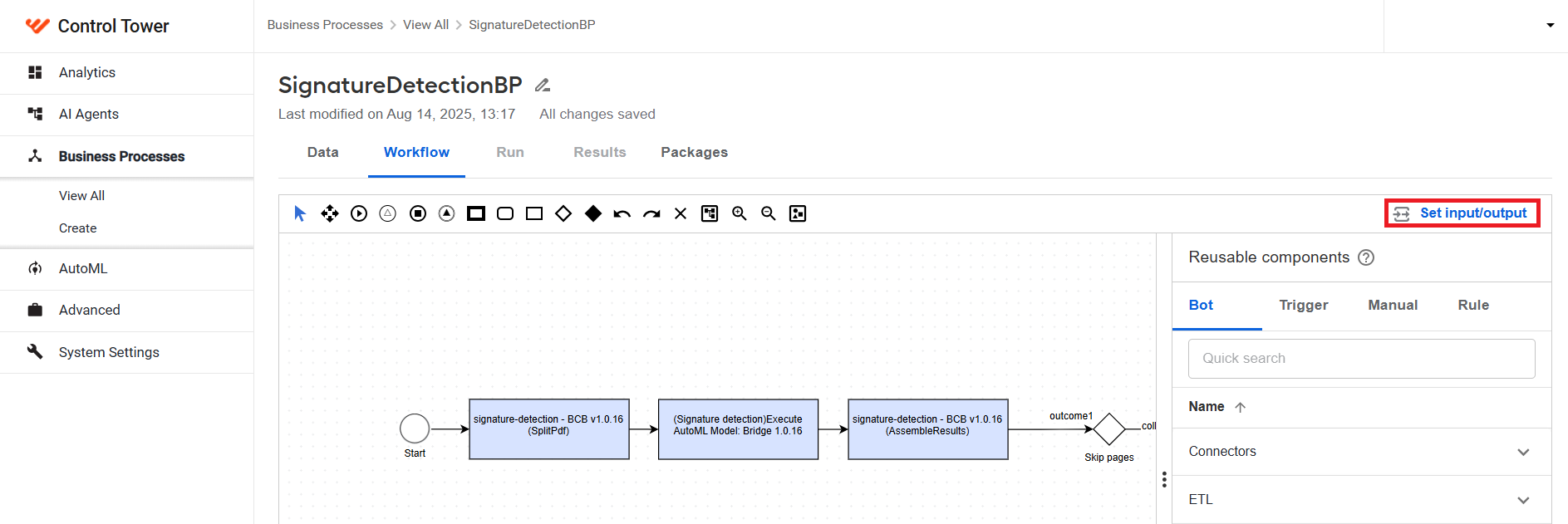
In the Input/output configuration window, click Generate input/output from steps.
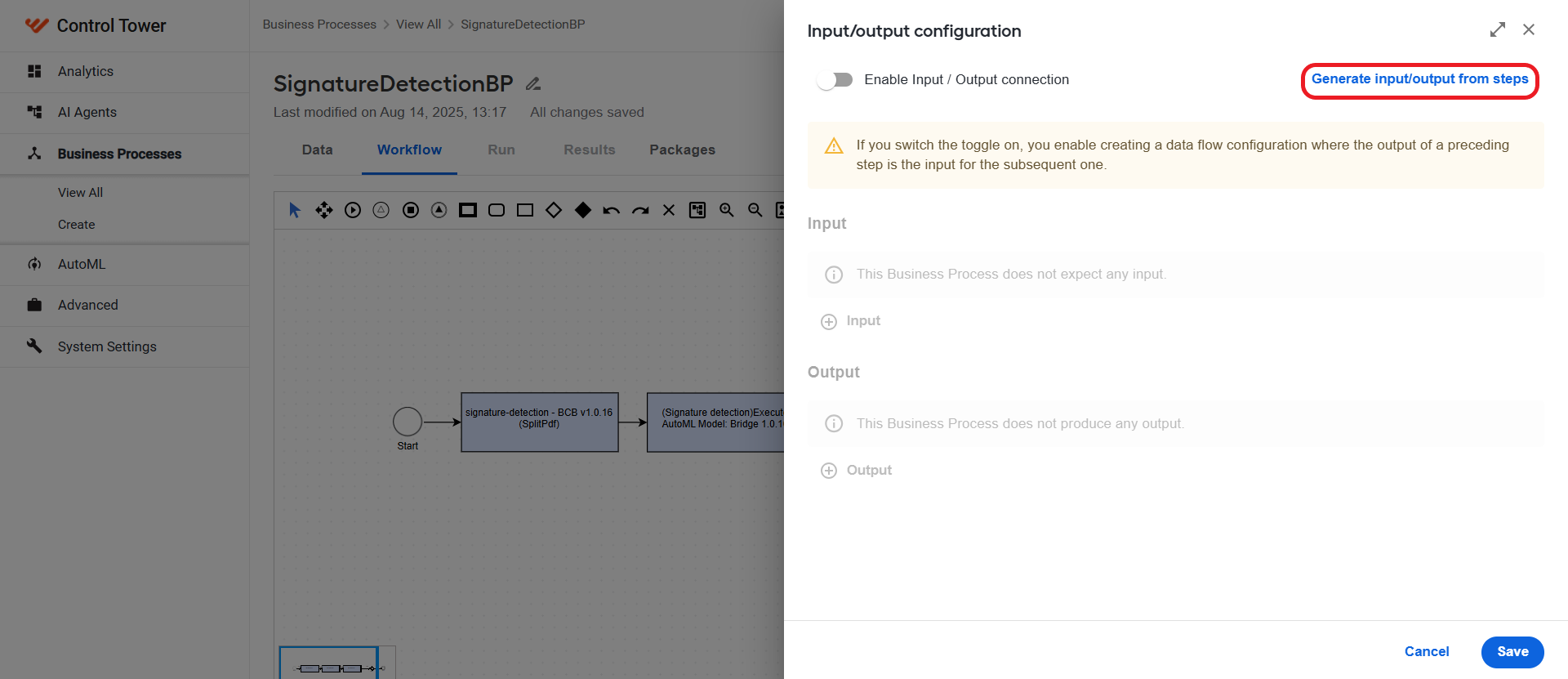
This action populates the BP-level contract with input and output variables based on the step contracts in the current workflow.
Input: combines all variables from the input contract of each step.
Output: combines all variables from the output contracts of result steps. A result step is one that sends results back to the caller. Result steps are identified by flags such as
send-to-external-connectorfor WebHarvest steps orsendResultToCallerfor Java Native Worker steps. These steps are applicable only to BPs using the Streaming Records from External Sources input type.
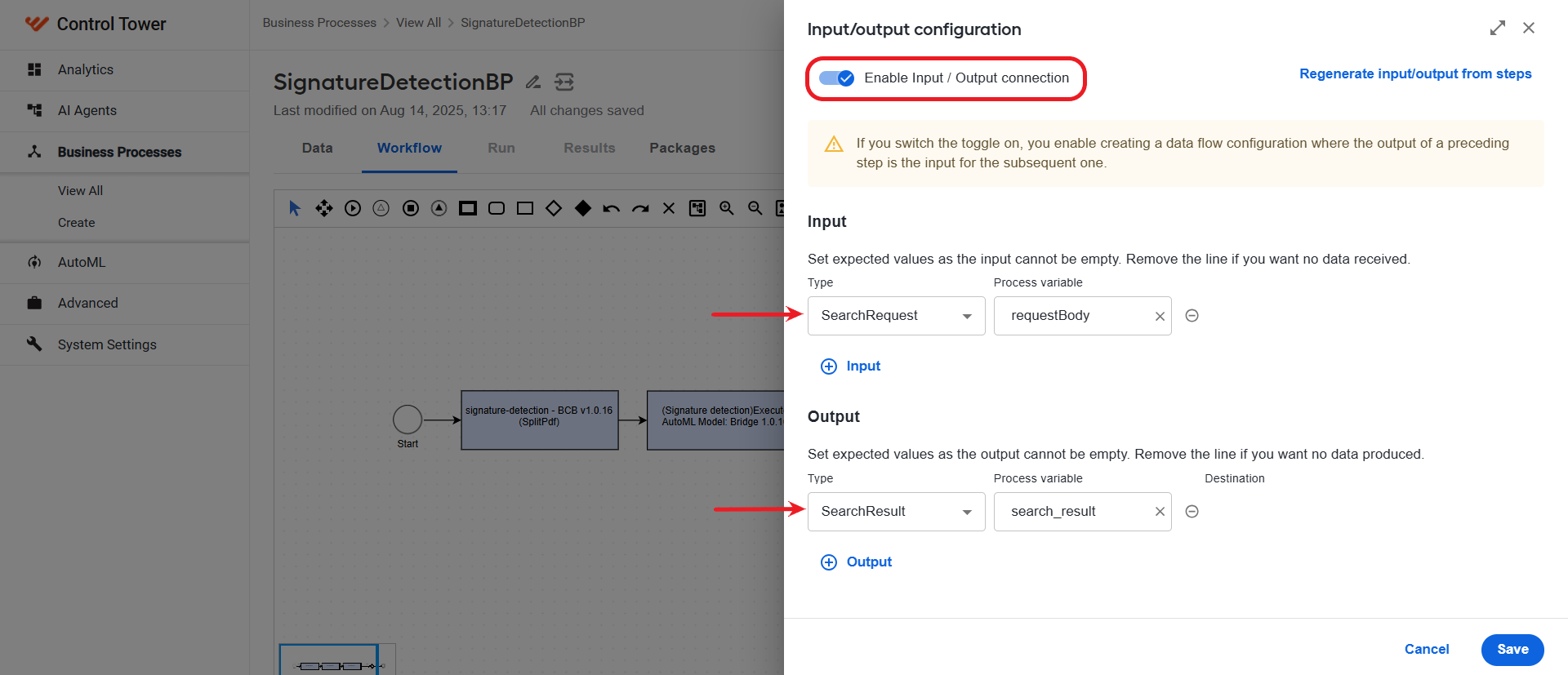
Adjust the contract manually if needed, then click Save.
Create BP-level contract manually
To manually create a BP-level contract, do as follows:
Go to the Workflow tab of the BP where you want to set BP-level contracts and click the Set input/output button.
In the Input/output configuration window, click Enable input/output configuration and set up inputs and outputs in the same way as for step contracts.
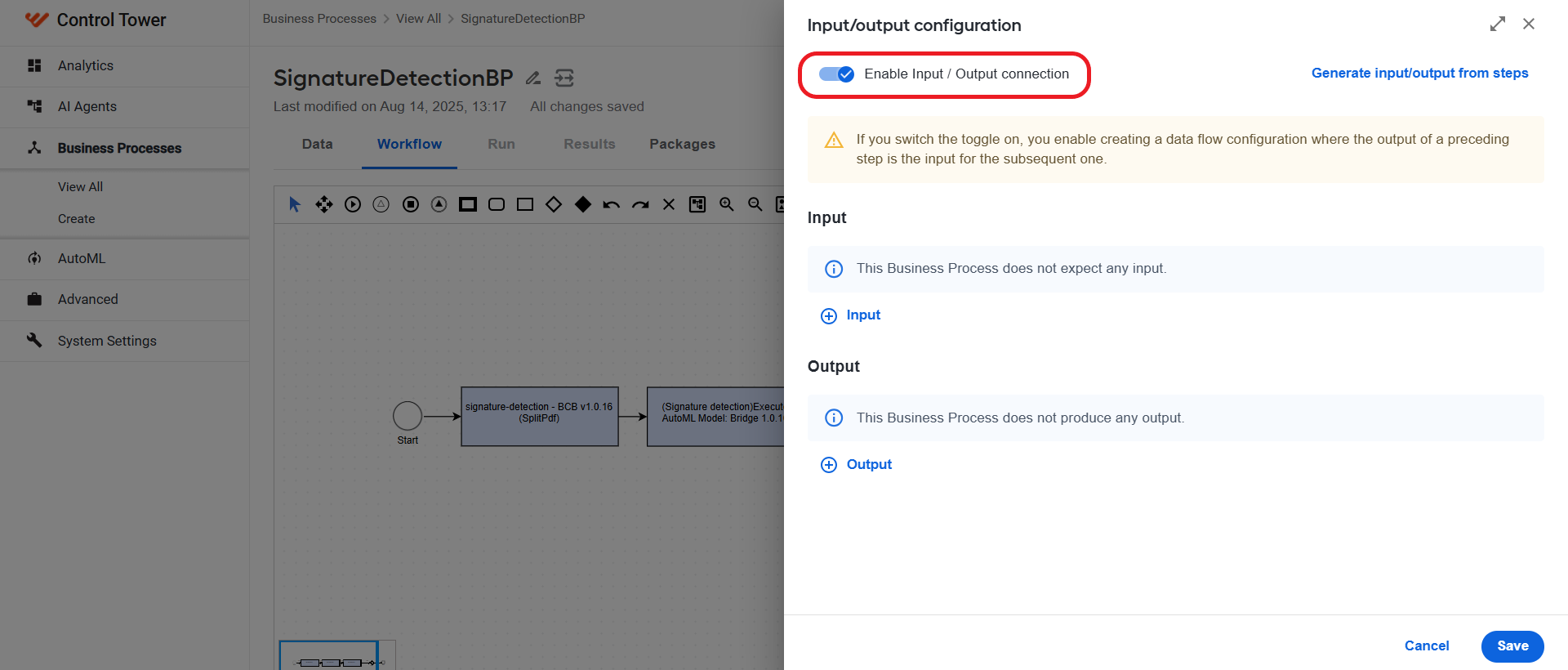
Click Save to apply the changes.
Regenerate BP-level contract
Once you add any updates, you can regenerate a BP-level contract at any time. This is especially useful after making changes to step contracts that affect input or output variables.
To regenerate a contract, complete the following steps:
On the Workflow tab, click the Set input/output button.
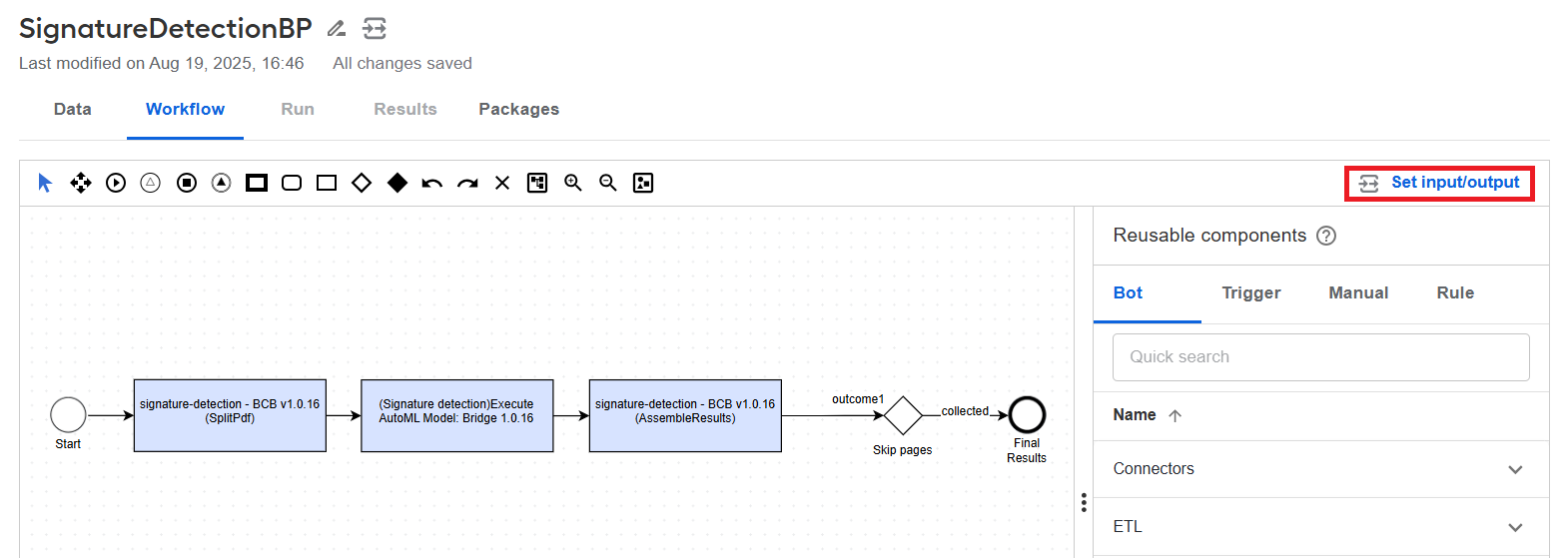
Click Regenerate input/output from steps.
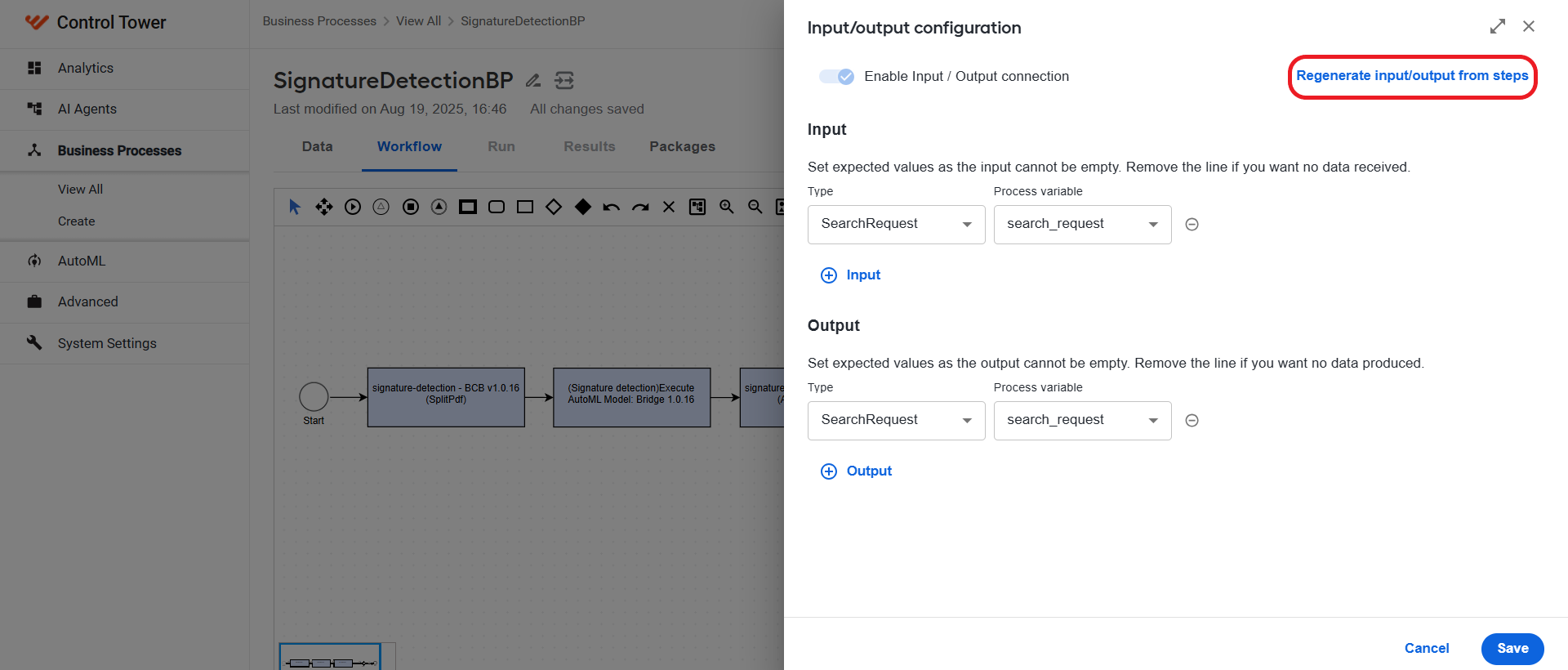
The Review and Apply configuration window appears where you can compare the current contract with the newly generated one.
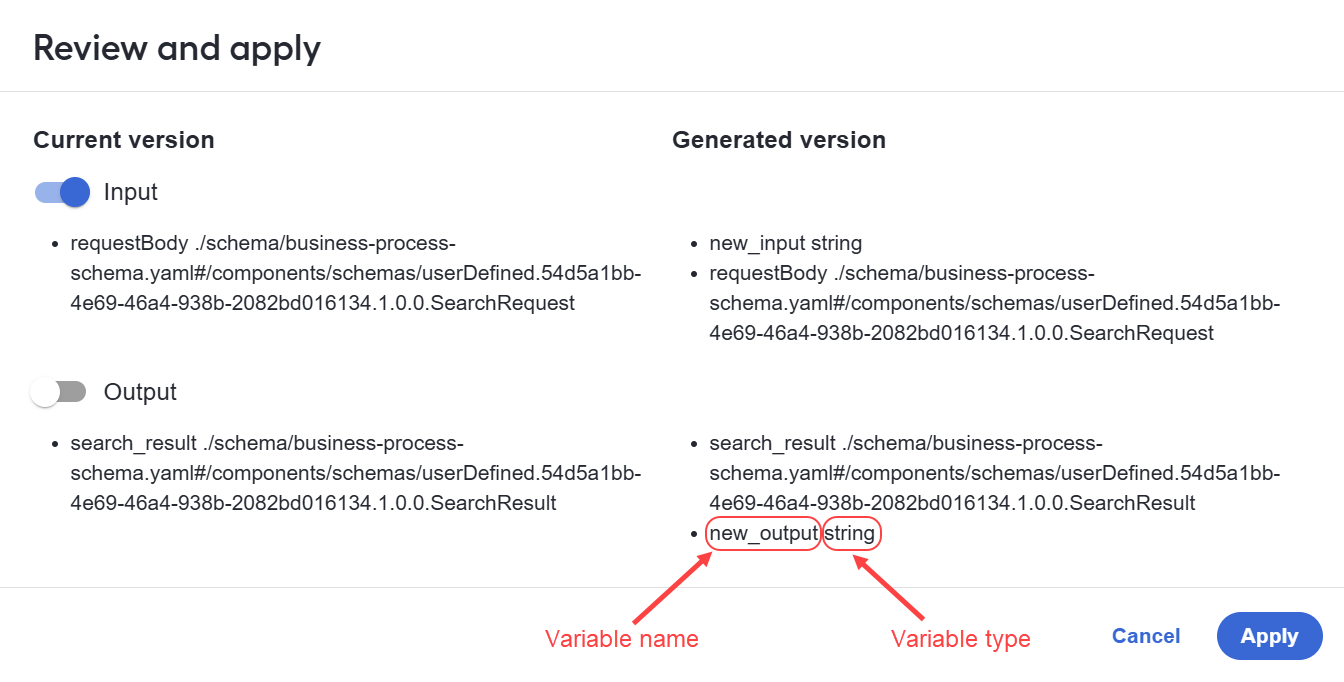
On the left side, you can see the current version of the BP-level contract with toggle options for selective updates. You can choose to apply only input changes, only output changes, or both (the default option).
On the right side, you can view the newly generated version of the contract to be applied.
Review the changes and click Apply.
Click Save to save the updated contract.
Assign BP-level contract to sub-process execution step
You can assign BP-level contracts to sub-process execution steps automatically. To enable automatic contract assignment, meet the following prerequisites:
Ensure the calling BP already has a defined BP-level contract.
Verify the BP you are currently editing is schema-based.
To apply automatic contract assignment, complete the following steps:
Open the Workflow editor for the BP.
Add a synchronous or asynchronous sub-process execution step to the workflow and double-click it to open the configuration window.
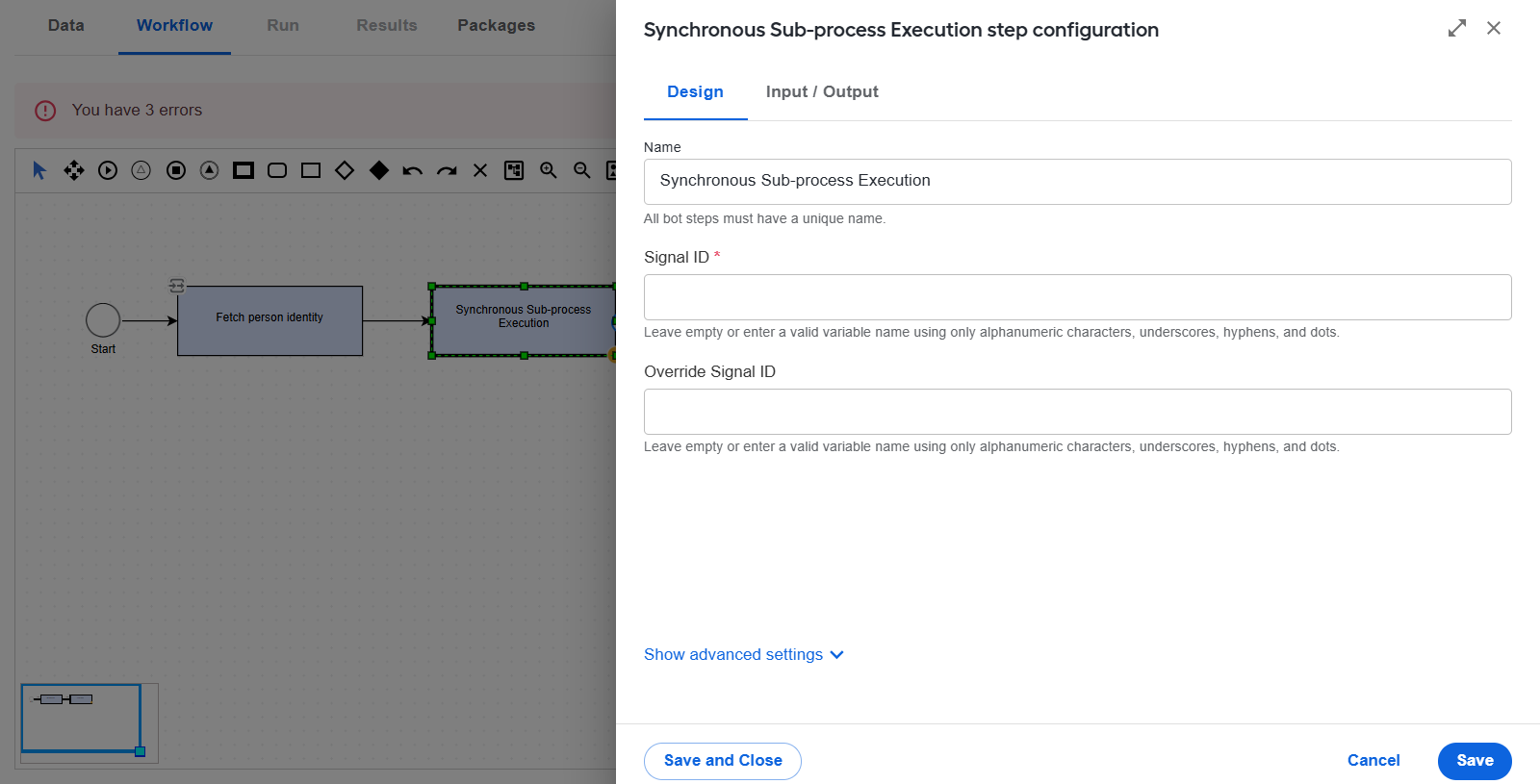
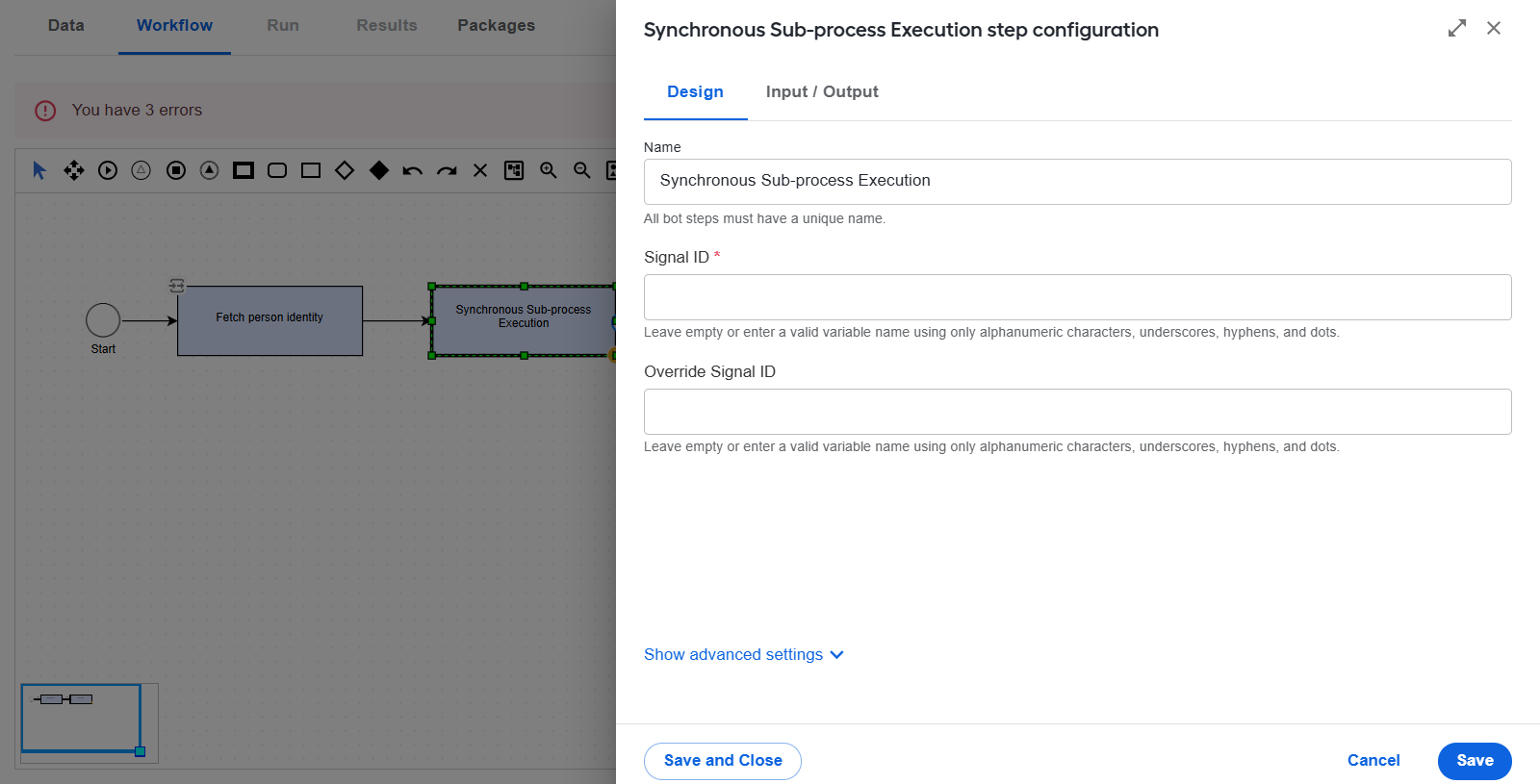
Enter or select the signal ID of the BP to which data should be sent.
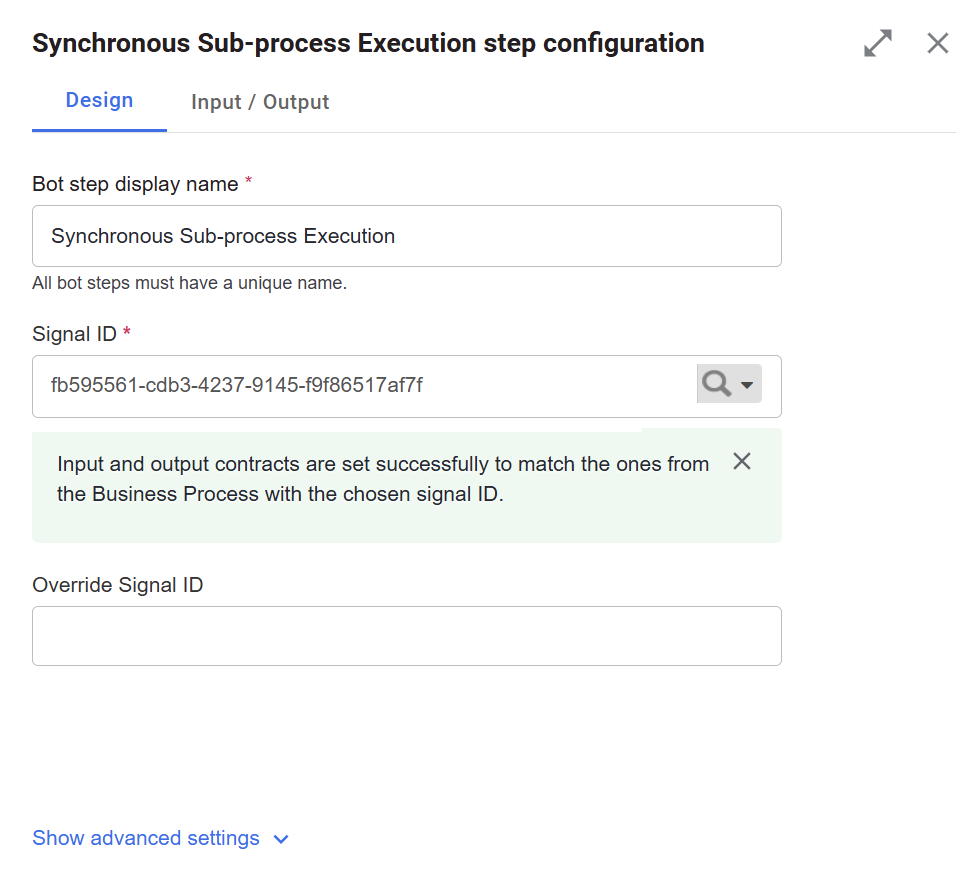
A notification appears indicating that a contract was automatically assigned. The Input/Output tab now displays the same contract as defined for the called BP on the BP level.
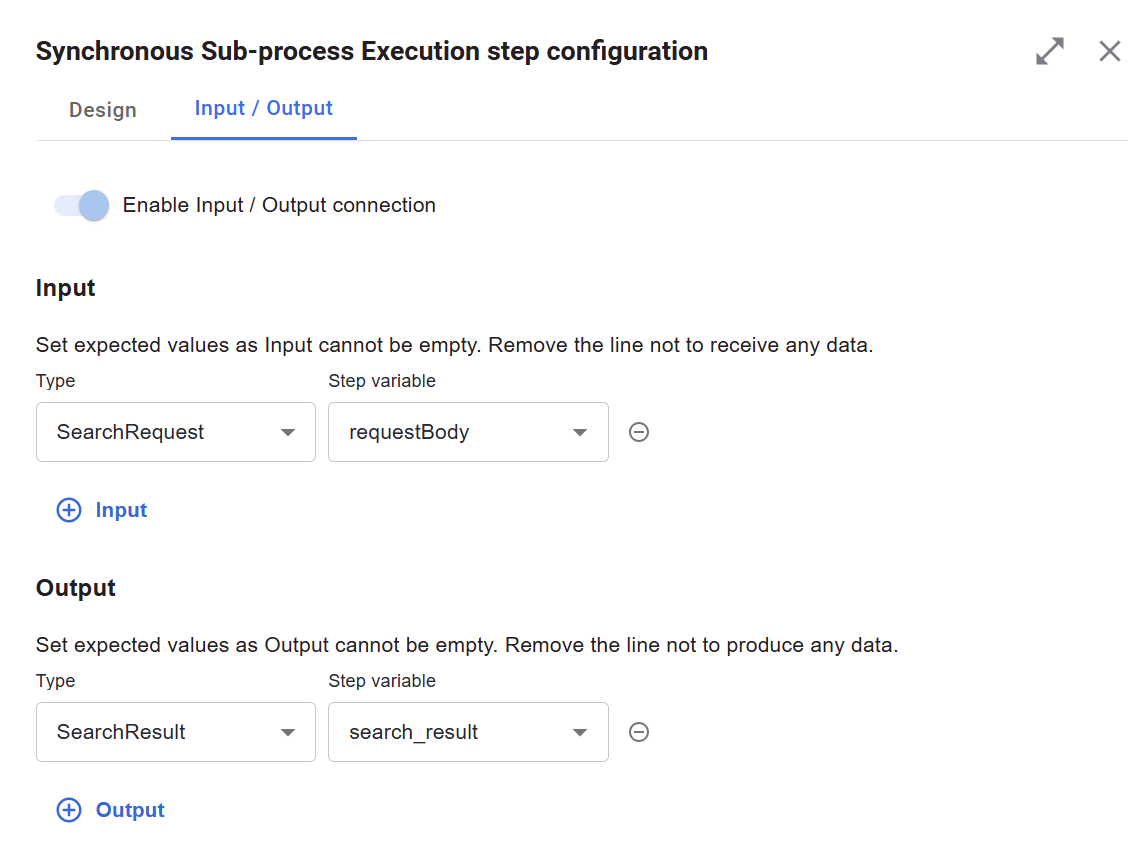
Click the Save button to save the step configuration.
Switch signal ID for existing sub-process execution step
If a sub-process step already has an assigned contract, it is not modified automatically when the signal ID changes. You will be prompted to confirm whether to update the contract:
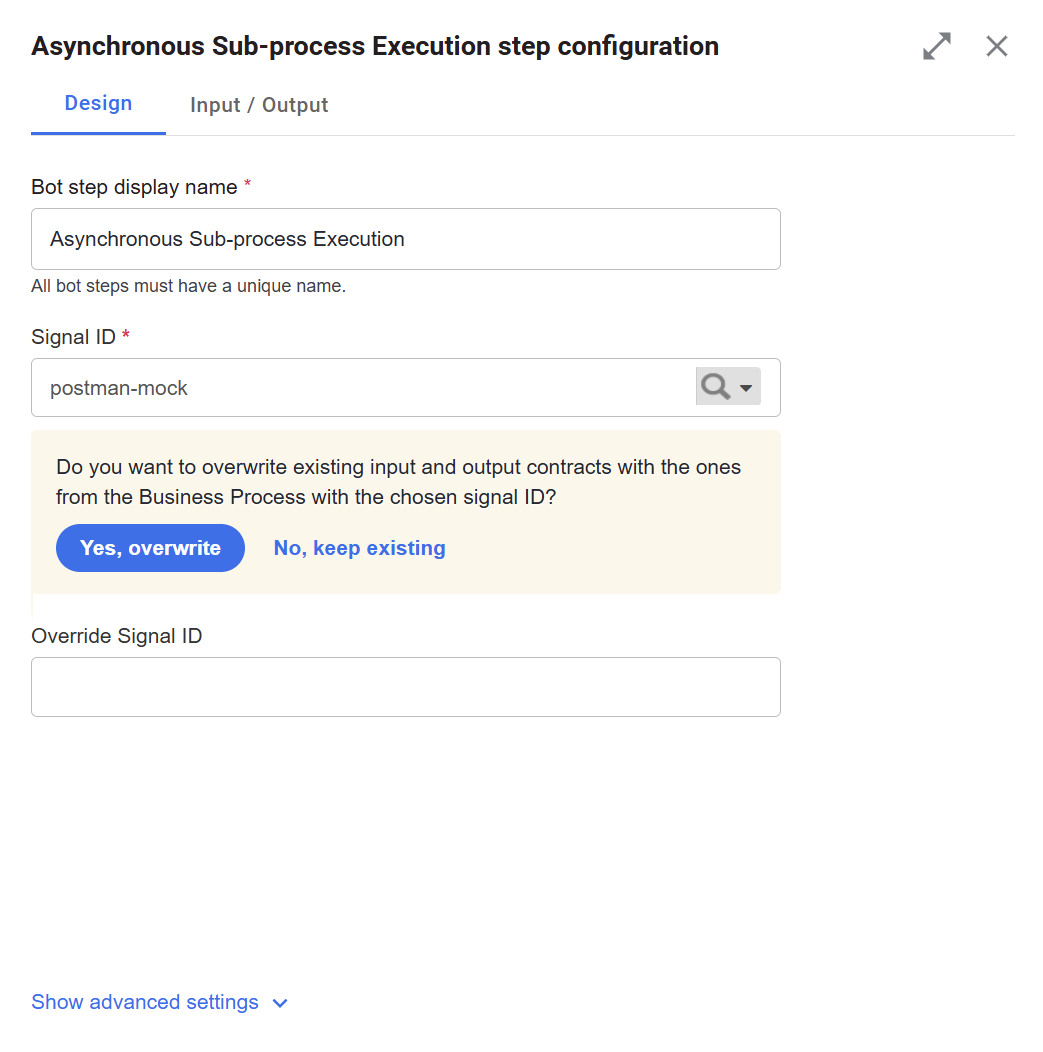
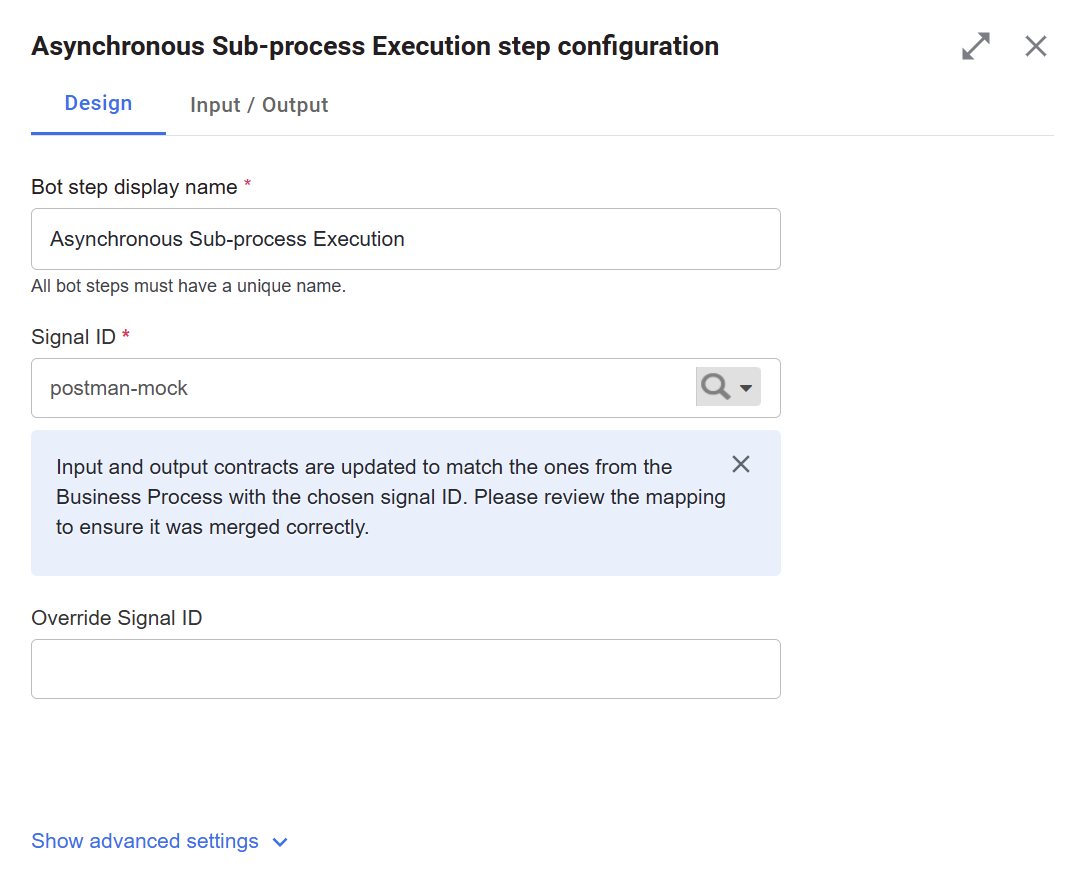
Select Yes, overwrite to replace the current contract with the BP-level contract from the target BP associated with the given signal ID.
 caution
If the step had existing variable mappings, the system attempts to preserve them. However, due to technical constraints, some mappings can be reset. Be sure to carefully review all mappings after applying the new contract.
Select No, keep existing to keep the contract as is.
Synchronize existing contract of sub-process execution step with BP-level contract
Changes made to a BP-level contract are not automatically propagated to connected sub-process execution steps. To synchronize the existing contract of a sub-process execution step with the BP-level contract, do as follows:
On the Workflow tab, open the relevant sub-process execution step. If the contracts are equivalent, no action is required. If the contracts differ, the following message appears: "Contracts for the step and the called process do not match. Do you want to overwrite the step contracts with the ones from the called process?"
Select one of the following options to proceed:
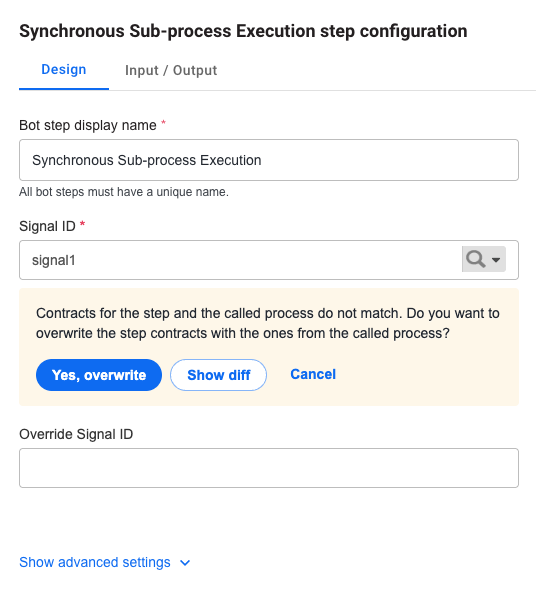
- Show diff to compare the step contract (Step input and Step output) with the BP-level contract (Called process input and Called process output). Click Hide diff to hide the differences.
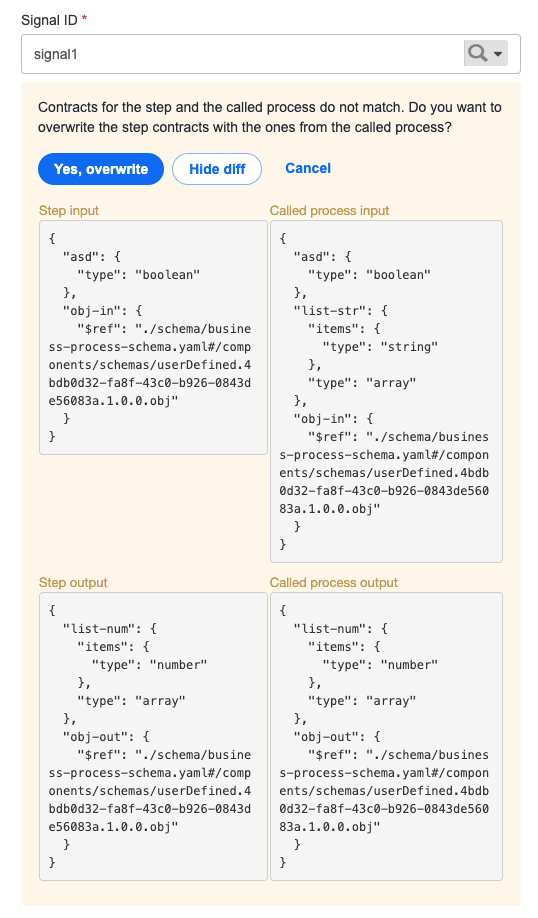
Yes, overwrite to manually update the existing step contract with the BP-level contract.
Cancel to discard the changes and leave the step contract unchanged.
FAQ
I created a contract for a step in a BP. Can I reuse the step with the contract in another BP?
Yes, if a step has an associated contract imported with an Asset Bundle, you can drag and drop the step to a BP diagram. The contract from the step is applied to the new step.
Also, if a step doesn’t have an imported contract, but you added a contract in the Control Tower user interface, the step can also be reused when you drag and drop it into a BP diagram.
Can I assign a contract to a Manual Task?
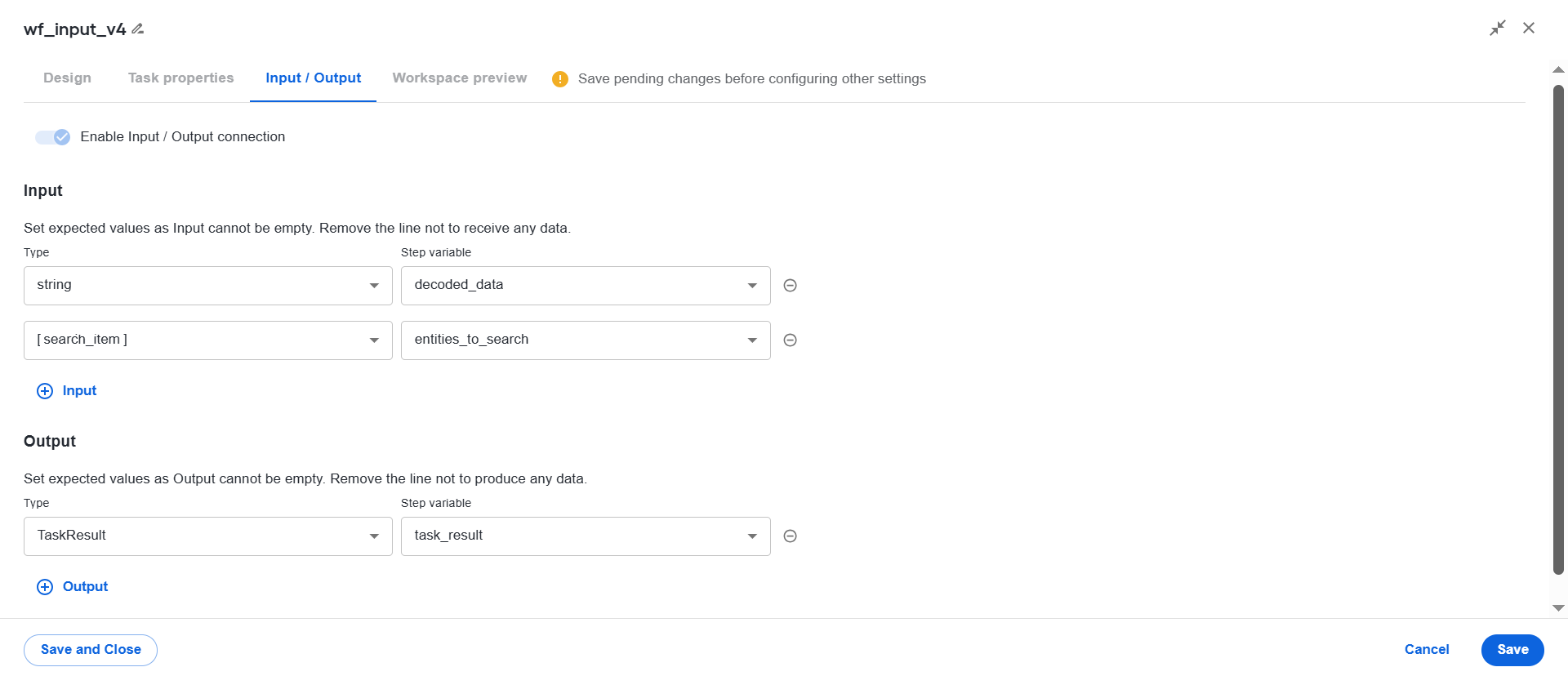
Yes, you can assign a contract to a Manual Task like to any bot step. See the example of input and output values for a Manual Task below.
Are contracts supported in event-based sub-process execution?
How are name conflicts prevented if I use two schemas in a BP with identical type names?
x-package and version. When you drag and drop a bot step to a BP, its types are prefixed with the original schema's x-package and version.Does the output contract restrict data in step results?
It depends. If you imported a bot step and did not modify anything on the Input / Output tab, the data step results are not restricted. If you made any changes to the contract, the data step results are restricted to the specified output contract.
Is stateless execution supported for a schema-based BP?
Stateless and pipelined execution are not currently supported for a schema-based BP.