Grouping models
Grouping is a mechanism, enabling developers to combine existing or new models into one artifact. The main goal is to reduce the number of Workers and minimize the start time on the cluster.
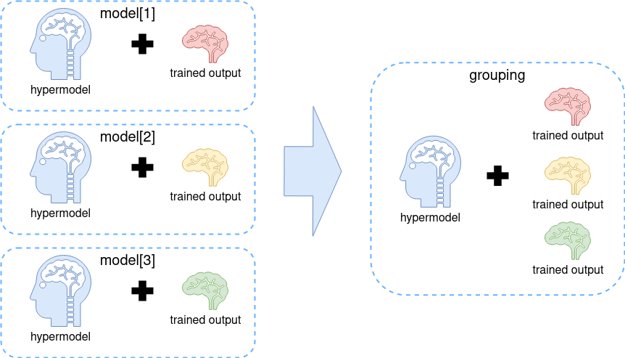
In the course of executing a grouping model, it is possible to run only one sub-model at a time.
To build a grouping model, perform the following steps:
Put all pipeline (hyper model) code into a single project. Note that you can employ only pipelines implemented with the same AutoML SDK version.
You can use an existing project or generate a new project from an AutoML classification archetype. Put all classes together, structuring them for ease of use and maintenance. For example, split them into packages or specify unique names based on your business logic.
Example 1
example-grouping-classification
├── src
│  └──  main
│      └── java
│         └── com
│            └── wf
│               └── example
│                  ├── grouping
│                  │   └── ExampleGroupingClassificationModel.java
│                  │
│                  ├── config
│                  │   ├── ExampleModel1Configuration.java
│                  │   ├── ExampleModel2Configuration.java
│                  │
│                  ├── model
│                  │   ├── ExampleModel1.java
│                  │   ├── ExampleModel2.java
│                              ...
└── pom.xml
Example 2
example-grouping-classification
├── src
│  └──  main
│      └── java
│         └── com
│            └── wf
│               └── example
│                  ├── grouping
│                  │   └── ExampleGroupingClassificationModel.java
│                  │
│                  ├── config
│                  │   ├── model1
│                  │   │   └── ExampleModelConfiguration.java
│                  │   ├── model2
│                  │   │   └── ExampleModelConfiguration.java
│                  │
│                  ├── model
│                  │   ├── model1
│                  │   │   └── ExampleModel.java
│                  │   ├── model2
│                  │   │   └── ExampleModel.java
│                              ...
└── pom.xml
Create a grouping model class.
Create any class to extend
com.workfusion.automl.hypermodel.classify.grouping.BaseGroupingClassificationHypermodel.Configure standard parameters and map each inner model class to execution ID (trained model id).@ModelDescription(
code = "grouping-classification-custom",
title = "Multi Class Classification - Grouping",
description = "Multi Class Classification - Grouping",
version = "1.0",
type = ModelType.CLASSIFICATION
)
@GroupMapping(groups = {
@Group(hypermodel = CustomModel1.class, model = "model1"),
@Group(hypermodel = CustomModel2.class, model = "model2")
})
@HypermodelConfiguration(GenericMultiClassificationHypermodelConfiguration.class)
public class ExampleGroupingClassificationModel extends BaseGroupingClassificationHypermodel {
public ExampleGroupingClassificationModel() {
}
}Collect trained models into a single folder.
If any trained model already exists in S3, download it into a single folder, structuring as shown below. Otherwise, train each model separately and do as instructed in the preceding sentence.
download_folder
│
├── model1
│  └── ouput
│     ├── model
│     ├── statistics
│         ...
│     └── model-info.json
│
└── model2
   └── ouput
      ├── model
      ├── statistics
      ...
      └── model-info.json
      ```
Train the grouping model. Use the folder from step 3 as the input.
public class ModelTrainingRunner {
    public static void main(String[] args) throws Exception {
        Path inputDirPath = Paths.get("path to the folder with trained models");
        Path outputDirPath = Paths.get("path to the output folder");
        LocalTrainingConfiguration configuration = LocalTrainingConfiguration.builder()
            .inputDir(inputDirPath)
            .outputDir(outputDirPath)
            .id("grouping_model")
            .build();
    ModelRunner.run(ExampleGroupingClassificationModel.class, configuration);
    }
}
After the training, you can execute each model locally, passing an additional parameter (
trained model id).Change the model's code in
pom.xml.<configuration>
<mainClass>com.workfusion.nlp.uima.hypermodel.HypermodelArtifactBuilder</mainClass>
<arguments>
<argument>grouping-classification-custom</argument> <!-- change here -->
<argument>${hypermodel.output.dir}</argument>
<argument>${project.groupId}:${project.artifactId}:${project.version}</argument>
</arguments>
</configuration>Deploy the model to Control Tower as described in the guide.
In your Business Process, modify the model parameters in the configuration window of the Model step to pass the additional
trained sub-model idparameter in each execution request.
To open the configuration window, double-click the Model step in the Business Process flow.