Add CSS rules
To customize the answer style, complete the following steps:
While adding or editing the answer, enter a CSS class name in the CSS Rules field, for example,
myAnswerClass.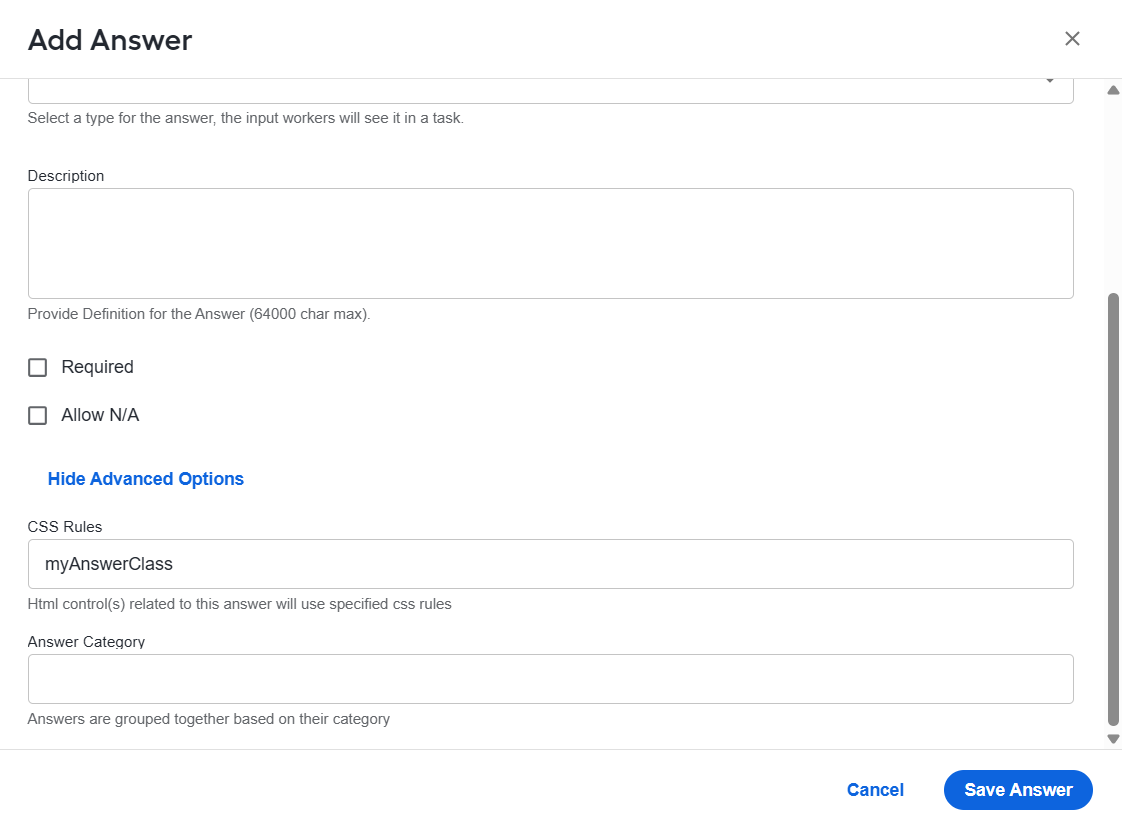
Click Save Answer.
In Code Editor, add a
<style></style>section.Inside the style section, write your CSS code for this class, for example,
.myAnswerClass {color:red;}.
To configure the sub-answer behavior and style, do as follows:
- While adding or editing the sub-answer, enter a CSS class name in the CSS Rules field along with
expand:on(Parent_Answer_Option_Value). IfParent_Answer_Option_Valueis selected in the main (parent) answer, the sub-answer will be displayed. Otherwise, it remains hidden, for example,mySubAnswerClass expand:on(1). - Complete steps 2-4 from the previous procedure.
By default, a sub-answer inherits all styles from its parent answer.
If you omit expand:on(Parent_Answer_Option_Value) in the CSS Rules field, the sub-answer is always displayed and behaves like a regular answer.
See the code for custom styling:
<style>
    .myAnswerClass {
        color: red;
    }
    .myAnswerClass .answerInput {
        color: black;
    }
    .myAnswerClass .na-check {
        outline: 2px solid green;
    }
    .myAnswerClass .instructions {
        color: blue;
    }
    .mySubAnswerClass
    {
        outline: 2px dashed violet;
    }
</style>