Table scraping
Example overview
Problem statement
Often, information on websites is stored in the form of tables. As this format is inconvenient for automation, Excel files are used to store tables. But copying information from a web page to an XLSX file takes a lot of time each time. So, you need a use case that can transfer information from a web table to an Excel spreadsheet, and this example is as follows.
Existing manual process
To scrap a web table, open a website with a table, select a table, and copy and paste it into an Excel file. In your own project, when you need an updated table for every script run, you will start thinking about automating this action.
Automation solution
The example uses standard XPaths for the web table and a variable of the Table type. In this case, you have three steps: open the website, get the table data line by line, and go to the next page (to scrap more than one page). After the third step, you return to the previous step. On receiving the table, you create a new XLSX file (using the standard Run application and Excel), or open an existing file and save the table in a specific place in the file.
Reusable components
In this example, there are two reusable components:
- Scrape a table from a website and save it to a variable of the Table type.
- Create an empty XLSX file.
Preconditions
Before you start working, ensure all the requirements are met:
- Install Work.AI Developer.
- Download the example.
Getting started
To get started, perform the following actions:
- Extract the
Table scrapingfolder and drop it into your workspace:C:/Users/name/workfusion-workspace2/rpae_project. - Open the sample in Recorder.
- Set default values for the following variables:
str_table_xpath: the XPath to a table element on the page.str_btn_next_xpath(optional): the XPath to the next page button.num_how_pages: the number of pages you want to scrap. If you scrap only one page, set the value "1" for this variable, and you cannot set the value forstr_btn_next_xpath.str_xlsx_file_path: the XPath to the directory to create a new XLSX file or open an existing one, for example,C:/TablesFolder(without a slash at the end).str_xlsx_file_name: the filename. If a file with that name does not exist, it is created, for example, testFile (without a format at the end).
- Click Play recording.
Script overview
On a high level, the script consists of the following actions.
- Open the website.
- Get the table data line by line.
- Create an XLSX file and save the table.
Let's explore these steps in detail.
Script workflow
Scrape table from website and save to Table variable
This reusable item helps you quickly retrieve data from a table on a web page and save this data in the Excel format. You can use this usage scenario in your project, for example, to collect data from a website, save tables in an Excel file and compare the data.
The Open Website action opens a website or a page with a table for cleaning, but it uses exception blocks to check the browser installed on your computer, and if it cannot find the first browser, it launches the next one. The URL must be specified in the
str_websitevariable.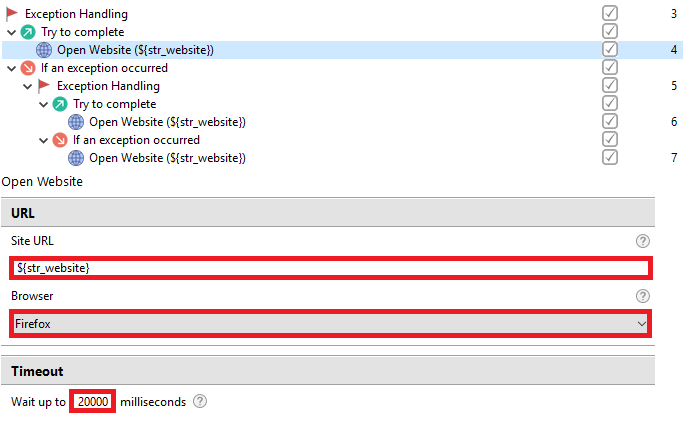
The Switch to Browser action switches to an open browser.

Scrape a table from the website and save it to a variable of Table type (reusable). The reusable element gets the text data from the table on the web page and copies it into a variable of the Table type. The group must be inside the Open Website or Switch to Browser action.
noteInput data:
str_table_xpath: the XPath to the table element on the page.str_btn_next_xpath(optional): the XPath to the next page button.num_how_pages: the number of pages you want to scrap. If you want to scrap only one page, set the value "1" for the variable and you cannot set the valuestr_btn_next_xpath.
Output data:
table_result: the type of the Table variable with data from a table or tables.
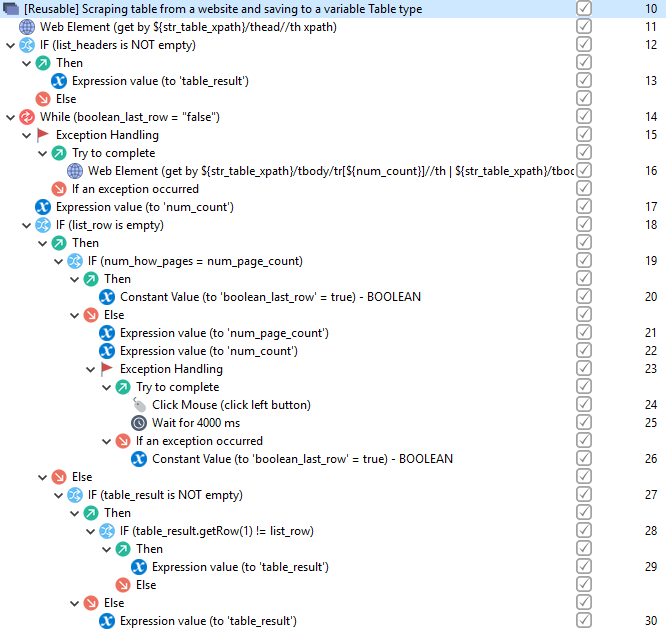
The Web Element action gets the table headers and saves them as a list in the
list_headersvariable. Thestr_table_xpathvariable contains the XPath of the table on the page.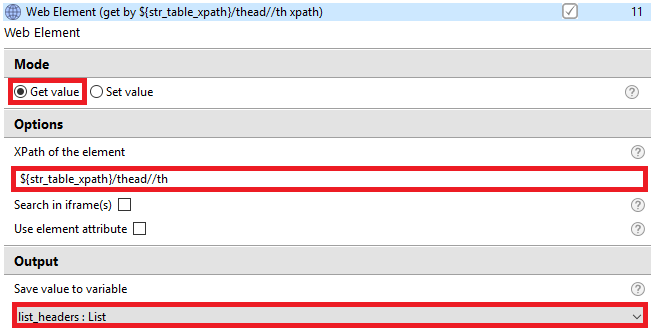
The condition checks whether the list with headers is empty. Some tables may contain headings in the
tbodyelement, not inthead.
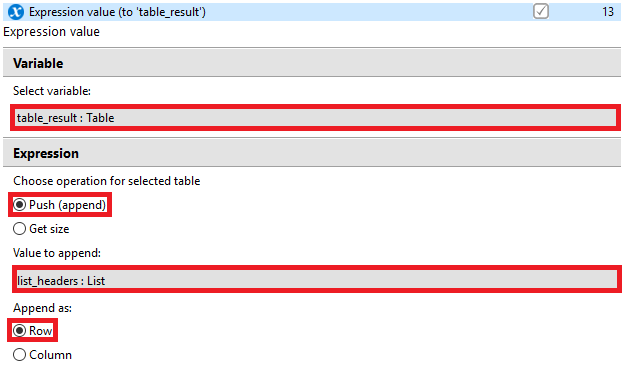
The Expression Value action adds the list with headers to the result table as a row.
The While cycle repeats the actions until the last row in the table on the last page is processed. When the expression inside the loop returns
false, it goes to the next step after the loop.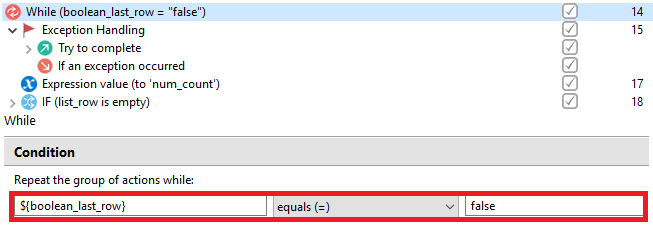
The Exception Handling block is needed to catch an error while retrieving data about a row.

The Web Element action gets the information about the current row and saves them as a list in the
list_rowvariable. Thestr_table_xpathvariable should contain the XPath of the table on the page.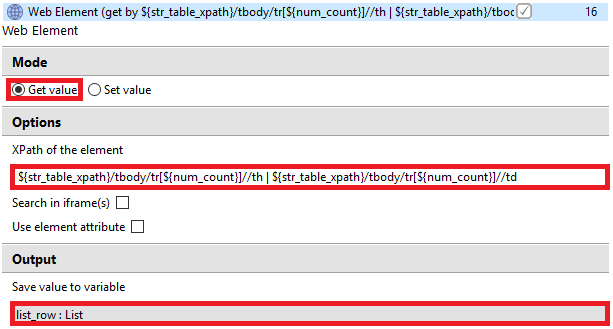
The Expression Value action increments the
num_countvariable by one to work with the next line in the next loop step.
The condition checks whether the list with row data is empty. If the expression inside the IF block returns
true, go to the next page or finish the work. If it returnsfalse, add a new row to the table.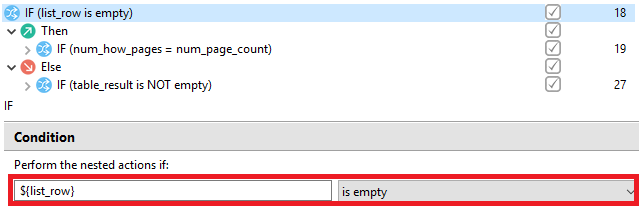
The condition checks whether this page was the last. If it is
true, finish the work, but if it isfalse, go to the next page.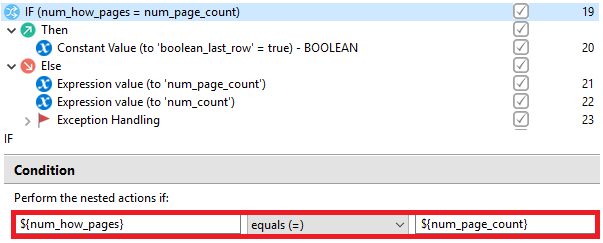
The Constant Value action sets the opposite value to the
boolean_last_rowvariable and, as a result, the while loop stops its operation.
If the current page was not the last, increase the variable
num_page_countby 1. Thenum_page_countvariable contains the number of the current page.
The action updates the
num_countvariable, since on the next page, start processing the page from the first line.
The Exception Handling block is necessary to catch the error when you click the button to go to the next page. If you catch this error, the
boolean_last_rowvariable is changed to negative to stop the cycle.
The Mouse Click action is required to click a button to go to the next page. The
str_btn_next_xpathvariable should contain the XPath of the next page button. If the button does not exist, leave this variable empty.
The Constant Value action sets the opposite value to the
boolean_last_rowvariable and, as a result, the while loop stops its operation.
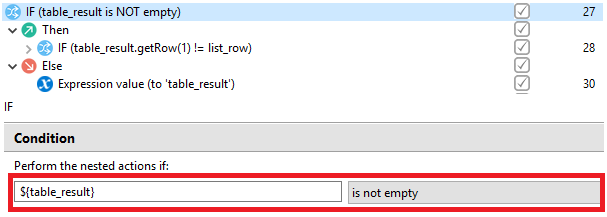
The condition checks whether the table is empty. If the table is empty, it adds the current row to it. If it is not empty, the next check is started.
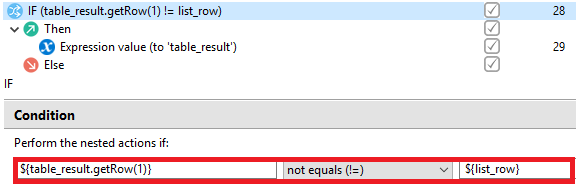
When scraping two or more pages, you have to check the lines to match the line with headings. Without this check, there is more than one line with headings in the result table.
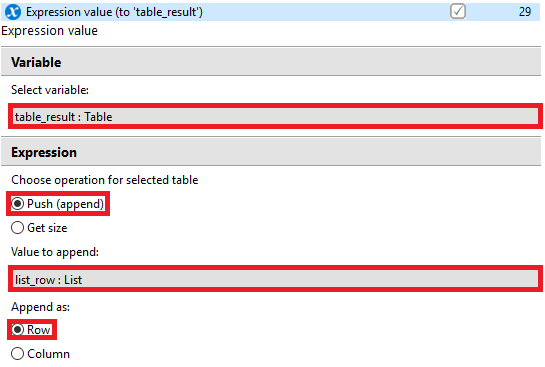
The Expression Value action adds the list with row data to the result table as a row.
Create Excel file and save results
Description: In this part, create an Excel file to save the table. You can use this algorithm in your projects, add steps between creating an Excel file and saving the result, and use these parts separately.
Create an empty XLSX file (reusable). The action creates an empty XLSX file. This reusable element is useful in your projects, as you cannot create a file in the Excel format using cmd. Also, it allows you not to create an XLSX file before each example run.
The example helps solve the problem when you don’t know whether to create a file. Before starting projects with this case, Excel should be closed.
Input datastr_xlsx_file_path: the path to the directory to create a new XLSX file or open an existing one, for example,C:/TablesFolder(without a slash at the end).str_xlsx_file_name: the filename. If a file with that name does not exist, it is created, for example, testFile (without a format at the end).
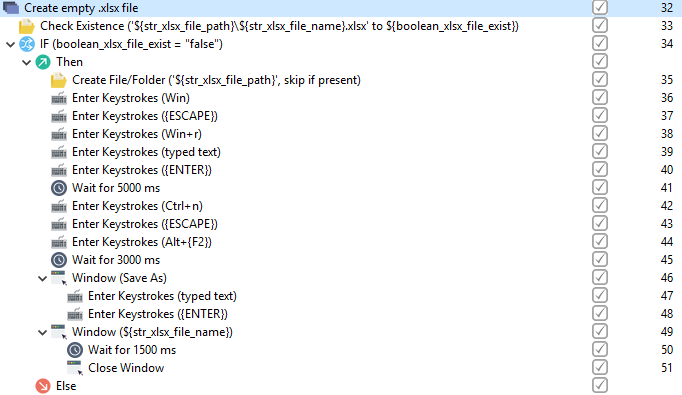
The Check Existence action checks if the file you want to create exists and stores the result in the
boolean_xlsx_file_existvariable. The Path to file or folder field specifies the path to the file from the directory path and filename.
The condition compares the
boolean_xlsx_file_existvariable withfalse. If the expression returnstrue, a new XLSX file is created.
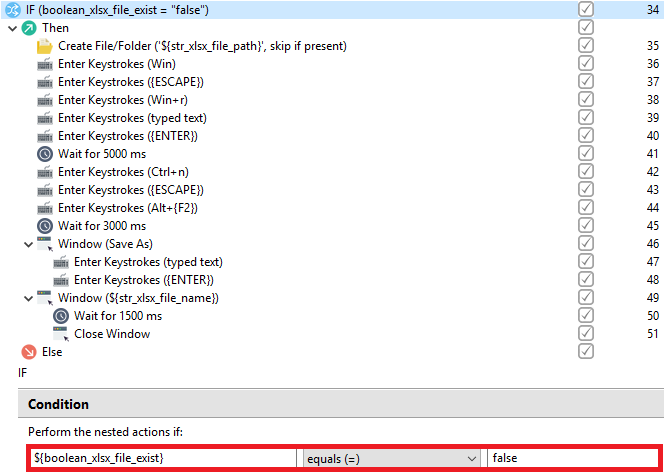
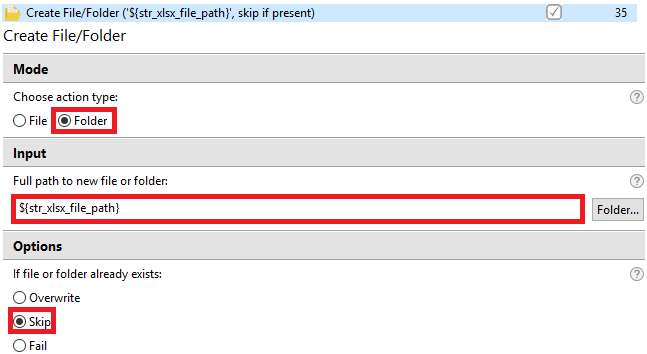
The Create File/Folder action is necessary to create a folder if the path to the folder in which you want to create a new Excel file does not exist. In the If file or folder already exists field, select skip. If the folder exists, proceed to the next step.
The Enter Keystrokes combination allows you to switch to the desktop, as afterward the
Win+Rcombination is used.
The action calls the Run window, types the command to open Excel with an additional parameter, and presses Enter.
/ p"directory path"is the default path to save the file.
The Wait action sets the waiting period to 5 seconds (5,000 ms), providing time to start Excel.

The Enter Keystrokes
Ctrl+ncombination opens the table if it is not created. If Excel is opened on the home page, the combination does nothing, so press the Escape button to exit the table initial page.
Press the Enter Keystrokes combination to open the Save As window and wait for three seconds to open this window.

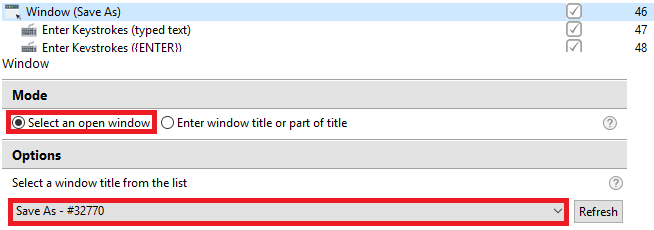
The Window action switches to the Save As window using the Select an open window mode.
The Enter Keystrokes actions type the filename as you set the default path at startup and press Enter.

The Window action switches to the window with the filename in the title, using the Enter window title or part of title mode.

The Wait and Close Window actions wait to switch to the Excel window and close it.

The Open Spreadsheet action opens the XLSX file to save the scraped table. Do not forget to check the Save file after the last action option.

The Set Range action sets the type of the Table variable in the range that you specified in Options. In this example, set the
table_resultvariable as the variable contains the scraped data. If the To cell field is empty, the value is set automatically using the table dimensions.